Tech is Easy
How to Use Your Phone as a Webcam for PC (Phone Link)
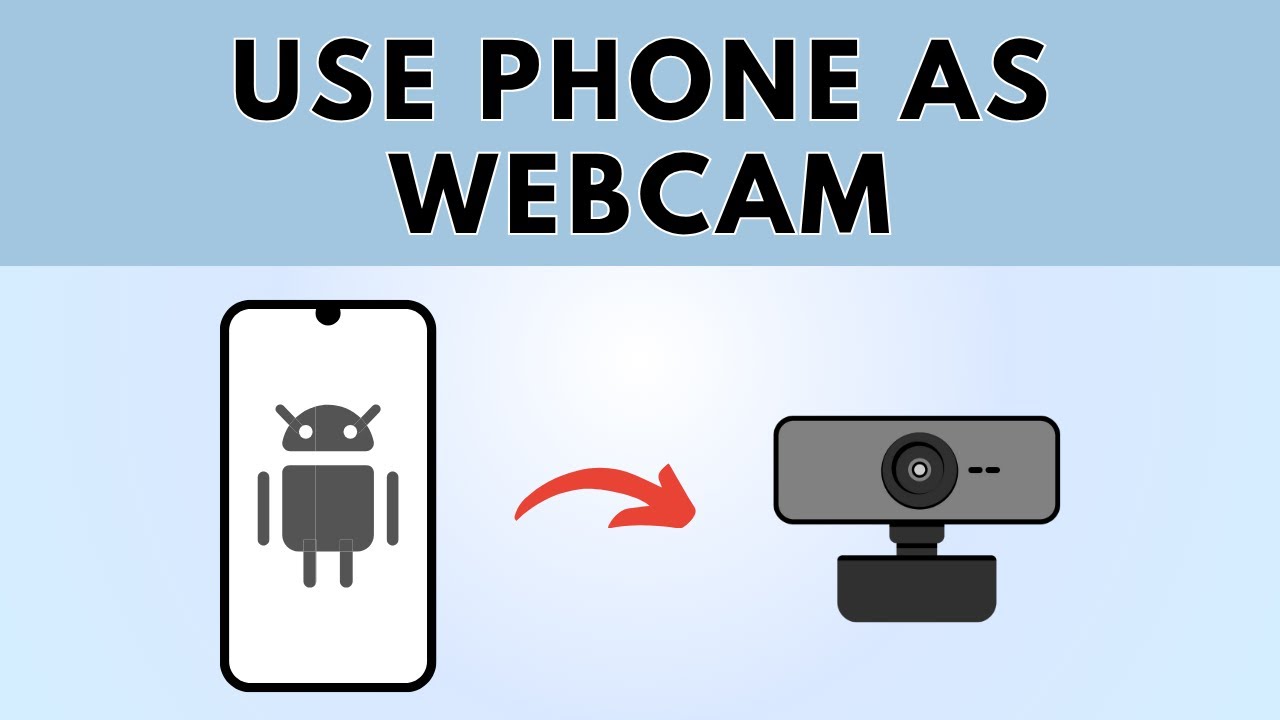
To use your phone as a webcam for your PC, link your Android phone to Windows in Settings > Bluetooth & devices > Mobile devices, turn on Use as a connected camera, then choose your phone as the camera in your video call app. It works over Wi-Fi with the free Link to Windows app, so you do not need a cable or a separate webcam app. This is handy if your laptop camera is poor or your desktop PC has no webcam at all.
What you need
- A Windows PC and an Android phone, both on Wi-Fi
- The Link to Windows app on the phone (many phones already have it)
- A Microsoft account
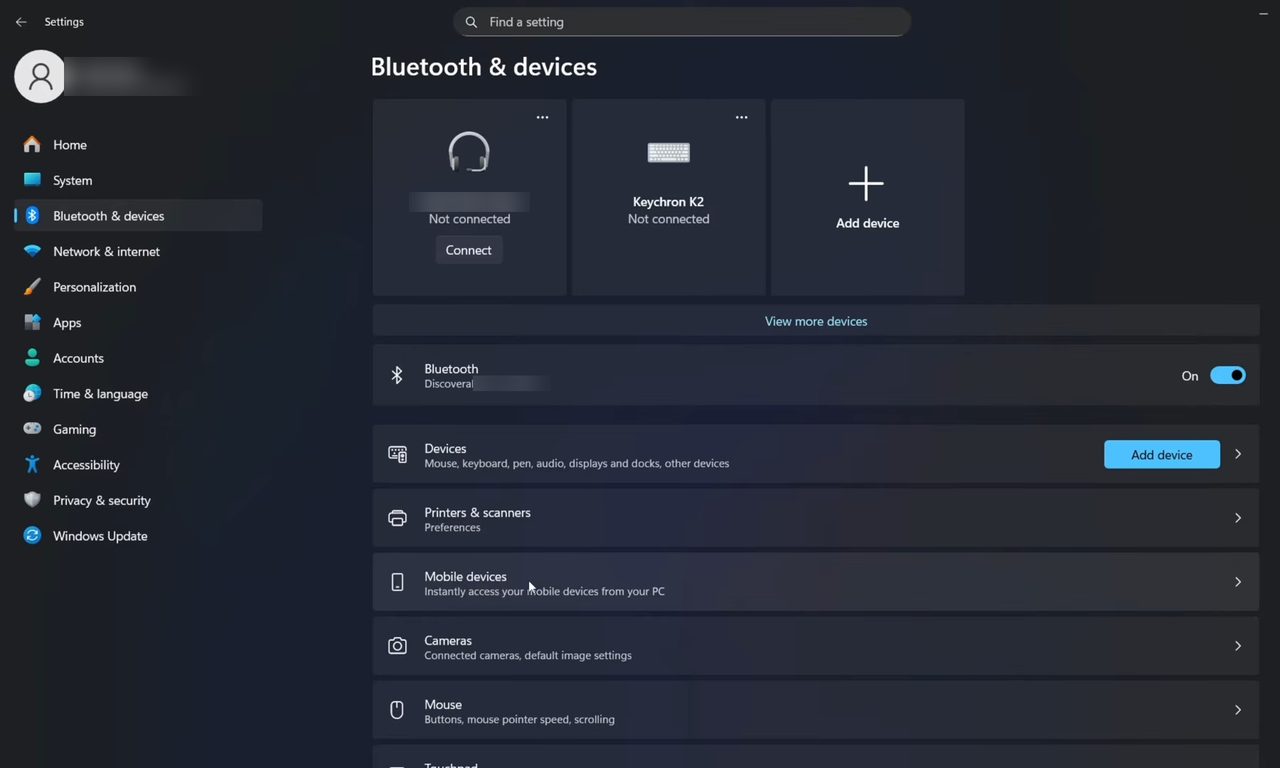
1Open Mobile devices in Settings
On your PC, open Settings and go to Bluetooth & devices. Scroll down and click Mobile devices.
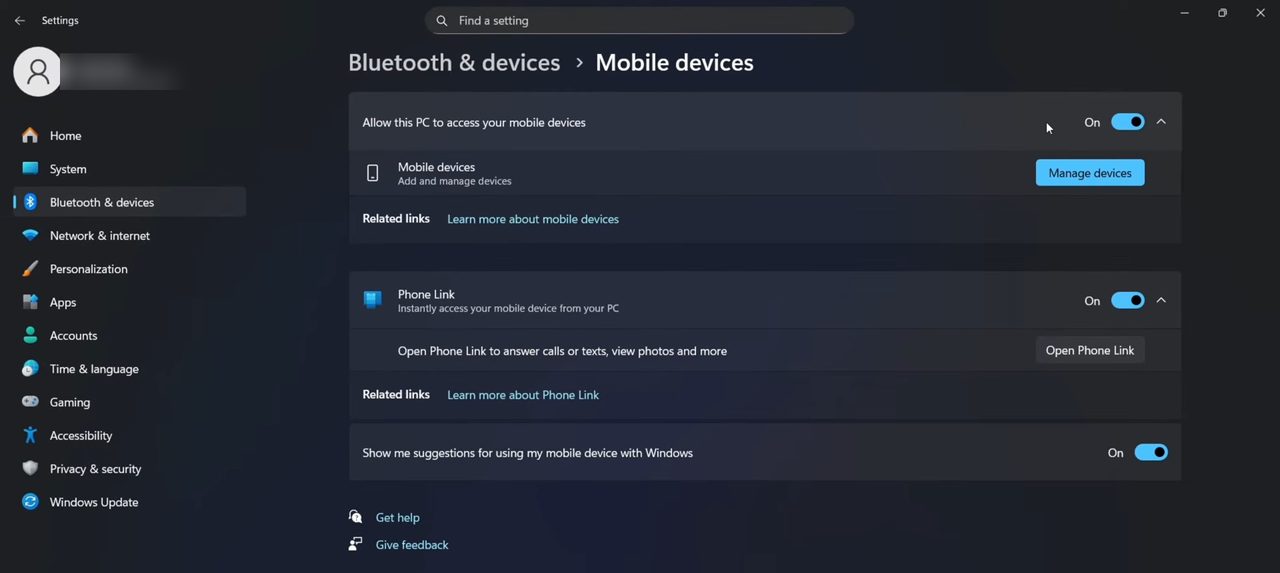
2Allow your PC to access your mobile devices
Turn on the first option, Allow this PC to access your mobile devices. It is off by default. Then click Manage devices.
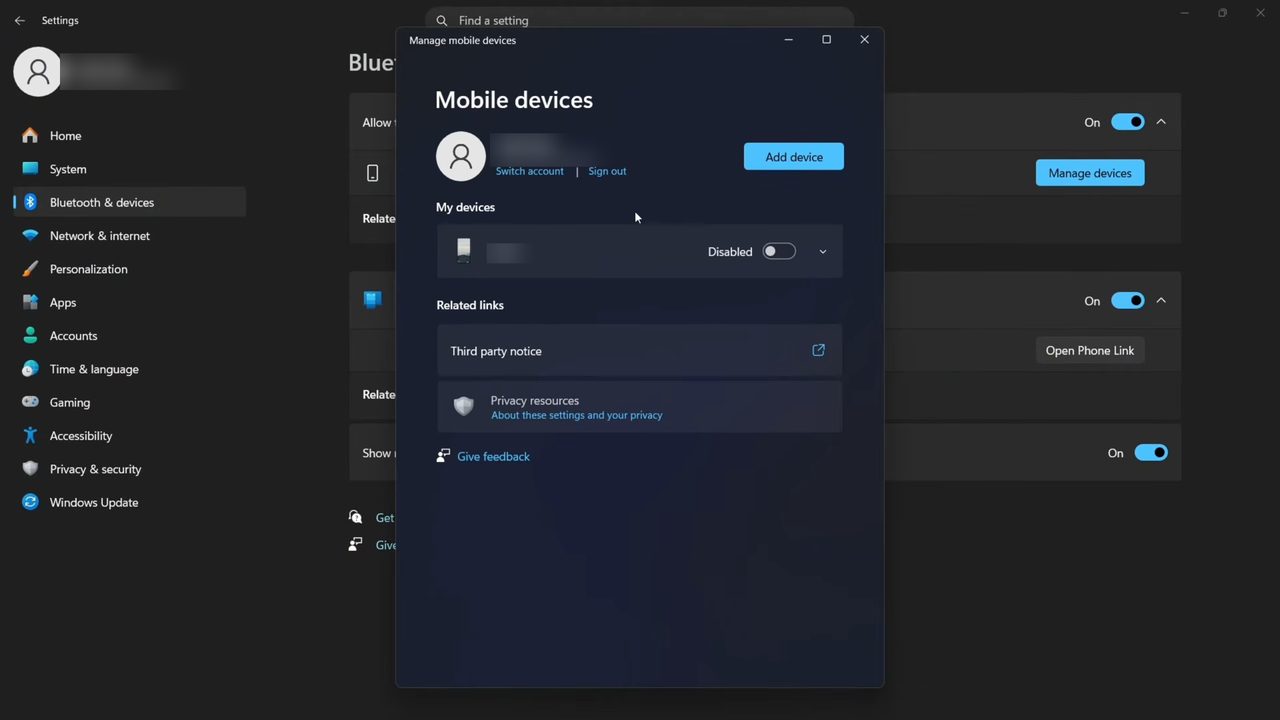
3Click Add device
If you have linked your phone before, it is listed under My devices. If not, click Add device at the top of the window.
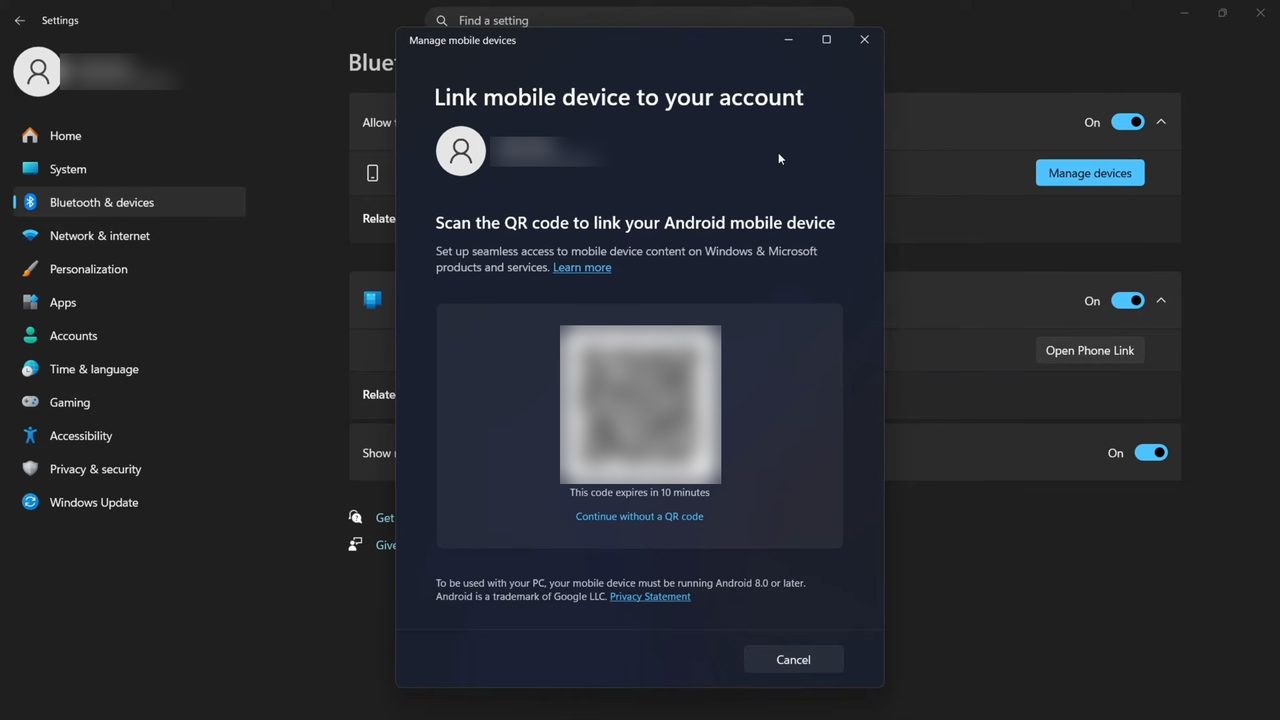
4Get the QR code
Windows shows a Link mobile device to your account screen with a QR code. Leave it open; you will scan it with your phone.
5Open Link to Windows on your phone
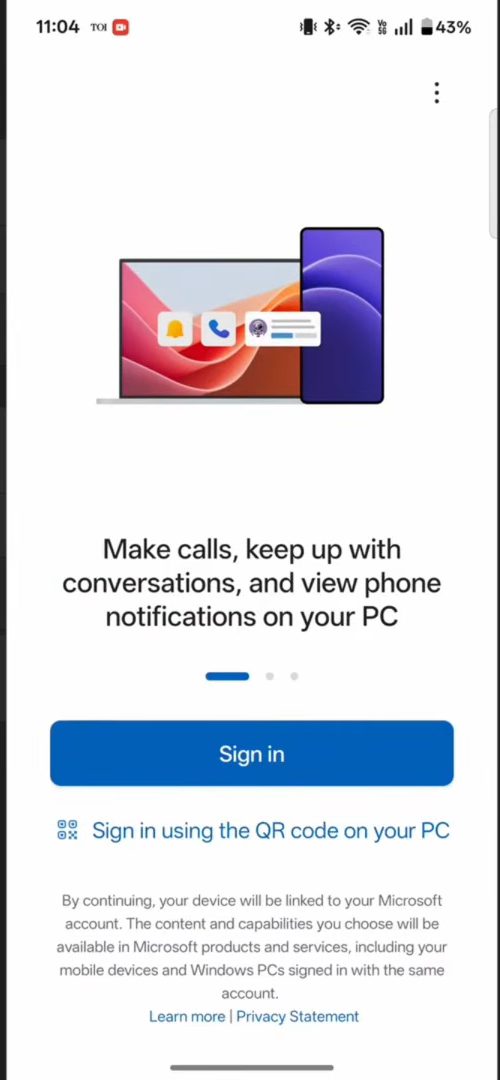
On your phone, open the Play Store, search for Link to Windows and install it if it is missing, then open it. Tap Sign in using the QR code on your PC and scan the code on your screen.
6Finish linking the devices
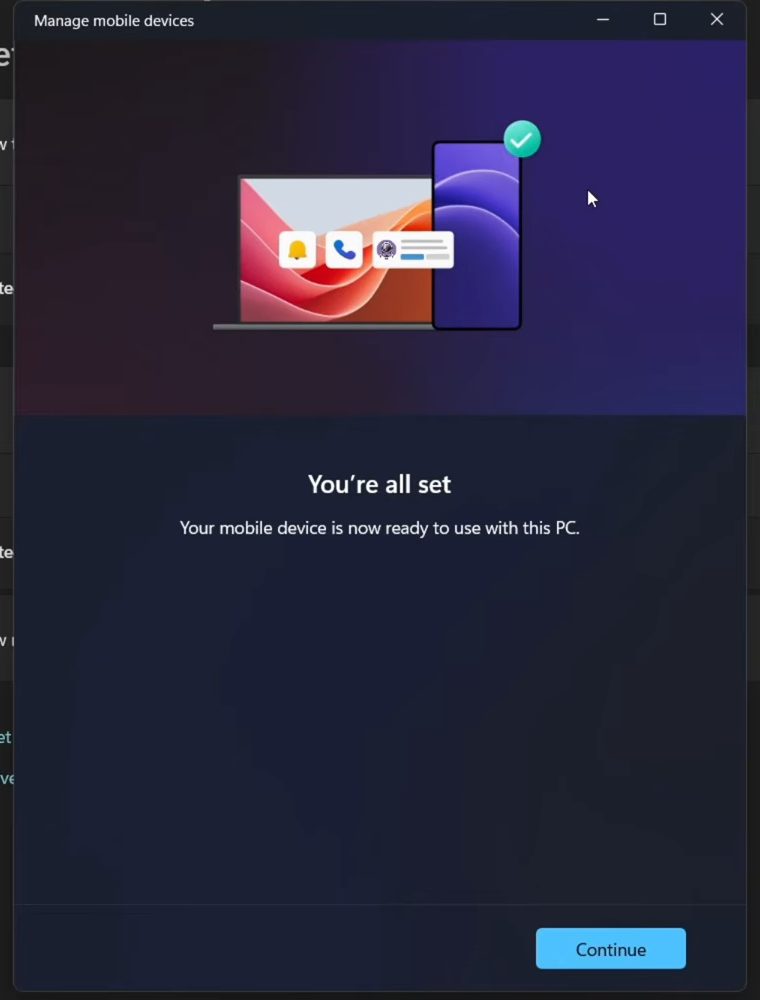
Tap Continue, type in the code shown on your PC, then enter your Microsoft account password on the phone. When the PC shows You're all set, tap Continue on the phone too.
7Turn on Use as a connected camera
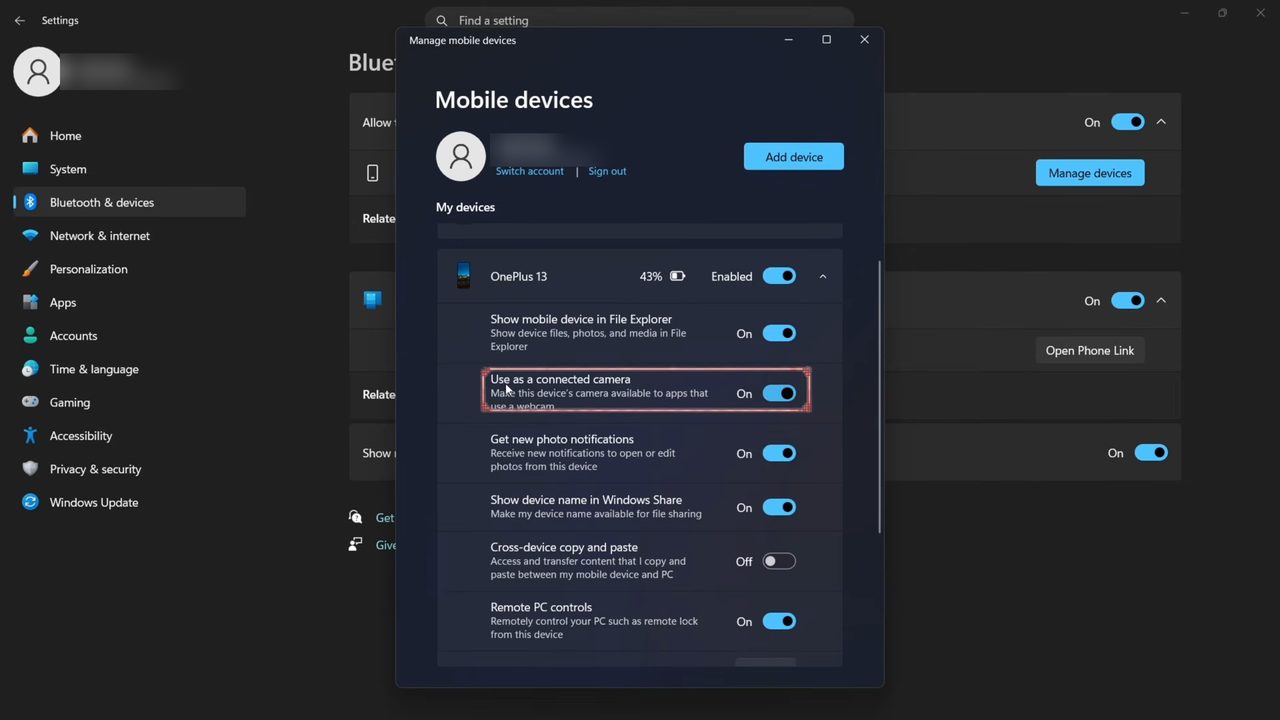
Back in the Mobile devices window on your PC, make sure your phone is Enabled. Under it you will see several settings. The one that matters here is Use as a connected camera, which makes the phone's camera available to apps that use a webcam. Switch it On.
8Select your phone in your video call app
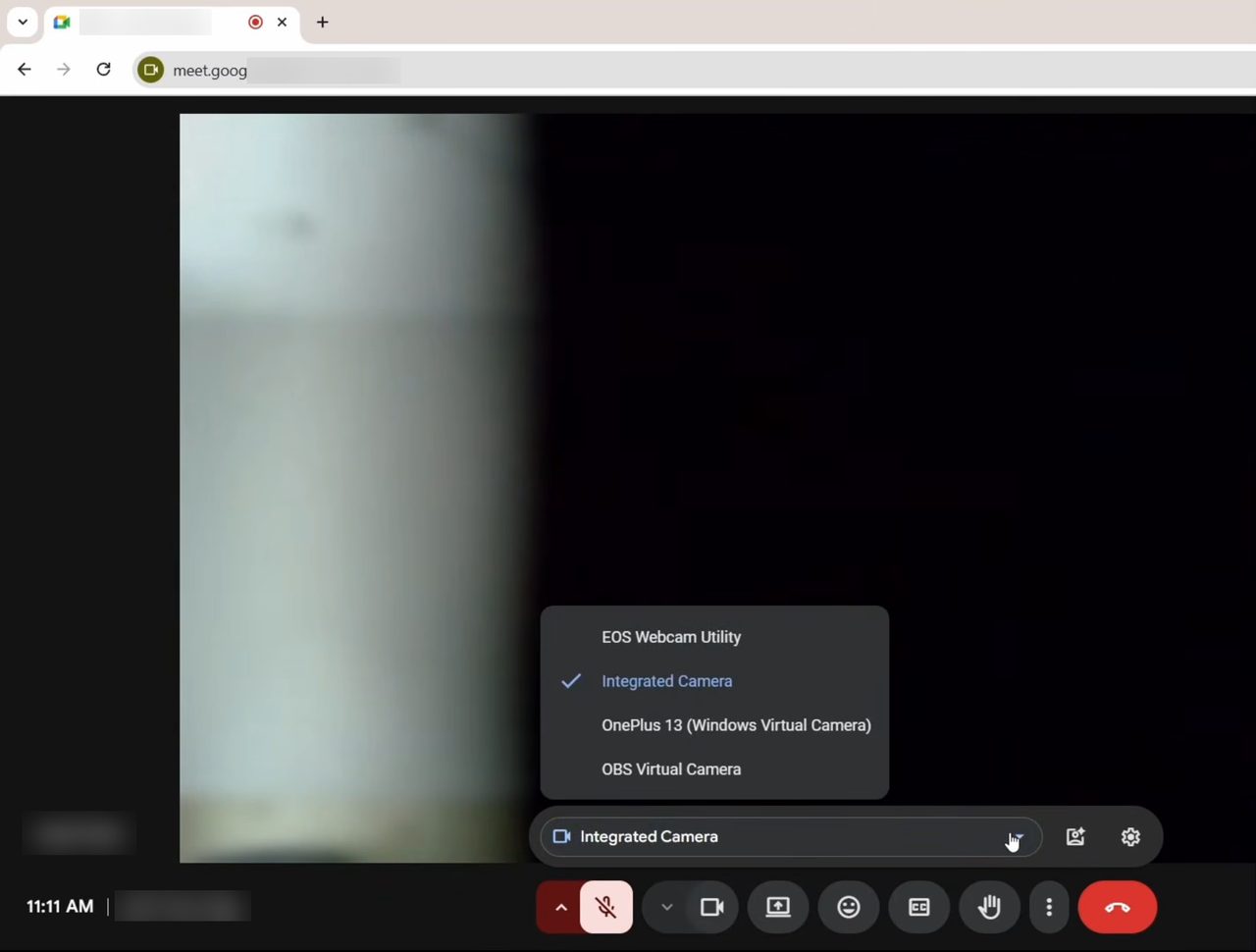
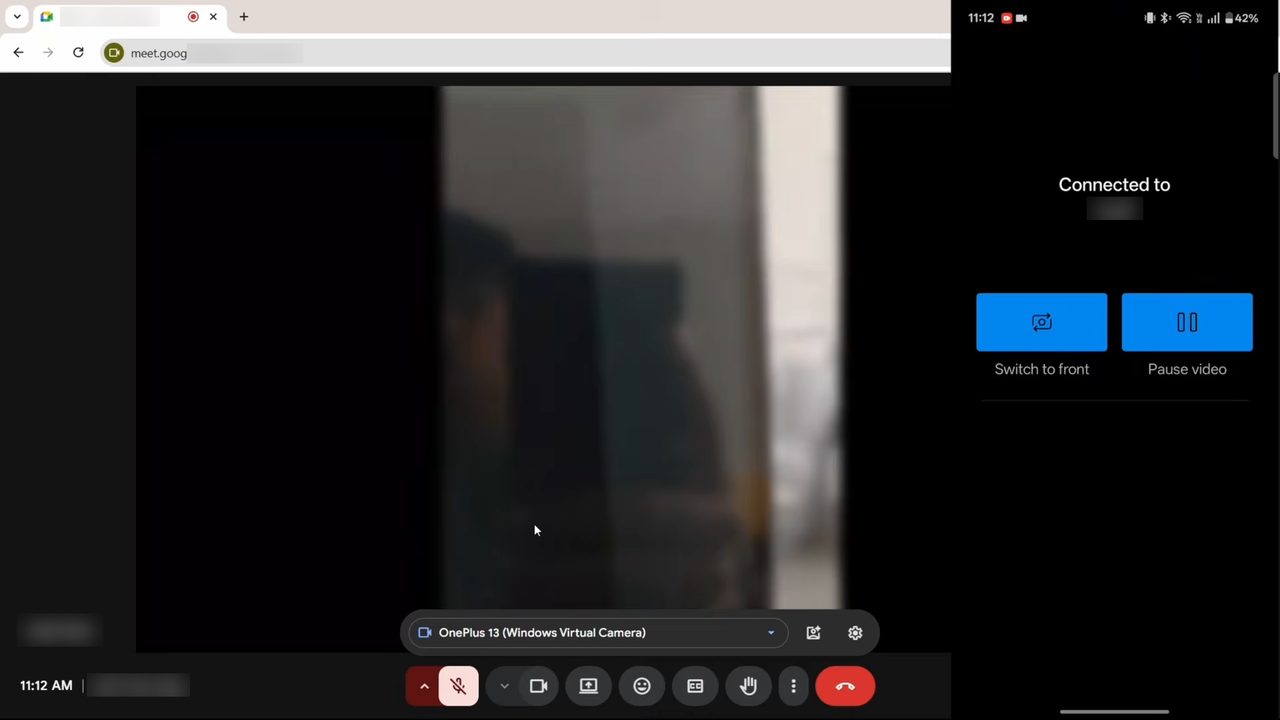
Keep both devices on Wi-Fi. Open your call app; we used Google Meet. Open the camera list (in Meet, the camera dropdown next to the video settings) and pick your phone, which shows up as something like OnePlus 13 (Windows Virtual Camera).
9Switch between the front and back camera
The call now uses your phone's camera. Your phone shows a Connected to screen with two buttons: Switch to front (or Switch to back) flips the camera, and Pause video stops the feed for a moment.
Tips / troubleshooting
- If your phone does not appear in the camera list, check that Use as a connected camera is still on and that both devices are connected to Wi-Fi.
- Mount or prop the phone at eye level and use the back camera for the sharpest picture.
FAQ
How do I use my phone as a webcam on my PC without an app?
On Windows you only need the Link to Windows app on your phone, which many Android phones come with. Link the phone under Settings > Bluetooth & devices > Mobile devices and turn on Use as a connected camera. No extra webcam software is needed on the PC.
Does this work with Zoom, Teams and Google Meet?
The phone appears as a regular camera (a Windows Virtual Camera), so any app that lets you choose a webcam should list it. The tutorial tests it in Google Meet; other apps are not shown.
Can I use my iPhone as a webcam this way?
This method is shown with an Android phone. The Use as a connected camera option in Windows is built around Android phones linked through Link to Windows.
Do I need a USB cable?
No. The phone and PC connect wirelessly, so both just need to be on Wi-Fi. Once linked, Phone Link can also send files; see how to send files between your phone and PC with Phone Link.
Related guides