 Tech is Easy
How to Merge Multiple Google Calendars into One (Step-by-Step)
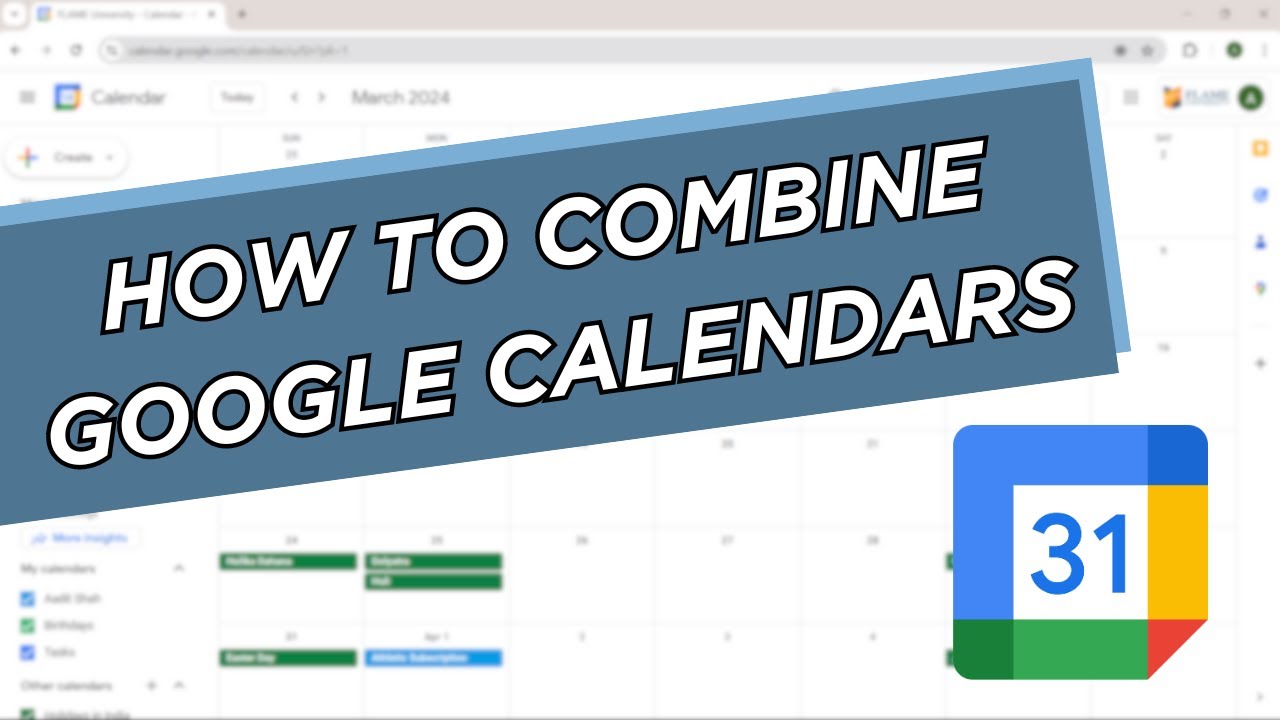
To merge multiple Google Calendars into one, open Google Calendar in the account you want to copy from, click Settings (gear) > Settings > Import & export > Export, unzip the download, then in the other account go to Settings > Import & export, click Select file from your computer, choose the .ics file, pick a calendar and click Import. All the events get copied into that calendar. This is the way to combine a personal and a work calendar, or two Google accounts, into a single calendar.
What you need
- A computer with a browser. Google says calendar export only works on a computer, not on a phone or tablet.
- Access to both Google accounts (in the video, one is a personal account and the other a work account)
Method 1: Export events from the first calendar
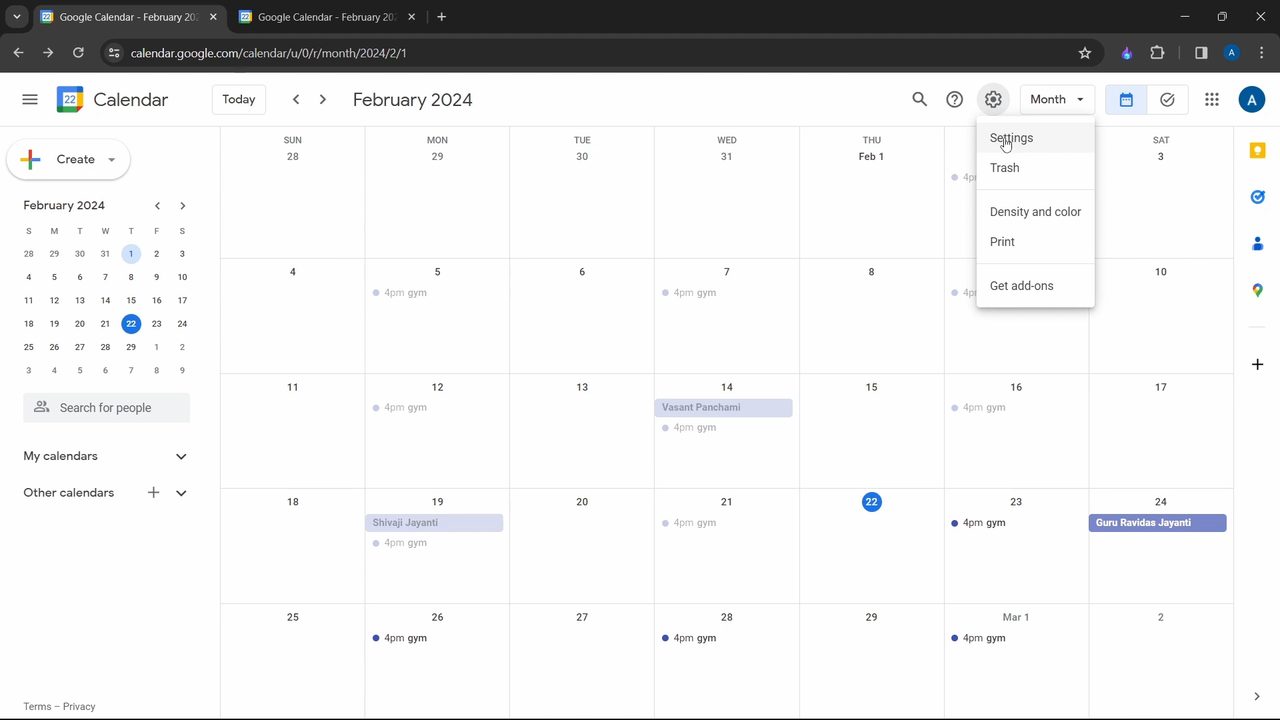
1Open Google Calendar settings
Sign in to Google Calendar with the account whose events you want to move. Click the gear icon (Settings menu) at the top right and choose Settings.
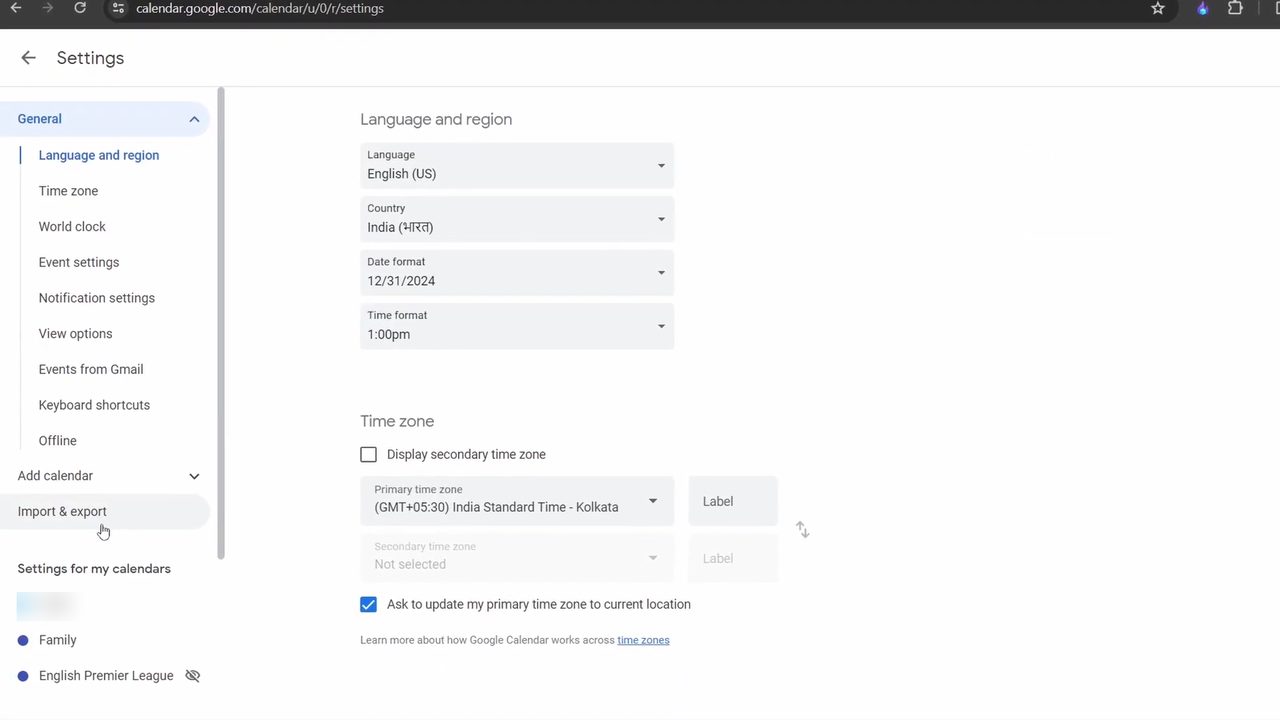
2Click Import & export
In the left menu, click Import & export.
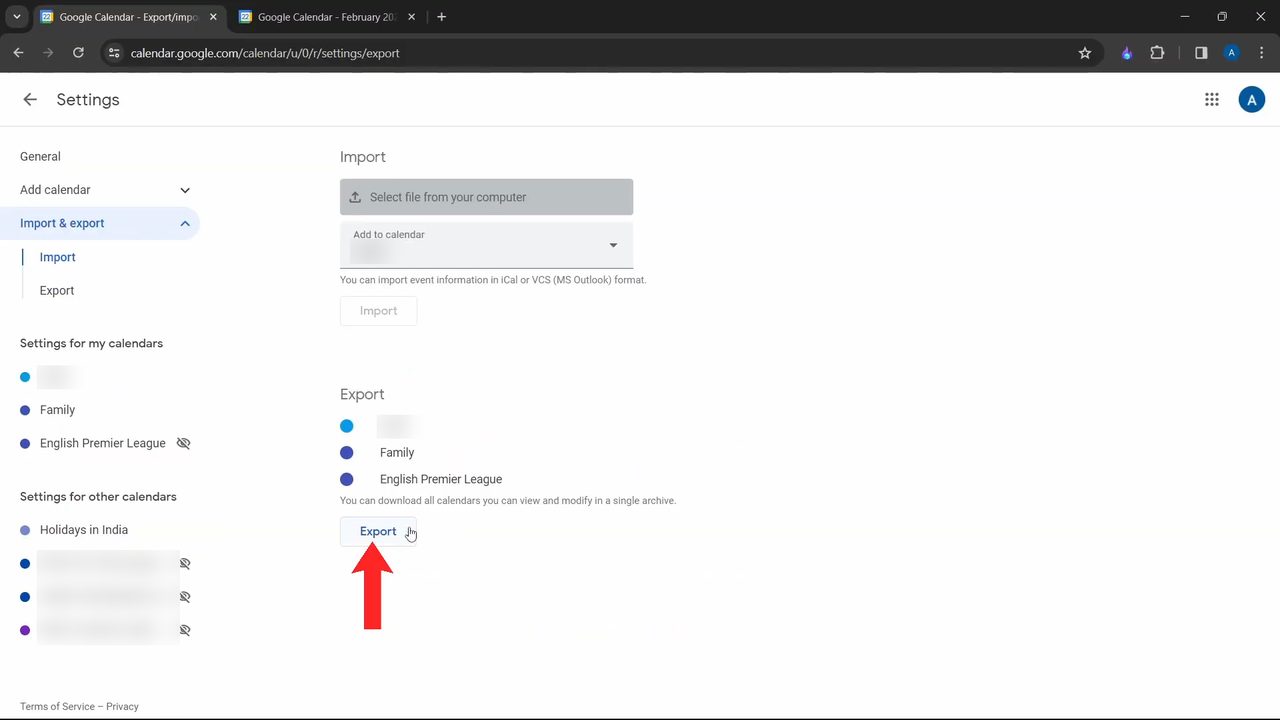
3Click Export
Under Export, you'll see every calendar in the account. Click Export. Google downloads all the calendars you own and can edit as a single ZIP file. Save it on your computer, for example in Downloads.
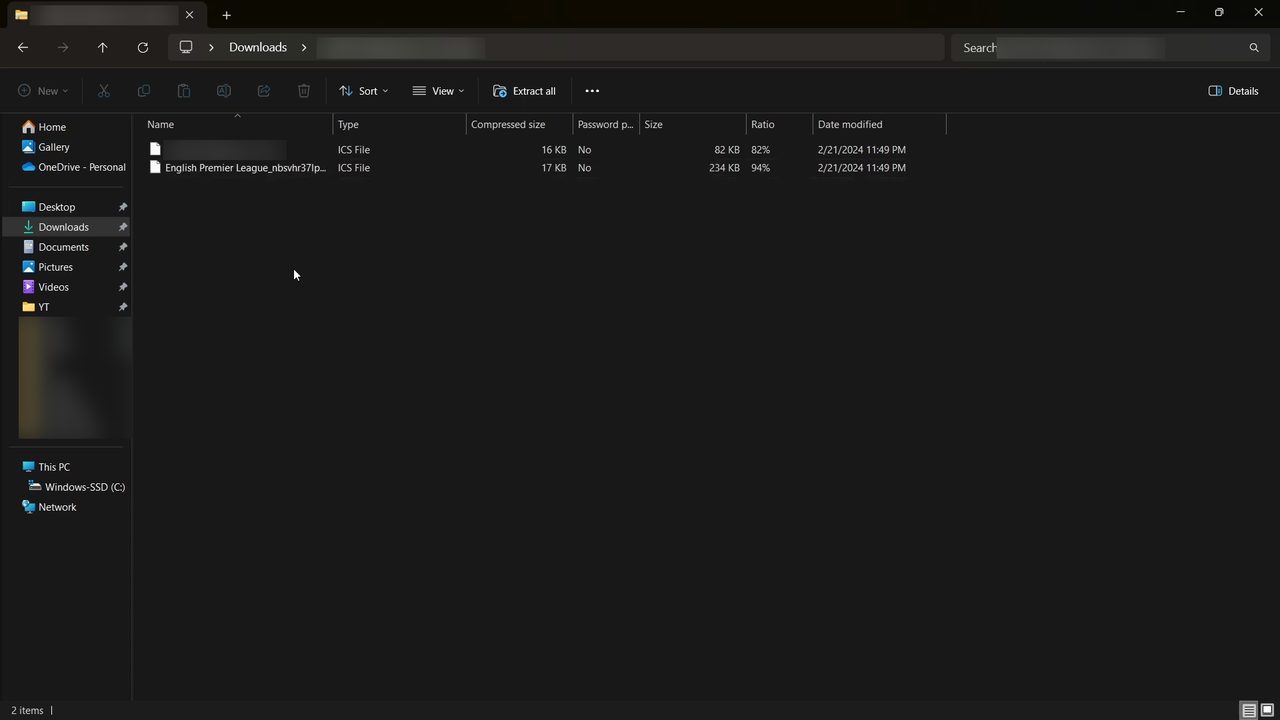
4Unzip the file and pick the calendar you want
Open the downloaded ZIP in File Explorer (or Finder on a Mac). Inside you'll find one .ics file for each calendar, named after the calendar. Copy the one you want to merge (select it and press Ctrl+C) and paste it into a normal folder such as Downloads (Ctrl+V). Google Calendar can't import the ZIP itself, only the .ics file inside it.
Method 2: Import the events into the other calendar
5Open Import & export in the second account
Switch to the Google account you want to merge everything into. Again click the gear icon > Settings > Import & export.
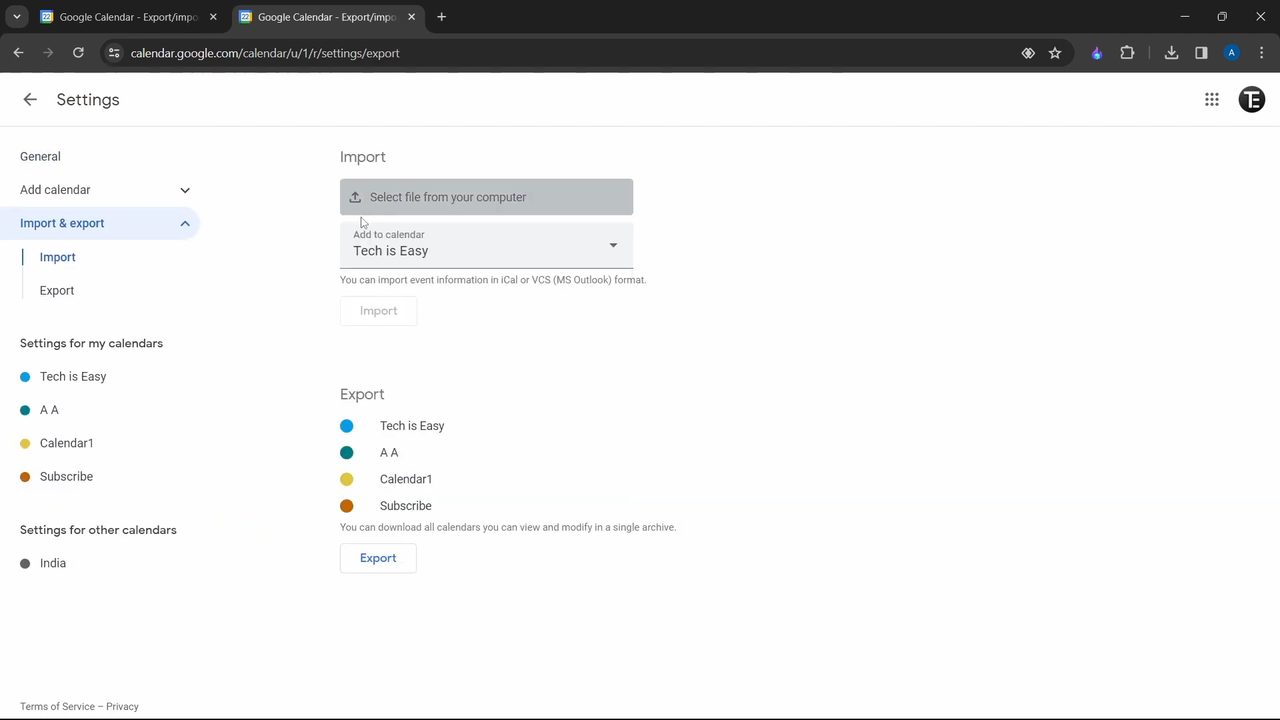
6Select the .ics file
Under Import, click Select file from your computer. Choose the .ics file you copied out of the ZIP in Step 4 and click Open.
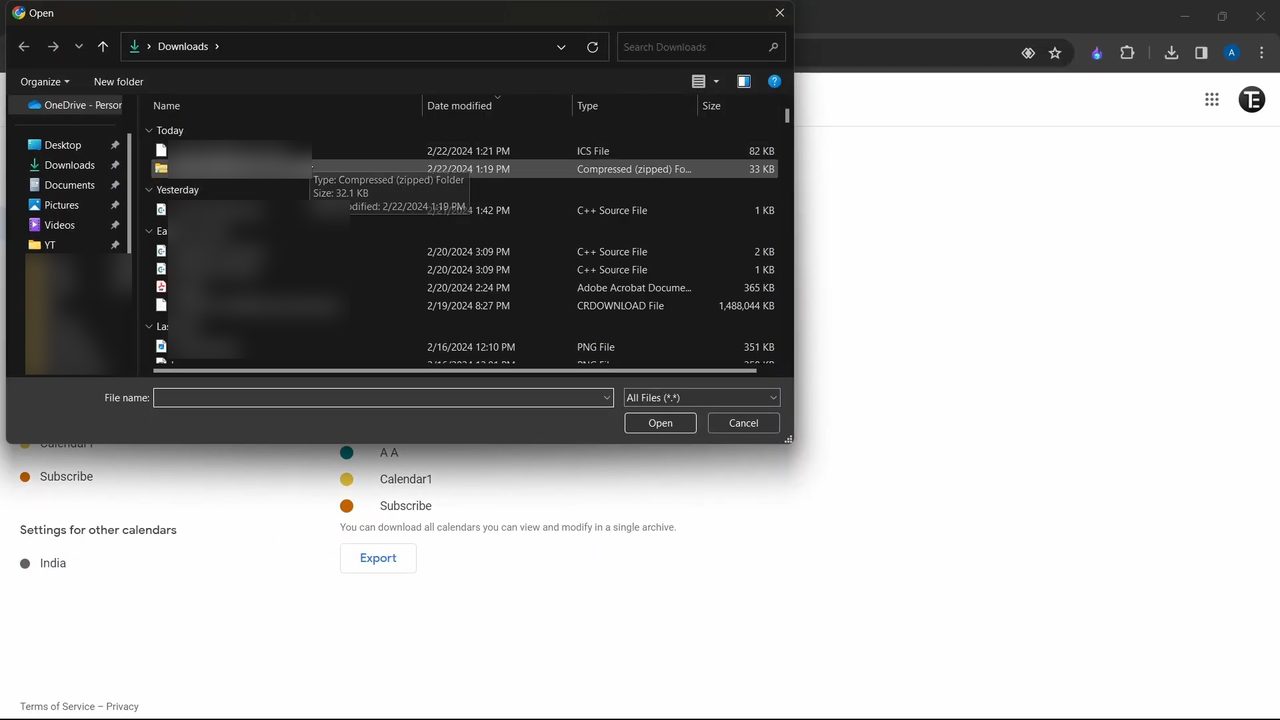
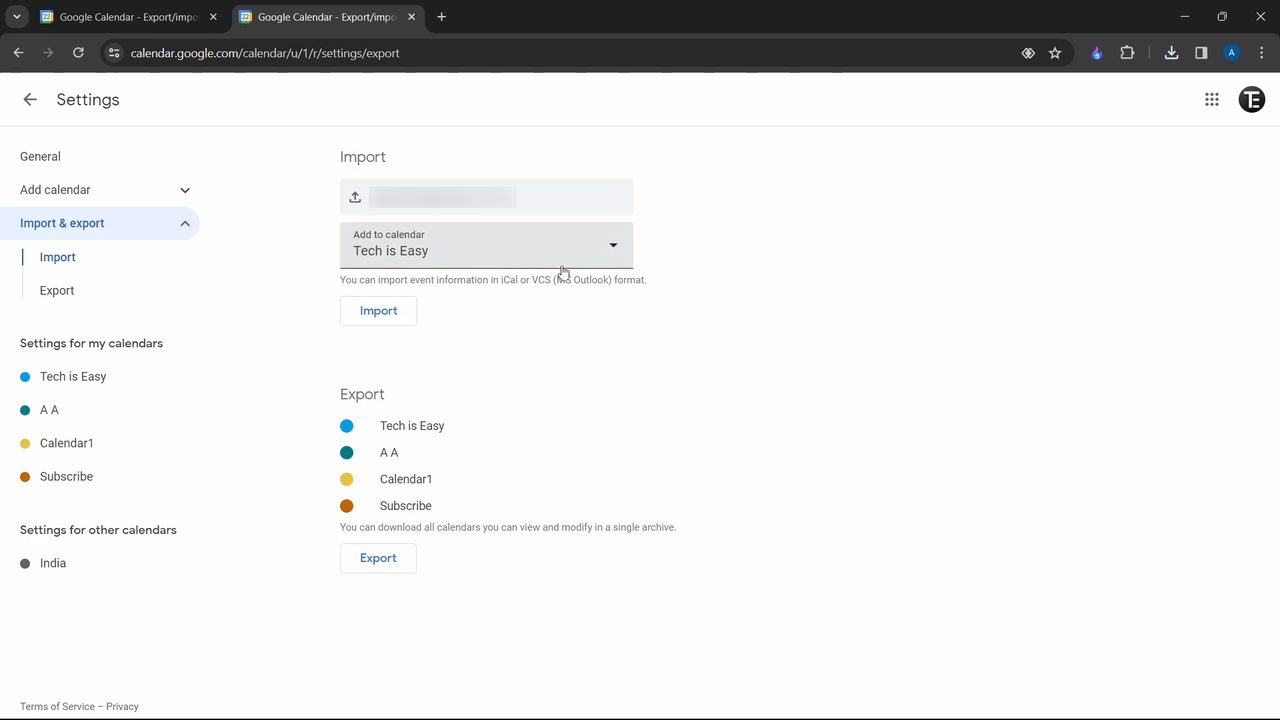
7Choose the calendar and click Import
Use the Add to calendar drop-down to pick which calendar in this account should receive the events. By default, events go into your main calendar, but you can choose any calendar you own. Then click Import.
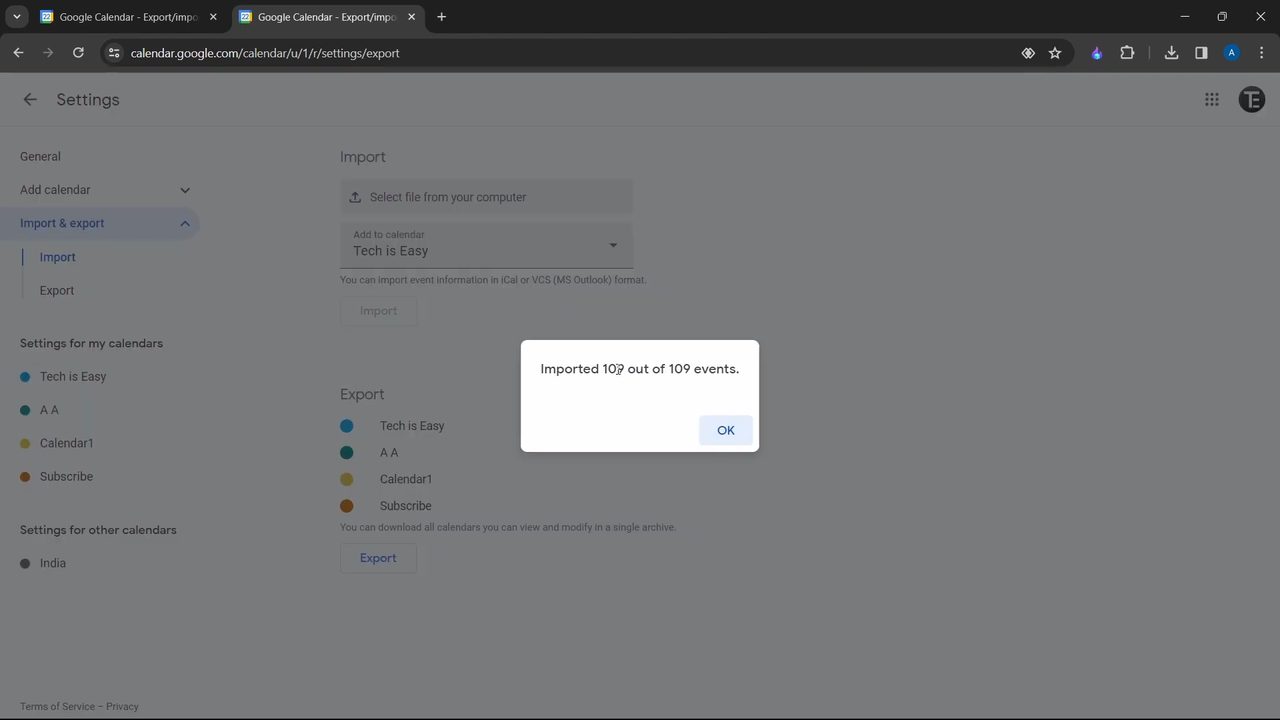
8Confirm the import
Google shows how many events it brought in. In our case it said Imported 109 out of 109 events. Click OK, then click the back arrow to return to your calendar and check the events.
To merge more calendars, repeat Steps 6 to 8 with each .ics file from the ZIP. Every calendar has to be imported on its own.
What to know before you merge
- It's a one-time copy, not a live link. Google's help page says imported events don't stay in sync between the two accounts. Anything you add later to the old calendar won't appear in the merged one.
- Guests and meeting links don't come across. When you import, the events arrive without their guest lists and conference data, such as Google Meet links.
- Nothing is deleted from the original. The first account keeps all its events. If you want them in one place only, delete them from the old calendar yourself afterwards.
- Duplicates are possible. Importing the same file twice can add the events twice, so import each file once.
- Tip: import into a new calendar first. Under Add calendar > Create new calendar you can make an empty calendar (for example "Personal imported") and choose it in Step 7. If something goes wrong, you can delete that one calendar instead of cleaning up your main one.
Want a live merge instead?
If you'd rather see both calendars together and keep them updated automatically, don't import. Share the first calendar with your other Google account instead (calendar settings > Share with specific people or groups). It then shows up under Other calendars in the second account, and new events appear in both places. Google suggests this when you want calendars to stay in sync.
Troubleshooting
- Import button is greyed out. Select a file first. The button only becomes active after you choose a .ics or .csv file.
- Import fails or no events are imported. Make sure you picked the .ics file, not the ZIP. Unzip the export first.
- Imported events are missing. Check the calendar you chose in Add to calendar is ticked under My calendars on the left side of Google Calendar. Unticked calendars are hidden.
- Times look wrong. Compare the time zone in Settings > General > Time zone for both accounts. A different time zone shifts the events.
Moving everything from one Google account to another? See also How to Transfer Contacts from One Gmail Account to Another and How to Transfer Emails from One Gmail Account to Another.
Google's guide Import events to Google Calendar covers importing from Outlook and Apple Calendar too.
FAQ
Can I merge two Google Calendars from different accounts?
Yes. Export the events from the first account as an .ics file under Settings > Import & export, then import that file into the second account. The events are copied into whichever calendar you choose.
Will merged calendars keep syncing?
No. Importing copies the events once. For a calendar that stays updated, share it with your other account instead of importing it.
Can I merge Google Calendars on my phone?
Not with this method. The Google Calendar app on a phone has no import or export option, so use a computer browser. After merging, the events show on your phone automatically.
How do I undo a calendar import?
There is no single undo button. If you imported into a separate, newly created calendar, delete that calendar to remove all the imported events at once. Otherwise you'll need to delete them one by one.
Related guides