Tech is Easy
How to Share Google Calendar With Others (Step-by-Step)
To share a Google Calendar with others, open Google Calendar, click the three dots next to the calendar under My calendars, choose Settings and sharing, then click Add people and groups, enter their email, pick a permission and click Send. It works for any calendar you own, whether it is a family calendar, a team schedule or your own work calendar, and you can change or remove access any time.
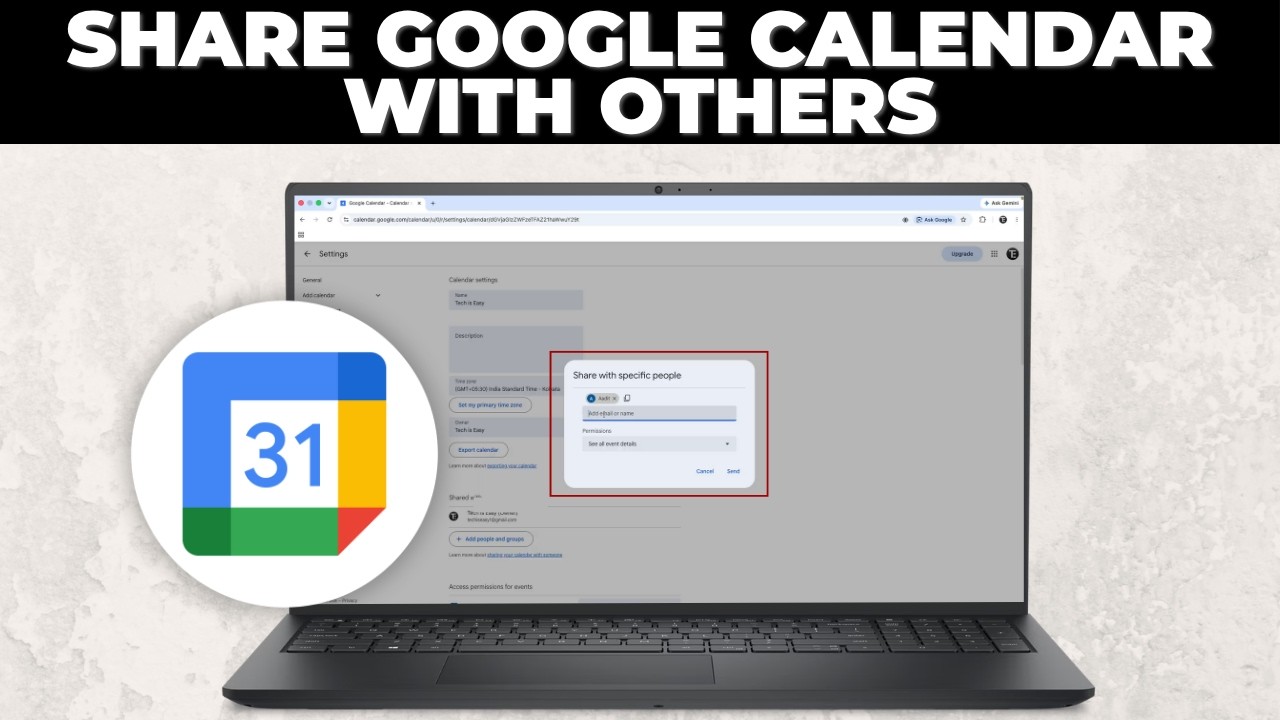
What you need
- A Google account and a calendar you own (or one you have Make changes and manage sharing access to)
- Google Calendar open in a browser on a computer
- The email address of each person you want to share with
Method 1: Share with specific people
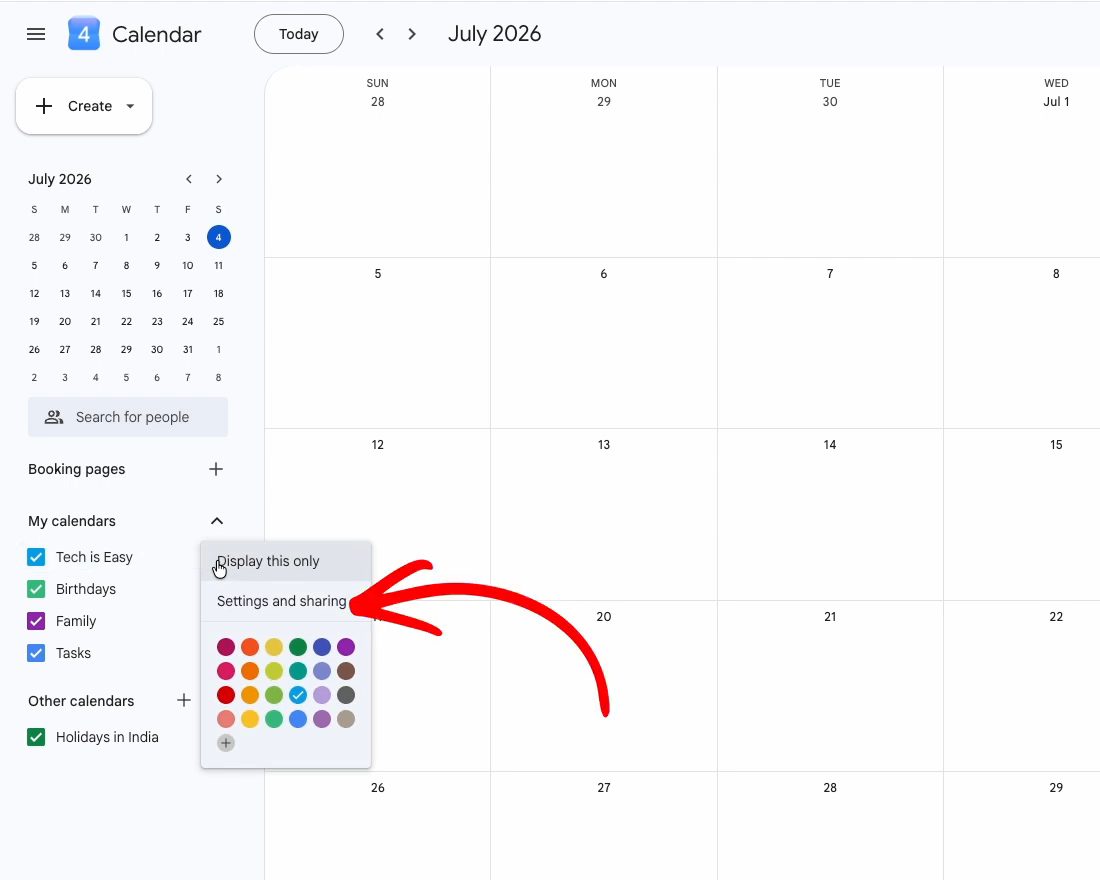
1Open Settings and sharing for the calendar
In Google Calendar, look at My calendars on the left. Hover over the calendar you want to share, click the three dots next to it and choose Settings and sharing.
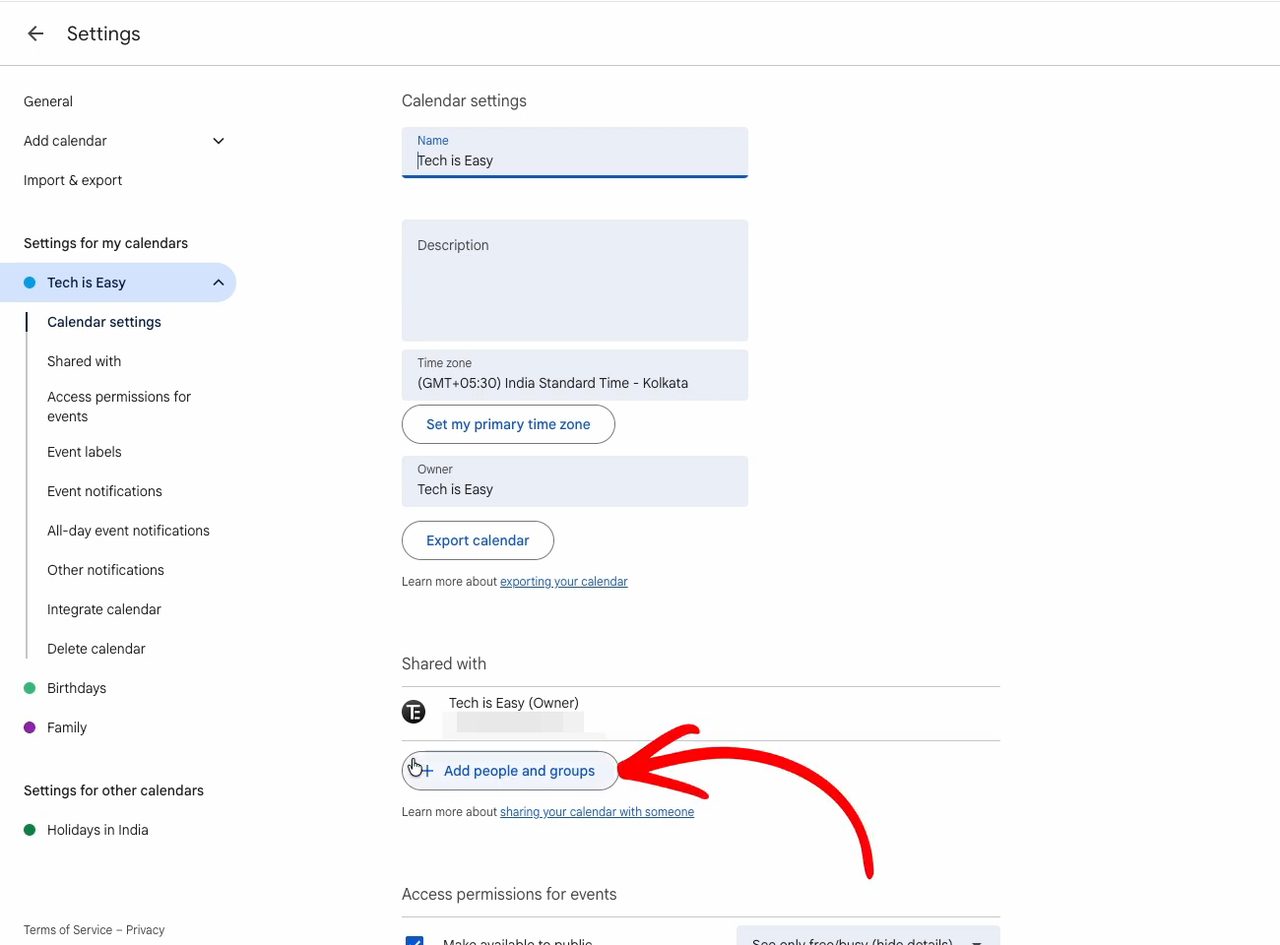
2Click Add people and groups
The calendar's settings page opens. Scroll to the Shared with section. At first it only lists you as the owner. Click Add people and groups.
3Enter the email or name
In the Share with specific people box, type the email address or name of the person. Each person you add appears as a chip above the box, so you can keep typing to add more people at once. You can also add a Google group.
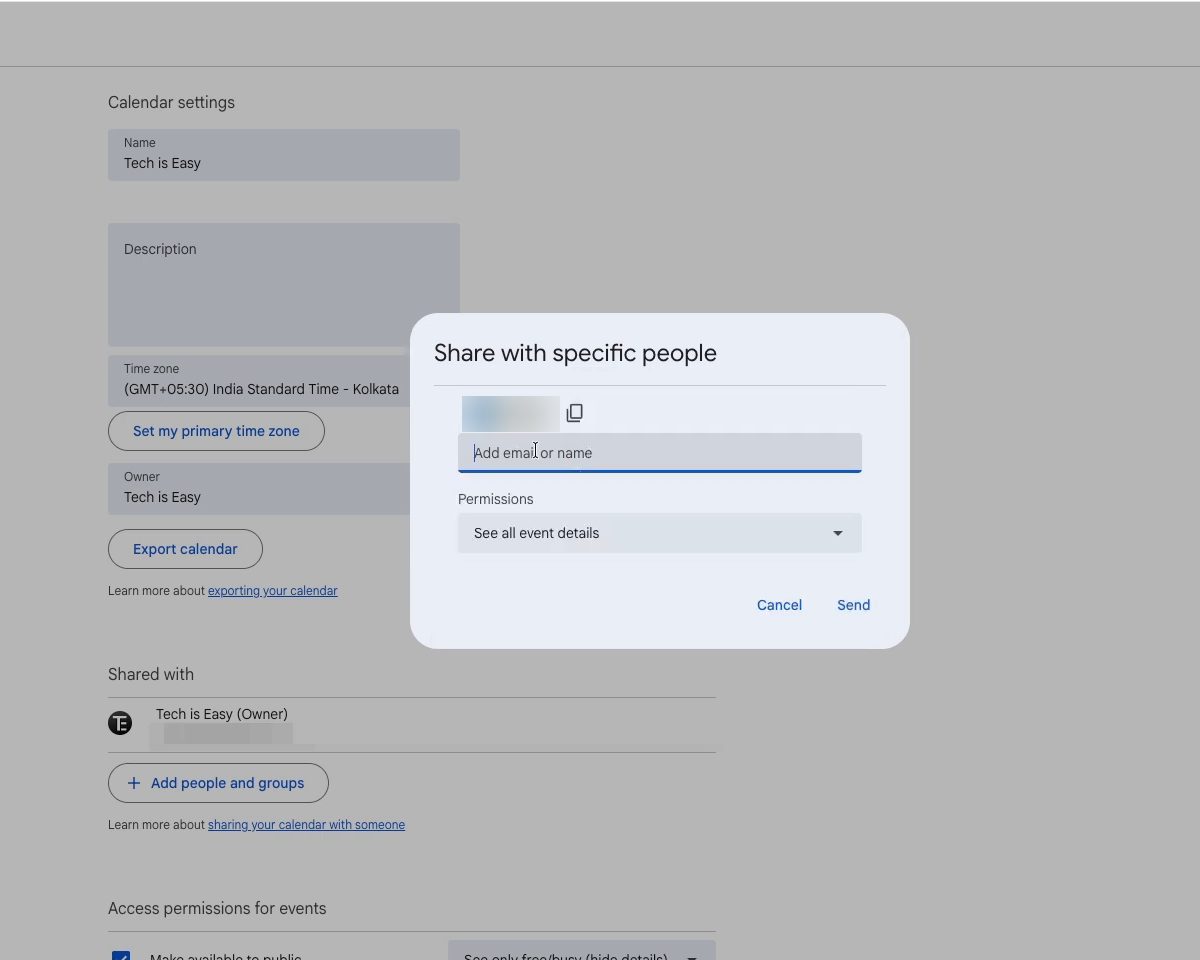
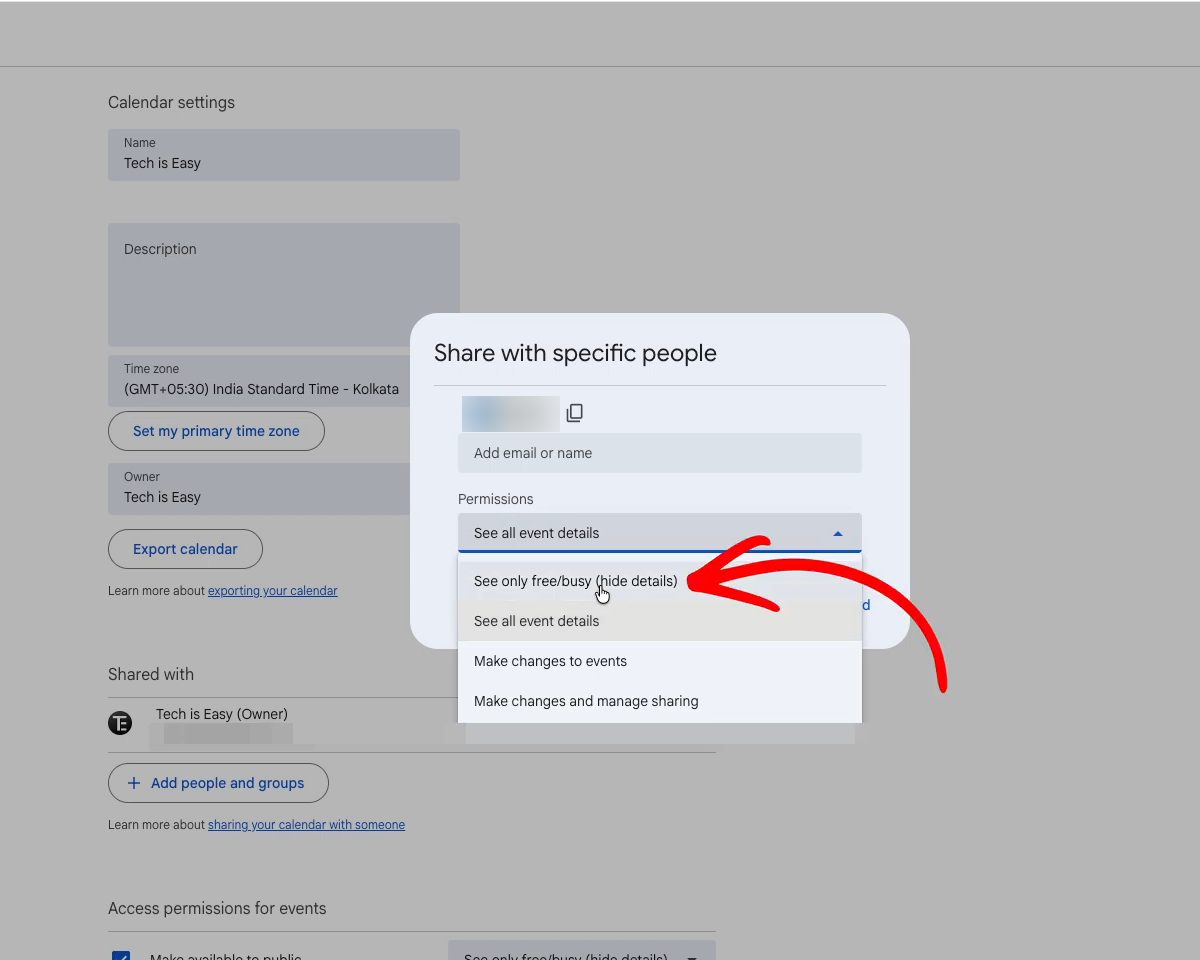
4Choose a permission and click Send
Open the Permissions dropdown and pick how much access to give. The four options go from least to most access:
- See only free/busy (hide details): they only see when you are busy, not what the events are.
- See all event details: they see event names, times, places and descriptions.
- Make changes to events: they can edit your events.
- Make changes and manage sharing: full control, including sharing the calendar with other people.
Pick one and click Send. Google emails each person, and they need to click the link in that email to add your calendar.
5Check, edit or remove access
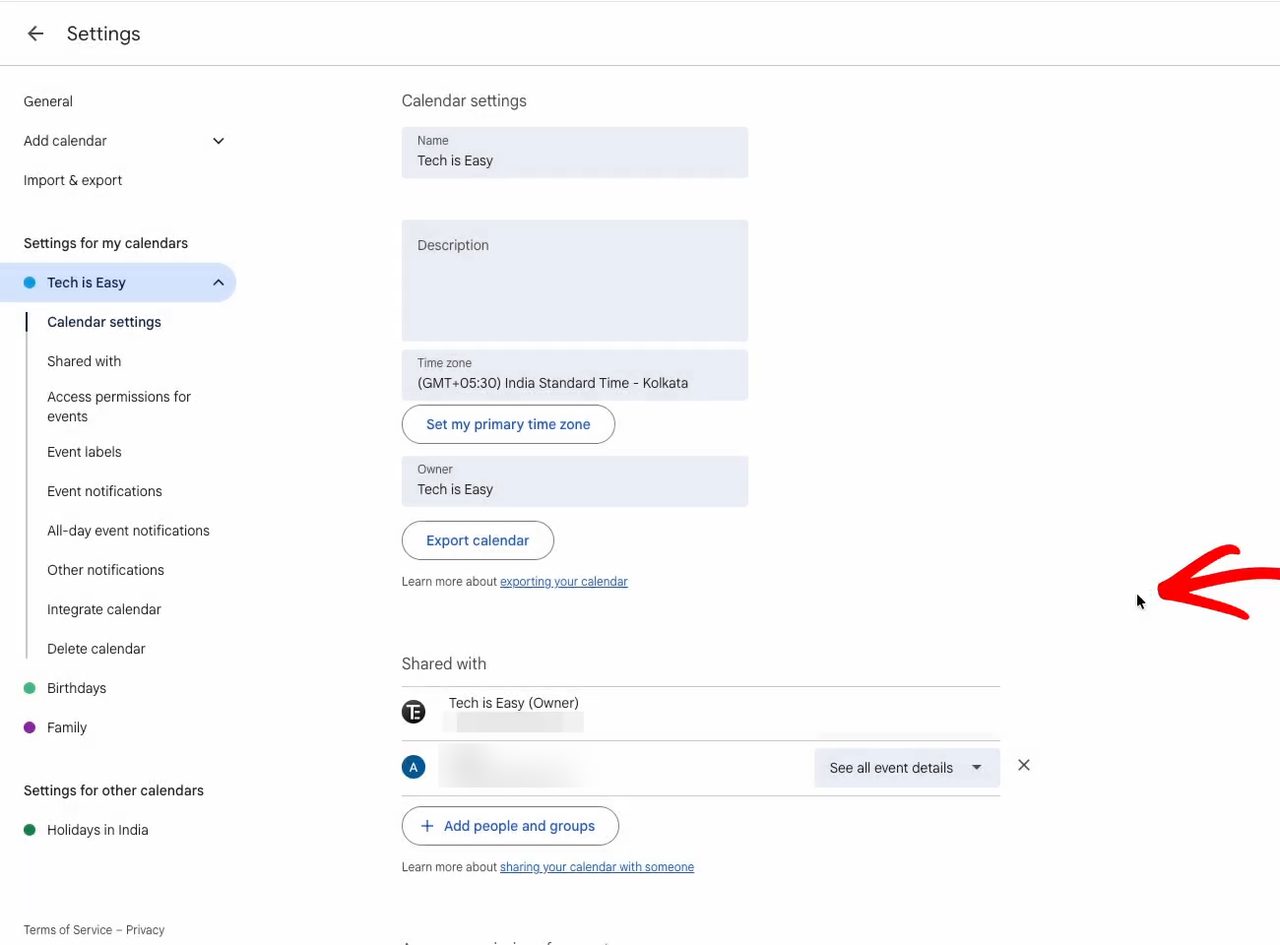
Back under Shared with, you now see everyone the calendar is shared with and the permission each one has. Use the dropdown next to a person to change their permission, or click the X to stop sharing with them.
Method 2: Get a shareable link
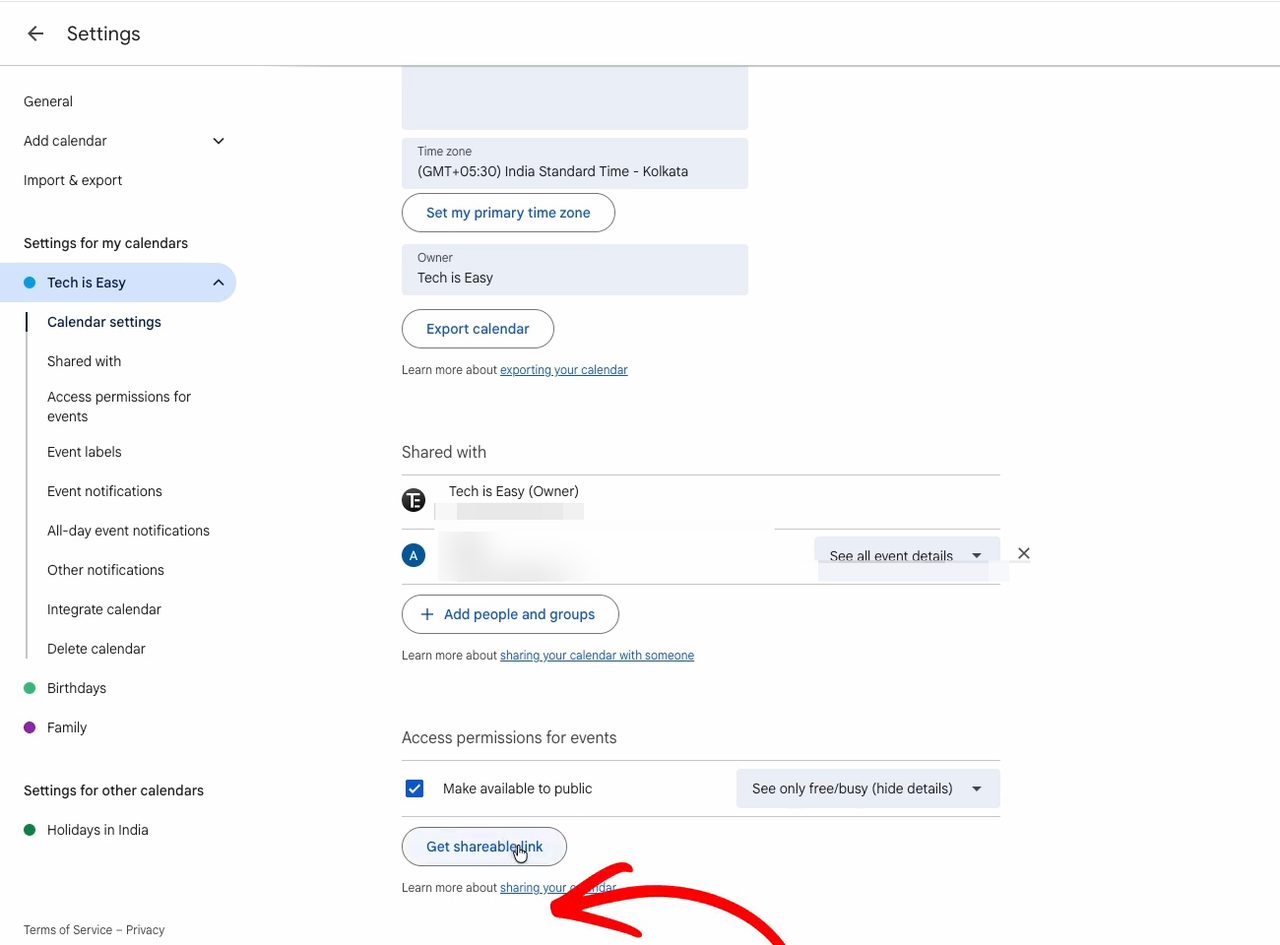
6Click Get shareable link
Scroll down to Access permissions for events and click Get shareable link.
7Copy the link
A box titled Shareable link to your calendar appears. Click Copy link and paste it into a chat or email. As the box says, only people you allow can open your calendar with this link, so add them in Method 1 first. The link is a quick way to point them straight to it.
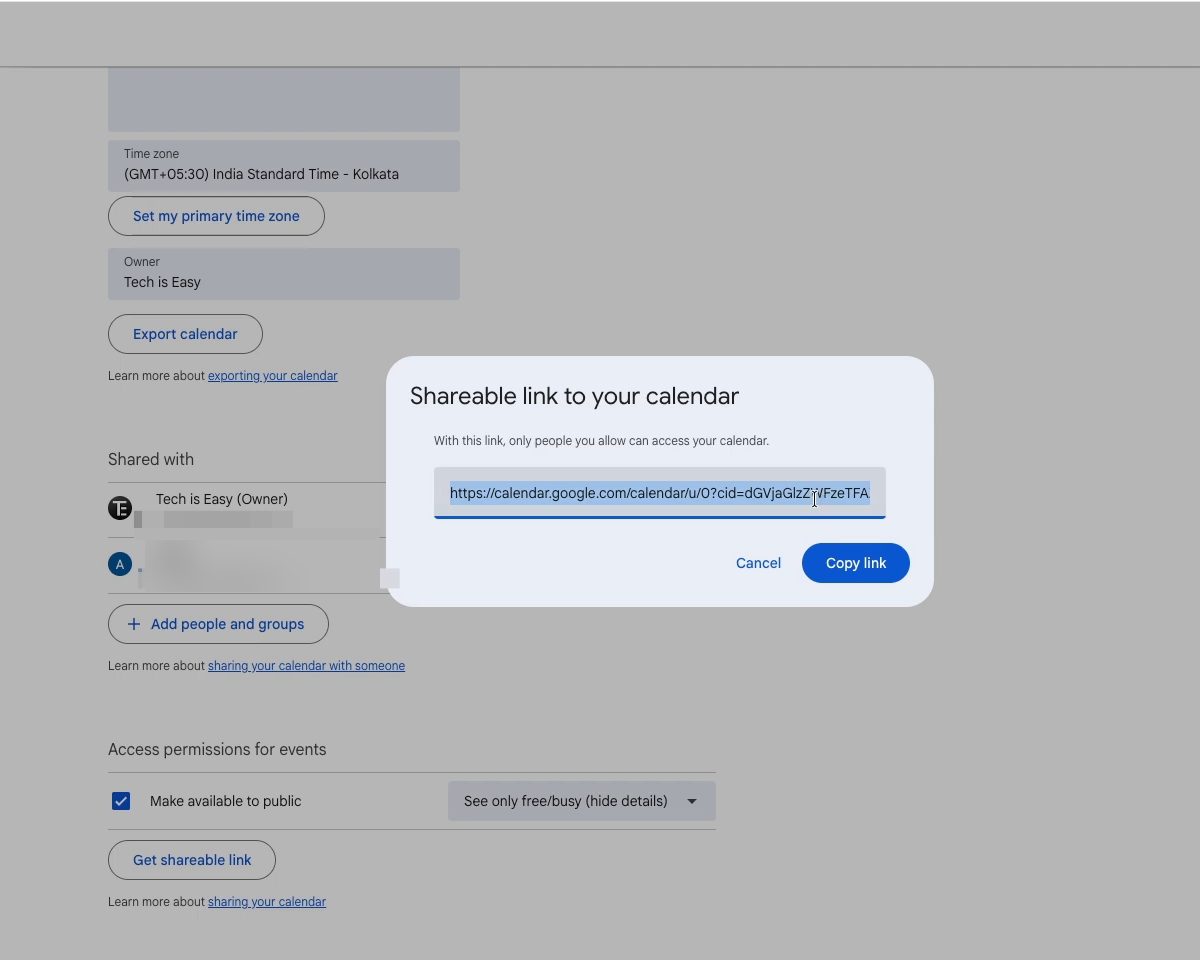
In the same section you can tick Make available to public. That lets anyone with the link see your calendar (in our example, only free/busy). Google's help page notes that a public calendar can also show up in search results, so only do this for calendars with nothing private on them.
What people see after you share
Google's help page Share your calendar explains a few details worth knowing:
- People get an email and must click the link in it before your calendar shows up in their Google Calendar.
- With Make changes to events, people can edit your non-private events. A private event shows to them only as a busy block with no details.
- With Make changes and manage sharing, they can also share your calendar with others, so keep this for people you fully trust.
- If your calendar belongs to a work or school account, your administrator decides whether you can share it outside your organisation.
Tips / troubleshooting
- They never got the email. Google suggests checking that the address is right, asking them to look in spam or trash, or removing them from the list and adding them again.
- I can't find Settings and sharing. Make sure you are clicking the three dots next to a calendar under My calendars. Calendars under Other calendars belong to someone else, and Google says you can only share those if the owner gave you Make changes and manage sharing.
- The share option is greyed out or missing. On a work or school account, your admin may have turned off sharing.
- Sharing on a phone. Google's Android help page says you can open the Calendar app, tap Menu > Settings, choose the calendar and use Shared with. We only show the computer method in the video.
- Share one event instead. If you only want someone at a single meeting, invite them to that event instead of sharing the whole calendar.
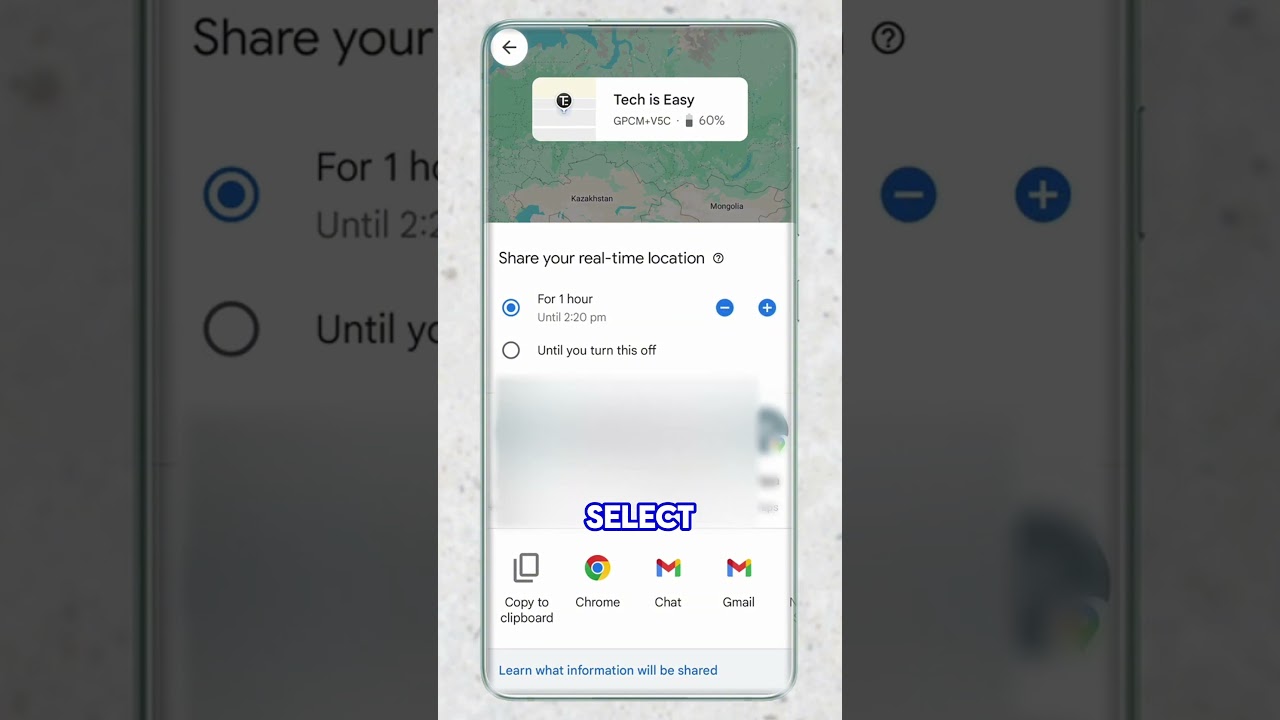
For another way to keep family in sync, see how to share your live location in Google Maps.
FAQ
How do I share my Google Calendar with someone?
Click the three dots next to the calendar under My calendars, choose Settings and sharing, click Add people and groups, enter their email, choose a permission and click Send.
How do I set permissions on a shared Google Calendar?
Choose a permission when you add the person, or change it later in the Shared with list using the dropdown next to their name. The options are See only free/busy, See all event details, Make changes to events, and Make changes and manage sharing.
How do I create a shareable link in Google Calendar?
In Settings and sharing, scroll to Access permissions for events, click Get shareable link, then Copy link. Only people you have shared with can open it, unless you make the calendar public.
Can I stop sharing my calendar later?
Yes. Go back to Settings and sharing, find the person under Shared with and click the X next to their name. Google calls this Remove in its help page, and the person no longer has access to your calendar.
Related guides