Tech is Easy
How to Transfer Contacts from One Gmail Account to Another
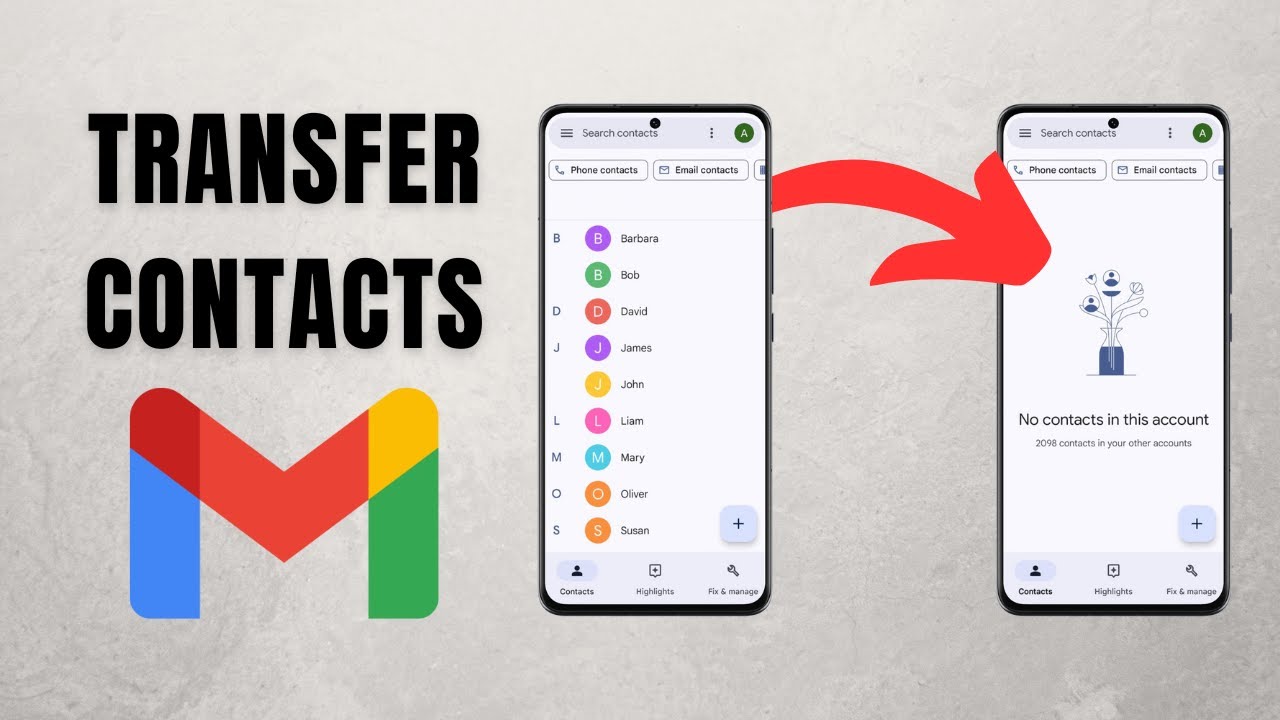
If you are switching to a new Gmail account, you probably want to transfer contacts from one Gmail account to another without adding them one by one. The Google Contacts app on your phone can do it in two moves: export the contacts from the old account to a file, then import that file into the new account. We moved 571 contacts this way in about a minute.
What you need
- An Android phone with the Google Contacts app (install it from the Play Store if it is not your default contacts app)
- Both Gmail accounts signed in on the phone. If the new one isn't there yet, add it first from your phone's Settings under Accounts (or Passwords & accounts, depending on the phone).
Before you start
- Only the account you tick is exported. Contacts saved to the phone itself or to the SIM card are not part of your Gmail account. If the export screen lists them separately, tick them too if you want them moved.
- Nothing is removed from the old account. This is a copy, so you can check the new account before you delete anything.
- The VCF file holds everyone's details. Names, numbers and email addresses of all your contacts end up in one file in Downloads, so treat it like private data.
1Open Google Contacts
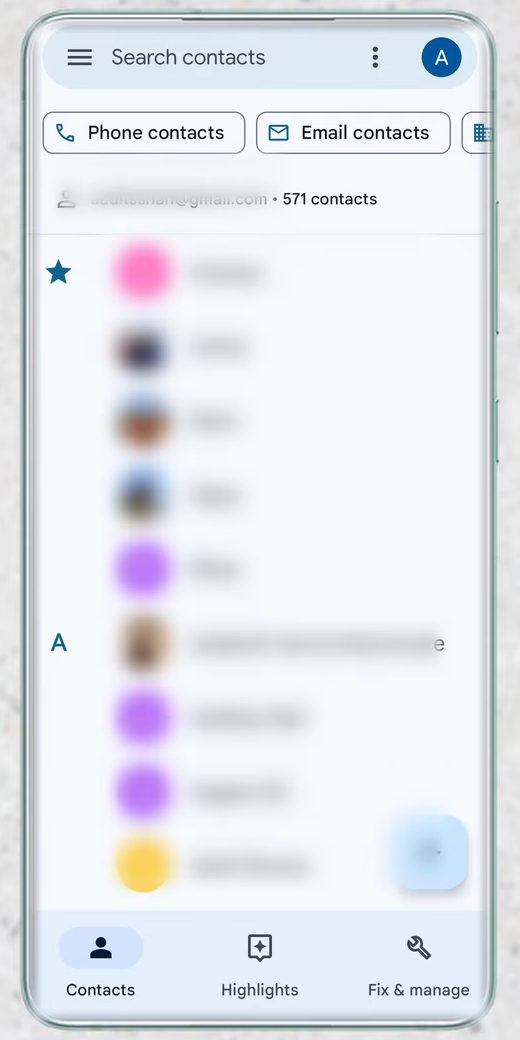
Open the Contacts app by Google. The top of the list shows the account you are viewing and how many contacts it has. Our old account had 571 contacts.
2Go to Fix & manage
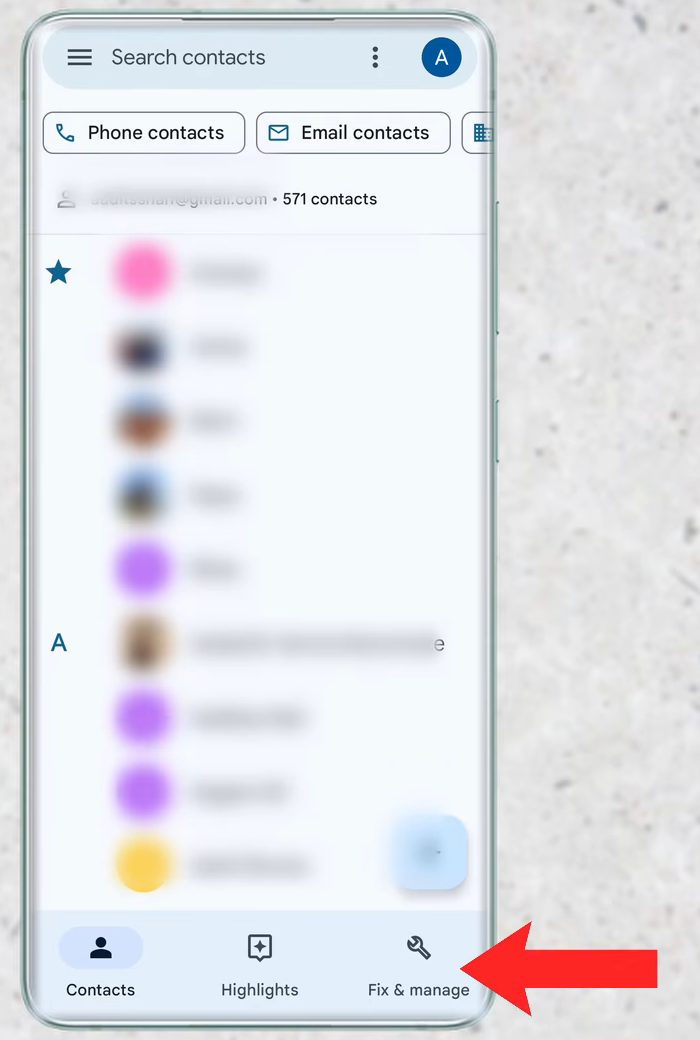
Tap Fix & manage, the third tab at the bottom of the screen.
3Tap Export to file
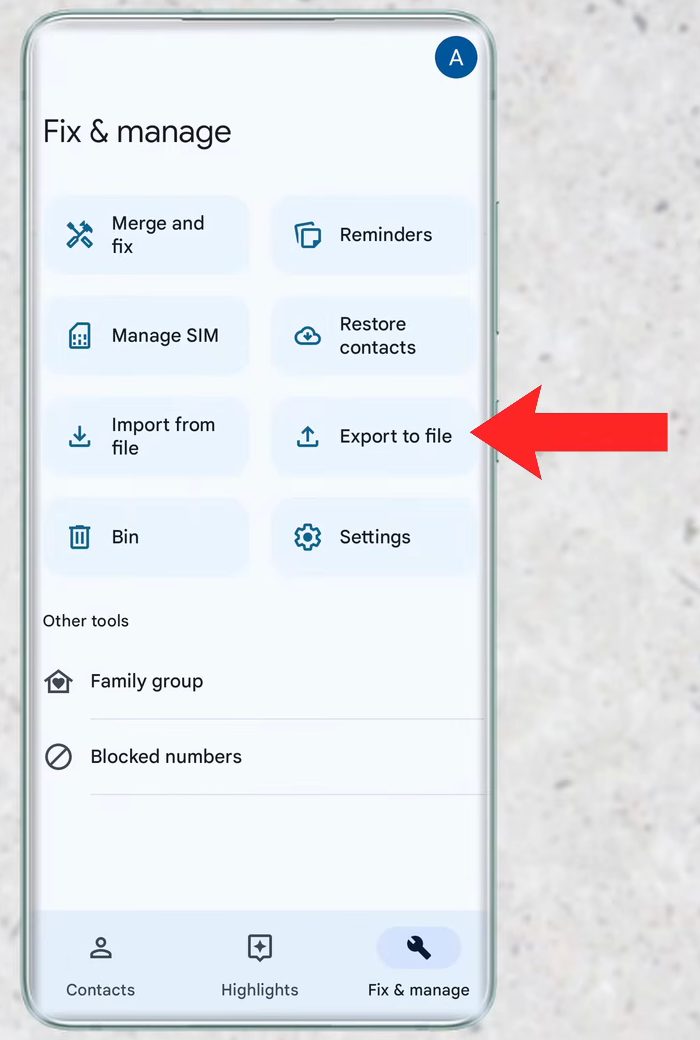
On the Fix & manage page, tap Export to file.
4Choose the account to export from
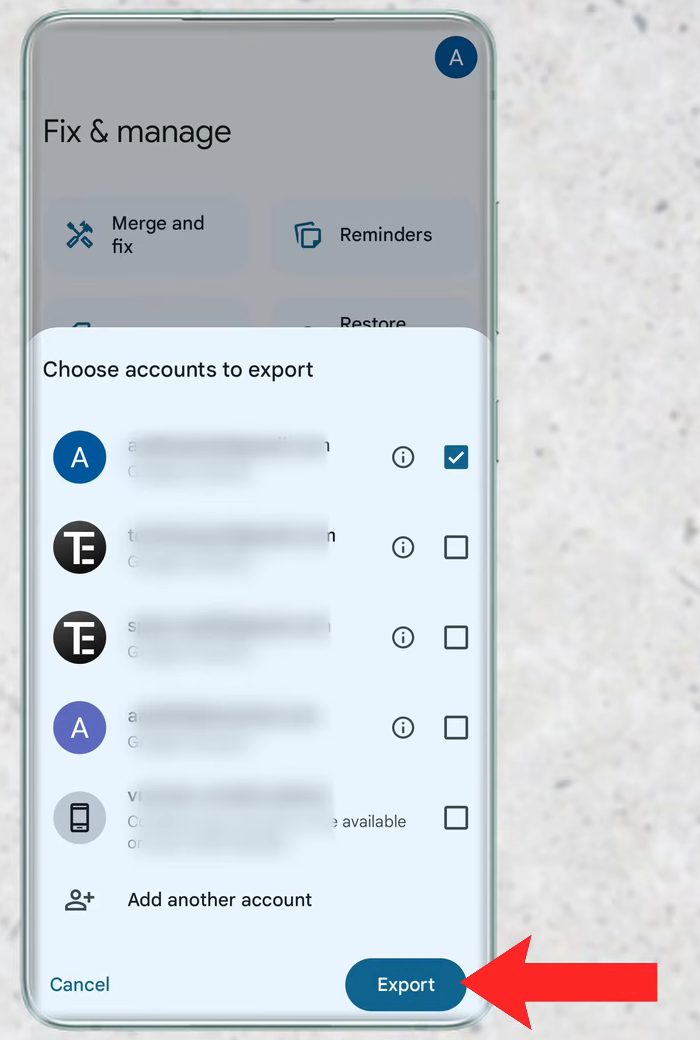
Under Choose accounts to export, tick the Gmail account that currently holds your contacts, then tap Export.
5Save the VCF file
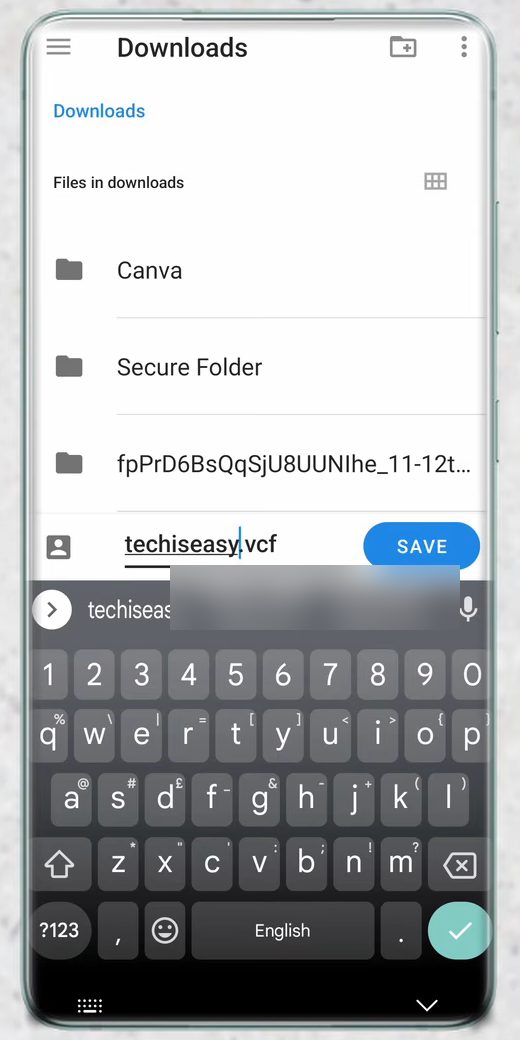
Your phone opens the Downloads folder and suggests the name contacts.vcf. You can rename it if you like (we called it techiseasy.vcf), then tap Save. Remember the name so you can find the file in the next steps.
6Tap Import from file
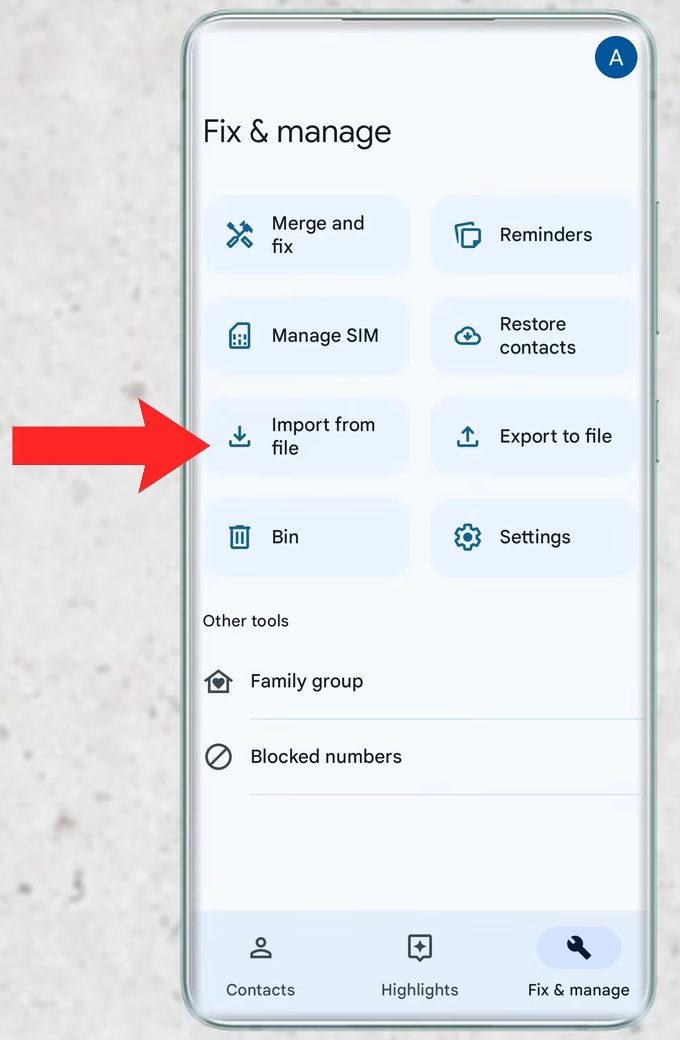
Back on the Fix & manage page, tap Import from file.
7Pick the account to move the contacts to
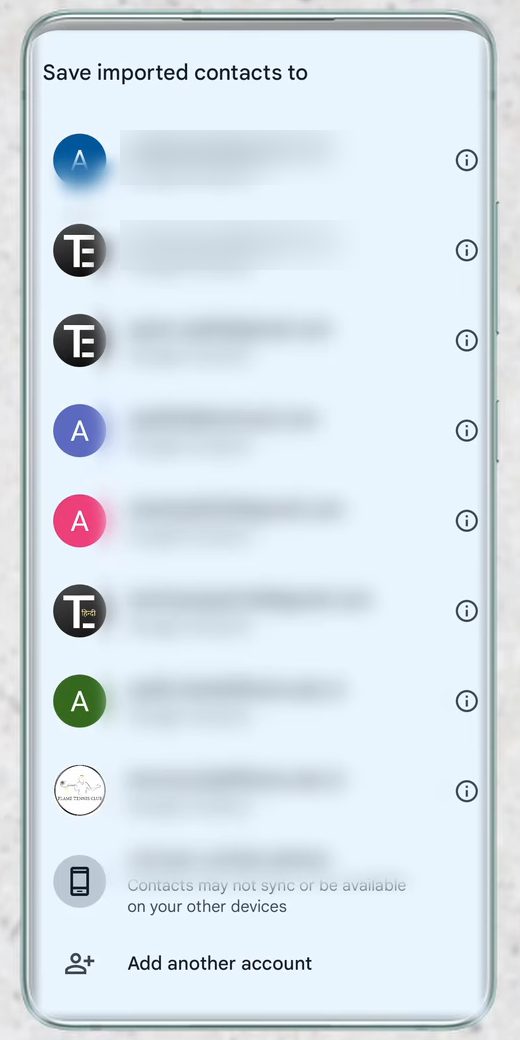
Under Save imported contacts to, tap the Gmail account that should receive the contacts. This is your new account.
8Select the VCF file
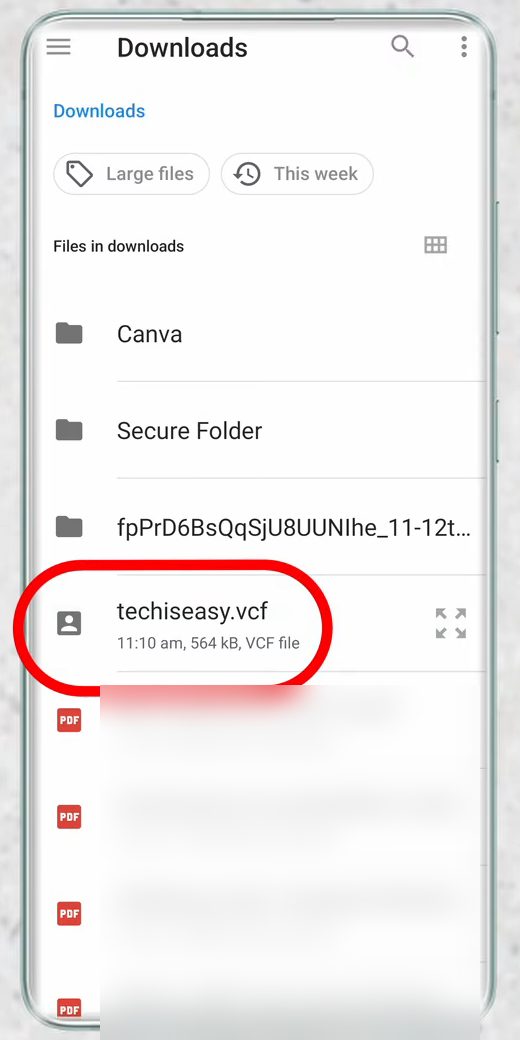
The Downloads folder opens. Tap the .vcf file you saved in Step 5, then tap Select. Google Contacts shows a message that the file will be imported shortly.
9Check the new account
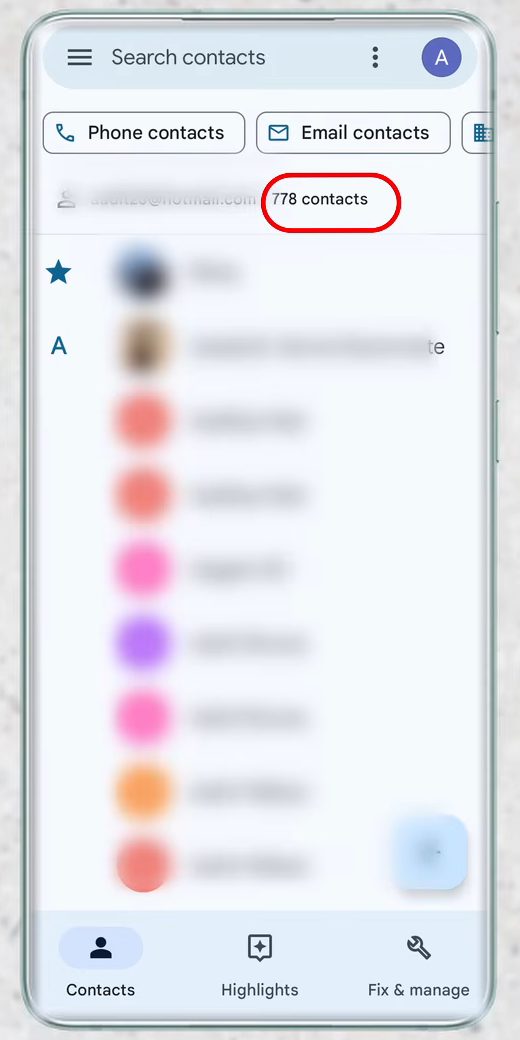
Once the import finishes, switch to the new account in Google Contacts. The contact count goes up to include everything you imported (our new account showed 778 contacts).
Tips / troubleshooting
- If Import from file doesn't show your file, check that it ends in .vcf and is in the Downloads folder. Use the menu in the file picker to browse other folders if you saved it elsewhere.
- Large imports can take a minute or two. If the count hasn't gone up yet, wait a moment and pull down on the contact list to refresh.
- The import adds contacts to whatever the new account already has, which is why the count can end up higher than the number you exported.
- If you want to move your emails as well, see our guide on how to transfer emails from one Gmail account to another.
Moving just one or two contacts
If you only need a few people in the new account, there's no need for a file. Google's help page on adding or moving contacts describes it: open the contact in the Contacts app, tap the Contact settings menu (three dots) at the top right, choose Move to another account and pick the Google account. Note that moving a contact this way deletes it from the original account, unlike the export method above.
Doing it on a computer instead
Google's own guide to exporting, backing up or restoring contacts confirms the phone route used here (Fix & manage > Export to file, then export to a .VCF file). It also has a computer version: open Google Contacts in a browser while signed in to the old account, select the contacts (or all of them), click More actions > Export and save the file. Then sign in to the new account in Google Contacts and import that file. The computer route is handy if you have a lot of contacts or the phone is not with you.
After the transfer
- Open a few contacts in the new account and check that numbers and emails came across.
- Delete the .vcf file from your Downloads folder once the import is done, since it contains everyone's details.
- Only clean up the old account after you are happy with the new one. Contacts you delete there are not removed from the new account, because the import made independent copies.
FAQ
Can I transfer all my Google contacts to another account at once?
Yes. Exporting to a file includes every contact in the account you tick, and importing that file adds them all to the new account in one go.
Can I move just one contact to another Gmail account?
Yes. Open the contact, tap the three dots (Contact settings) at the top right and choose Move to another account. This moves it rather than copying it, so it disappears from the old account.
What is a VCF file?
A VCF (vCard) file is a standard contacts file. It stores names, phone numbers and emails, so you can import it into Google Contacts, other phones or most email apps.
Will exporting contacts delete them from my old Gmail account?
No. Export only makes a copy in a file. The contacts stay in the old account until you delete them yourself.
Why do I see duplicate contacts after importing?
If the new account already had some of the same people, both copies stay. Open Fix & manage and use Merge and fix to combine the duplicates.
Related guides