Tech is Easy
How to Read Deleted WhatsApp Messages on Android (2 Ways)
To read deleted messages on WhatsApp without any app, open Settings, search for Notification history and turn it on. When someone deletes a message, open Notification history again and expand WhatsApp to see the original text. If your phone does not have this setting, a third-party app called WAMR can save message notifications for you. Both methods are for Android users who keep seeing "This message was deleted" and want to know what it said.
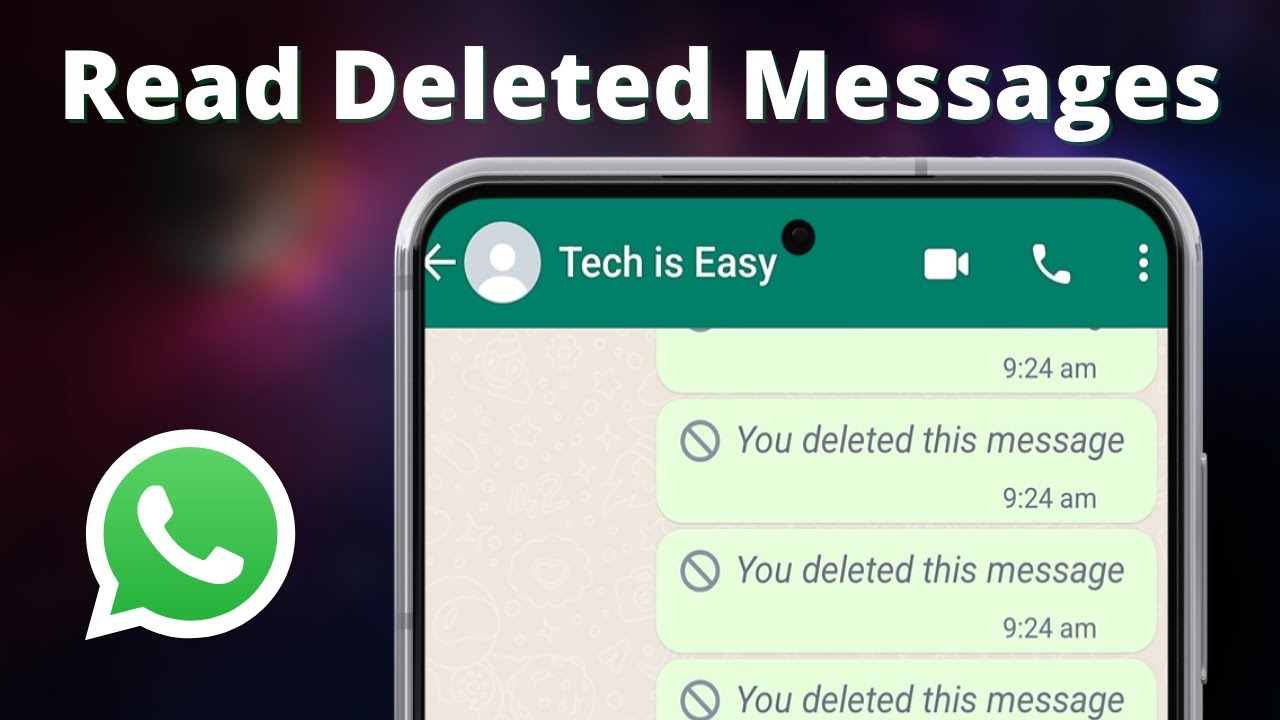
Both methods have the same limit: they work from notifications, so they must be set up before the message arrives. They cannot bring back messages you received earlier, and they only catch messages that produced a notification on your phone. This video was recorded in 2022, so menus may look slightly different on your phone now.
Method 1: Notification history (no app)
This method uses a feature built into Android, so no extra app gets access to your messages. It works on phones such as Samsung and OnePlus, but not every Android phone has it.
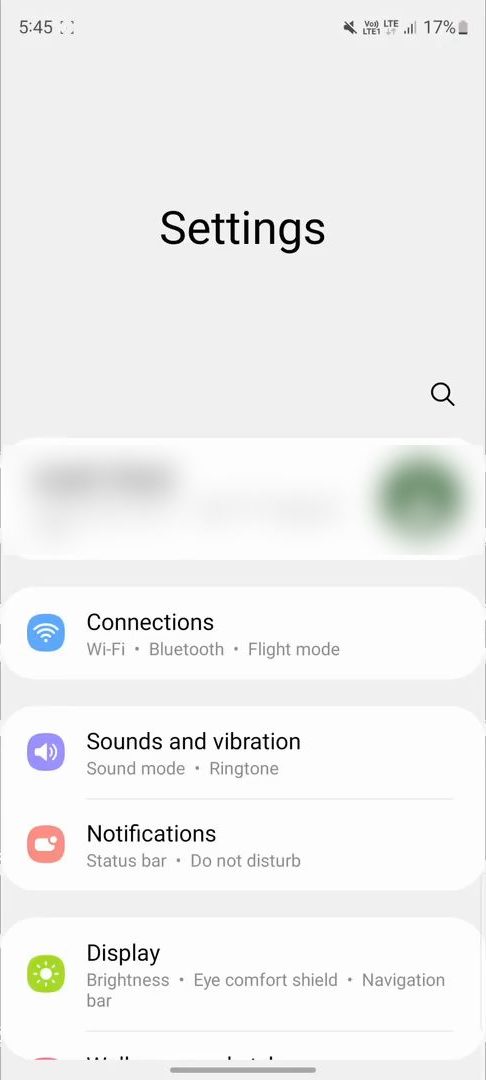
1Search for Notification history in Settings
Open the Settings app and tap the search icon. Type notification history and open the result. On many phones you can also find it under Settings > Notifications.
2Turn Notification history on
Tap the toggle so it says On. From now on, your phone keeps a copy of the notifications you receive for the last 24 hours. The list is empty at first ("No recent notifications") because it only records notifications that arrive after you switch it on.
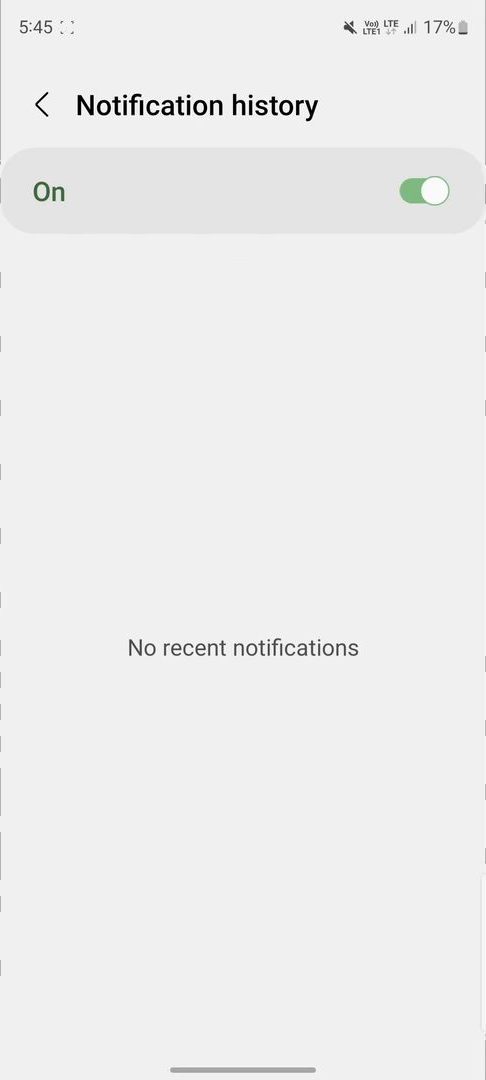
3Wait for a deleted message
When a contact deletes a message they sent you, the chat shows This message was deleted in place of the text. Your notification history still has the copy that arrived before it was deleted.
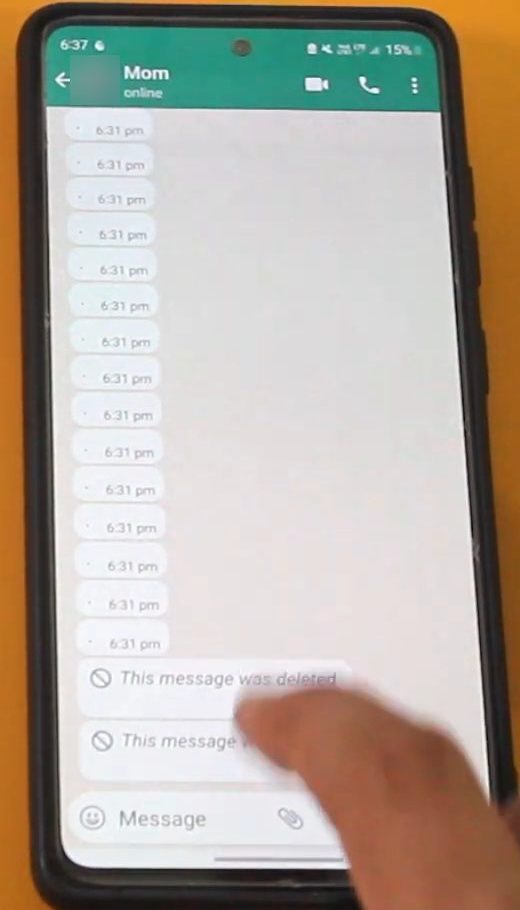
4Open WhatsApp in Notification history
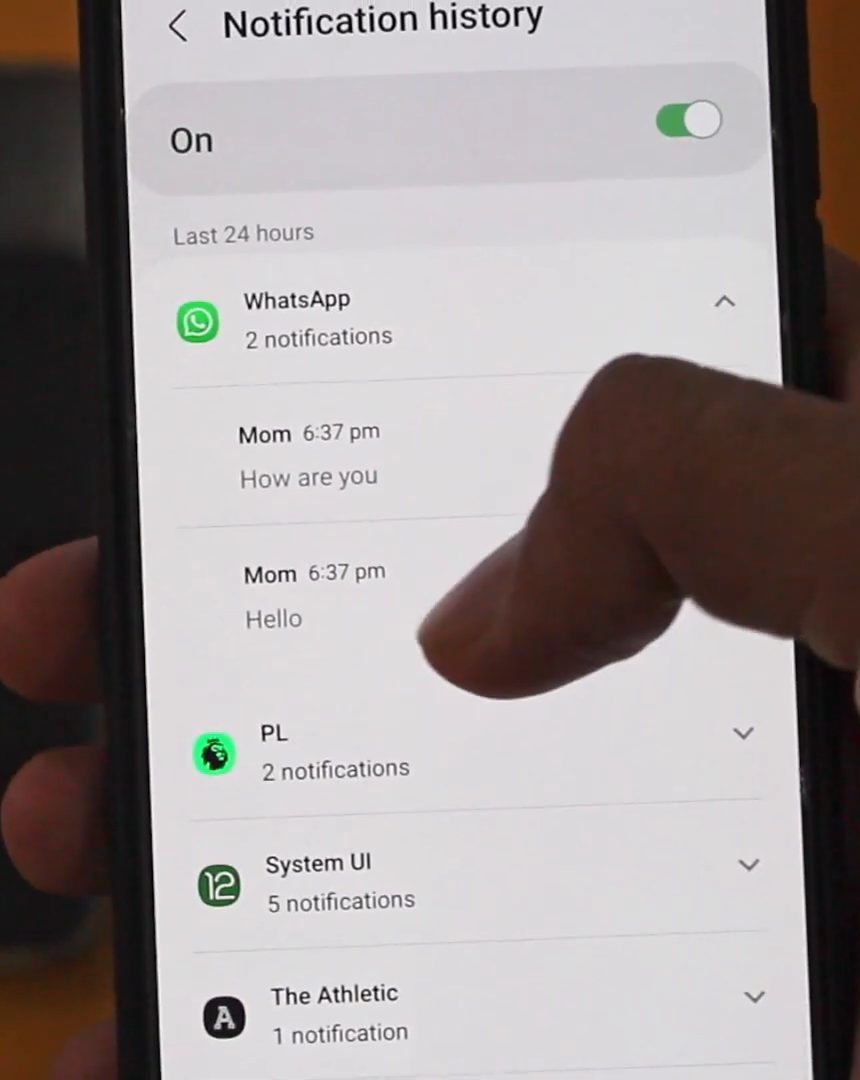
Go back to Settings > Notification history, scroll to WhatsApp and tap it to expand. You will see each message with the sender's name and time. In our test, the two deleted messages, "Hello" and "How are you", were both there.
Method 2: WAMR app (any Android phone)
If your phone has no Notification history, you can use WAMR, a free app from the Play Store that saves message notifications and alerts you when one is deleted. Keep in mind that it reads all your WhatsApp notifications, so a third-party company gets access to that data. Use it at your own risk.
5Install WAMR from the Play Store
Open the Play Store, search for wamr and install WAMR - Recover deleted messages. Open it once it is installed.
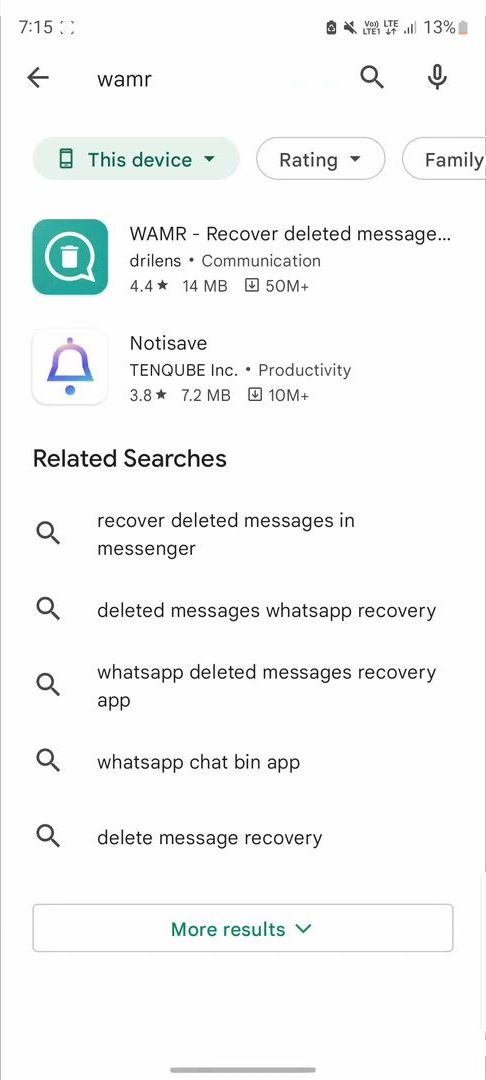
6Choose WhatsApp as the app to monitor
Tap Accept on the terms and Next on the intro screens. On Select apps to monitor, tick WhatsApp and continue.
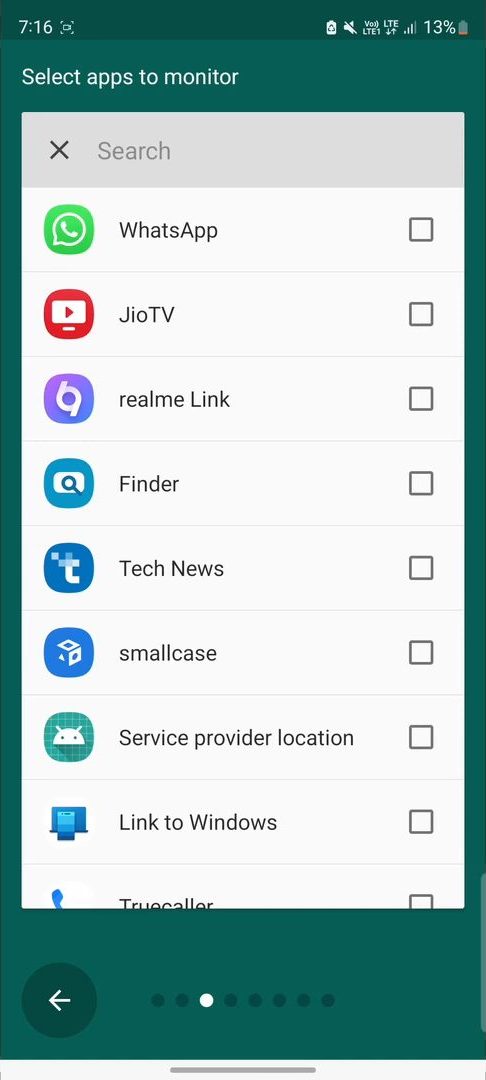
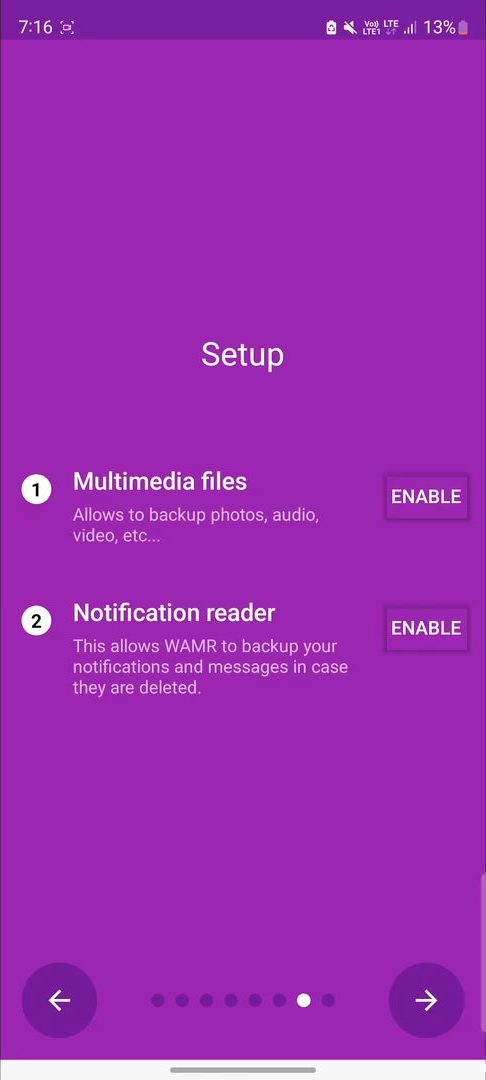
7Enable the notification reader
On the Setup screen, read what each permission does, then tap Enable next to the options you want. Notification reader is the one that lets WAMR save messages before they are deleted. Multimedia files is optional and is for backing up photos, audio and video.
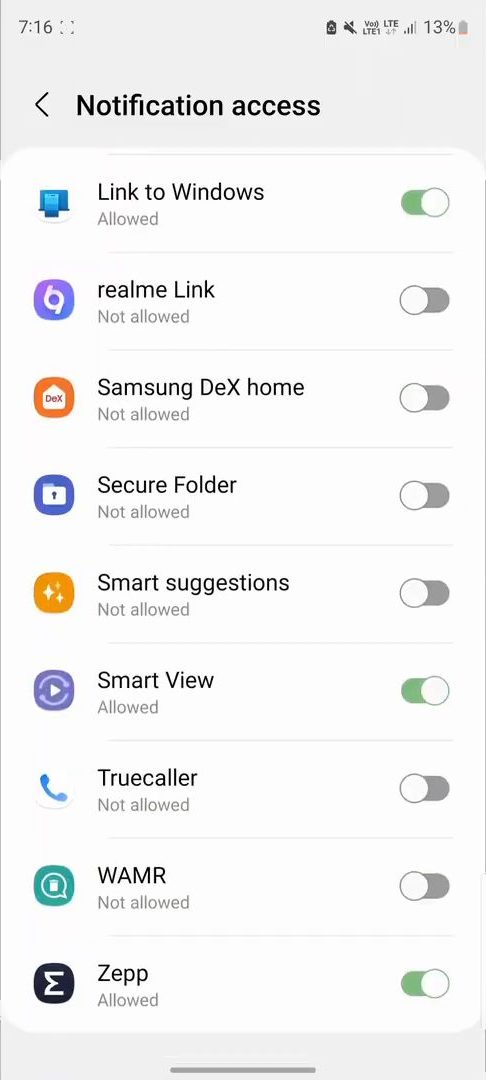
8Allow WAMR in Notification access
Android opens the Notification access list. Find WAMR, turn its toggle on and tap Allow on the warning. Go back to WAMR and tap the tick to finish.
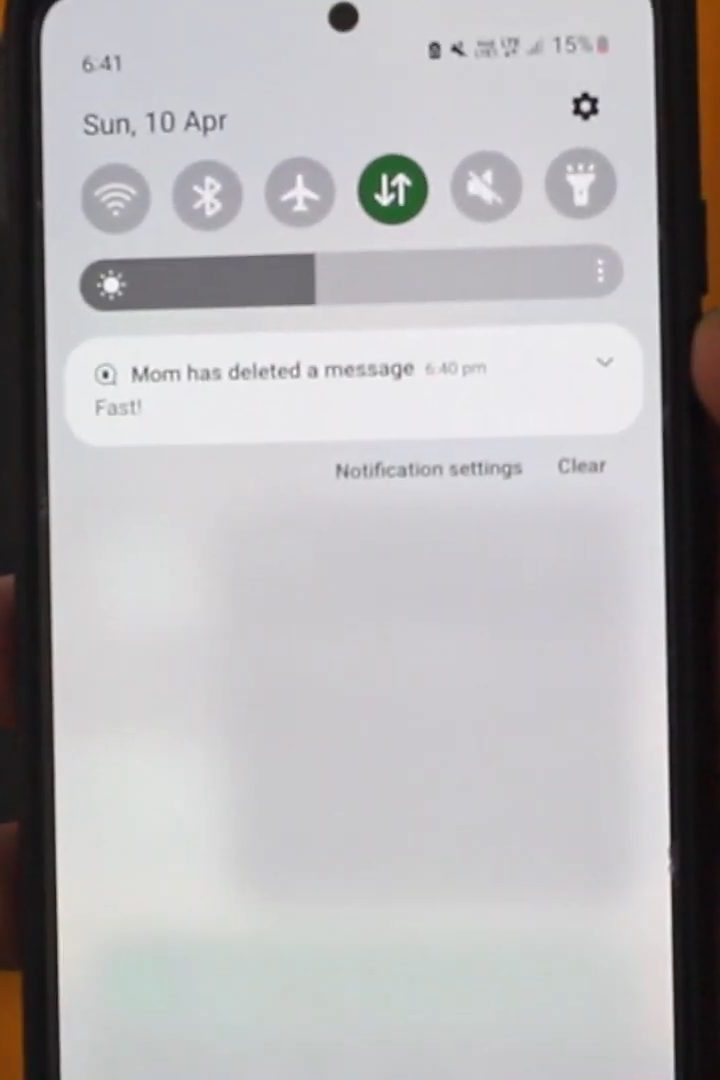
9Open the deleted message from WAMR
When someone deletes a message, WAMR shows a notification such as "[contact] has deleted a message" with the text underneath. Tap it to open the chat inside WAMR.
10Read the recovered messages
Inside WAMR you can see the messages with their times. The deleted one is highlighted in red. Go back to the main screen to see every deleted message WAMR has saved, grouped by contact.
Which method should you use?
| Notification history | WAMR | |
|---|---|---|
| Extra app needed | No | Yes |
| Works on every Android phone | No | Yes, per the video |
| How long messages are kept | 24 hours | Until you delete them in the app |
| Who can see your messages | Only your phone | The app also reads your notifications |
If your phone has Notification history, start there. Use WAMR only if you need it.
Tips / troubleshooting
- Nothing shows up: both methods only see what arrives as a notification. If WhatsApp notifications are off, the chat is muted, or you had the chat open when the message came in, there may be nothing to save. Check that WhatsApp notifications are allowed in your phone's settings.
- Notification history is missing: Google's Control notifications on Android page says some devices do not have notification history and that the settings vary between phones. Check under Settings > Notifications before giving up, or use Method 2.
- Only the first part of a long message appears: notifications can be shortened, so very long messages may be cut off.
- Photos and videos: Notification history only shows text. WAMR's Multimedia files option is meant for media, but this was not tested in the video.
- It does not work on old messages. Neither method can recover a message deleted before you turned it on.
- Privacy: anyone who can unlock your phone can open Notification history and read your recent notifications. Turn it off again if that matters to you.
For more WhatsApp privacy settings, see how to turn off read receipts on WhatsApp.
FAQ
Can I read deleted WhatsApp messages without any app?
Yes, if your Android phone has Notification history. Turn it on in Settings, and when a message is deleted, open Notification history and expand WhatsApp to see the text from the last 24 hours.
Why can't I see a message that was deleted yesterday?
Notification history only keeps the last 24 hours, and it only records notifications that arrived after you turned it on. Messages deleted before that cannot be recovered this way.
Does this work on iPhone?
No. Both methods in this guide are for Android. iPhones have no notification history setting, and the video does not show an iPhone method.
Is WAMR safe to use?
WAMR needs permission to read all your notifications, which includes message text and contact names. That data is handled by a third-party app, so only use it if you are comfortable with that. The built-in method keeps everything on your phone.
Related guides