Tech is Easy
How to Turn Off Read Receipts on WhatsApp (No Blue Ticks)
To turn off read receipts on WhatsApp, open WhatsApp, tap the three dots at the top right, go to Settings > Privacy and switch off Read receipts. After that, people won't see blue ticks when you read their messages. It's for anyone who wants to read chats in their own time without the sender knowing straight away, which is why many people search for how to disable read receipts or read messages without the blue tick.
Before you start: what the ticks mean
WhatsApp shows ticks next to every message you send: - One grey tick: the message has been sent but has not reached the other phone yet. - Two grey ticks: the message has been delivered to the other person's phone. - Two blue ticks: the other person has opened the chat and read it.
Read receipts are what turn those grey ticks blue. Switching them off only changes the blue part. Messages are still delivered, and you still get one or two grey ticks on your own messages, so you can always tell whether something reached the other person.
1Open the menu
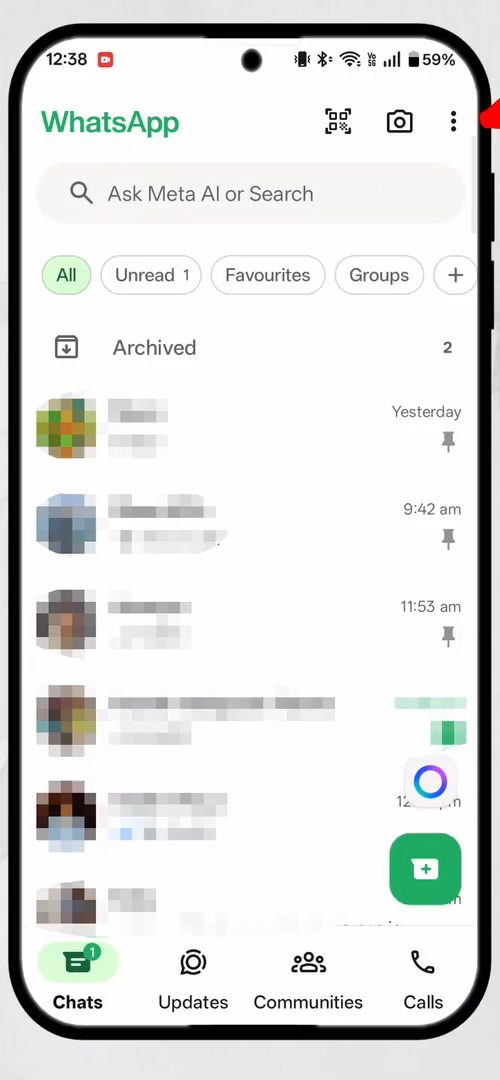
Open WhatsApp on your phone and tap the three dots at the top right of the Chats screen.
2Go to Settings
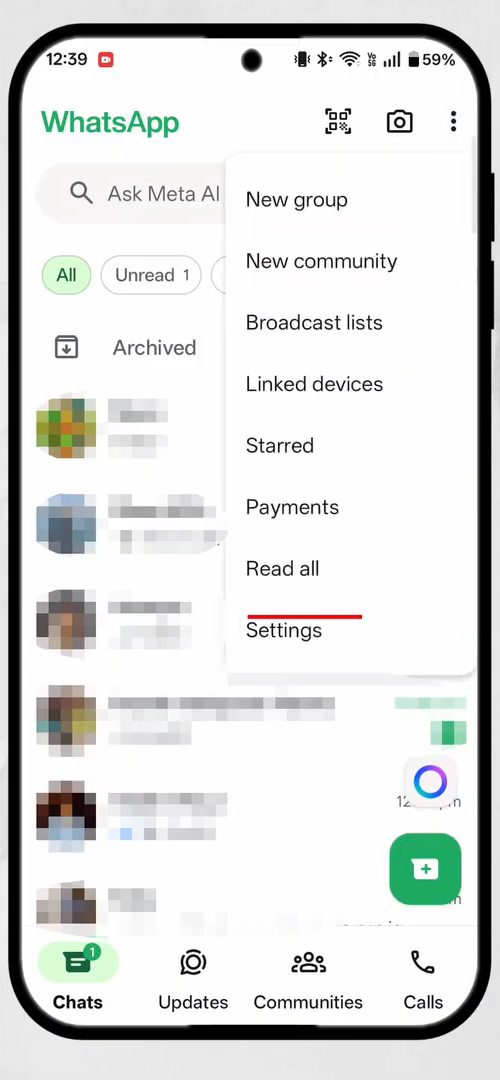
From the menu that drops down, tap Settings, the last option in the list.
3Open Privacy
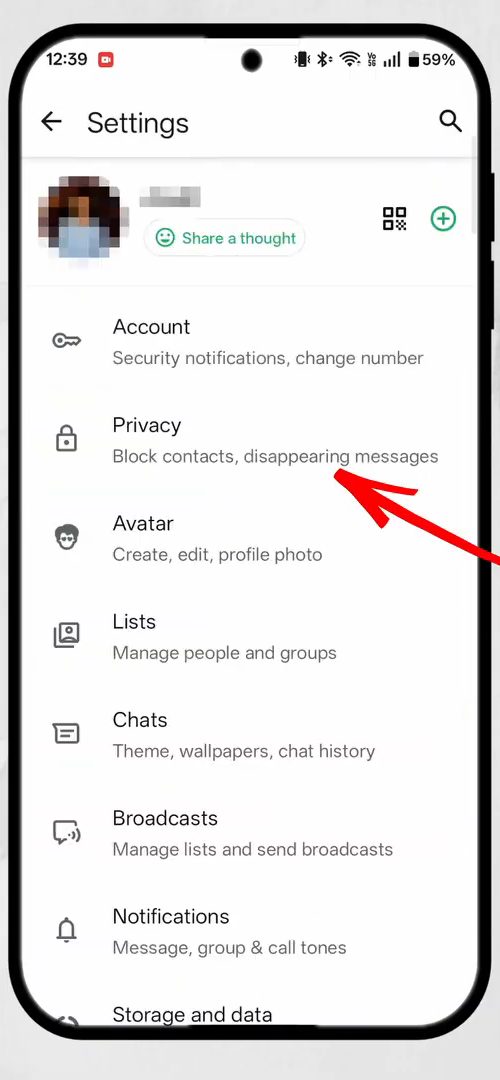
In Settings, tap Privacy (the option with "Block contacts, disappearing messages" under it).
4Turn off Read receipts
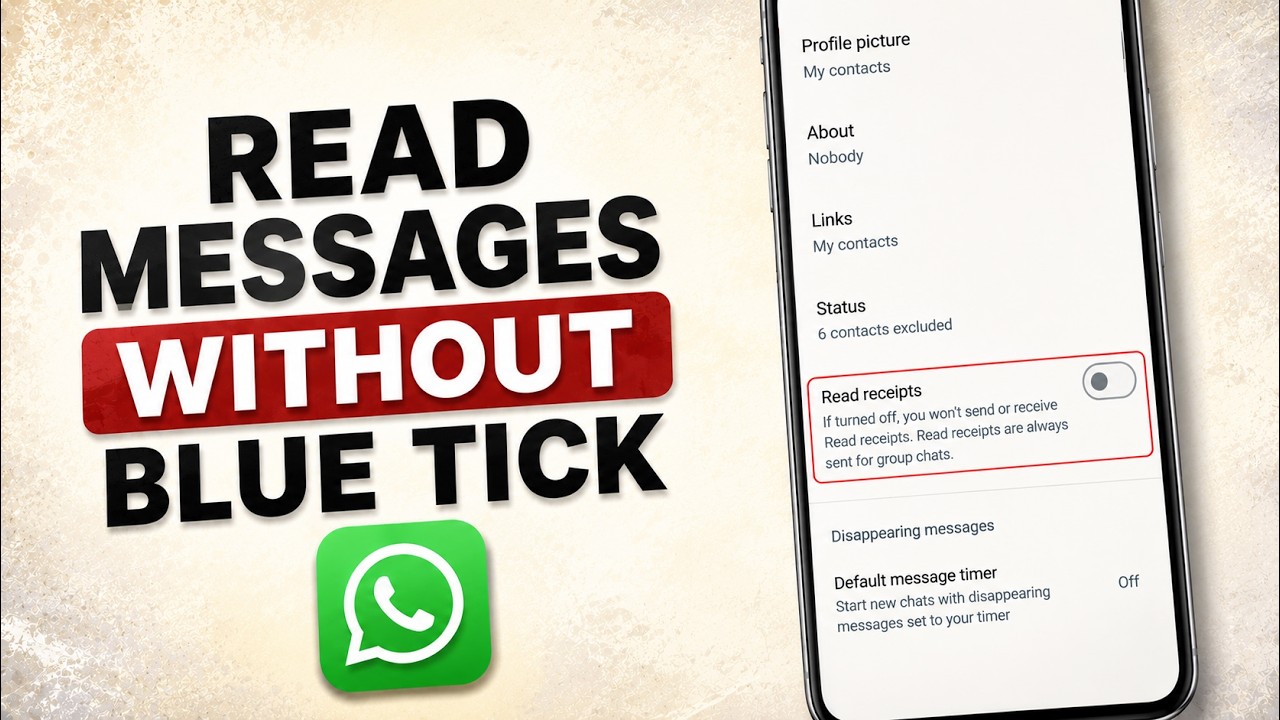
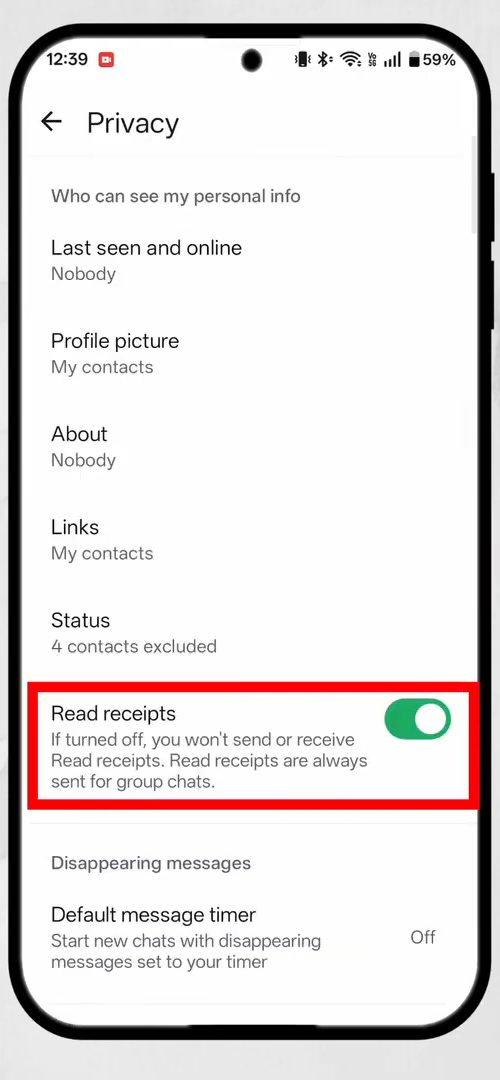
Find Read receipts on the Privacy page. It is on by default. Read the note under it, then tap the switch to turn it off. That's it, the change applies right away.
What changes after you turn it off
- Other people can't see when you've read their messages, so no blue ticks show up on their side.
- It works both ways: you also won't see blue ticks when others read your messages.
- As WhatsApp notes under the switch, read receipts are always sent in group chats, so this only hides them in one-to-one chats.
- Status views are linked to the same switch. With read receipts off, you can't see who viewed your status, and people can't see that you viewed theirs.
- Voice messages are a separate case. WhatsApp still shows the sender when you have played a voice message, even with read receipts off.
- You can switch it back on at any time from the same Privacy page. Nothing is lost when you turn it off or on.
WhatsApp's own help page, How to check read receipts, explains the tick colours and the read receipts setting for Android, iPhone and the web version.
If you only want to skip the blue tick for one message and keep read receipts on for everything else, read it from the notification preview instead of opening the chat. Short messages show in full there. As soon as you open the chat, the receipt is sent as usual.
On iPhone
The setting is the same, only the way in is different. On iPhone there is no three-dot menu on the Chats screen. Tap Settings in the bar at the bottom of the app, then Privacy, and switch off Read Receipts. The behaviour is identical: grey ticks only in one-to-one chats, groups unaffected.
Troubleshooting: still seeing blue ticks?
- It's a group chat. Groups always send read receipts, so blue ticks there are expected. Tap and hold one of your own messages and open its Info to see which members have read it.
- The message was read before you changed the setting. The switch is not retroactive. A message you opened before turning it off has already sent its read receipt.
- You are looking at your own messages. Since it works both ways, your friends' ticks stay grey for you too. If someone else's messages show blue ticks on your side, they have read receipts on and you have them on as well.
- The other person sees blue ticks on your voice notes. That is the play receipt for voice messages, which this switch does not hide.
- The option is missing. Update WhatsApp from the Play Store or App Store. Read receipts have been on the Privacy page for years, so a missing option usually means a very old version of the app.
Related guides: How to Send WhatsApp Message Without Saving Number and How to View Locked Chats in WhatsApp on PC (Secret Code).
FAQ
How do I read WhatsApp messages without the blue tick?
Turn off Read receipts in Settings > Privacy. With it off, the sender sees grey ticks instead of blue ones after you open their message.
Can I still see if others read my messages?
No. Turning off read receipts works both ways, so you won't see blue ticks on your own messages either. Turn the switch back on if you want them back.
Does this hide blue ticks in group chats?
No. WhatsApp says read receipts are always sent for group chats, so members can still see when you've read a group message.
Can someone tell that I turned off read receipts?
Not directly. They only see two grey ticks, which also happens when a message is delivered but not yet read. If they notice that your ticks never turn blue, they may guess, but WhatsApp does not tell them.
Does turning off read receipts hide that I viewed someone's status?
Yes. With read receipts off, your name does not appear in the viewer list of other people's status updates. The trade-off is that you can't see who viewed your own status either.
Can I turn off last seen as well?
Yes, it sits on the same Privacy page under Last seen and online. The video doesn't walk through changing it, but in our screenshots it is already set to Nobody.
Related guides