Tech is Easy
How to Create a WhatsApp Group (Step-by-Step Guide)
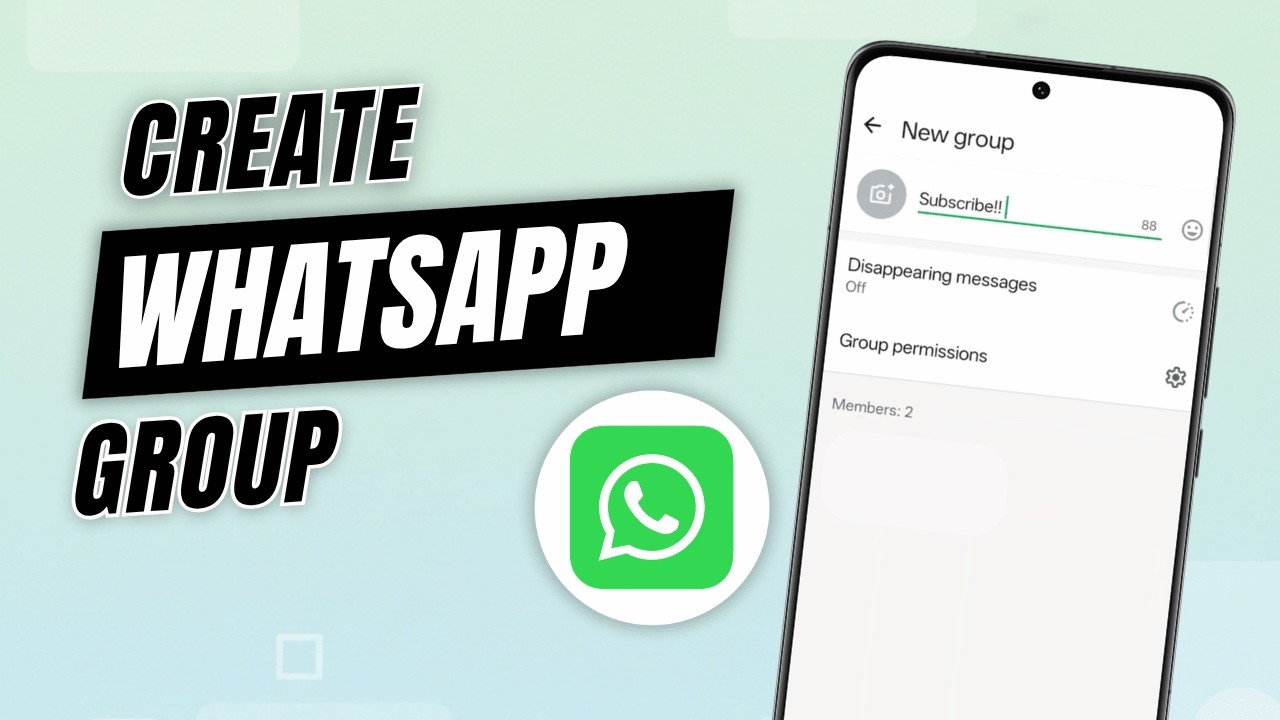
To create a group on WhatsApp, tap the new chat icon at the bottom right of the Chats screen, choose New group, select the contacts you want, tap the arrow, type a group name and tap the tick. That's all it takes to set up a WhatsApp group, and along the way you can add a group icon, turn on disappearing messages and decide what members are allowed to do. This guide is for anyone starting a group for family, friends, a class or a team.
What you need
- WhatsApp on your phone. We used an Android phone; on iPhone the same options exist but the buttons sit in slightly different places.
- The people you want to add saved in your phone's contacts. You can also add more people later.
1Tap the new chat icon
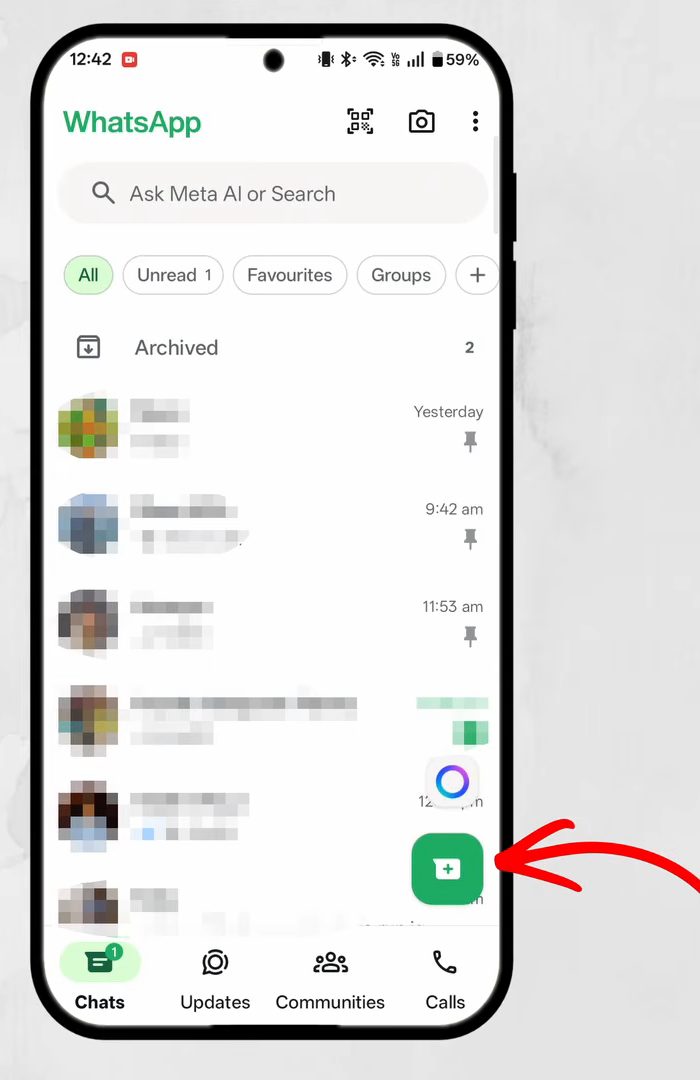
Open WhatsApp and stay on the Chats tab. Tap the green new chat icon at the bottom right of the screen.
2Choose New group
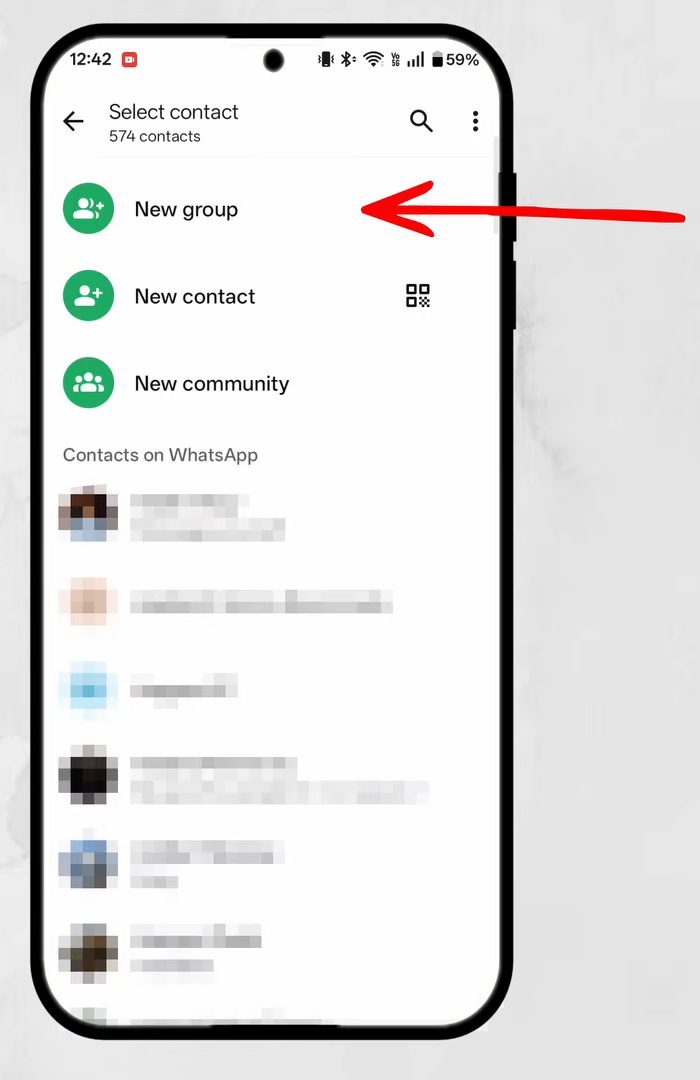
At the top of the Select contact screen, tap New group. The same screen also has New contact and New community, which are different features.
3Select the members
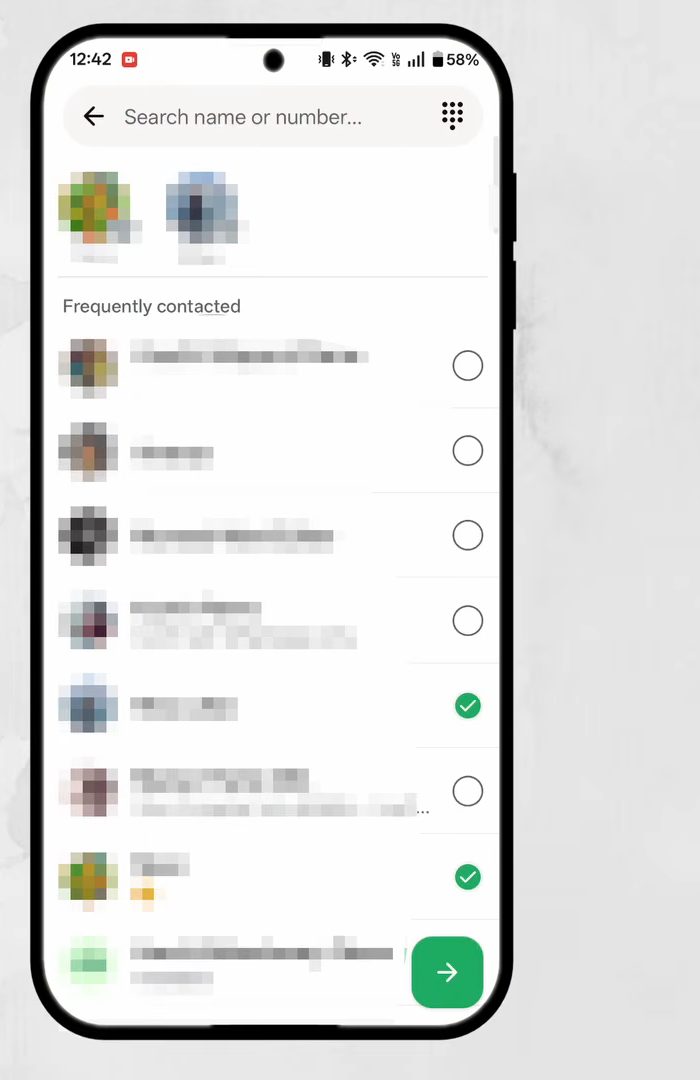
Tick every contact you want in the group. You can scroll through the list, or type a name in the Search name or number bar at the top to find someone quickly. Each person you select appears in a row at the top of the screen, so you can check who's included. When you're done, tap the green arrow at the bottom right.
4Give the group a name
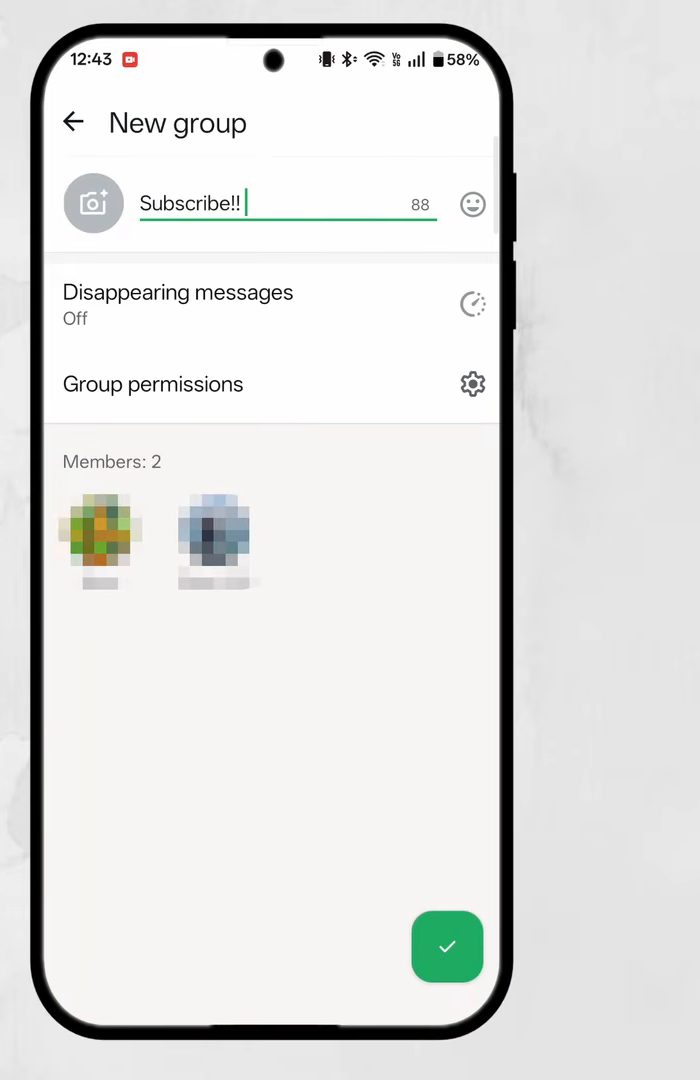
On the New group screen, type the group name in the box at the top. The small number next to it counts down how many characters you have left. Pick something people will recognise in their chat list, since that's how they'll find the group.
5Add a group icon (optional)
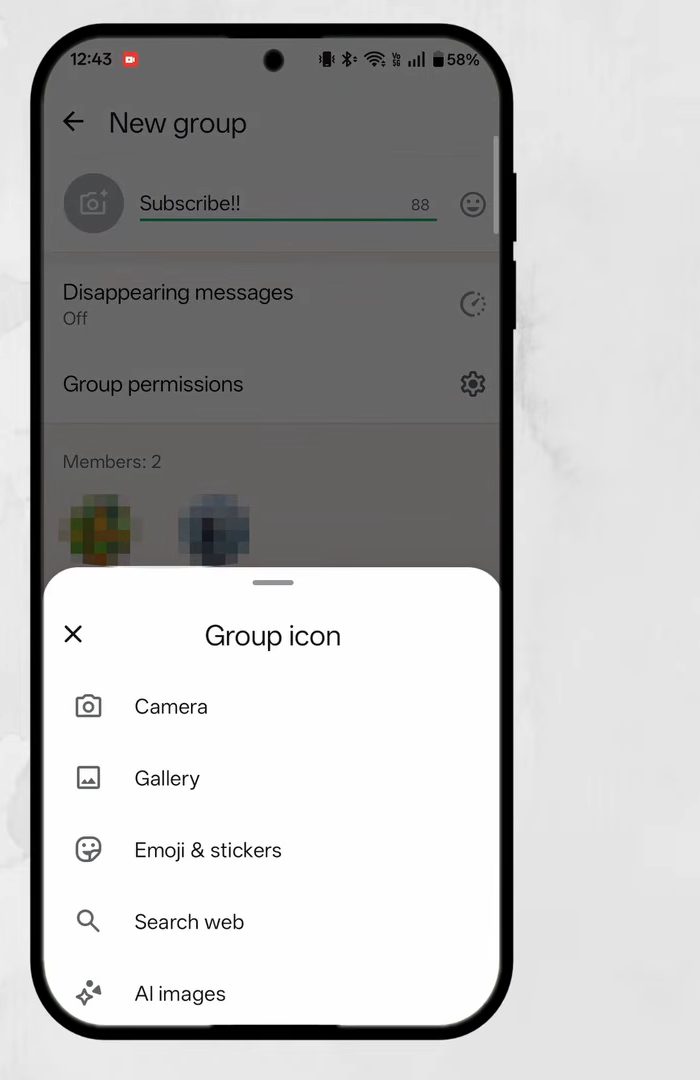
Tap the camera icon next to the name to set a group picture. You get five choices: - Camera: take a new photo - Gallery: pick a photo from your phone - Emoji & stickers: use an emoji or sticker as the icon - Search web: find an image online - AI images: create an AI-generated icon
You can skip this and add or change the icon later from the group info.
6Set disappearing messages (optional)
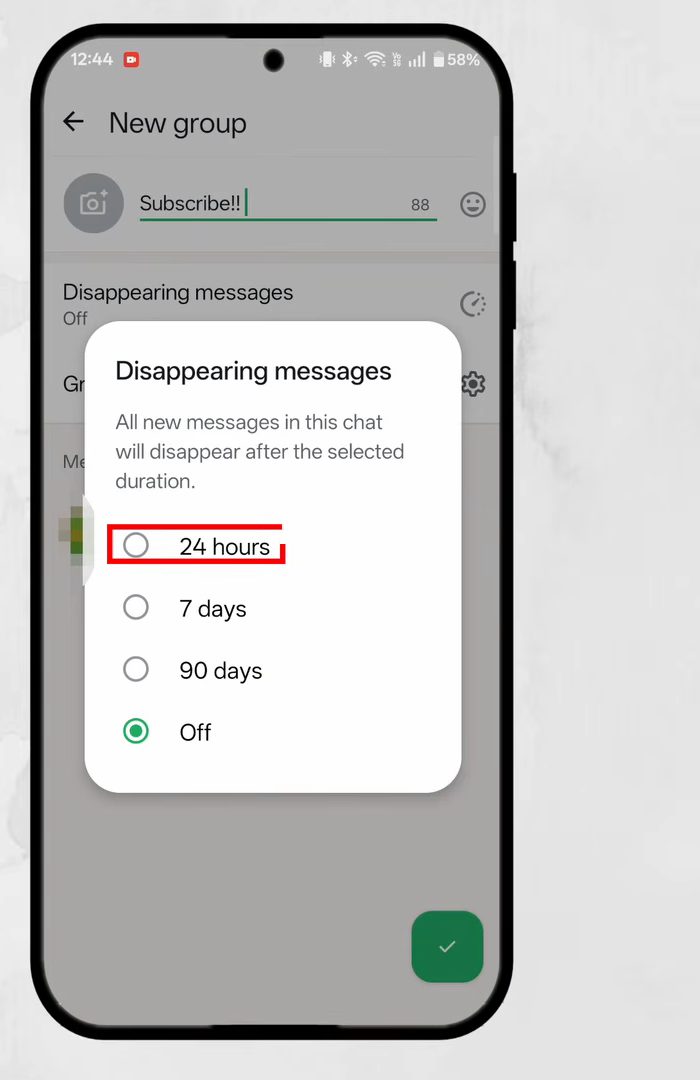
Tap Disappearing messages to make messages delete themselves after a set time. The options are 24 hours, 7 days, 90 days or Off. All new messages in the group disappear after the time you pick. Leave it on Off if you want to keep the chat history, which suits most family or work groups.
7Choose the group permissions
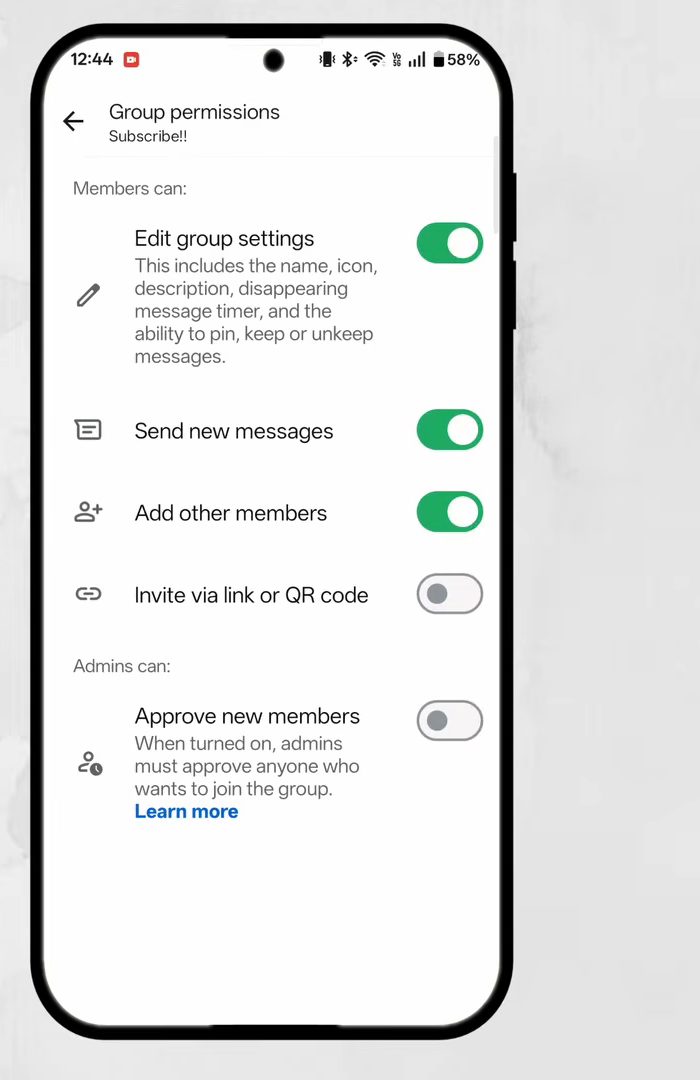
Tap Group permissions to decide what members and admins can do. Under Members can: - Edit group settings: change the name, icon, description, disappearing message timer, and pin or keep messages. - Send new messages: switch this off if only admins should post, for example in an announcement group. - Add other members: let anyone bring in new people. - Invite via link or QR code: let members share a join link. It was off by default in our case.
Under Admins can there is Approve new members. With it on, an admin must approve anyone who wants to join before they get in. Go back with the arrow at the top left when you're done.
8Tap the tick to create the group
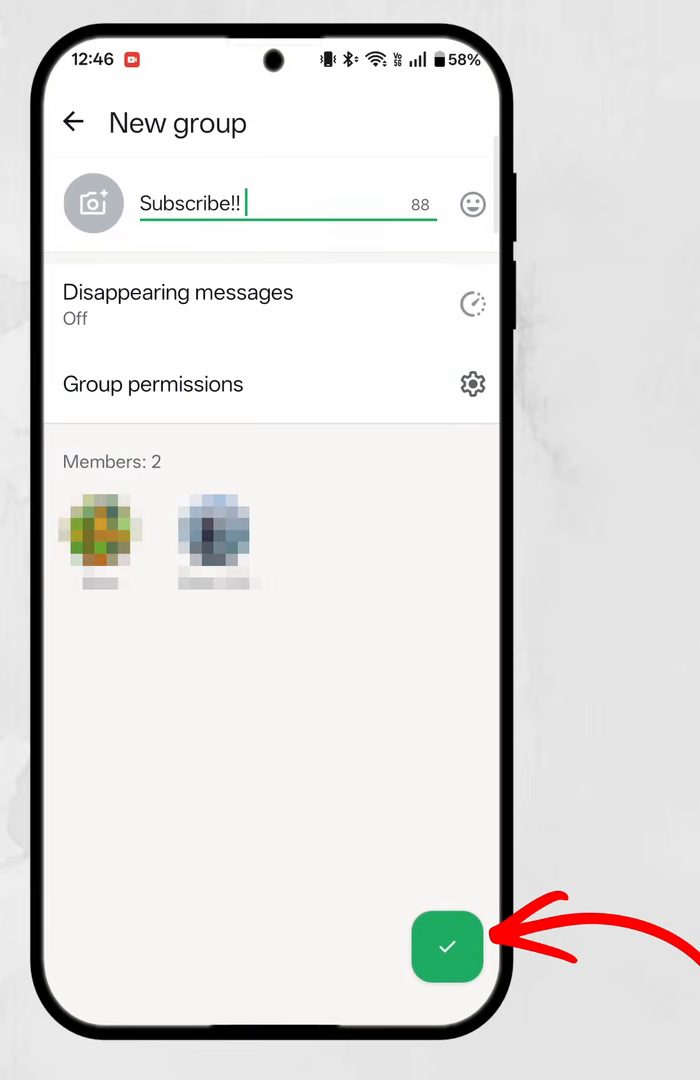
Back on the New group screen, tap the green tick at the bottom right.
9Start chatting
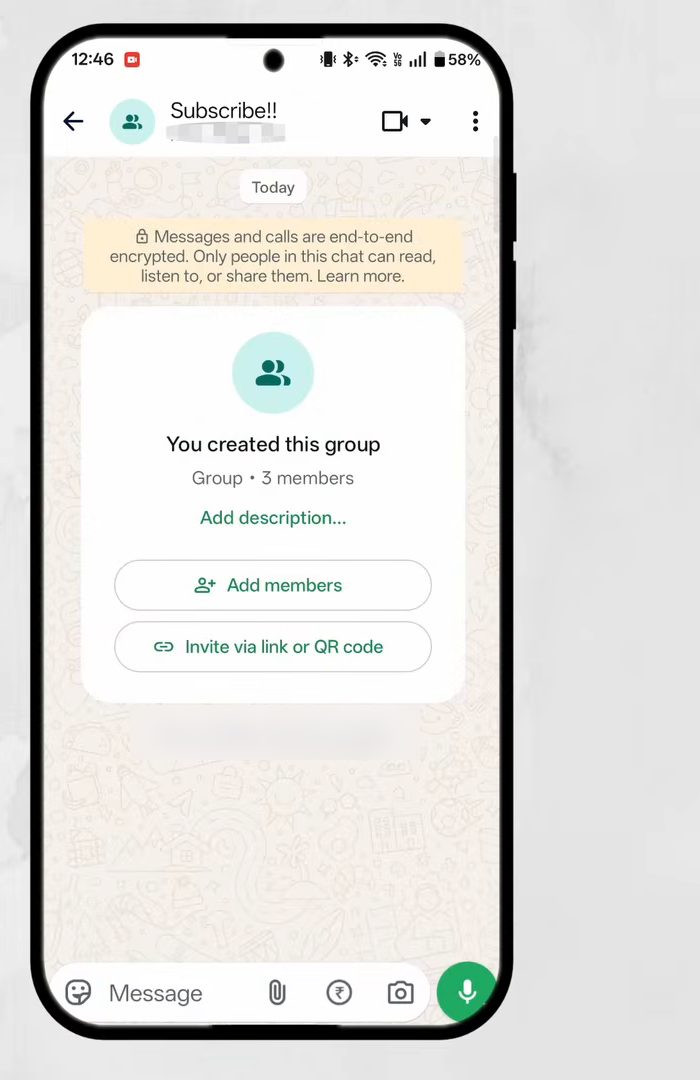
The group opens straight away with the message You created this group, the number of members, and buttons to Add description, Add members and Invite via link or QR code. Everyone you added sees the new group in their chat list.
Good to know
- You're the admin. As the creator you can change the permissions, add or remove people and make others admins from the group info screen.
- Size and name limits. WhatsApp's help page says a group can have up to 1024 members and the name can be up to 100 characters. If you don't add a name, the group shows a list of the members' names instead.
- Contacts without WhatsApp. According to the same page, contacts who don't have WhatsApp are sent an SMS invite.
- Members can leave at any time. Being added to a group doesn't stop someone from leaving it.
Tips / troubleshooting
- Can't add a certain person? Their privacy setting may only allow their contacts to add them to groups. WhatsApp then lets you send them a private invite instead, which they can accept.
- Someone isn't in the contact list? Save their number in your phone's contacts first, then refresh or search again. You can also share the invite link once the group is created.
- Group too noisy? Turn off Send new messages for members so only admins can post.
- Strangers joining through a shared link? Keep Invite via link or QR code off, or turn on Approve new members so an admin has to accept every request.
WhatsApp's help page How to create and invite into a group covers the same steps for Android, iPhone and the web.
Related guides: How to Create Stickers in WhatsApp and How to Turn Off Read Receipts on WhatsApp.
FAQ
How do I create a group on WhatsApp?
Tap the new chat icon on the Chats screen, choose New group, select the contacts, tap the arrow, type a name and tap the tick. The group is ready immediately.
How many people can be in a WhatsApp group?
WhatsApp's help page puts the limit at 1024 members per group.
Can I make a WhatsApp group where only admins can send messages?
Yes. In Group permissions, turn off Send new messages under Members can. Members can still read everything, but only admins can post.
Can I change the group name or icon later?
Yes. Open the group, tap its name at the top to open group info, and change the name, icon or description there. If Edit group settings is on for members, they can change these too.
Related guides