Tech is Easy
How to Set Parental Controls on Instagram (Family Centre)
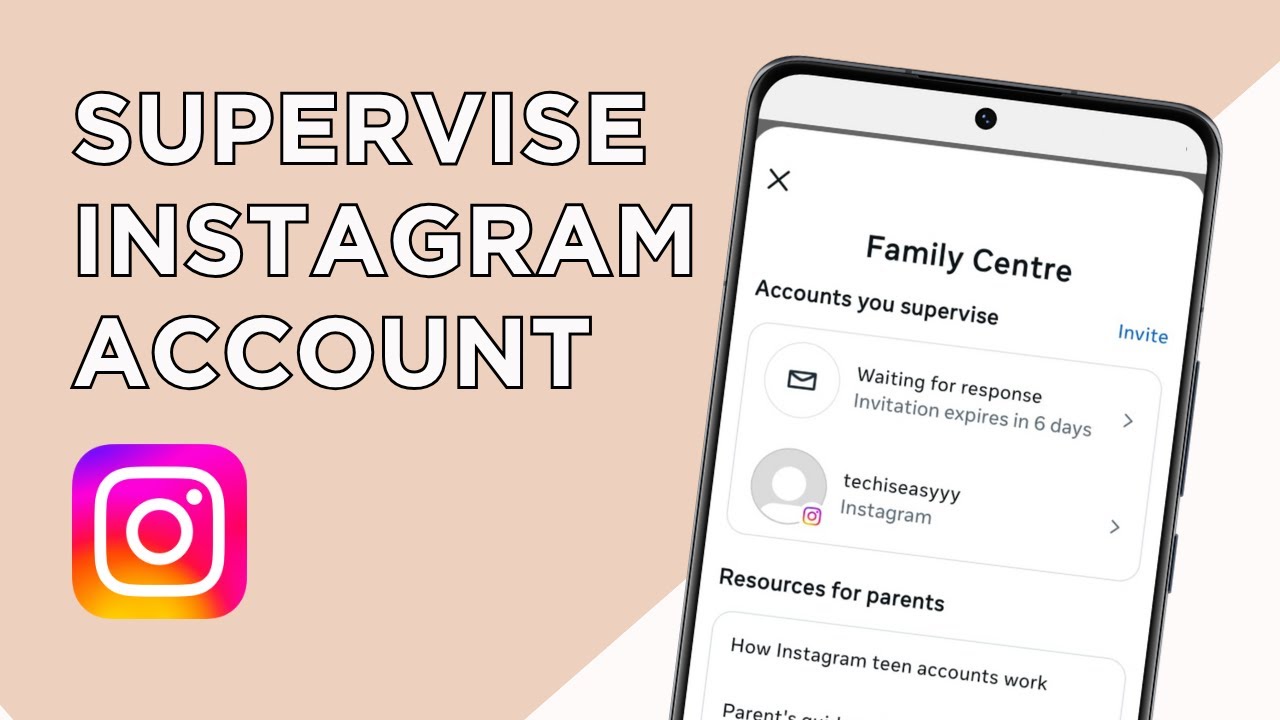
To set parental controls on Instagram, open your profile on the parent's account, tap the three lines, go to Family Centre and tap Invite next to Accounts you supervise. Once your teen accepts the request from their notifications, you can set daily time limits and sleep mode, check their privacy settings and see who they chat with. This guide is for parents of teens aged 13 to 17 who want to put supervision on their child's Instagram account.
What you need
- Your own Instagram account and your teen's account, on two phones
- A teen aged 13 to 17. Supervision only works for accounts in that age range.
- Your teen's approval. They have to accept the request on their phone.
- Ideally, both accounts following each other. It makes the teen easy to find in the invite list.
Method 1: Send the supervision invite (parent's phone)
1Open Family Centre
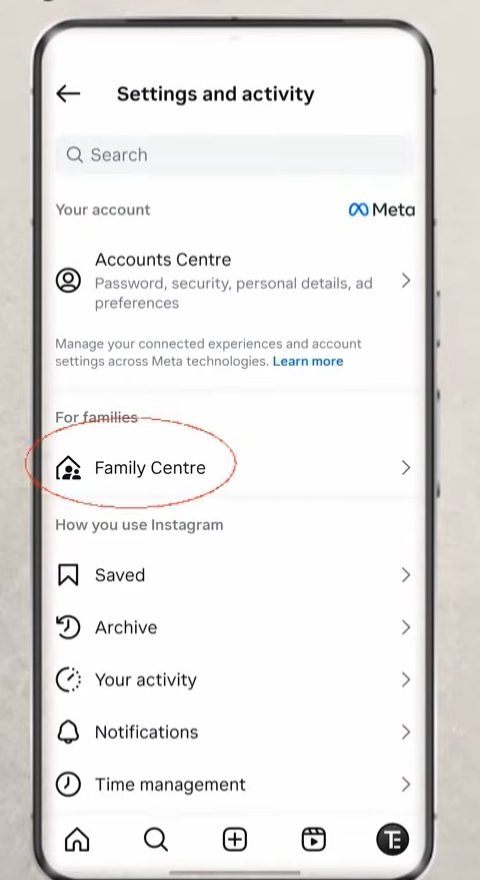
On the parent's phone, go to your profile and tap the three lines at the top right. In Settings and activity, scroll down to For families and tap Family Centre.
2Tap Invite
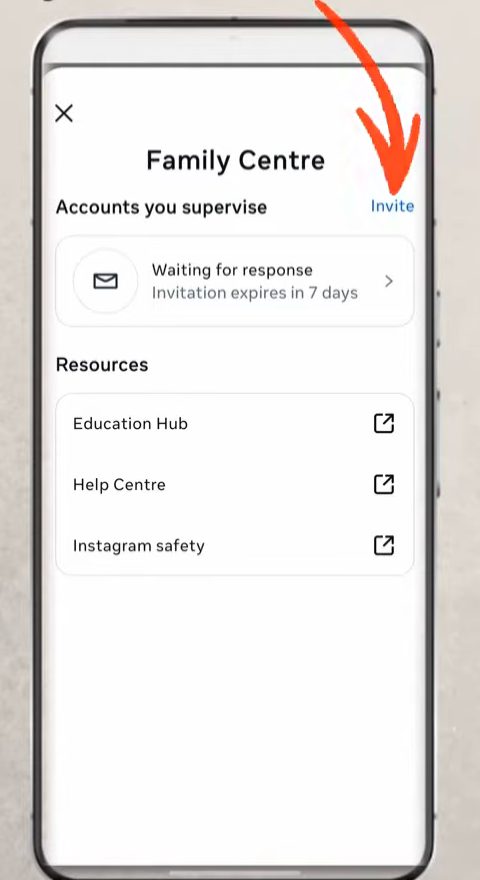
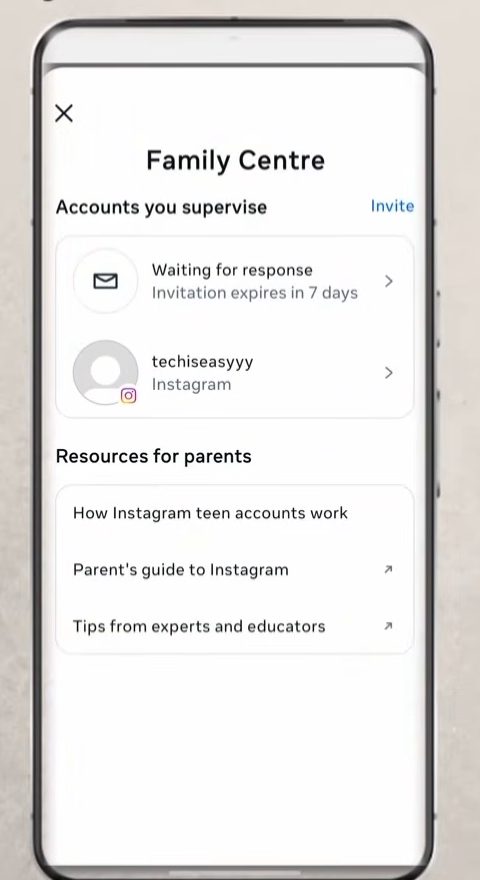
In Family Centre, tap Invite next to Accounts you supervise.
3Pick your teen's account and send the invite
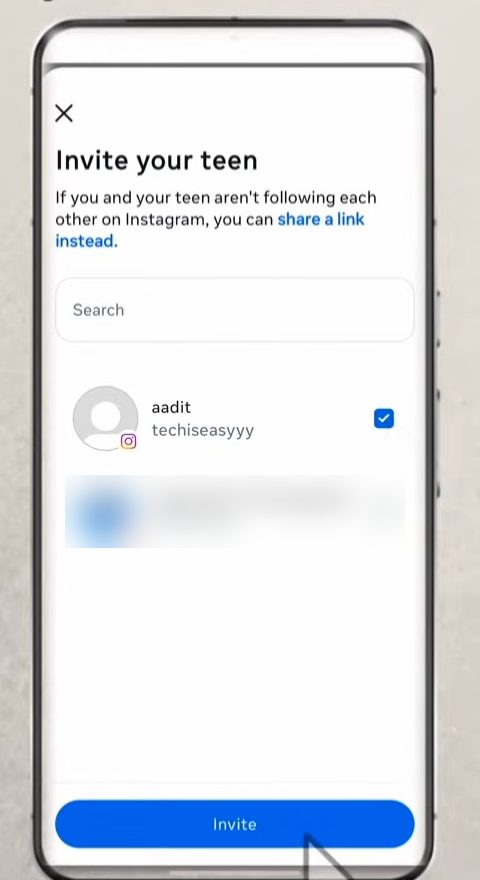
Your teen's account shows up in the list if you follow each other. Tick their account and tap Invite. If you don't follow each other, tap share a link at the top instead and send that link to your teen. After the invite goes out, Family Centre shows it as Waiting for response, and it expires in 7 days.
Method 2: Accept the request (teen's phone)
4Open notifications
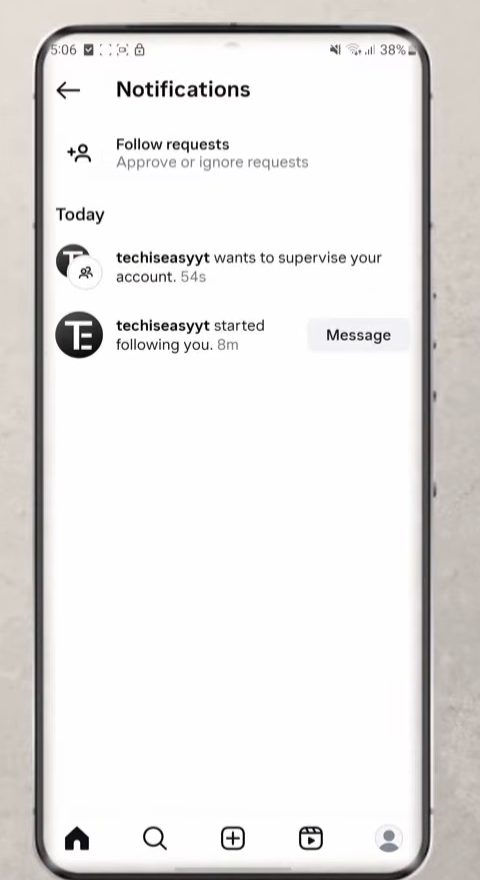
On the teen's phone, go to the home page and tap the heart icon at the top to open notifications. There will be a notification saying your account wants to supervise theirs. Tap it.
5Tap Accept
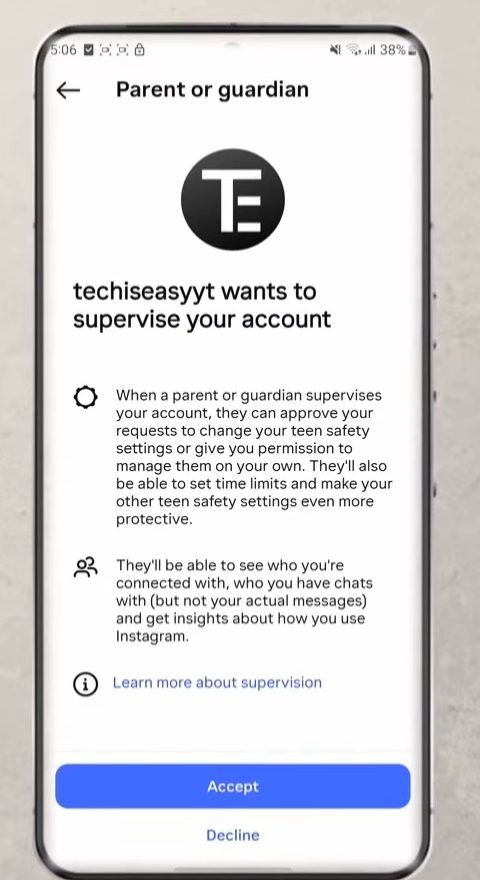
The Parent or guardian screen lists what the parent will be able to do, such as setting time limits and seeing who the teen is connected with. Read it through, then tap Accept. Supervision is now on.
Method 3: Use the controls (parent's phone)
6Open your teen's account in Family Centre
Back on the parent's phone, go to three lines > Family Centre again. Your teen's account now appears under Accounts you supervise. Tap it to see all the controls.
7Check time spent and open Manage time limits
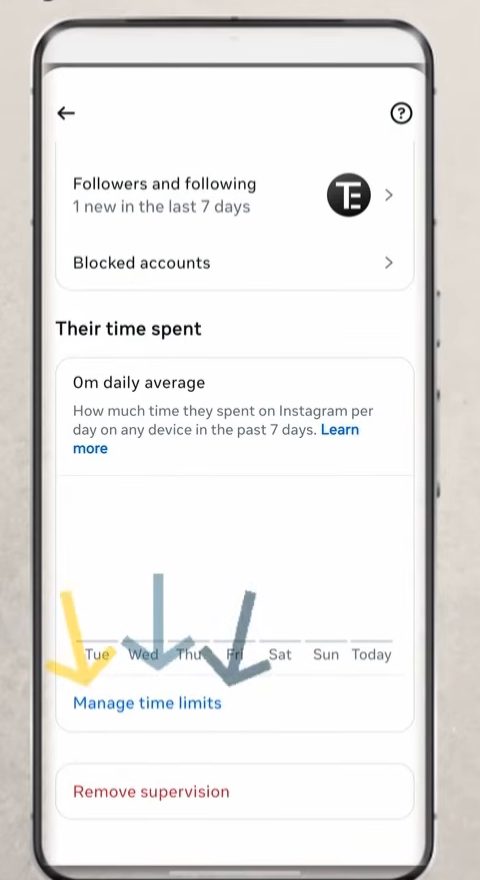
Scroll down to Their time spent to see how long your teen has been on Instagram each day over the past week. To set limits, tap Manage time limits.
8Set sleep mode and a daily limit
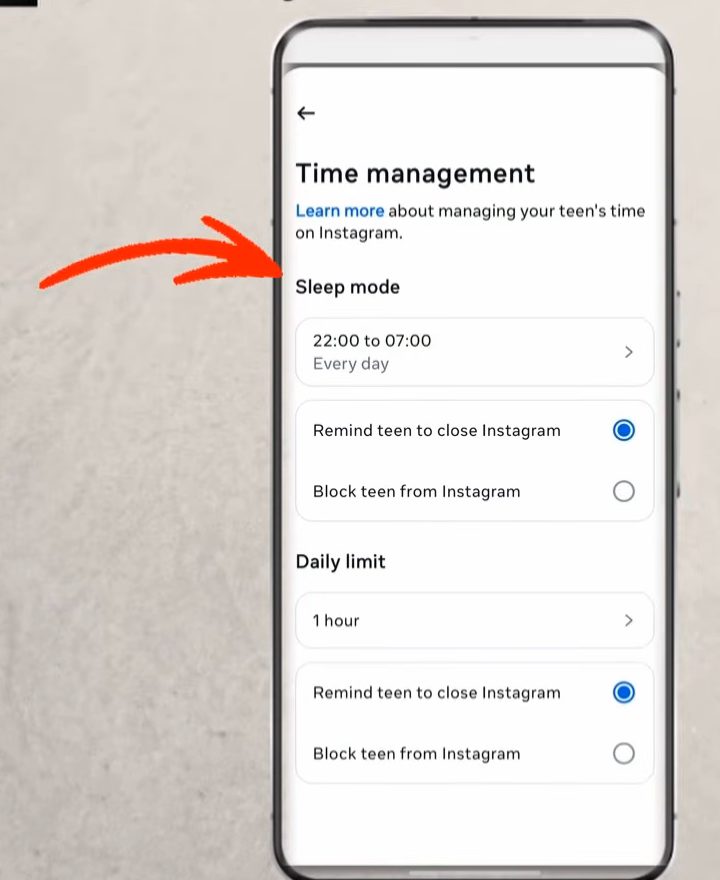
There are two controls here: - Sleep mode: pick a time window, for example 22:00 to 07:00 every day. During that time you can either Remind teen to close Instagram or Block teen from Instagram. - Daily limit: tap the current limit (1 hour in our example) to change it, then choose again between a reminder or blocking them once the limit is reached.
9Review privacy and who can interact with them
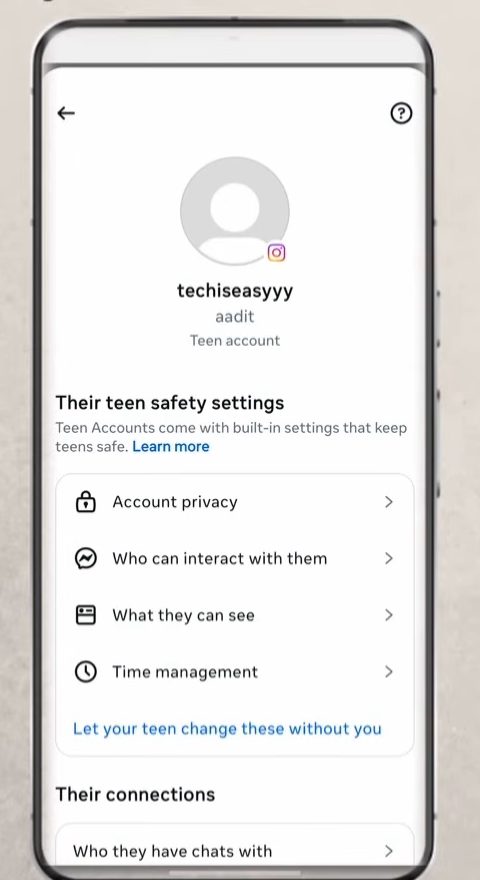
On your teen's page, Their teen safety settings lists Account privacy, Who can interact with them, What they can see and Time management. Tap Account privacy to see if their account is private or public, and Who can interact with them to control who can message, tag or mention them. Under Their connections you can also view their followers and following and the accounts they have blocked.
10See who they chat with
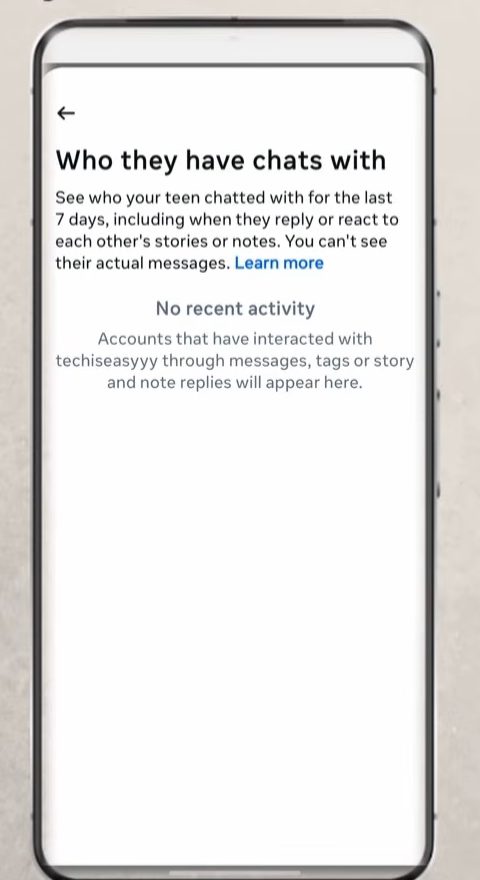
Scroll down to Their connections and tap Who they have chats with. This shows the accounts your teen has chatted with in the last 7 days. You can't read the messages themselves, only see the names. If there are no recent chats, the list is empty.
Tips / troubleshooting
- If you can't find your teen in the invite list, use share a link instead or follow each other first.
- Instagram supervision only covers Instagram. For limits across the whole phone, see how to set up Google Family Link.
FAQ
What is the supervision tool on Instagram?
It's a set of parental controls inside Family Centre. Once a teen accepts, the parent can set time limits and sleep mode, see time spent, followers and following, blocked accounts, privacy settings and who the teen chats with.
Can parents read their teen's Instagram messages?
No. Supervision shows the names of the accounts your teen has chatted with in the last 7 days, but not the messages themselves.
Does my teen have to agree to supervision?
Yes. The teen must accept the invite from their notifications. Supervision is only available for teens aged 13 to 17.
How do I remove supervision later?
On the parent's phone, open your teen's account in Family Centre and scroll down. There is a Remove supervision option at the bottom of the page, below Their time spent.
Related guides