Tech is Easy
How to Set Up and Use Google Authenticator (Add Any App)
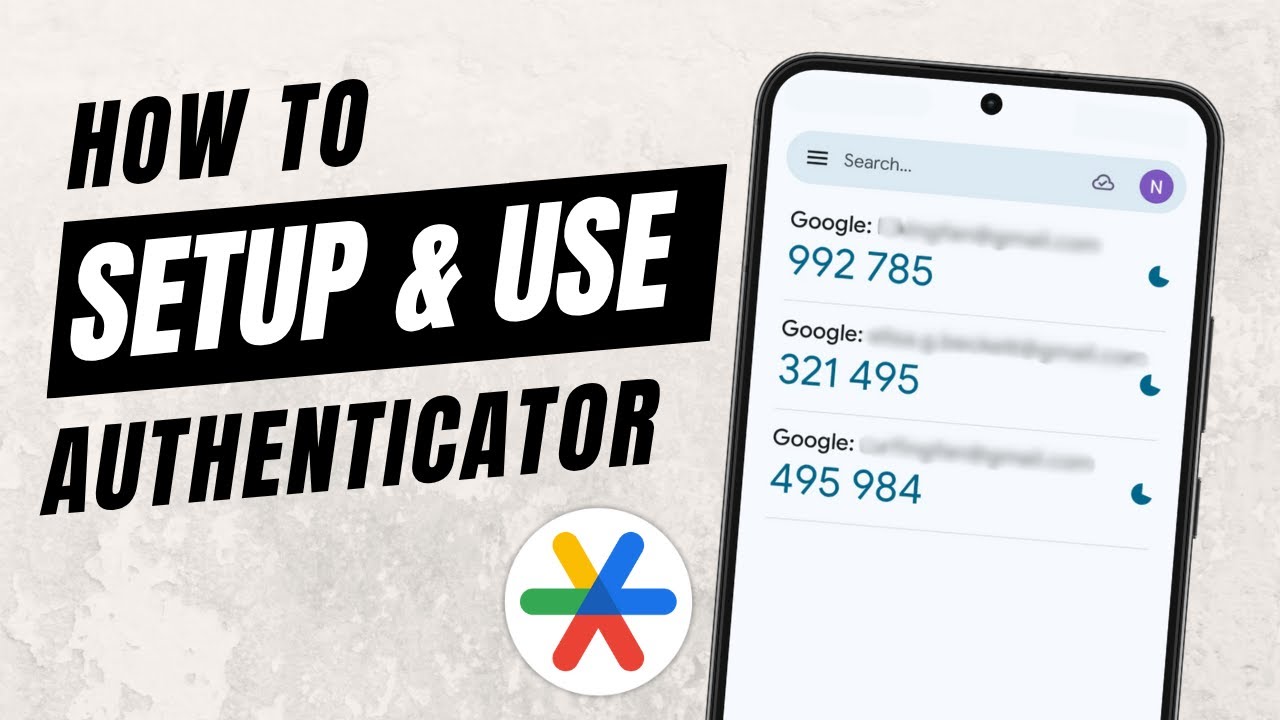
To set up and use Google Authenticator, install the app, tap Get started, then tap Add a code and scan the QR code that an app's two-step verification settings show you. The app then gives you a six-digit code that changes every few seconds, which you type in when you sign in. It works with Gmail, Instagram and any other app that supports authenticator-based two-factor authentication.
What you need
- A phone for the Google Authenticator app
- The account you want to protect open on another screen (a second phone or a computer), so you can scan its QR code
- On Android, version 6.0 or newer. Google's help page lists this as the minimum for Google Authenticator.
1Install Google Authenticator
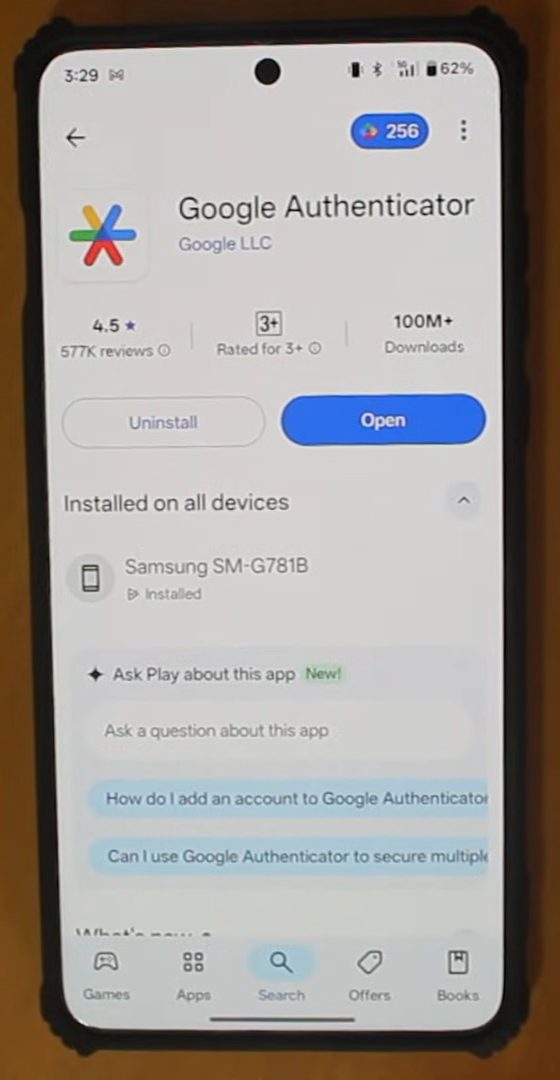
On your phone, open the Play Store (Android) or App Store (iPhone), search for Google Authenticator and install it. Then tap Open.
2Tap Get started
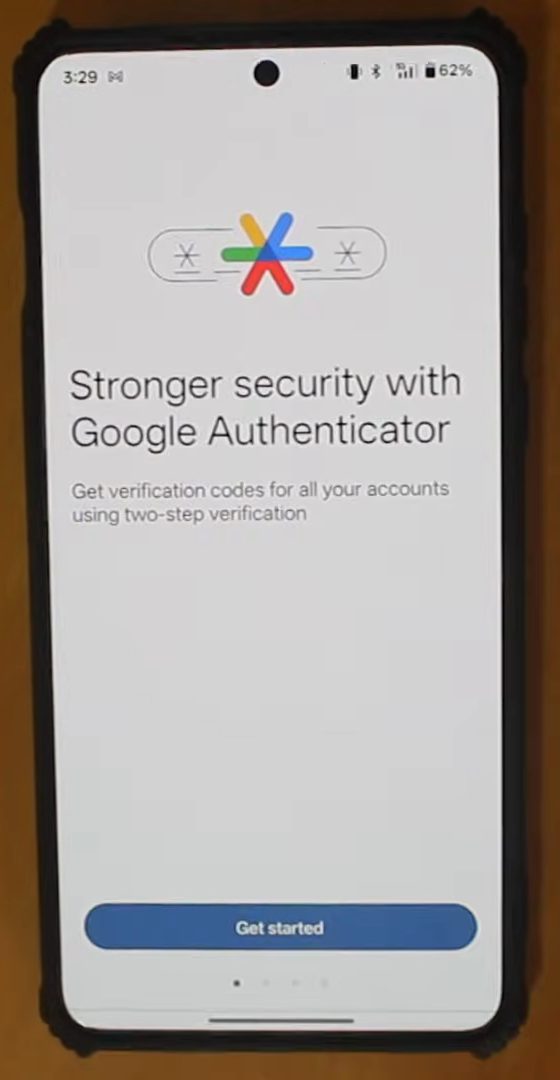
The first screen says "Stronger security with Google Authenticator". Tap Get started.
3Choose whether to sign in
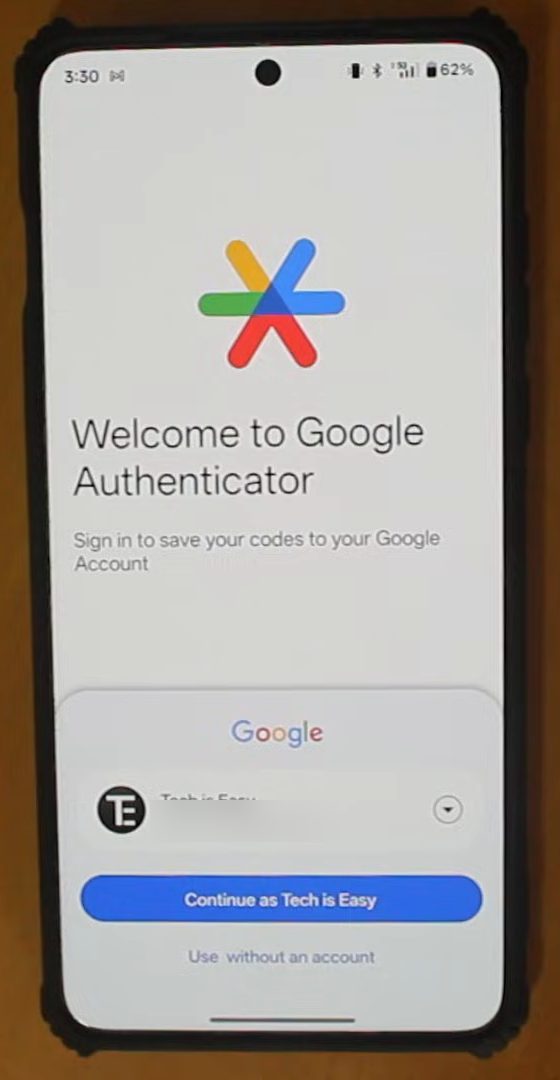
You get two options. Sign in with your Google account if you want your codes synced to it, or tap Use without an account to keep the codes only on this phone. We picked Use without an account.
4Tap Add a code
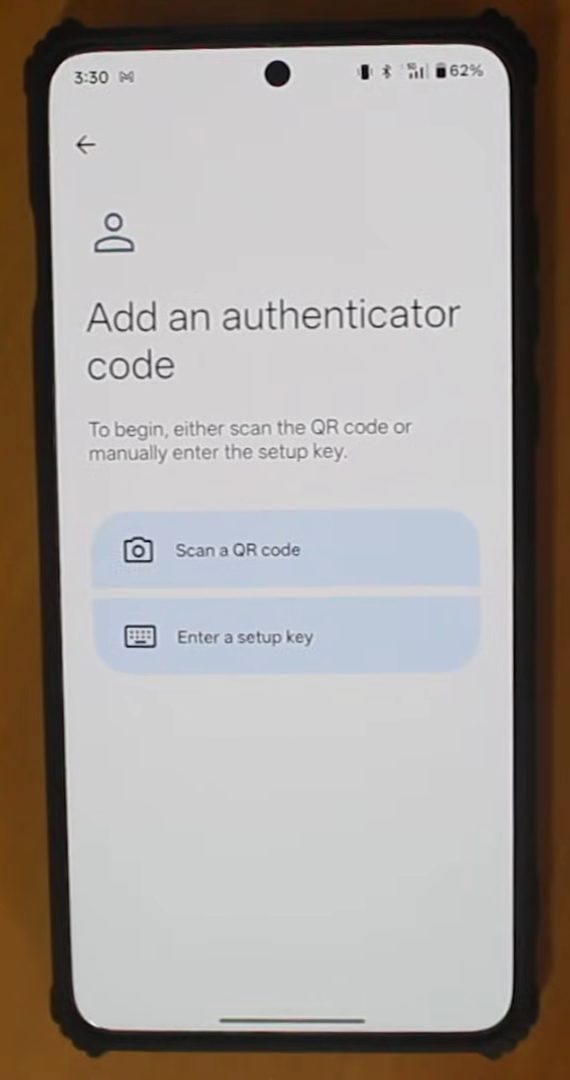
The app is now ready. Tap Add a code (or the + button). There are two ways to add an account: Scan a QR code or Enter a setup key. Leave this screen open while you get the QR code.
5Open the two-step settings of the account you want to protect
Go to the app where you want two-factor authentication. As an example, we'll add a Gmail account. On the other device, sign in to that account, open Gmail, tap your profile picture at the top right and tap Google Account.
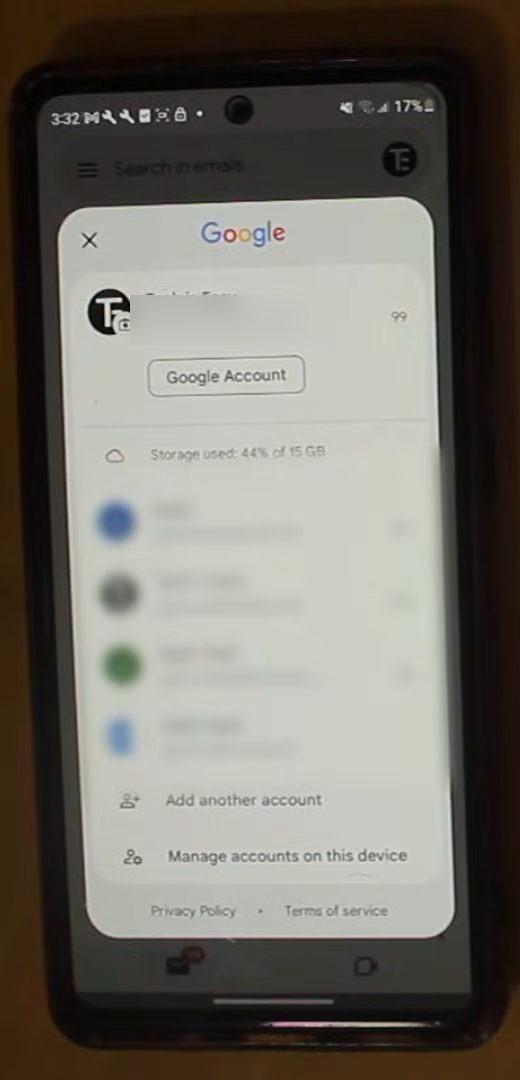
6Find 2-Step Verification and choose Authenticator
In your Google Account, tap the search icon and search for 2-Step Verification, then open it. Scroll down to the Second steps list and tap Authenticator.
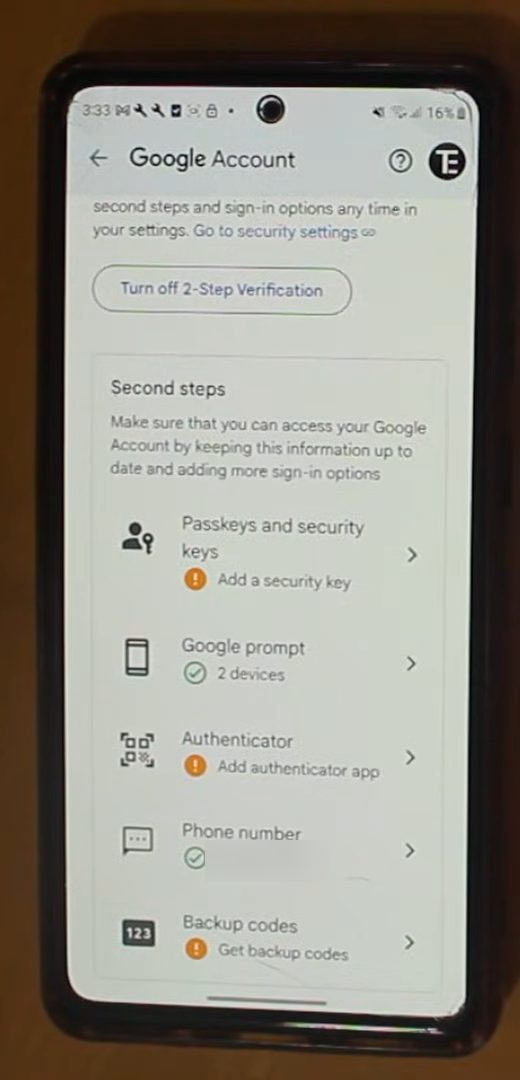
7Tap Set up authenticator
On the Authenticator app page, tap Set up authenticator. A QR code appears on the screen.
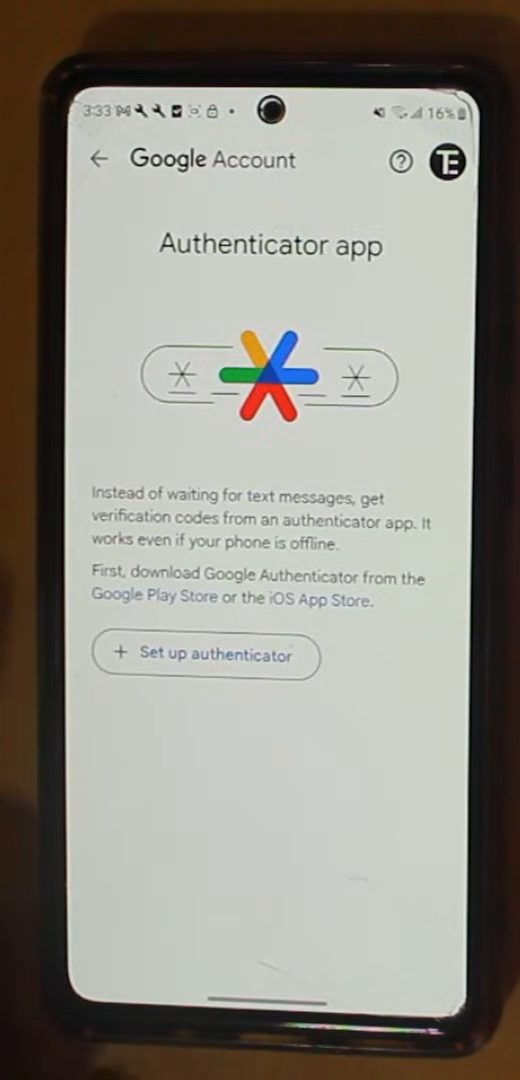
8Scan the QR code
On the phone with Google Authenticator, tap Scan a QR code and point the camera at the QR code. The account appears in the app straight away with a six-digit code. Then tap Next on the other device.
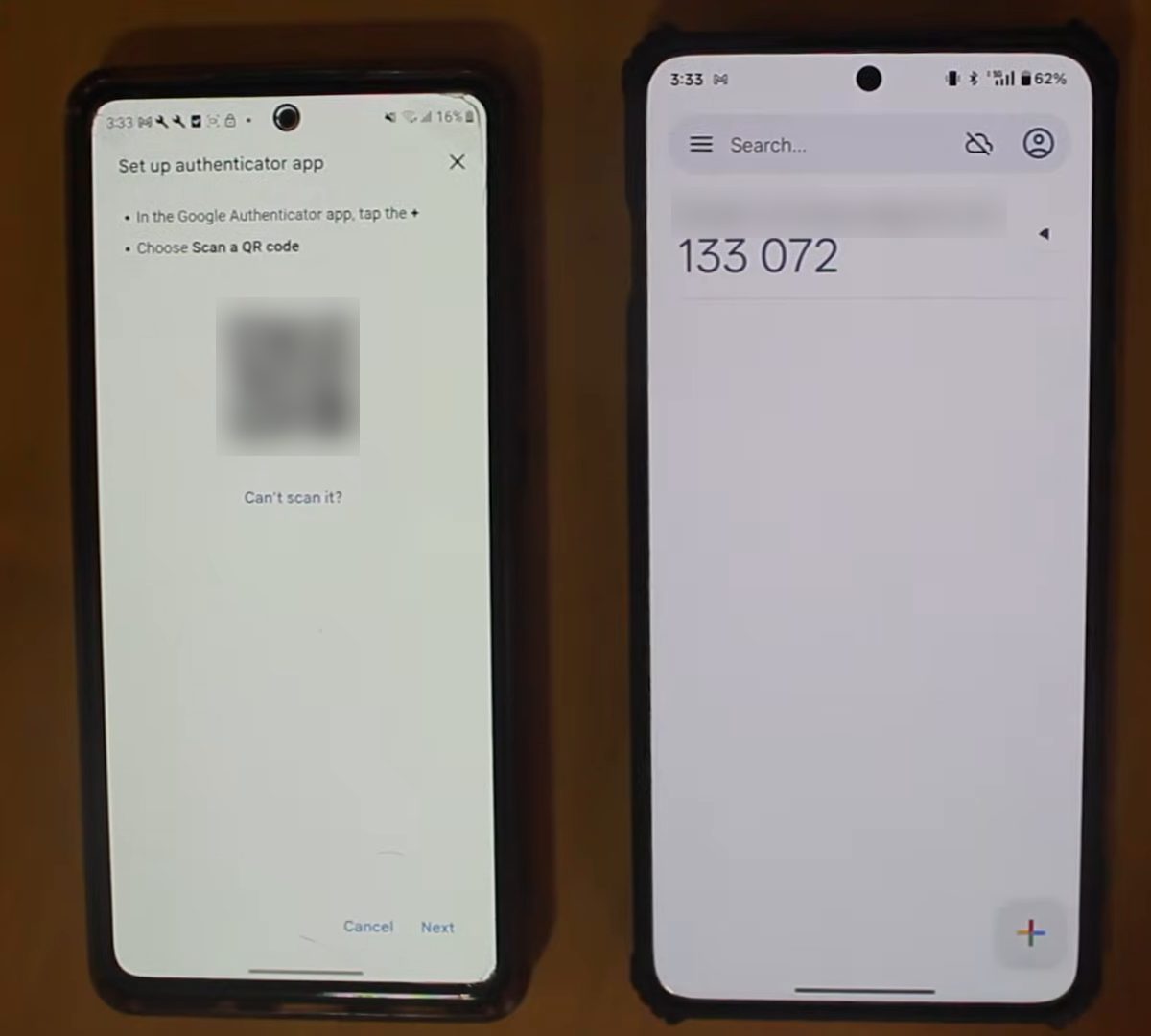
9Enter the code and verify
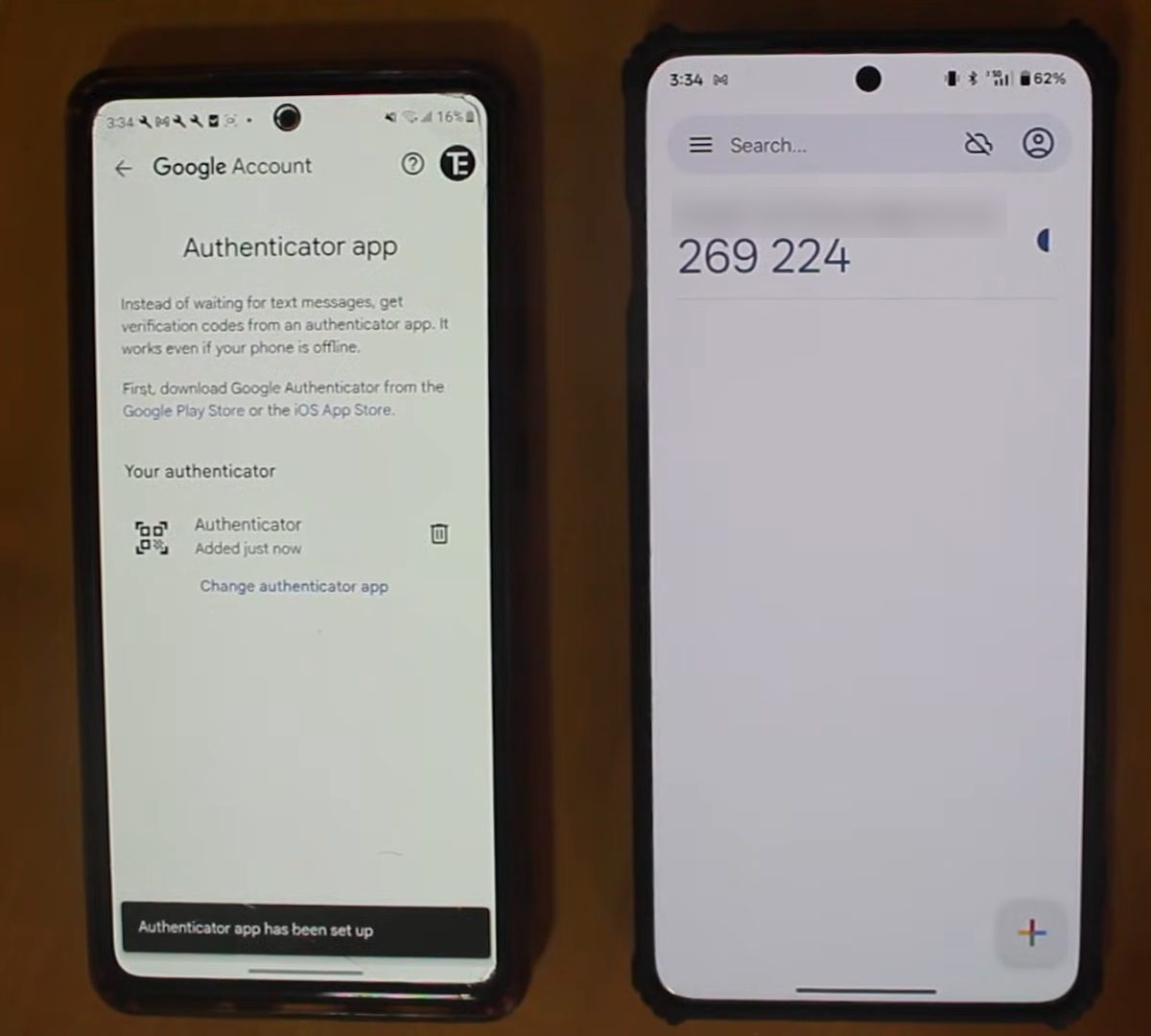
Type the six-digit code you see in Google Authenticator into the other device and tap Verify. You'll see "Authenticator app has been set up". From now on, Google will ask for a code from the app when you sign in.
What changes after setup
From now on, signing in to that account on a new device needs two things: your password and the current code from the app. Someone who steals your password still can't get in without your phone. Google's own page on getting verification codes with Google Authenticator adds a few details worth knowing: - The app keeps generating codes without an internet connection or mobile service. - If you sign in to the app with a Google account, your codes are synced and encrypted, so they show up again when you sign in on a new phone. This needs version 6.0 or later on Android, or 4.0 or later on iPhone. - For a Google account, it can take up to 7 days before Authenticator shows up as an available sign-in option. This delay protects you if someone else set it up without your permission. - The app can hold codes for several Google accounts. Tap your profile picture at the top right and choose Add another account.
Don't get locked out
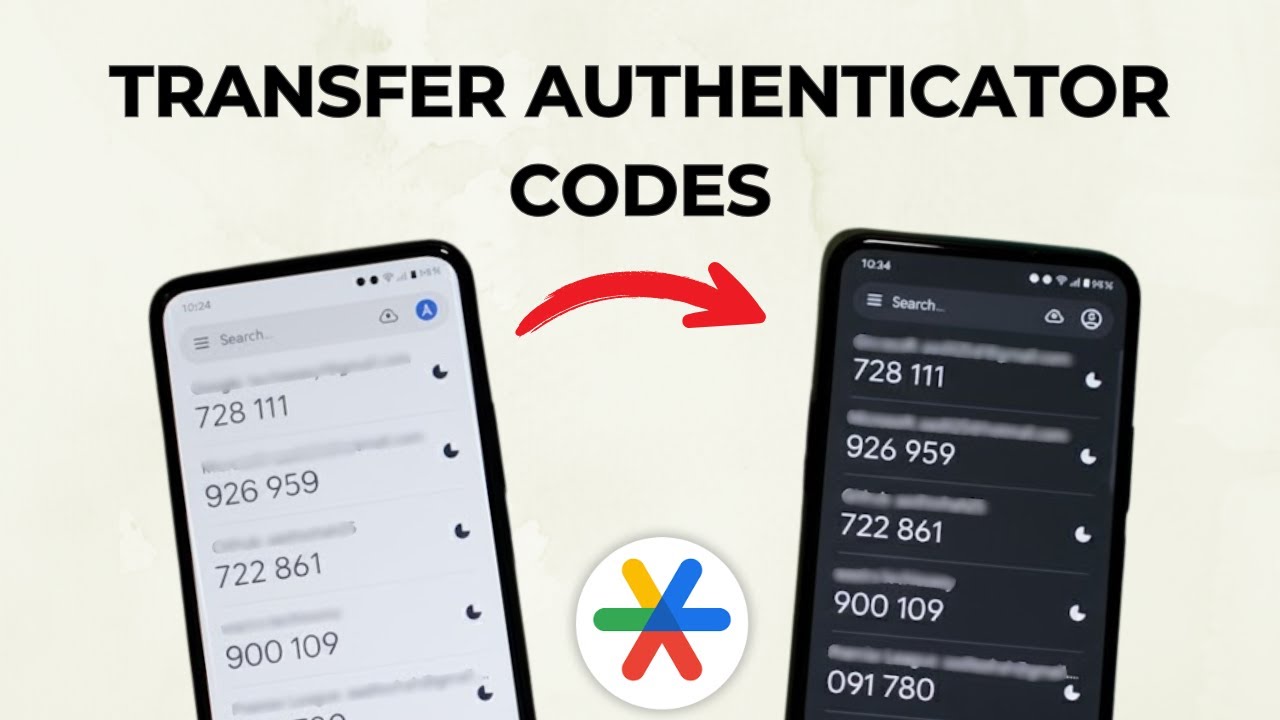
Your codes live on your phone, so plan for losing or replacing it before it happens: - Keep another second step on the account too, such as a phone number for text messages or backup codes. On a Google account both are on the same 2-Step Verification page you used in Step 6. - If you chose Use without an account, the codes exist only on this phone. Before you switch phones, move them with Transfer codes in the app's menu (Export codes on the old phone, Import codes on the new one). - Don't delete the app or reset the phone until every account in it has a working code somewhere else.
Tips / troubleshooting
- Code not accepted? Check that your phone's date and time are set automatically. Newer versions of the app use the phone's clock, so a clock that is off by a minute or two produces wrong codes.
- Several rows in the app? Each row is labelled with the service and account name. Make sure you are reading the code from the right row.
- Repeat steps 4 to 9 for every app you want to protect, such as Instagram. Each account shows up as its own row in Google Authenticator with its own code.
- The codes refresh every few seconds. If one is about to change, wait for the next one before typing it.
FAQ
How do I add Instagram or another app to Google Authenticator?
Open that app's two-factor authentication settings and choose the authentication app option. It shows a QR code or setup key. In Google Authenticator tap +, then Scan a QR code or Enter a setup key, and confirm with the code the app gives you. The video only shows this for a Google account.
Should I use Google Authenticator with or without an account?
Signing in syncs your codes to your Google account, which helps if you lose or change your phone. Using it without an account keeps the codes only on that device, so you'd have to move them yourself; see how to transfer Google Authenticator to a new phone.
Why can't I choose Authenticator when I sign in to Google?
Google can take up to 7 days before a newly added Authenticator shows up as a sign-in option. Until then, use your other second step, such as a text message code or a prompt on your phone.
What if I can't scan the QR code?
Tap Can't scan it? under the QR code to get a setup key, then choose Enter a setup key in Google Authenticator and type it in.
Does Google Authenticator need internet?
No. As the Authenticator page in your Google Account says, the app keeps generating codes even when your phone is offline.
Related guides