Tech is Easy
How to Remove Google Account From Other Devices (Sign Out)
To remove your Google account from other devices, go to myaccount.google.com, click Security, then Manage all devices, open the device you want gone and click Sign out. This is useful if you logged in on a friend's phone, an old laptop or a smart TV and want to cut off access without touching that device.
Before you start
- Sign in to the Google account you want to check. The list only shows devices for that one account.
- Signing a device out does not delete anything, and it does not change your password. If you think someone else knows your password, change it as well, otherwise they can simply sign back in.
- There is a shortcut to the same list: google.com/devices. Google's help page See devices with account access explains the list in more detail, and the notes below are based on it.
1Open your Google Account page
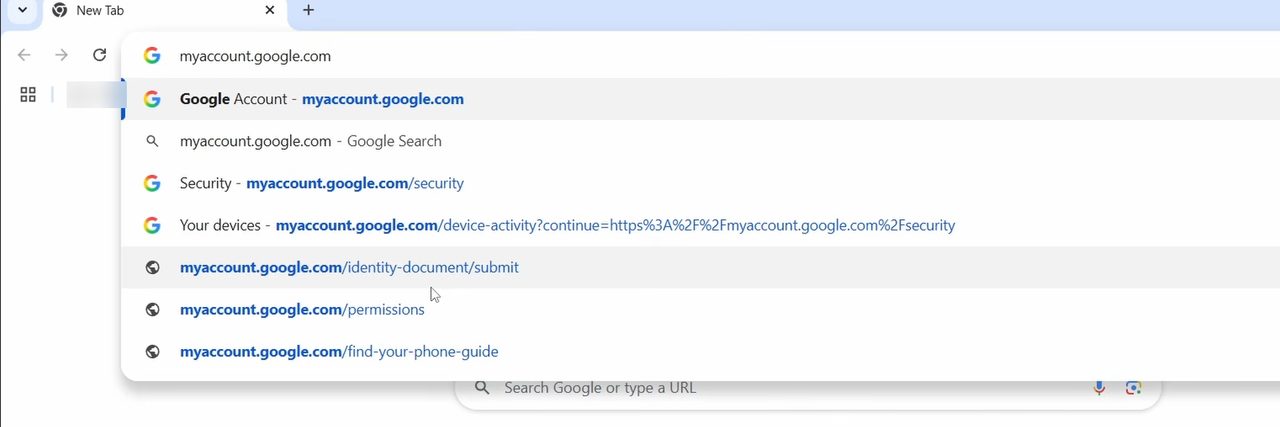
Open your browser and go to myaccount.google.com. If you are already signed in, your Google Account home page opens. If not, sign in first.
2Click Security
In the menu on the left, click Security.
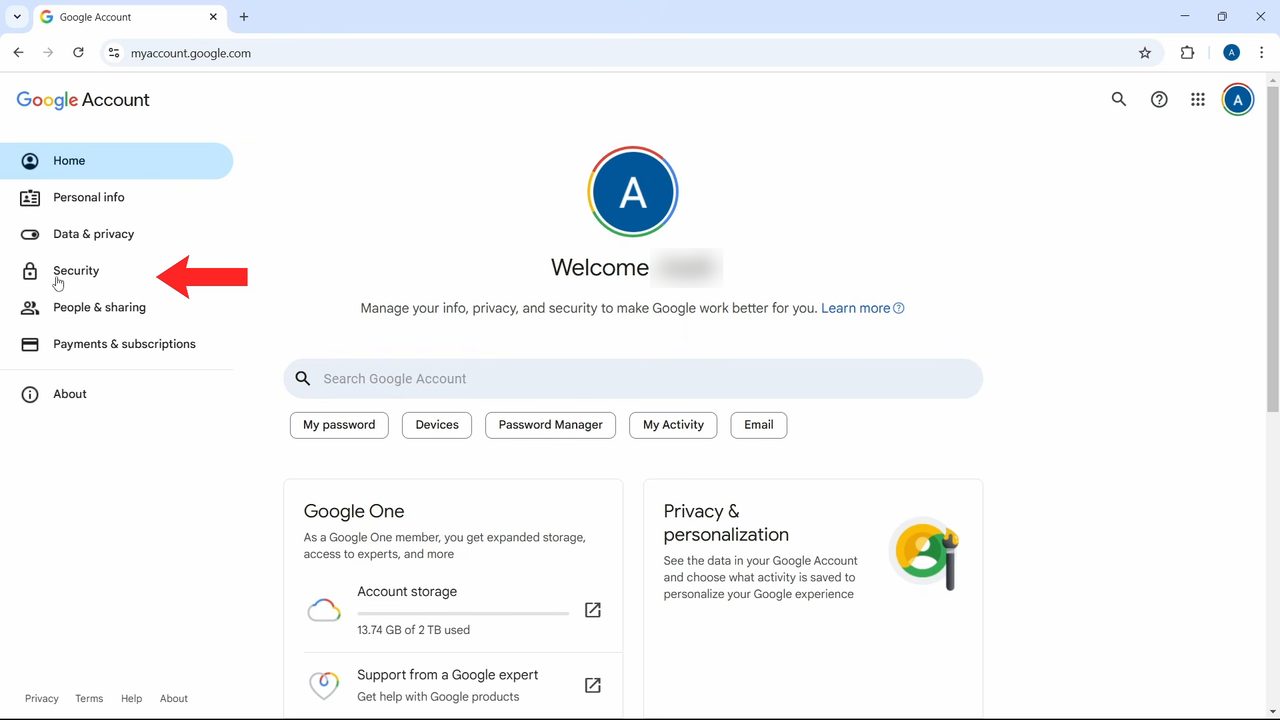
On newer versions of the Google Account page the left menu item may be called Security & sign-in instead of Security. The Your devices card and Manage all devices link work the same way.
3Click Manage all devices
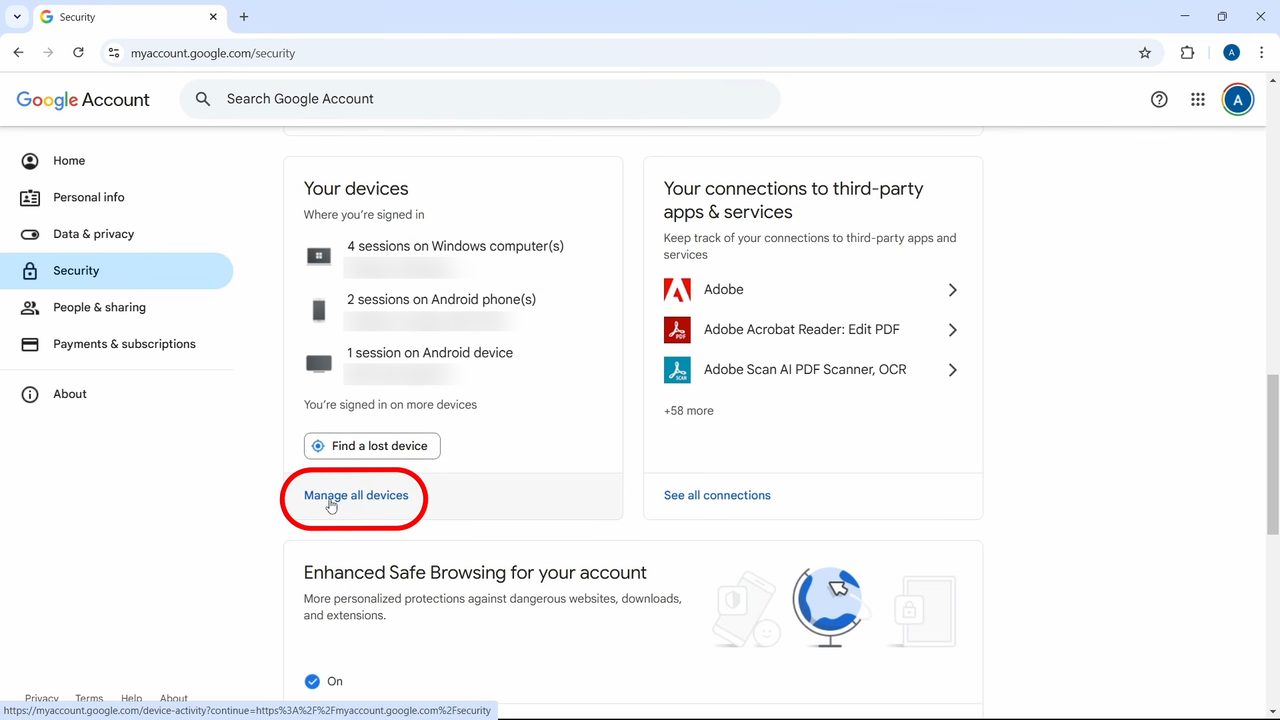
Scroll down to the Your devices card. It gives a quick summary of where you are signed in. Click Manage all devices at the bottom of that card.
4Review the list of signed-in devices
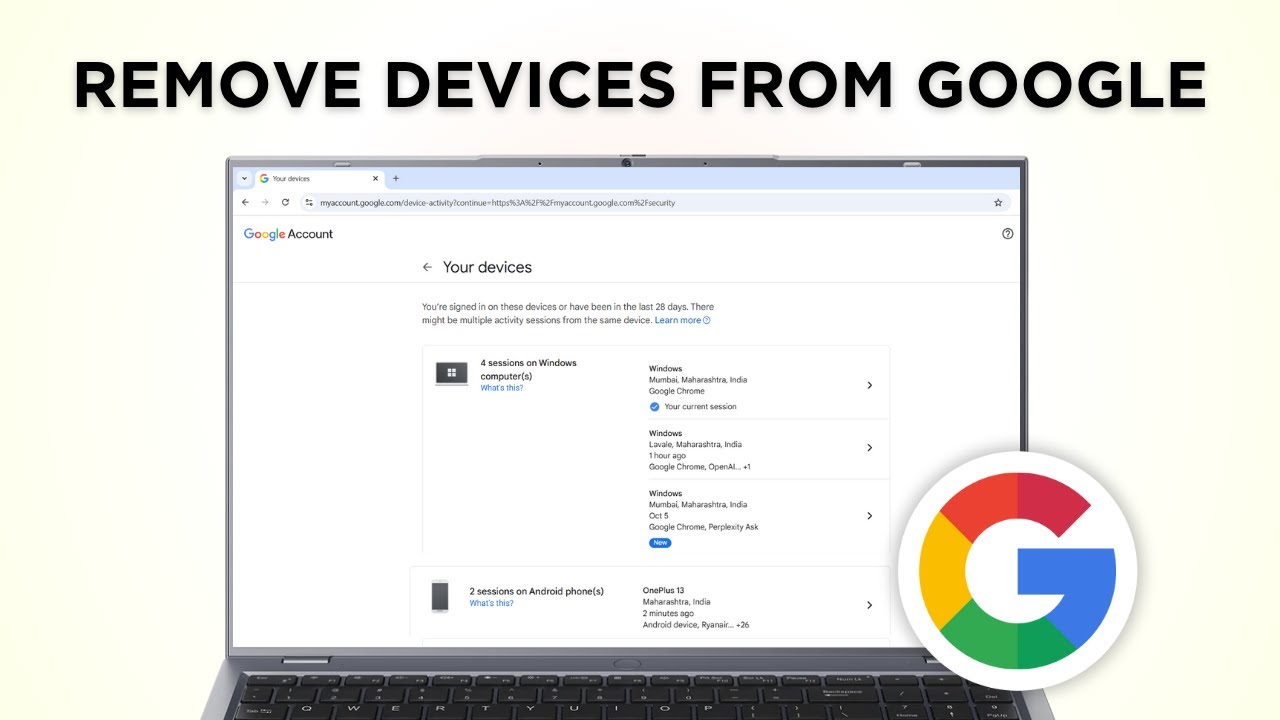
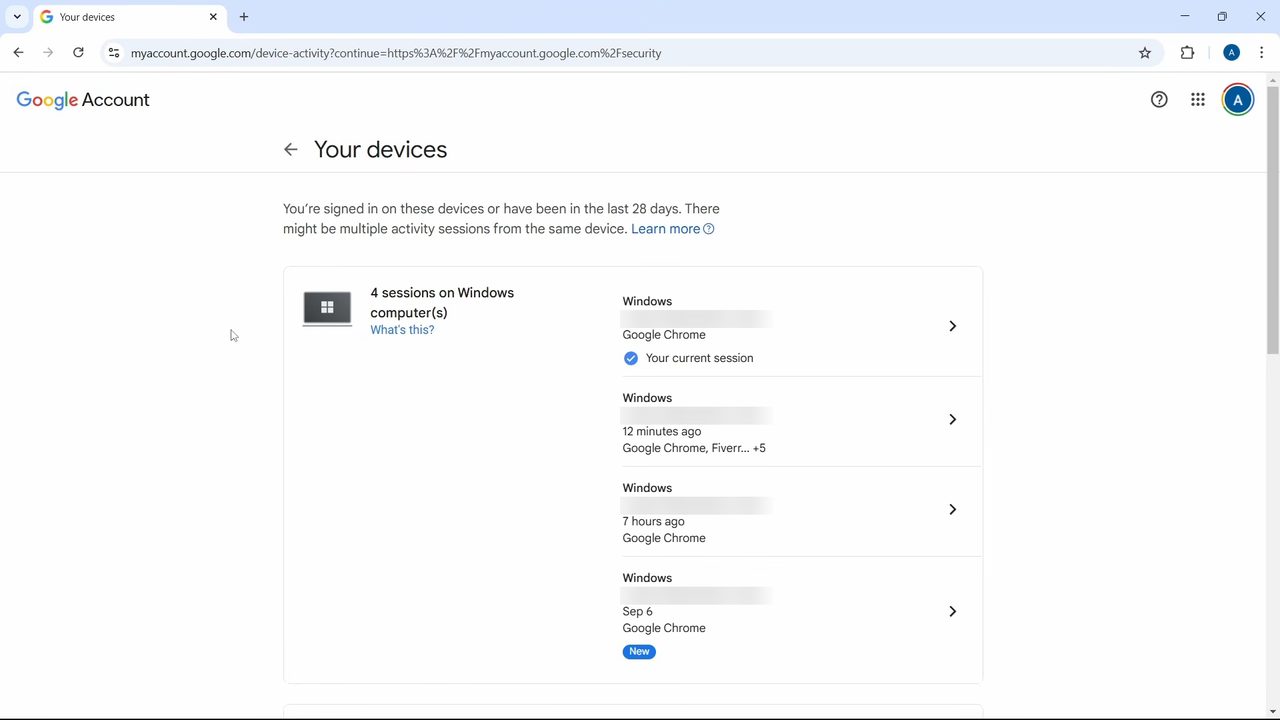
This page lists every device that is signed in to your account, or has been in the last 28 days, with the time and the approximate location. Scroll down to see the full list, including phones, watches, TVs and other devices. Click the device you want to remove.
5Click Sign out
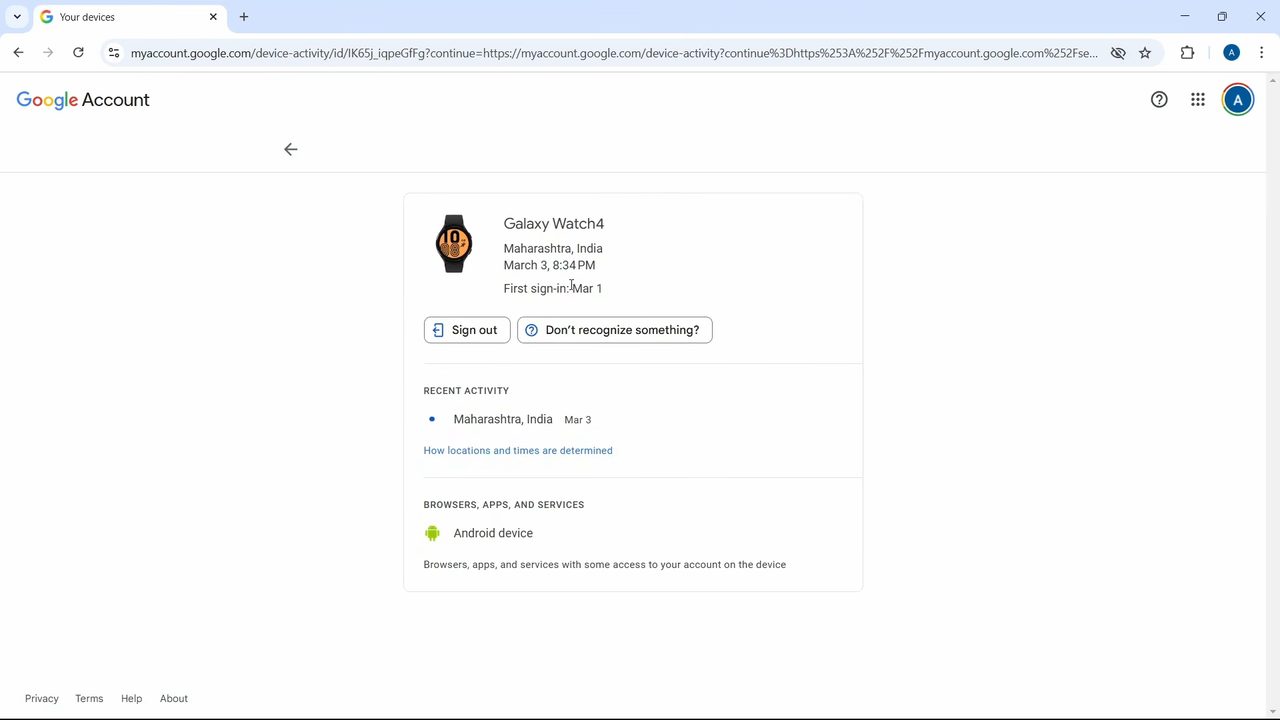
The device page shows its date, time and location. Click the Sign out button below the device name.
6Confirm the sign-out
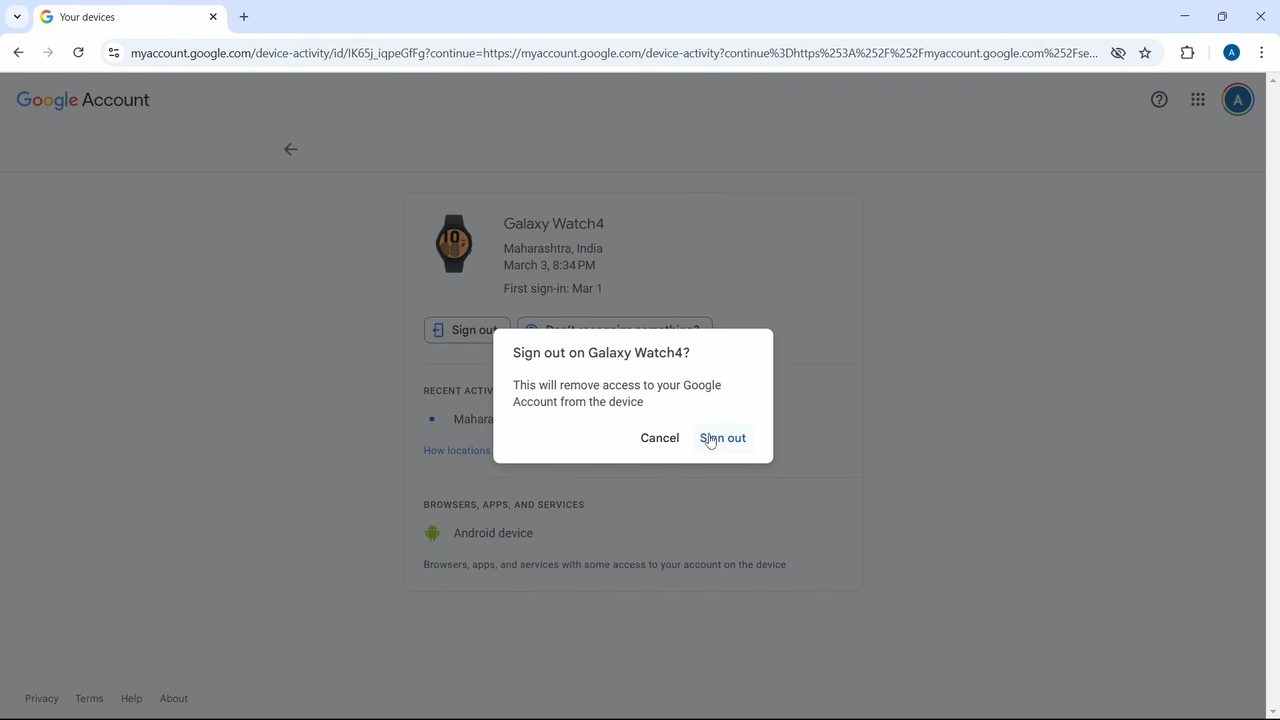
A box appears saying this will remove access to your Google account from the device. Click Sign out again. The device disappears from the list, and anyone using it would need to enter your account details again to get back in.
Reading the device list
The list can look confusing at first. A few things Google explains on its help page: - Sessions, not just devices. You may see several entries for one computer or phone. A new session is created each time you sign in on a new browser or app, re-enter your password, sign in from an incognito window, or give an app access to your account. Several sessions on one device is normal. - Same name, many entries. Entries with the same device name (for example, several "Windows" sessions) could be one machine or several. If you aren't sure they are all yours, sign out of every one of them. - The time can look too recent. The time shown is the last time that device talked to Google, which includes background syncing for apps like Gmail or Calendar. A phone in a drawer can show activity from a few minutes ago. - The location is approximate. It may show a nearby town instead of your exact location. - Signed-out devices. Devices you have already signed out of are marked Signed out and can stay in the list for a while.
Troubleshooting
- A device you reset is still listed. A phone that was factory reset can still appear for some time. Sign it out from the list to be safe.
- You don't recognise a device. Before panicking, think about whether you recently used a new phone, a friend's device or a public computer such as a library PC. Those all show up here. If none of that fits, sign it out and change your password.
- The device signs back in. That usually means someone still has your password. Change it, then follow Google's steps to secure your account.
To take an account off the phone you are holding instead, see how to remove a Gmail account from an Android phone.
FAQ
How do I sign out of Google on all other devices?
Open myaccount.google.com, go to Security, then Manage all devices. Open each device you don't recognise or no longer use and click Sign out, then confirm.
Can I remove my Google account from a phone I don't have anymore?
Yes. Signing out from the Your devices page works remotely, so you don't need the phone in your hands. Once signed out, that phone needs your Google account details to access the account again.
Does signing out a device delete my data?
No. It only removes that device's access to your Google account. Your emails, photos and files stay in your account.
What if I see a device I don't recognise?
Open it and sign it out. The device page also has a Don't recognize something? button that walks you through securing your account, though that option isn't covered in the video.
Why does the same device appear several times?
Each new sign-in on that device, such as a different browser, an incognito window or an app, creates its own session. Google lists each session separately so you can review and sign out of each one.
Can I see this list from my phone?
Yes. Open myaccount.google.com in your phone's browser (or go to google.com/devices) and follow the same steps. On Android you can also reach your Google Account from the Settings app.
Related guides