Tech is Easy
How to Set Up a Google Passkey for Your Google Account
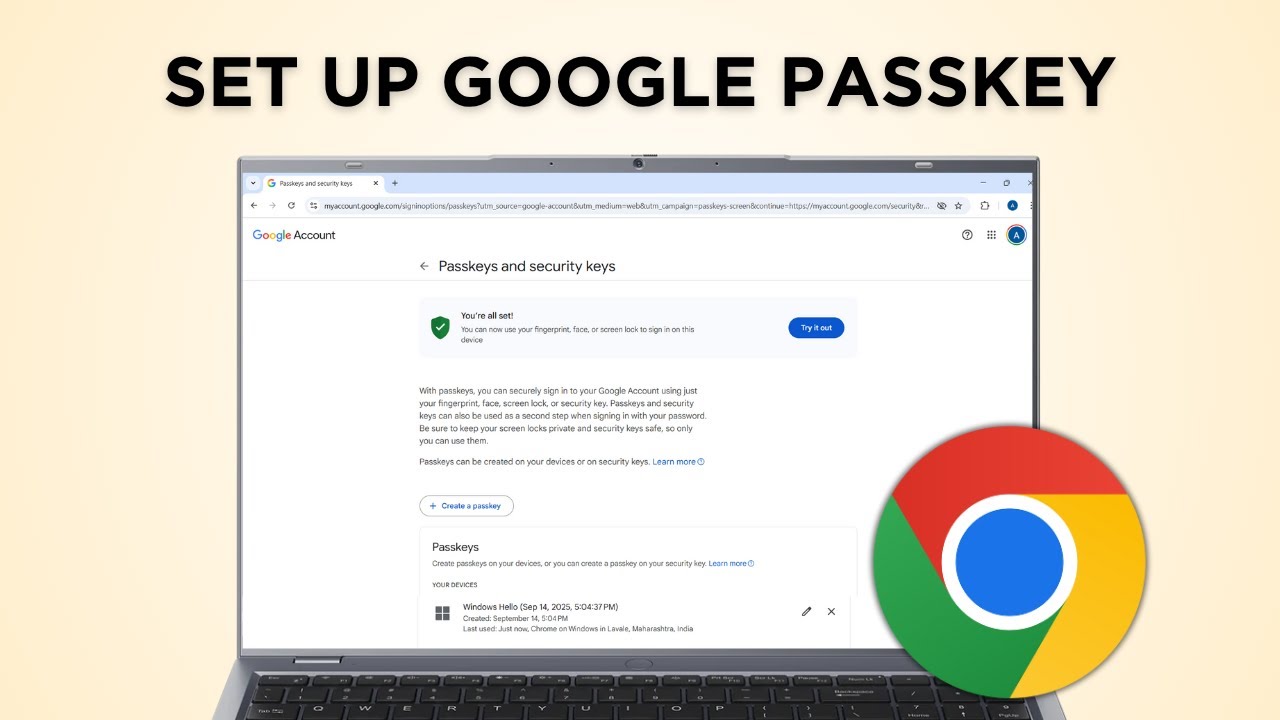
To set up a Google passkey, go to myaccount.google.com > Security > Passkeys and security keys, click Create a passkey, and confirm with your fingerprint, face or screen lock. A passkey is a password-free way to sign in to your Google account using your device's own security.
What you need
- The device you want the passkey on (laptop or phone) with a fingerprint, face scan or screen lock set up
- A supported system and browser. Google's help page, Sign in with a passkey instead of a password, lists Windows 10, macOS Ventura or ChromeOS 109 and up on computers, Android 9 or iOS 16 and up on phones, and Chrome 109, Safari 16, Edge 109 or Firefox 122 and up as browsers
- On iPhone, iPad or Mac, iCloud Keychain turned on (Google prompts you to turn it on during setup if it's off)
A passkey belongs to one device, and you can only create it from that device. One Google account can have several passkeys, one for each device you use. In our example we created it for a laptop. For a phone, follow the same steps on the phone.
Only create a passkey on a device you personally own and use. Google warns that once a passkey exists, anyone who can get past that device's screen lock can get into your Google account, even if you sign out. Skip shared or family computers.
1Open your Google Account and go to Security
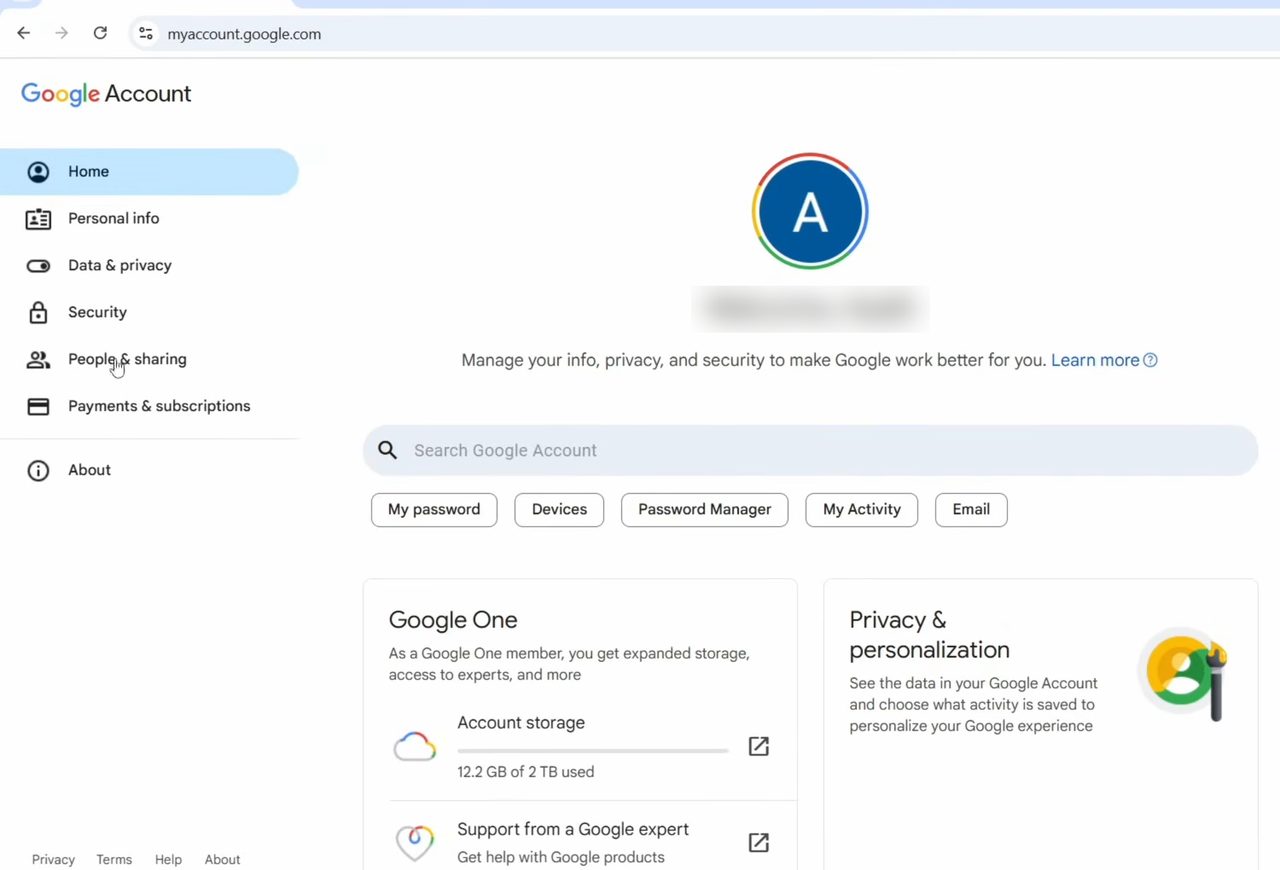
Open your browser and go to myaccount.google.com. Click Security in the left menu.
2Open Passkeys and security keys
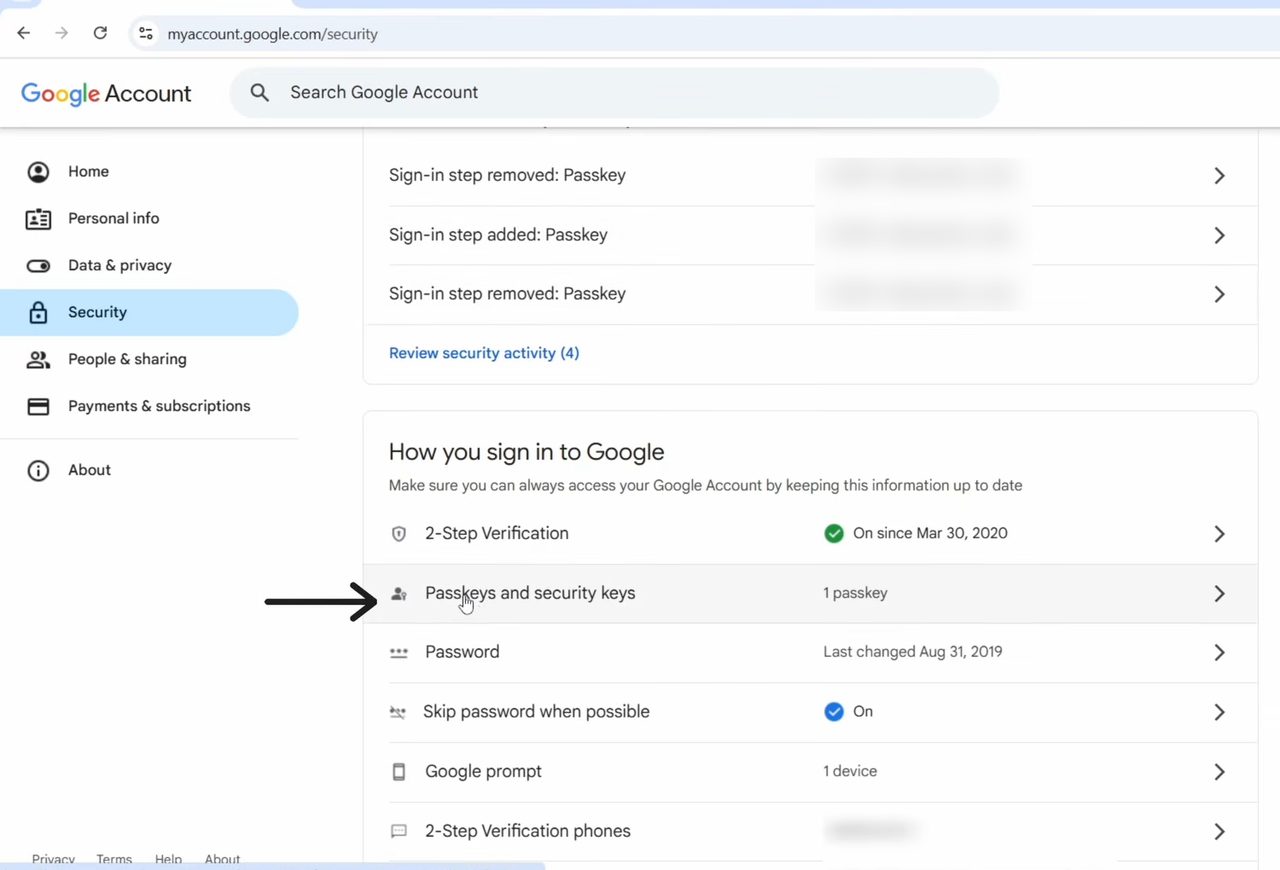
Scroll down to How you sign in to Google and click Passkeys and security keys.
3Click Create a passkey
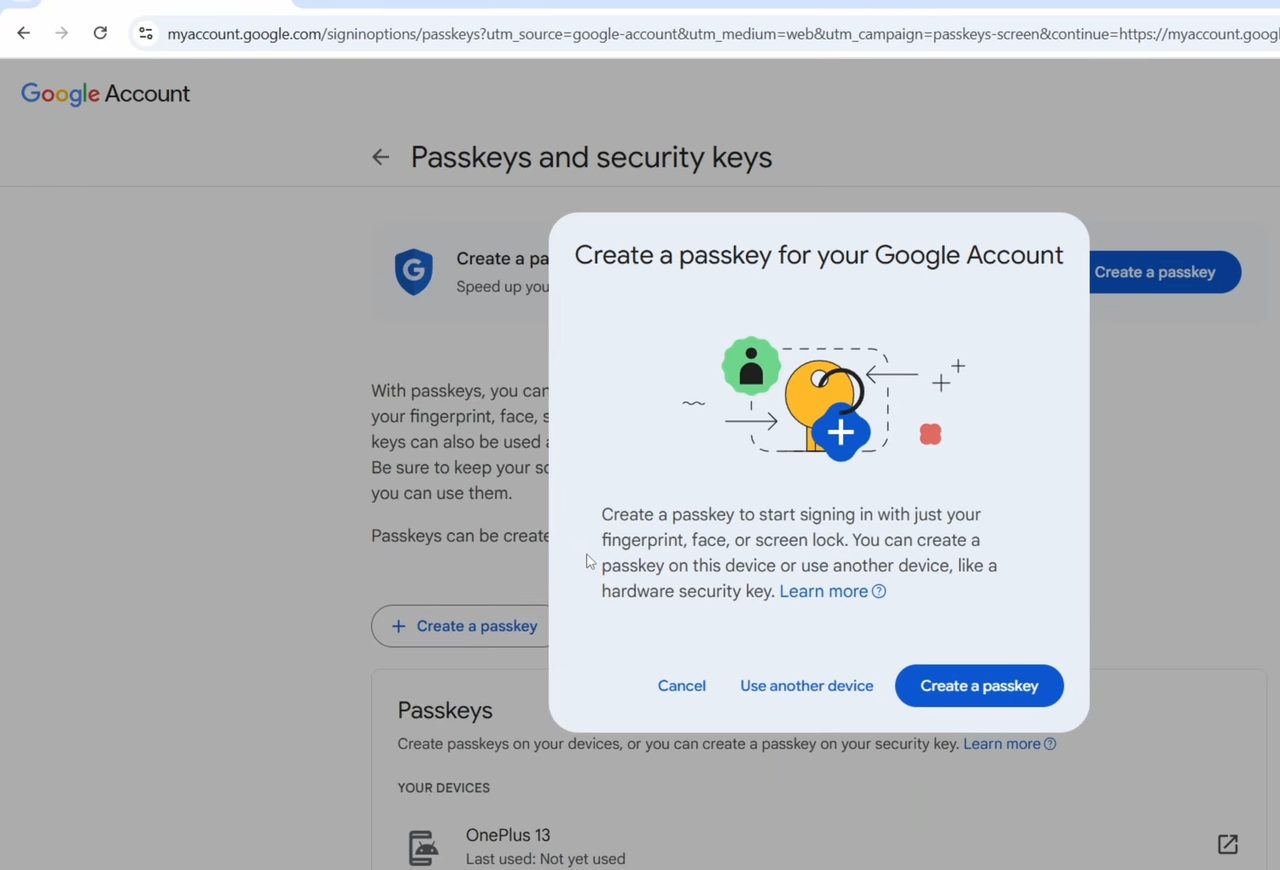
Click the Create a passkey button. Click Create a passkey in that box too.
4Confirm with your fingerprint
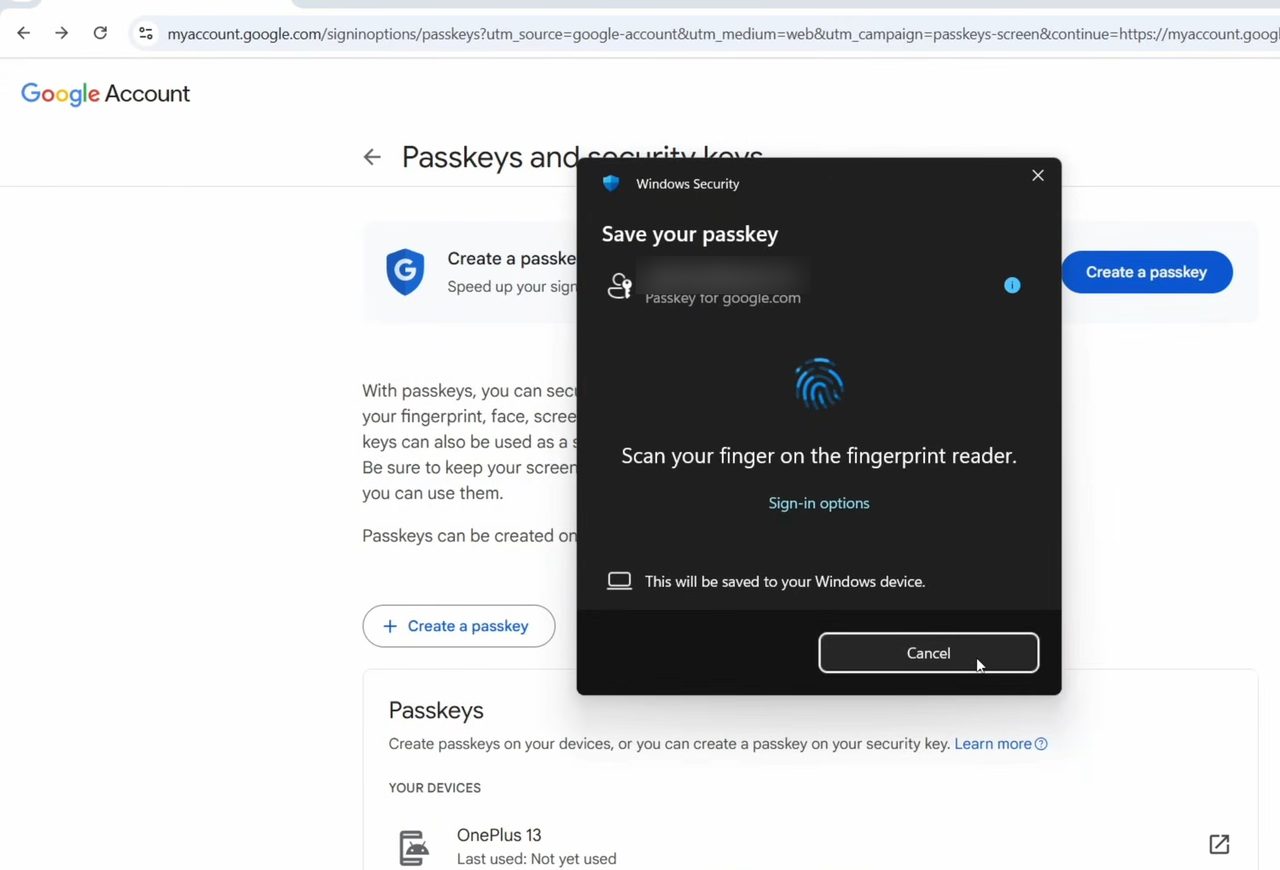
Your device asks you to verify it's you. On our Windows laptop, Windows Security showed Save your passkey and asked for a fingerprint. Scan your finger, or use the face scan or PIN your device offers.
5Click Done
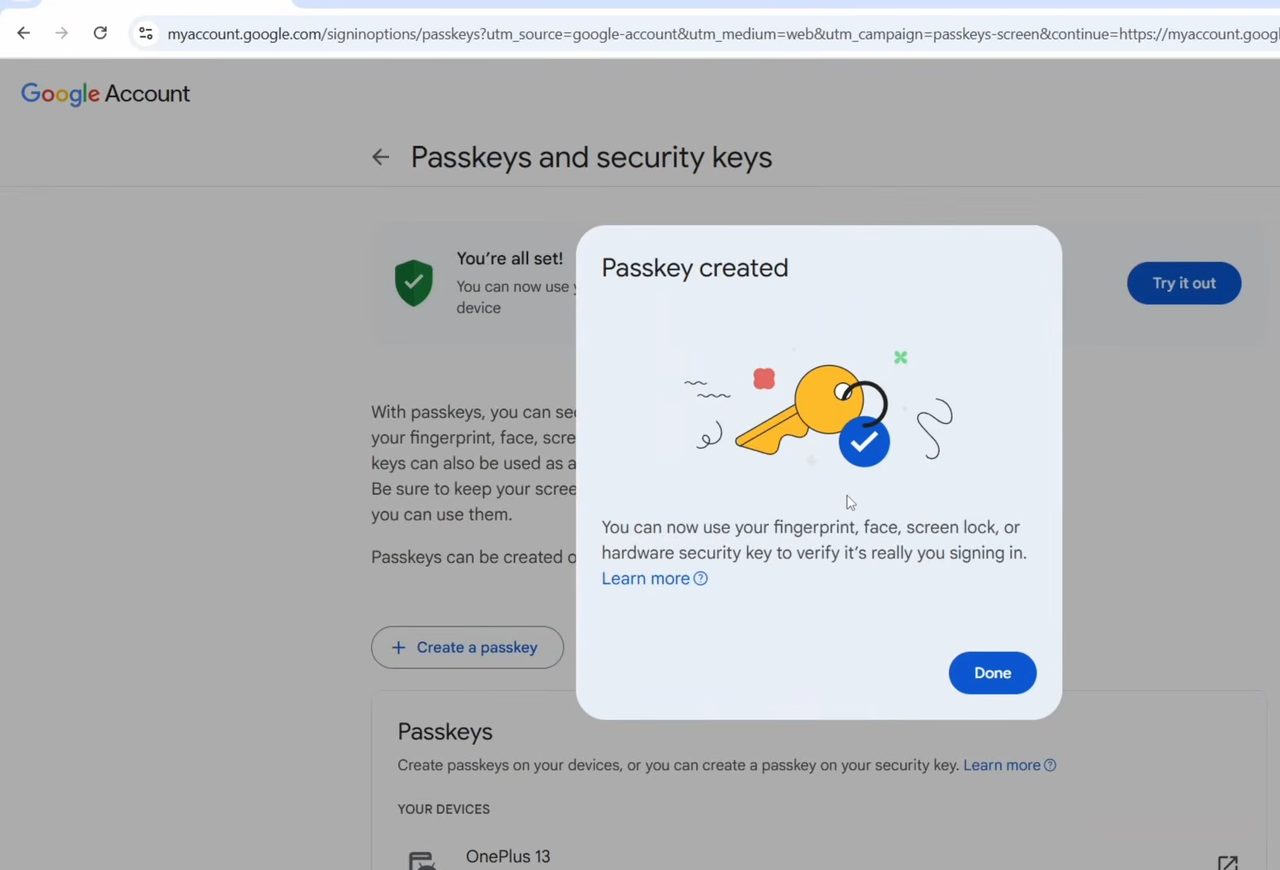
You'll see Passkey created. Click Done.
6Check your passkeys
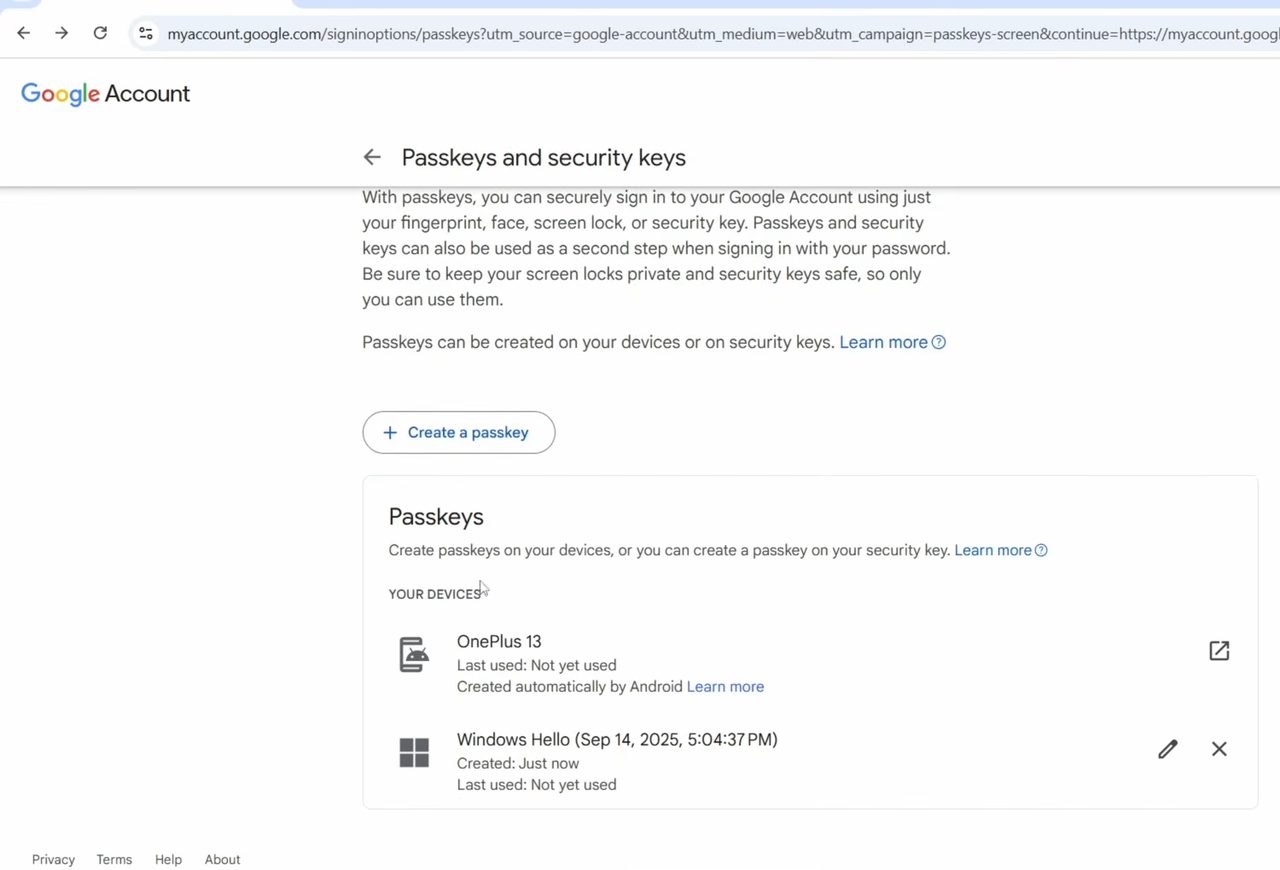
Scroll down on the same page to the Passkeys section. Under Your devices you'll see every passkey on this Google account, including the one you just made (ours shows as Windows Hello, created just now).
What changes after you create a passkey
- Your password still works. Google says adding a passkey doesn't remove your password, recovery phone or any other sign-in or recovery option.
- Sign-in becomes passkey first. The next time you sign in, Google offers the passkey instead of asking for your password. If you'd rather type your password first, go to your Google Account, open Security, and under How you sign in to Google turn off Skip password when possible.
- It can stand in for the second step. If you use 2-Step Verification, Google treats the passkey as proof you have the device, so you skip the code step when signing in with it.
- Your fingerprint stays on your device. Google states that face and fingerprint data used with a passkey is never shared with Google.
Using your phone's passkey on another computer
You don't need a passkey on every computer you use. On a computer's Google sign-in page, enter your email, click Try another way, then Use your passkey. A QR code appears. Scan it with your phone, tap Use passkey to sign in and confirm with your fingerprint, face or PIN. Bluetooth needs to be on for this to work.
Tips / troubleshooting
- Create a passkey does nothing or fails. Update your operating system and browser, and don't use an Incognito or private window, since Google says some systems block passkeys there.
- Work or school account. If your Google account comes from your employer or school (Google Workspace), the admin decides whether you can sign in with just a passkey. You can still create one as a second step or recovery option.
- The new passkey isn't offered at sign-in. Google says a new passkey can take up to 7 days to become available. Also check that the device still has a screen lock turned on, because the passkey can't be used without one.
- Lost phone or laptop. Sign in on another device and remove the passkey belonging to the lost one straight away.
FAQ
What is a Google passkey?
It's a way to sign in to your Google account without typing a password. Instead, you confirm it's you with the security already on your device, such as a fingerprint, face scan or screen lock.
Can I use one passkey on all my devices?
Each passkey is made on one device, so you create a separate passkey on each laptop or phone you use. One Google account can hold several of them. Android phones may also add one automatically, like the "Created automatically by Android" entry in our list.
How do I remove a passkey?
In the Passkeys list under Your devices, the passkey we created had an X next to it. Google's help page describes it as going to Passkeys and security keys, selecting the passkey and tapping Remove. Passkeys that Android created automatically are removed by signing that device out of your account instead.
Is a passkey the same as two-step verification?
No, but they work together. A passkey replaces your password at sign-in, and Google notes it can also be used as a second step when you sign in with a password. See also our Google Account privacy and security settings guide.
What happens if I lose the device with my passkey?
Your account isn't locked. You can still sign in with your password or another method on a different device. Then remove the lost device's passkey from Passkeys and security keys so nobody can use it.
Related guides