Tech is Easy
How to Transfer Google Authenticator to a New Phone
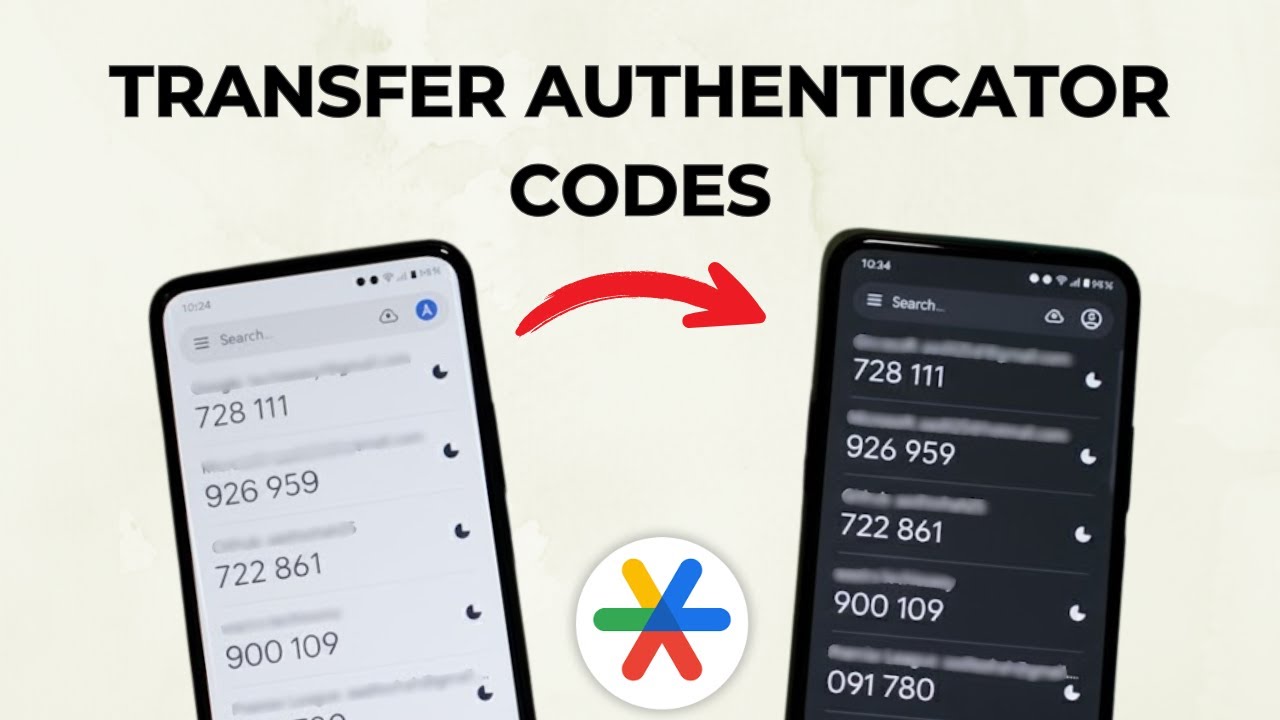
To transfer Google Authenticator to a new phone, open the app on your old phone, tap the three lines menu, choose Transfer codes > Export codes, then on the new phone choose Transfer codes > Import codes and scan the QR code. All the codes you selected move across in one go. Use it when you switch phones.
What you need
- Your old phone with Google Authenticator and its codes
- Your new phone with Google Authenticator installed
- The latest version of Google Authenticator on the old phone (update it from the Play Store first)
- On Android, both phones need Android 6.0 or newer to run the app
Check first: are your codes already synced?
Google Authenticator can save your codes to your Google account. If you were signed in to the app on your old phone, the codes are already backed up, and Google's help page on getting verification codes with Google Authenticator explains that signing in to the same Google account in the app on the new phone syncs them across automatically. In that case you don't need the QR code steps at all. The manual transfer below is for codes that are only stored on the old phone, which is the case if you use the app without signing in.
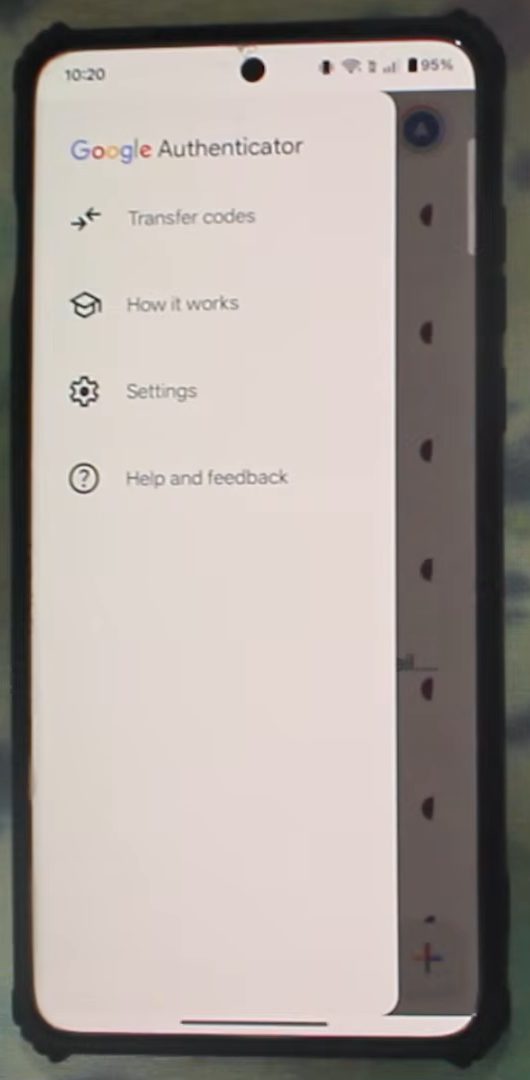
1Open Transfer codes on the old phone
On the phone that has your codes, open Google Authenticator, tap the three lines menu at the top, then tap Transfer codes.
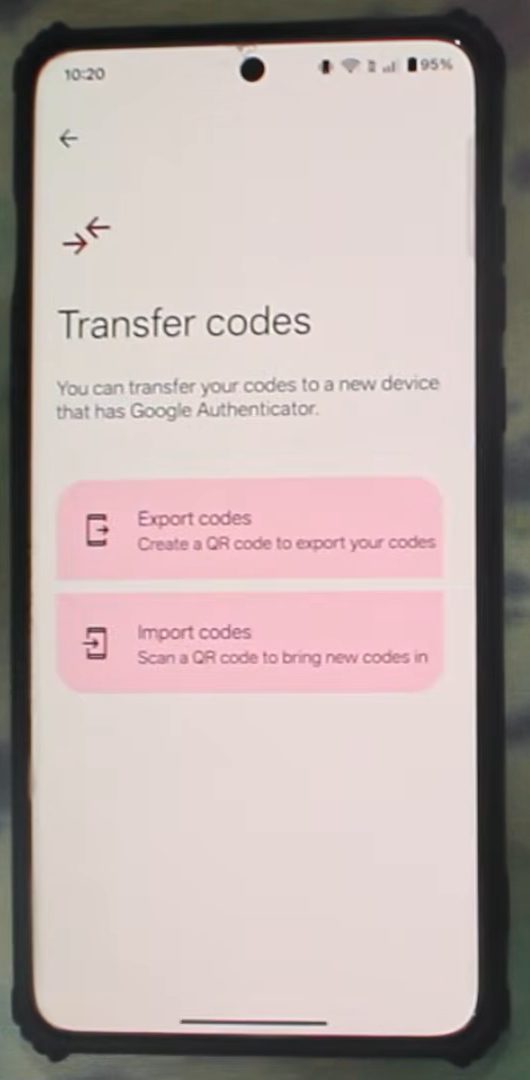
2Choose Export codes
Tap Export codes, then confirm with your fingerprint or screen lock.
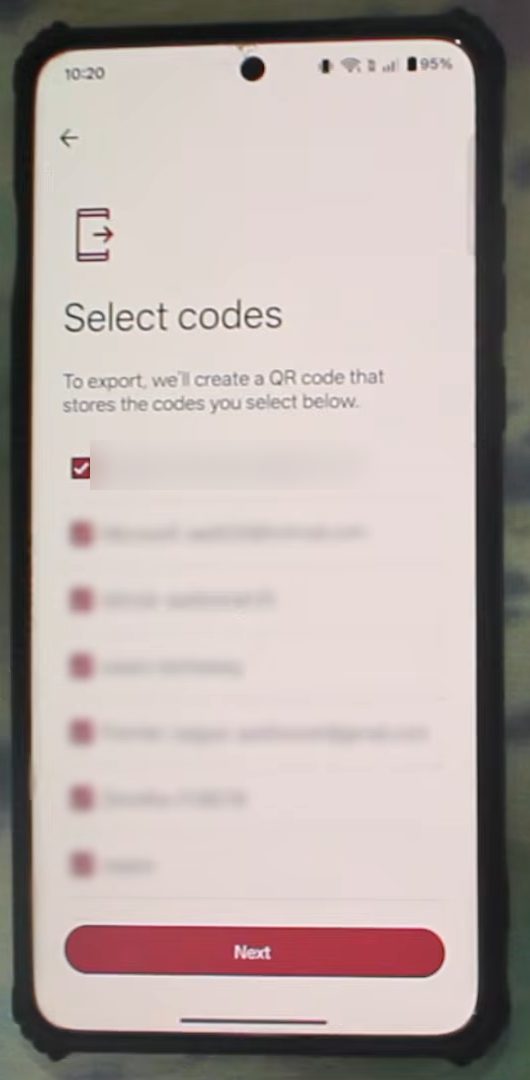
3Select the codes and tap Next
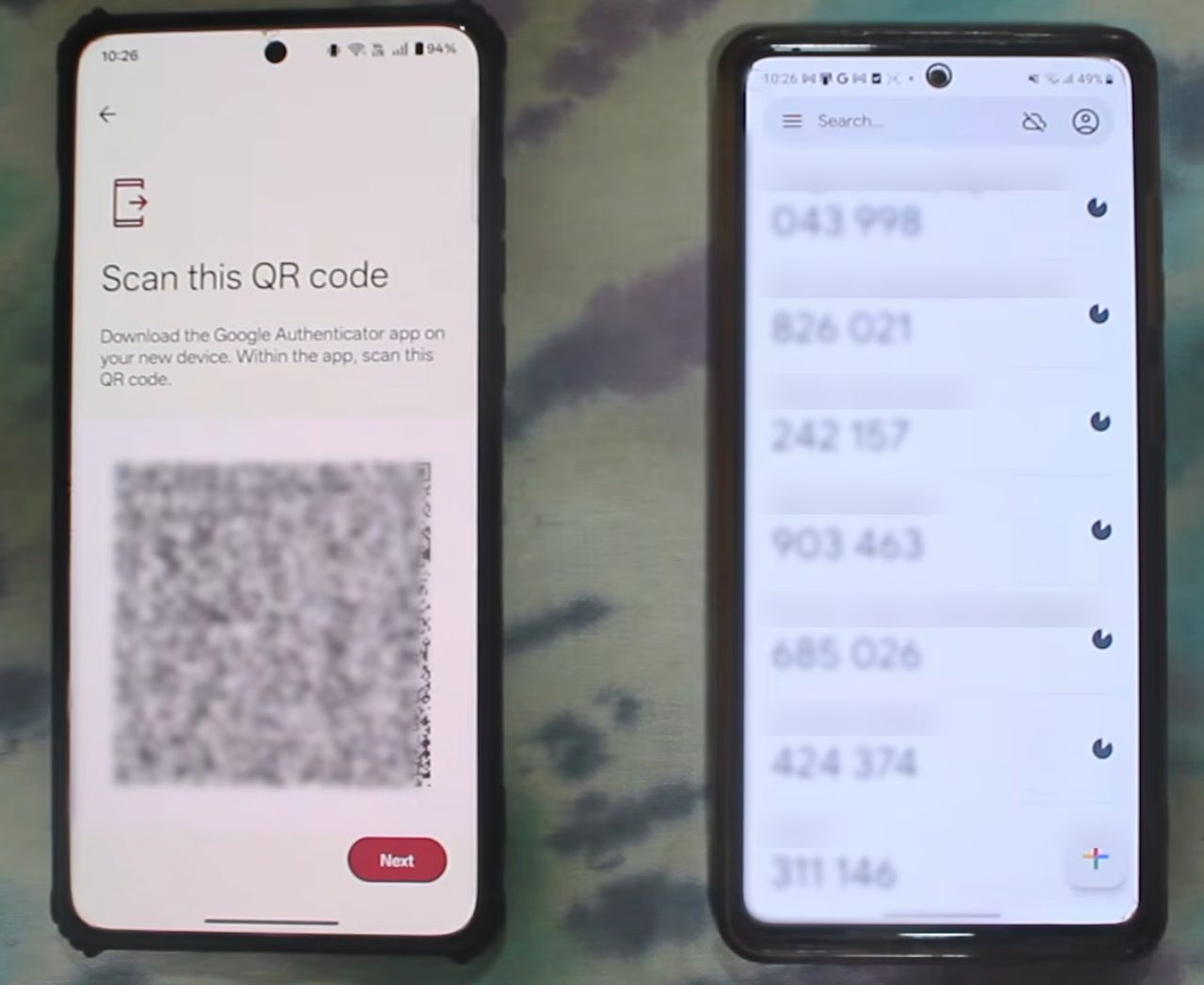
Tick the accounts you want to move. To move everything, leave them all selected and tap Next. A QR code appears on the old phone. Keep this screen open.
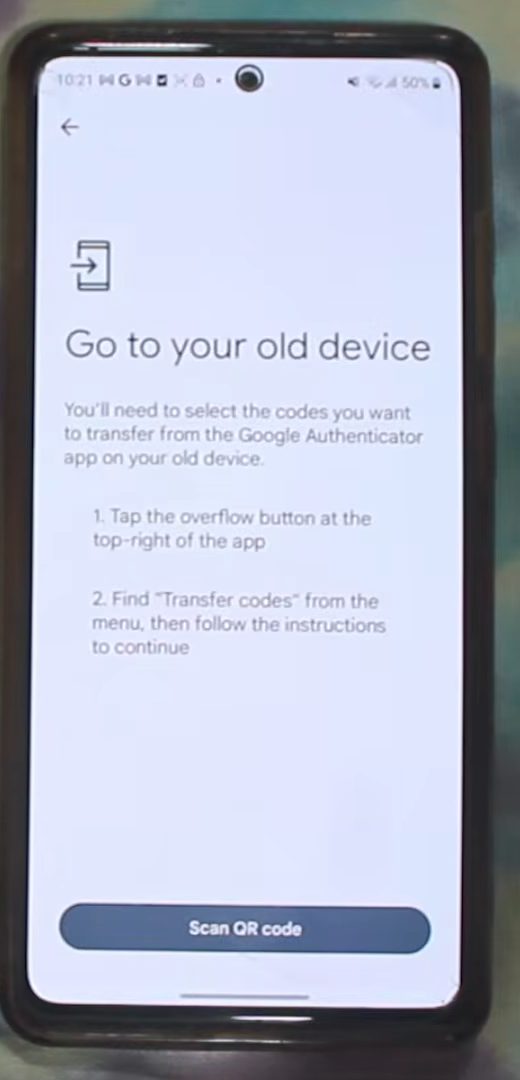
4Import the codes on the new phone
On the new phone, open Google Authenticator, tap the three lines menu, tap Transfer codes and select Import codes. Then tap Scan QR code.
5Scan the QR code
Point the new phone's camera at the QR code on the old phone. All the selected codes appear in Google Authenticator on the new phone straight away.
6Remove or keep the codes on the old phone
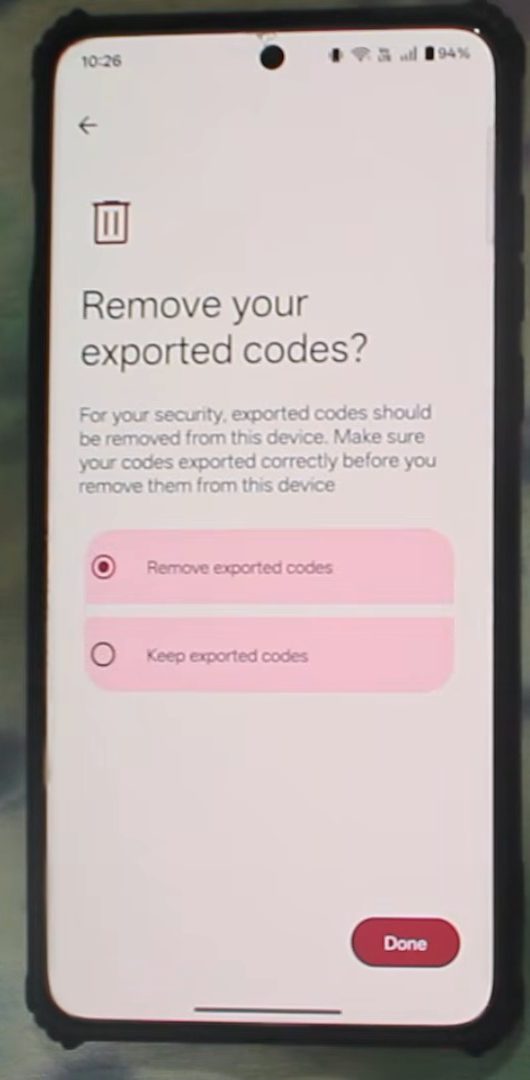
On the old phone, tap Next. You can choose Remove exported codes or Keep exported codes, then tap Done. We kept them, so the same codes now work on both phones.
After the transfer
Before you wipe, sell or reset the old phone, open a few accounts on the new phone and sign in with a code from Google Authenticator to make sure it is accepted. Once every account you care about works, go back to the old phone and remove the exported codes (or delete the app). Leaving working codes on a phone you are giving away means anyone who gets it could use your second sign-in step.
Tips / troubleshooting
- No Transfer codes option? Update Google Authenticator on both phones. Older versions of the app don't have the export and import screens.
- Lots of accounts? If you export many codes at once, the app can split them across more than one QR code. Scan each one on the new phone until all your accounts appear.
- QR code won't scan? Turn the old phone's screen brightness up, hold the new phone steady about a hand's length away and avoid glare from lights.
- Codes say "wrong code" on the new phone? The codes are based on the time, so a phone clock that is off by even a minute can break them. Set the new phone's date and time to automatic in its settings and try again.
- Some accounts are missing? You may have left them unticked on the select codes screen. Run the export again on the old phone and pick only the missing ones.
FAQ
How do I transfer Google Authenticator codes from one phone to another?
Export them on the old phone (Transfer codes > Export codes), then import them on the new phone (Transfer codes > Import codes > Scan QR code).
Should I remove the codes from my old phone?
Only after you've checked every code shows up on the new phone. Google suggests removing them for security, but keeping them gives you a backup until you are sure the transfer worked.
Does this work when moving to a new iPhone?
The video uses two Android phones. Google Authenticator has the same Transfer codes option on iPhone, so the export and import steps should be the same, but the screens may look a little different.
What if I lost my old phone or it stopped working?
If your codes were synced to your Google account, just sign in to Google Authenticator on the new phone with that account. If they weren't, there is no QR code to scan, so you have to go to each account's security settings (using backup codes or another sign-in method) and set up two-step verification again with the new phone. Google's help page also recommends removing a lost phone from your Google account quickly so nobody else can use its codes.
Will the codes still work on the old phone after I transfer them?
Yes, if you choose Keep exported codes. Both phones show the same codes and either one can be used to sign in. They only disappear from the old phone if you choose Remove exported codes.
Is there a way to back up Google Authenticator?
You can sign in to the app with your Google account so your codes sync to it, as shown in our guide to setting up Google Authenticator.
Related guides