Tech is Easy
How to Share Live Location in Google Maps (Step-by-Step)
To share live location in Google Maps, tap your profile picture, go to Location sharing, tap Share location, choose how long to share for and pick how to send it (for example Copy to clipboard). It's for anyone who wants friends or family to follow where they are in real time.
Before you start
- You need the Google Maps app on a phone or tablet, signed in to your Google account. You can't start real-time sharing from a computer.
- Location (GPS) must be turned on for your phone, and you need an internet connection so your position can update.
- Decide how you want to share. A link works for anyone, even without a Google account. Sharing straight to a contact needs that person's Gmail address in your Google Contacts, and they need a Google account to see you.
Google's help page Share your real-time location with others in Google Maps lists the same steps for Android, iPhone and computer. On newer versions of Maps the blue button may be called New share instead of Share location.
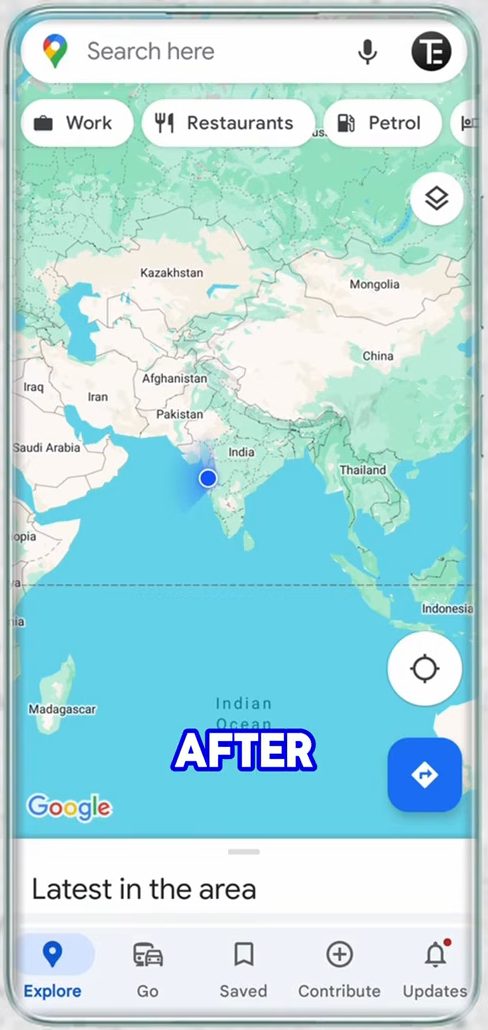
1Open Google Maps and tap your profile picture
Open the Google Maps app and tap your profile picture at the top right, next to the search bar.
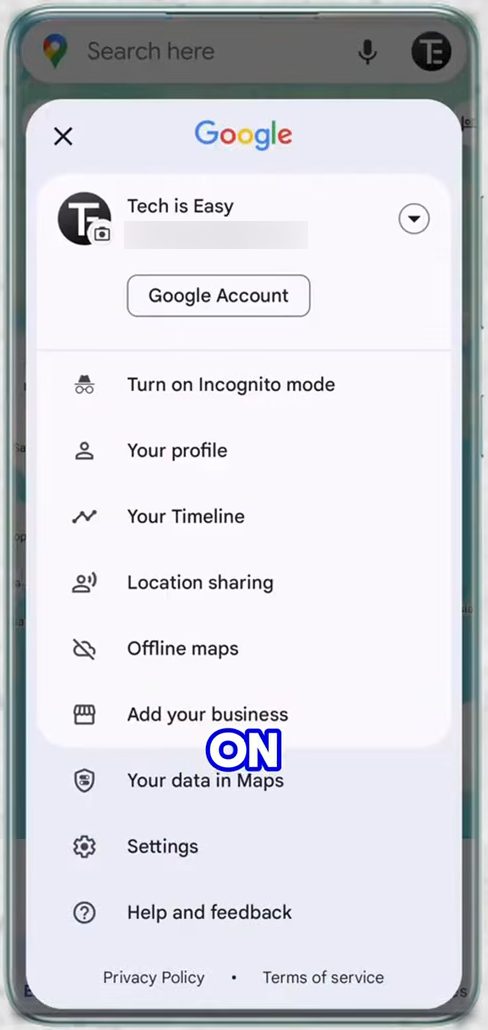
2Open Location sharing
In the menu that opens, tap Location sharing. You land on the Location sharing page with a blue Share location button.
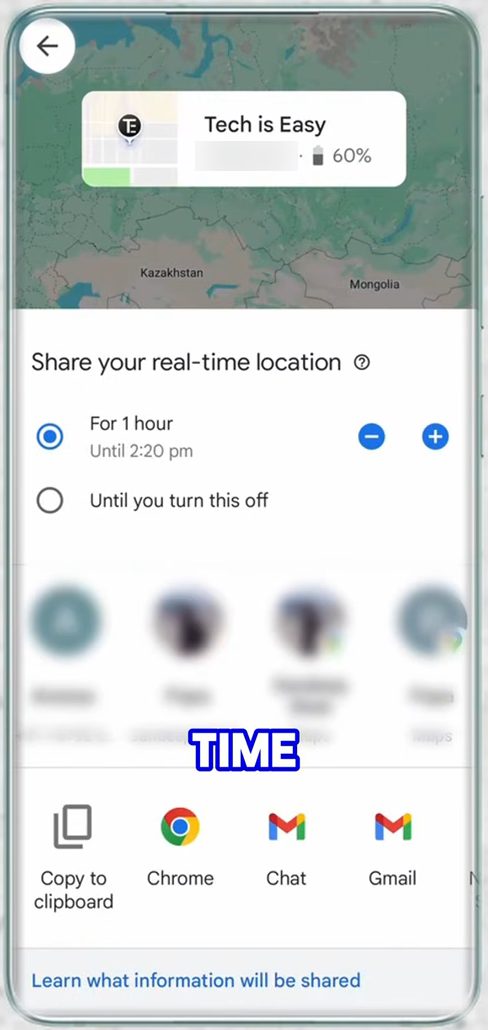
3Tap Share location and choose how long
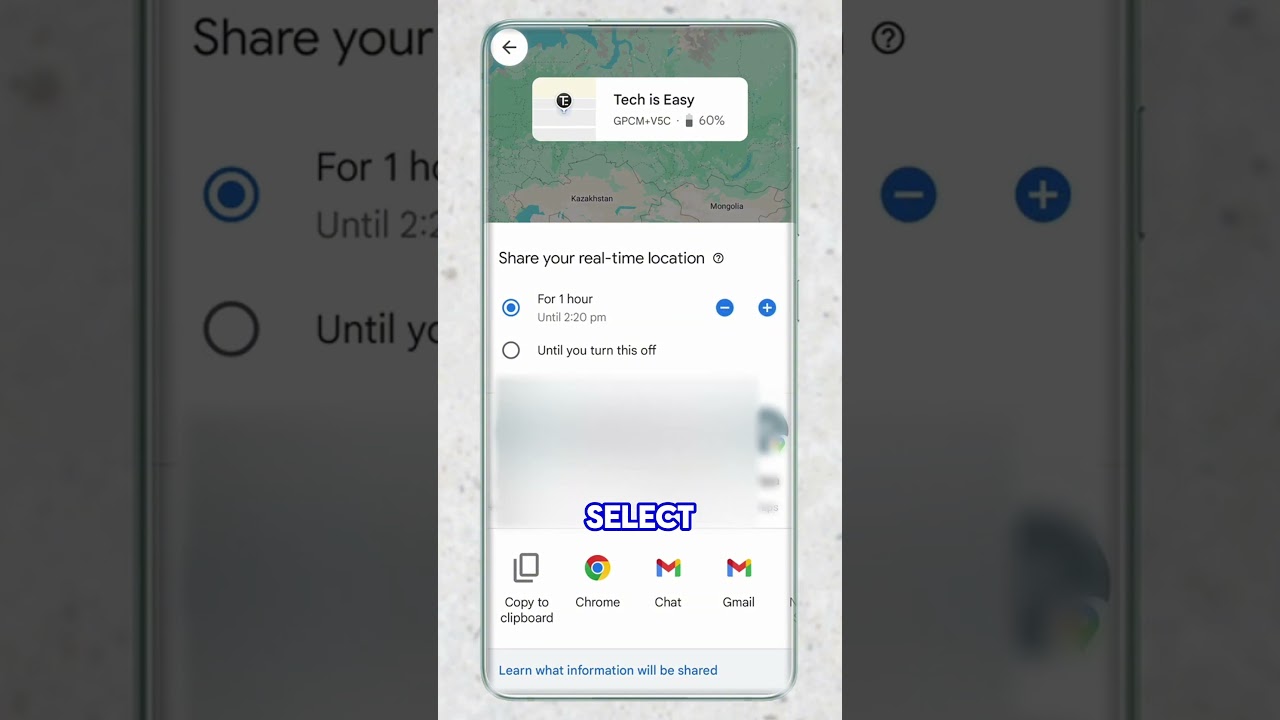
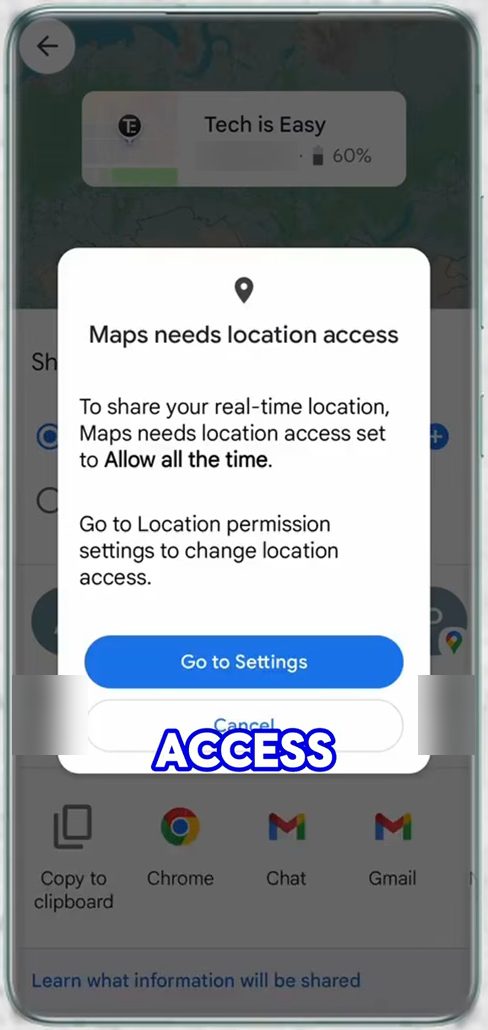
Tap Share location. Set the time with the minus and plus buttons (it starts at For 1 hour), or pick Until you turn this off. The card at the top previews what others will see: your name, location and battery level.
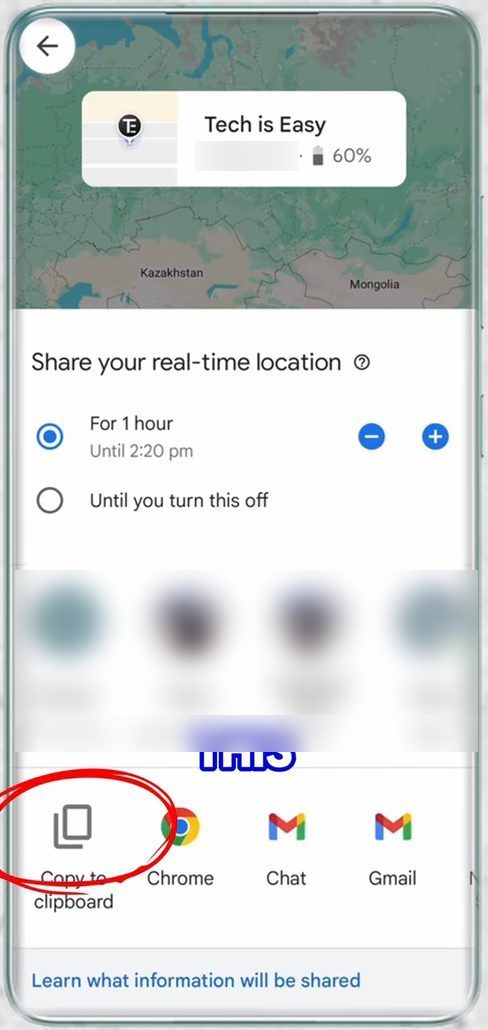
4Pick how to send it
Scroll the row of apps and contacts to see every way to share. The simplest is Copy to clipboard: tap it, then tap Share on the Share with a link? box. Anyone with the link can see your name, photo and real-time location.
5Allow location access if Maps asks
If you see Maps needs location access, tap Go to Settings and set it to Allow all the time. Sharing then starts and the link is copied, ready to paste into WhatsApp, a text or an email.
6Stop sharing your live location
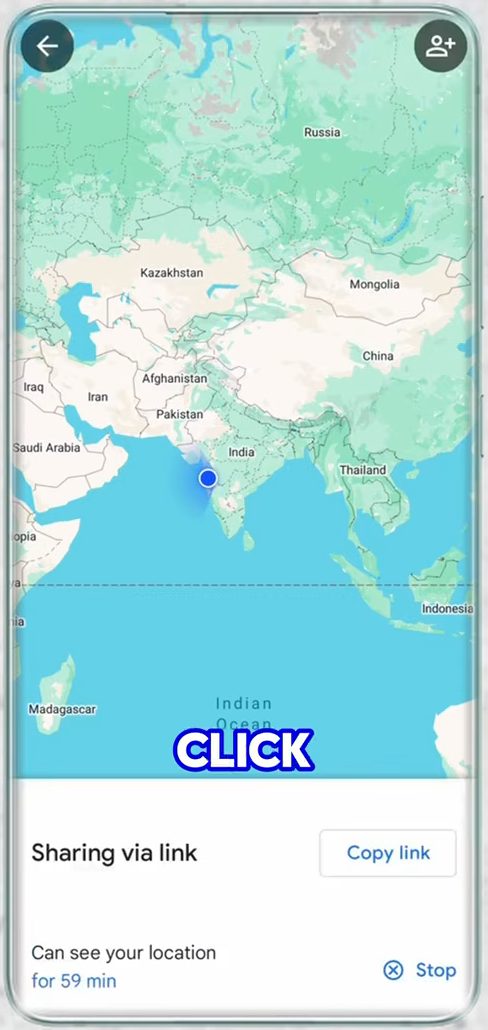
To end it early, open Location sharing, tap Sharing via link, then tap Stop at the bottom right. Maps confirms the person is no longer sharing their location.
What the other person can see
According to Google, anyone you share with can always see: - Your name and profile photo. - Your phone's recent location, even when you are not using any Google apps. - Your battery level and whether the phone is charging. - Your arrival and departure times, if they set up a Location Sharing notification for a place.
Shared info can also include where you have recently been, and Maps may show how you are travelling, such as walking or driving. Keep this in mind before choosing Until you turn this off, and stop the share when you no longer need it.
Link or contact: which to choose
A link is the quickest way to send your location into WhatsApp or a text. Google says a link shares your location for up to 24 hours, even if you picked a longer time. Anyone who gets the link, including people it is forwarded to, can follow you until it ends, so only post it in private chats.
Sharing with a contact is better for long-term sharing with family. Each person shows up separately under Location sharing, so you can stop sharing with one person without affecting the others.
If it doesn't work
- A warning appears when you open Location sharing. Google shows this if location sharing isn't available in your country or region, if a work or school (Google Workspace) admin has turned it off, or if your account is under the minimum age. Accounts managed by a parent are controlled through Family Link.
- The other person sees an old location. Check that Maps still has location access set to Allow all the time and that battery saver isn't stopping Maps in the background.
- Turning off location for Maps didn't stop sharing. Google notes that changing app location permissions or using Incognito mode in Maps does not stop Location Sharing. Use Stop in Maps, or turn off Use Location Sharing in your phone's location settings under Google Location Sharing.
- Sharing during a trip only. While navigating, swipe up on the trip card and tap Share trip progress. It sends your route and arrival time and stops by itself when you arrive.
Related guides: How to Share WiFi Password Using QR Code on Android and How to Manage Google Account Privacy and Security Settings.
FAQ
How do I send my live location to someone on Google Maps?
Open Location sharing from your profile picture, tap Share location, pick a duration and choose Copy to clipboard, then paste the link into any chat.
Why does Google Maps say it needs location access?
Live sharing keeps updating your position even when Maps is closed, so it needs location access set to Allow all the time.
How do I stop sharing my location in Google Maps?
Go to Location sharing, tap the active share (Sharing via link) and tap Stop. With a time limit, sharing also ends on its own.
Can the other person see my battery level?
Yes. The preview at the top of the share screen shows that people you share with see your name, your location and your phone's remaining battery.
How long does a Google Maps live location link last?
Up to 24 hours. If you chose a shorter time, such as one hour, it ends then. To share for longer, share with the person's Google account instead of a link.
Can I share my live location with someone who doesn't use Google?
Yes. Use Copy to clipboard and send the link by WhatsApp, SMS or email. Google offers the link option for exactly this case, so they do not need a Google account to open it.
Related guides