Tech is Easy
How to Connect Phone to PC Using Phone Link (Android Setup)
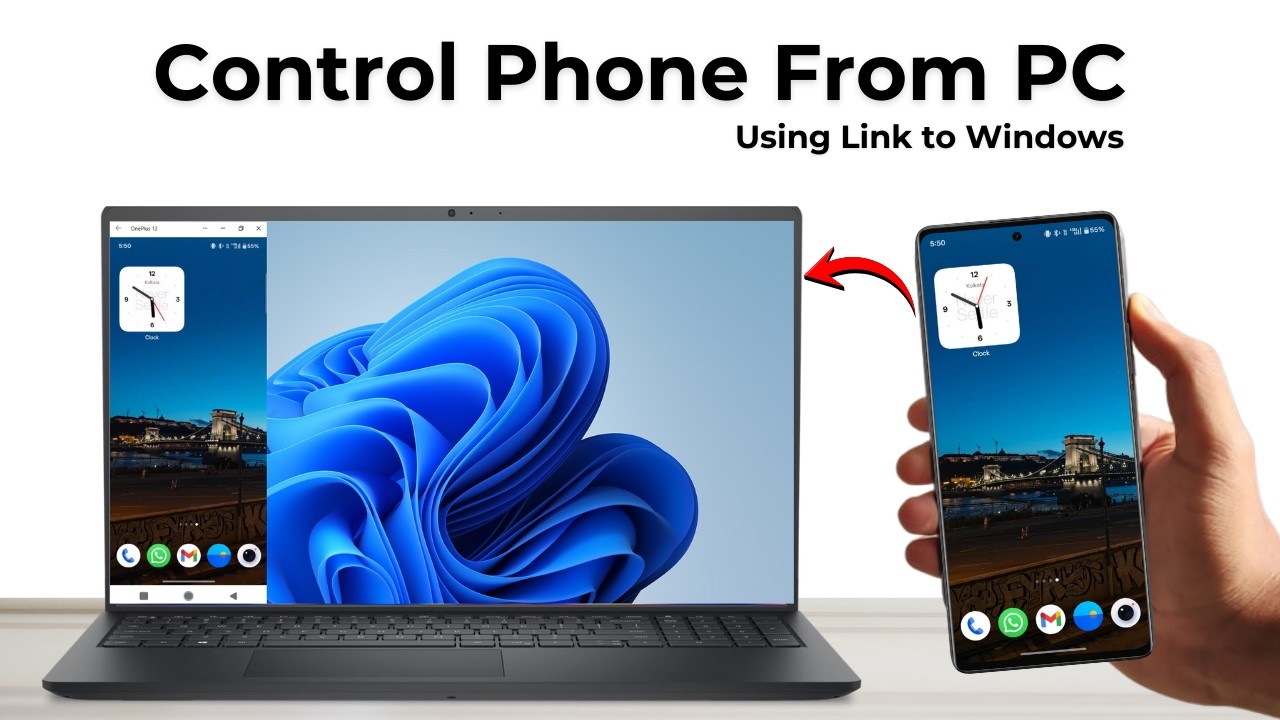
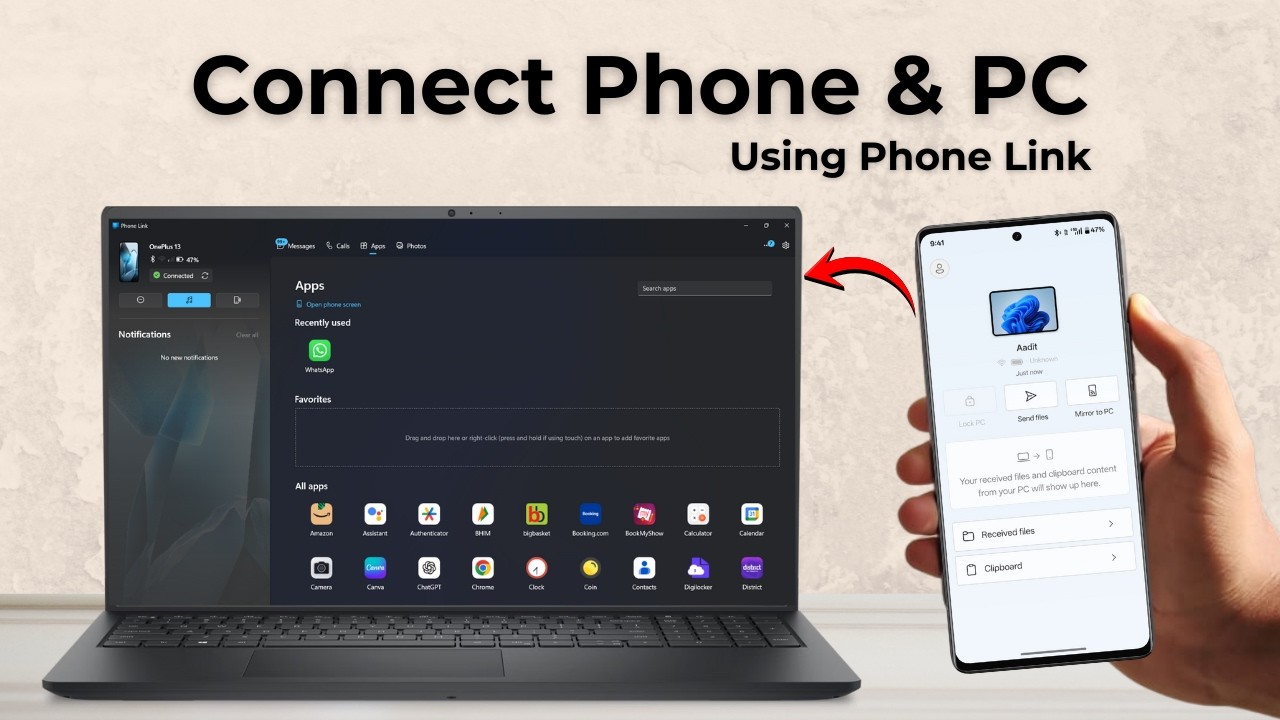
To connect your phone to your PC, open Phone Link on Windows, choose Android, then scan the QR code with the Link to Windows app on your phone and enter the code it shows. Once paired, you can read and reply to texts, see notifications, browse photos and open phone apps from your PC. This guide walks through the full Phone Link setup on Windows 10 or 11 and gives a quick tour of the dashboard.
What you need
- A Windows 10 or Windows 11 PC (Phone Link comes preinstalled)
- An Android phone
- A Microsoft account
1Open Phone Link on your PC
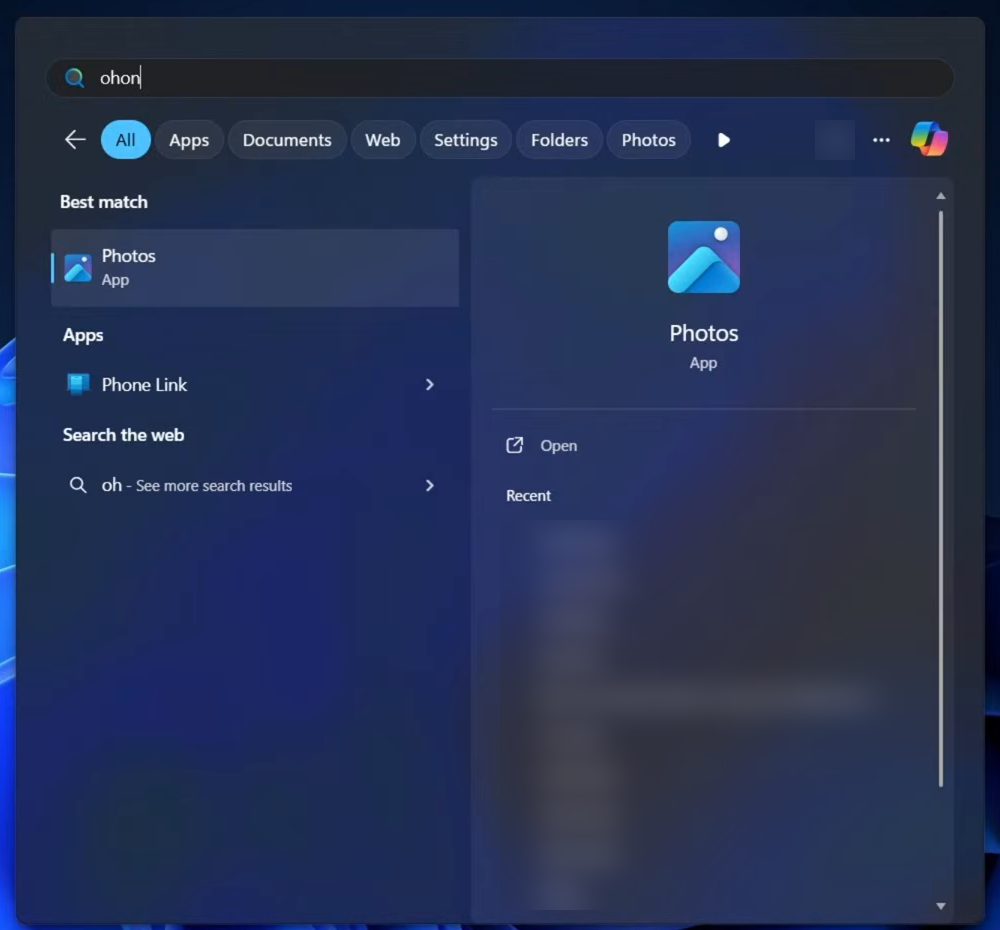
Open the Start menu and search for Phone Link, then open the app.
2Install Link to Windows on your phone
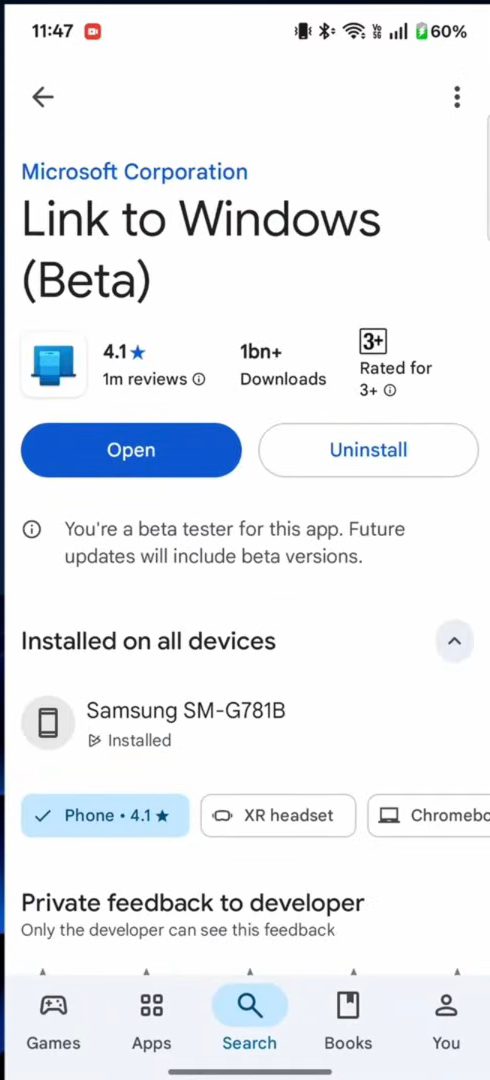
On your phone, open the Play Store and search for Phone Link. The app you need is called Link to Windows, made by Microsoft Corporation. Install it if it is not already there, then tap Open.
3Sign in and choose Android on the PC
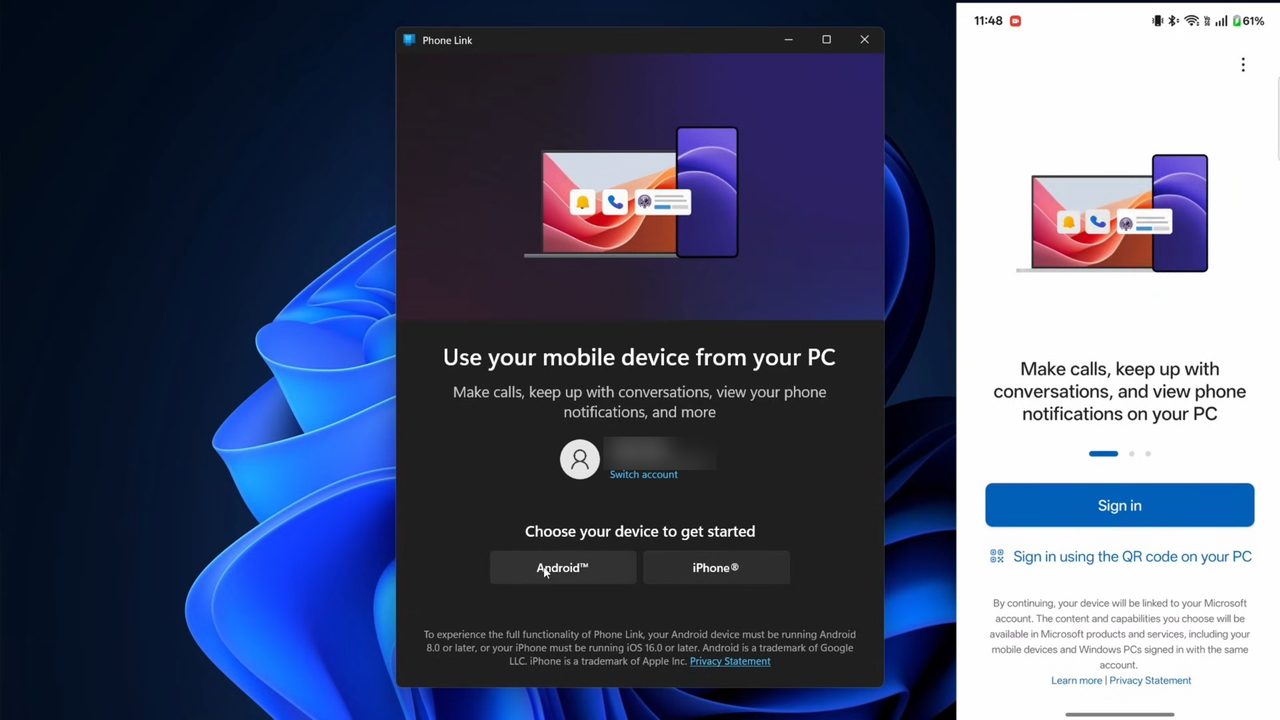
In Phone Link on your PC, sign in with your Microsoft account. Under Choose your device to get started, click Android. Phone Link then generates a QR code.
4Scan the QR code
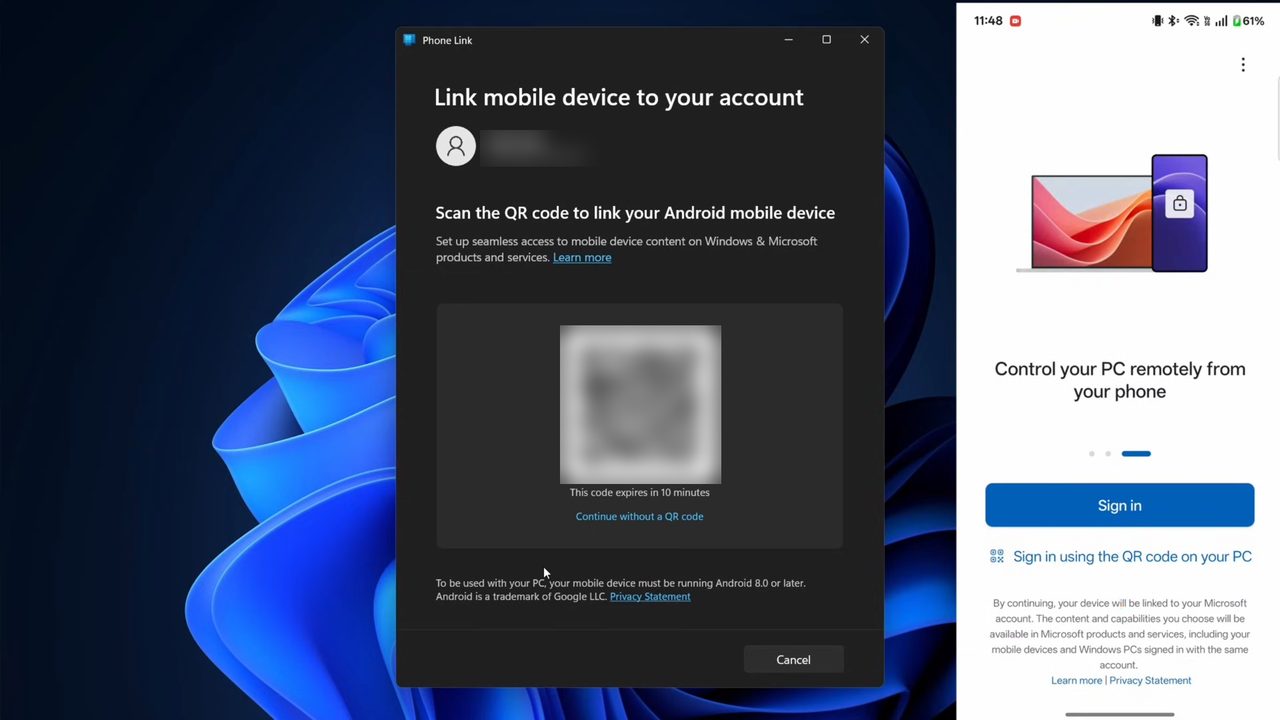
On your phone, tap Sign in using the QR code on your PC and scan the code shown in Phone Link. Allow the permissions the app asks for, then tap Continue.
5Enter the code and your password
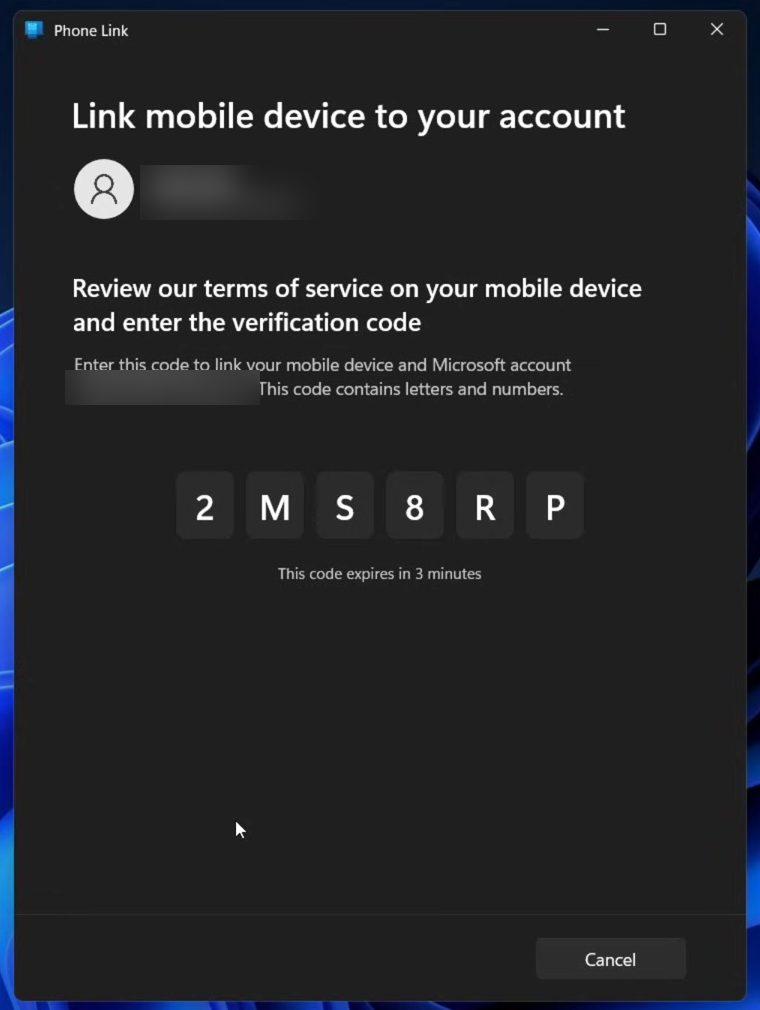
Phone Link now shows a short code made of letters and numbers. Type it into your phone, then enter your Microsoft account password when asked. If the app asks for access to your files, tap Continue to allow it.
6Finish the setup
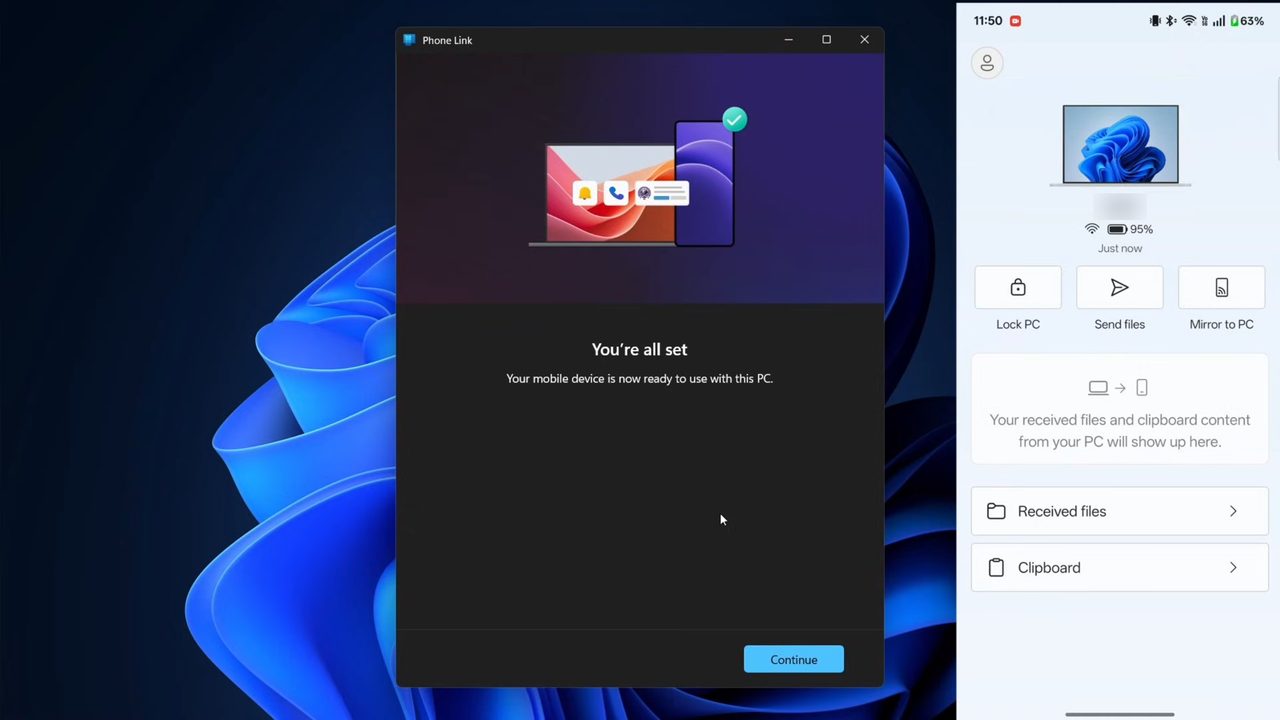
The PC shows You're all set. You can put your phone away now, since the controls are on your PC. Click Continue to open the Phone Link dashboard.
7Get to know the dashboard
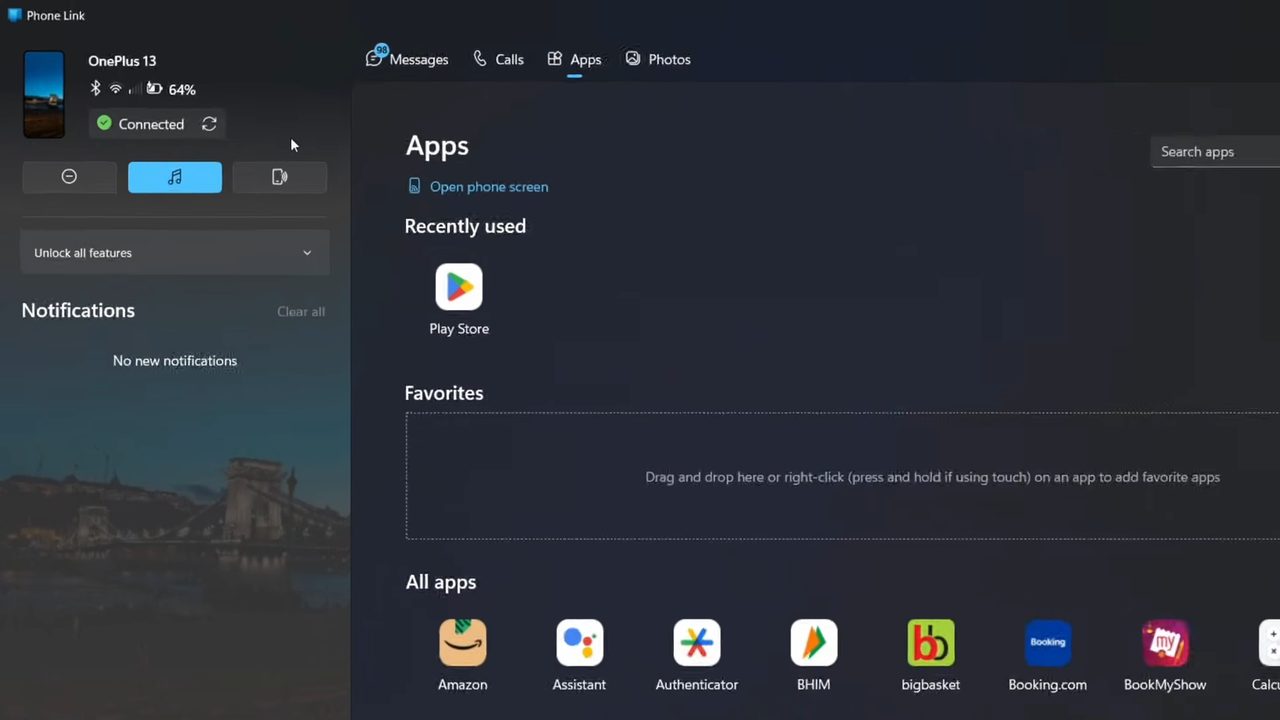
At the top left you see your phone's details, such as battery level and whether Wi-Fi and Bluetooth are on. Below them are three buttons: one turns on Do not disturb, one controls the audio player, and one makes your phone play a sound so you can find it. New notifications pile up in the list underneath.
8Use the Apps page
Along the top are four pages: Messages, Calls, Apps and Photos. The Apps page lists your phone apps so you can open them on your PC. It may be missing for you, because it mainly works on Samsung, OnePlus and Vivo phones. The other three pages are there for everyone.
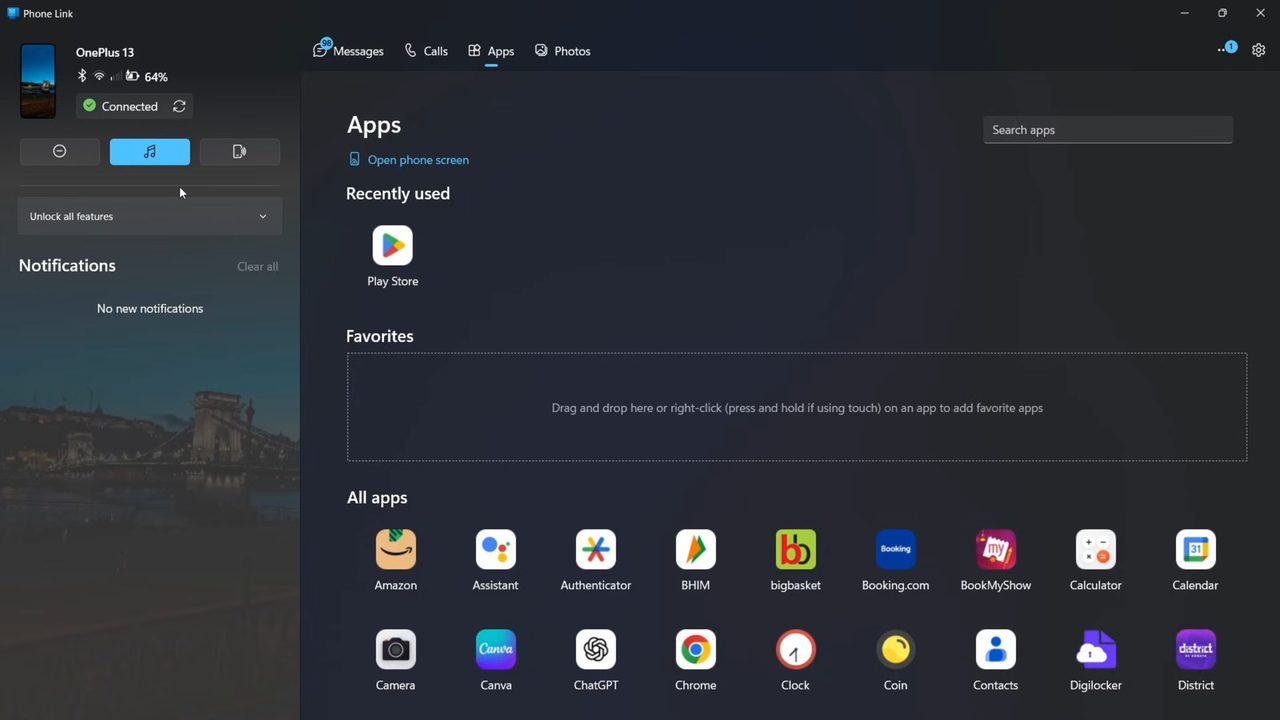
9Read messages, make calls and view photos
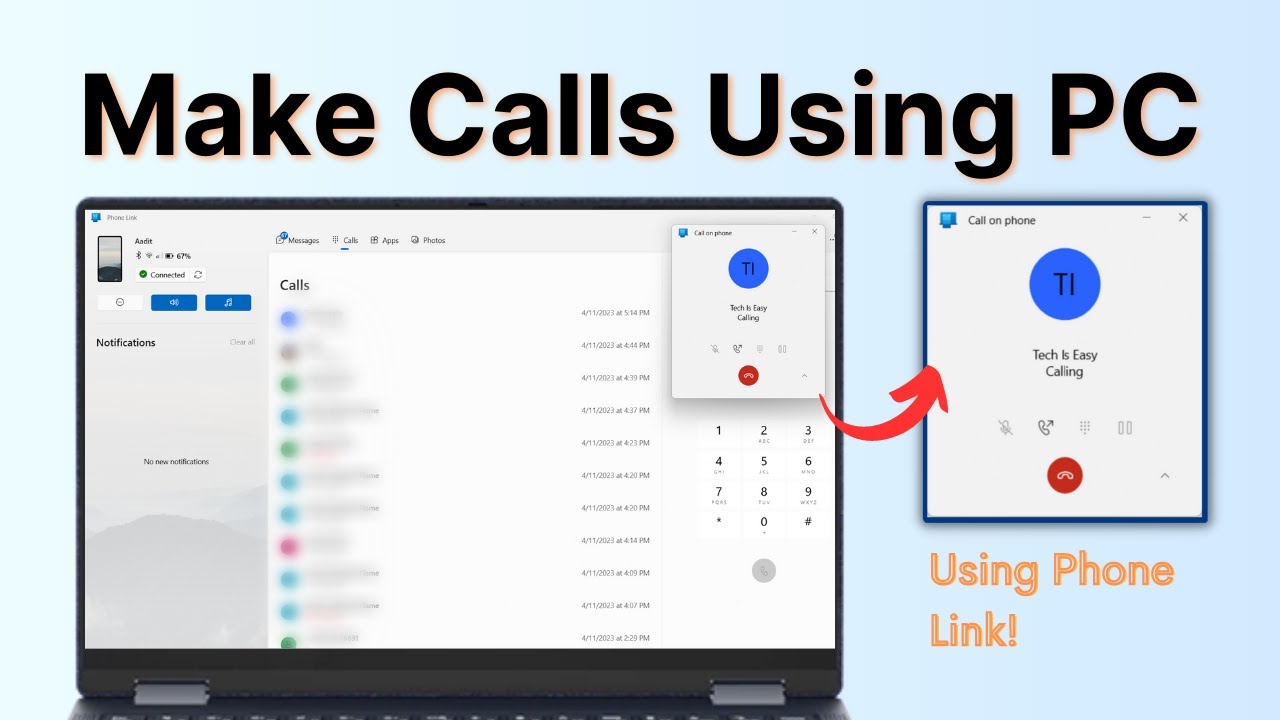
On Messages you can see new texts and reply to them. Calls needs extra permission and a Bluetooth connection between the two devices; our guide on making calls from your PC covers it. On Photos you can browse your phone's pictures and download them to your PC.
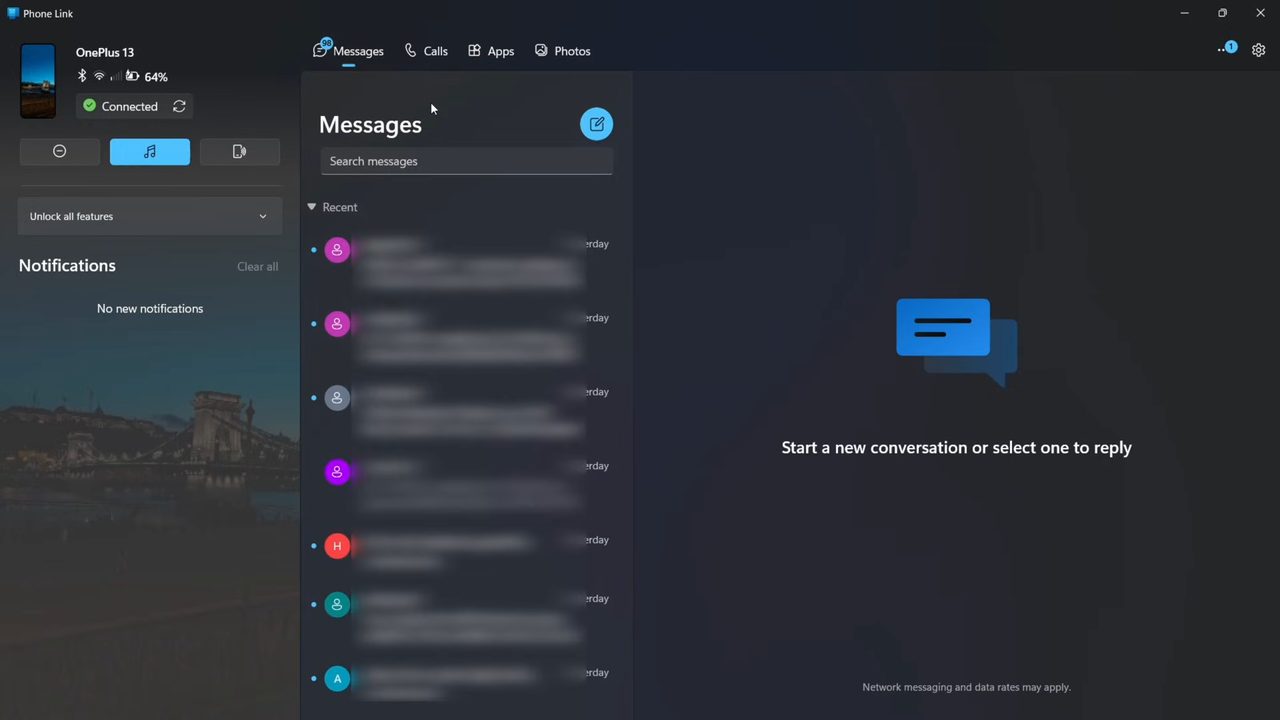
10Change features in Settings
Click the Settings gear at the top right and open Features. Here you can switch individual features on or off, such as Notifications, Messages, Calls, Apps and Photos.
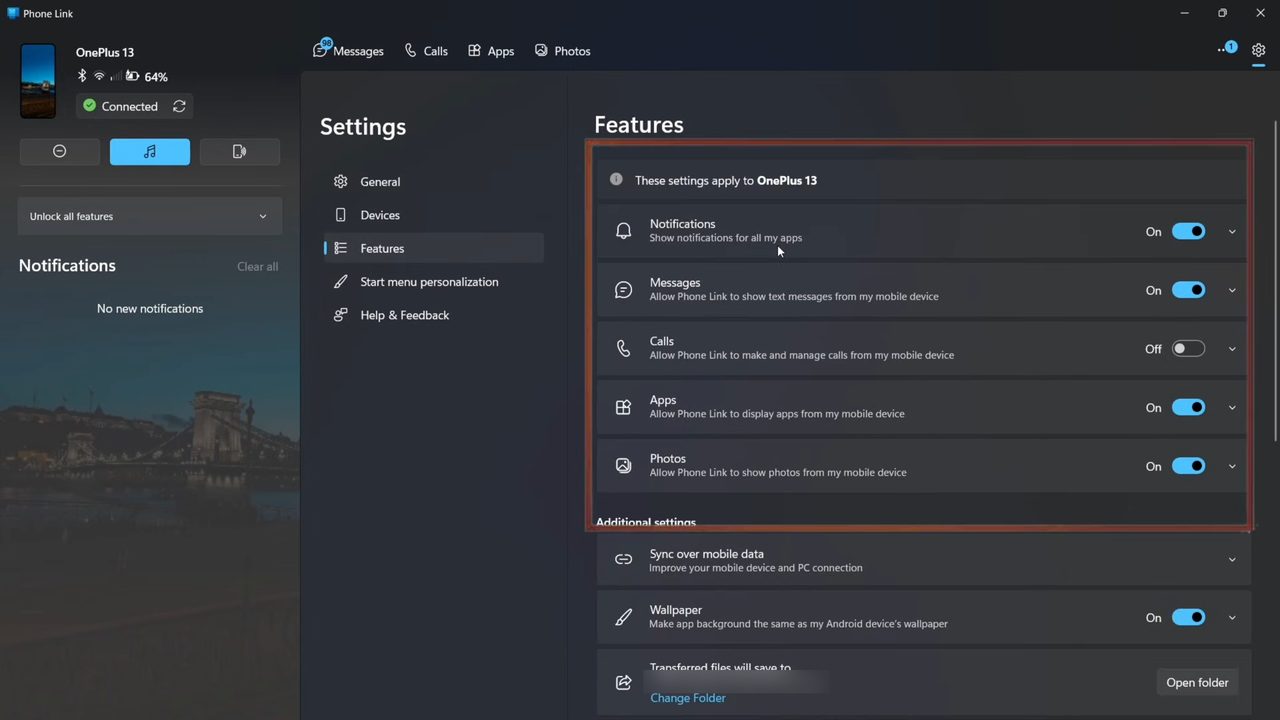
FAQ
How do I connect my Android phone to my PC wirelessly?
Use Phone Link on the PC and Link to Windows on the phone. Choose Android in Phone Link, scan the QR code with your phone, enter the code and your Microsoft password, and the two devices stay linked without a cable.
Is Phone Link already installed on Windows?
Yes. Phone Link comes preinstalled on Windows 10 and Windows 11, so you only need to search for it in the Start menu. On the phone you may need to install Link to Windows from the Play Store.
Why don't I see the Apps page in Phone Link?
The Apps page mainly works with Samsung, OnePlus and Vivo phones. On other phones you still get Messages, Calls and Photos.
Can I connect an iPhone with Phone Link?
Phone Link has an iPhone option on the same setup screen, and the iPhone app is on the App Store. The tutorial only shows the Android setup, so the iPhone steps are not covered here.
Related guides