Tech is Easy
How to Transfer Photos From Android to PC or Laptop (4 Ways)
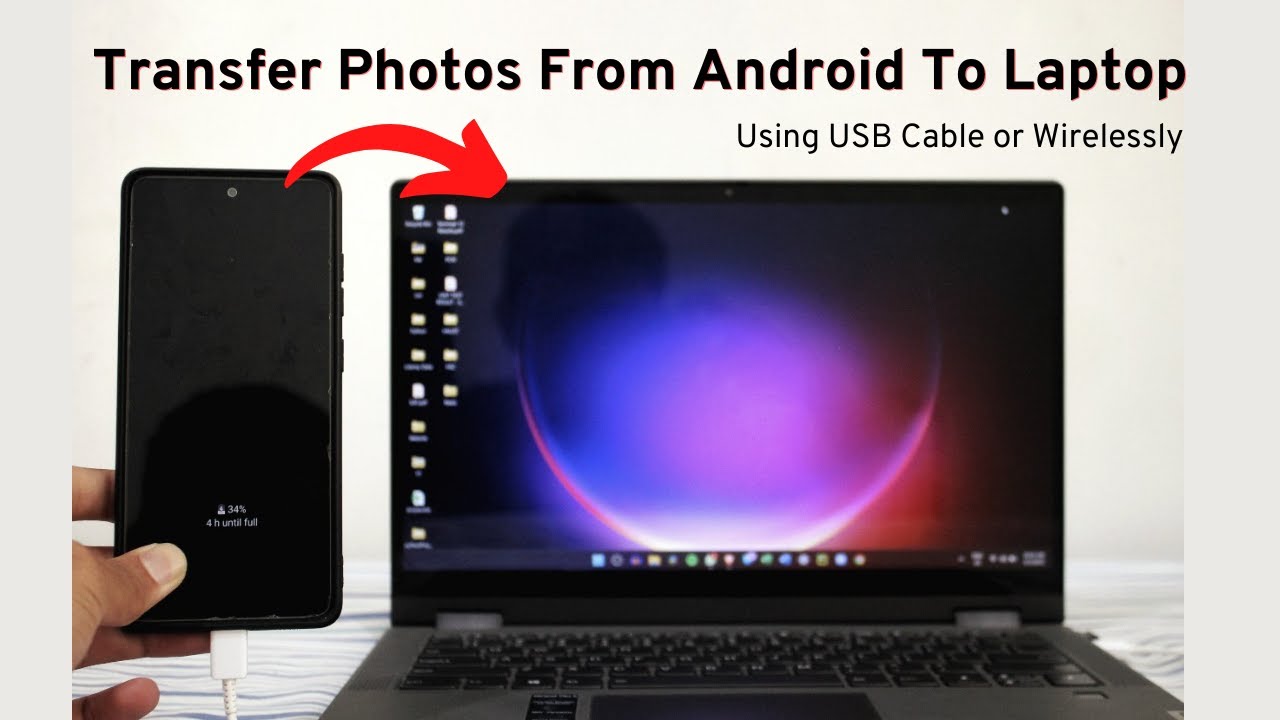
Need to get pictures off your phone? Here is how to transfer photos from Android to PC or laptop using four methods. A USB cable is the fastest and handles large files, while email, Google Drive and Phone Link are wireless options that work well for a few photos at a time.
What you need
- An Android phone and a Windows laptop or PC
- For Method 1: your phone's charging cable (USB)
- For Methods 2 and 3: the same Google account on the phone and the laptop
Method 1: Using a USB cable
1Connect the phone and choose file transfer
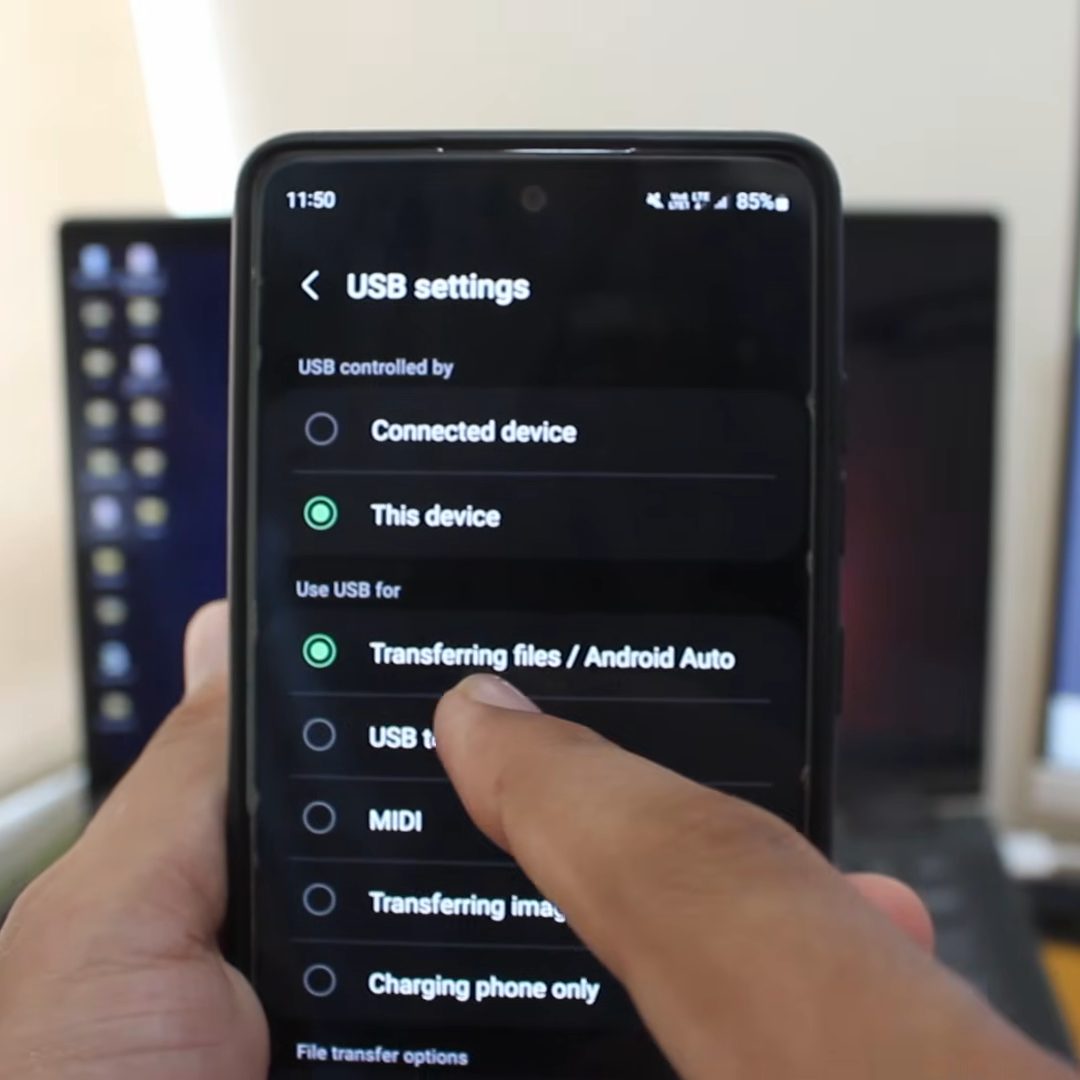
Plug your phone into the laptop with the charging cable and unlock the phone. Swipe down from the top, tap the USB for file transfer notification, and under Use USB for select Transferring files.
2Open your phone in File Explorer
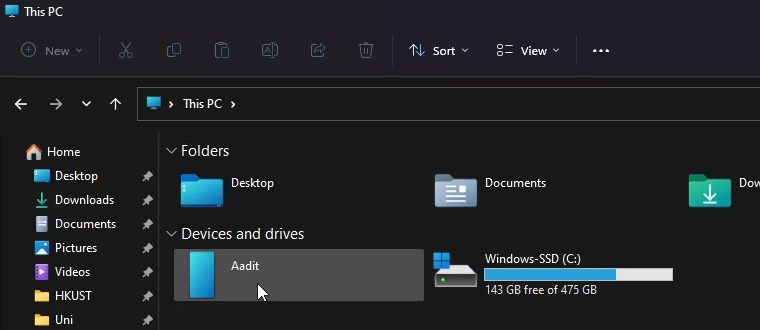
On the laptop, open File Explorer and click This PC in the left panel. Your phone shows up under Devices and drives. Click it.
3Open the DCIM folder
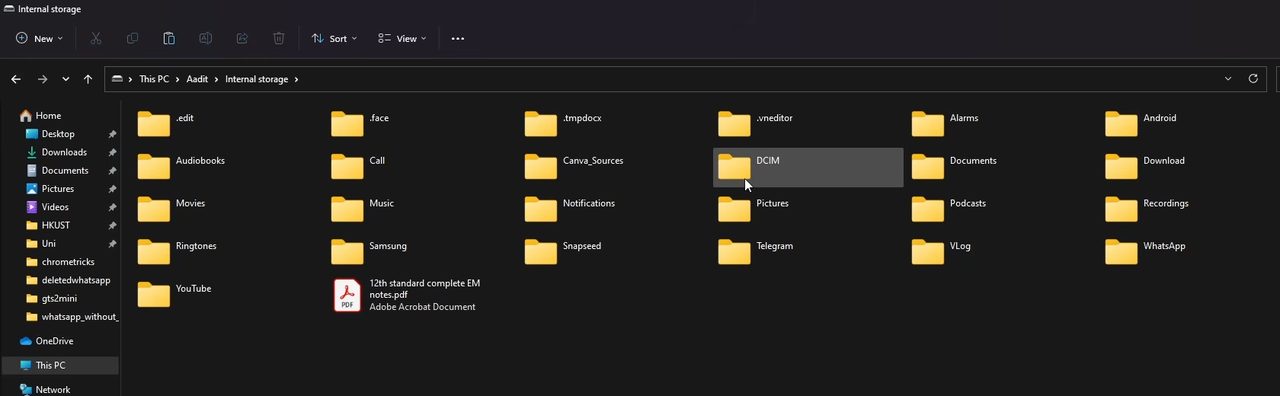
Choose Internal storage (or SD card if your photos are saved there), then open the DCIM folder. This is where your camera, screenshot and other picture folders live.
4Copy the photos
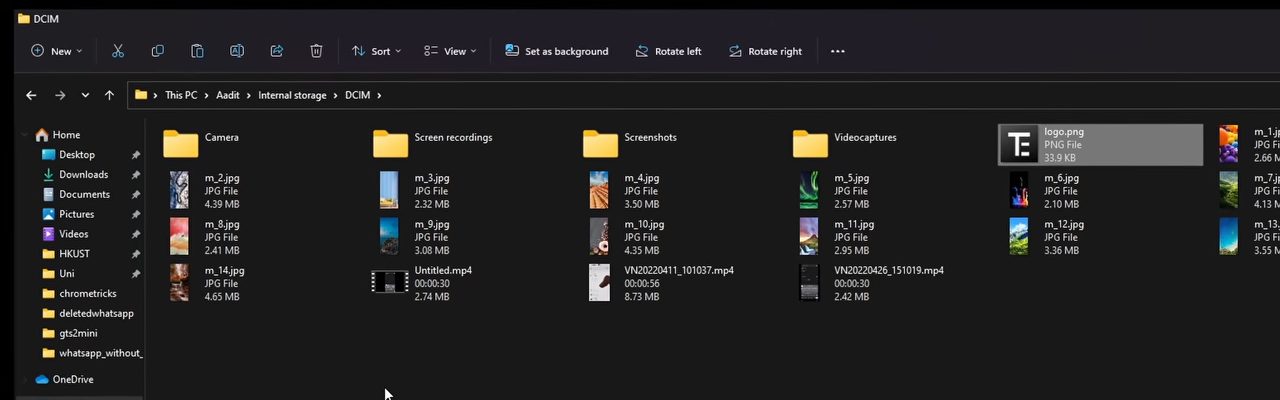
Find the photo you want, select it and copy it with Ctrl + C. You can select several photos or videos at once the same way.
5Paste them on your laptop
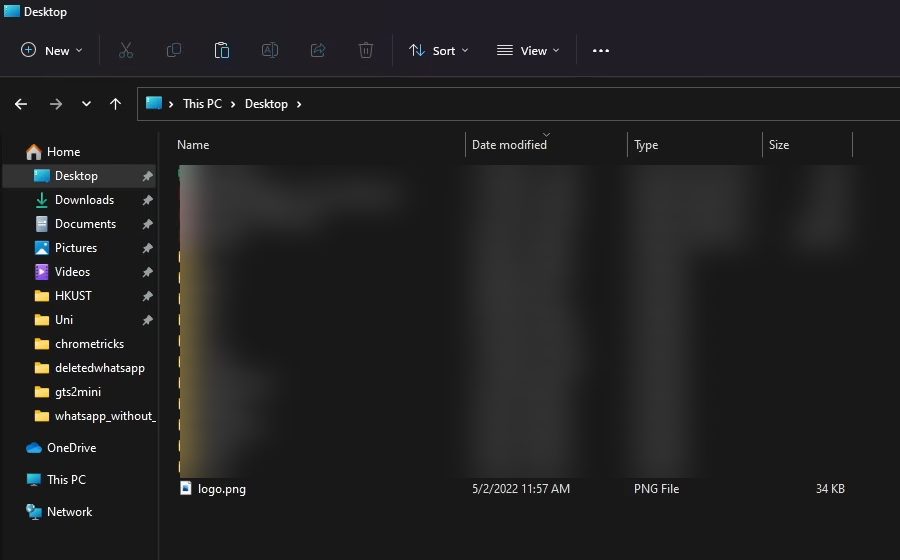
Go to the folder where you want the photos, for example Desktop in the left panel, and paste with Ctrl + V. The copied file now appears there.
Method 2: Email the photos to yourself
This is the simplest option for a couple of photos that are not too large.
1Compose an email to yourself
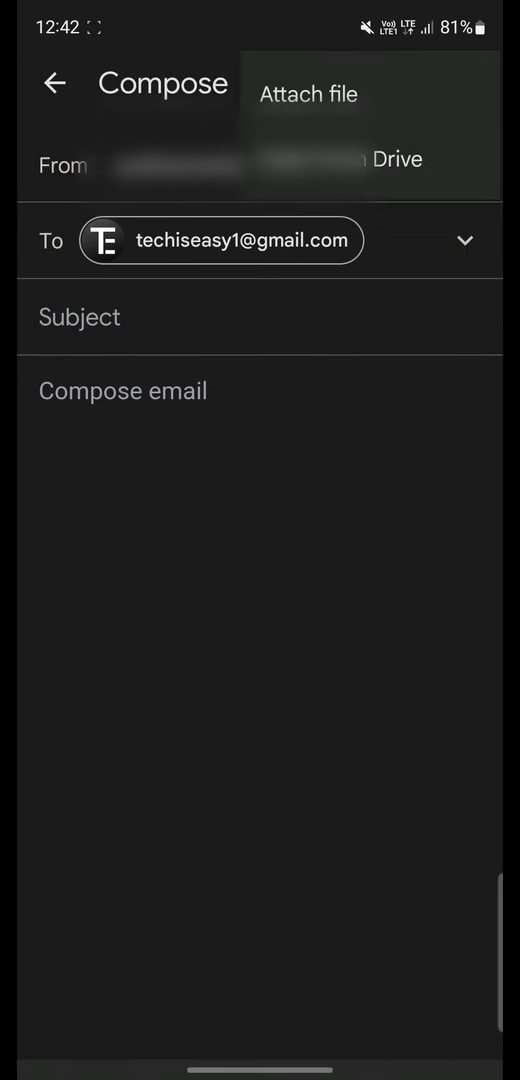
Open the Gmail app, tap Compose, and type your own email address in the To field. Tap the paperclip icon and choose Attach file.
2Attach the photo and send
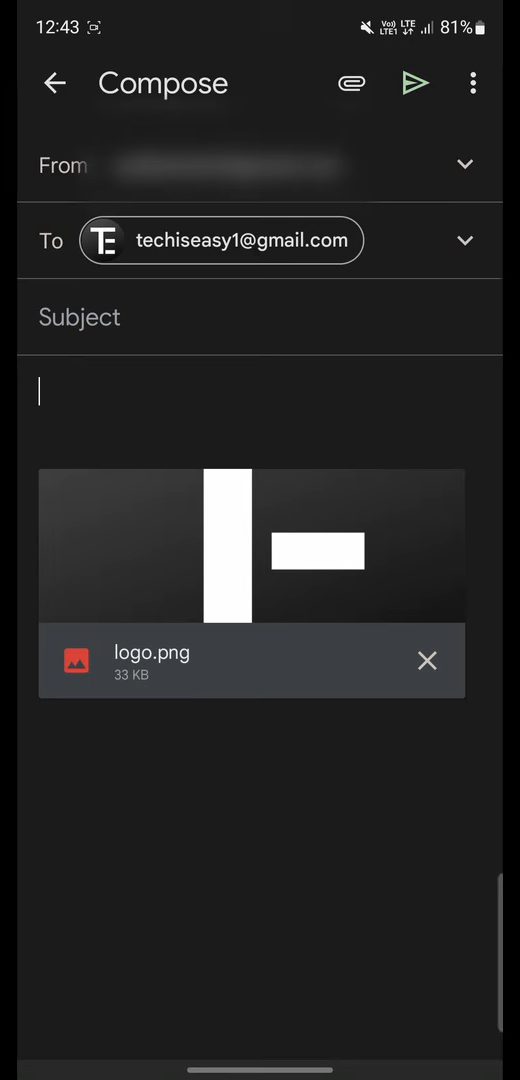
Pick the photo. Once it shows as an attachment, tap Send.
3Download it on the laptop
Open Gmail on your laptop and open the email. Click the photo to preview it, then click the Download icon at the top right and save it wherever you like.

Method 3: Using Google Drive
1Upload the photo from your phone
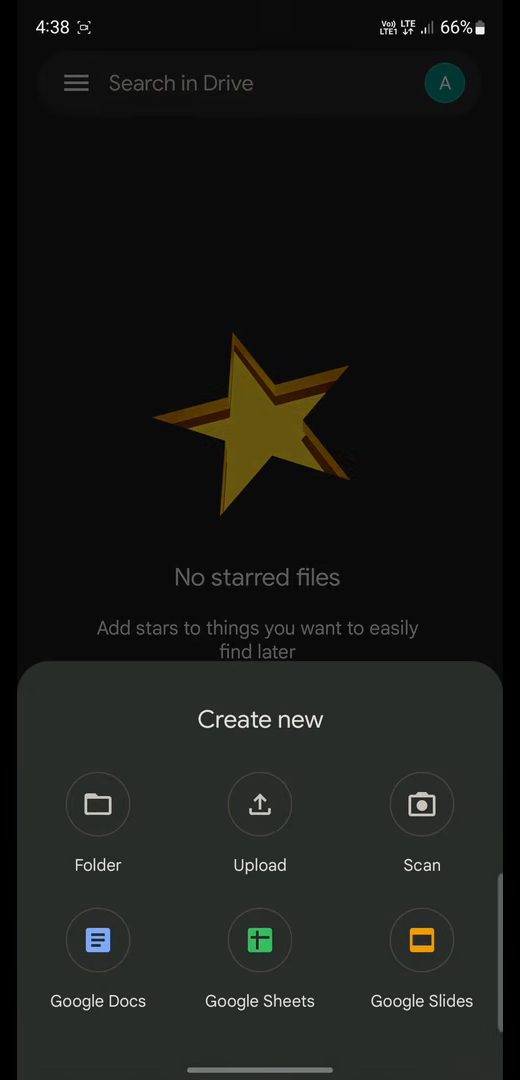
Open the Google Drive app, tap the + button at the bottom right, then tap Upload and select the picture.
2Find it in Drive on the laptop
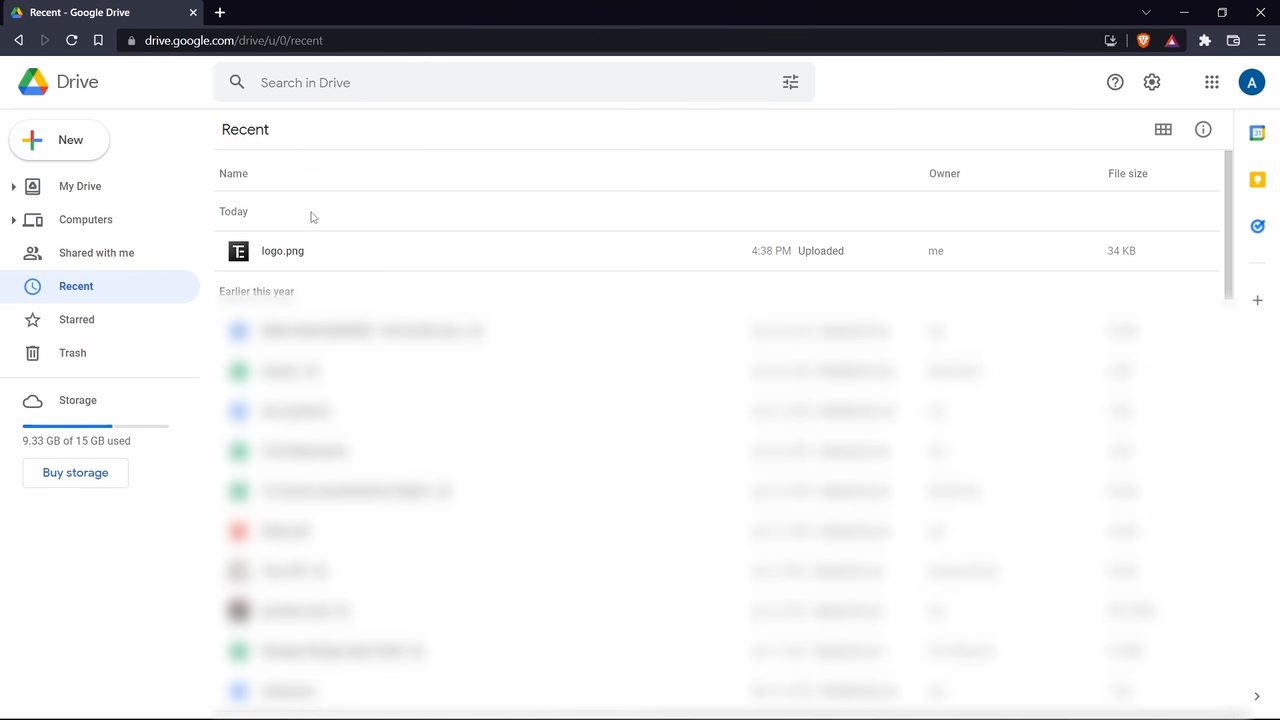
Open Google Drive in your laptop's browser, signed in with the same account. Click Recent on the left and the photo you just uploaded is at the top.
3Download it
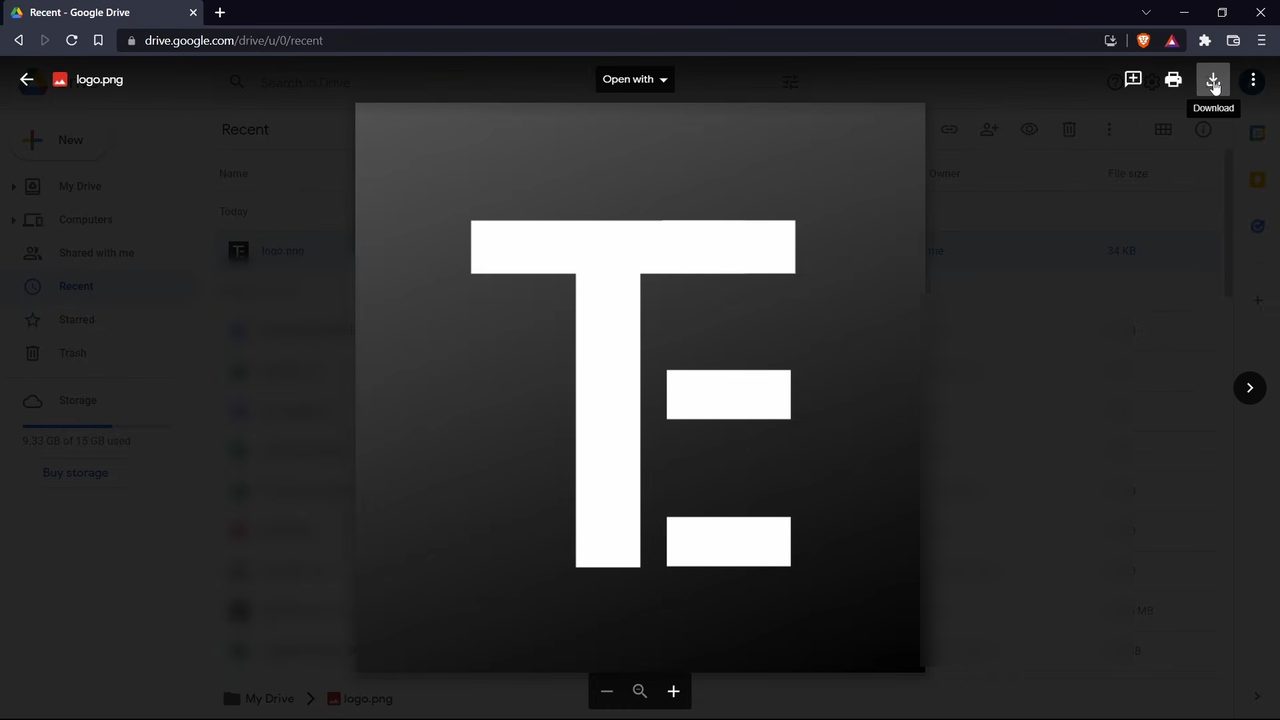
Click the photo to open it, then click the Download icon at the top right and choose where to save it.
Method 4: Using Phone Link
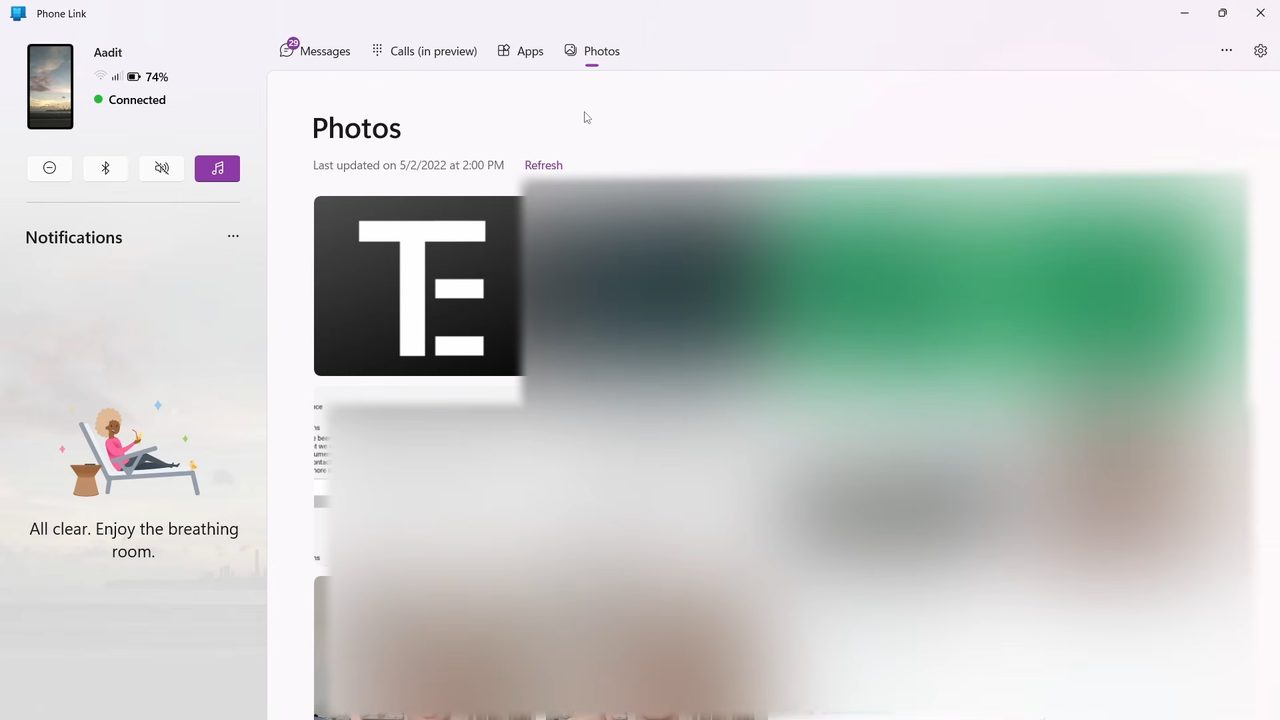
Phone Link (earlier called Your Phone) is built into Windows 10 and Windows 11, so you do not need to install anything extra on the laptop. After pairing, the Photos tab shows the recent photos from your phone. Click one, then click Save as to store it on the laptop.
The full pairing process is covered in our guide on how to transfer files between phone and PC using Phone Link. If you want to move documents and other files rather than photos, see how to transfer files from Android to PC.
Tips / troubleshooting
- If your phone does not show up under This PC, check the USB notification again. It often defaults to charging only until you pick Transferring files.
- For many photos or large videos, use the USB cable. Email attachments have a size limit and uploading to Drive takes time.
- The screens shown are from 2022, so some menus may look slightly different on newer phones and Windows versions.
FAQ
Why is my Android phone not showing on my PC?
Unlock the phone after connecting it, then open the USB notification and choose Transferring files. If it is set to charging only, Windows will not show the phone in File Explorer.
Where are photos stored on an Android phone?
Camera photos and screenshots are in the DCIM folder, either in Internal storage or on the SD card if your camera saves there.
How can I transfer photos from Android to laptop without a USB cable?
Email them to yourself, upload them to Google Drive and download them on the laptop, or use the Phone Link app on Windows 10 or 11.
Does copying photos to the PC delete them from my phone?
No. Copying and pasting leaves the original on the phone. Only cutting or deleting removes it.
Related guides