Tech is Easy
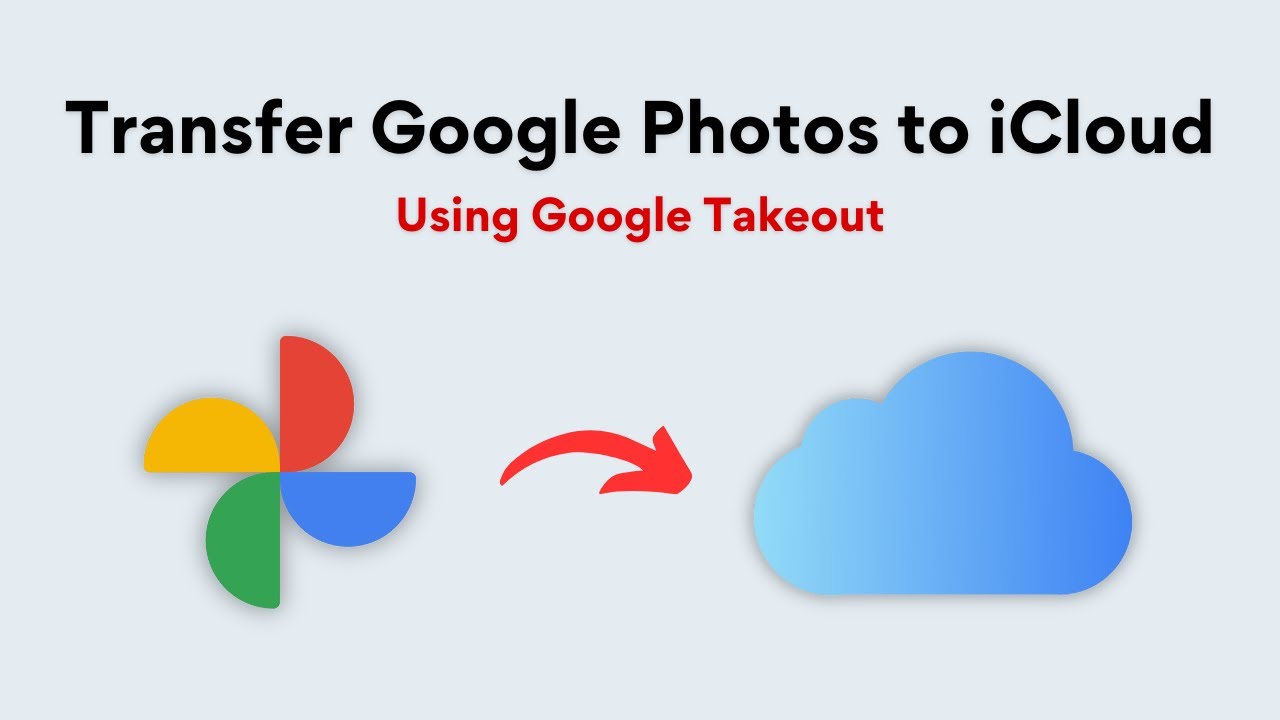
How to Transfer Photos From Google Photos to iCloud
To transfer photos from Google Photos to iCloud, open takeout.google.com/takeout/transfer/custom/photos in a browser, choose your albums, pick Apple - iCloud Photos as the destination, sign in to your Apple Account and click Agree and continue. Google then copies your photos and videos directly into iCloud Photos, with no downloading or re-uploading on your side. This is the easiest way to move your Google Photos library if you are switching from Android to iPhone or just want everything in Apple's cloud.
What you need
- A computer with a web browser, signed in to the Google account that holds your photos
- Your Google account password (Google asks for it once during the transfer)
- An Apple Account with iCloud Photos turned on and enough free iCloud storage for the whole library
- Your iPhone, iPad or Mac nearby, since Apple may send a two-factor code there while you sign in
The transfer runs on Google Takeout, Google's own tool for moving data out of your account. Google explains the process on its help page Copy your photos & videos to a service outside of Google.
1Open the Google Takeout transfer page
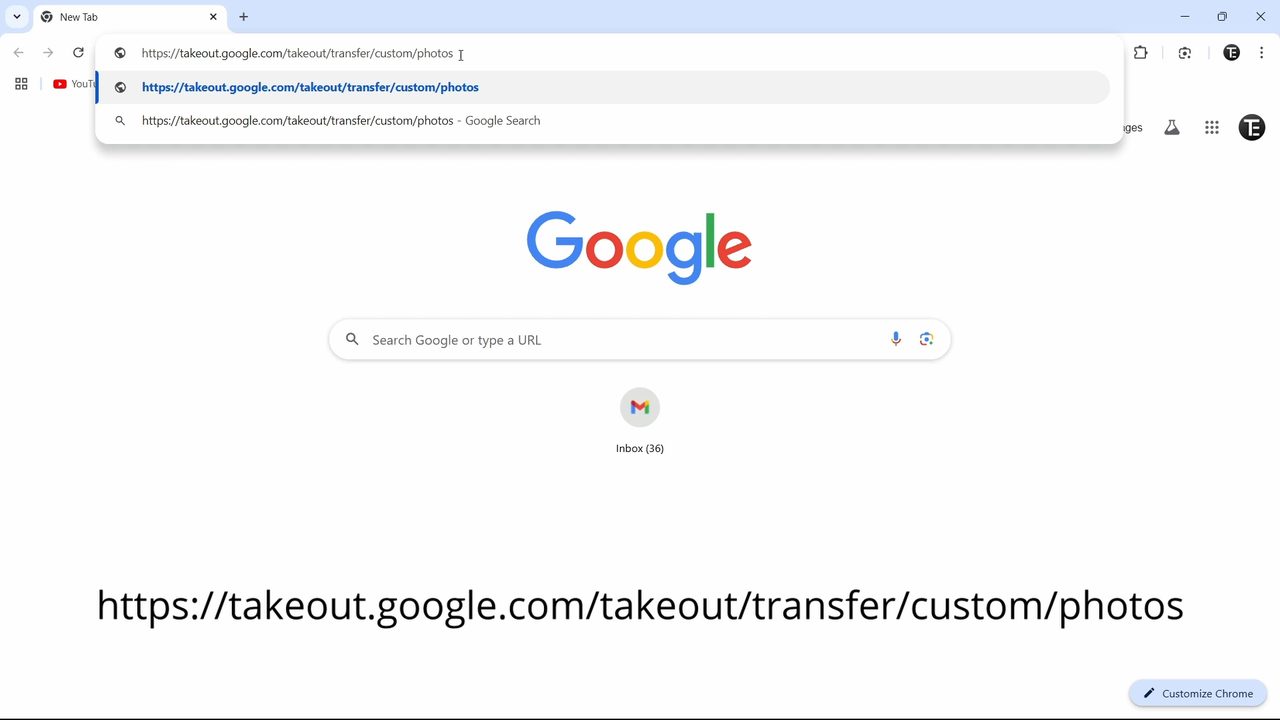
In your browser, make sure you are signed in with the Google account you want to transfer photos from. Then type takeout.google.com/takeout/transfer/custom/photos into the address bar and press Enter. This link opens the photo transfer option of Google Takeout directly.
2Check what will be copied
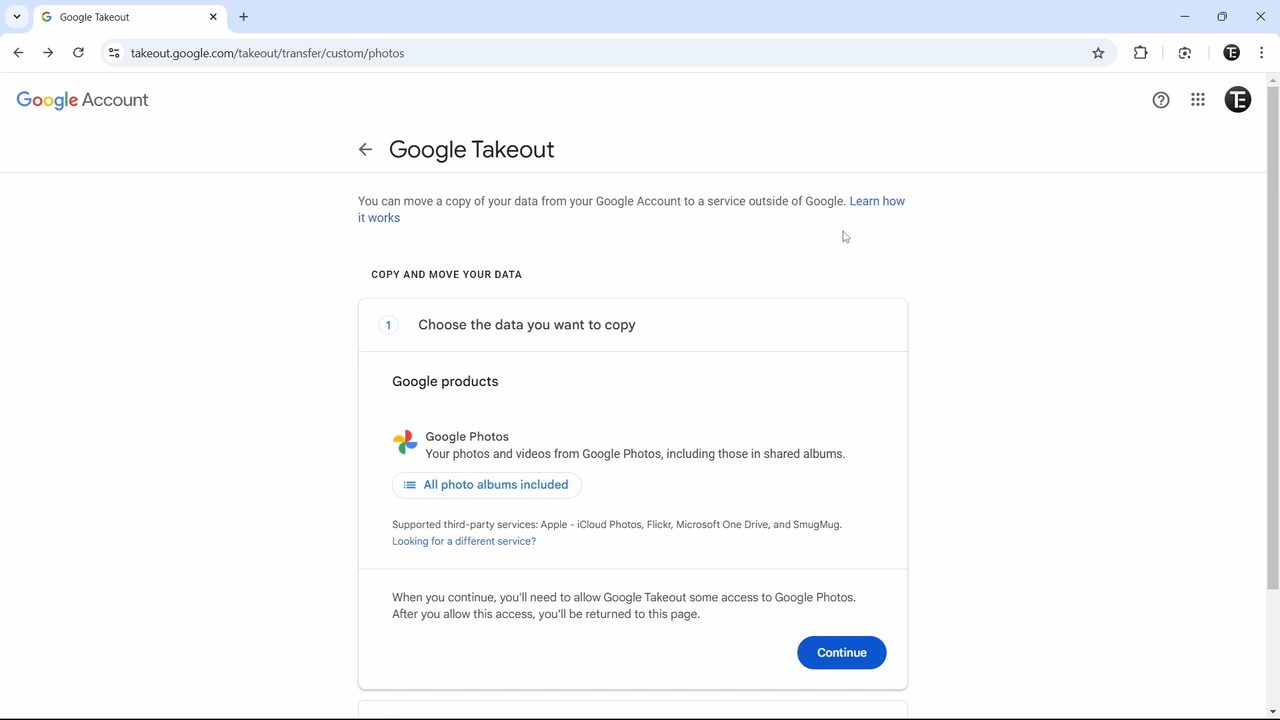
The Google Takeout page opens with section 1, Choose the data you want to copy. Under Google Photos you will see All photo albums included by default. It also lists the supported services: Apple iCloud Photos, Flickr, Microsoft OneDrive and SmugMug.
3Pick the albums you want to move
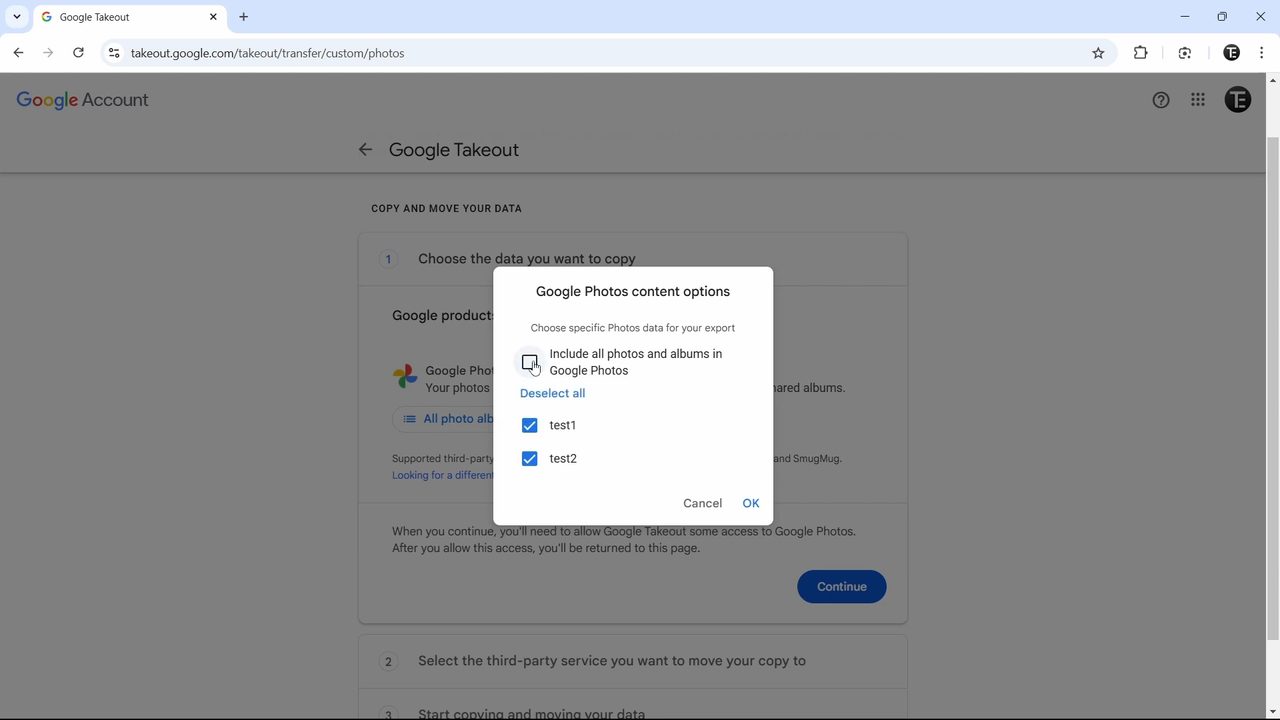
To move everything, leave it as it is. To choose, click All photo albums included. In the Google Photos content options box, untick Include all photos and albums in Google Photos, then tick only the albums you want and click OK.
4Click Continue
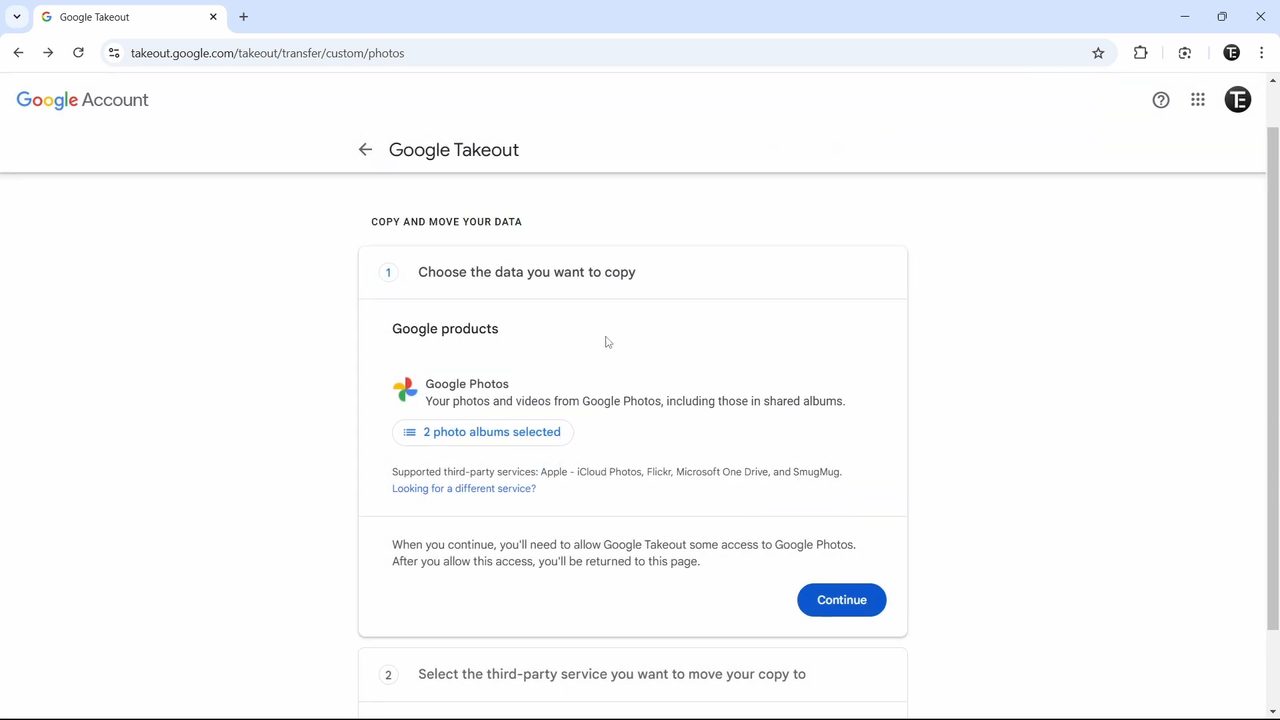
The button now shows how many albums you picked, such as 2 photo albums selected. Click Continue. Google asks you to enter your Google account password once for security.
5Give Google Takeout access to your photos
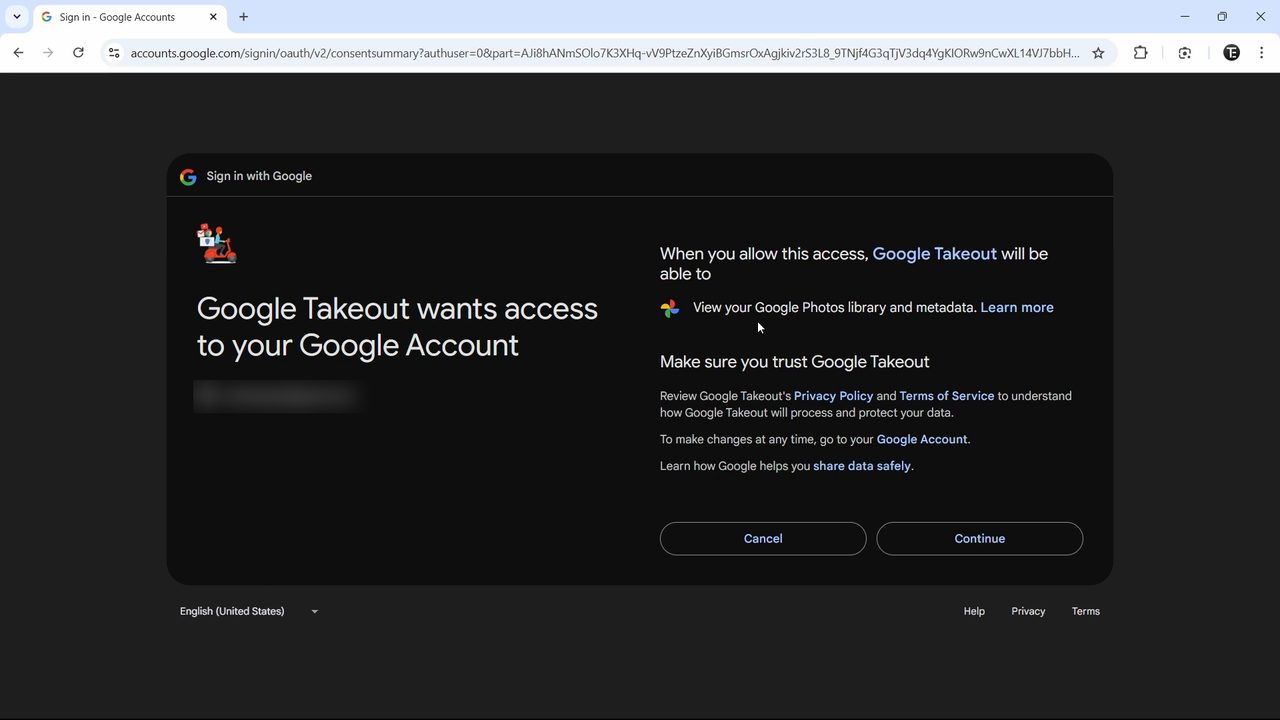
Choose your Google account on the Sign in with Google screen. It shows that Google Takeout will be able to view your Google Photos library and metadata. If you are fine with that, click Continue.
6Choose Apple iCloud Photos as the destination
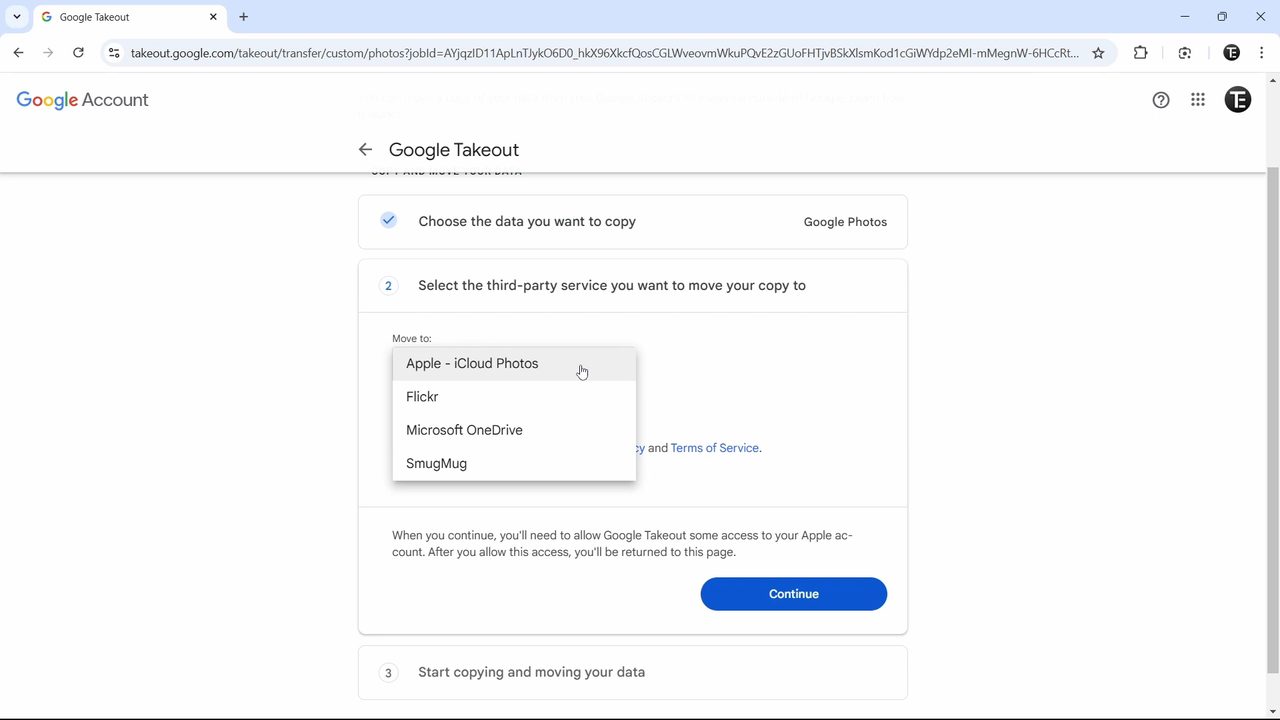
You are back on Takeout at section 2, Select the third-party service you want to move your copy to. Apple - iCloud Photos is usually already selected under Move to. If it isn't, open the dropdown and pick it, then click Continue.
7Sign in to your Apple Account
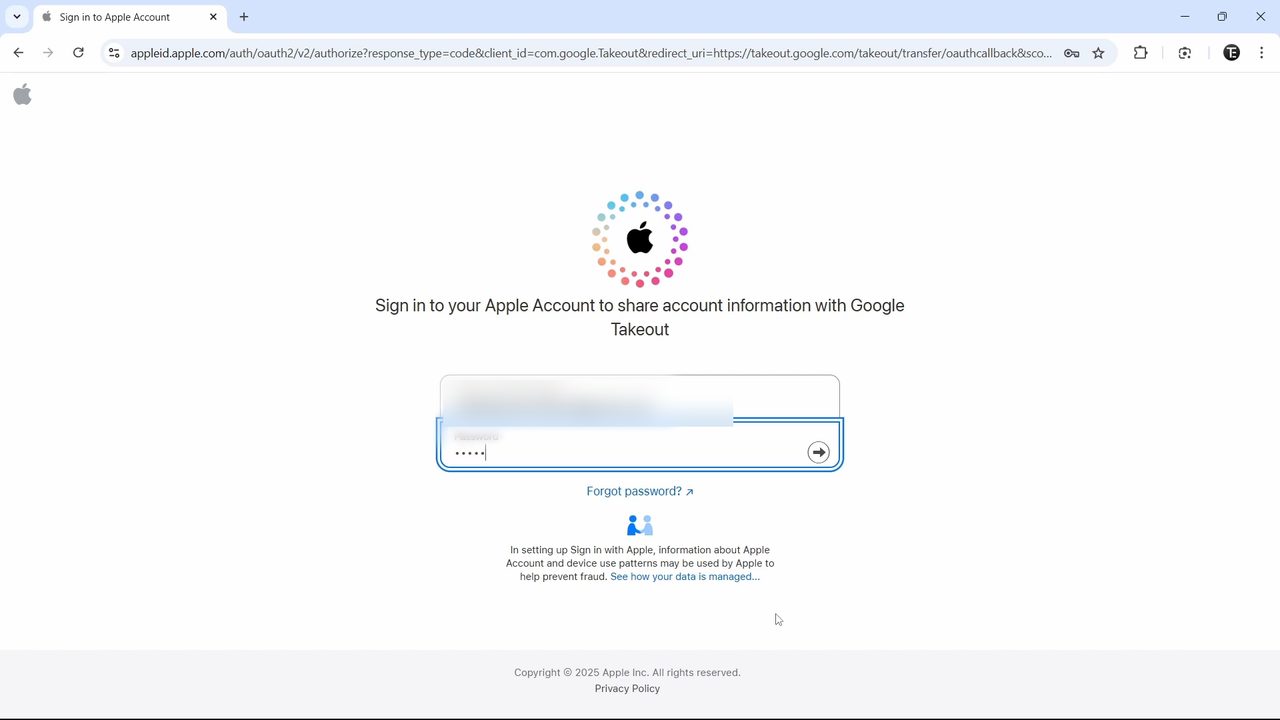
Apple's sign-in page opens, asking you to sign in to share account information with Google Takeout. Enter your Apple Account email or phone number and your password, then enter the two-factor code that appears on your iPhone, iPad or Mac.
8Click Agree and continue
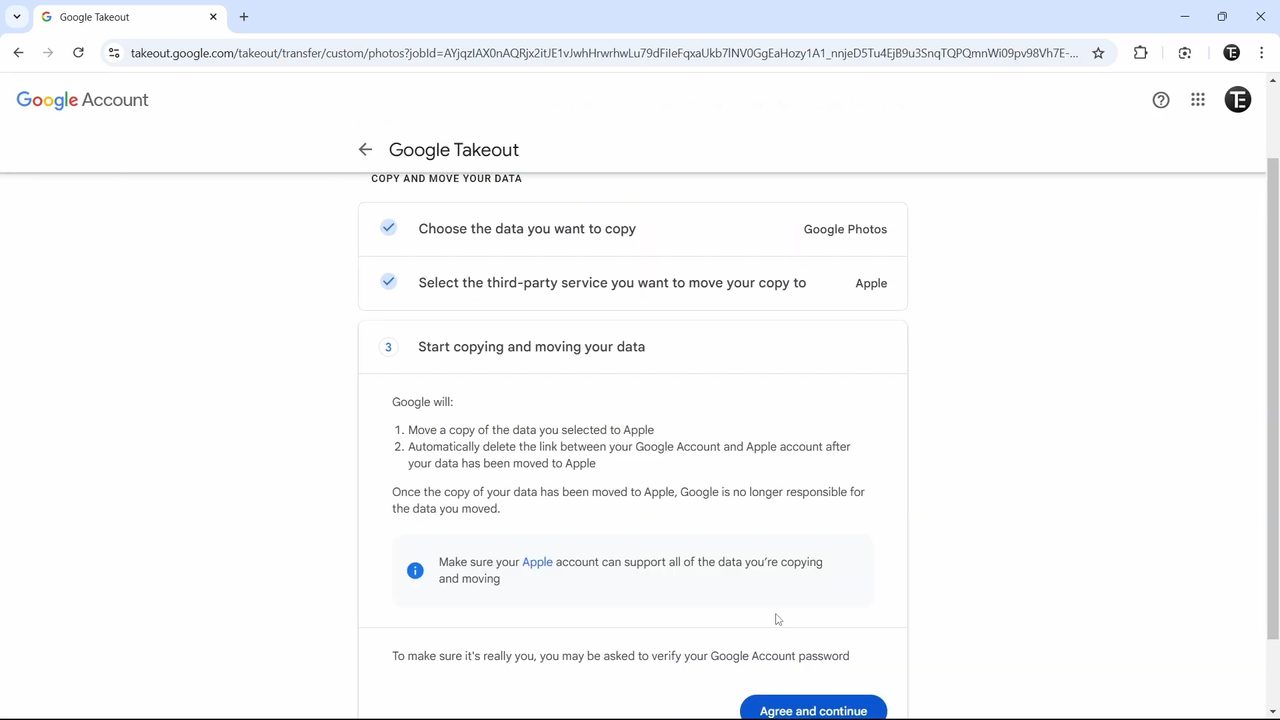
Section 3, Start copying and moving your data, explains that Google will move a copy of your selected data to Apple and then remove the link between your Google and Apple accounts. Click Agree and continue at the bottom.
9Wait for the export to finish
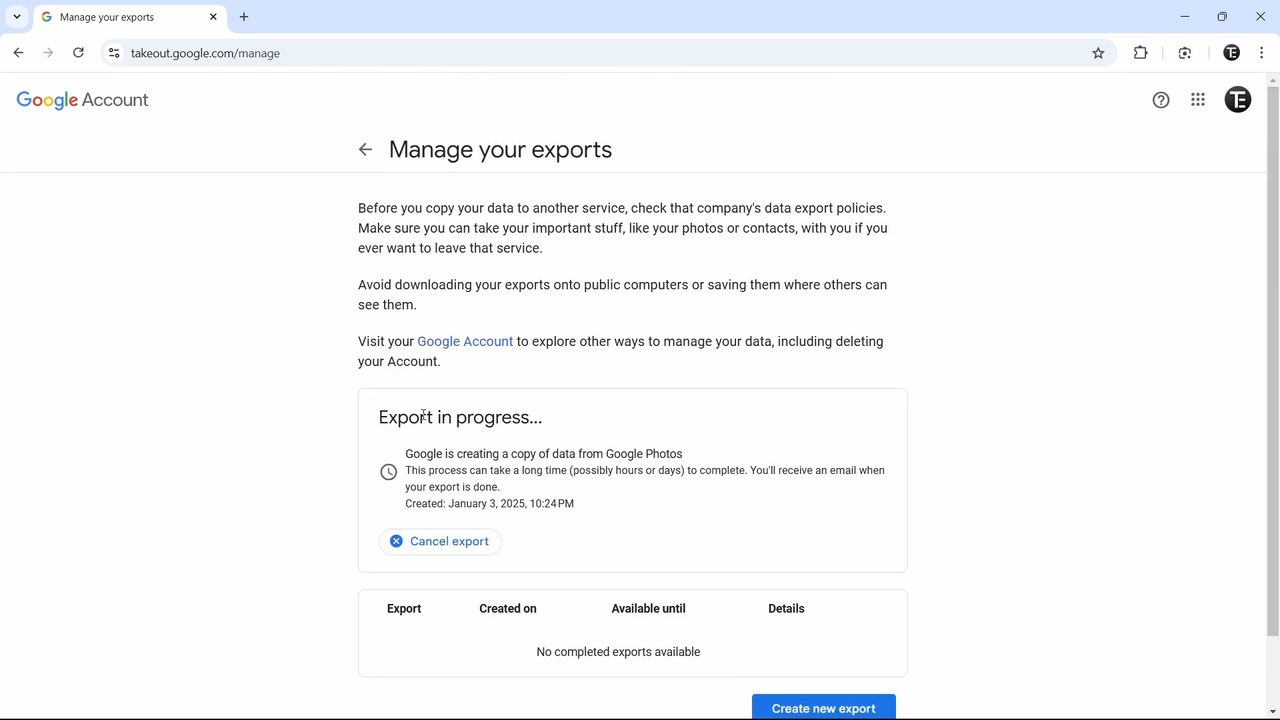
You land on Manage your exports, which shows Export in progress. This step can take hours or even days for a big library. You can close the browser; Google sends you an email when the transfer is complete. If you change your mind, click Cancel export.
What happens after the transfer
- Your Google Photos stay where they are. This is a copy, not a move. Nothing is deleted from Google Photos, so you will need to delete photos yourself if you want to free up Google storage.
- Check the email from Google. It includes a link to find the photos in iCloud. Open the Photos app on your iPhone or Mac (or icloud.com) and give it some time to sync.
- The accounts are unlinked automatically. Once the copy is done, Google Takeout no longer has access to your Apple Account.
- Running it twice creates duplicates. Google warns that a second transfer may copy photos again, so only repeat it for albums that were missed.
Troubleshooting
- Some photos didn't arrive. According to Google, the usual causes are unsupported file types, running out of iCloud storage, or a transfer that was cancelled before it finished. Transferred files can take up more space than Google Photos shows, so leave some extra room in iCloud.
- Items that are never copied. Locked Folder photos, items in Trash, unsaved memories and creations, and the video part of Motion Photos are skipped. Move photos out of Locked Folder or restore them from Trash first if you want them included.
- The transfer option isn't available. Google says it doesn't work for work or school accounts, accounts with Advanced Protection turned on, or accounts of children under the age limit in their country.
- Can't start a new transfer right after cancelling. Google says there may be a delay before you can place a new request after cancelling one.
If you only want to move photos to another Google account instead of iCloud, see How to Transfer Google Photos From One Account to Another.
FAQ
How do I transfer all my Google Photos to iCloud at once?
Open Google Takeout's photo transfer page, leave All photo albums included selected, choose Apple - iCloud Photos, sign in to your Apple Account and click Agree and continue. Google copies the whole library for you in the background.
Does transferring Google Photos to iCloud delete them from Google?
No. Google Takeout copies your photos and videos. Everything stays in Google Photos until you delete it yourself.
How long does the Google Photos to iCloud transfer take?
It depends on how many photos and videos you have. Google says it can take a long time, possibly hours or days, and emails you when it is done.
Can I do this from my phone when moving from Android to iPhone?
The steps here are done in a browser on a computer. The Takeout page works in a mobile browser too, but that isn't shown in the video. Either way, the photos end up in iCloud Photos and appear on your iPhone once it syncs.
Related guides