Tech is Easy
How to Transfer Google Photos From One Account to Another
To transfer Google Photos from one account to another, select the photos at photos.google.com, click Share > Create link, open that link in the other account and click Save photos. To move all your photos at once, use Sharing > Share with partner > All photos and accept the invite from the second account. Both methods are useful when you are switching to a new Google account and want to move your photos without downloading and re-uploading them.
We use a computer here, but the same steps work in the Google Photos app on your phone.
What you need
- Both Google accounts and their passwords
- A browser, signed in to the account that currently has the photos
Method 1: Transfer selected photos with a link
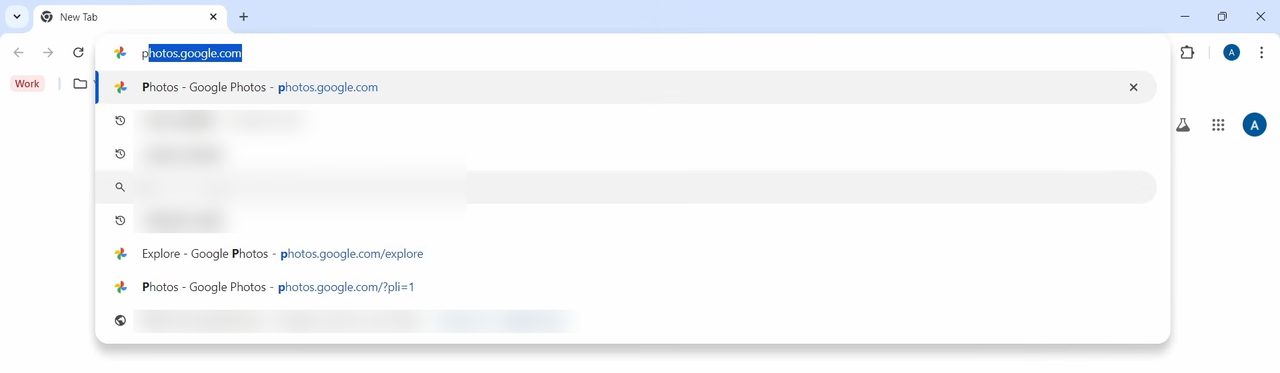
1Open Google Photos
Go to photos.google.com in your browser. Make sure you are signed in with the account you want to move photos from.
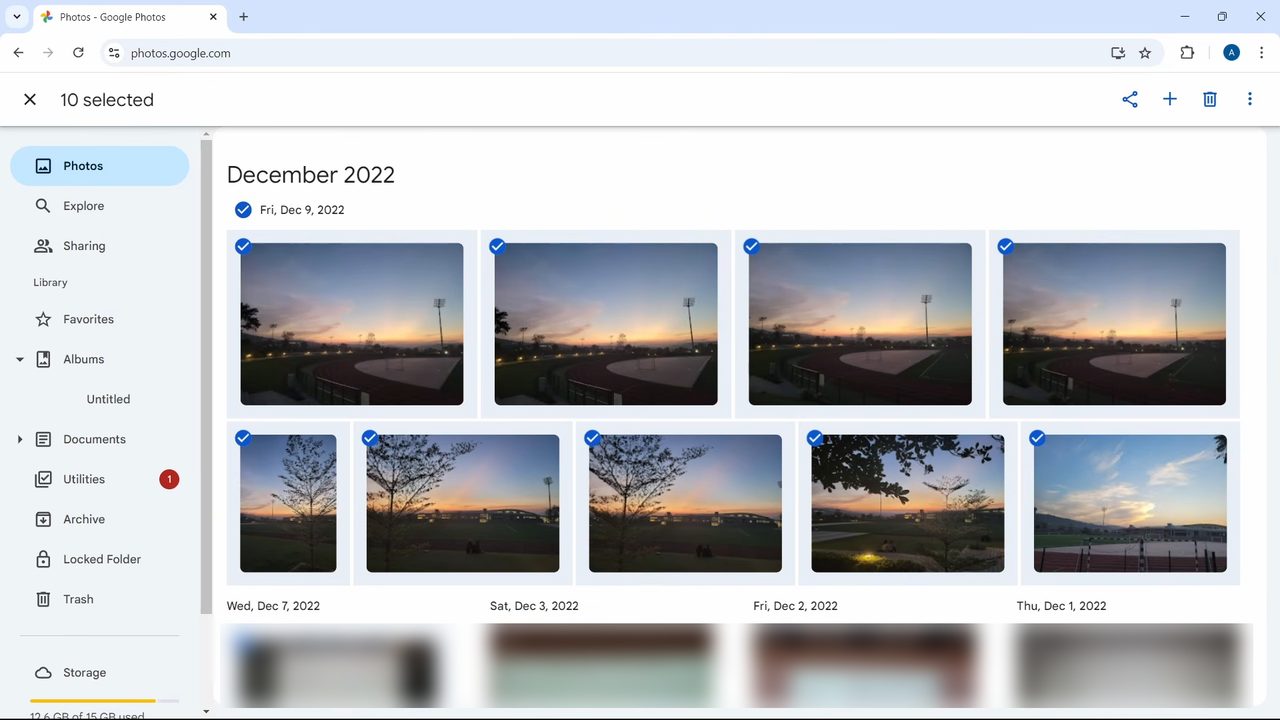
2Select the photos
Click the tick on one photo to select it. To select many at once, hold Shift and click another photo further down: everything in between gets selected. The count at the top left shows how many you picked.
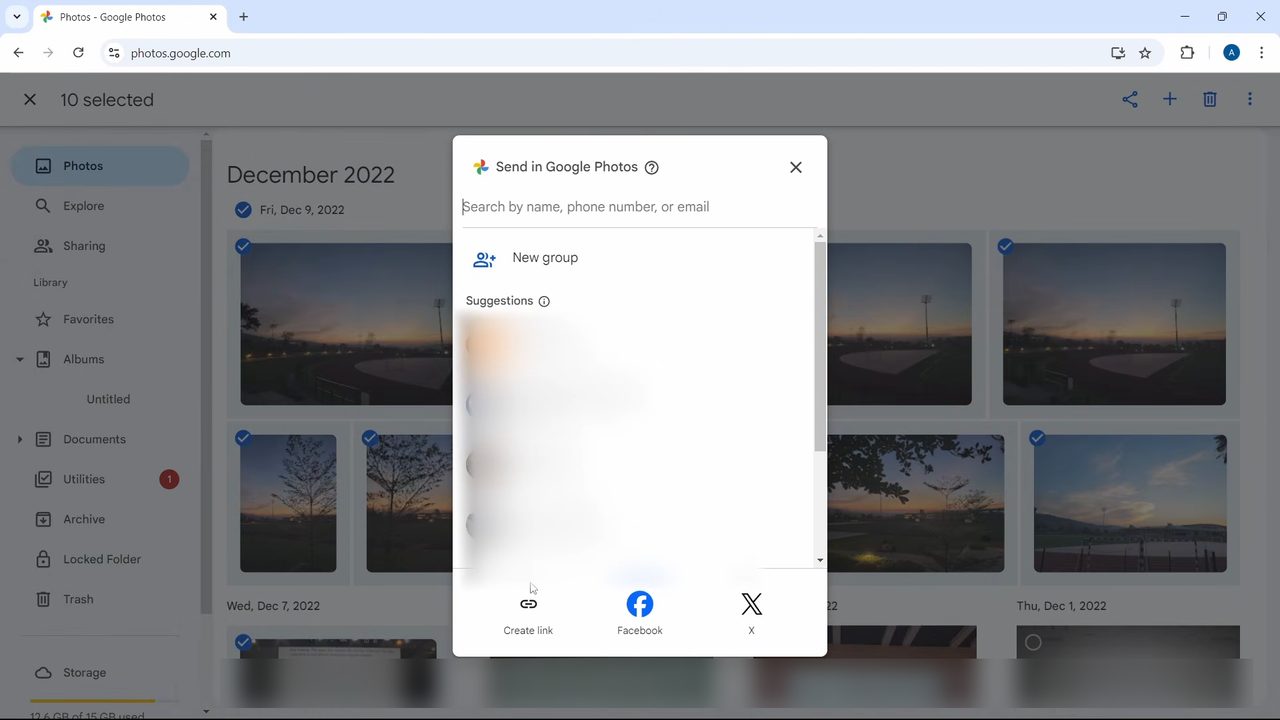
3Click Share, then Create link
Click the Share icon at the top right. In the Send in Google Photos box, click Create link at the bottom.
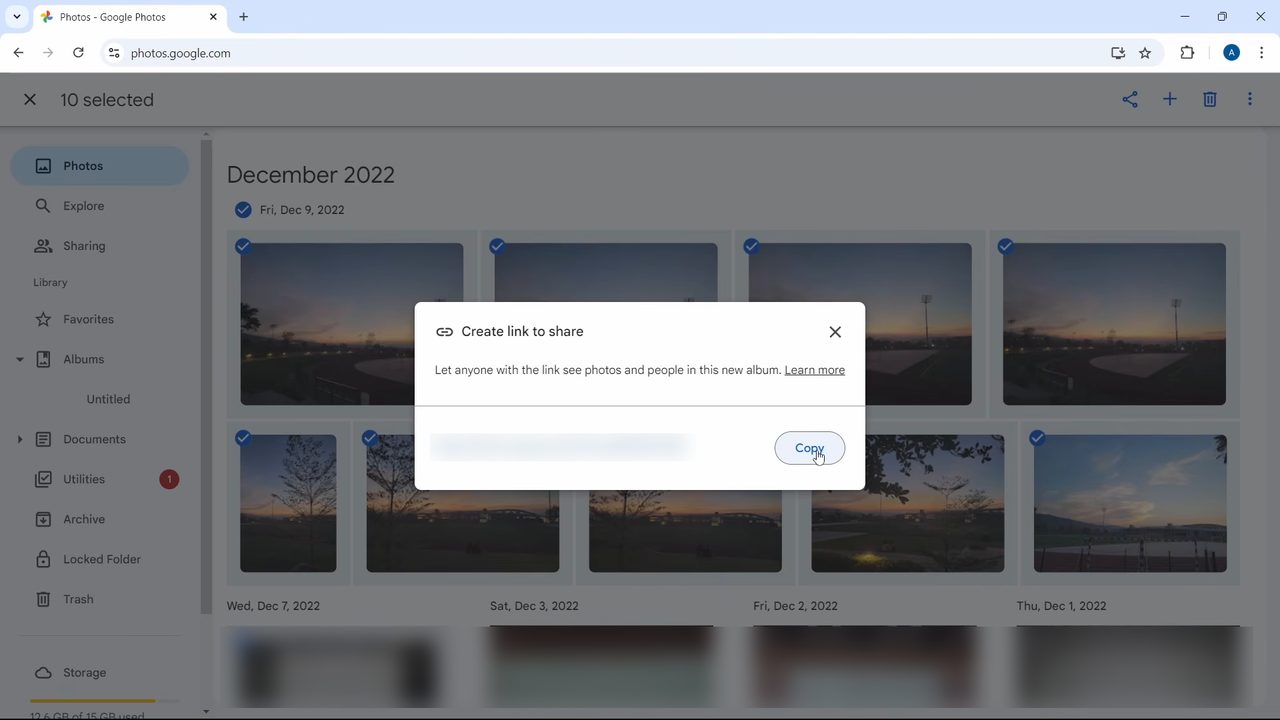
4Copy the link
Click Create link in the next box. Google Photos makes a shareable link to the selected photos. Click Copy.
5Save the photos in the other account
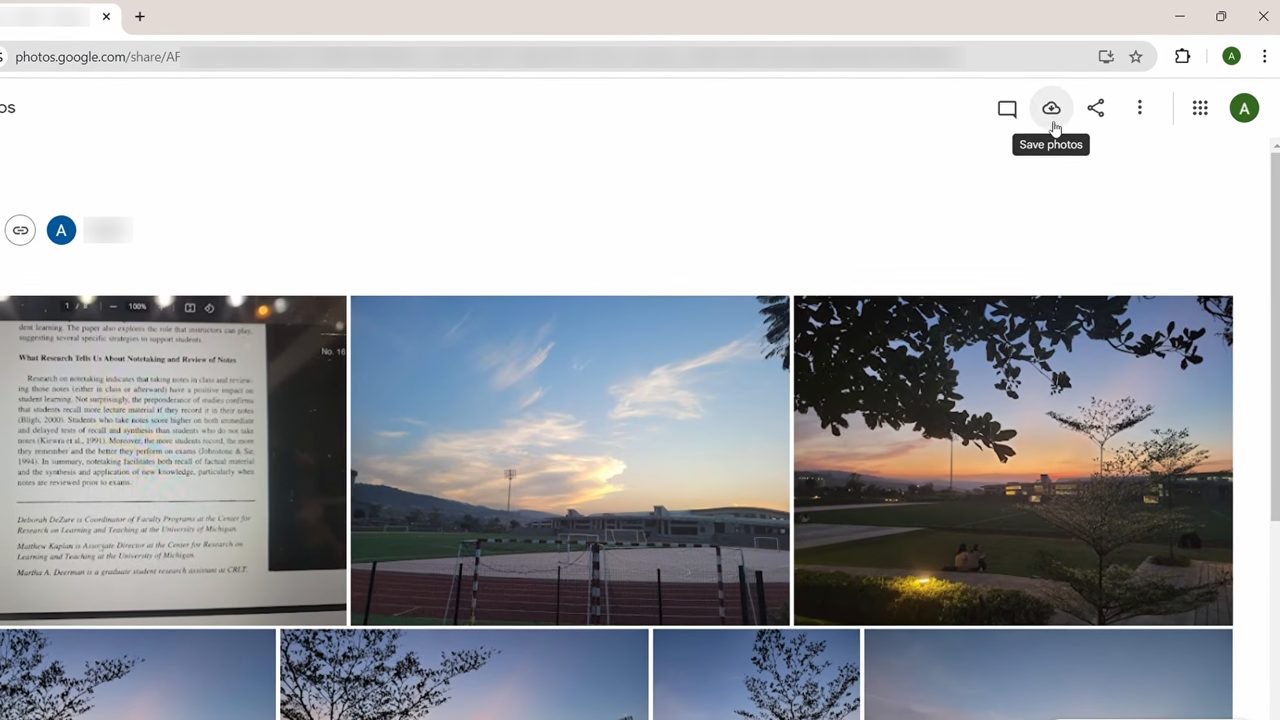
Open a browser signed in to the account you want to move the photos to, and paste the link into the address bar. All the selected photos appear. Click the Save photos icon (the cloud with an arrow) at the top right. Open Google Photos in this account and the pictures show up under Added today.
Method 2: Transfer all photos with Partner Sharing
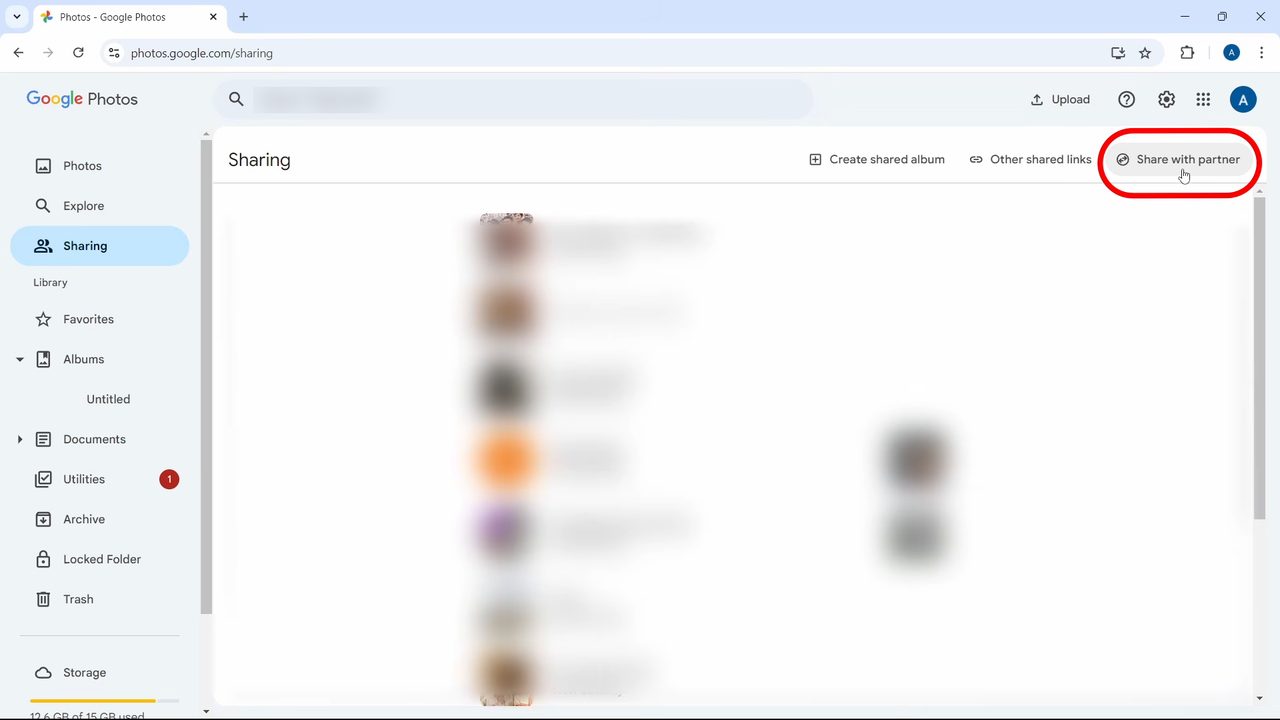
6Open Sharing and click Share with partner
Back in the first account, click Sharing in the left menu, then click Share with partner at the top right.
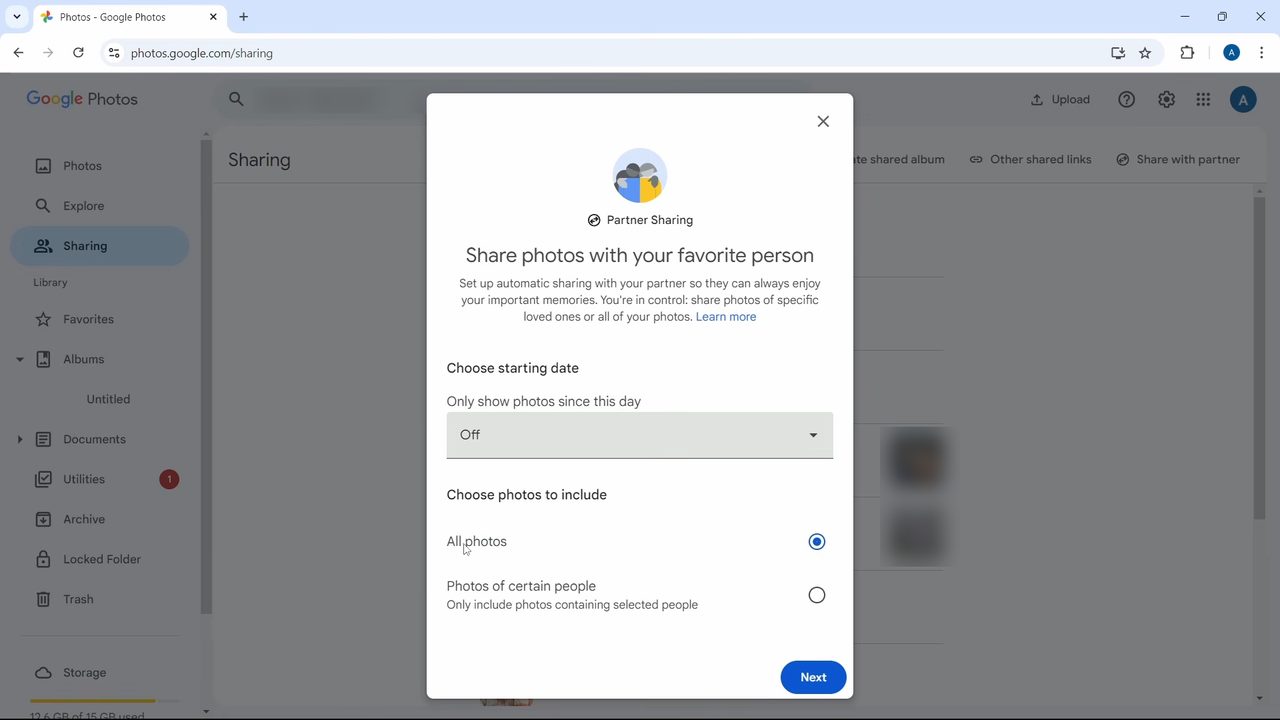
7Choose All photos
Under Choose starting date, leave Only show photos since this day set to Off to include everything. You can pick a date here instead if you only want photos from a certain day onwards. Under Choose photos to include, select All photos and click Next.
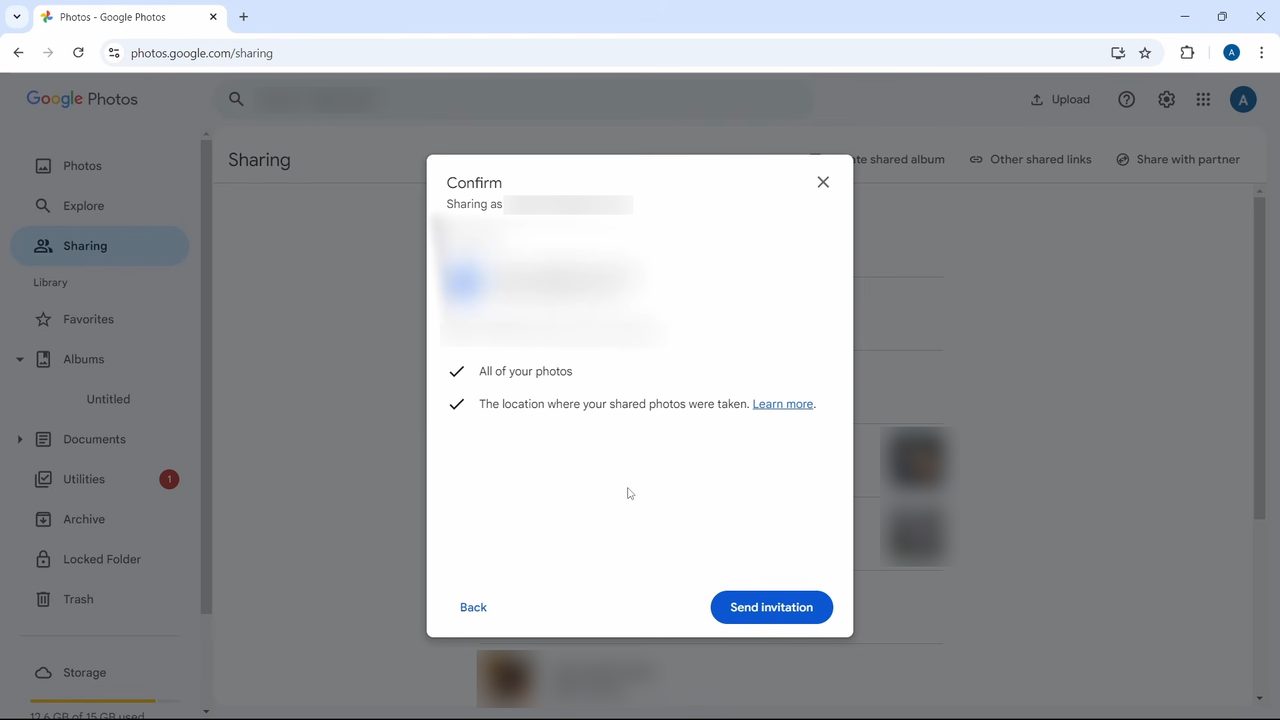
8Enter the other account and send the invite
Type the email address of the account you want to move the photos to and click Next. The confirmation screen shows what the other account gets access to: all of your photos and where they were taken. Click Send invitation.
9Open the invite in the other account
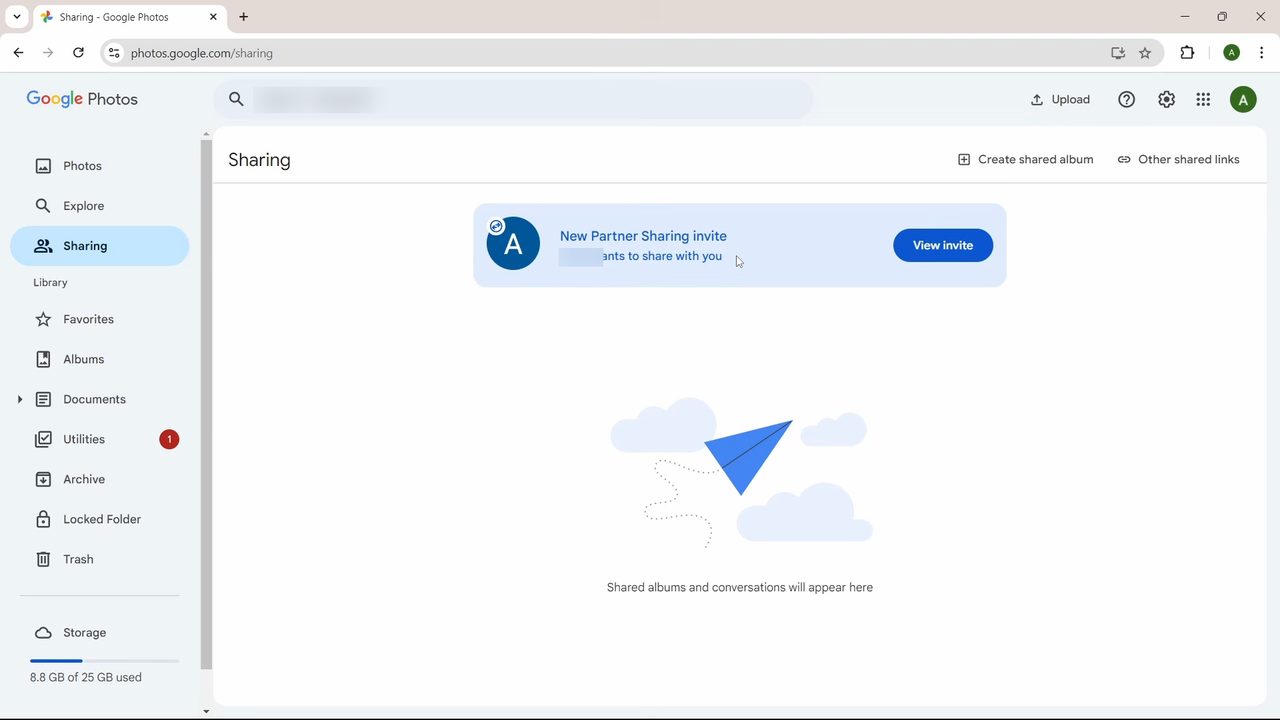
Sign in to Google Photos with the second account and click Sharing. A New Partner Sharing invite banner appears at the top. Click View invite.
10Accept
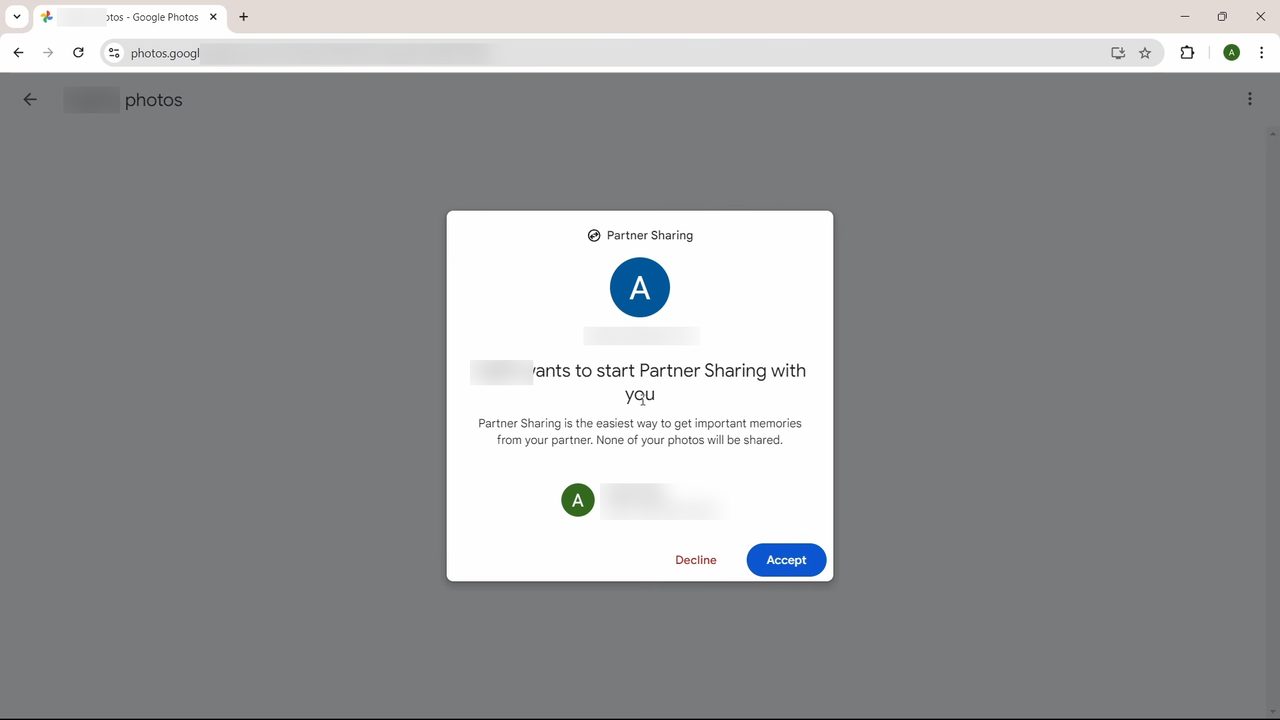
The invite says the first account wants to start Partner Sharing with you. Click Accept. Photos from the first account now show up in the second one under partner sharing.
Important: save the partner's photos into the second account
Accepting the invite lets the second account see the photos, but they stay in a separate partner view until you save them. This part isn't shown in our video. Google's help page on setting up partner sharing gives the steps for the Android app: in the second account, tap your profile picture > Photos settings > Sharing > Partner sharing, tap Save to your account, choose All photos and tap Done. Saved photos then appear in that account's main photos view, search results and Memories, which is what you want for a real transfer.
Which method should you use?
- Share link (Method 1) is best for an album, a trip or a few hundred photos. It works with any Google account and the photos land in the new account straight away.
- Partner Sharing (Method 2) is best for moving an entire library, and it keeps sending new photos from the old account as they are backed up. Google's help page notes you can only partner share with one person at a time, so if the old account already has a partner, you need to stop that first.
What happens to the photos after the move
- Edits and deletions don't follow. Google says anything you do to your copy of a shared photo, including edits, deletions or moving it to the Locked Folder, won't apply to copies your partner has already saved. Once saved in the new account, the photos are independent.
- Unsaved photos disappear if sharing stops. If you remove the partner before saving, the second account loses access to photos it hadn't saved. Photos already saved stay in its library.
- Storage. Google says photos saved from partner sharing don't count against the receiving account's storage as long as the partner keeps sharing them. If you plan to stop sharing and delete the old account, check that the new account has enough Google storage space for them.
Before you delete the old account
Open Google Photos in the new account and spot-check a few older photos and videos, including ones from the earliest year you have. Only delete the old account, or its photos, once you are sure everything you need is saved in the new one. If you would also like an offline backup, Google Takeout (takeout.google.com) lets you download a full copy of your Google Photos library first.
Moving the rest of your account too? See how to transfer emails from one Gmail account to another and transfer contacts between Gmail accounts.
FAQ
How do I transfer all Google Photos to another account?
Use Partner Sharing: in Google Photos go to Sharing > Share with partner, choose All photos, enter the other account's email and send the invitation. Then accept the invite from the second account and set Save to your account to All photos so the photos are added to its library.
Can I move only some photos to another Google account?
Yes. Select the photos, click Share > Create link, copy the link and open it while signed in to the other account. Click Save photos to add them to that account's library.
Does this work on the Google Photos app on my phone?
Yes. The video uses a computer, but the same options (share link and Partner Sharing) are in the Google Photos app.
Will the photos be deleted from the first account?
No. Both methods copy or share the photos. The originals stay in the first account until you delete them yourself.
Why don't the partner photos show up in my main photos view?
By default they stay in the partner sharing view. In the second account's Google Photos settings, open Sharing > Partner sharing, tap Save to your account and choose All photos. From then on they appear in your main photos view.
Can I transfer photos to an account that already has a partner?
Not until the existing partnership ends. Google allows partner sharing with one person at a time, so stop sharing with the current partner first, or use the share link method instead.
Related guides