Tech is Easy
How to Transfer Playlists from Spotify to YouTube Music
To transfer playlists from Spotify to YouTube Music, go to tunemymusic.com, pick Spotify as the source and sign in, choose Load from Spotify account, tick the playlists you want, pick YouTube Music as the destination, sign in with Google and click Start Transfer. The playlists then show up in your YouTube Music library. It's for anyone switching from Spotify, or who wants their Spotify playlists available on YouTube Music as well.
If you'd rather say it the other way, this is also how to import a Spotify playlist into YouTube Music. Your playlists stay on Spotify afterwards; the tool only makes a copy.
Before you start
- TuneMyMusic is a third-party site. You sign in through Spotify's and Google's own login pages, so the site never sees your passwords. It only gets the permissions those pages list, which it needs to read your playlists and create new ones.
- Free limit. When we recorded this, the site gave 500 free transfers, and after that you have to pay. Check the site's Plans page for the current limit.
- Google lists it as an option. YouTube Music's help page Transfer your playlists from another service names TuneMyMusic and Soundiiz as third-party tools you can use, and also describes a built-in transfer inside the YouTube Music app under Settings > Privacy & data > Transfer playlists from other apps.
What you need
- Your Spotify login
- The Google account you use for YouTube Music
- A computer browser (the site also works on a phone browser, but a bigger screen makes picking playlists easier)
1Open TuneMyMusic and select Spotify
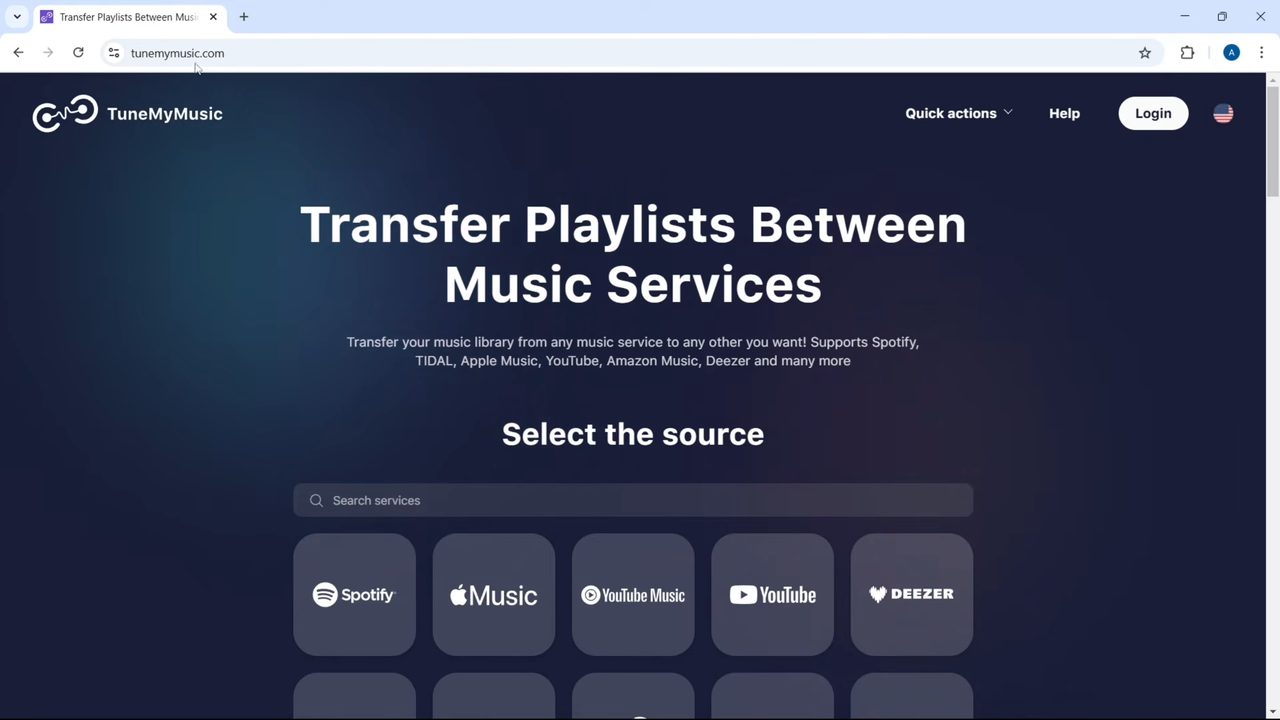
Go to tunemymusic.com. Under Select the source, click Spotify.
2Log in to Spotify and click Agree
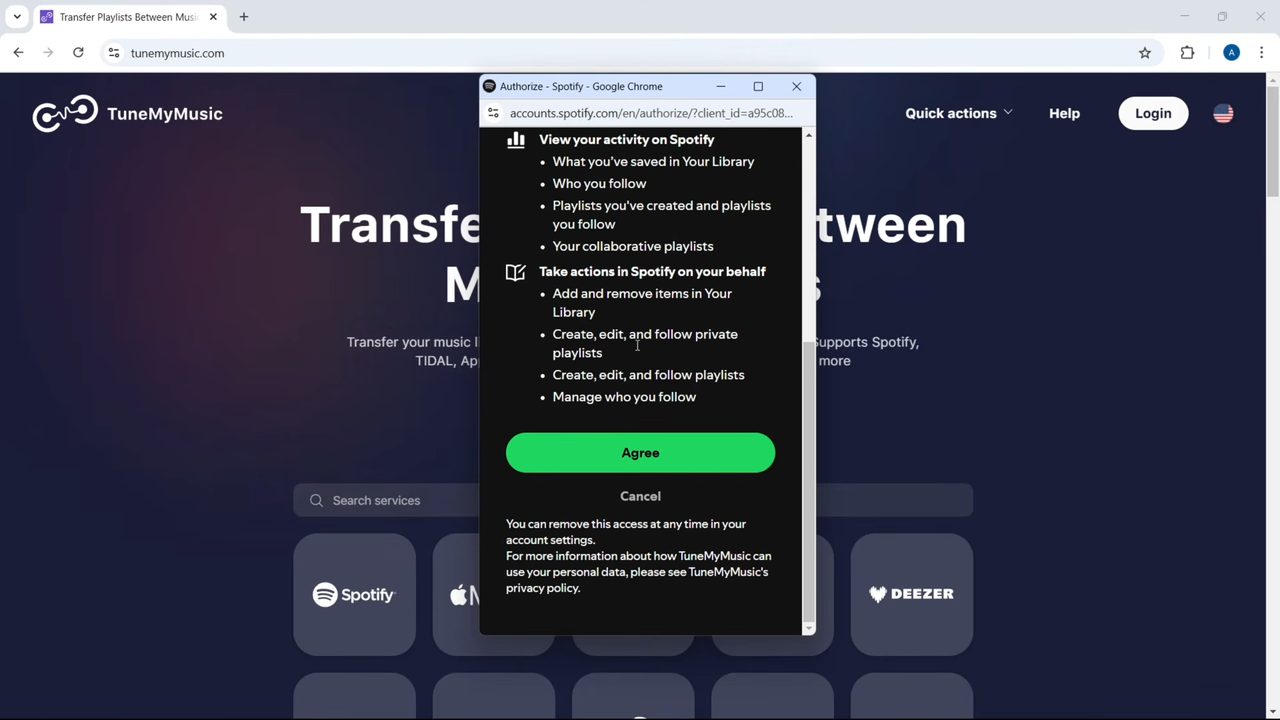
A Spotify login window opens. Sign in the way you normally do (Google, Facebook, Apple, phone number or email). Spotify then shows what TuneMyMusic will be able to do, such as view your playlists and create playlists. Scroll down and click Agree.
3Click Load from Spotify account
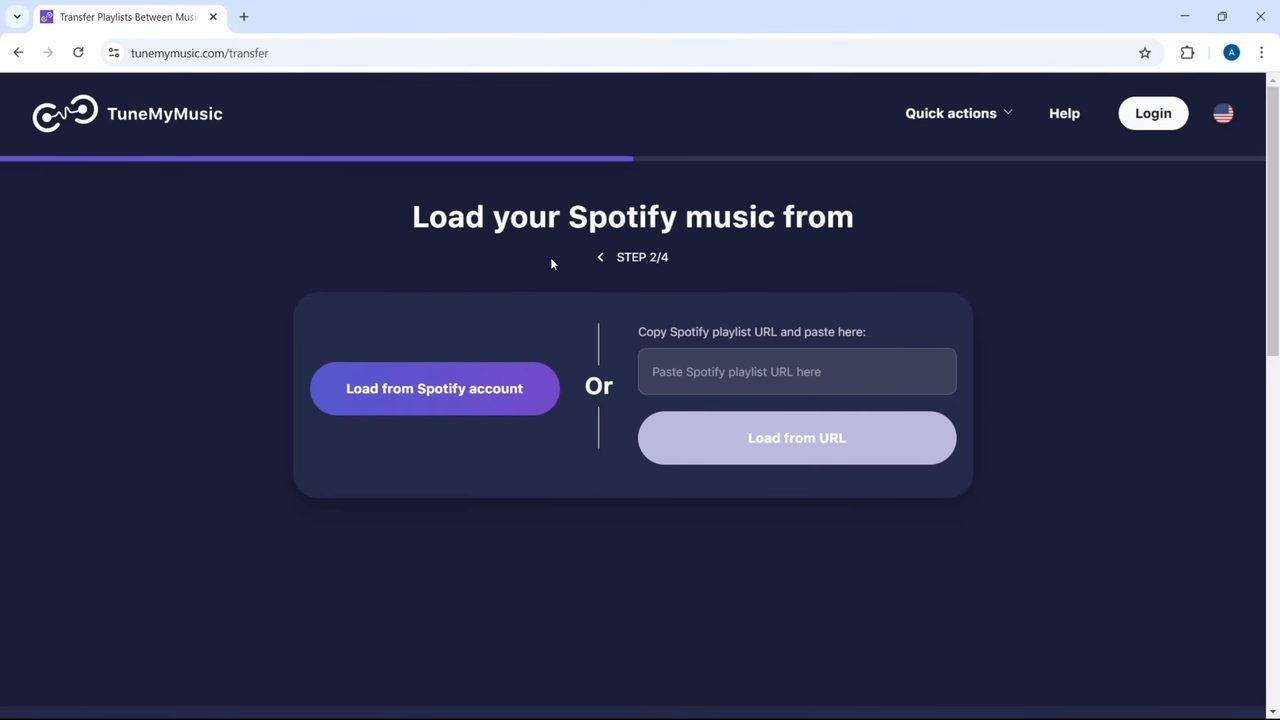
Now choose how to pick your music. If you only want one playlist and you have its link, paste it into the box and click Load from URL. To see all your playlists, click Load from Spotify account.
4Select the playlists and click Choose Destination
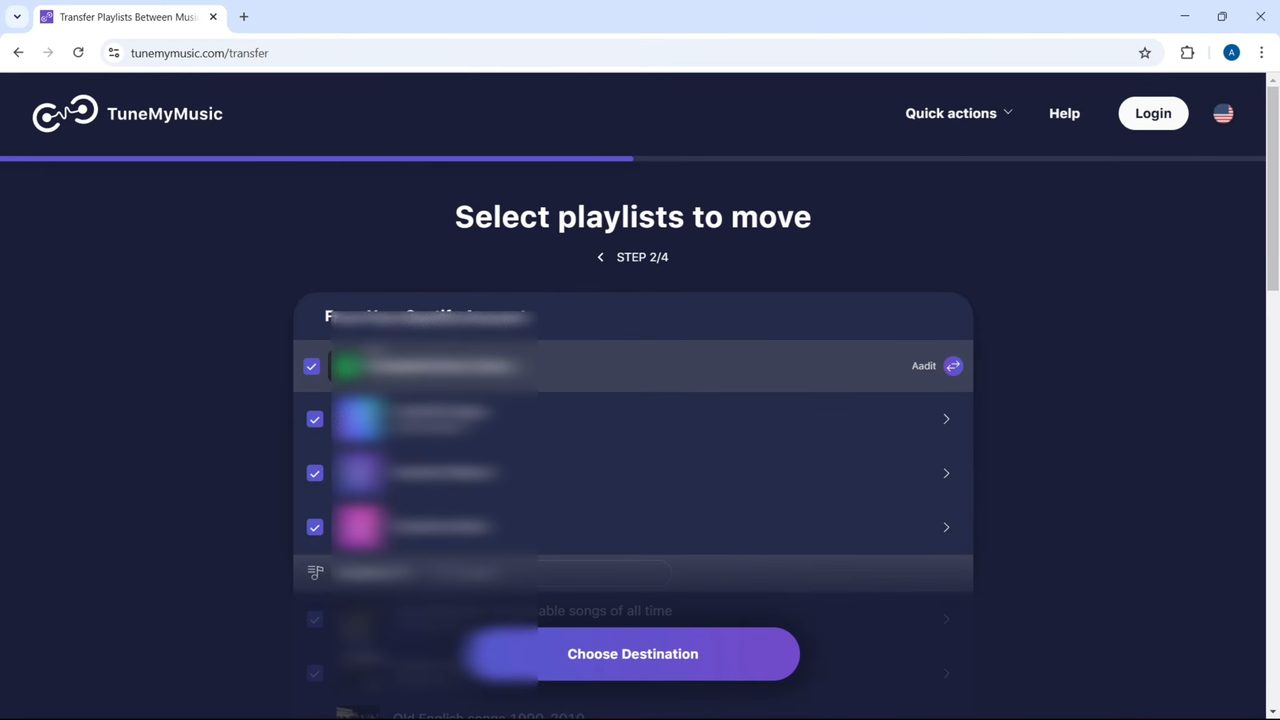
TuneMyMusic lists your playlists, plus Favorite Songs, Albums and Artists. Everything may be ticked by default, so untick what you don't want and keep only the playlists to move. Then click Choose Destination at the bottom.
5Pick YouTube Music
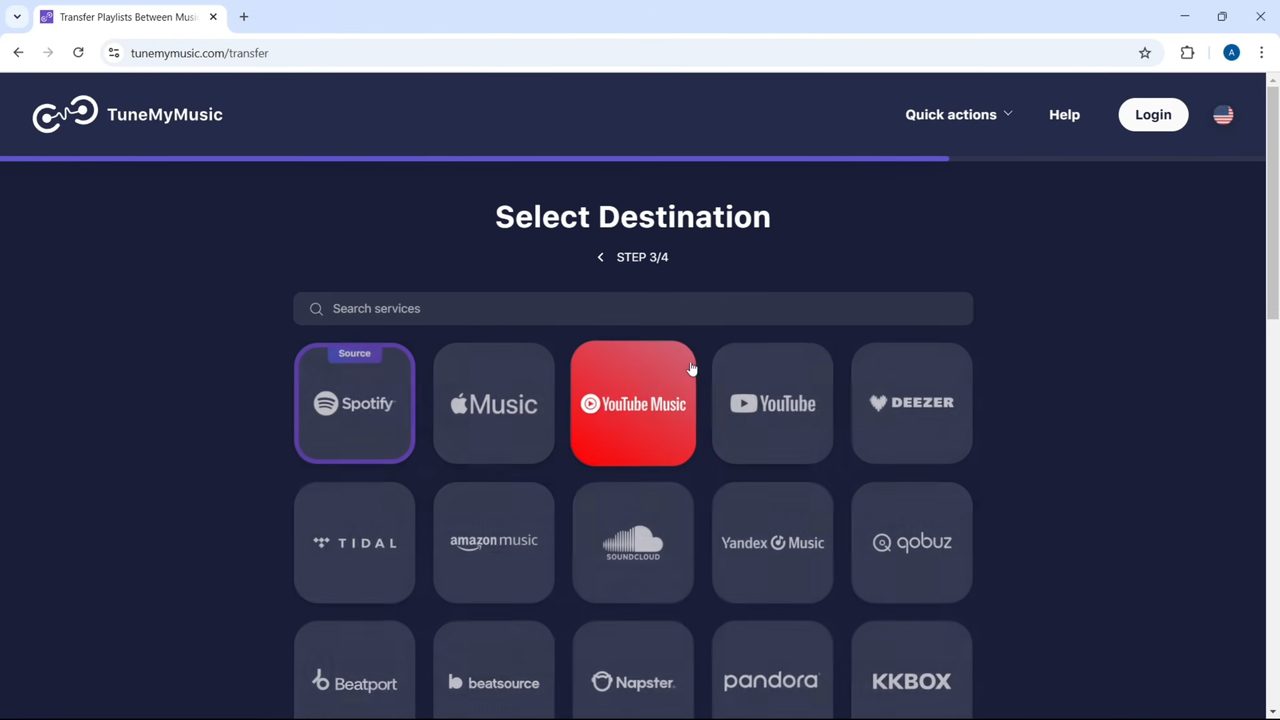
On the Select Destination page, click YouTube Music. Be careful not to pick plain YouTube, which sits right next to it and would create the playlist on your YouTube account instead.
6Sign in with Google and allow access
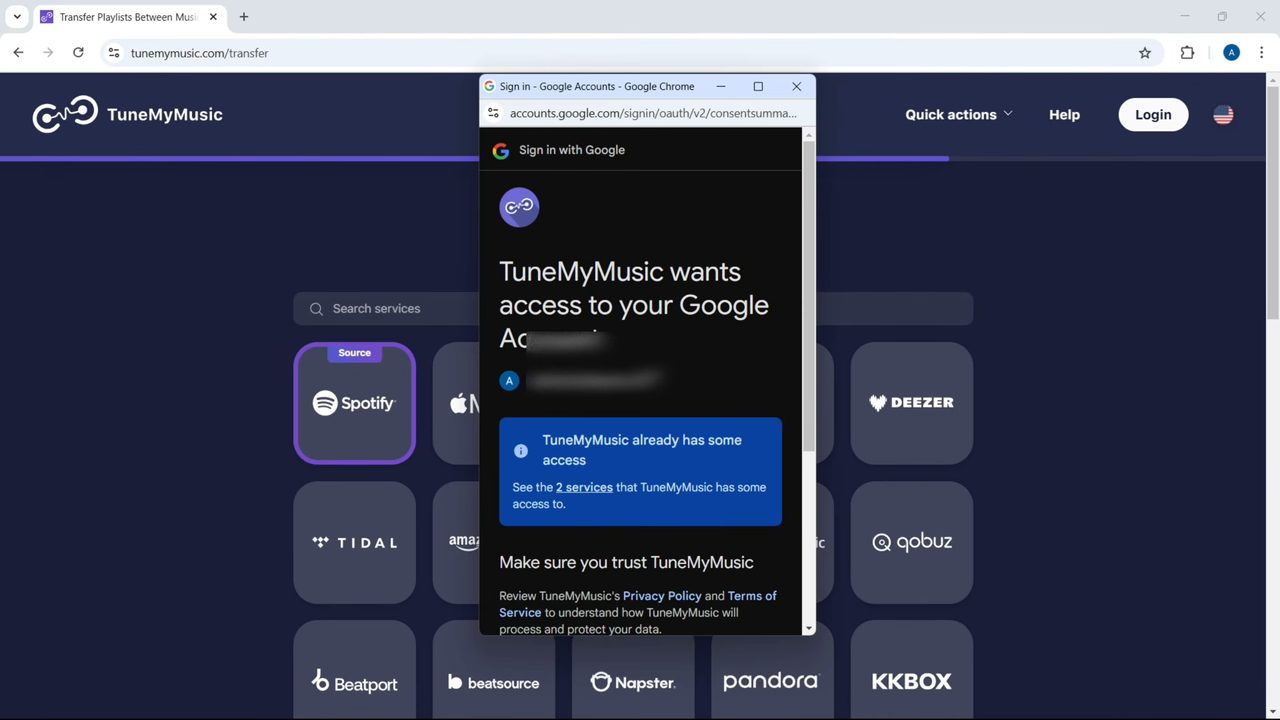
A Google sign-in window opens. Choose the account you use for YouTube Music, review the access TuneMyMusic is asking for, and click Continue.
7Check the summary and click Start Transfer
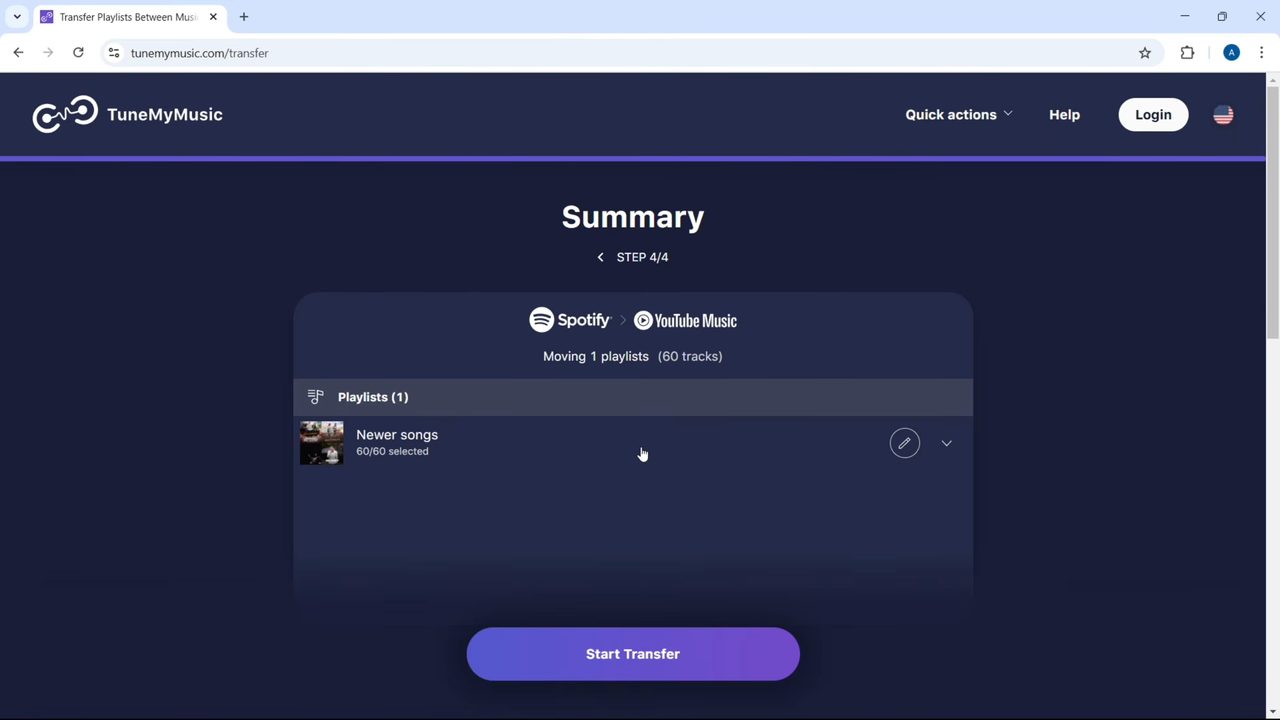
The Summary page shows what will move, for example Spotify > YouTube Music, Moving 1 playlists (60 tracks). Click the playlist row to check the songs if you like, then click Start Transfer.
8Wait for Transfer completed
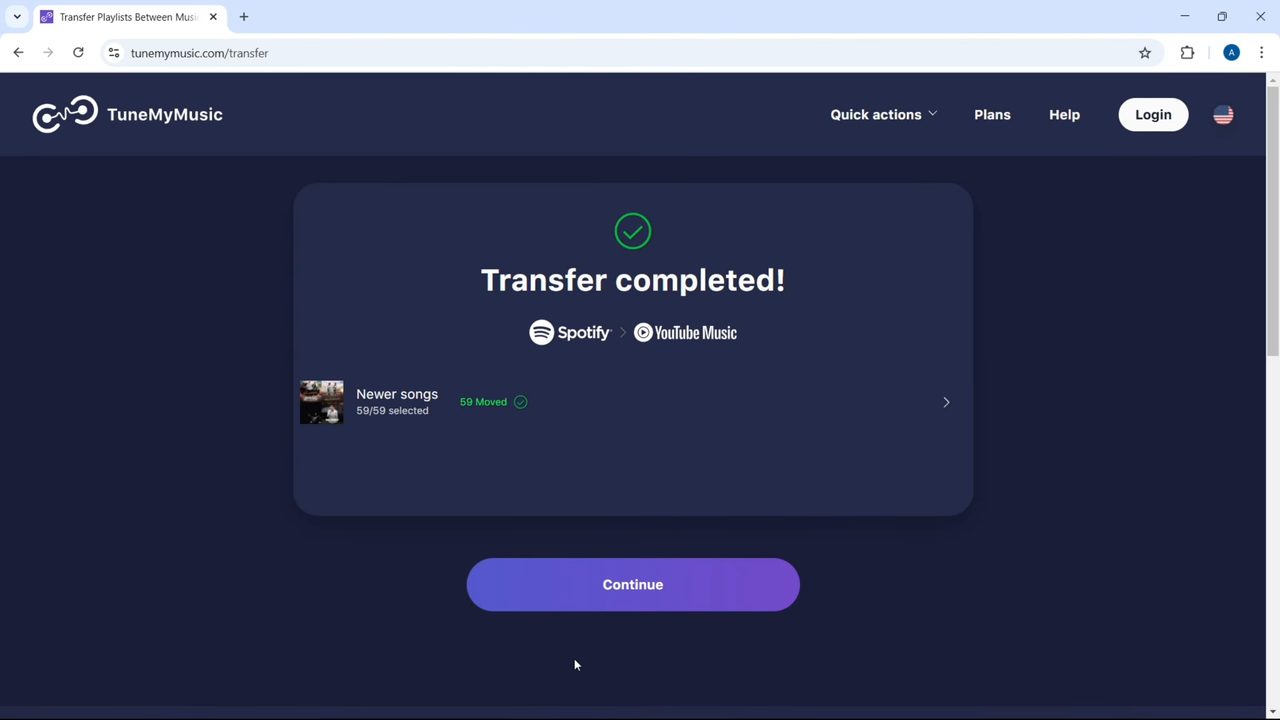
A progress bar shows how many tracks have been processed. When it's done you'll see Transfer completed! with the number of songs moved. In our case 59 of 60 moved. Click Continue.
9Click Open
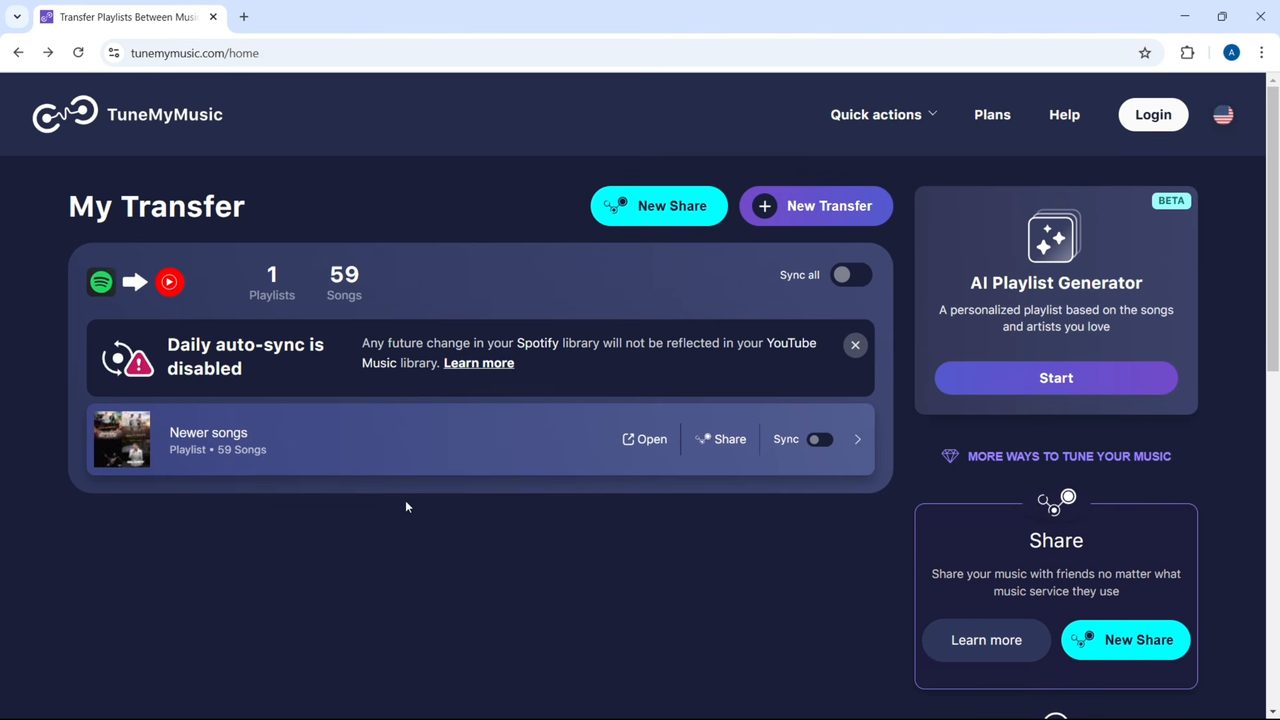
The My Transfer page lists the new playlist with Open, Share and Sync buttons. Click Open to jump to it.
10Find the playlist in YouTube Music
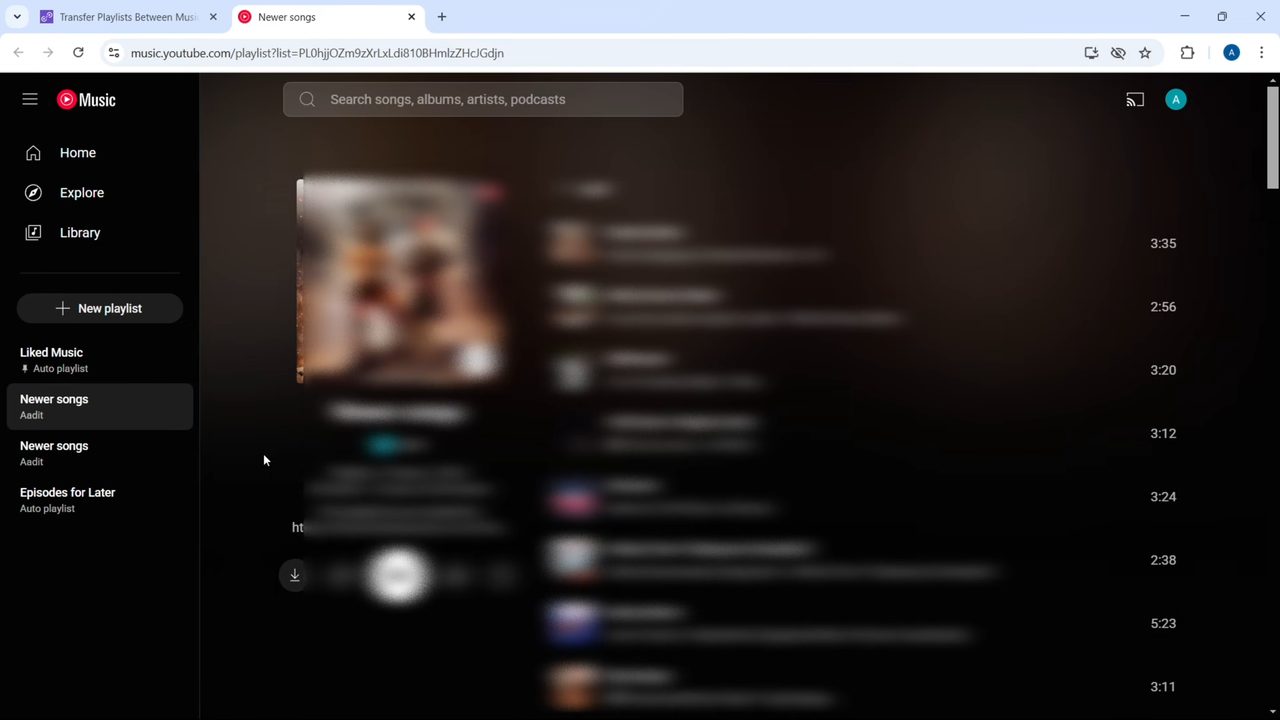
YouTube Music opens with the transferred playlist, under the same name, and it's also listed in the left sidebar under your playlists. Play a few songs to check they matched correctly.
Troubleshooting
- A few songs are missing. Not every track on Spotify exists on YouTube Music, and some get matched to a different version. Google's help page says some songs may not be available. Our transfer moved 59 out of 60. Compare the two playlists and add the missing songs by hand from YouTube Music search.
- The playlist appeared in YouTube instead of YouTube Music. You picked YouTube as the destination. Playlists made on YouTube usually show up in YouTube Music's library too, but if you want it cleaner, delete it and redo the transfer with YouTube Music selected.
- Wrong Google account. If the playlist isn't in your library, it probably went to a different Google account. Check the account picture at the top right of YouTube Music, switch accounts, and look again.
- Free limit reached. Either pay for a plan or try the built-in transfer in the YouTube Music app described in Google's help page.
- Pop-up blocked. The Spotify and Google sign-ins open in small windows. If nothing appears when you click, allow pop-ups for tunemymusic.com in your browser.
After the transfer
The new playlist is a one-time copy. If you add songs to the Spotify playlist later, they won't appear in YouTube Music on their own. The My Transfer page shows "Daily auto-sync is disabled"; there is a Sync switch next to each playlist, but the video doesn't use it, so check the site's terms before relying on it. Your original playlists on Spotify are not touched or deleted.
When you're done, you can remove TuneMyMusic's access from your Spotify account settings and from your Google Account's security page, since the Spotify consent screen itself notes you can remove the access at any time.
YouTube Music can also be installed on a Windows computer as an app straight from Chrome, the same way as the main YouTube site. See How to Install YouTube App on PC for the steps.
FAQ
Can I transfer Spotify playlists to YouTube Music for free?
Yes, within TuneMyMusic's free limit, which was 500 free transfers when the video was made. YouTube Music also has a built-in transfer under Settings > Privacy & data > Transfer playlists from other apps, according to Google's help page.
Will my playlists be deleted from Spotify?
No. The transfer copies the playlists into YouTube Music. Everything on Spotify stays as it was.
Why didn't all my songs transfer?
Some songs are not on YouTube Music or don't match exactly. In our test, 59 of 60 songs moved. Add the missing ones manually from the YouTube Music search.
Can I do this on my phone?
Yes. TuneMyMusic runs in any phone browser with the same steps, and the YouTube Music app has its own transfer option in settings. The video shows the computer version only.
Related guides