Tech is Easy
How to Transfer Text Messages from Android to Android
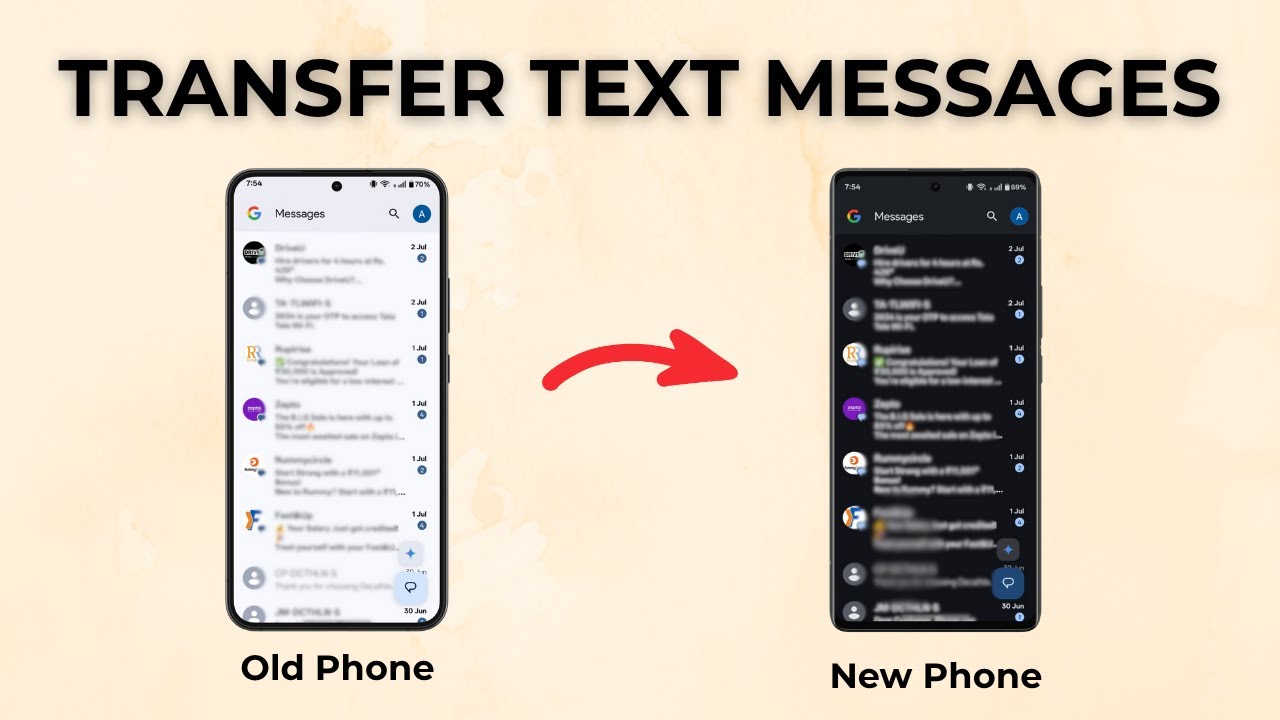
To transfer text messages from Android to Android, install SMS Backup & Restore on both phones, back up your messages to a folder on the old phone, send that backup file to the new phone, and tap Restore there. It is a reliable way to move all SMS from your old phone to your new one, and in our test it copied 6,844 messages.
You can also think of it as switching Android phones without losing a single text. The steps below go through both phones in order.
What you need
- Your old and new Android phones, both charged
- Bluetooth turned on for both phones (or another way to send a file between them)
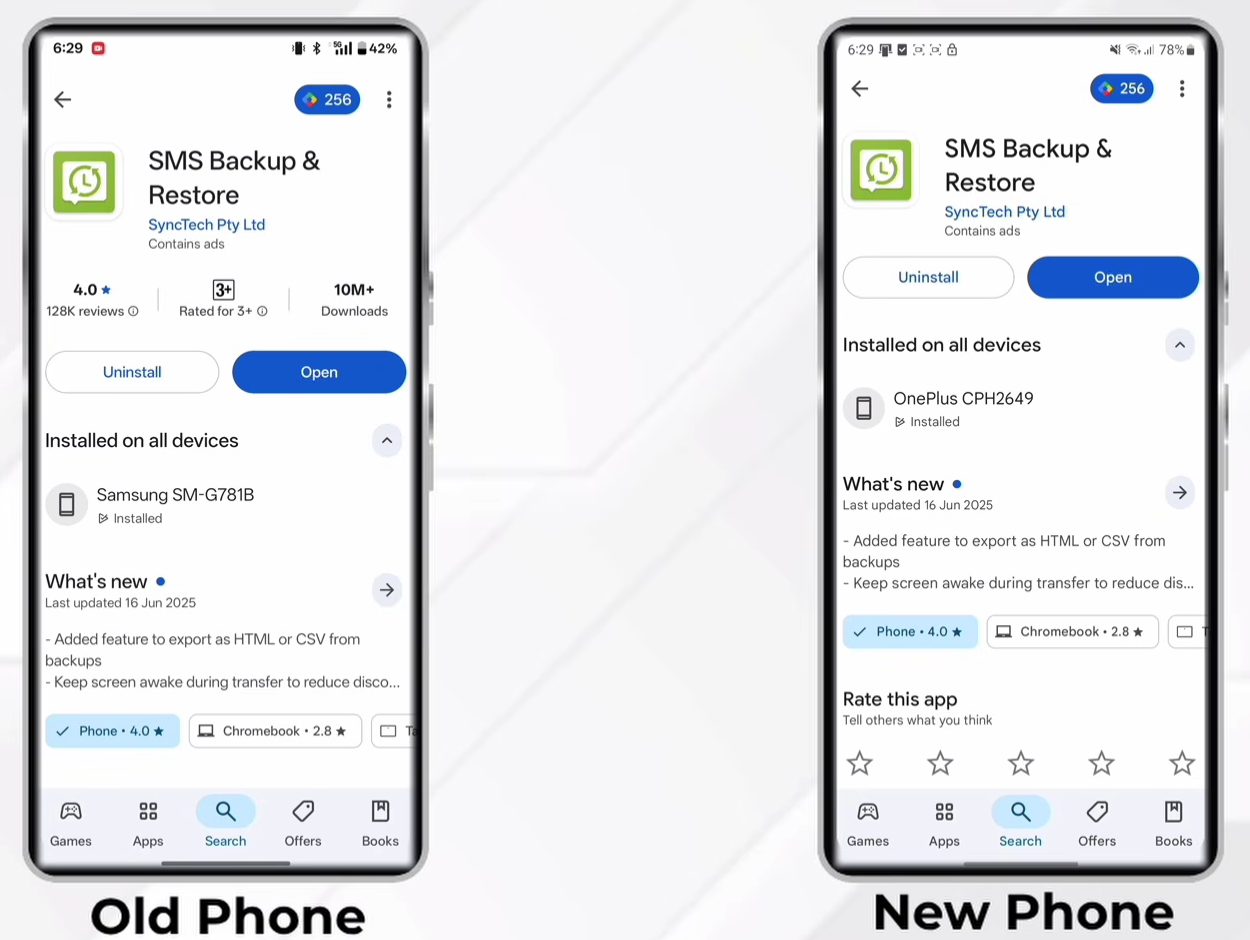
1Install SMS Backup & Restore on both phones
Open the Play Store on each phone, search for SMS Backup & Restore (by SyncTech) and install it. Then tap Open on both phones.
2Tap Get started and allow permissions
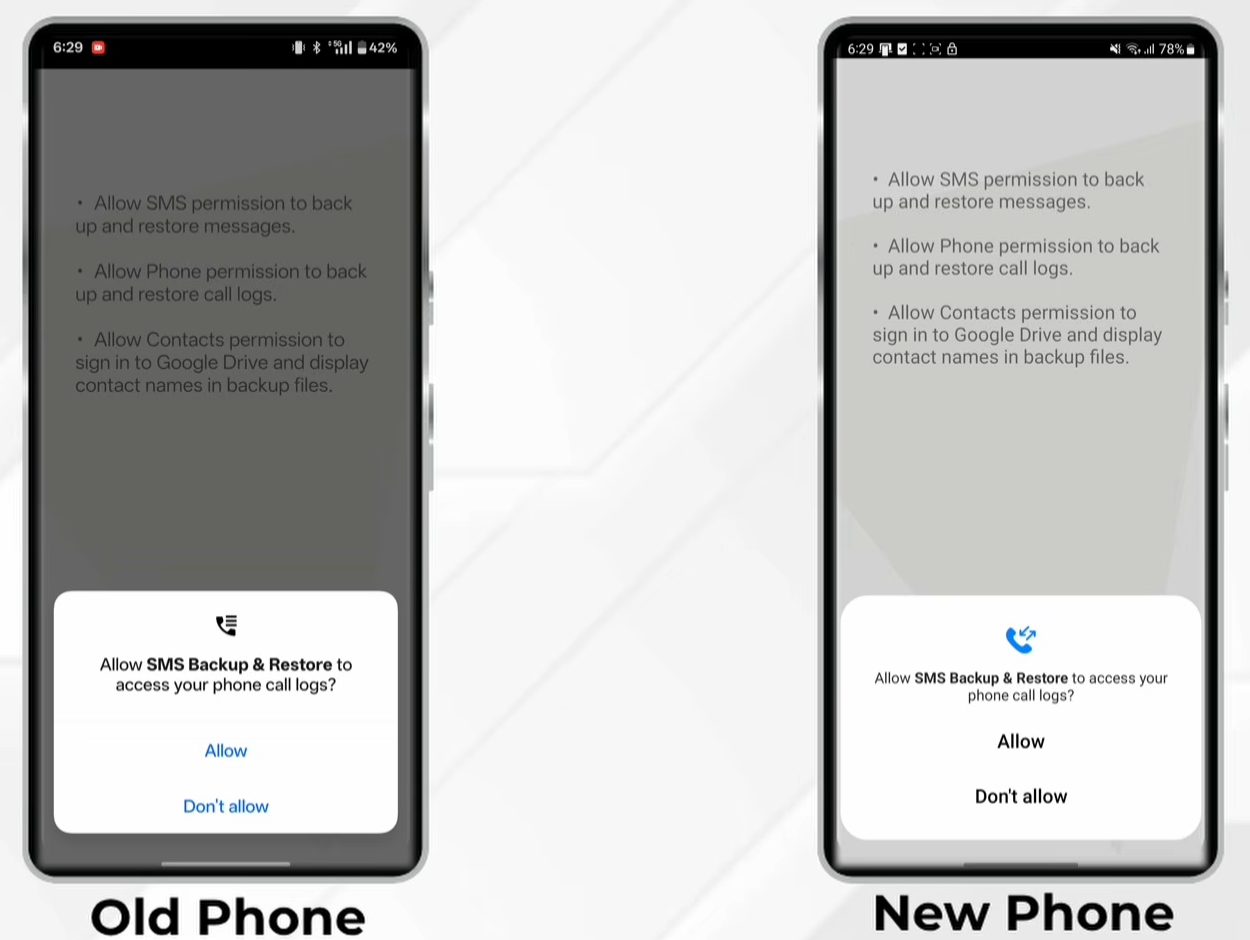
Tap Get started on both phones. The app asks for access to your SMS, call logs and contacts so it can read and write them. Tap Allow on every prompt, on both phones.
3Set up a backup on the old phone
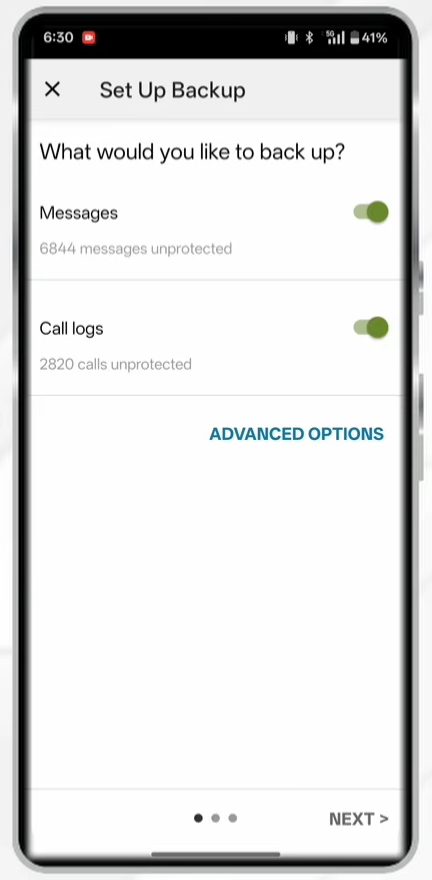
On the old phone (the one with your messages), tap Set up a backup. Keep Messages turned on. If you only want texts, turn off Call logs. Tap Next.
4Save the backup in a new folder on your phone
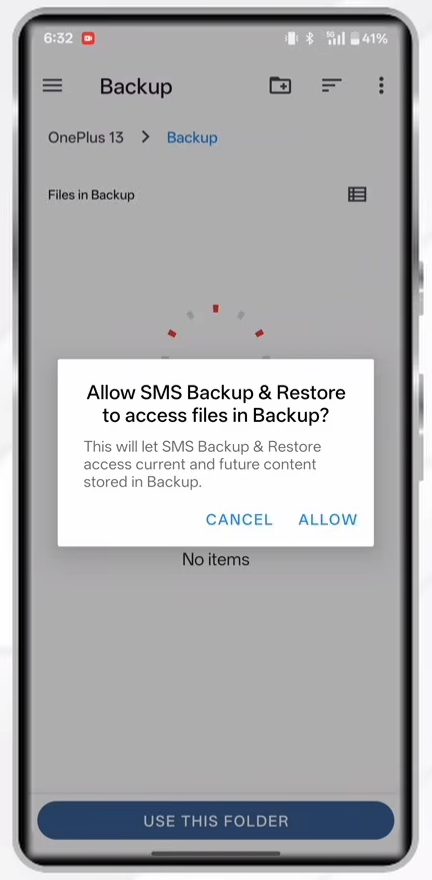
For the storage location, pick the last option, Your phone, then choose Your own folder. Create a new folder (the button looks different on each phone) and name it backup. Open it, tap Use this folder, then Allow. Tap OK, then Next, and choose Yes on the confirmation.
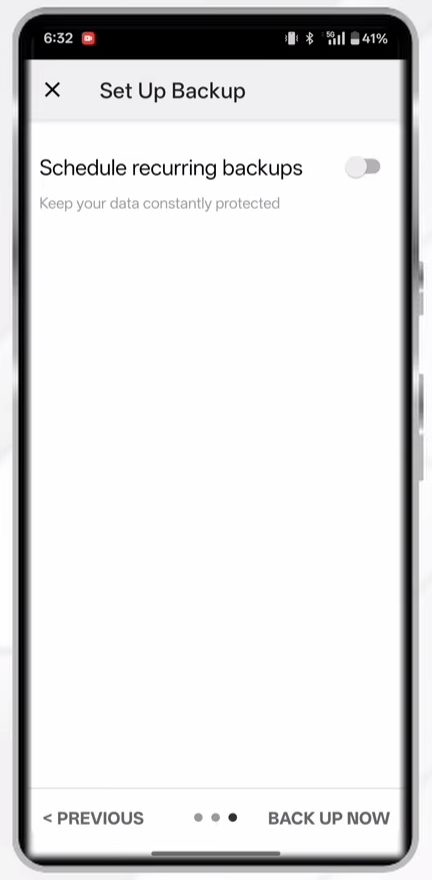
5Tap Back up now
When asked about recurring backups, tap Cancel and then OK, since you only need one backup. Tap Back up now and wait for it to finish.
6Send the backup file to the new phone
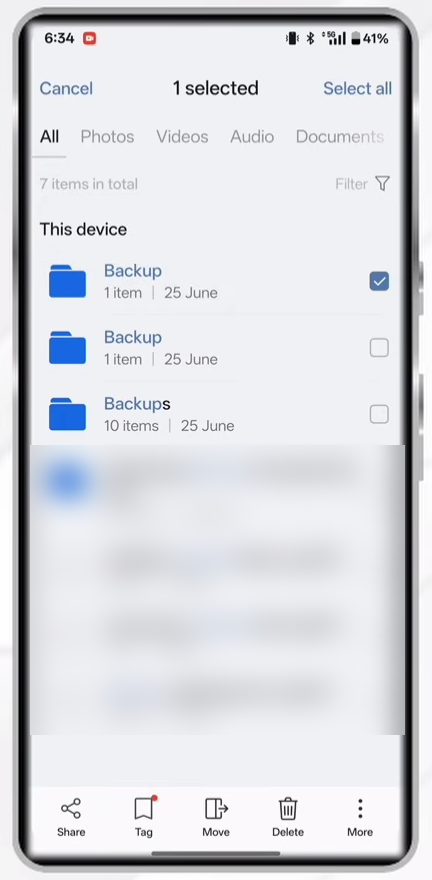
Open the Files app on the old phone and search for backup, the folder you made. Long-press the folder, tap Share at the bottom left, and pick Bluetooth. Make sure both phones have Bluetooth on, select the new phone from the list, and tap Accept on the new phone. Our file was about 3 MB and arrived in seconds.
7Move the file into a restore folder on the new phone
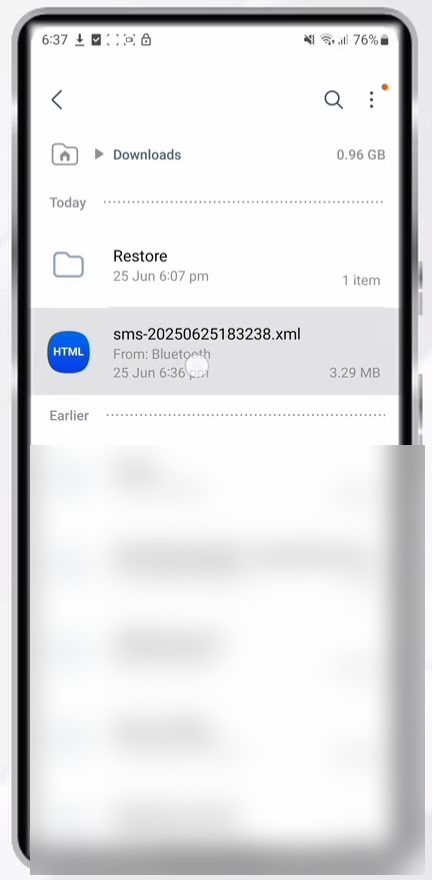
On the new phone, open My Files. Received files usually land in Downloads; if not, search for the file. Long-press the backup file (it ends in .xml), tap Move, choose Internal storage, then create a new folder (on this phone through the three-dot menu > Create folder) named restore. Open it and tap Move here.
8Restore from your local folder
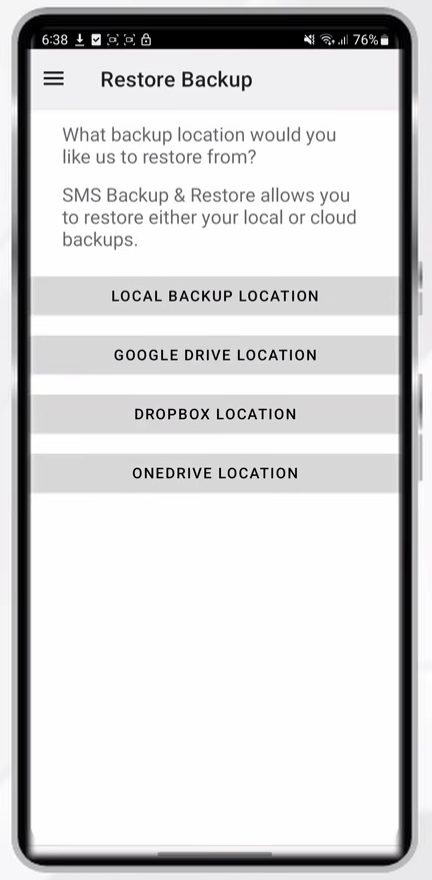
Go back to SMS Backup & Restore on the new phone and tap Restore, then Yes. Choose Local backup location, select Local folder, open the restore folder you just made, tap Use this folder and then Allow.
9Make it the default SMS app and restore
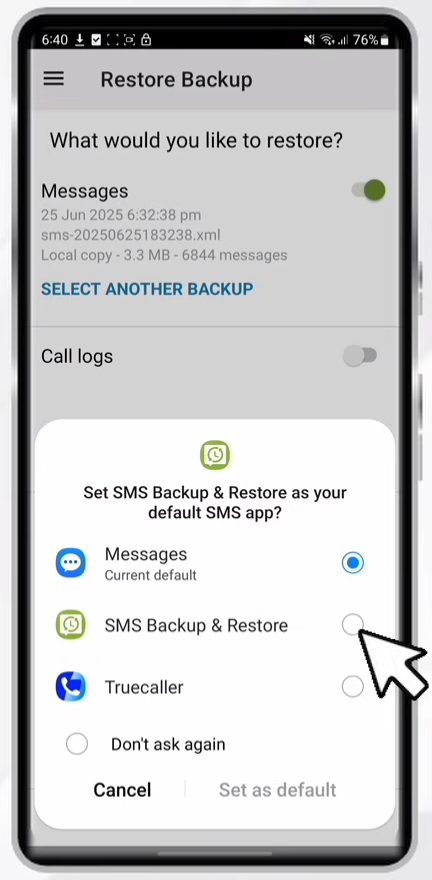
Make sure Messages is turned on and tap Restore. The app needs to be the default SMS app while it writes the messages, so tap OK, select SMS Backup & Restore and tap Set as default. The restore then starts. It can take a while if you have thousands of texts. Tap Close when it says restore completed.
10Switch the default SMS app back
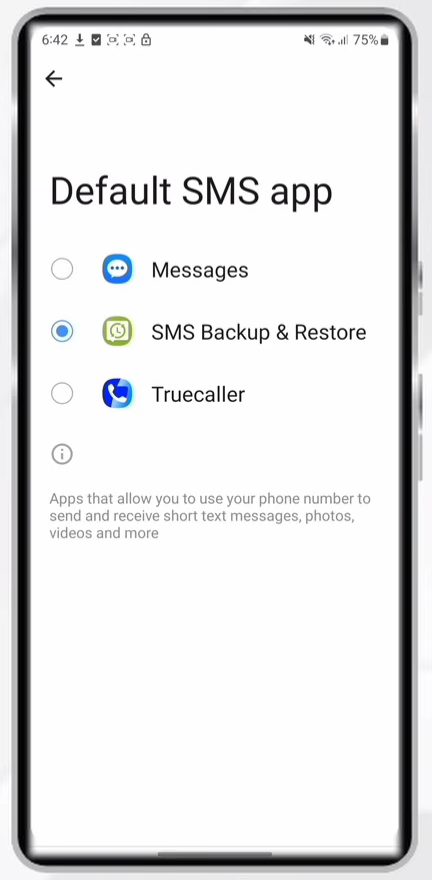
Finally, open Settings, search for Default apps, tap Choose default apps, then SMS app, and select Messages (or whichever texting app you use). Your old messages now show up there.
Want to keep a copy of your other files too? See how to transfer files from Android to PC.
Tips / troubleshooting
- Restore only works when SMS Backup & Restore is the default SMS app, so don't skip the prompt in Step 9.
- If you can't find the received file in Downloads, search the Files app for "sms", since the backup file name starts with it.
FAQ
How do I transfer all text messages from one phone to another?
Back up the messages on the old phone with SMS Backup & Restore, send the backup file to the new phone (Bluetooth works), then use Restore > Local backup location on the new phone. All the messages in the backup get copied over.
Will the restore delete messages already on my new phone?
That is not covered in the video. In our case the new phone simply ended up with the same message count as the old one.
Why do I have to make SMS Backup & Restore the default SMS app?
Android only lets the default SMS app write messages to the phone. You switch to it just for the restore, then set Messages back as the default in Settings afterwards.
Can I transfer call logs the same way?
Yes. Leave Call logs turned on when you set up the backup in Step 3, and keep it on when you restore. The video only restores messages.
Related guides