Tech is Easy
How to Transfer Call Logs from Android to Android
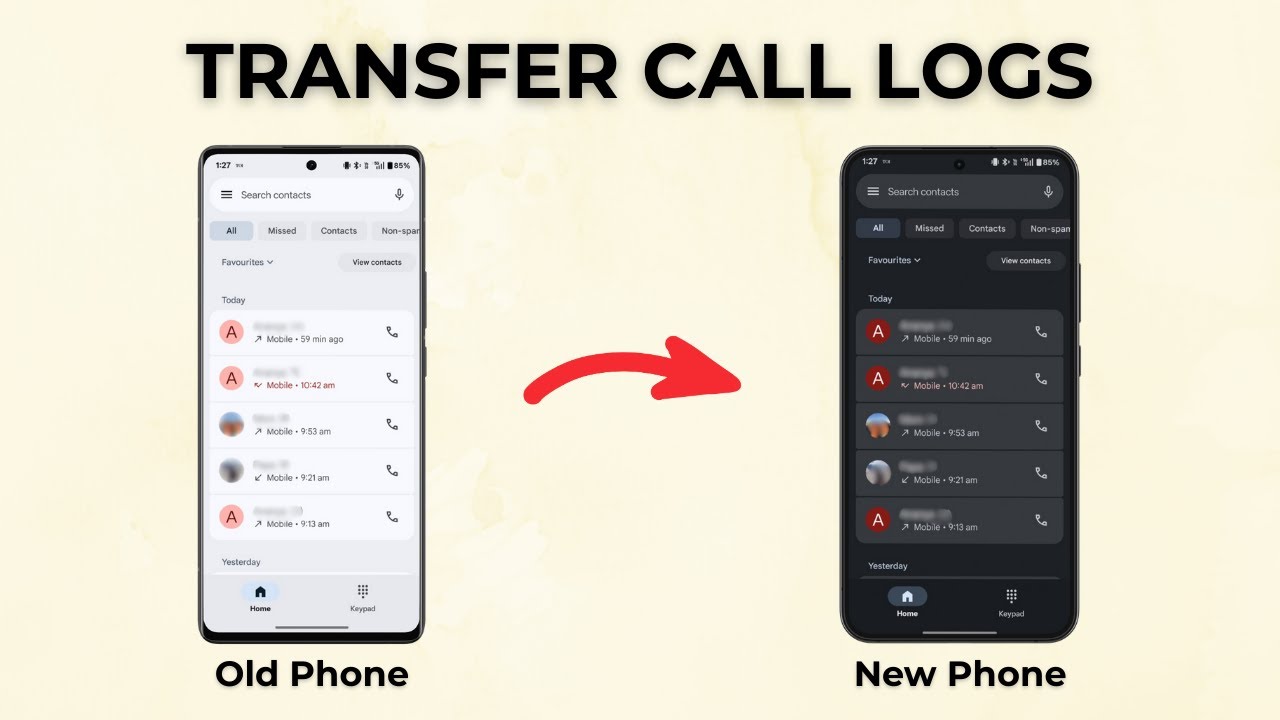
To transfer call logs from Android to Android, install SMS Backup & Restore on both phones, back up only your Call logs to a folder on the old phone, send that XML file to the new phone over Bluetooth, then open it and tap Restore. This works for anyone switching phones who wants to keep their call history, and in our test it copied a backup of 3,000 calls in a couple of minutes.
What you need
- Both phones, old and new, charged and next to each other
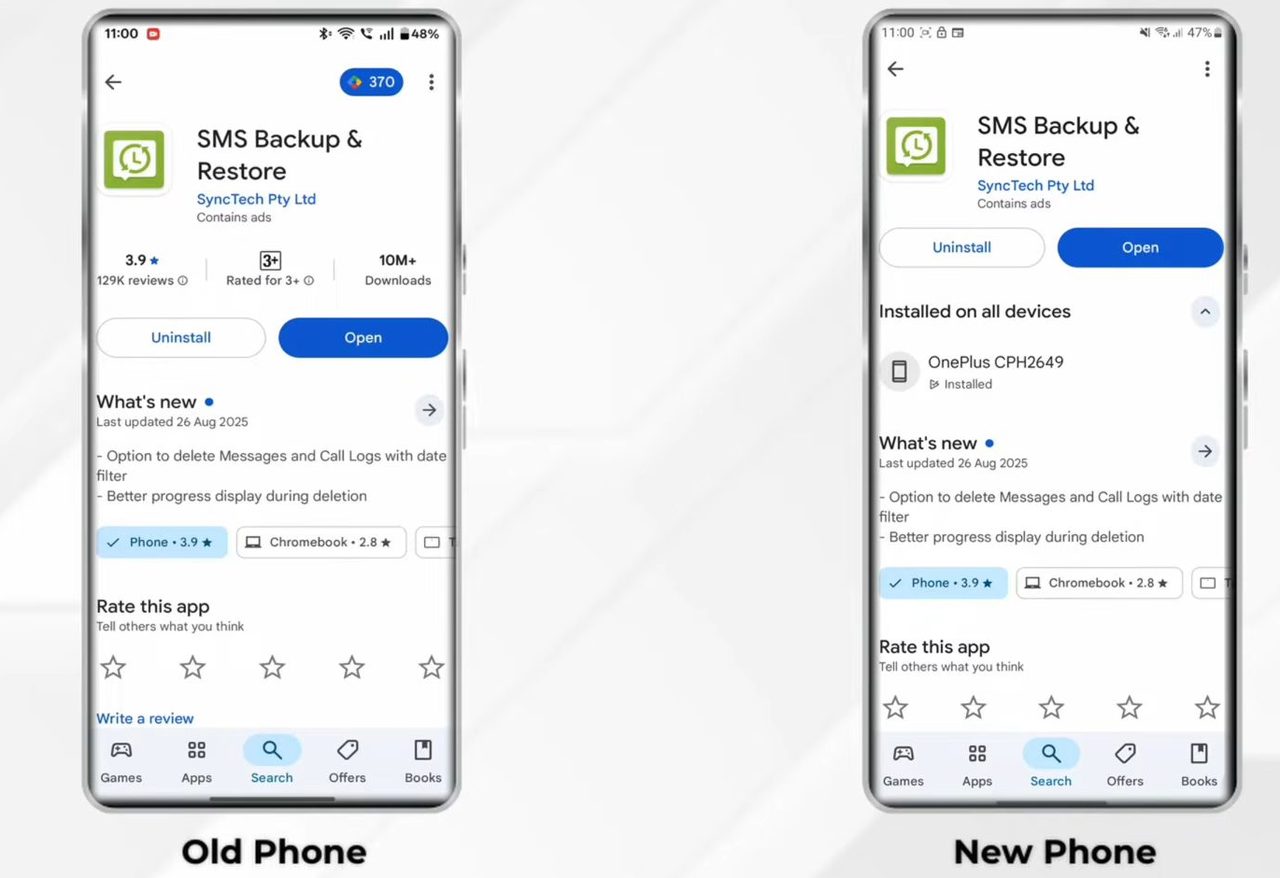
- The free SMS Backup & Restore app by SyncTech from the Play Store, installed on both phones
- Bluetooth on both phones (or any other way to move one small file, such as a USB cable or Google Drive)
1Install SMS Backup & Restore and allow permissions
Search for SMS Backup & Restore in the Play Store on both phones and install it. Open the app, tap Get started, and tap Allow on each permission prompt. The app needs access to your call logs to read them on the old phone and write them on the new one.
2Set up a backup with only call logs
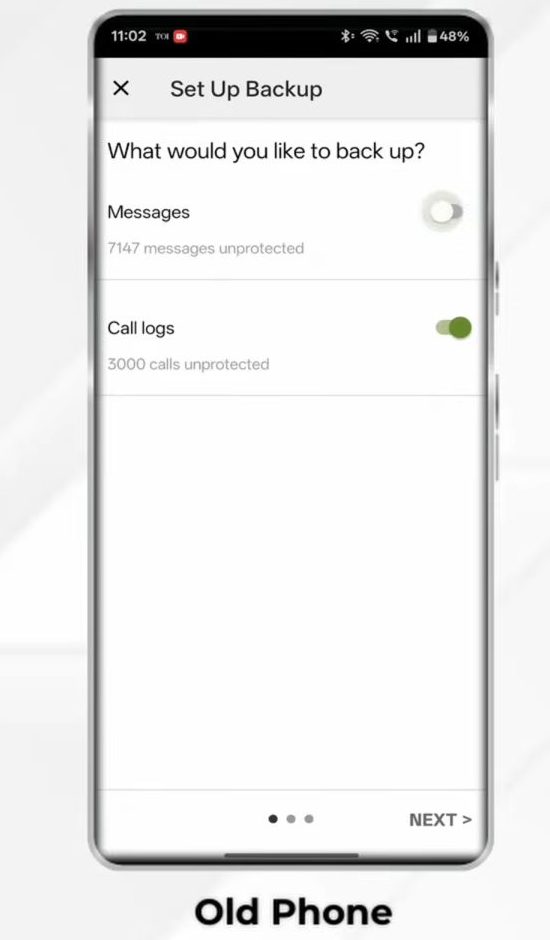
On the old phone, tap Set up a backup. On the "What would you like to back up?" screen, turn off Messages and leave Call logs on, then tap Next.
3Choose your phone as the backup location
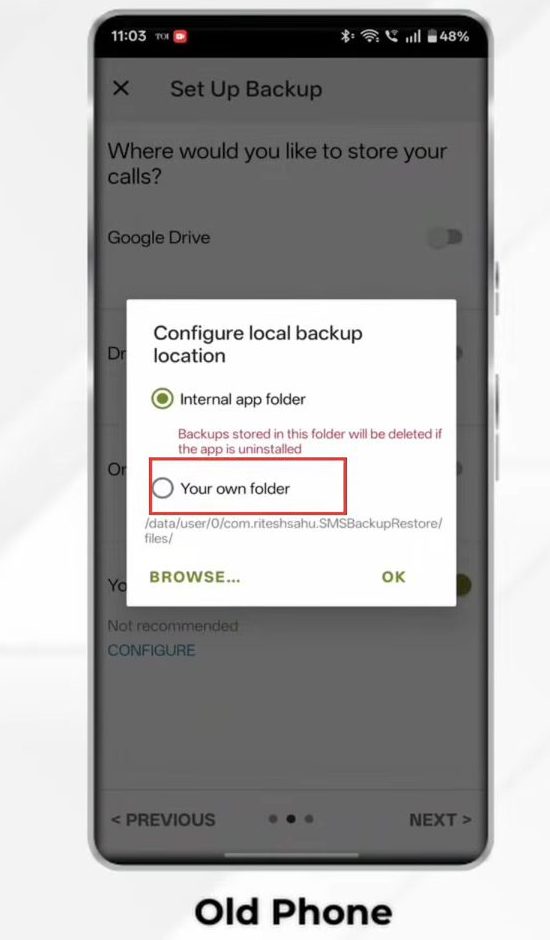
On "Where would you like to store your calls?", pick Your phone (the last option), which opens Configure local backup location. Select Your own folder instead of Internal app folder. The app warns that backups in its internal folder are deleted if the app is uninstalled.
4Create a folder for the backup
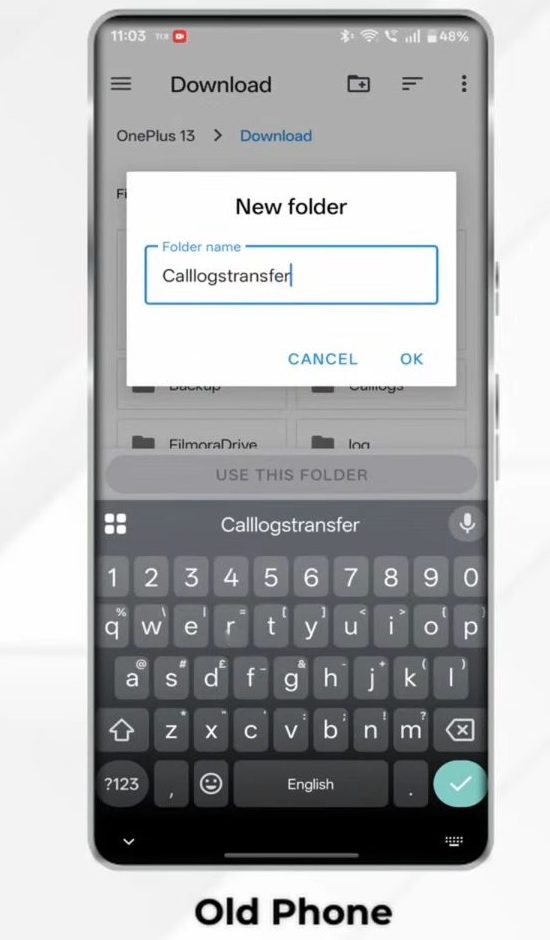
Tap Browse and go to a place that is easy to find, such as Download. Create a new folder (the button for this depends on your phone's file picker), give it a clear name like "Call logs transfer", and tap OK. Then tap Use this folder, tap Allow to give the app access to it, and tap OK and Next.
5Turn off scheduled backups and tap Back up now
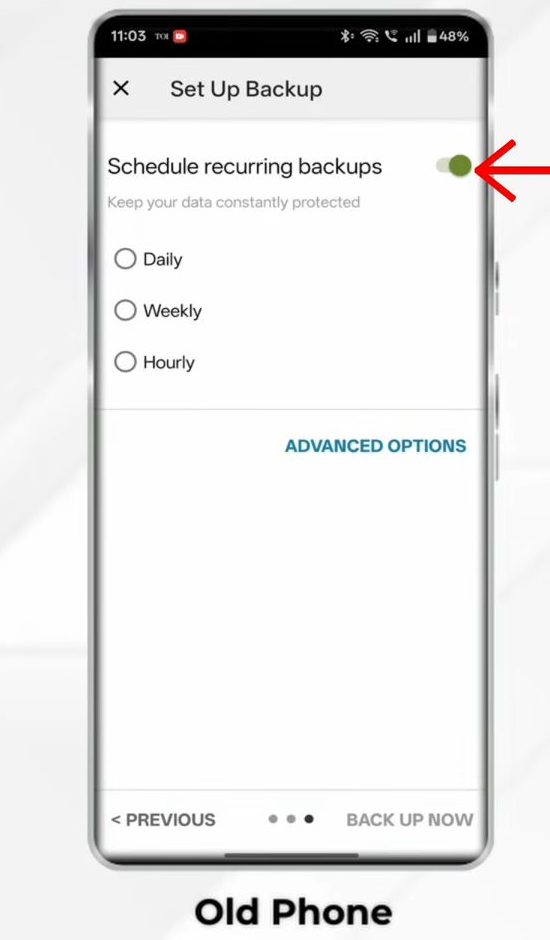
The last screen shows Schedule recurring backups. You only need a single copy for a phone switch, so turn this toggle off and tap OK on the confirmation. Then tap Back up now. The home screen then says Backed up today.
6Pair the two phones over Bluetooth
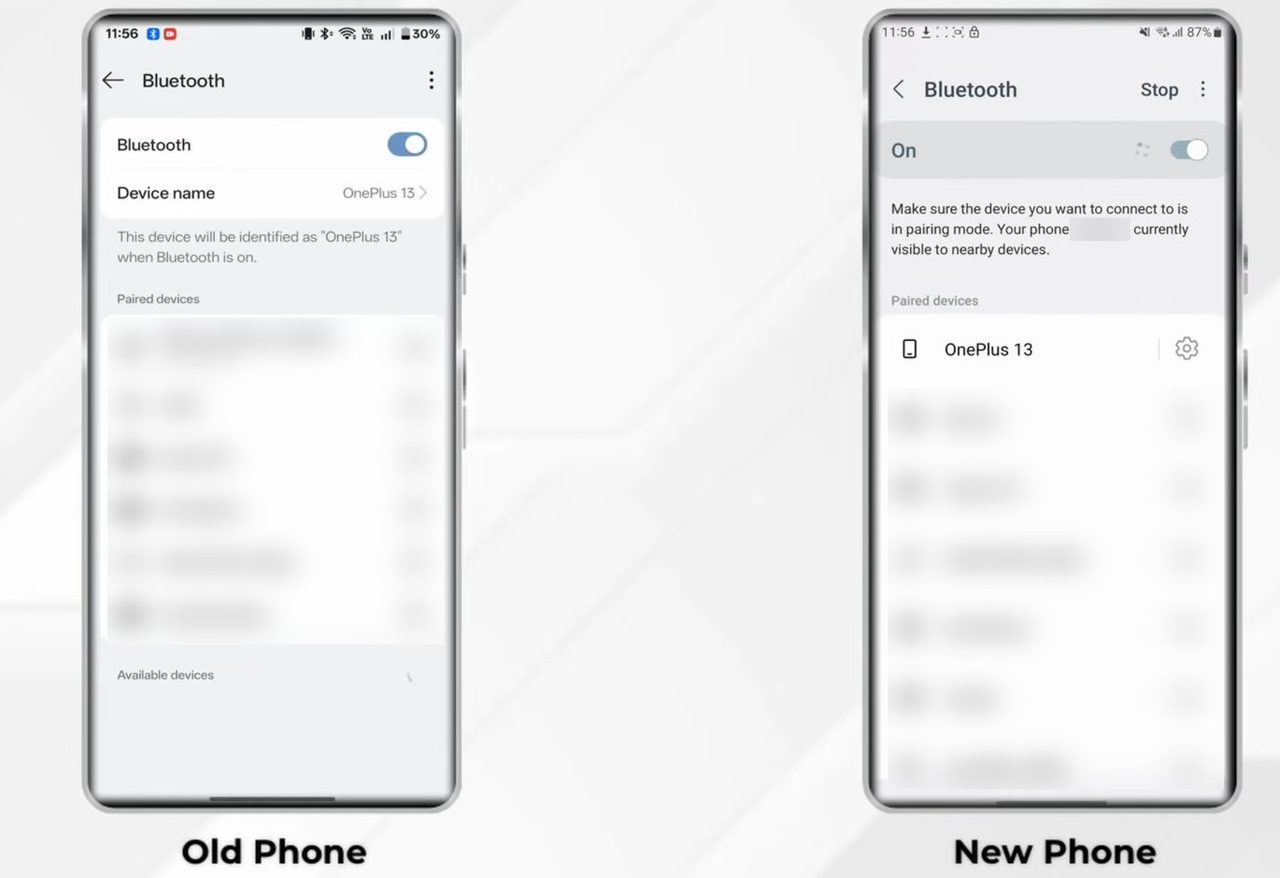
Now the backup file needs to get to the new phone. Open Settings > Bluetooth on both phones and make sure Bluetooth is on. On one phone, tap the other phone's name in the list of available devices and confirm the pairing code on both screens.
7Share the backup file from your file manager
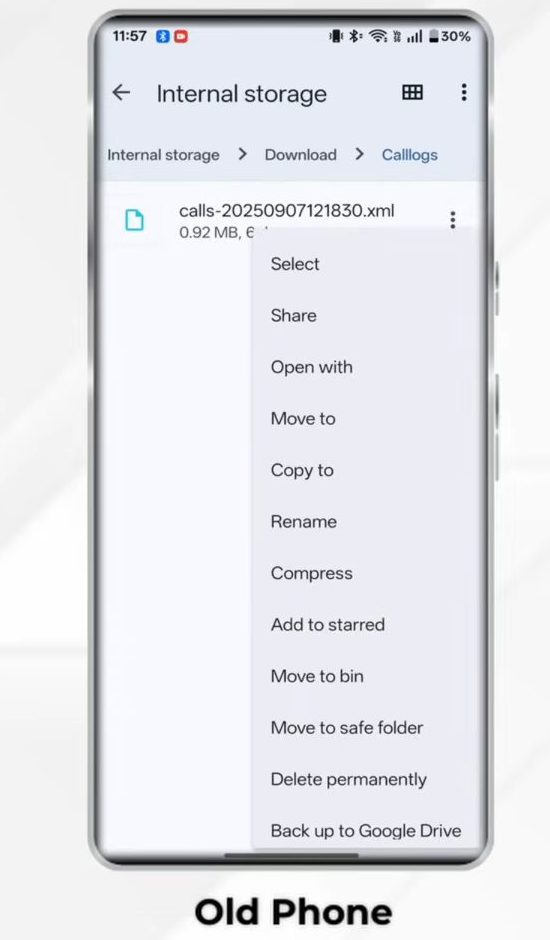
On the old phone, open your file manager (Files, My Files or similar) and go to the folder you made in Step 4. You will see a file named like calls-
8Accept the file on the new phone
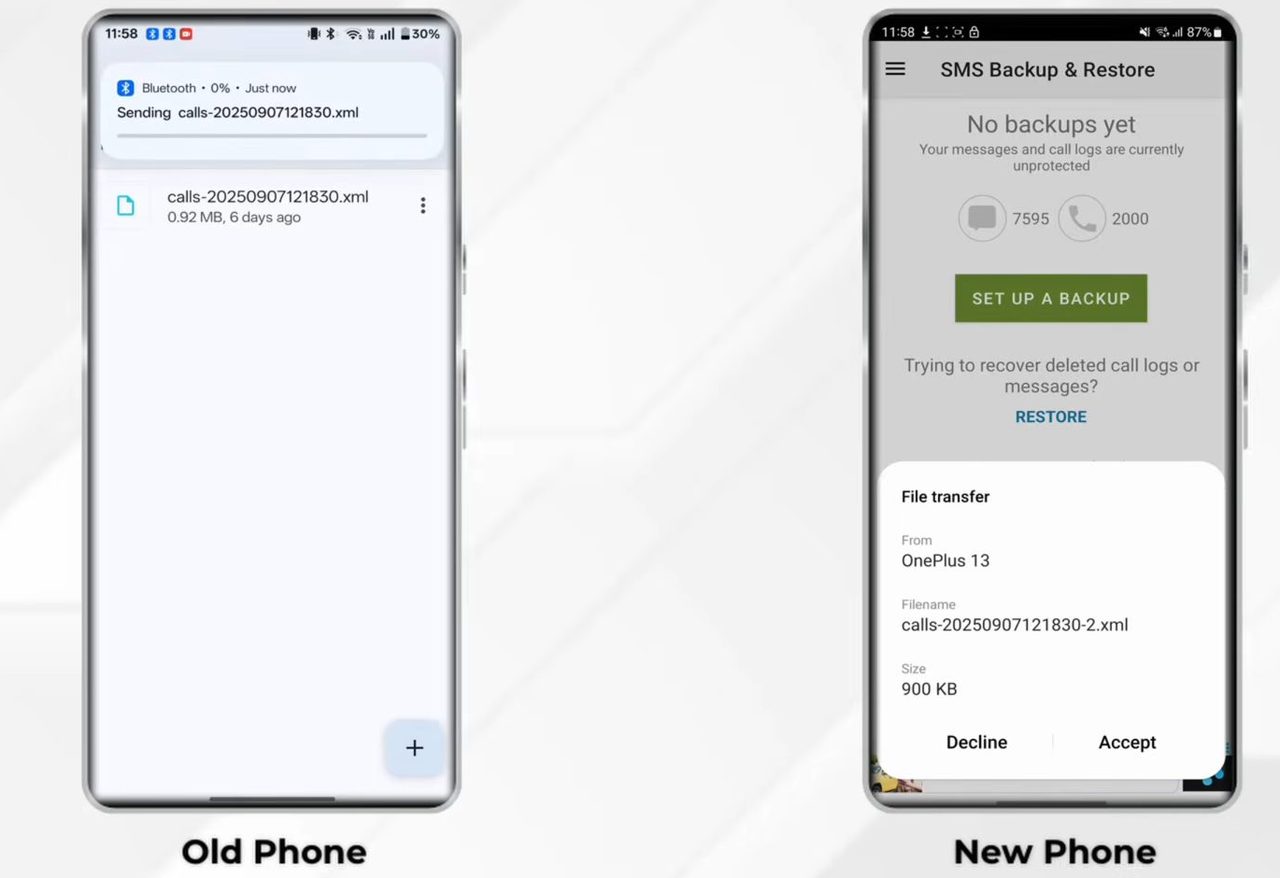
A File transfer request pops up on the new phone showing the file name and size. Tap Accept. The file is saved on the new phone, usually in Download.
9Open the file with SMS Backup & Restore
On the new phone, tap the received file from the notification panel, or find it in Download in your file manager. When Android asks which app to open it with, pick SMS Backup & Restore. The app asks what you would like to do with the file, so tap Restore.
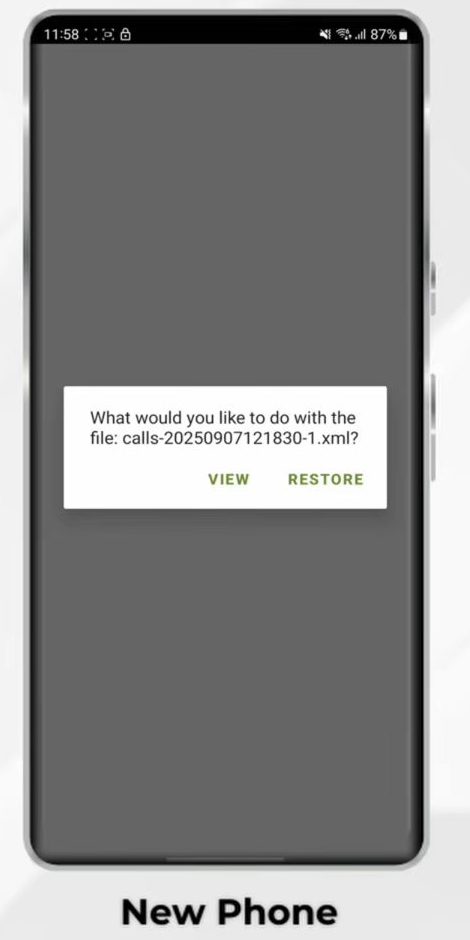
10Restore the call logs
On the Restore Backup screen, make sure Call logs is turned on (Messages can stay off), then tap Restore at the bottom. Large histories can take a couple of minutes, so keep the app open.
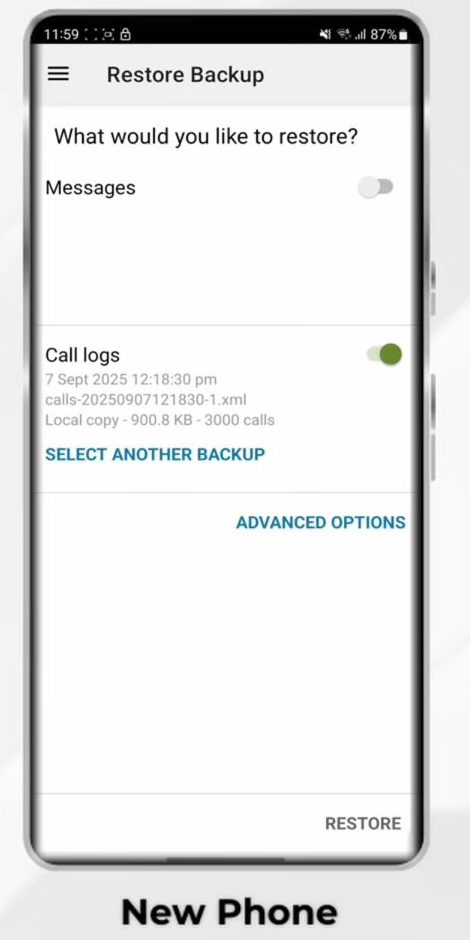
11Check the result
When it is done, a Restore completed summary appears. In our test the backup had 3,000 records: 1,664 were restored and 1,336 were skipped as duplicates because the new phone already had some of the same calls. Tap Close and open your Phone app. Your recent calls from the old phone now appear in the call history.
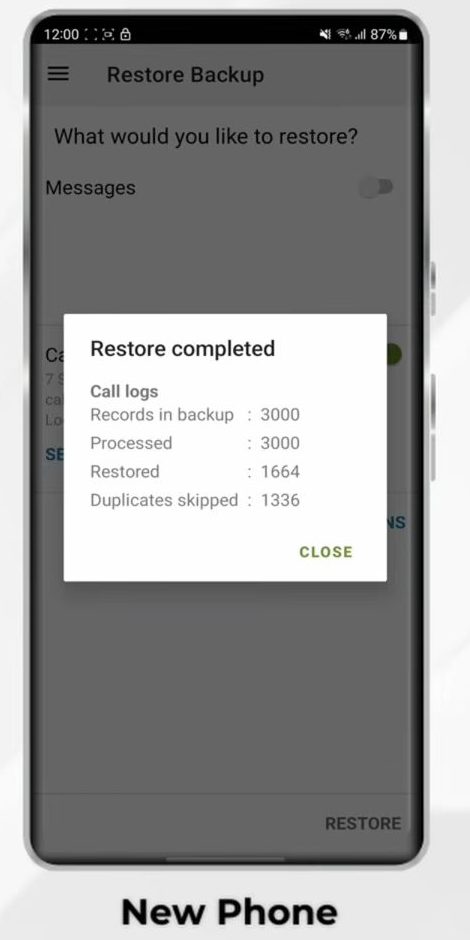
Tips / troubleshooting
- Duplicates skipped is normal. The app compares each call with what is already on the new phone and skips exact matches, so you will not end up with doubled entries if you restore twice.
- File will not open in the app: if your phone opens the XML file in a browser or text viewer, open SMS Backup & Restore instead, tap Restore on its home screen, and point it to the folder where the file was saved.
- Bluetooth transfer fails: keep both phones paired and unlocked, or move the file another way, such as a USB cable via a computer or Google Drive.
- Calls show without names: call logs store numbers. Names appear once the matching contacts are on the new phone. If you still need to move those, see how to transfer contacts from one Gmail account to another.
- Keep the XML file private. It lists every number you called or received. Delete it from both phones after the restore, or store it somewhere safe.
- The app's own site lists a Wi-Fi Direct transfer feature as well as uploads to Google Drive, Dropbox and OneDrive, if you prefer not to use Bluetooth. Those routes are not shown in the video. See SyncTech's SMS Backup & Restore page for details.
Does Google backup move call history too?
Yes, in many cases. Google's help page Back up or restore data on your Android device lists Call history among the data your phone backs up to your Google Account automatically. That restore happens when you set up a new phone with the same Google account. The method above is useful when the new phone is already set up, when you skipped the restore during setup, or when you want to copy only call logs and nothing else.
To move your texts as well, the same app handles that too: see how to transfer text messages from Android to Android.
FAQ
How do I transfer call logs from one Android phone to another?
Back up only Call logs in SMS Backup & Restore on the old phone, send the XML backup file to the new phone (Bluetooth works well), then open it with SMS Backup & Restore and tap Restore.
Will restoring delete the call history already on my new phone?
No. The restore adds calls from the backup and skips entries that already exist, which is why the summary shows a "Duplicates skipped" count. Existing calls on the new phone stay where they are.
Do I need a computer or a cable to copy call history?
No. Bluetooth moves the backup file between the phones and the app restores it. A cable or cloud drive is only a fallback.
Does this work for iPhone?
Not shown in the video. SMS Backup & Restore is an Android app, and iPhones do not let apps write call history, so this method is only for moving call logs between Android phones.
Related guides