Tech is Easy
How to Turn Off Notifications in Google Chrome (Step-by-Step)
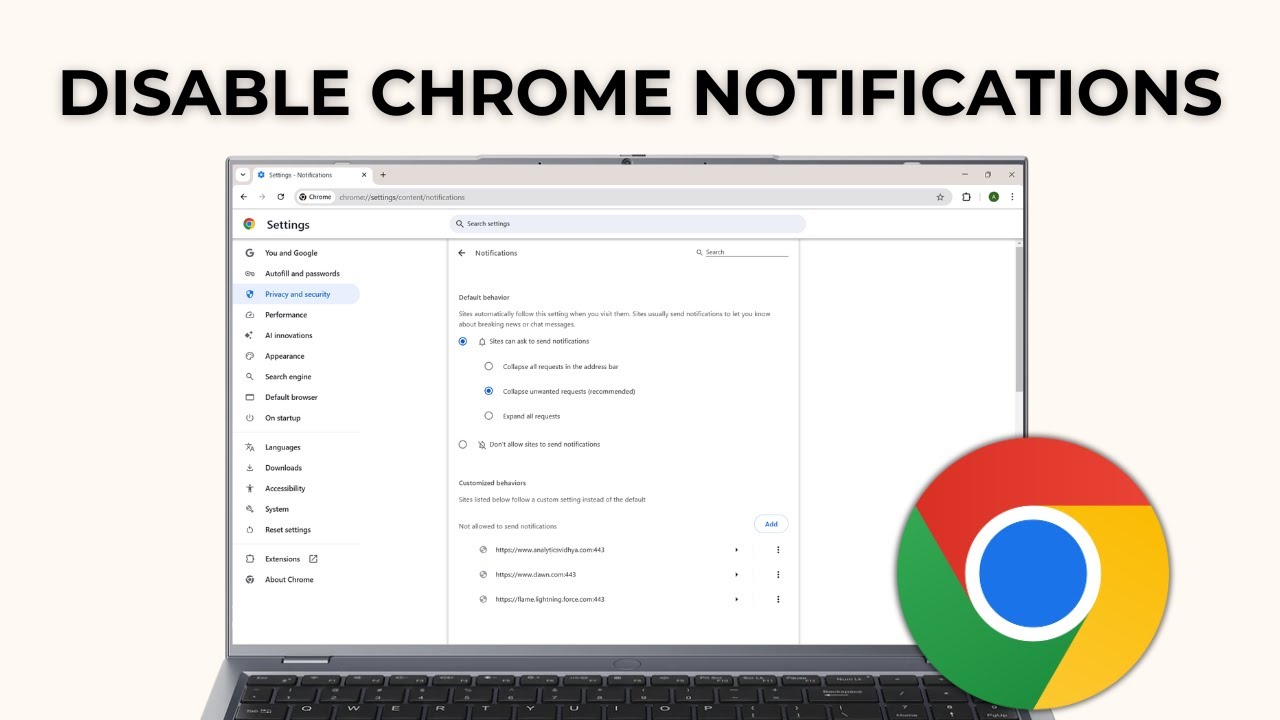
To turn off notifications in Google Chrome, click the three dots at the top right and go to Settings > Privacy and security > Site settings > Notifications. There, remove the sites listed under Allowed to send notifications and set the default to Don't allow sites to send notifications. This is for anyone getting pop-up alerts from news sites, shopping sites or web apps they once clicked "Allow" on and no longer want to hear from.
Disabling Chrome notifications this way works for every website at once, and you can still allow a single site later if you need its alerts.
1Open Chrome settings
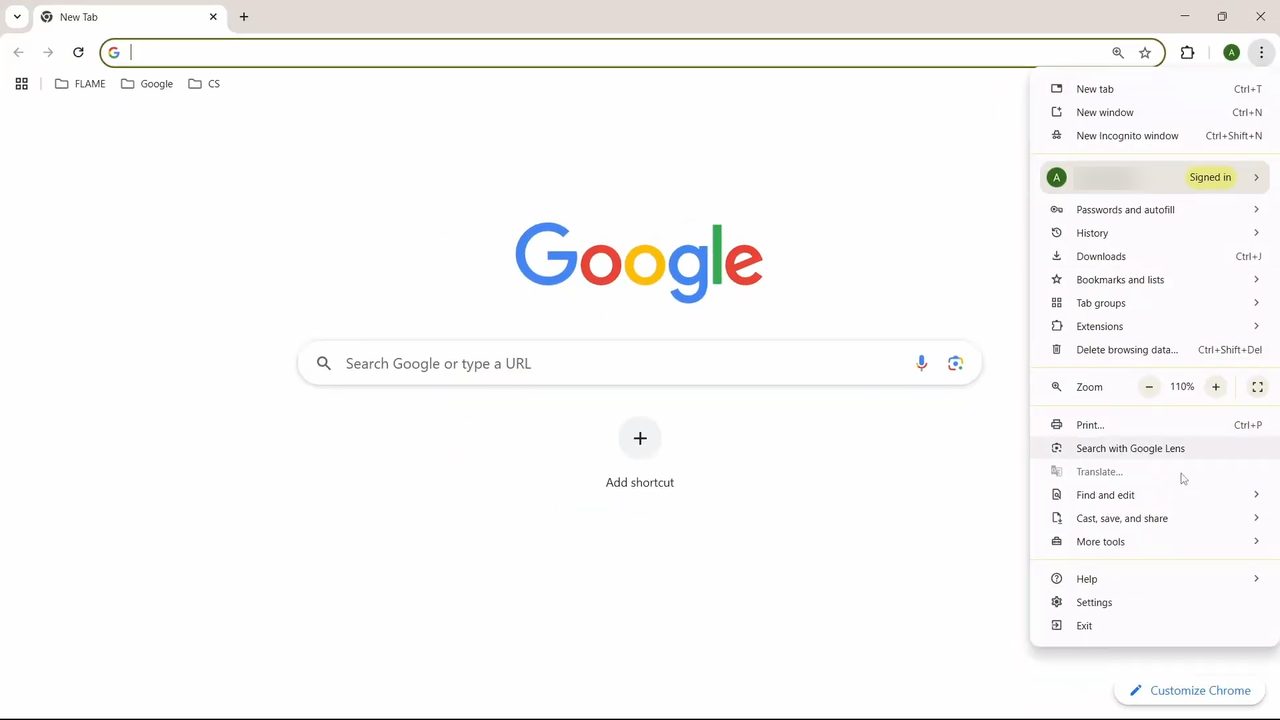
Open Chrome and click the three dots (Customize and control Google Chrome) at the top right of the window. Near the bottom of the menu, click Settings.
2Go to Privacy and security
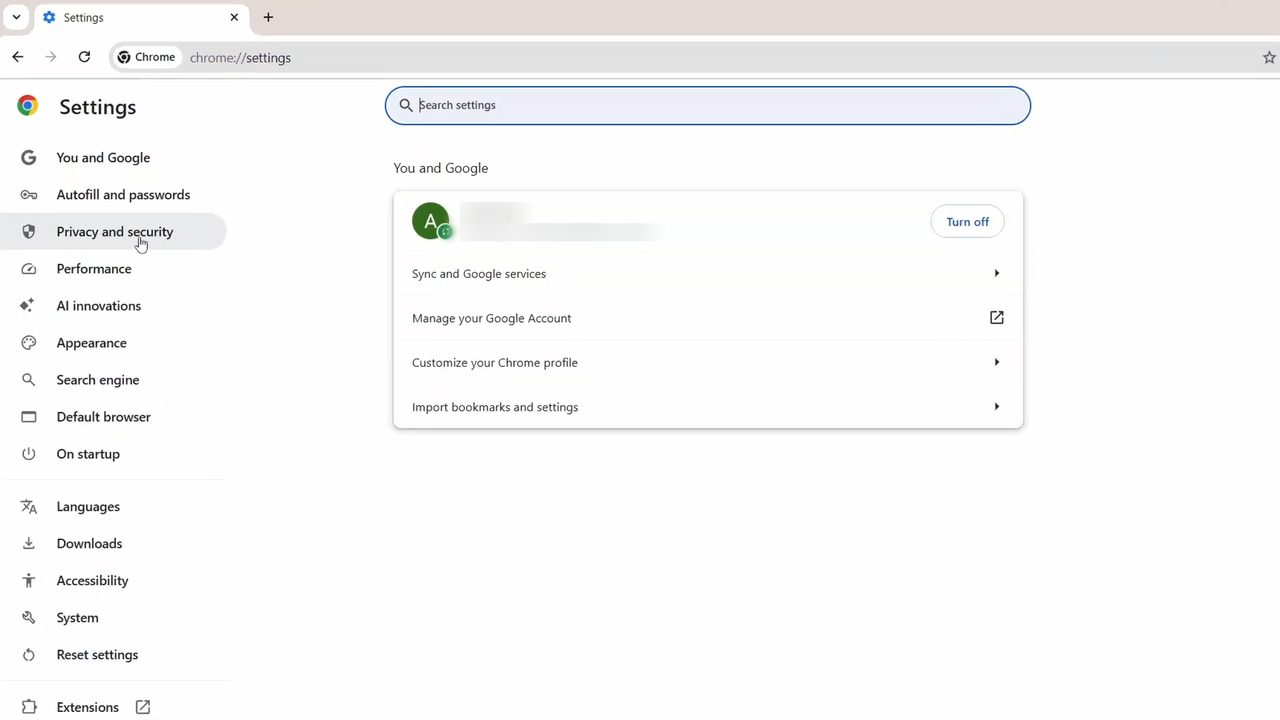
In the left sidebar of the Settings page, click Privacy and security.
3Open Site settings
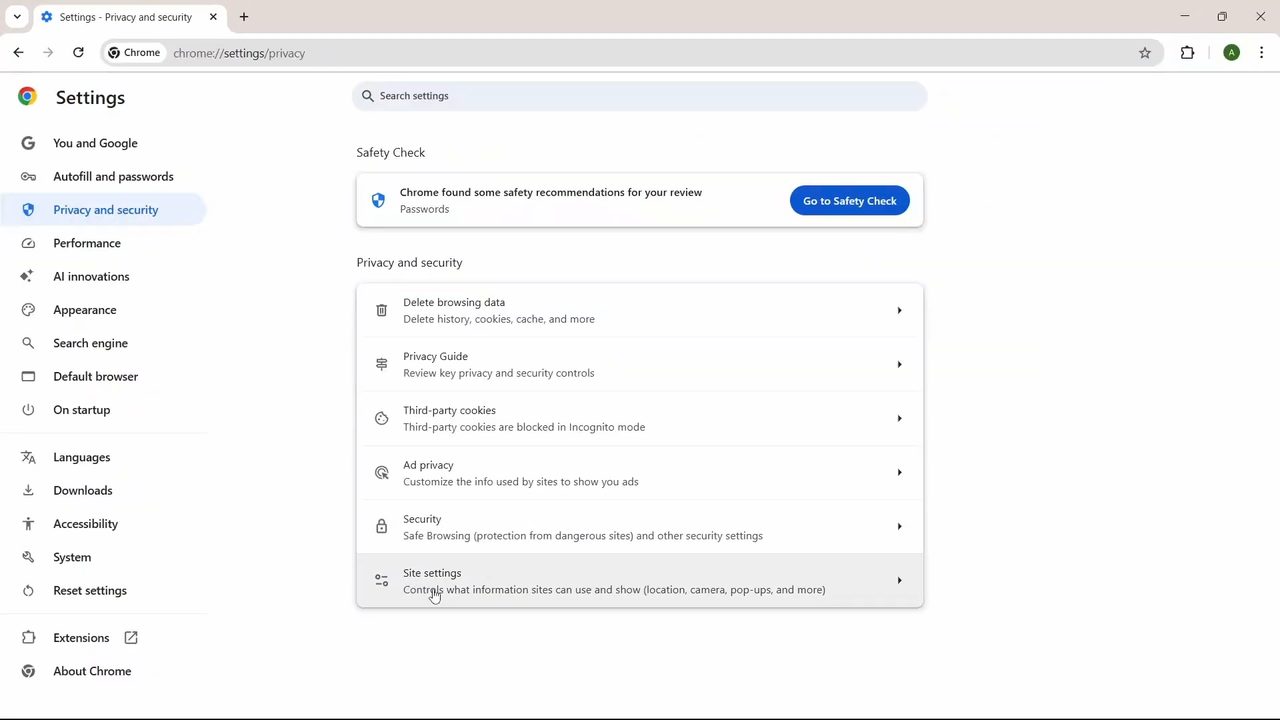
Scroll down the Privacy and security section and click Site settings. Its description reads "Controls what information sites can use and show (location, camera, pop-ups, and more)".
4Click Notifications
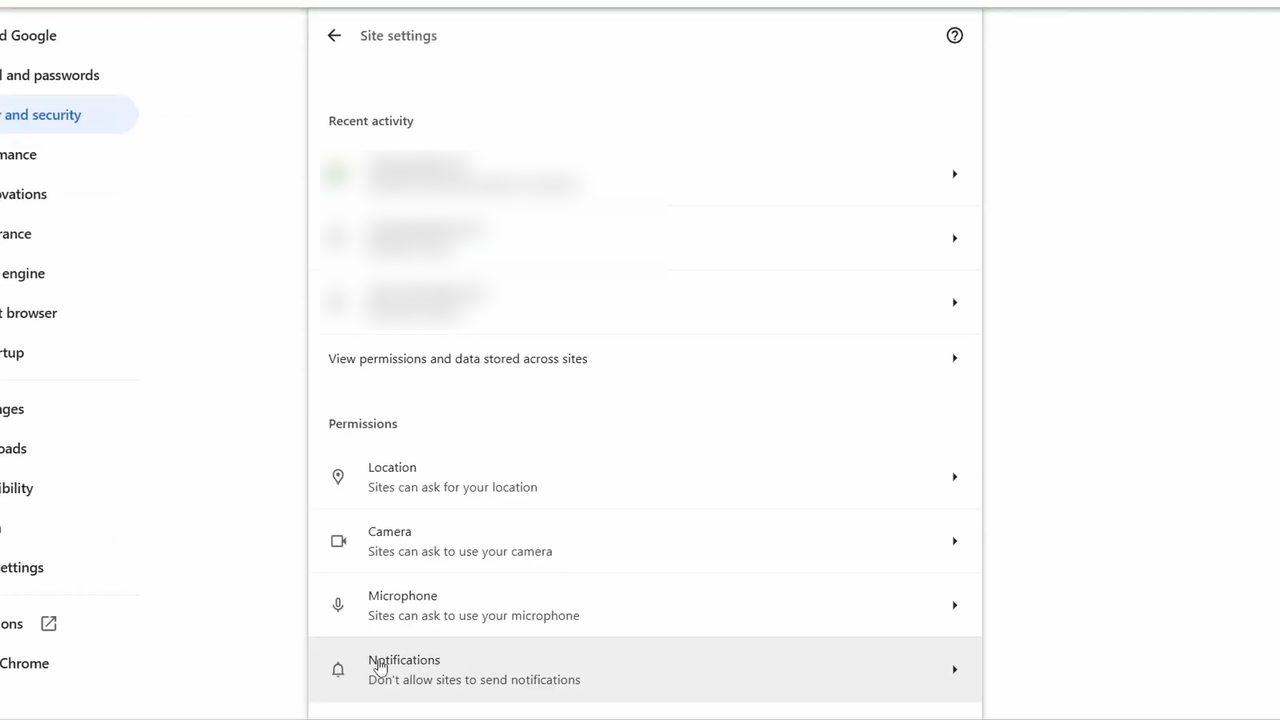
Under Permissions, click Notifications. This page controls which sites can show you alerts.
5Check which sites can send you notifications
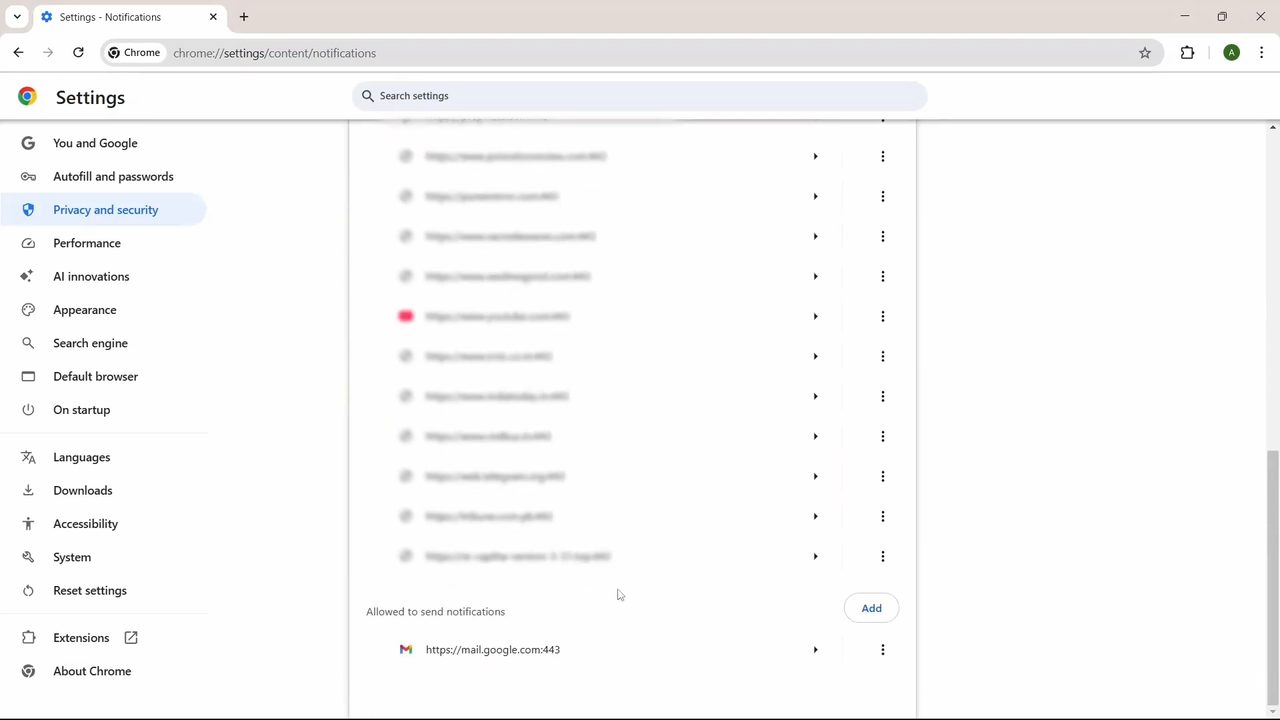
Scroll down the Notifications page and you will see two lists under Customized behaviors. The first, Not allowed to send notifications, holds sites you have already blocked. The second, Allowed to send notifications, holds every site that can still send you alerts. In our case only Gmail was allowed, but yours may have many more.
6Remove or block each allowed site
Click the three dots next to a site in the Allowed list. Choose Remove to take it off the list, or Block to move it to the blocked list so it can never send notifications. Repeat for every site you want to silence. Once the list is empty, no site can send you notifications.
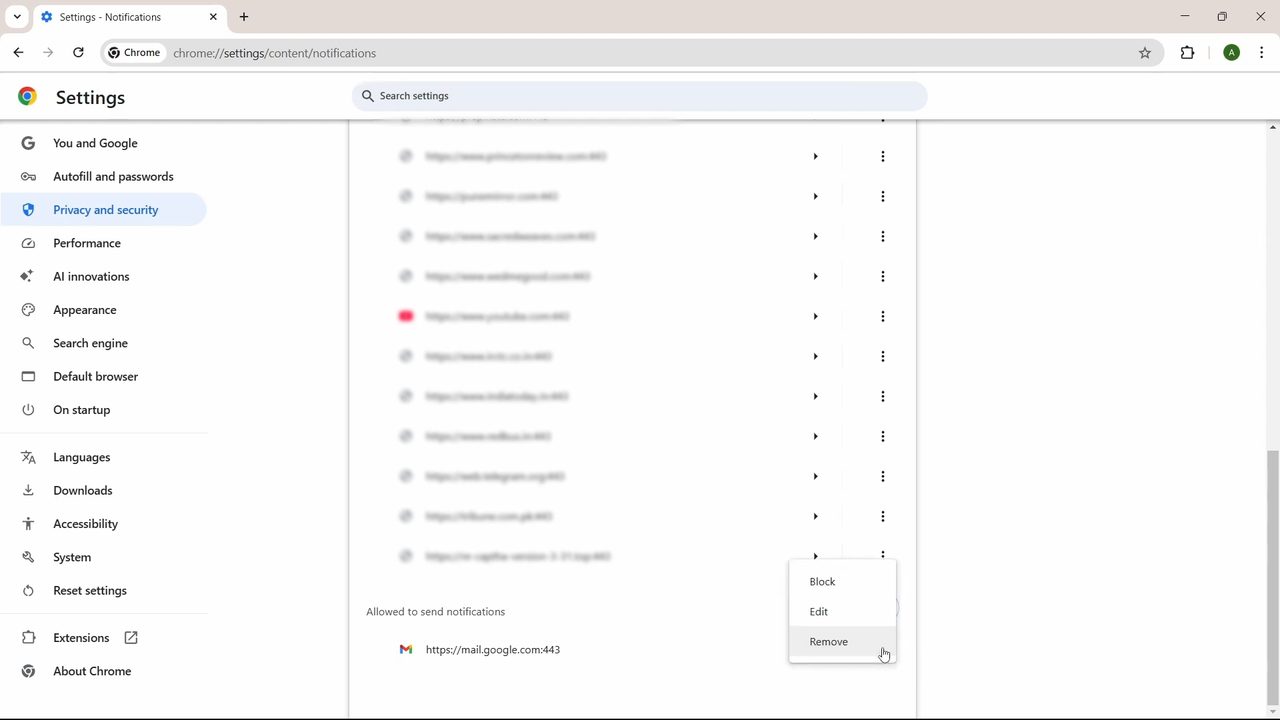
The difference matters: Remove resets the site to your default setting, so it may ask again later if your default lets sites ask. Block keeps it silenced no matter what the default is.
7Stop all sites from asking
Scroll back to the top of the Notifications page. Under Default behavior, select Don't allow sites to send notifications. As the page explains, sites automatically follow this setting when you visit them, so you will no longer see the "Allow notifications?" prompt on new sites.
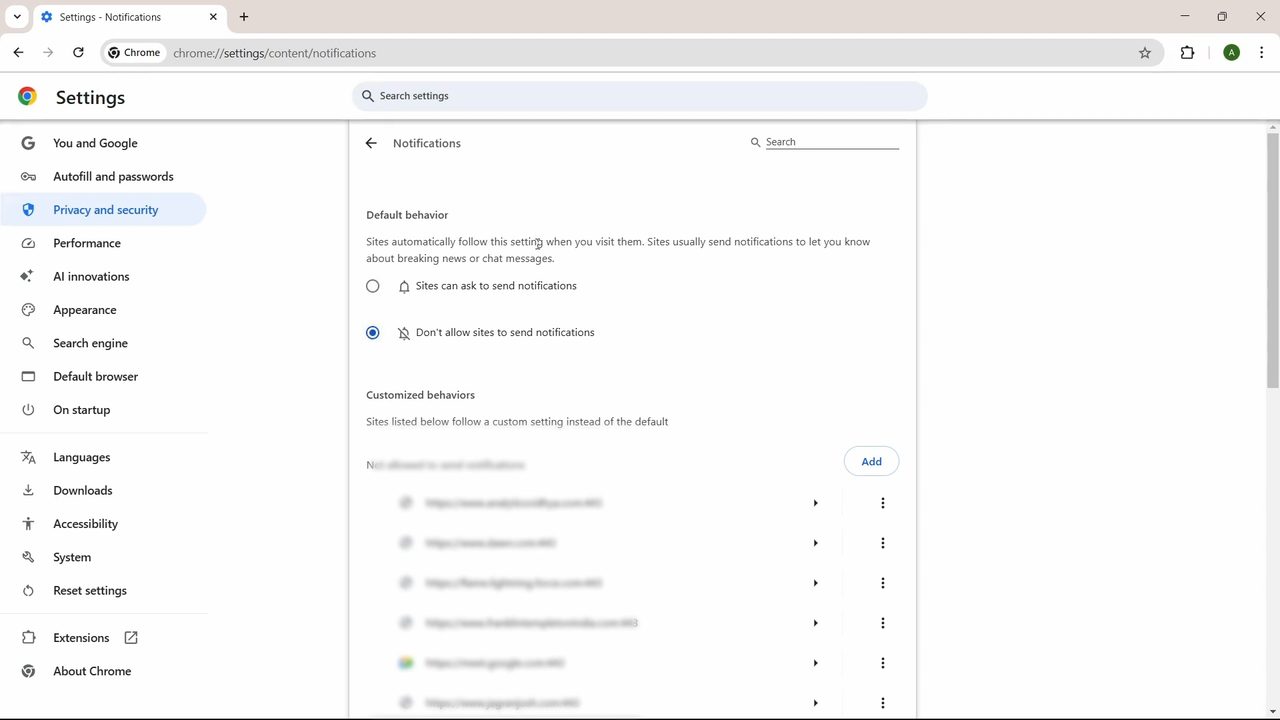
The change saves straight away. There is no Save button to click.
How to turn off Chrome notifications on Android
The video uses Chrome on a computer, but Google's help page Use notifications to get alerts gives the Android path as well: open Chrome, tap More (the three dots) to the right of the address bar, then Settings > Site settings > Notifications, and turn the setting off at the top. To change just one site on Android, open that site, tap More > Site controls > Permissions and change notifications there.
Tips and troubleshooting
- Still getting alerts after blocking everything? Check whether they really come from a website. Chrome extensions and web apps you installed can also send notifications, and the notifications from Chrome itself can be turned off in your computer's system notification settings.
- Want a gentler option? Google's help page explains that with Use quieter messaging, sites can still ask, but no pop-up prompt interrupts you. You only see a bell icon next to the address bar, which you can click to allow a site.
- Need alerts from one site, like Gmail or Google Calendar? Leave the default on Don't allow, then next to Allowed to send notifications click Add and enter that site's address. Chrome's own help page describes this same Add button for allowing or blocking a specific site.
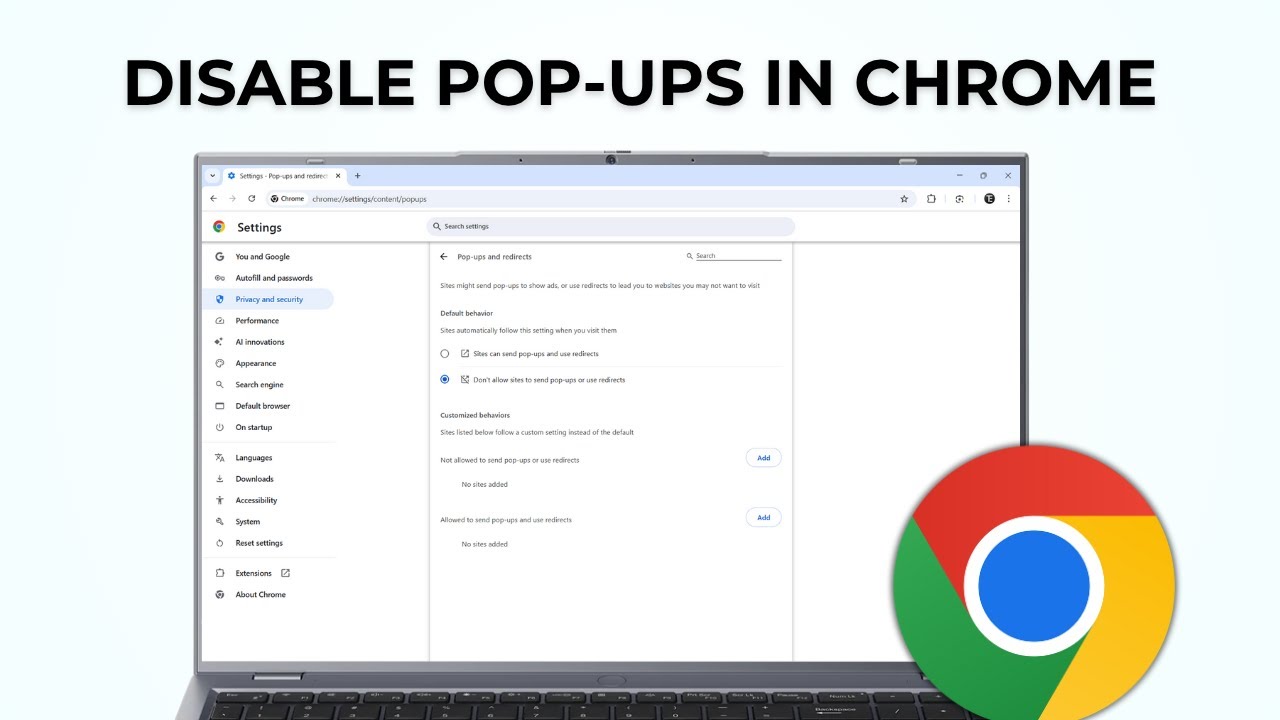
- Seeing pop-up ads rather than notifications? Those are controlled separately under Site settings > Pop-ups and redirects. See How to Disable Pop-Ups in Chrome.
- Use more than one Chrome profile? Site settings are saved per profile, so switch to each profile (the round picture at the top right) and repeat the steps there.
- In Incognito windows you do not get site notifications at all, according to Google.
- Chrome may remove notification permission on its own from sites you have not visited in a while, and it can block sites it finds abusive or misleading. If a site you still want has gone quiet, add it back to the Allowed list.
FAQ
How do I disable notifications in Google Chrome?
Open Settings > Privacy and security > Site settings > Notifications. Remove or block the sites under Allowed to send notifications, then choose Don't allow sites to send notifications under Default behavior.
Can I undo this later?
Yes. Go back to the same Notifications page and select Sites can ask to send notifications, or use Add next to Allowed to send notifications to allow one site again. Sites you blocked stay blocked until you remove them from the blocked list.
How do I stop Chrome notifications on Android?
In the Chrome app, tap the three dots, then Settings > Site settings > Notifications and turn the setting off at the top. These steps come from Google's help page; the video only shows the computer version.
Will turning off notifications stop pop-up ads?
No. Notifications and pop-ups are separate settings. Pop-ups are managed under Site settings > Pop-ups and redirects.
Related guides