Tech is Easy
How to Customize Google Chrome Homepage (Theme, Colors, Toolbar)
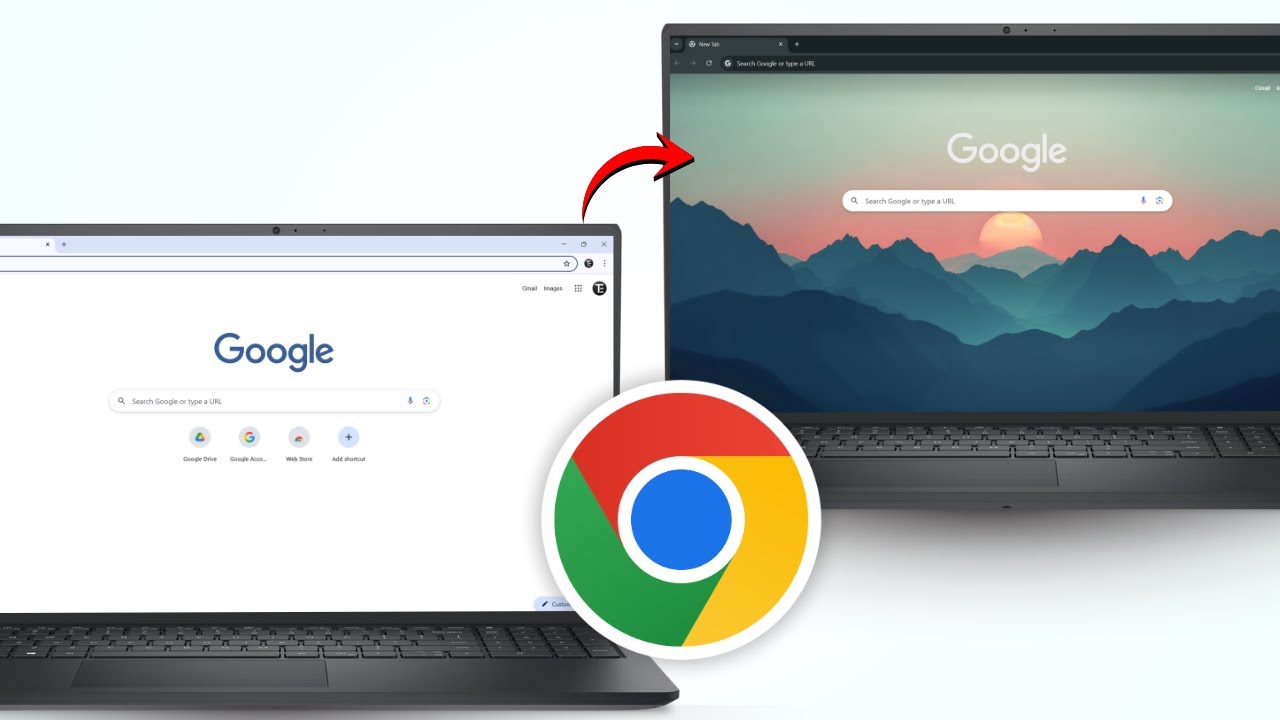
To customize your Google Chrome homepage, open a new tab and click Customize Chrome at the bottom right. The panel that opens lets you change the theme (background), switch between light and dark mode, pick the browser colors, choose which buttons sit on the toolbar and control the shortcuts under the search box. This guide covers each of those options, plus how to change the page Chrome opens when it starts. It is for anyone using Chrome on a Windows PC or Mac who wants the browser to look and work the way they like.
What you need
- Google Chrome on a computer, updated to a recent version (the Toolbar section is a newer feature)
- Google set as your default search engine. Google's help page Customize your New Tab page in Chrome says the New Tab customizations need Google as the default search engine, and some of them need you to be signed in.
1Click Customize Chrome
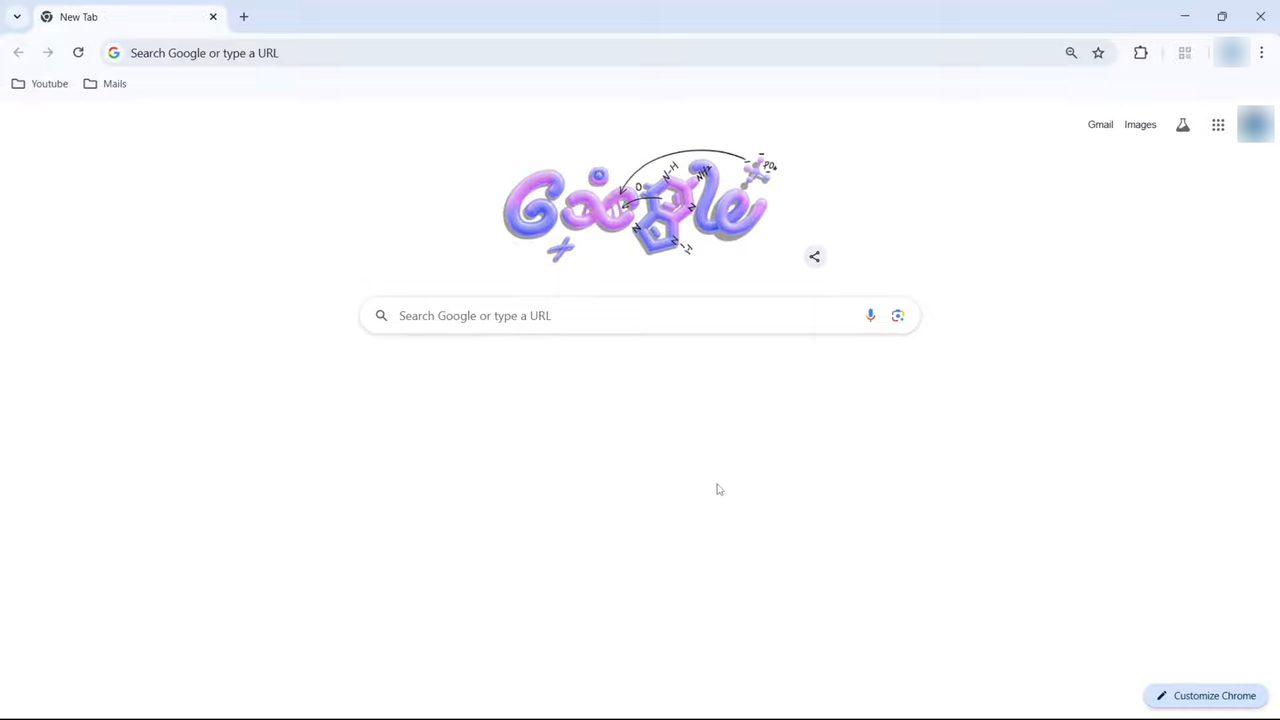
Open Chrome or press Ctrl+T for a new tab. At the bottom right of the New Tab page, click the Customize Chrome button (it has a pencil icon).
2Open the theme options
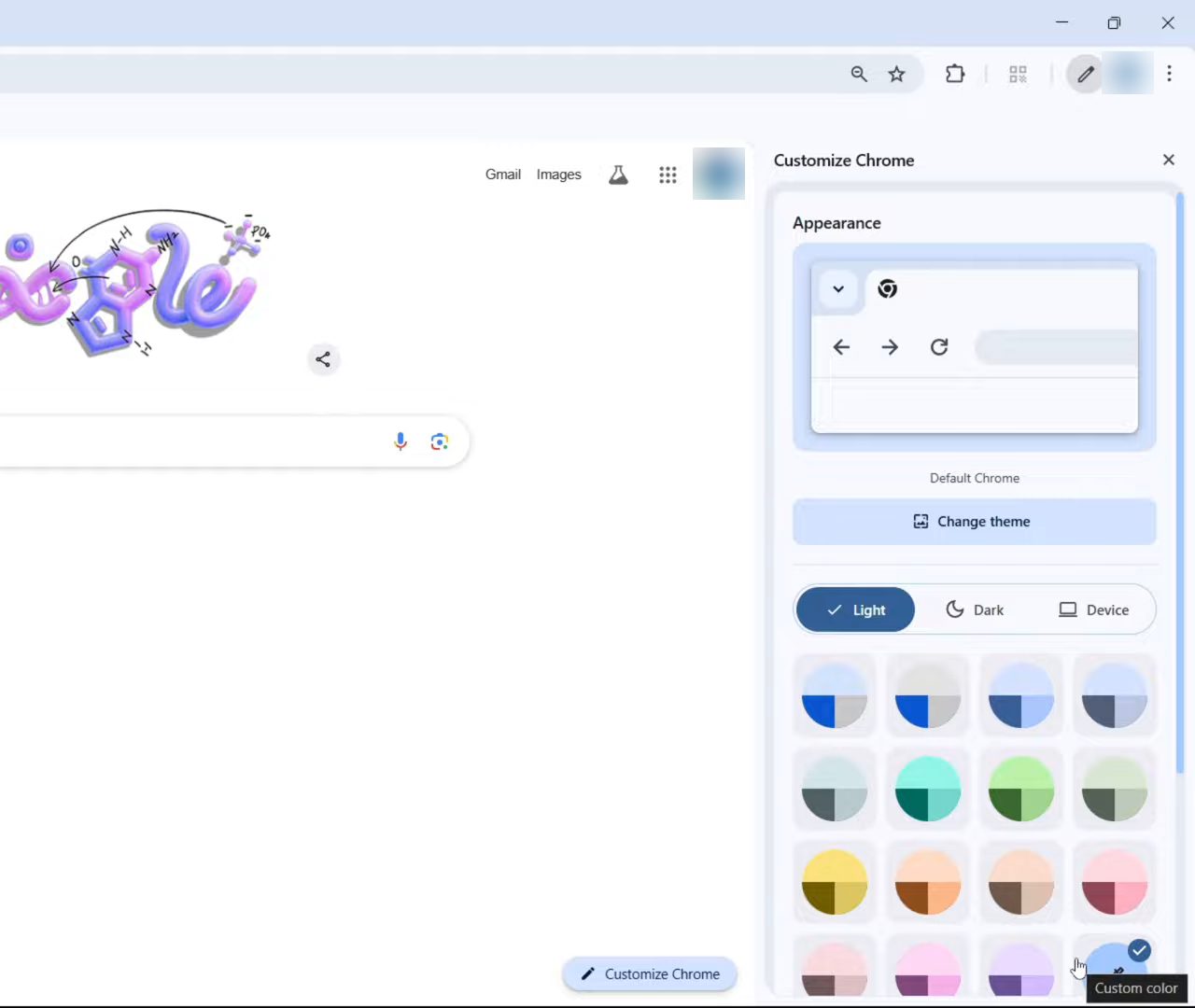
A Customize Chrome panel opens on the right. Under Appearance you see a preview of the current look, a Change theme button, the Light, Dark and Device switch, and a grid of colors. The theme is basically the background of your homepage, so click Change theme to start there.
3Pick a solid color or a theme collection
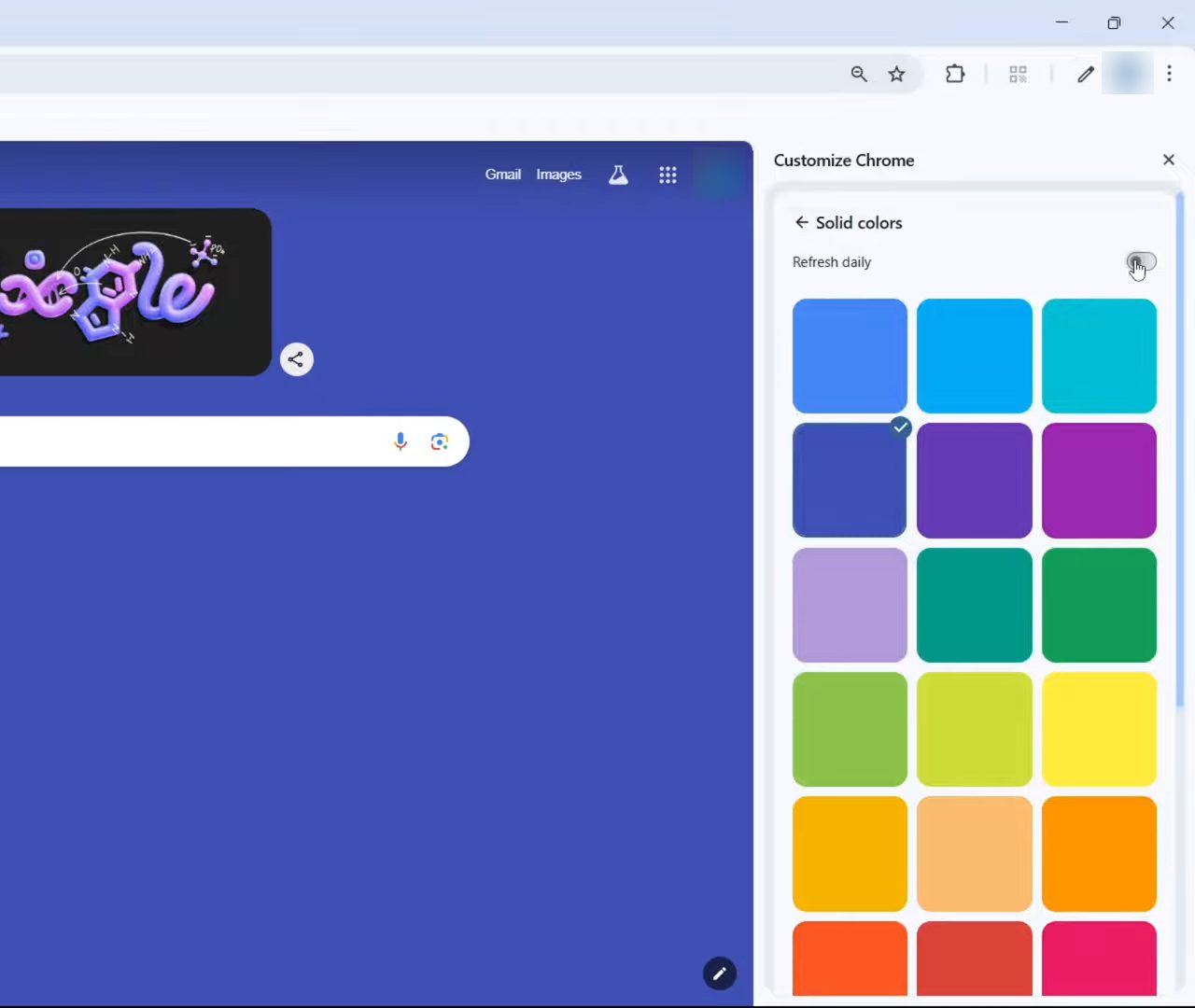
The Themes list shows Default Chrome, Upload an image, Solid colors and image collections such as Rising Artists and Landscapes. Click Solid colors and pick any color to make it your background. Turn on Refresh daily at the top if you want Chrome to switch to a new background every day. Click the back arrow to see the other collections; they work the same way.
4Use your own image as the background
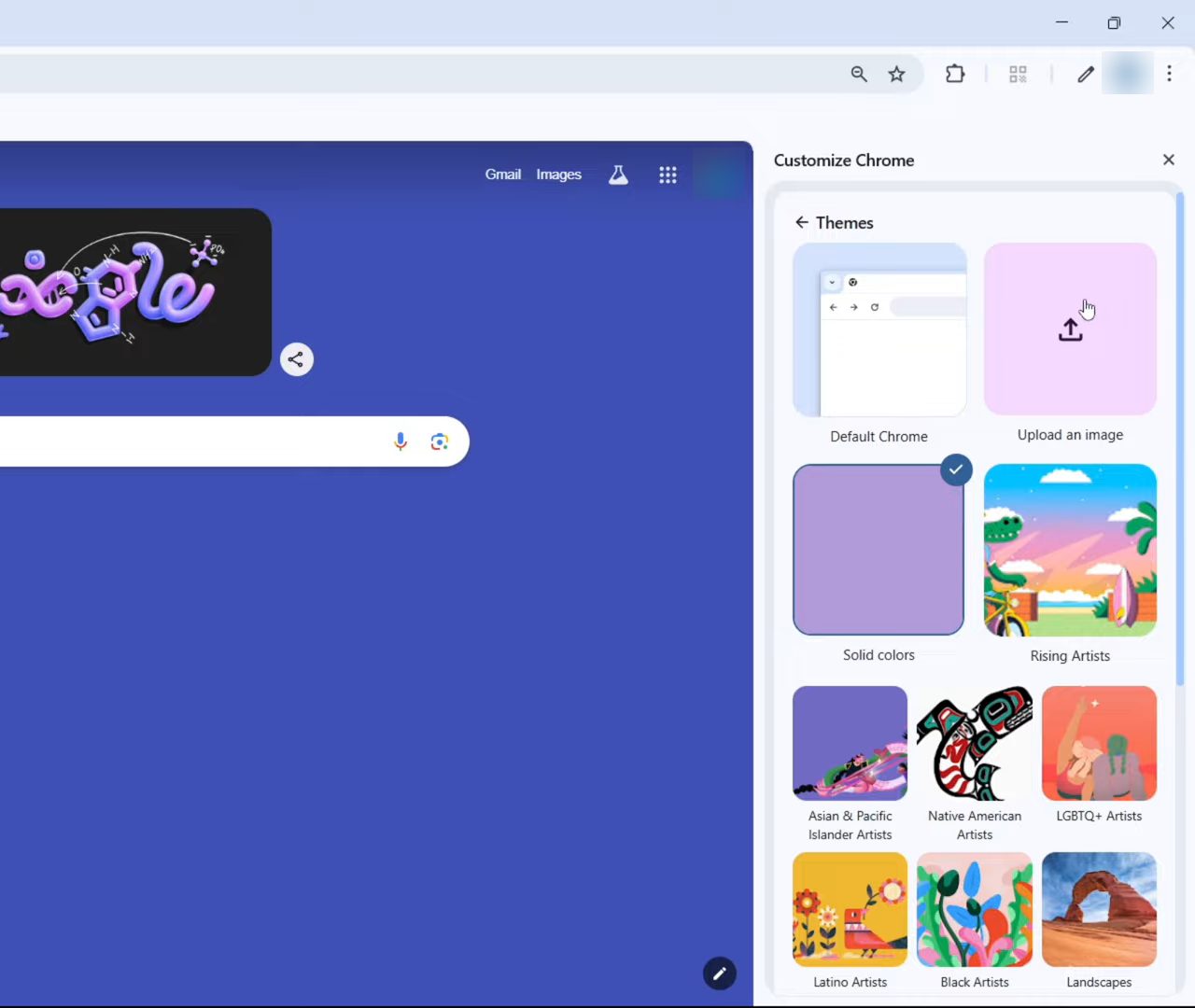
To use a photo of your own, go back to Themes and click Upload an image. Your file explorer opens; select an image and it becomes the homepage background. Google notes that Chrome then suggests a browser color that matches the image, which you can change in the next steps.
5Choose light mode, dark mode or device
Back on the main panel, choose Light, Dark or Device. When we switched to Dark, the tab strip, address bar and toolbar at the top all turned dark straight away. Device makes Chrome follow your computer's own light or dark setting.
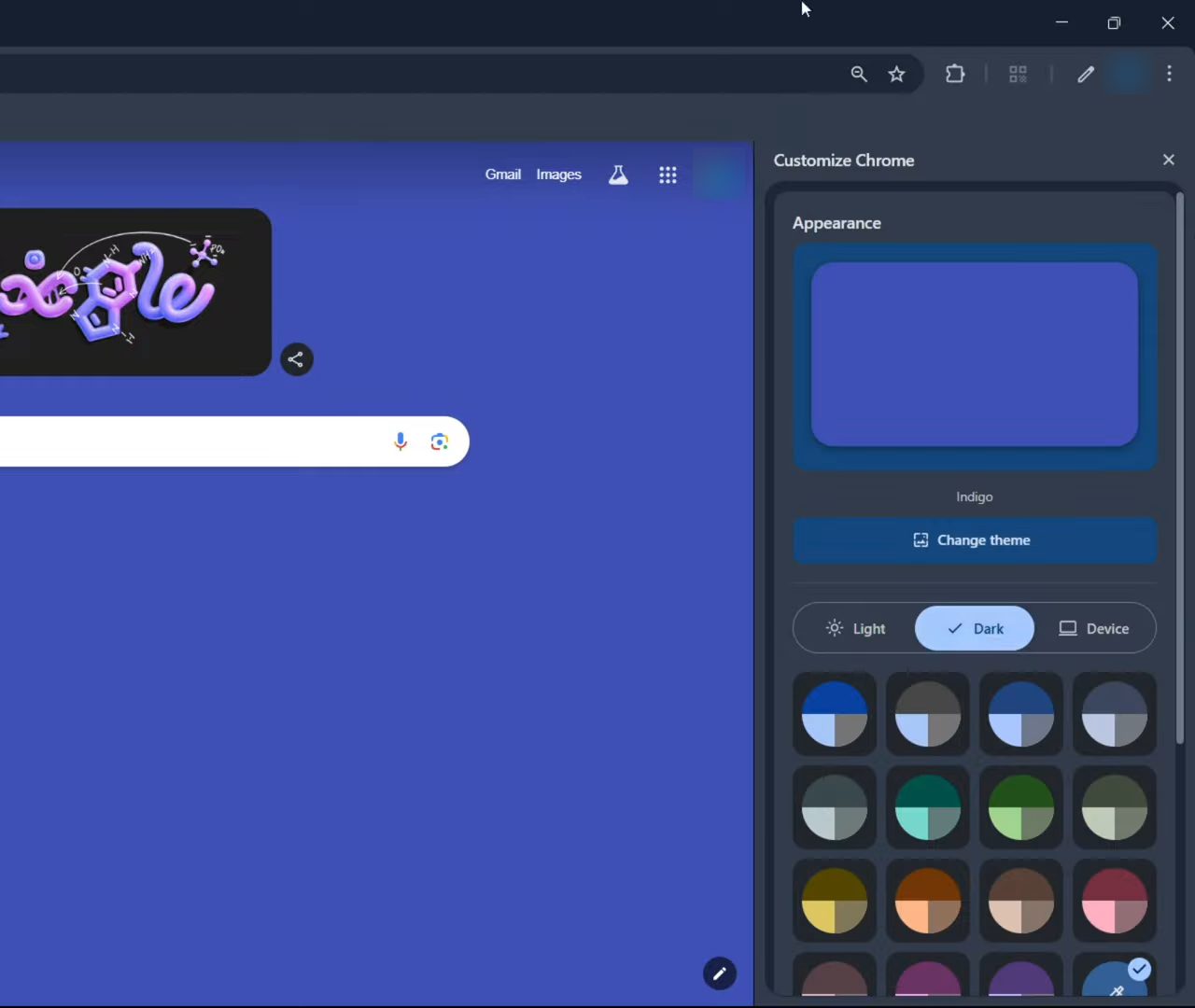
6Change the browser colors
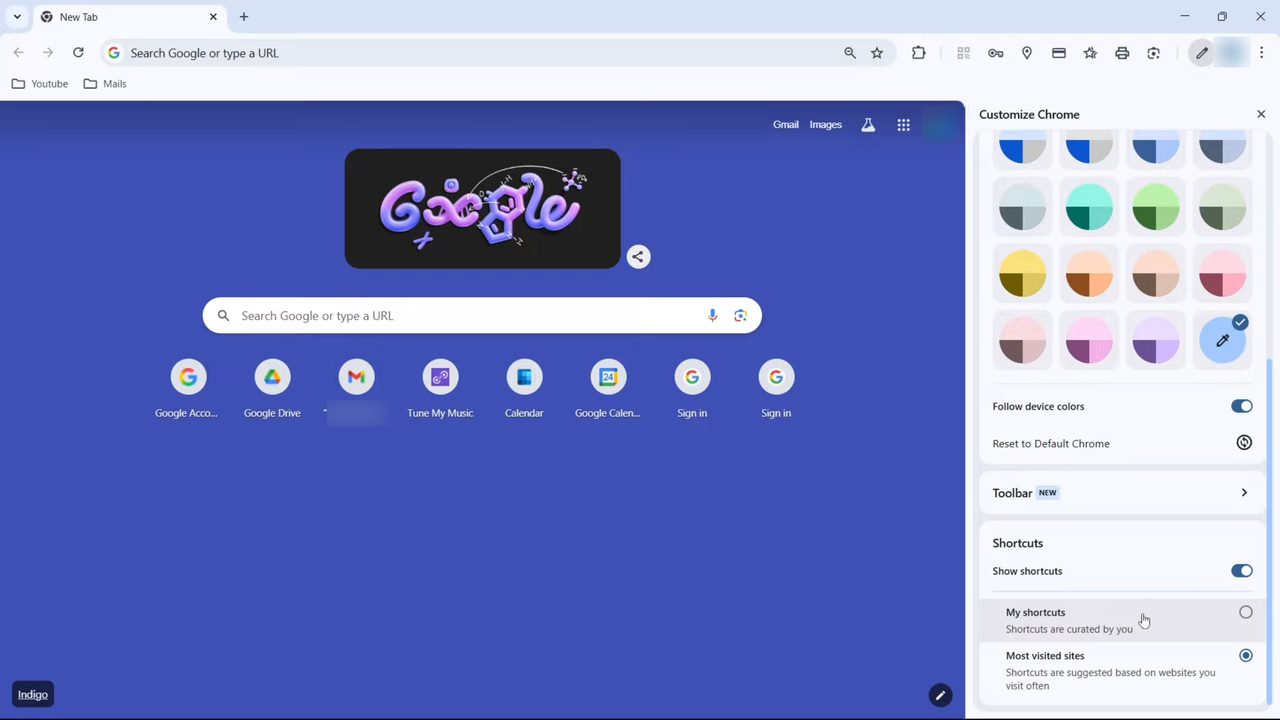
The color grid under the mode switch changes the color of everything at the top of the window: tabs, address bar and toolbar. Click a few to see how each looks. For an exact shade, click the last circle with the pen icon (Custom color) and drag the slider in the Color picker. If you would rather match your operating system, turn on Follow device colors below the grid.
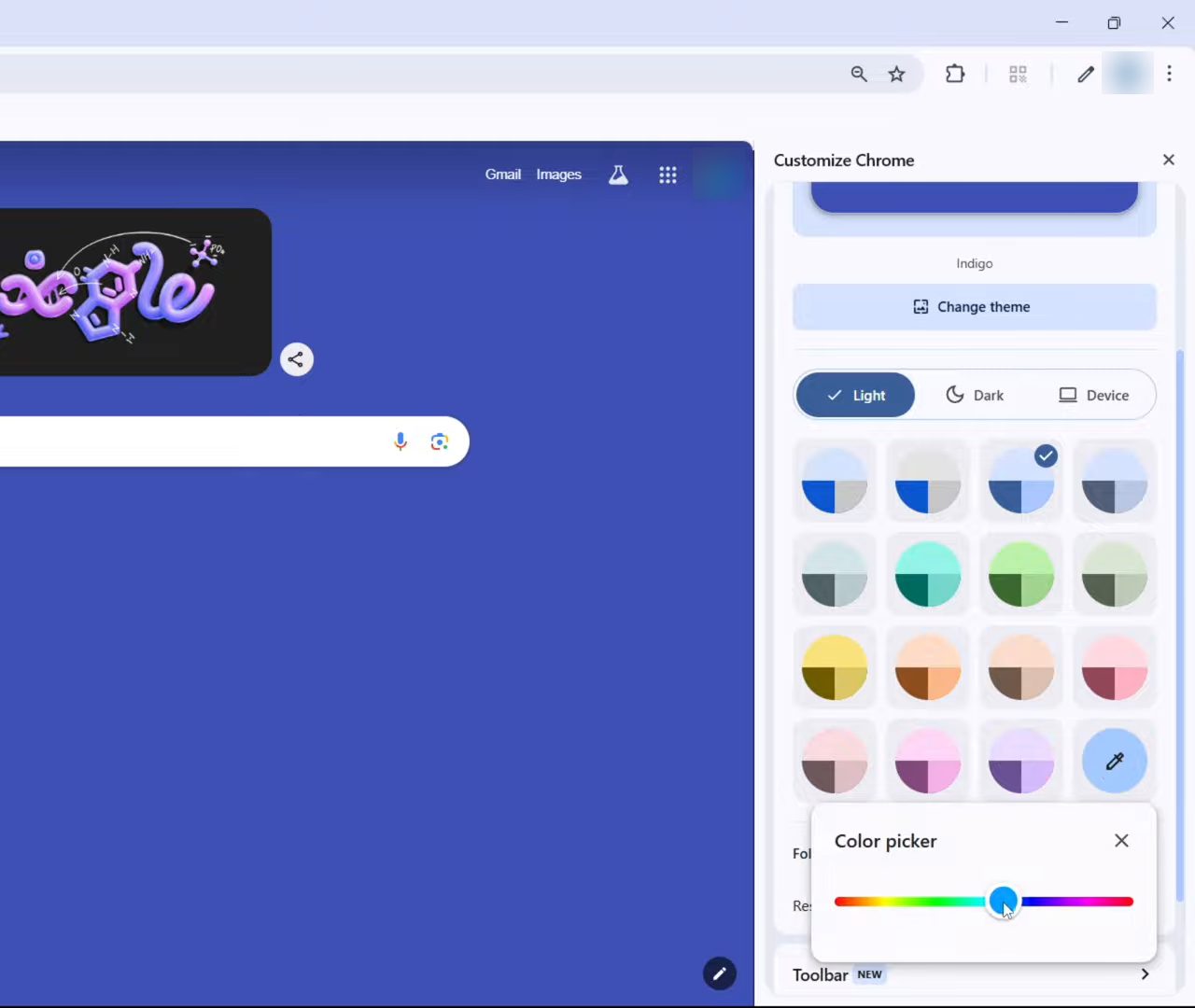
7Choose which buttons appear on the toolbar
Scroll down and click Toolbar (marked NEW). The toolbar is the area to the left and right of the address bar. Under Navigation you can turn on Home, Forward and New Incognito window. Under Your Chrome you can add buttons such as Google Password Manager, Payment methods, Addresses and more, Bookmarks, Reading list, History and Delete browsing data. Each switch you turn on adds a button at the top right straight away. To change their order, drag the buttons on the toolbar itself.
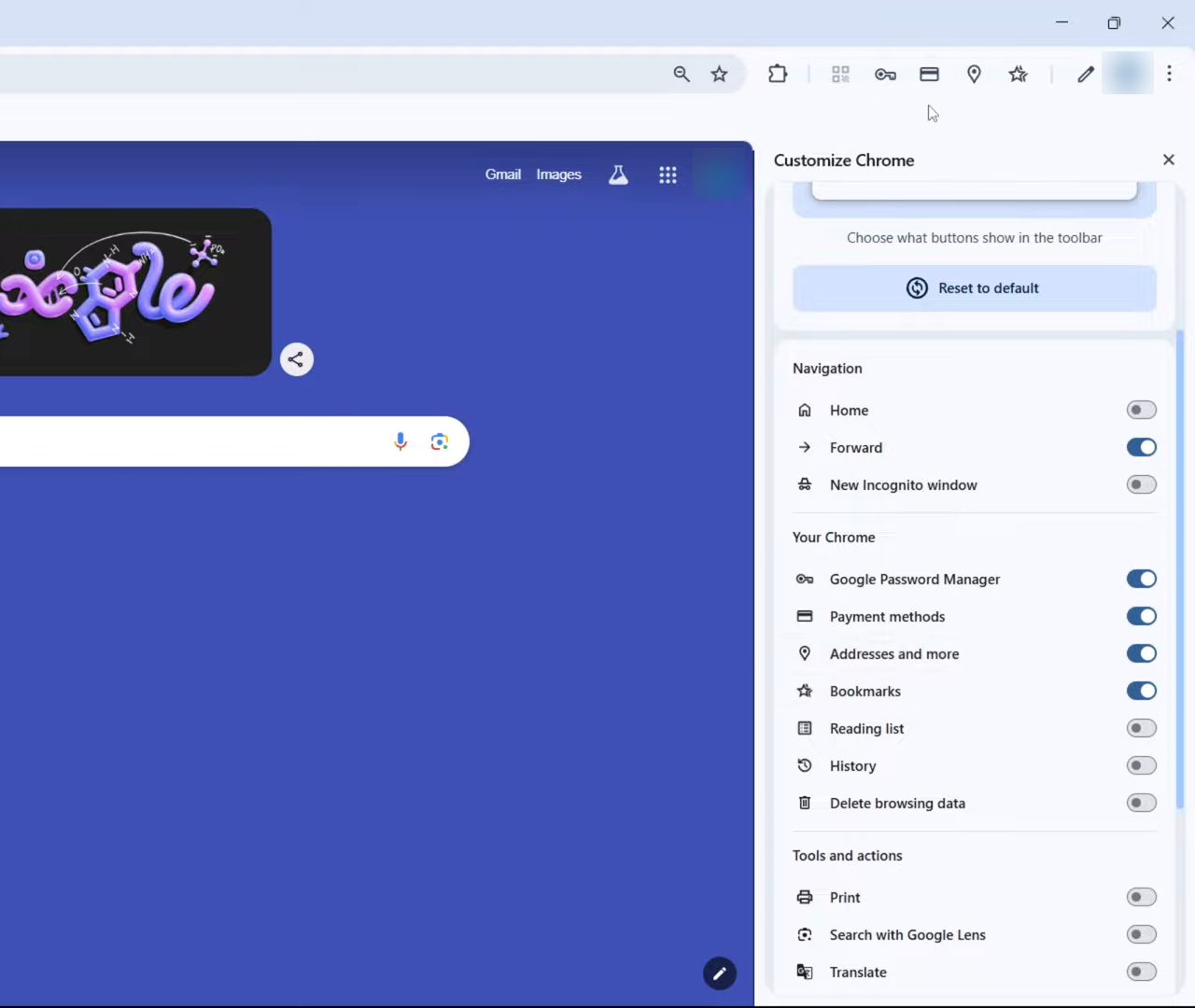
8Add tools and actions
Further down the same list is Tools and actions: Print, Search with Google Lens, Translate, Create QR Code, Reading mode, Copy link, Send to your devices, Task manager and Developer tools. Turn on the ones you use often and they also appear on the right of the toolbar. If the toolbar gets crowded, Reset to default at the top of the Toolbar section puts it back.
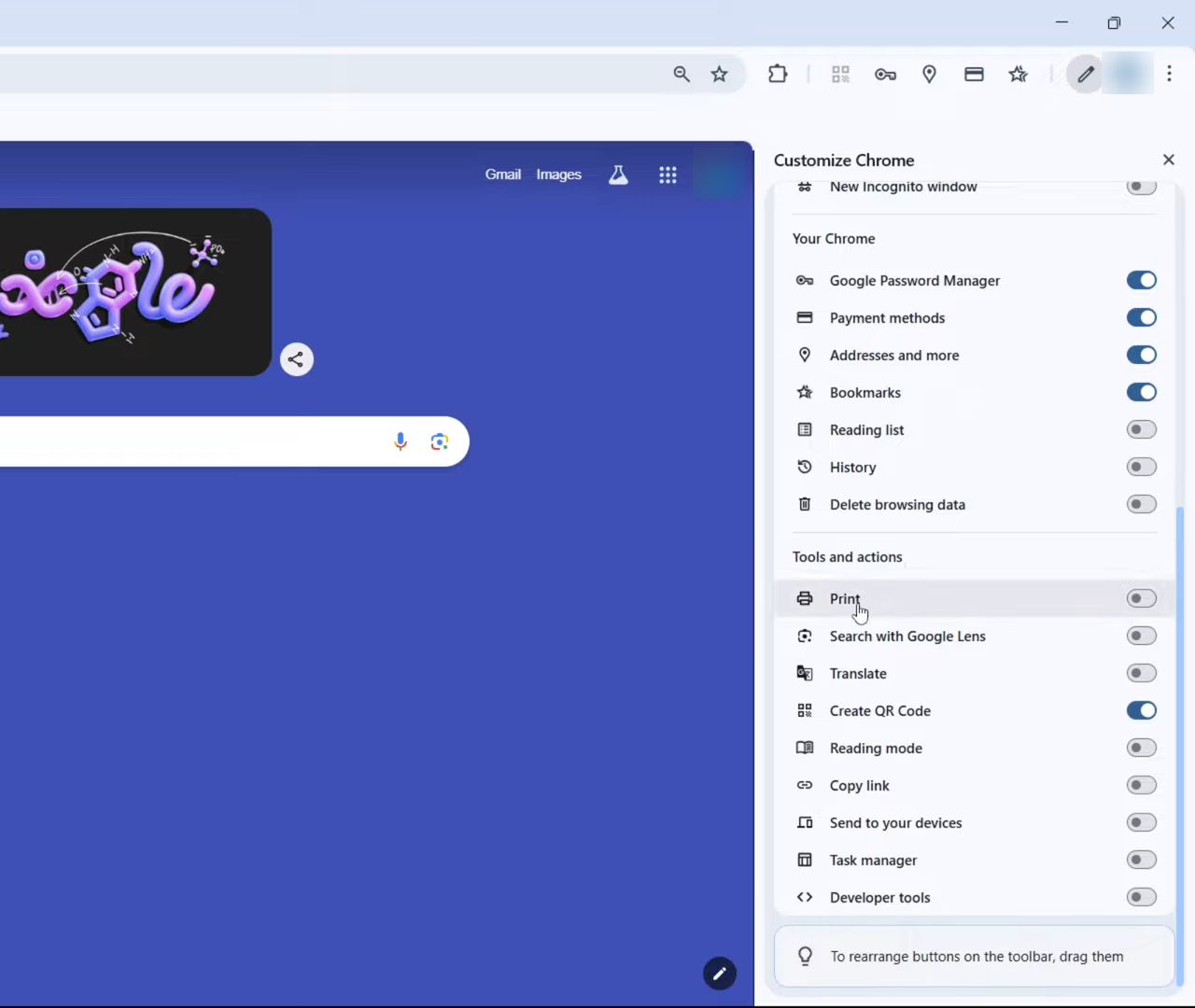
9Set up the shortcuts under the search box
Go back to the main panel and scroll to Shortcuts. Show shortcuts turns the row of site icons under the search box on or off. Most visited sites fills it automatically from your browsing. Choose My shortcuts instead if you want to decide the sites yourself, then click Add shortcut on the New Tab page to add each one.
10Choose what opens on startup
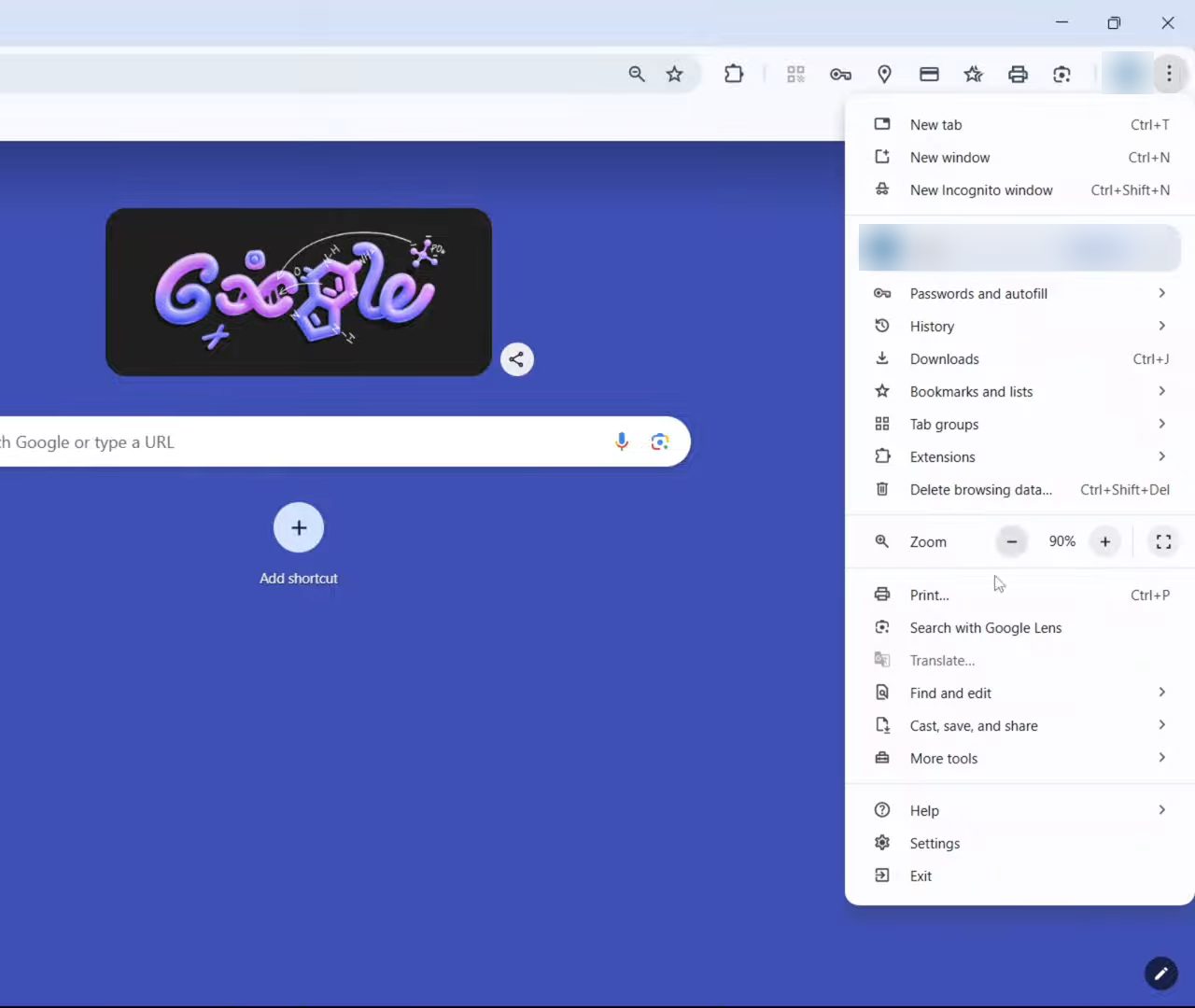
There is one more thing you can change: the page you see when Chrome starts. Click the three dots at the top right of Chrome and select Settings.
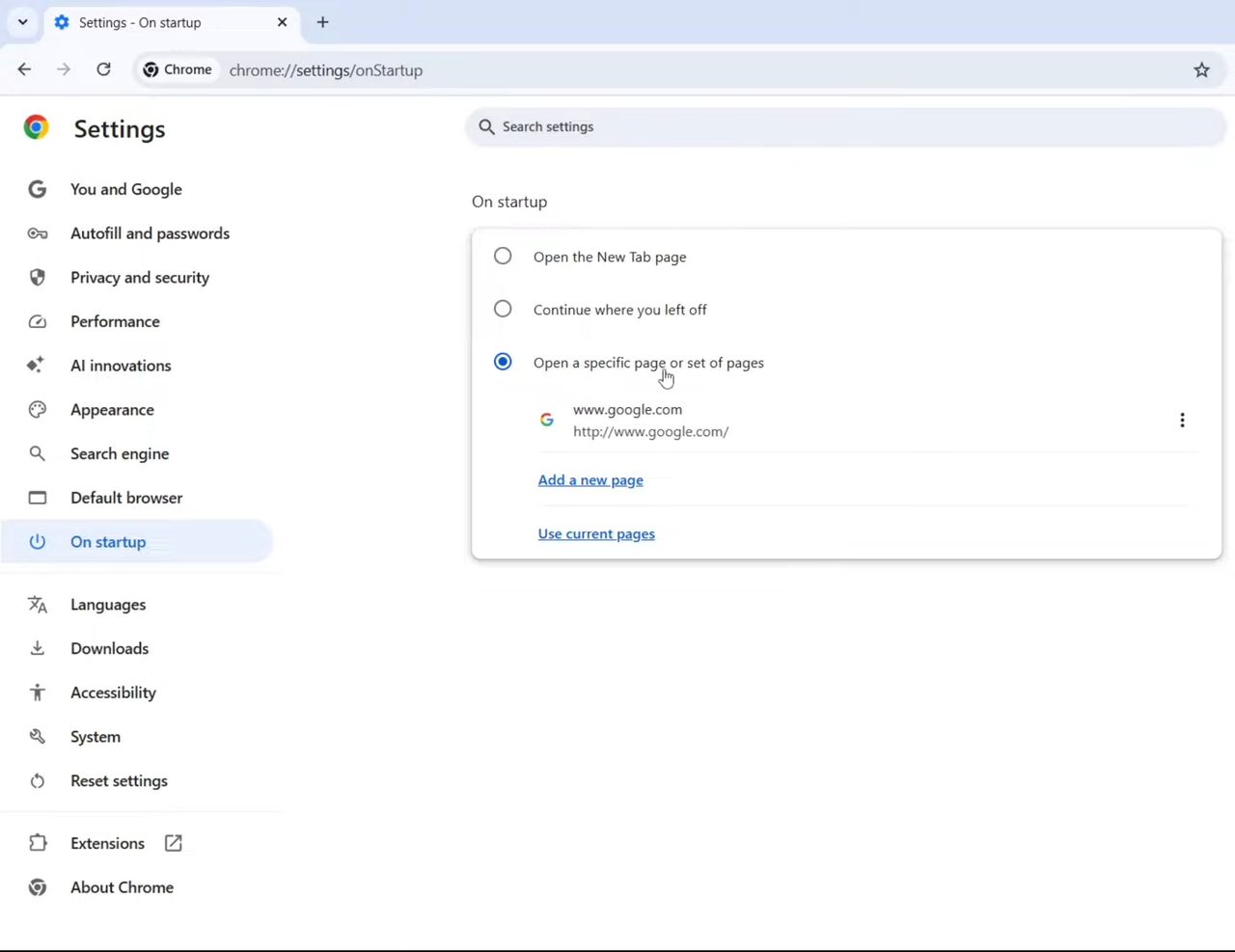
Then click On startup in the left menu. You get three choices: Open the New Tab page, Continue where you left off (reopens the tabs from last time) or Open a specific page or set of pages. For the last one, click Add a new page and enter a web address. We entered google.com, so Chrome now opens Google every time it starts. Google's Set your homepage and startup page help page covers this setting too.
Tips / troubleshooting
- No Customize Chrome button: check that Google is your default search engine under Settings > Search engine. With another search engine the New Tab page looks different and the button may not appear.
- No Toolbar option: it is a recent addition. Update Chrome from three dots > Help > About Google Chrome and restart it.
- Want the original look back: click Reset to Default Chrome under the color grid. It removes your theme and colors in one go.
- A shortcut is wrong: point to its icon on the New Tab page, click the three dots at its top right and choose Edit shortcut or Remove. This works with My shortcuts.
- Dark mode didn't change web pages: the Dark setting changes Chrome's own frame and menus. Websites decide their own colors.
Related guides: How to Make Chrome Your Default Browser on Windows and How to Disable Pop-ups in Chrome.
FAQ
How do I change the Google Chrome background?
Open a new tab, click Customize Chrome at the bottom right, then Change theme. Pick a solid color or a collection, or click Upload an image to use your own picture.
How do I reset Chrome to the default theme?
In the Customize Chrome panel, click Reset to Default Chrome below the color grid. The background and colors go back to the standard Chrome look.
How do I make Chrome open Google when it starts?
Go to three dots > Settings > On startup, choose Open a specific page or set of pages, click Add a new page and type google.com.
Can I customize the Chrome homepage on my phone the same way?
Not shown in the video. The Customize Chrome panel with themes, colors and toolbar settings is the desktop version of Chrome; the Android and iPhone apps have fewer options.
Related guides