Tech is Easy
How to Use Do Not Disturb on Android (DND Settings Guide)
To use Do Not Disturb on Android, open Settings, search for do not disturb, and turn on the Do not disturb switch. Then set Exceptions for the calls, alarms and apps that should still reach you, and add a Schedule so DND switches on by itself. This guide is for anyone who wants a quiet phone during work or sleep without missing important calls.
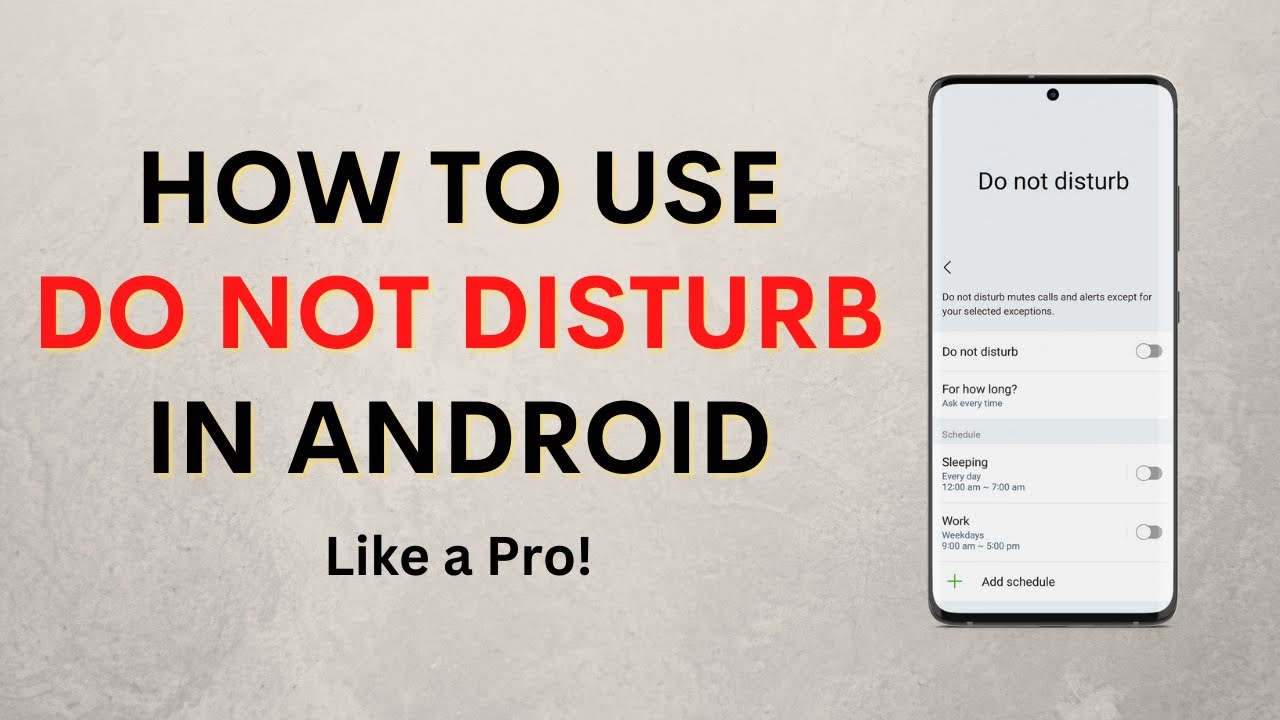
The steps were recorded in 2022 on a Samsung phone, so menus may look slightly different now. Other Android phones have most of the same settings, but the layout can differ.
1Find Do Not Disturb in Settings
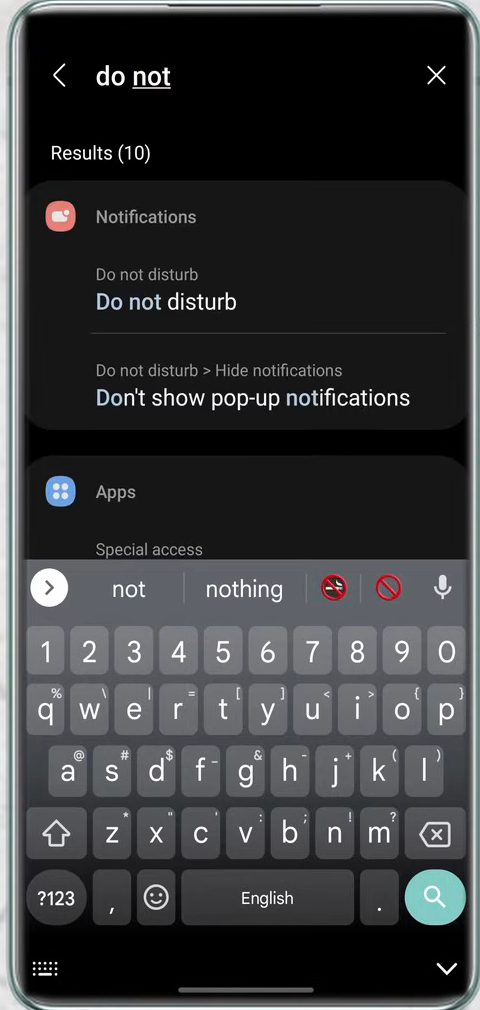
Open the Settings app, tap the search icon and type do not disturb. Tap the Do not disturb result under Notifications.
2Get to know the Do Not Disturb page
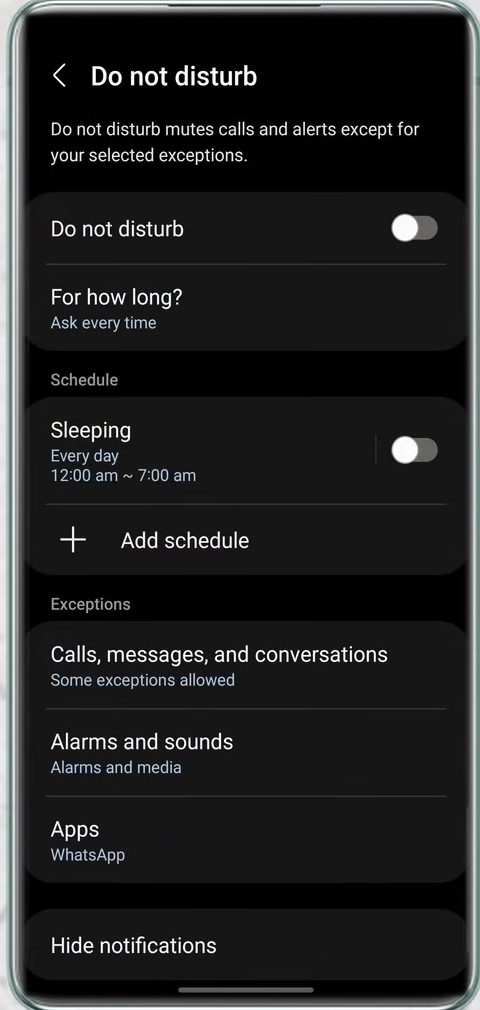
This page has everything in one place. The Do not disturb switch at the top turns it on right away, and For how long? decides when it turns off. Below that are Schedule, Exceptions and Hide notifications, which are covered in the next steps.
3Choose who can still call you
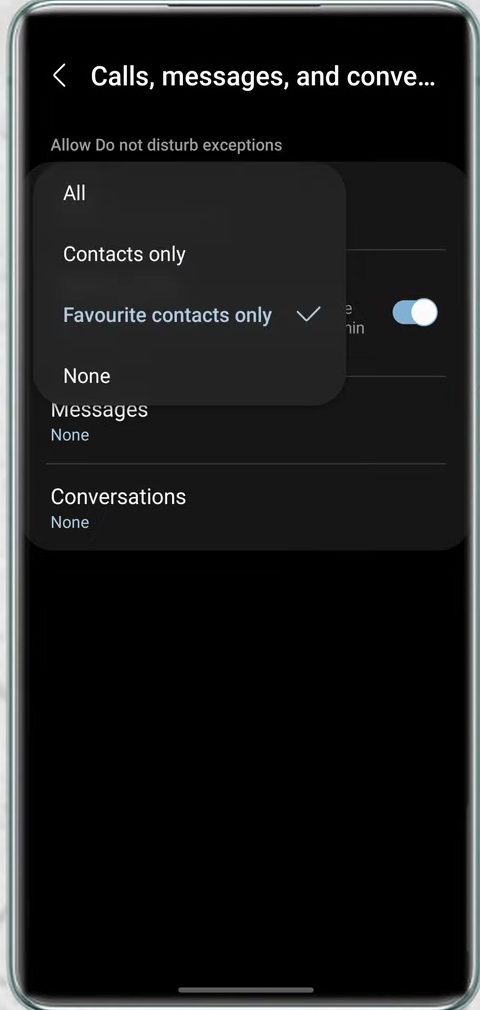
Under Exceptions, tap Calls, messages, and conversations, then tap Calls. Pick All, Contacts only, Favourite contacts only or None. Anyone outside your choice is silenced while DND is on.
4Turn on Repeat callers and set messages
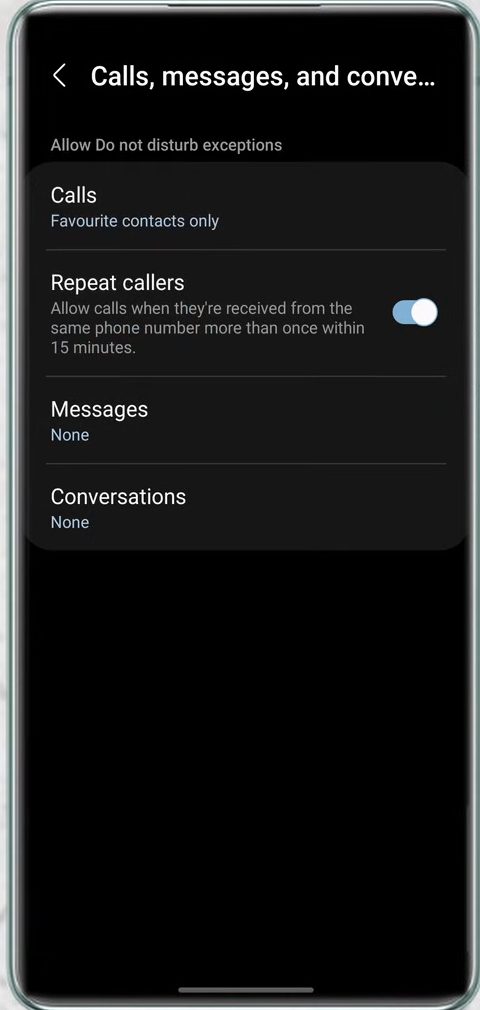
On the same screen, switch on Repeat callers. If someone calls from the same number more than once within 15 minutes, the second call rings, which is handy for emergencies. Messages and Conversations work the same way as Calls, so set them to whichever option you want.
5Pick which alarms and sounds play
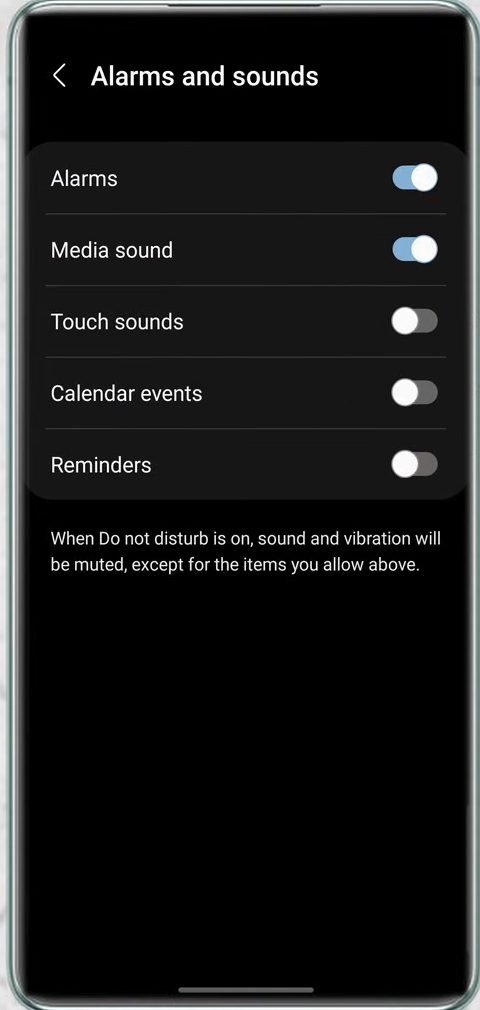
Go back and tap Alarms and sounds. Switch on the sounds you still want to hear, such as Alarms, Media sound, Touch sounds, Calendar events and Reminders. Everything else is muted while DND is on.
6Let important apps through
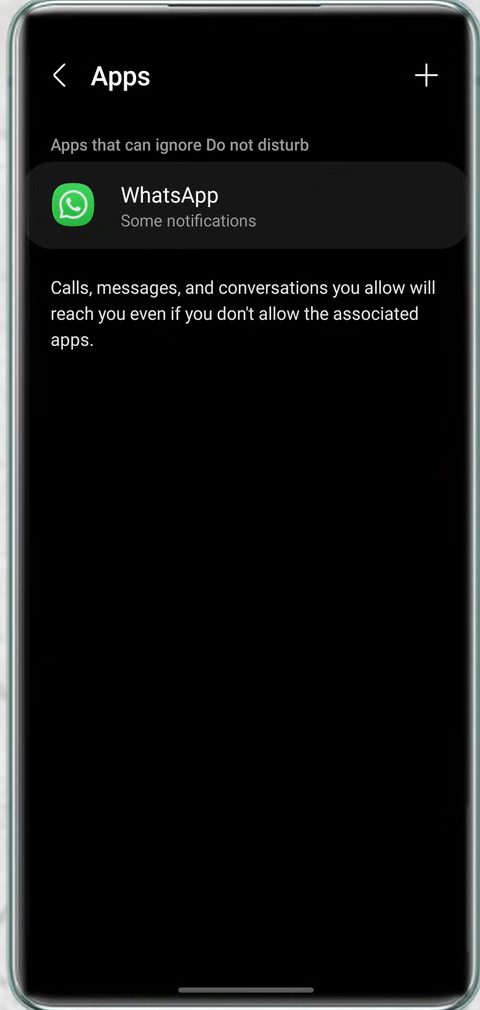
Go back and tap Apps. This lists apps that can ignore Do Not Disturb (WhatsApp in our example). To add another, tap the + at the top right and choose any app installed on your phone.
7Choose which notifications from that app get through
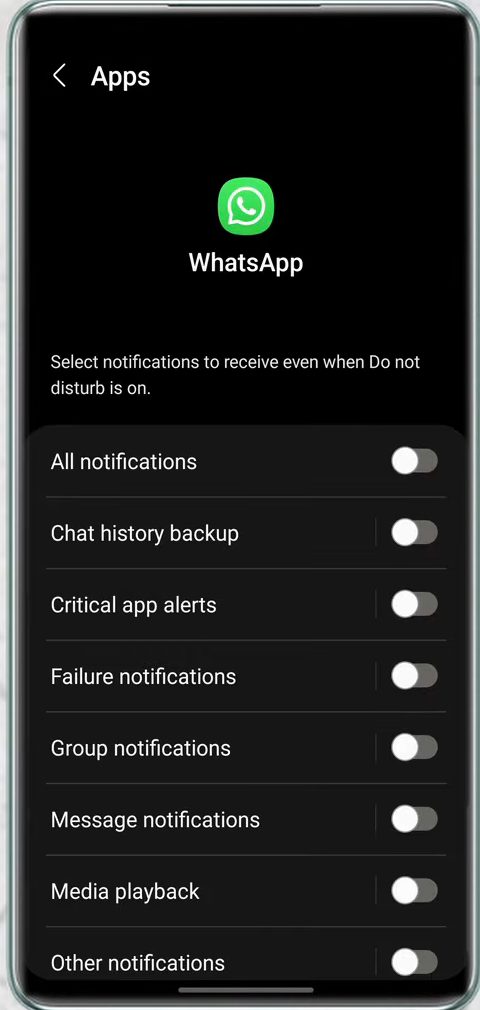
Tap an app in the list, for example WhatsApp. Switch on only the notification types you want to receive during DND, such as Message notifications or Group notifications, or turn on All notifications.
8Add a schedule
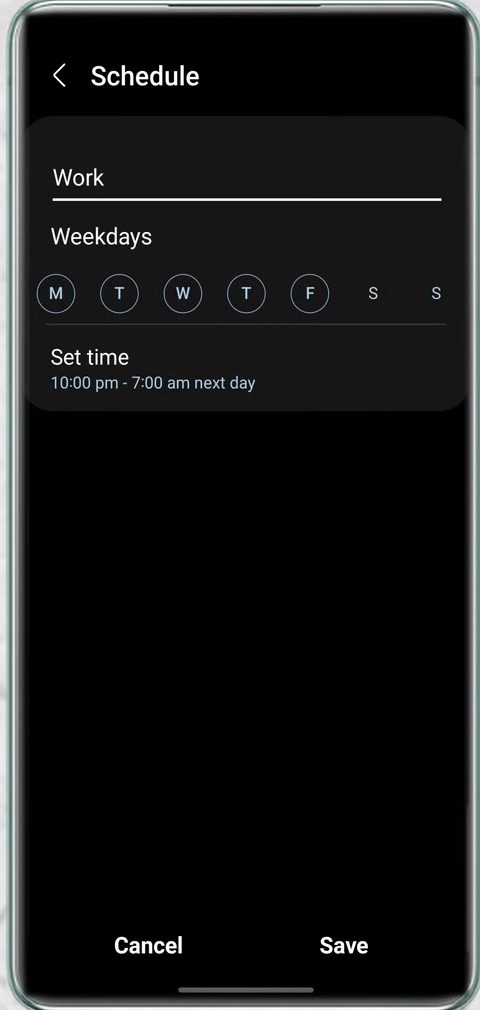
Back on the main page, tap Add schedule under Schedule. Give it a name (we used Work) and tap the days to include. To make it weekdays only, untap S and S for Saturday and Sunday.
9Set the start and end time, then save
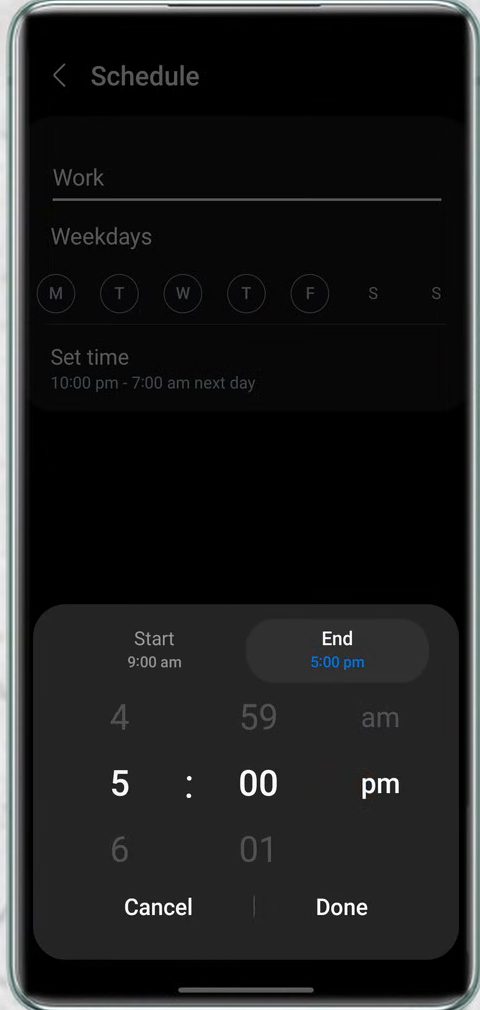
Tap Set time. Choose the Start time, then switch to End and choose when it should stop. Tap Done, then Save. In our example the phone now goes into DND every weekday from 9:00 am to 5:00 pm.
10Decide whether to hide notifications
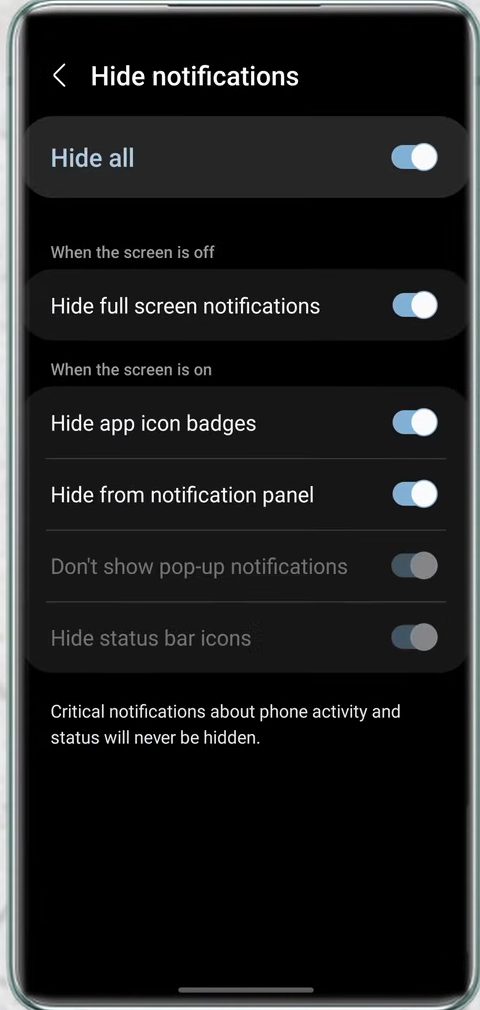
Scroll to the bottom of the Do Not Disturb page and tap Hide notifications. Turn on Hide all, or choose individual options like Hide full screen notifications, Hide app icon badges and Hide from notification panel. Critical notifications about phone activity and status are never hidden.
Related guides: How to Enable Split Screen on Android (Use 2 Apps at Once) and How to Take Scrolling Screenshot on Android (Long Screenshot).
FAQ
How do I turn on Do Not Disturb on Android?
Open Settings, search for do not disturb, and switch on Do not disturb at the top of the page. You can also set it to turn on automatically with a schedule.
Will my alarm still ring on Do Not Disturb?
Yes, as long as Alarms is switched on under Exceptions > Alarms and sounds. It was switched on in our example.
Can certain people still call me when Do Not Disturb is on?
Yes. Under Calls, messages, and conversations, set Calls to Contacts only or Favourite contacts only, and turn on Repeat callers so a second call within 15 minutes rings through.
Is Do Not Disturb the same on non-Samsung phones?
Most Android phones have the same main options (exceptions for calls, alarms and apps, plus schedules), but names and layout differ. The video shows a Samsung phone only.
Related guides