Tech is Easy
How to Share WiFi Password Using QR Code on Android
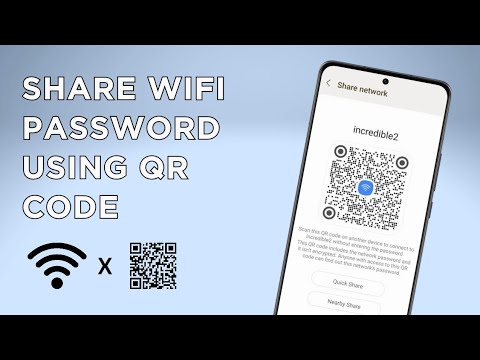
To share a WiFi password using a QR code on Android, go to Settings > Connections > Wi-Fi, tap the gear icon next to the network you are connected to, then tap QR code. Anyone who scans that code with their phone camera joins the WiFi without typing the password. We used a Samsung phone; other Android phones have a similar option.
What you need
- Your Android phone connected to the WiFi network you want to share
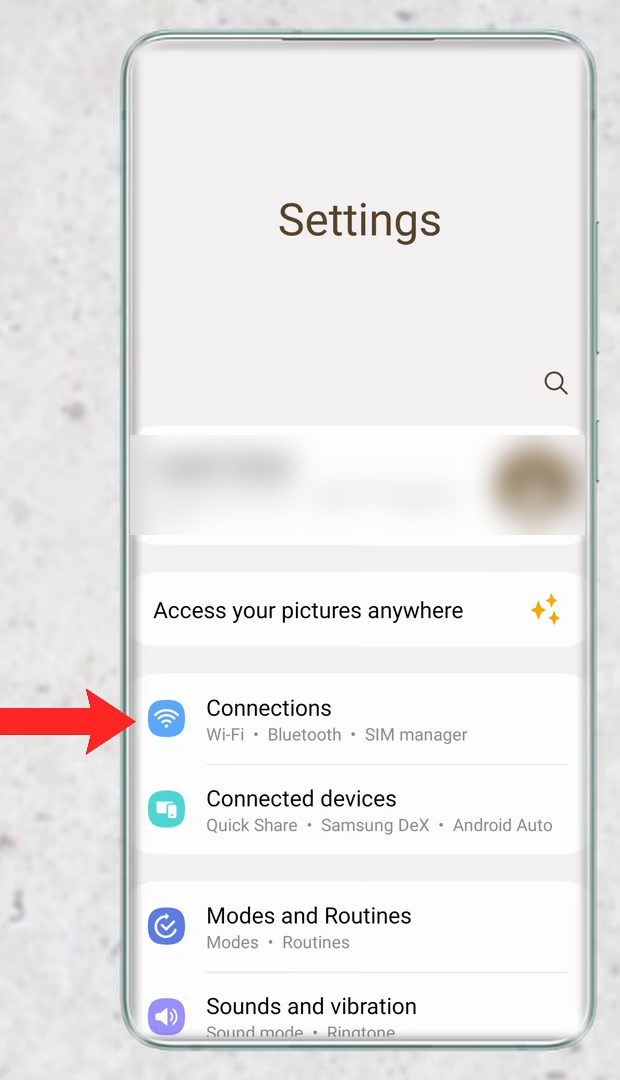
1Open Settings and go to Connections
Open Settings. On Samsung phones WiFi lives under Connections. On other phones, look for Network or simply search for Wi-Fi using the search icon at the top.
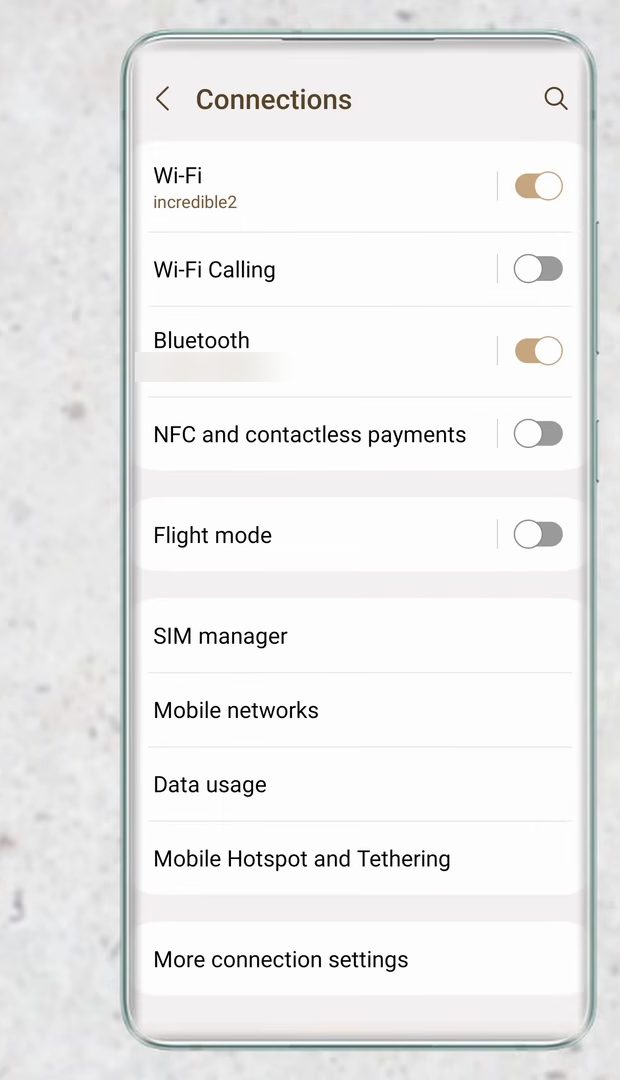
2Open Wi-Fi
Tap Wi-Fi to see the list of networks.
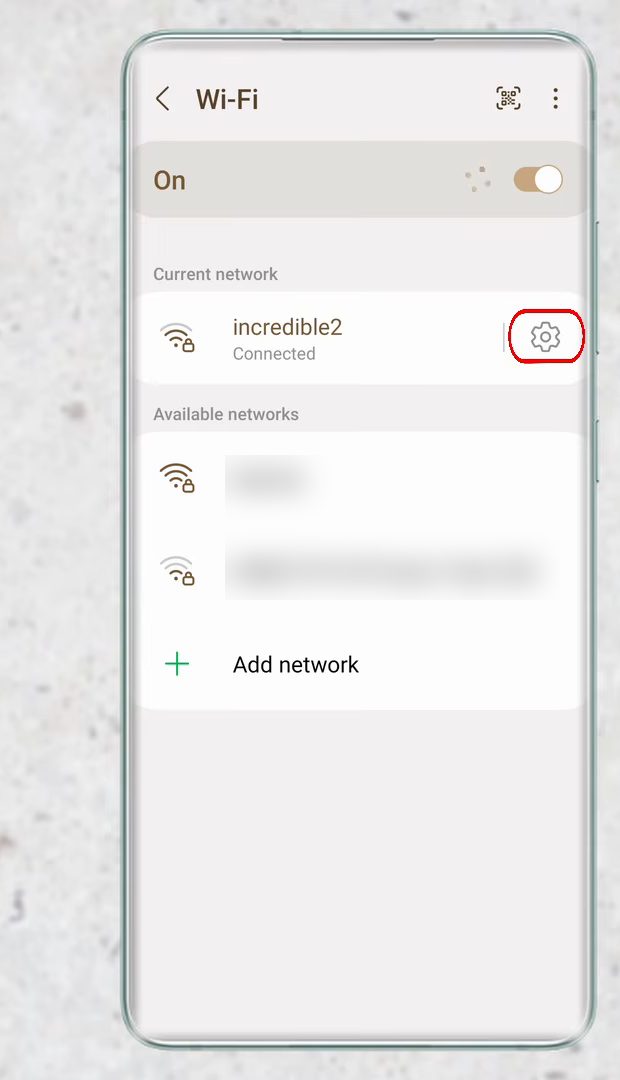
3Tap the gear icon next to your network
Make sure you are connected to the WiFi whose password you want to share. It shows under Current network. Tap the settings (gear) icon next to it.
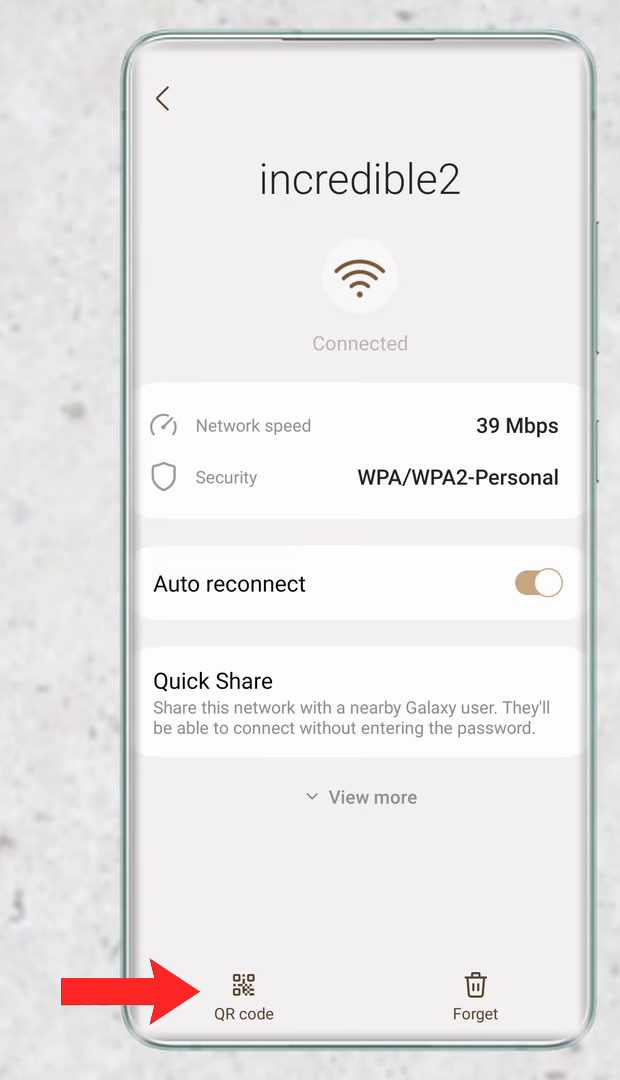
4Tap QR code
On the network details page, tap QR code at the bottom left.
5Let the other person scan the code
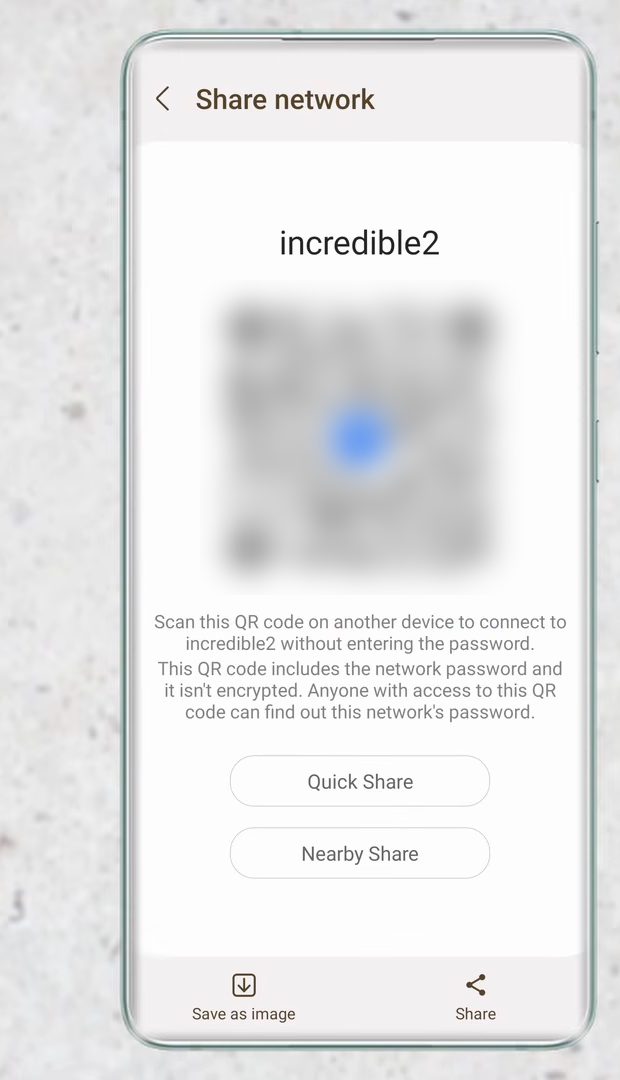
A Share network page opens with a QR code. Anyone can scan it with another phone and connect to your WiFi automatically, without entering the password. (We blurred our code in these screenshots, since it contains the real password.)
6Share the QR code another way (optional)
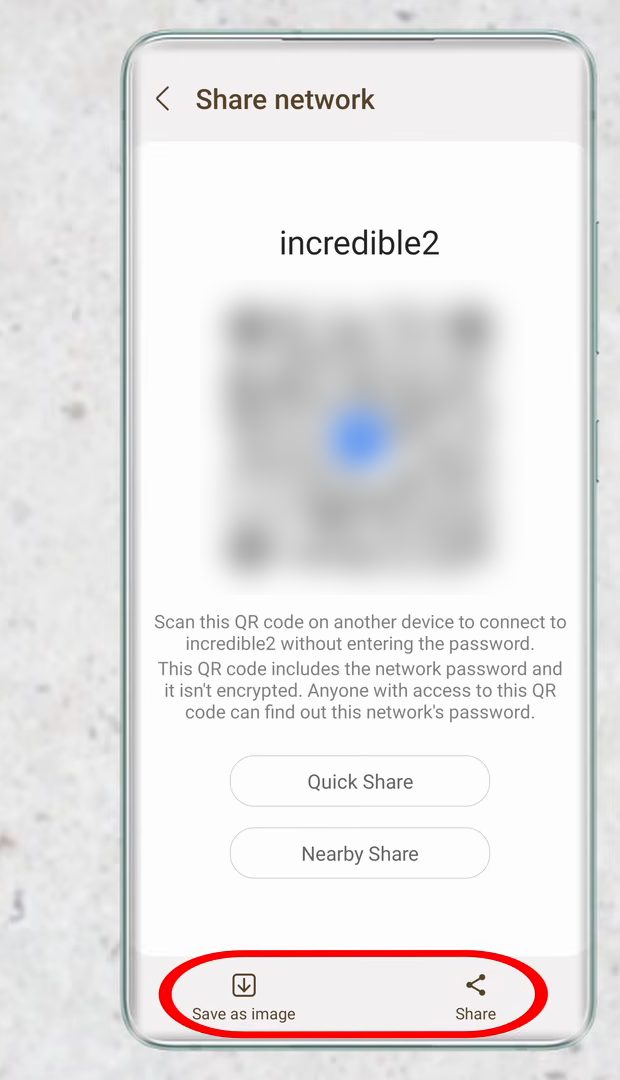
If the person isn't next to you, use Quick Share or Nearby Share, tap Save as image at the bottom to keep it in your gallery, or tap Share to send the code through apps like WhatsApp.
On Pixel and other phones with stock Android
The video uses a Samsung phone, where the option is called QR code. On Pixel and other phones running Google's version of Android the wording is different. Google's Android help page on Wi-Fi networks gives this path: open Settings, tap Network & internet > Internet, tap your Wi-Fi network, then tap Share. Your phone shows a QR code that your friend scans with another device. Google notes that some of these steps only work on Android 12 and up. Many phones ask for your fingerprint, PIN or pattern before they show the code, since it reveals the password.
How the other person scans the code
- Android: Open the camera app and point it at the code. Most phones show a "Connect to network" prompt. If the camera doesn't react, use Google Lens or the QR scanner in the quick settings panel, if your phone has one.
- iPhone: Open the Camera app, point it at the code and tap the Wi-Fi notice that appears at the top of the screen. iPhones can join networks shared this way from an Android phone.
- Laptops: Most laptops can't scan a QR code to join Wi-Fi. For a computer, the password still has to be typed in.
Tips / troubleshooting
- No QR code button? Check that you tapped the gear next to the network you are connected to right now. Saved networks you are not connected to may not offer the option on every phone.
- The scan fails. Turn your screen brightness up, hold the phones about a hand's length apart and make sure the whole code is in the camera frame.
- It connects but has no internet. The QR code only shares the network name and password. If your own phone also has no internet on that Wi-Fi, the problem is the router, not the code.
- You changed the Wi-Fi password. The code holds the old password, so any saved image or shared copy stops working. Generate a new code from the same screen.
- Sharing with visitors often? If your router has a guest network, connect to it and share that code instead, so visitors never get your main password.
Need to move other files between your phone and computer? See how to transfer files between phone and PC using Phone Link.
FAQ
How do I share my WiFi password with a QR code on Samsung?
Go to Settings > Connections > Wi-Fi, tap the gear next to your connected network, then QR code.
Can I see the WiFi password itself this way?
The QR code holds the password, and the screen notes that anyone with access to the code can find out the network's password. Showing the password as text is not covered in the video.
Does this work on Oppo, Vivo and other Android phones?
Most Android phones have a QR code option in their WiFi network settings. Menu names differ by brand, so if you don't see Connections, search for Wi-Fi in Settings.
Can an iPhone scan a WiFi QR code from Android?
Yes. The QR code uses a standard Wi-Fi format, so the iPhone Camera app reads it and offers to join the network. No extra app is needed.
How do I share WiFi on a Google Pixel?
Go to Settings > Network & internet > Internet, tap the network you are connected to, then tap Share. Confirm it's you with your fingerprint or PIN and the QR code appears.
Is it safe to share the QR code?
The code is not encrypted, so anyone who sees or scans it can join your network. Only share it, or a saved image of it, with people you trust.
Related guides