Tech is Easy
How to Take Scrolling Screenshot on Android (Long Screenshot)
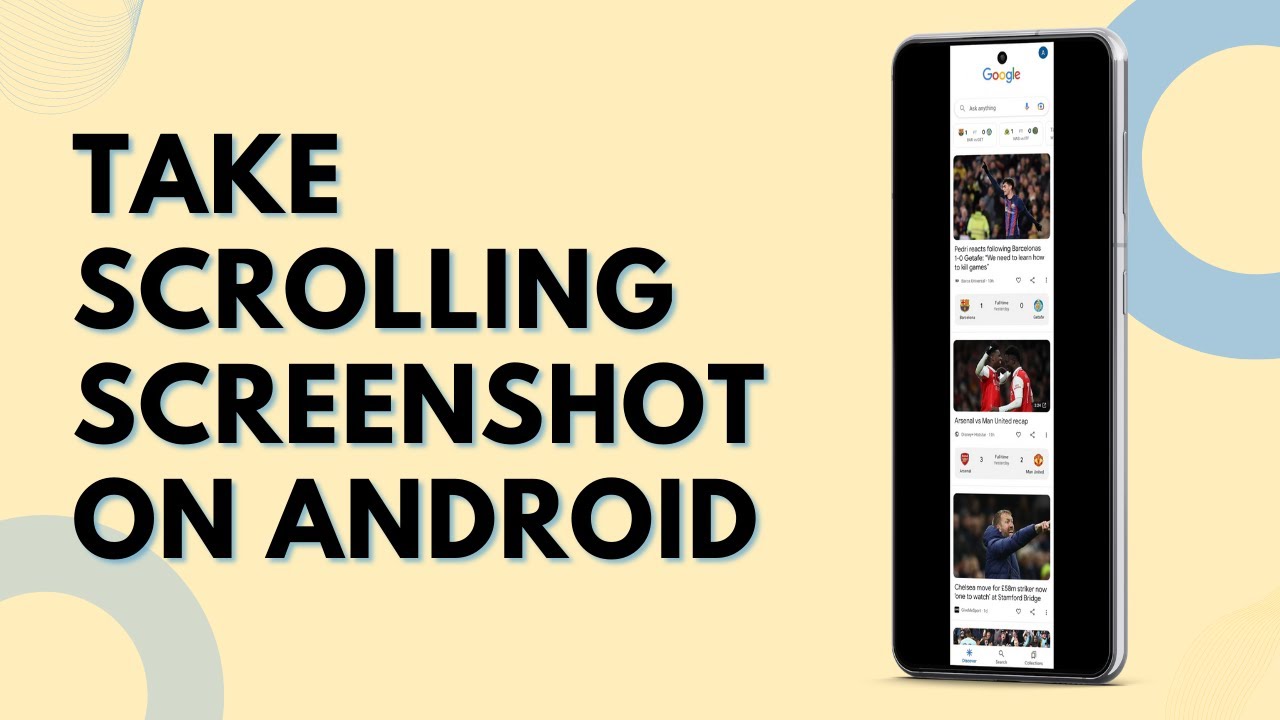
To take a scrolling screenshot on Android, take a normal screenshot with Power + Volume Down, then tap the scroll capture button in the toolbar that pops up at the bottom. Each tap adds more of the page to the same image. It is also called a long screenshot, handy for saving a full article or web page in one picture.
Before you start
- Android version. Google's help page on taking a screenshot or recording your screen on Android says the scrolling screenshot works on Android 12 and up, on most screens that allow scrolling. You can check your version in Settings under About phone.
- Start at the right spot. The capture begins from whatever is on screen when you press the buttons, so scroll to the top of the part you want first. It only adds content below that point.
- Close pop-ups. Cookie banners, chat bubbles and keyboards get captured too. Dismiss them before you start so they don't sit in the middle of your long image.
1Open the page you want to capture
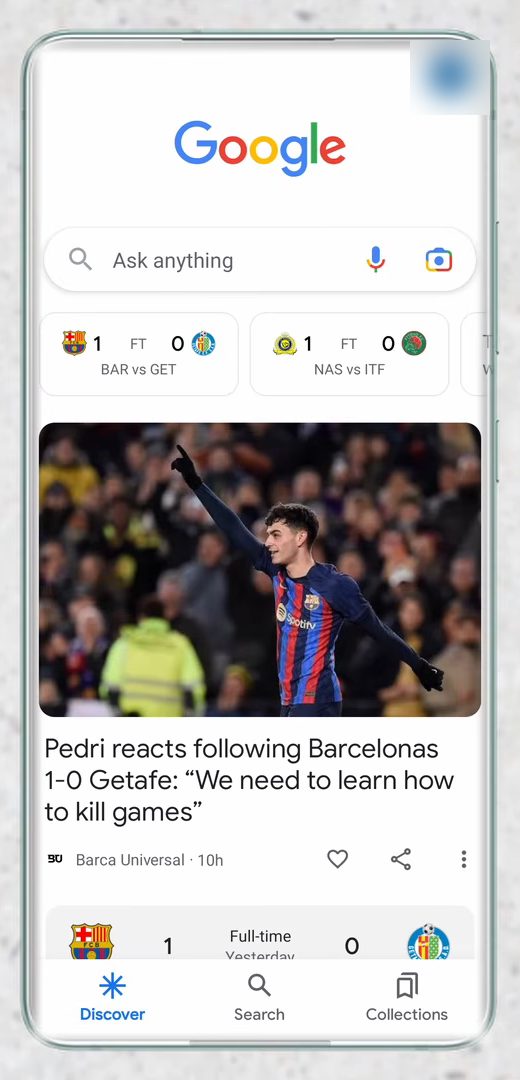
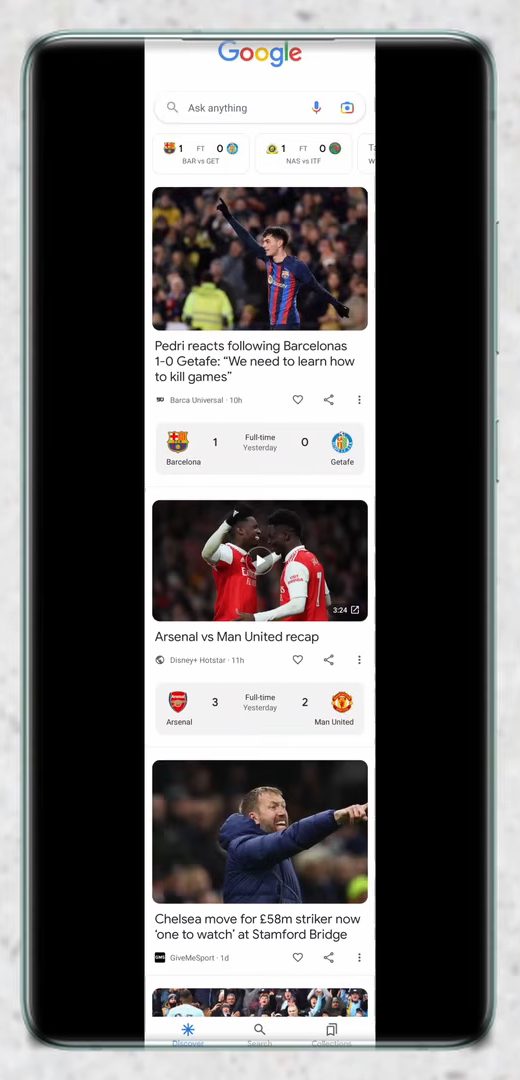
Open the app or web page and scroll to the point where you want the screenshot to start. In our example it is the Google app feed.
2Take a normal screenshot
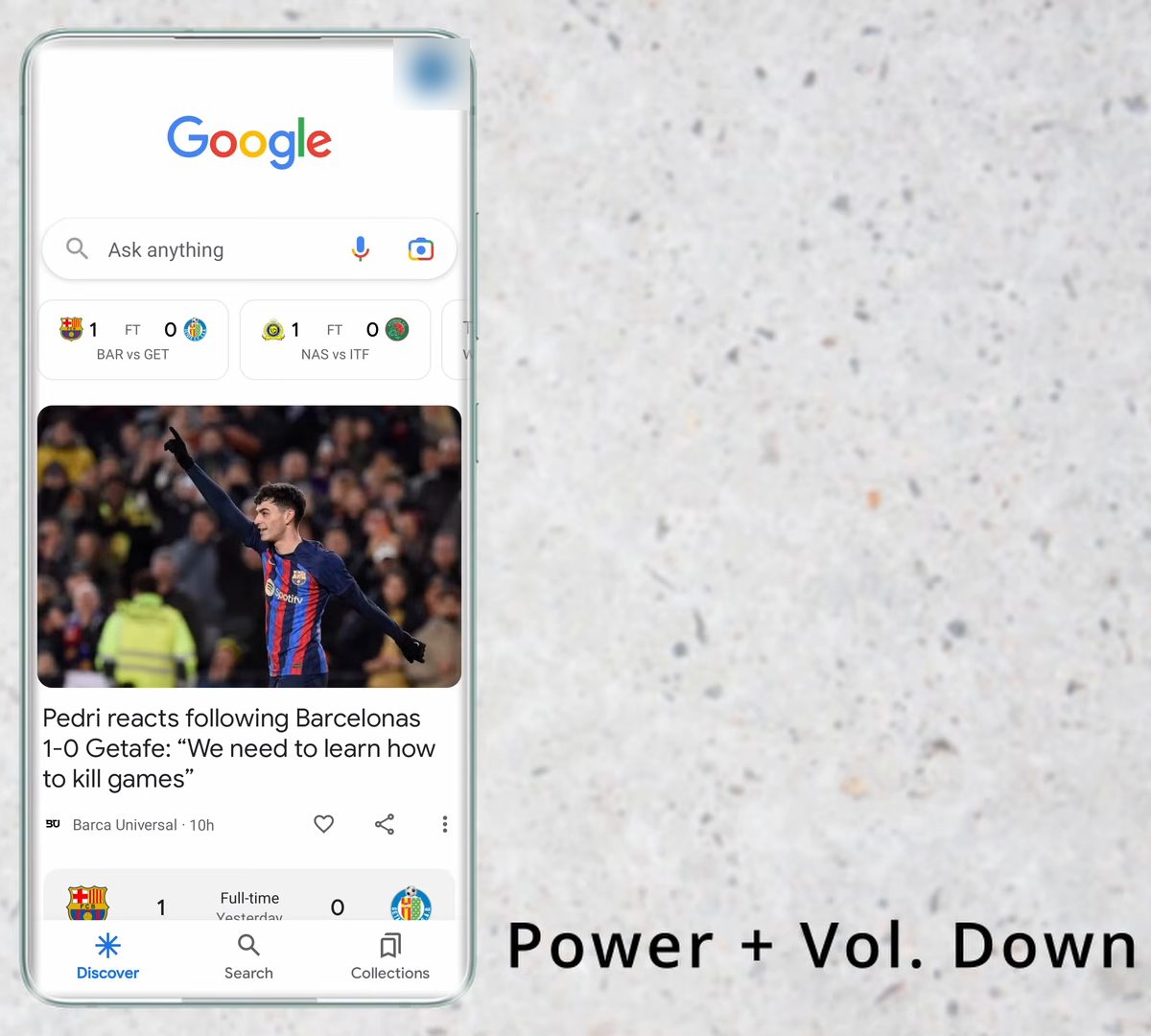
Press the Power and Volume Down buttons together. The screen flashes and a small toolbar appears at the bottom with a preview of the screenshot.
3Tap the scroll capture button
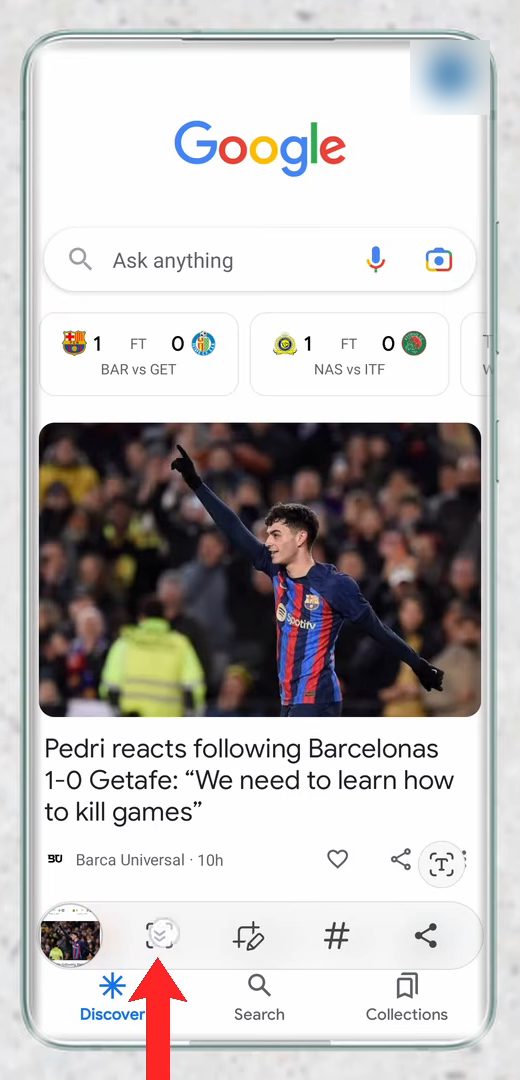
In that toolbar, tap the scroll capture icon (on Samsung phones it is the box with a down arrow, next to the preview). The phone scrolls down and joins the next part of the page onto your screenshot.
4Keep tapping until you have enough
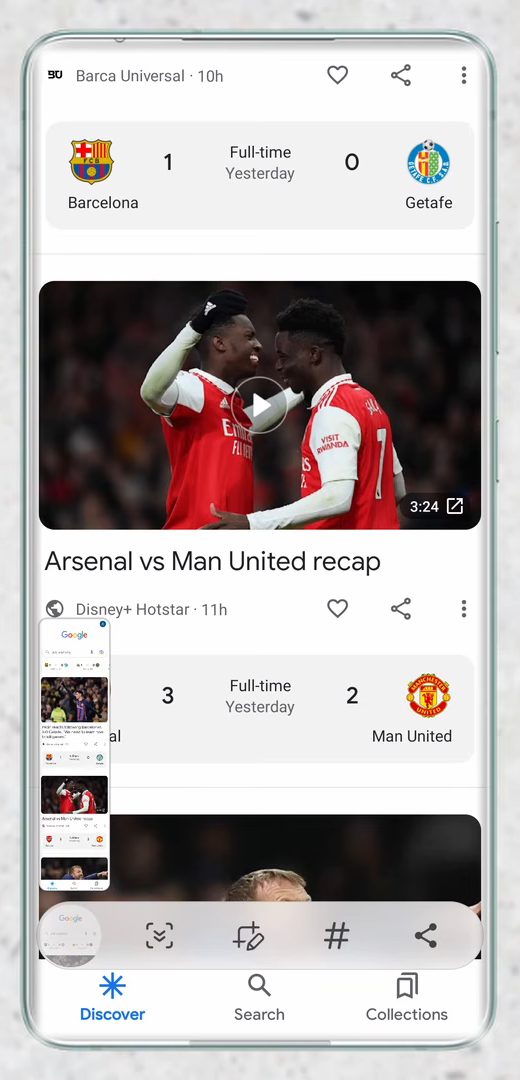
Tap the same button again to capture more. You can keep pressing it based on how much of the screen you want. The preview on the left grows taller each time.
On phones from other brands, the button may look different and say something like Scroll or Long screenshot. After tapping it, you usually drag the edge of the screenshot down to cover the full page.
5Find it in your Gallery
Open your Gallery. The long screenshot is with your other screenshots. Open it to see the whole scrolled area in one image.
Samsung vs Pixel and other Android phones
The idea is the same on every phone: take a normal screenshot, then use the extra button that appears with the preview. What changes is how you decide where the screenshot ends.
- Samsung Galaxy: you tap the scroll capture button over and over. Each tap scrolls the page and joins the next part onto the image, so you stop tapping when you have enough.
- Pixel and phones close to stock Android: Google's help page says to tap Capture more at the bottom after taking the screenshot, then use the crop guidelines to choose how much of the page to keep. You drag the edges instead of tapping repeatedly.
- Other brands: many phones use a button named Scroll or Long screenshot. After tapping it, you usually either drag the edge down or let the phone scroll on its own and tap to stop.
If Power + Volume Down does nothing on your phone, Google's page suggests pressing and holding the Power button for a few seconds and then tapping Screenshot.
Tips / troubleshooting
- The scroll button never appears. The phone may be on Android 11 or older, where many phones don't offer it. It also won't show on a screen that doesn't scroll, such as the home screen or a page that already fits on one screen.
- The toolbar disappears too fast. It stays for only a few seconds. If you miss it, take the screenshot again and tap the scroll button straight away.
- The toolbar doesn't show at all on Samsung. Samsung lets you turn the screenshot toolbar off. Open Settings, search for screenshot toolbar, and make sure it is on.
- "Can't take screenshot" message. Some apps block screenshots for security, for example banking apps, some payment screens and private or incognito browser tabs. A scrolling screenshot won't work there either.
- The image stops early. Some apps load more content only as you scroll, or use a fixed screen layout the phone can't scroll by itself. If the capture stops, take two or three normal long screenshots instead.
What to do with the long screenshot
The finished image is saved as one tall picture, so you can crop, draw on it or share it like any other screenshot. Google's page notes that if your phone doesn't have the Photos app, you'll find it in your Gallery under the Screenshots album. Very tall images can be hard to read when shared in chat apps, because the app may shrink them. Sending it as a document or file keeps it sharp.
If you take a lot of screenshots and want them on your computer, see how to transfer photos from Android to PC.
FAQ
How do I take a long screenshot on a Samsung phone?
Press Power + Volume Down, then keep tapping the scroll capture button (box with a down arrow) in the toolbar at the bottom.
Why don't I see the scrolling screenshot option?
The toolbar only appears for a few seconds after you take a screenshot, so tap the button quickly. It also only shows when the screen can scroll; on a page that fits one screen there is nothing more to capture.
Does this work on every Android phone?
Most recent Android phones have a scrolling screenshot option, but the button looks different by brand. The video shows a Samsung phone and mentions that other phones have a similar button.
Where are scrolling screenshots saved?
In your Gallery, next to your other screenshots.
What if Power + Volume Down doesn't take a screenshot?
Press both buttons at exactly the same time and release them together. If that still doesn't work, Google suggests holding the Power button for a few seconds and tapping Screenshot, or checking your phone maker's support site.
Can I record my screen instead of taking a long screenshot?
Yes. Google's help page says to swipe down twice from the top of the screen and tap Screen record in Quick Settings. A recording is better when you want to show steps or movement, while a long screenshot is better for a page you want to read later.
Related guides