Tech is Easy
How to Use iPad as a Second Monitor for MacBook (Sidecar)
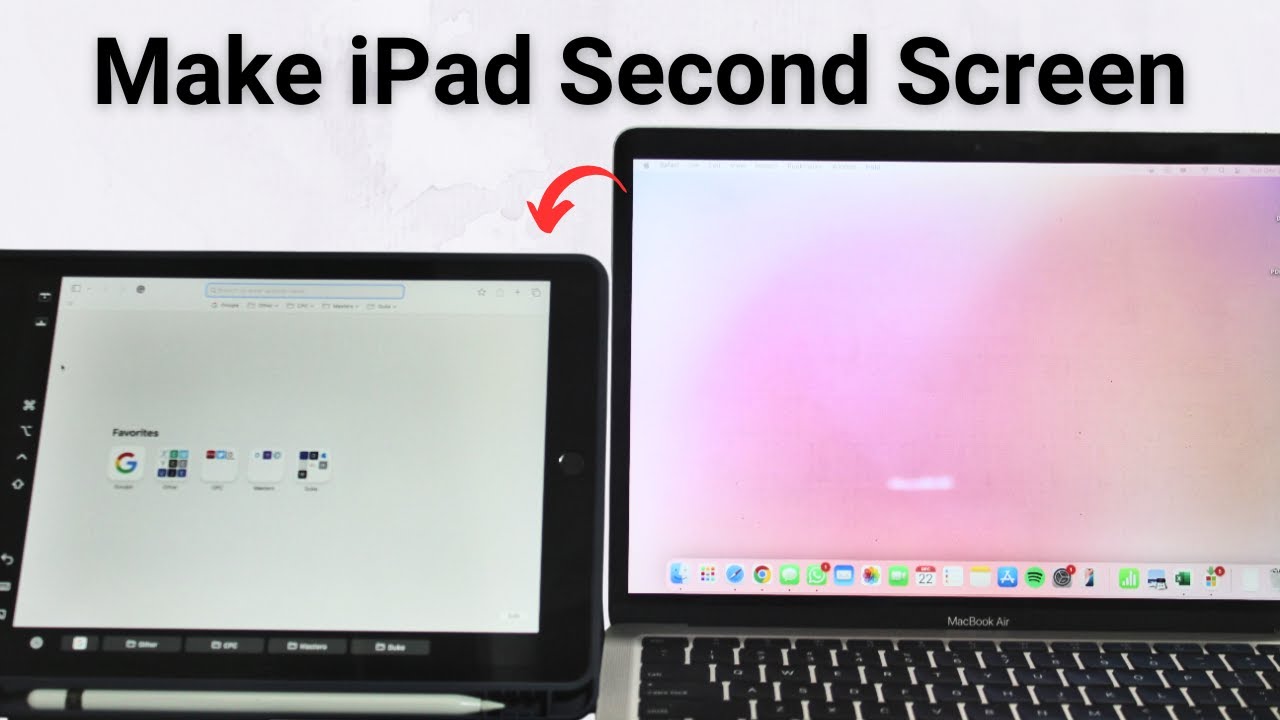
To use your iPad as a second monitor for your MacBook, open Control Center on the Mac, click Screen Mirroring and choose your iPad. The iPad then acts as an extra screen, so you can move the pointer onto it and drag windows across. This built-in feature is called Sidecar, it is free, and it works wirelessly as long as both devices are close together, signed in to the same Apple account, and have Wi-Fi, Bluetooth and Handoff turned on.
It is handy when you are working on a MacBook away from your desk and want more room for a second app, a reference document or a video call.
What you need
- A Mac running macOS Catalina or later and an iPad running iPadOS 13 or later (the supported models are listed in Step 1)
- The same Apple account signed in on both devices
- Both devices within about 10 meters (30 feet) of each other
1Check that your Mac and iPad support Sidecar
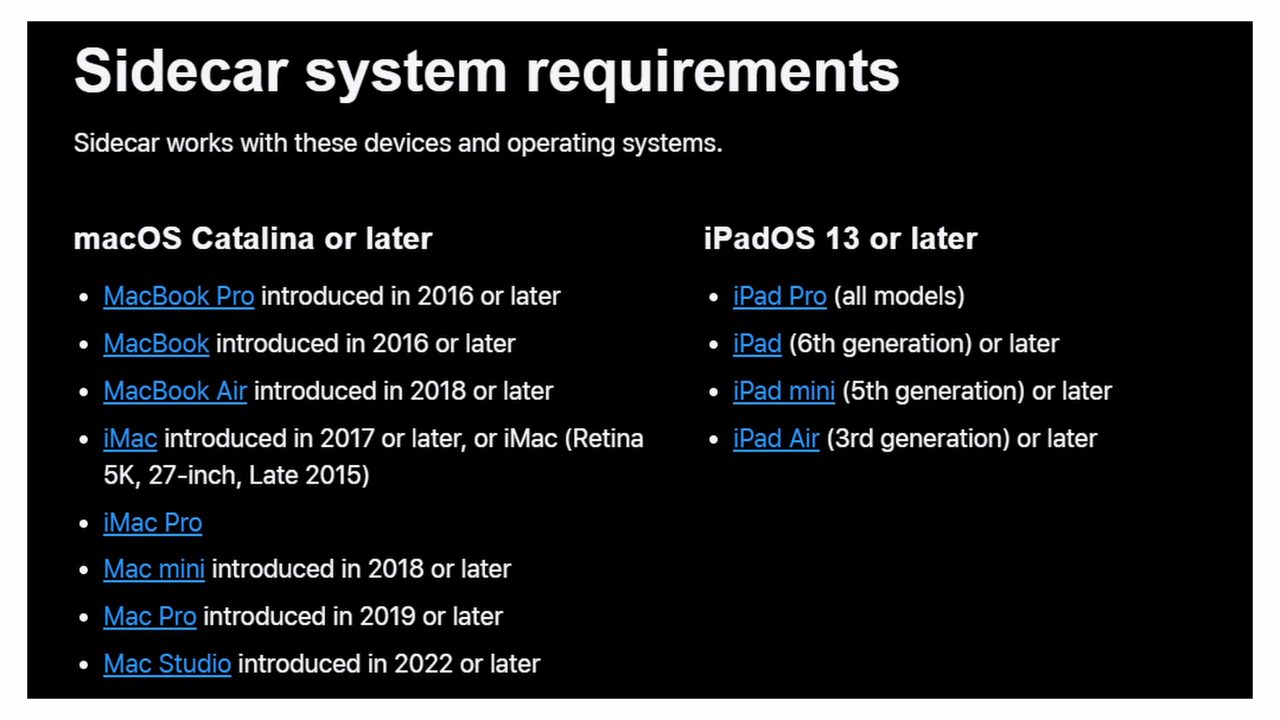
Not every Mac and iPad can do this. On the Mac side you need a MacBook Pro or MacBook from 2016 or later, a MacBook Air from 2018 or later, an iMac from 2017 or later (or the iMac Retina 5K 27-inch, Late 2015), an iMac Pro, a Mac mini from 2018 or later, a Mac Pro from 2019 or later, or a Mac Studio. On the iPad side you need any iPad Pro, iPad (6th generation) or later, iPad mini (5th generation) or later, or iPad Air (3rd generation) or later.
2Keep both devices close and use the same Apple account
Place the iPad within 30 feet (10 meters) of the Mac. Next to each other on the desk is ideal. Then make sure you are signed in with the same Apple account on both. On the Mac you can see it at the top of System Settings, and on the iPad at the top of Settings. Apple also requires two-factor authentication on that account.
3Turn on Wi-Fi and Bluetooth on the Mac
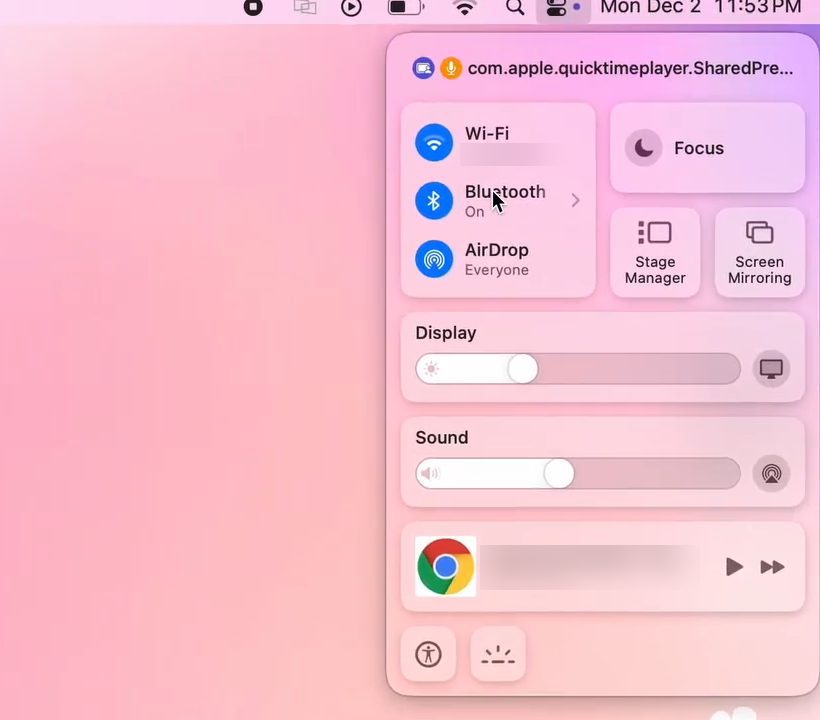
Click the Control Center icon (two small toggles) at the top right of the menu bar. Check that Wi-Fi is connected and Bluetooth says On. Click either one to turn it on if it is off.
4Turn on Handoff on the Mac
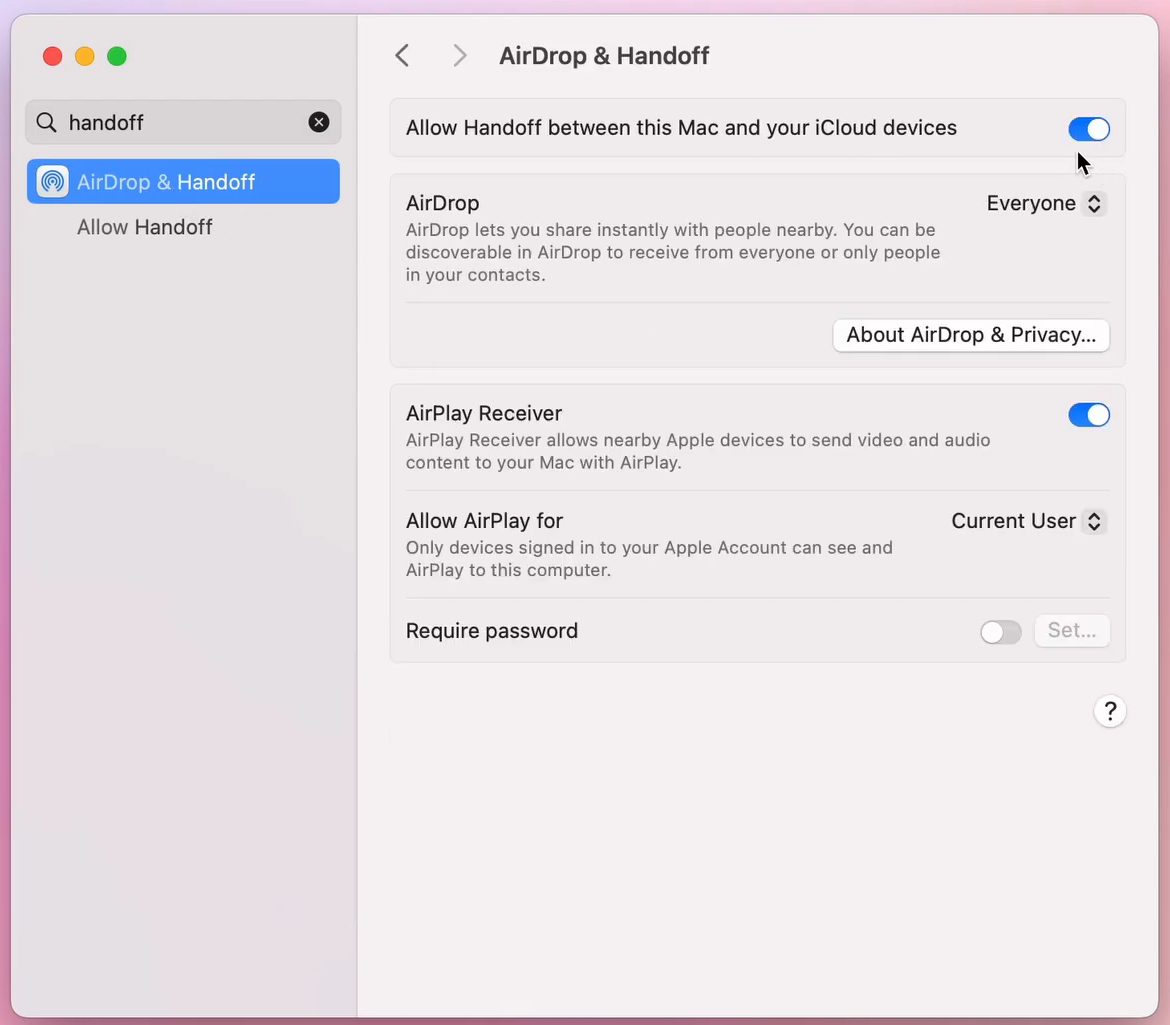
Open System Settings and type handoff in the search box at the top left. Click AirDrop & Handoff in the results and make sure Allow Handoff between this Mac and your iCloud devices is switched on.
5Turn on Wi-Fi and Bluetooth on the iPad
On the iPad, swipe down from the top right corner to open Control Center. The Wi-Fi and Bluetooth buttons should both be blue. Tap either one if it is grey.

6Turn on Handoff on the iPad
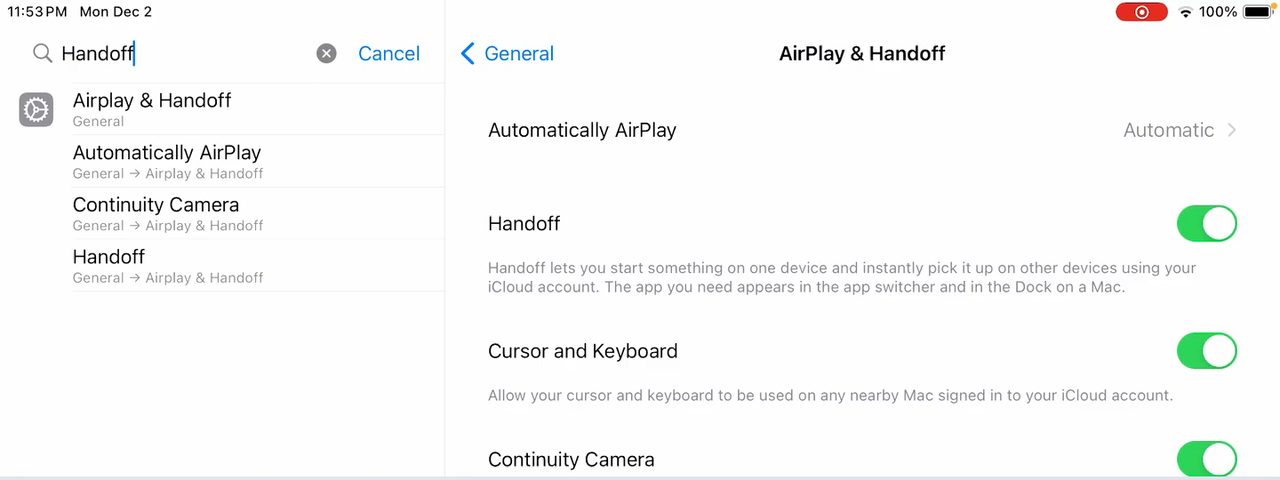
Open Settings on the iPad and search for Handoff. Tap the result under AirPlay & Handoff and make sure the Handoff switch is green. In our example Cursor and Keyboard and Continuity Camera were on too.
7Connect from Screen Mirroring on the Mac
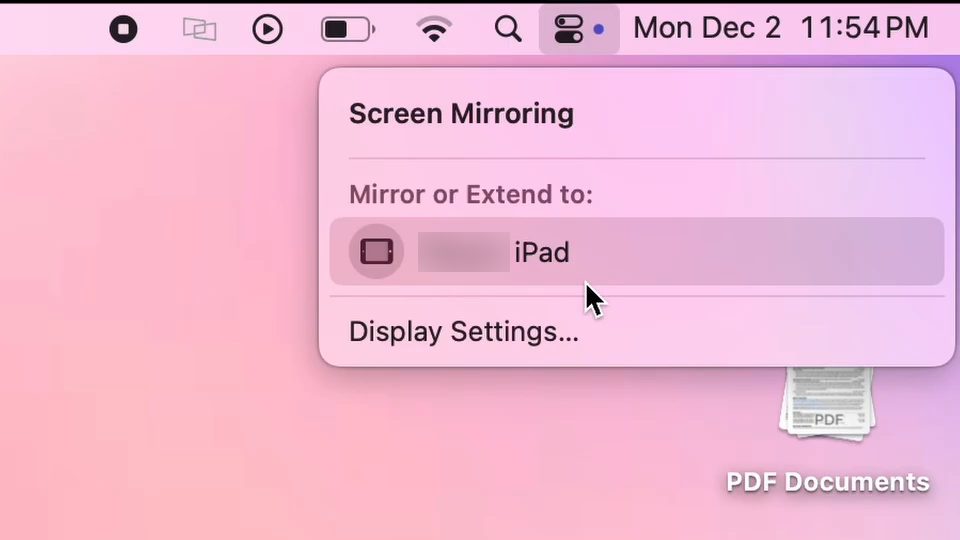
Back on the Mac, open Control Center again and click Screen Mirroring. Under Mirror or Extend to, click your iPad's name. After a moment the iPad shows the Mac's desktop background and becomes a second display.
8Move your pointer and drag windows to the iPad
Move the mouse pointer off the edge of the Mac screen and it appears on the iPad. To move an app, drag its window from the Mac screen onto the iPad. We dragged a Safari window over and it worked like a normal window there. Drag it back the same way when you want it on the Mac again.
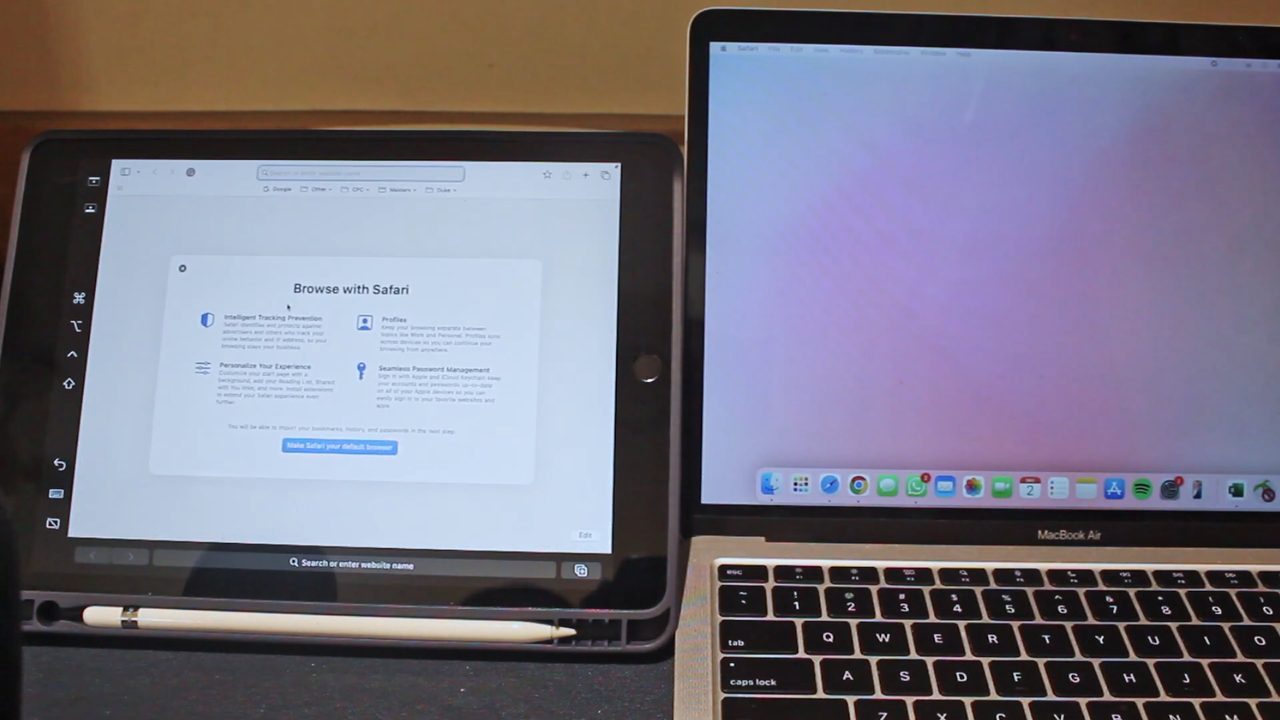
To end the session, open Screen Mirroring in Control Center again and click your iPad to disconnect. The sidebar on the left of the iPad screen also has a disconnect button at the bottom.
Tips and troubleshooting
- iPad not listed under Screen Mirroring? Go back over steps 1 to 6. The usual cause is a missing requirement: an older model, a different Apple account on one device, or Handoff switched off on one side. Restarting both devices after changing those settings often helps.
- Turn off hotspot sharing. Apple's support page Use an iPad as a second display for a Mac says that for wireless Sidecar, the iPad must not be sharing its cellular connection and the Mac must not be sharing its internet connection.
- Battery draining? You can also connect the iPad to the Mac with its USB charging cable. Apple notes this keeps the iPad charged during use, and the iPad has to trust the Mac for a USB connection.
- Want a mirror instead of an extra screen? Sidecar extends your desktop by default. Apple's page explains that choosing the iPad from the Screen Mirroring menu can also mirror the Mac screen, so both show the same thing.
- Change where the iPad sits. Open System Settings > Displays on the Mac and click your iPad to change its settings, such as whether the sidebar shows on the iPad screen. In the display arrangement you can drag the iPad to the left or right of the Mac so the pointer crosses on the correct side.
- Use the Apple Pencil. While the iPad is connected, you can point, click and draw on it with an Apple Pencil, which is useful in drawing and photo editing apps on the Mac.
- Sidecar or Universal Control? Sidecar turns the iPad into a Mac screen. If you would rather keep the iPad's own apps and just control it with the Mac's keyboard and trackpad, Apple suggests Universal Control instead.
Related guide: want a bigger screen instead of a second one? See How to Connect or Cast Laptop to Smart TV Wirelessly.
FAQ
How do I use my iPad as a second monitor for my MacBook?
Make sure both devices are signed in to the same Apple account with Wi-Fi, Bluetooth and Handoff on. Then on the Mac open Control Center > Screen Mirroring and choose your iPad.
Do I need a cable to use Sidecar?
No. Sidecar works wirelessly when the devices are within about 30 feet of each other. A USB cable is optional and keeps the iPad charged while you use it.
Why doesn't my iPad show up in Screen Mirroring?
The most common reasons are an unsupported Mac or iPad model, different Apple accounts on the two devices, Handoff turned off, or Wi-Fi or Bluetooth being off. Personal hotspot sharing on either device also blocks a wireless connection.
Can I use an iPad as a second screen for a Windows PC?
Not with Sidecar. It only works between a Mac and an iPad that meet Apple's system requirements, and a Windows PC was not covered in the video.
Related guides