Tech is Easy
How to Connect or Cast Laptop to Smart TV Wirelessly (2 Ways)
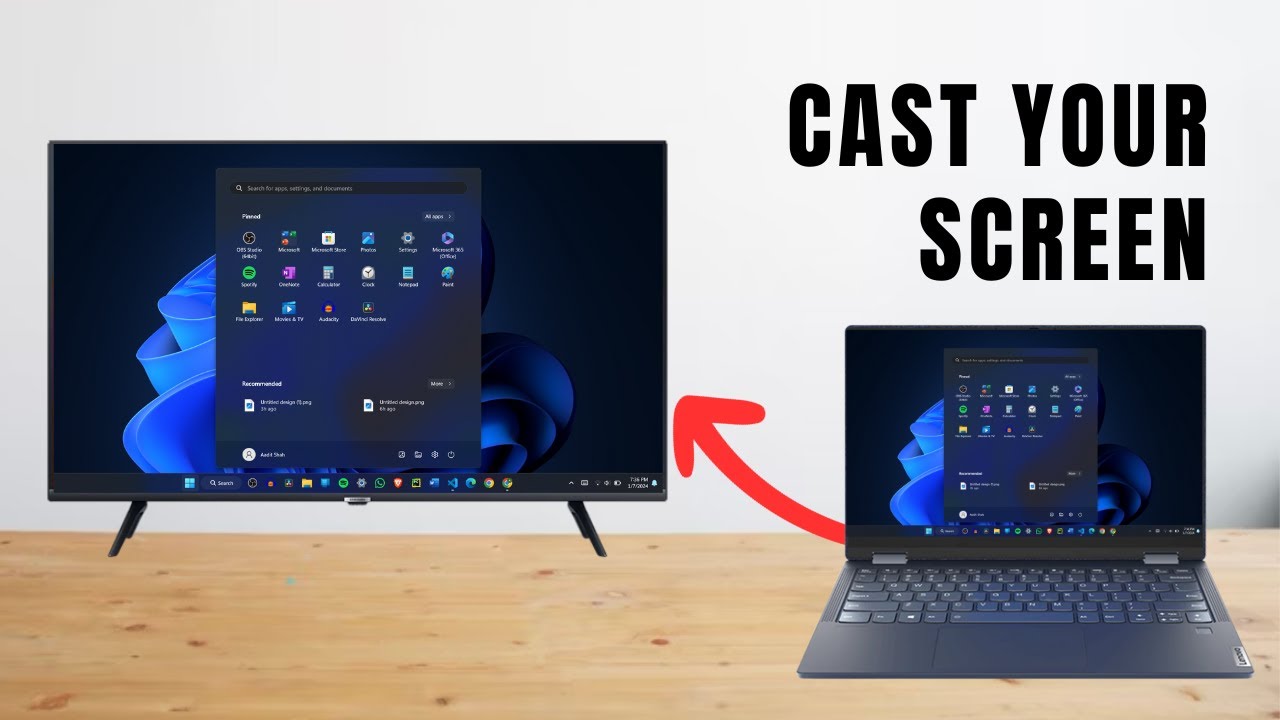
You can show your Windows laptop's screen on a smart TV without an HDMI cable. Below are two methods. The first uses Microsoft Edge and has always worked for us; the second uses the Windows + K shortcut. One may work on your setup while the other doesn't, so try both.
What you need
- A Windows laptop
- A smart TV that supports casting
- Both devices connected to the same Wi-Fi network
Why one method can work when the other doesn't
The two methods use different casting systems. Windows + K uses Miracast: Microsoft's help page on screen mirroring and projecting to a wireless display says you can connect your PC wirelessly to a TV, projector or other display that supports Miracast. Edge's Cast media to device works with TVs that have Chromecast built in, which includes most Android TVs and Google TVs. So if your TV only supports Chromecast, Edge will find it and Windows + K won't. If it only supports Miracast, it's the other way round. That is exactly what happened with our TV.
1Put the laptop and TV on the same Wi-Fi
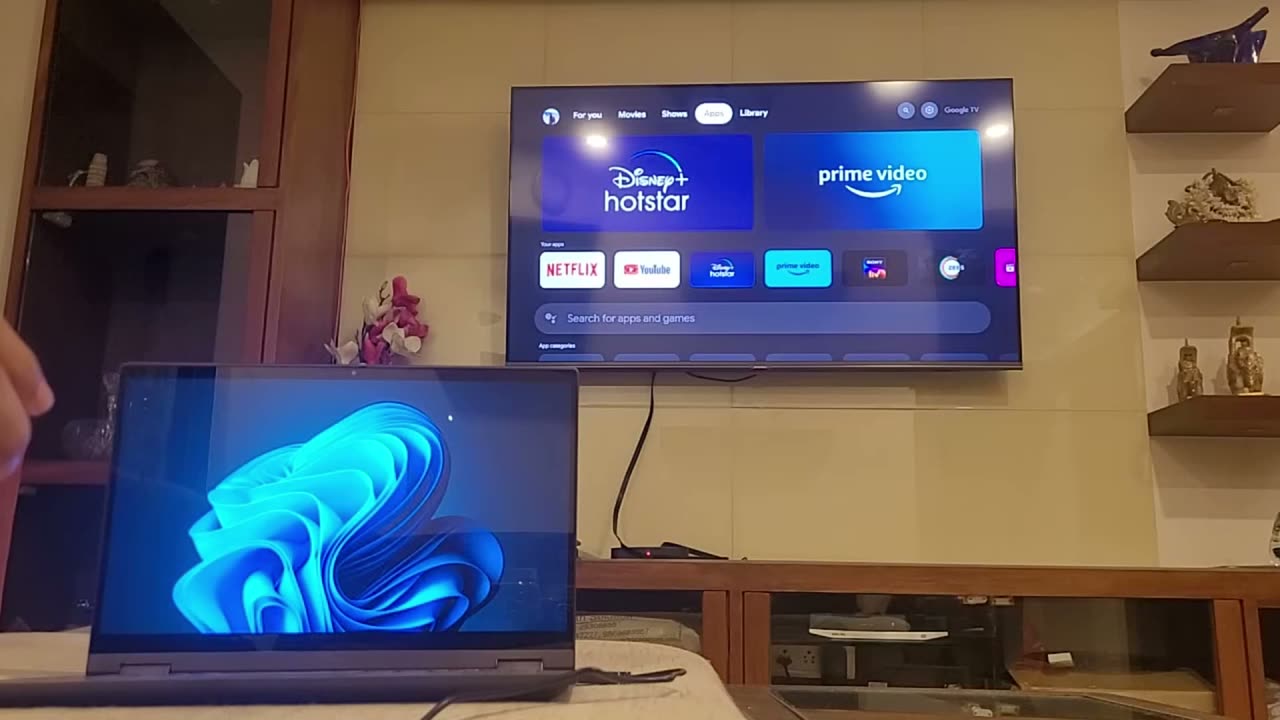
Open Wi-Fi settings on your laptop and on your TV and make sure both are connected to the same network. Neither method will find the TV otherwise.
2Open Microsoft Edge (Method 1)
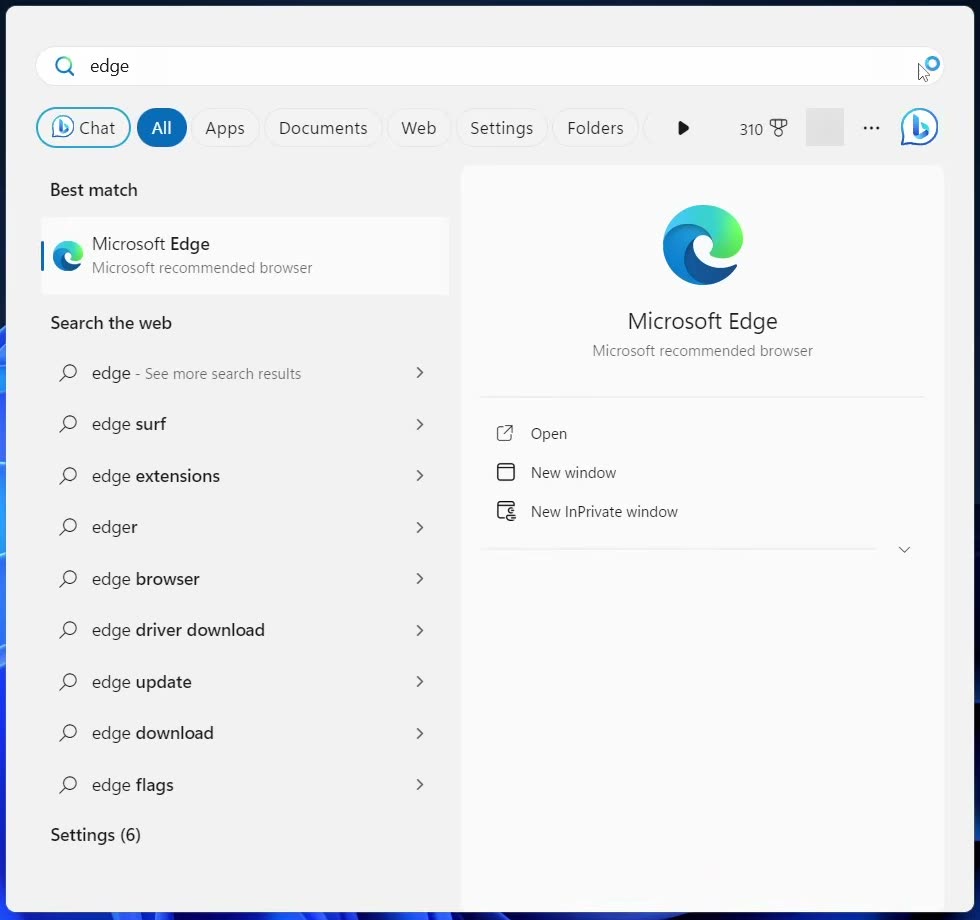
The first method casts your screen from Edge. Search for Edge in the Windows search and open Microsoft Edge.
3Go to Cast media to device
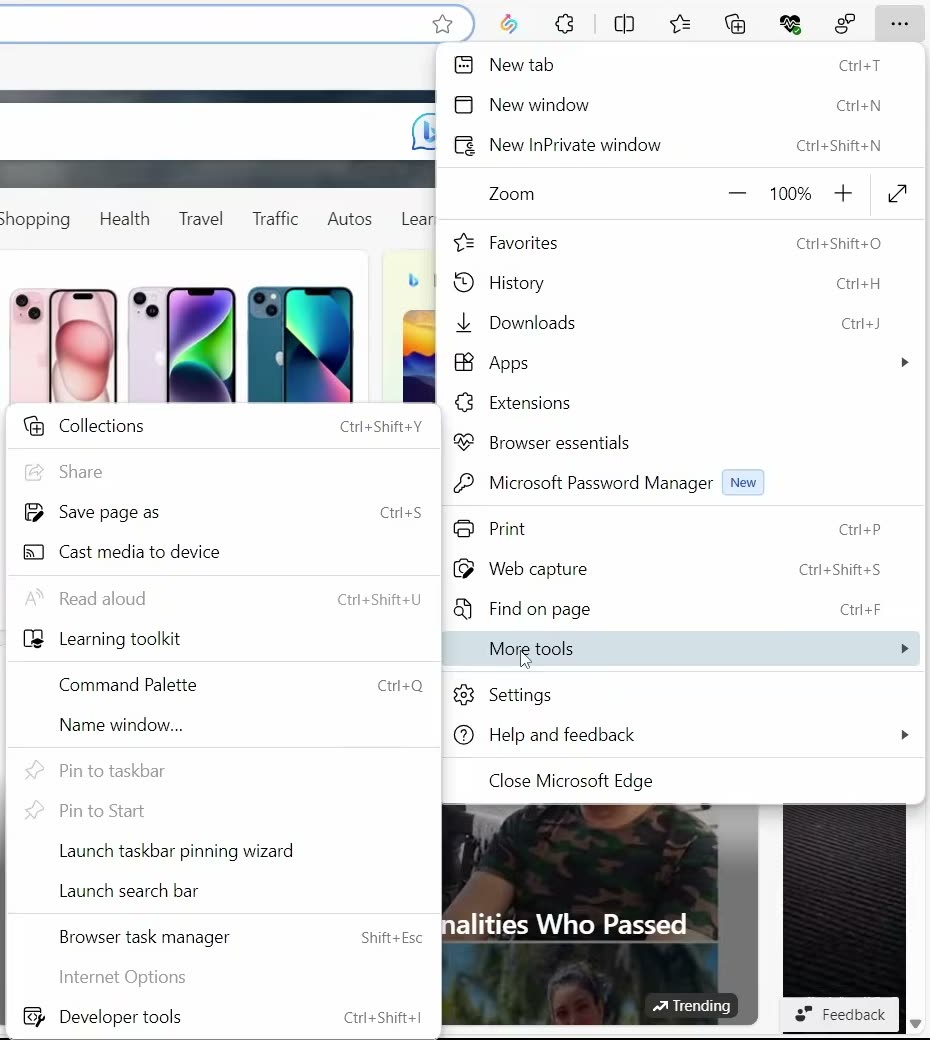
Click the three dots at the top right of Edge, then go to More tools and select Cast media to device.
4Change the source to Cast screen
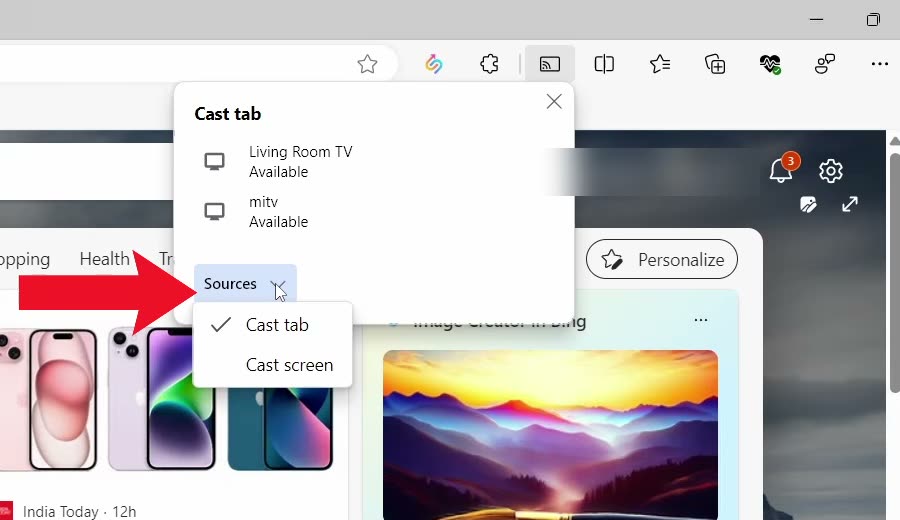
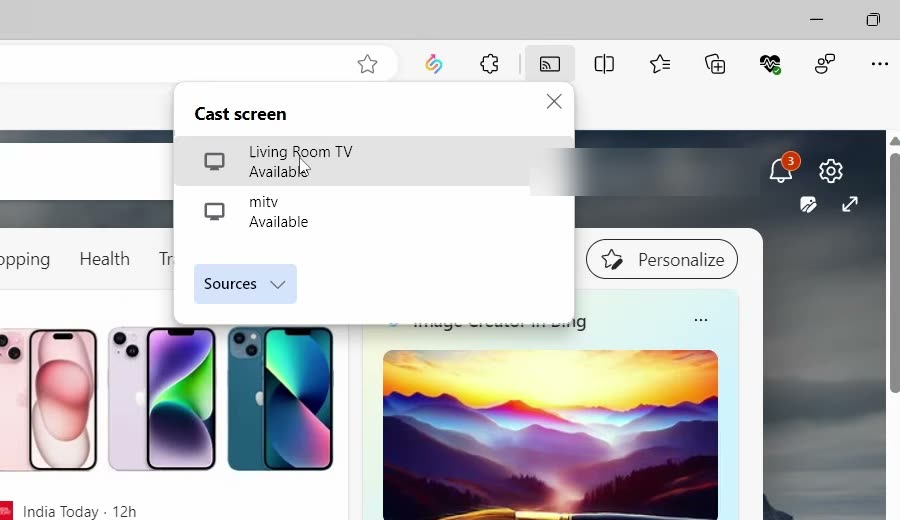
A cast pop-up opens with the TVs it found. Before picking one, click Sources and change it to Cast screen. This mirrors your whole screen, not just the browser tab.
5Select your TV
The pop-up title now reads Cast screen. Click your TV in the list (ours was Living Room TV).
6Check the TV
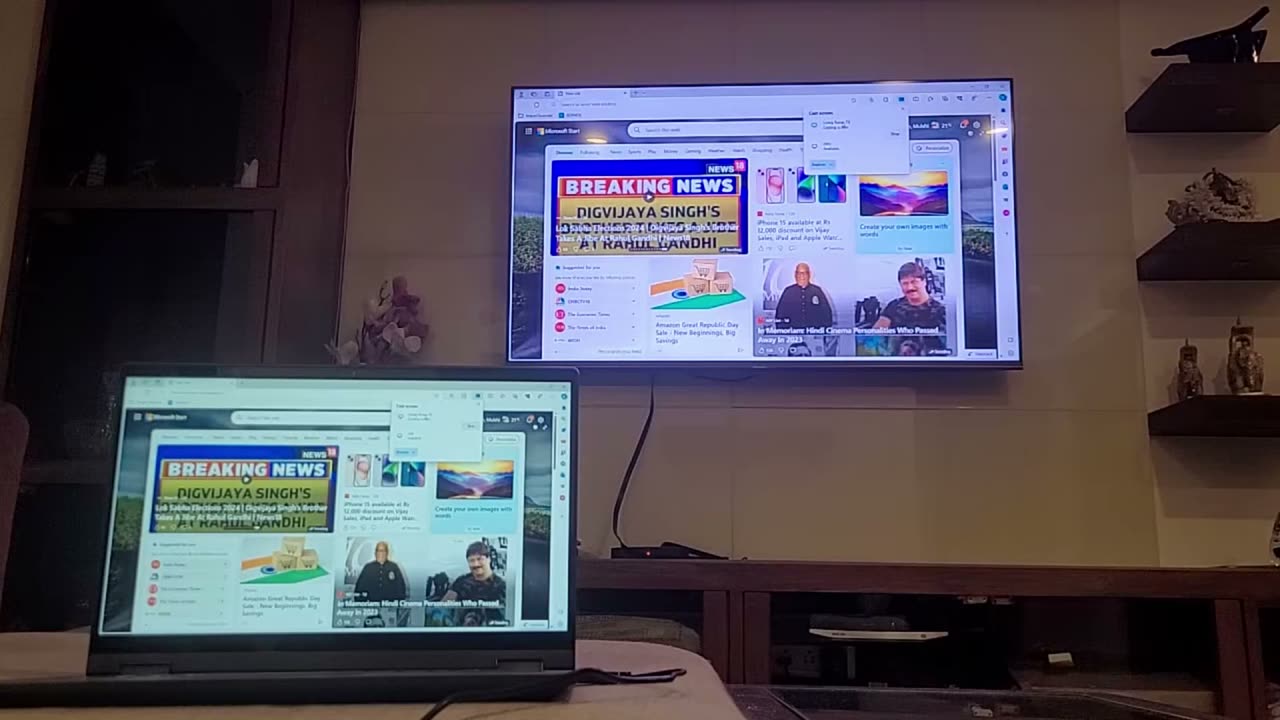
Your laptop screen now shows on the TV. It stays connected whatever app you open on the laptop, not only Edge.
7Press Windows + K (Method 2)
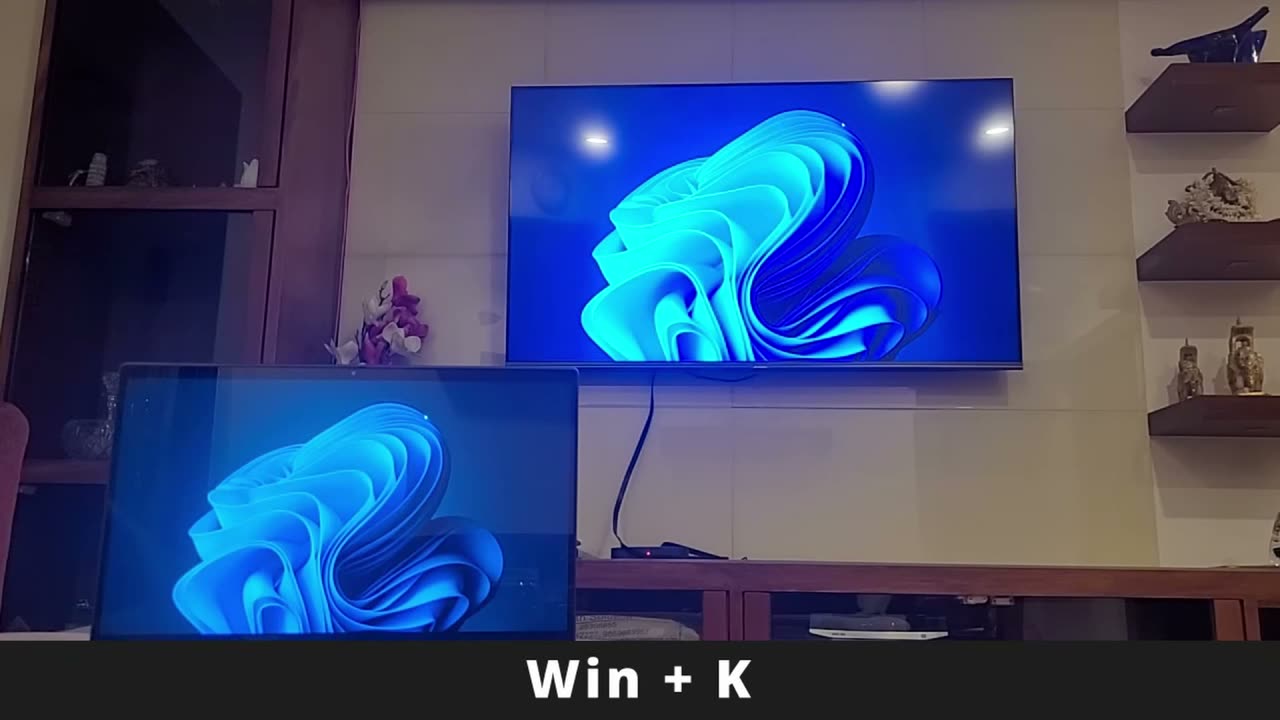
For the second method, on your laptop, press Windows + K. This opens the Cast panel and starts searching for nearby displays.
8Click your TV under Available displays
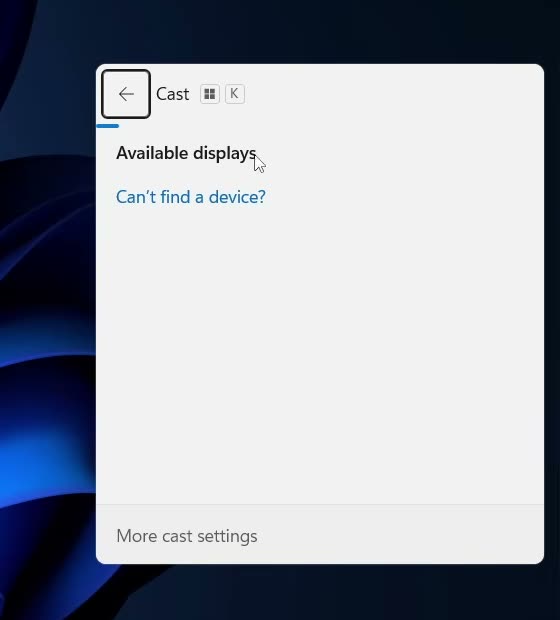
If Windows finds your TV, it shows up under Available displays. Click it and the laptop connects to the TV. In our test this TV didn't appear here, which is why Method 1 is the one to try first.
Choose how the TV shows your screen
Once the laptop is connected through Windows + K, press Windows + P to choose the projection mode. Microsoft lists four options: - PC screen only: shows content on the laptop only. - Duplicate: the TV shows the same thing as the laptop. Best for presentations and photos. - Extend: the TV becomes a second screen, so you can play a video on the TV while working in another window on the laptop. - Second screen only: only the TV shows content, and the laptop screen goes dark.
How to stop casting
- Edge method: click the cast icon that appears in Edge's toolbar (or go back to Cast media to device) and choose to stop casting.
- Windows + K method: press Windows + K again and click Disconnect under your TV. Turning off the TV also ends the connection.
Windows 10 vs Windows 11
Windows + K works the same way on both. Microsoft's page gives the same instruction for Windows 11 and Windows 10: press the shortcut and select the display from the list. On Windows 11 you can also open the same panel with the Cast button in Quick Settings (the Wi-Fi, sound and battery area of the taskbar), if it has been added there. The Edge method is identical on both versions because it runs inside the browser.
Tips / troubleshooting
- If the TV doesn't show up in either method, check again that both devices are on the same Wi-Fi network.
- TV still missing? Turn the TV off and on again, and make sure its screen mirroring or casting feature is switched on. Some TVs only accept a connection while you are on their screen mirroring input.
- Picture is laggy? Wireless casting is fine for videos, photos and slides but adds a small delay, so it isn't ideal for gaming. Being close to the router and on a 5 GHz network helps.
- No sound from the TV? Click the volume icon on the taskbar and check which output is selected. If the laptop speakers are chosen, switch the output to the TV.
- If Windows + K finds nothing (it shows "No displays are available"), use the Edge method instead. It worked for us on a TV that Windows + K couldn't detect.
- In Edge, leaving the source on Cast tab only sends the current browser tab. Switch to Cast screen to mirror everything.
Related guides: How to Control Android Phone From PC Using Phone Link and How to Send Files From PC to Phone With Phone Link (and Back).
FAQ
How do I connect my laptop to a smart TV without HDMI?
Connect both to the same Wi-Fi, then in Microsoft Edge go to three dots > More tools > Cast media to device, set Sources to Cast screen, and pick your TV. You can also try Windows + K.
Why is my TV not showing in Windows + K?
Some TVs aren't detected by the Windows Cast panel even on the same network. That happened with our TV too. The Edge Cast media to device option found it, so try that instead.
Can I cast my whole screen, not just one tab?
Yes. In the Edge cast pop-up, click Sources and choose Cast screen before selecting the TV. Everything on your laptop then appears on the TV.
Can I use my laptop for something else while the TV shows a video?
Yes, with Windows + K. After connecting, press Windows + P and choose Extend. The TV becomes a second screen, so you can move the video window onto it and keep working on the laptop.
Do I need to install any app?
No. Both methods use what's already on Windows: Microsoft Edge and the built-in Cast panel.
Related guides