Tech is Easy
How to View Locked Chats in WhatsApp on PC (Secret Code)
To view locked chats in WhatsApp on PC, you need a secret code: on your phone open Locked chats, tap the three dots, choose Chat lock settings > Secret code and create one, then click Locked chats on your PC and type that code. This guide is for anyone who locked chats on their phone and now sees a "Set up your secret code" message when they try to open them on WhatsApp for Windows or another linked computer.
What you need
- WhatsApp on your phone, updated to the latest version from the Play Store or App Store
- WhatsApp already linked on your PC (the guide uses the WhatsApp app for Windows)
1Try opening Locked chats on your PC
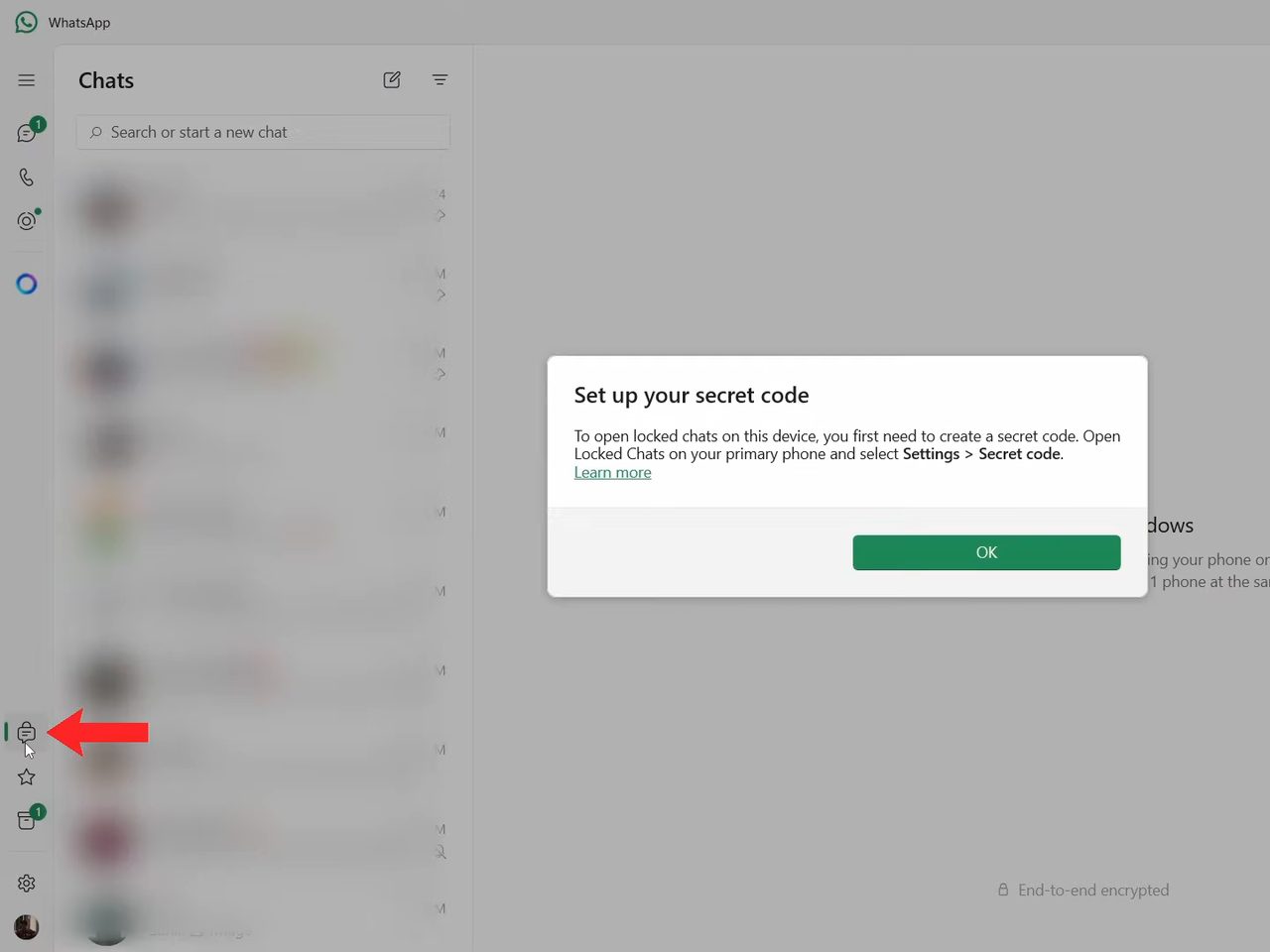
In WhatsApp on your computer, click the Locked chats icon in the left sidebar. Without a secret code, WhatsApp blocks access and shows Set up your secret code, telling you to create one from your primary phone. Click OK and pick up your phone.
2Open Locked chats on your phone
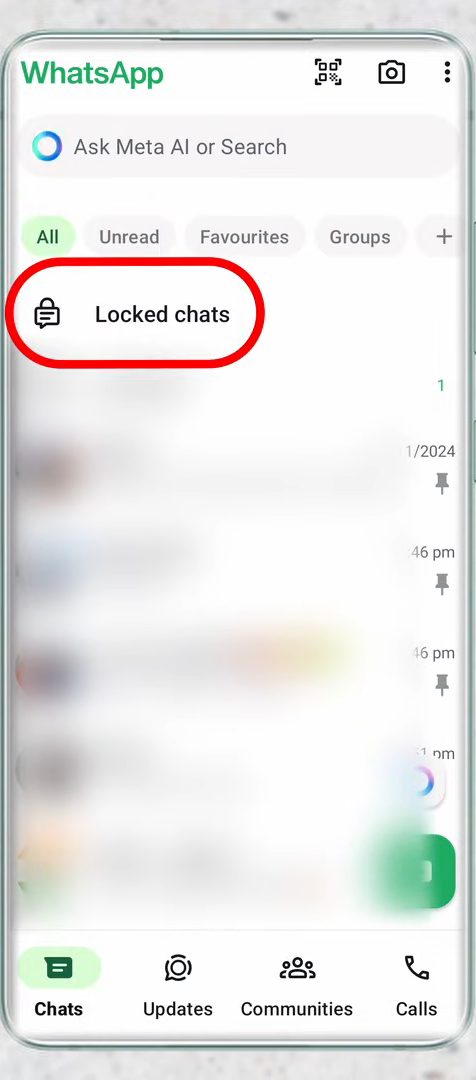
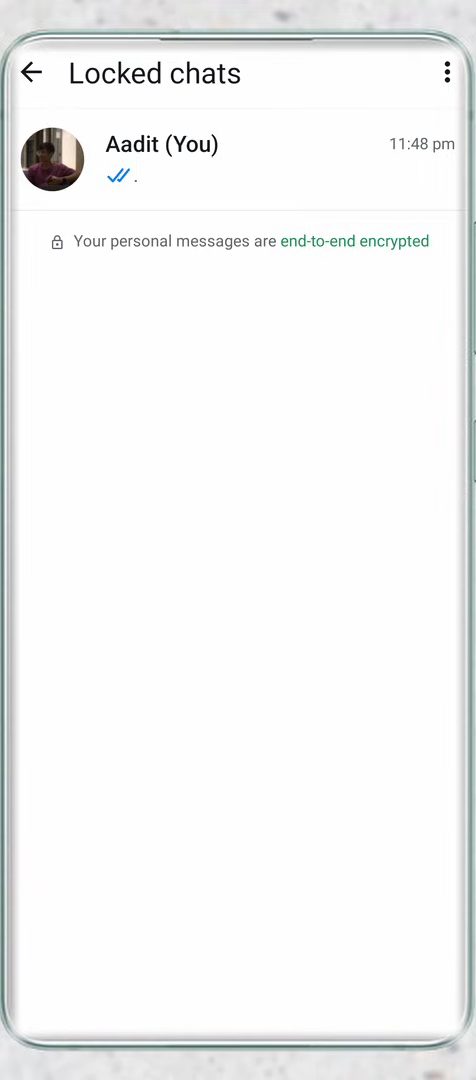
First make sure WhatsApp is up to date by searching for it in the Play Store or App Store. Then open WhatsApp, scroll the chat list until Locked chats shows at the top, tap it and open it with your fingerprint, face or passcode.
3Go to Chat lock settings
Inside Locked chats, tap the three dots at the top right and select Chat lock settings.
4Tap Secret code
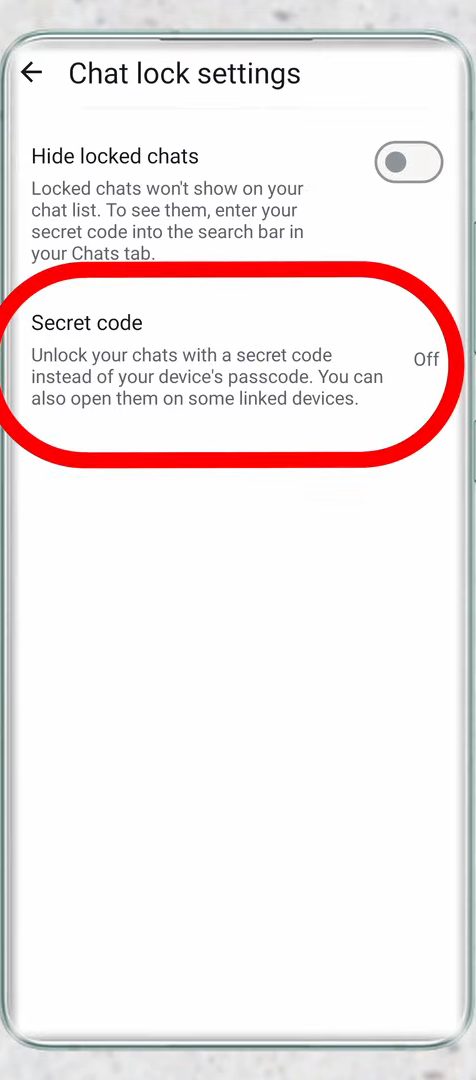
Under Secret code it says Off. Tap it to start setting one up. This code is what lets you open locked chats on some linked devices, like your PC.
5Create and confirm the code
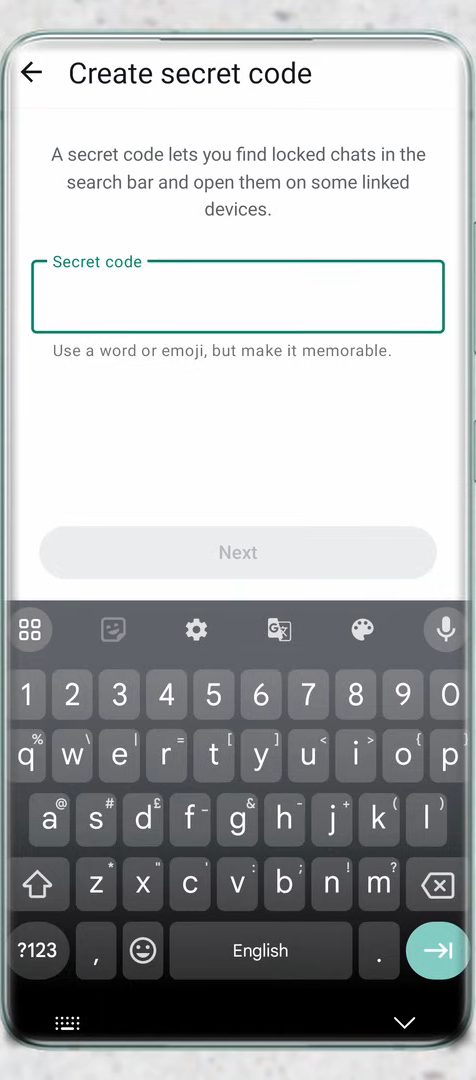
Type a word or emoji you will remember and tap Next. On the Confirm secret code screen, type it again and tap Done.
6Check that the code is on
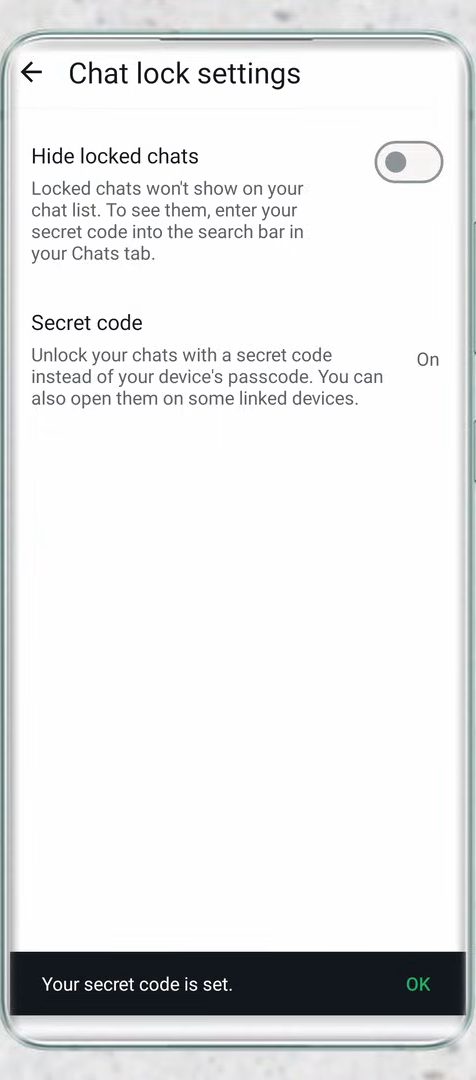
Back in Chat lock settings, Secret code now shows On and a message confirms Your secret code is set.
7Enter the code on your PC
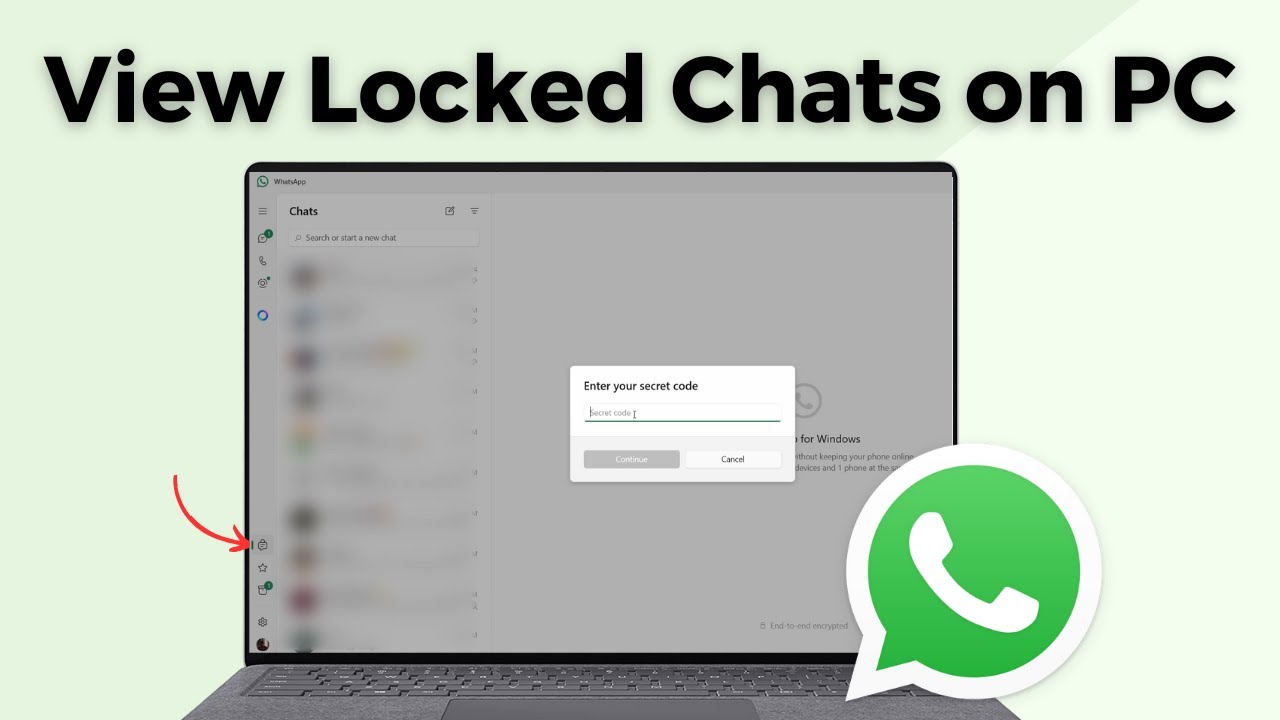
Go back to your computer and click the Locked chats icon again. This time WhatsApp asks you to Enter your secret code. Type the code you just made and click Continue.
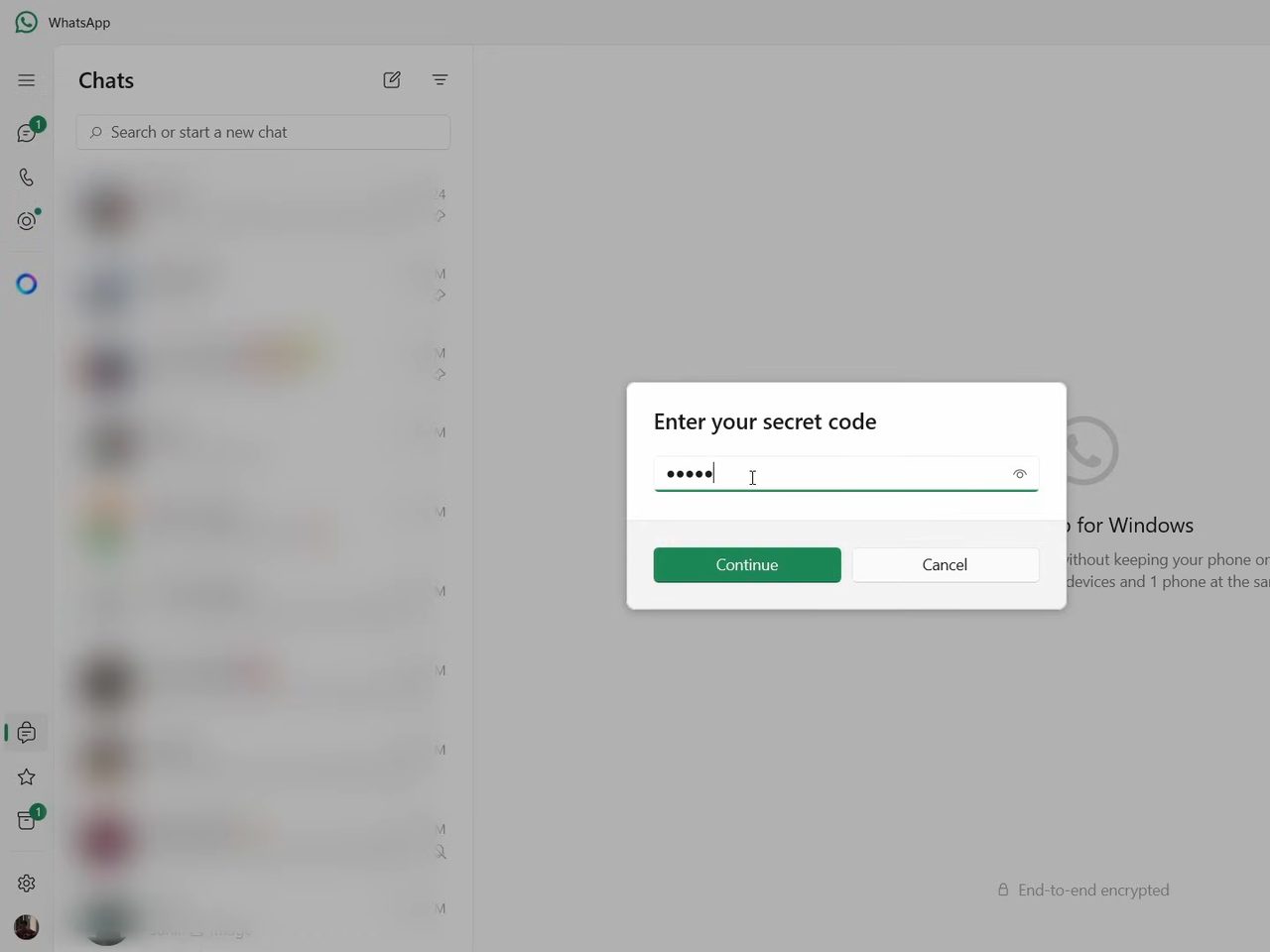
8Open your locked chats
WhatsApp now shows the Locked chats list on your PC, and you can open and reply to those chats like any other.
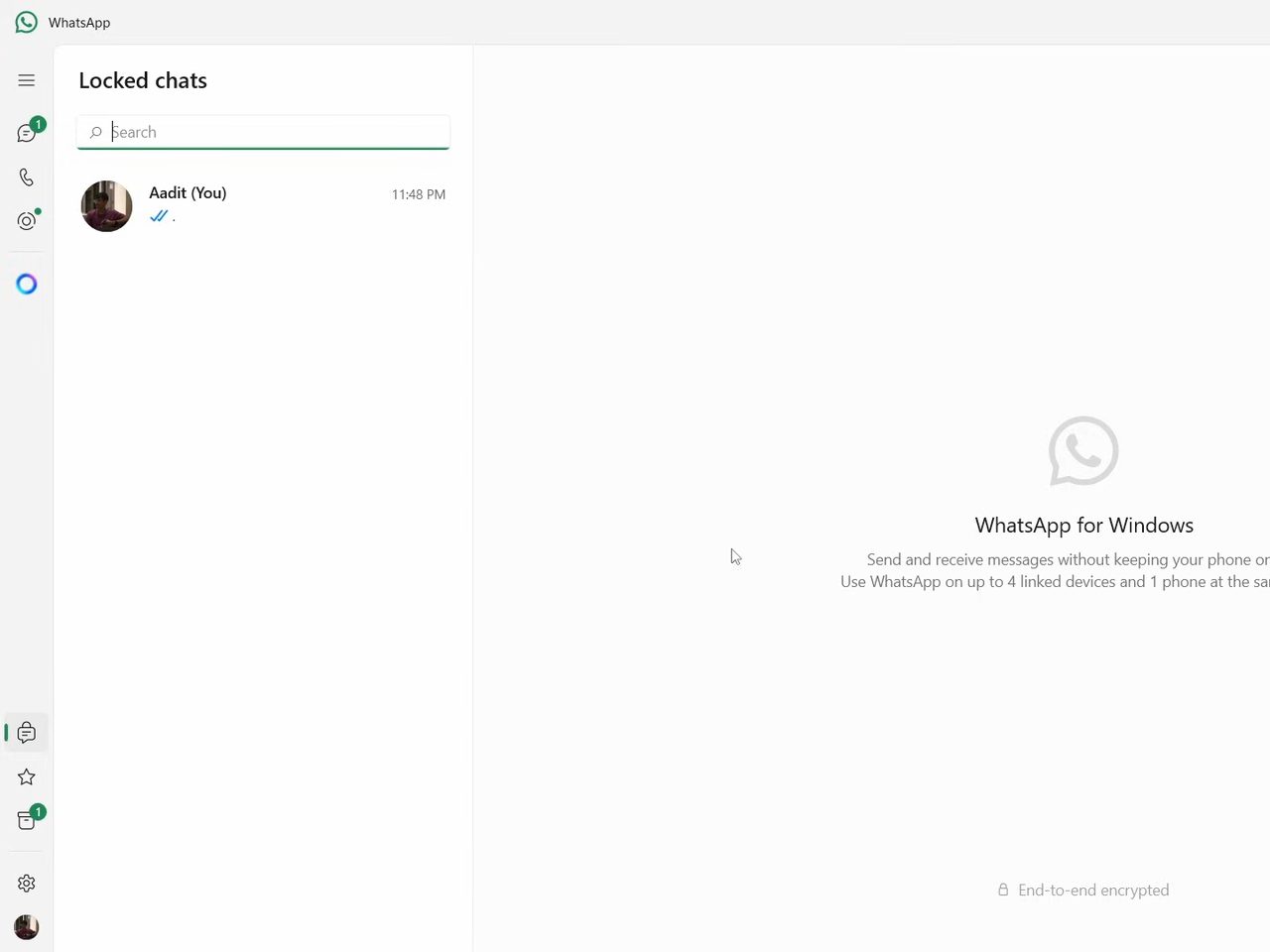
How chat lock works across devices
On your phone, locked chats open with the same fingerprint, face or passcode as your phone's screen lock. A computer can't check your fingerprint, so linked devices use the secret code instead. That is why the code has to be made first: until it exists, your PC has no way to let you in. WhatsApp's help page on turning chat lock on or off explains how to lock a chat on the phone and how the secret code fits in.
A few things follow from this: - The code is created and changed only on your primary phone. The PC just asks for it. - The code is separate from your phone's screen lock. Pick something you'll remember but others won't guess, not your PIN. - The same code works on every linked computer that asks for it, so you don't need a different one per device.
Tips / troubleshooting
- If you don't see Secret code in Chat lock settings, update WhatsApp on your phone first. It is a newer option.
- If your PC has no Locked chats icon, update the WhatsApp app on your computer as well. Older desktop versions don't show locked chats at all.
- If the PC says the code is wrong, type it exactly as you created it on the phone, including any emoji. If you really can't remember it, see the last FAQ below before resetting it.
- If WhatsApp on your PC has logged out, link it again from your phone (three dots > Linked devices > Link a device) and scan the QR code. Linked devices also disconnect if you don't open WhatsApp on your phone for a long time.
- On a shared or office computer, think twice before opening locked chats there, and log the device out from Linked devices on your phone when you are done.
- You can also use the same code to hide locked chats completely on your phone. See how to hide chats on WhatsApp with a secret code.
FAQ
Why can't I open locked chats on WhatsApp on my PC?
Locked chats on a linked computer only open with a secret code. If you haven't created one, WhatsApp shows Set up your secret code instead. Create it on your phone in Locked chats > three dots > Chat lock settings > Secret code.
Where do I set the WhatsApp secret code?
Only on your primary phone. Open Locked chats, tap the three dots, choose Chat lock settings and tap Secret code. The PC only asks you to enter it.
Does this work on WhatsApp Web?
The video uses the WhatsApp app for Windows. WhatsApp says the secret code opens locked chats on "some linked devices", so if WhatsApp Web asks for a code, the same one applies. Testing WhatsApp Web specifically is not shown in the video.
Is the secret code the same as my phone's lock?
No. Your phone opens locked chats with its own fingerprint, face or PIN. The secret code is a separate word or emoji that you create for chat lock, and it is what linked devices like your PC ask for.
Do I need my phone nearby to open locked chats on PC?
Only for the one-time setup, because the code can only be created on the phone. After that, you just type the code on the PC. Your phone doesn't have to be next to it.
What if I forget my WhatsApp secret code?
WhatsApp's own setup screen warns that if you forget the code and create a new one, your locked chats lose their lock and are cleared. Keep the code somewhere safe.
Related guides