Tech is Easy
How to Move Files From Internal Storage to SD Card on Android
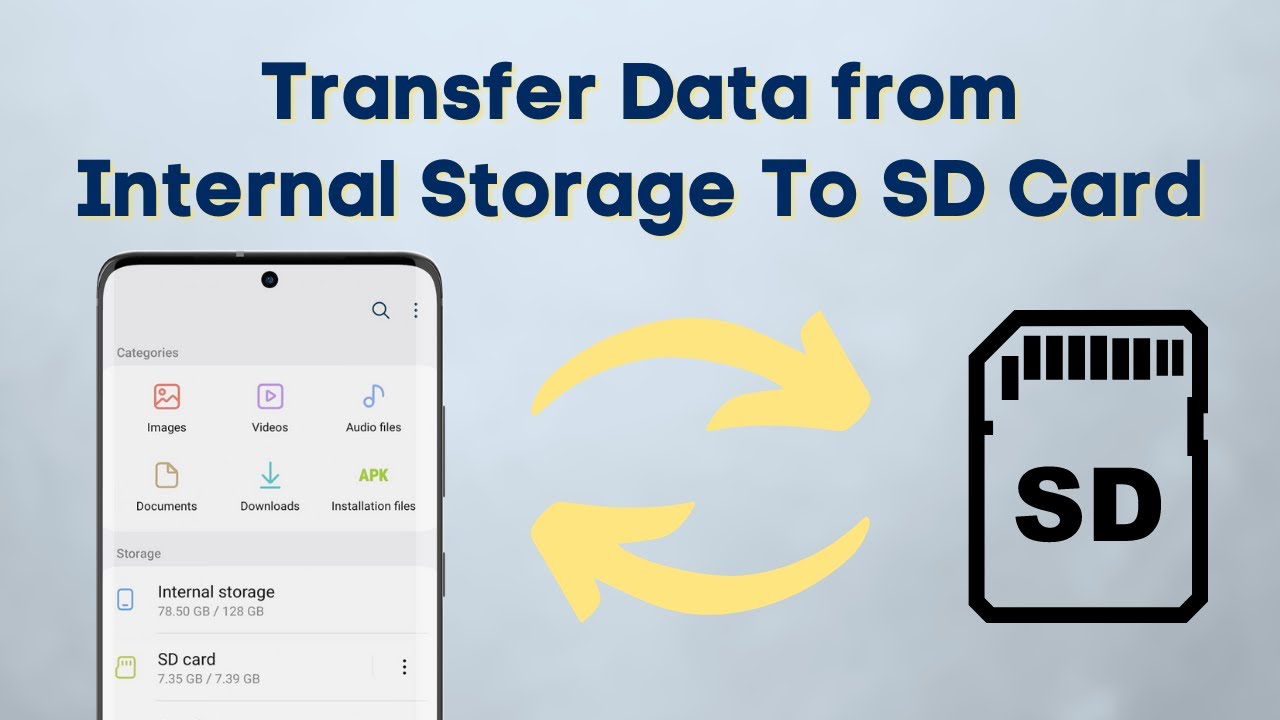
If your phone is running out of space, you can move files from internal storage to the SD card using the file manager that is already on your phone. This guide uses a Samsung phone and its My Files app, then shows how to move a file back from the SD card to internal storage. Other Android phones have the same options, though the names and positions may differ slightly.
What you need
- An Android phone with an SD card inserted
- The phone's file manager app (My Files on Samsung, or Files / File Manager on other phones)
Before you start
- Check that your phone takes a card. Samsung notes that not all of its phones and tablets support microSD cards, and many recent flagship phones only have a SIM tray. Look for a card slot on the tray before buying a card.
- Format a brand-new card first. Samsung's guide recommends it the first time you use a card, and it can also fix a card that keeps giving errors. On Samsung it is under Settings > Battery and device care > Storage, then swipe to the SD card, tap the three dots and Format. Formatting wipes everything on the card, so only do it on an empty card or after backing it up.
- Pick the right files. Photos, videos, music, downloads and documents are safe to move. Leave the Android folder and other app folders alone. Moving an app's working files can break that app.
1Open your file manager
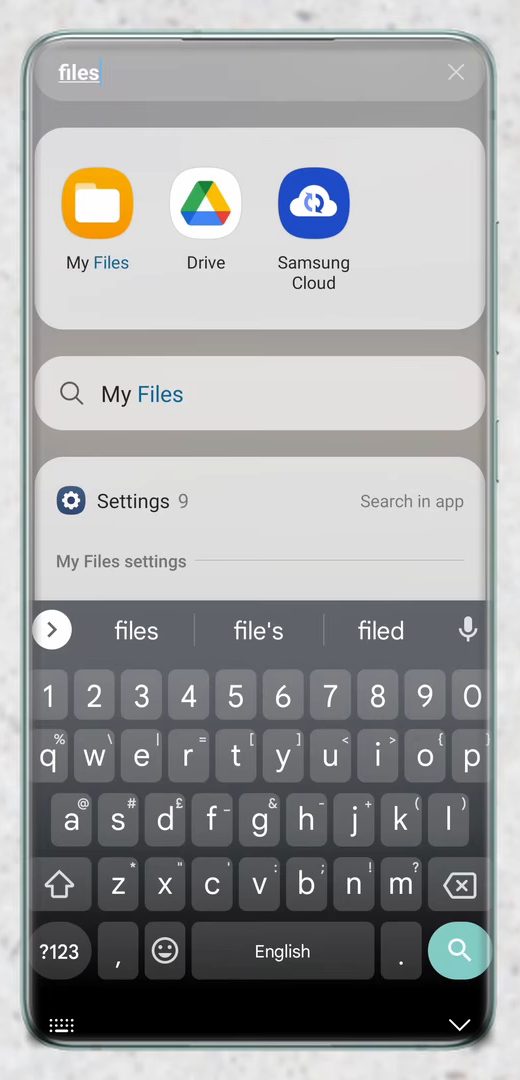
Open the app drawer and search for files. Depending on your phone, the app is called My Files, Files or File Manager. Open it.
2Find the file you want to move
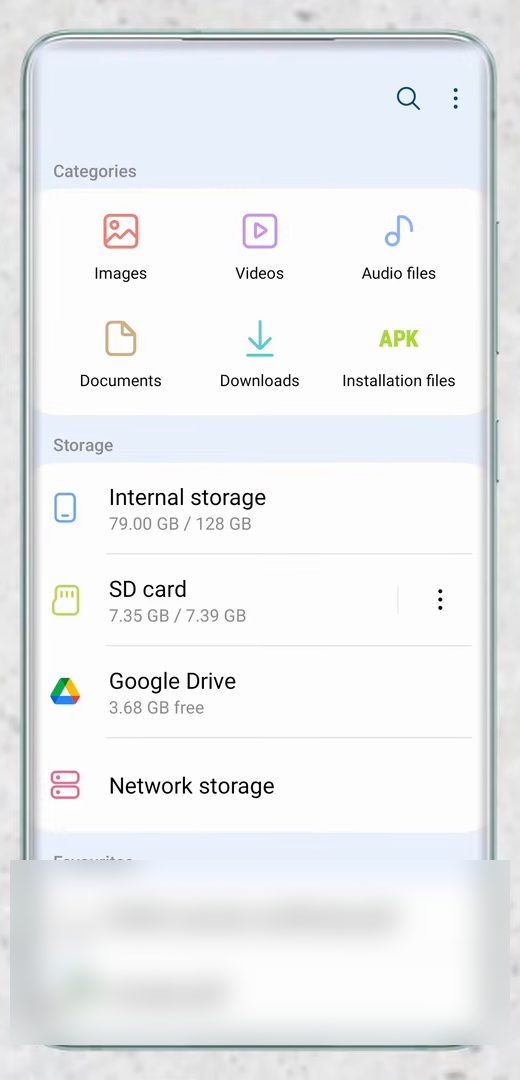
The home screen lists categories like Images, Videos and Documents, plus your storage locations: Internal storage and SD card. Open the category or folder that holds your file, or use the search icon at the top.
3Locate the file
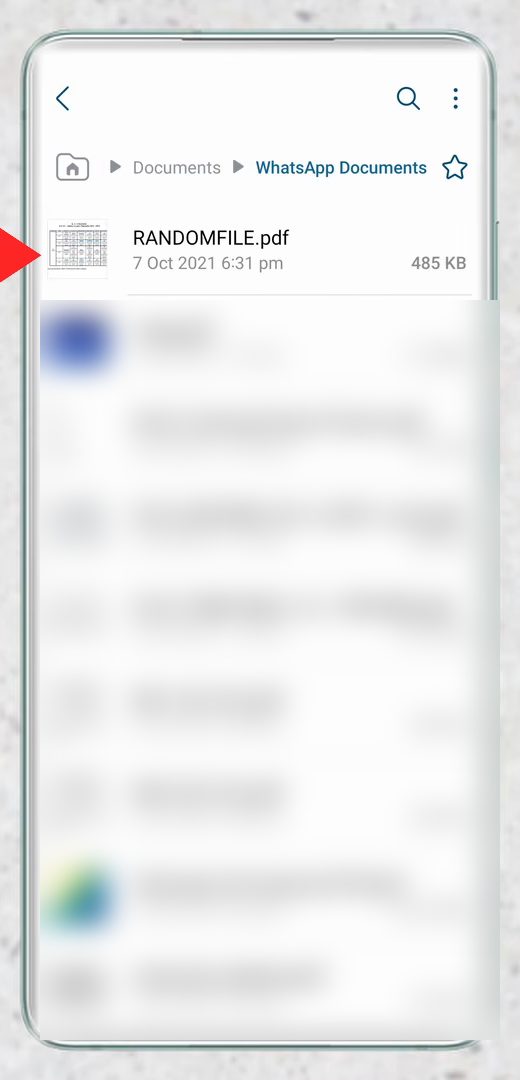
Browse to the file. In our example it is RANDOMFILE.pdf inside Documents, currently stored in internal storage.
4Long press and tap Move
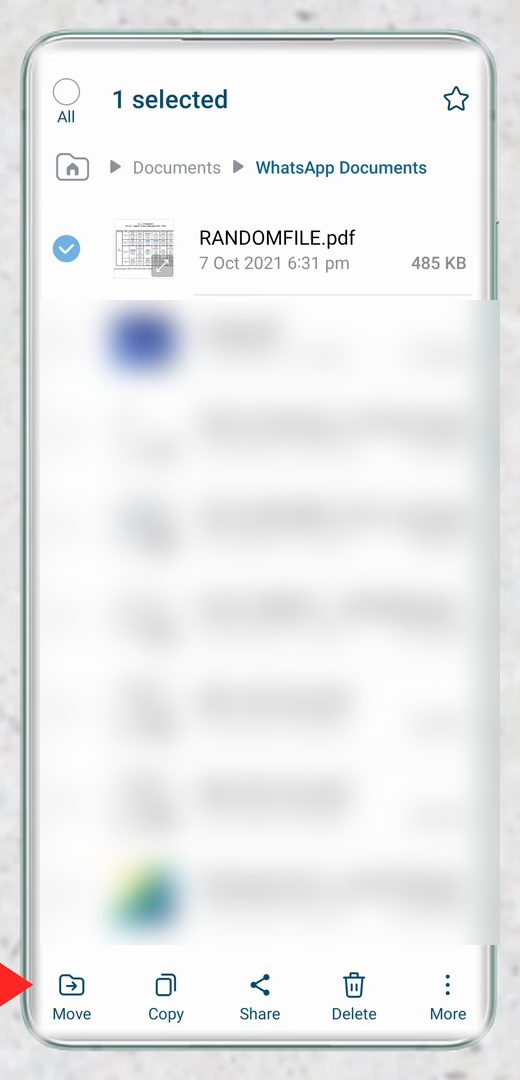
Long press the file to select it. A bar appears at the bottom, so tap Move at the bottom left. You can select several files or folders before tapping Move.
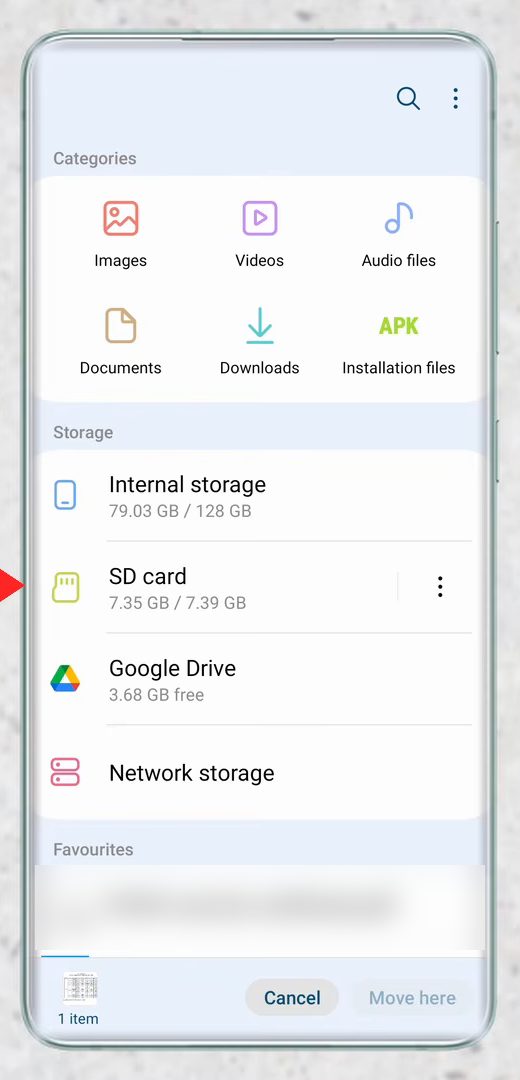
5Go to the SD card
Go back to the My Files home screen and tap SD card under Storage. A Move here button stays at the bottom while you browse.
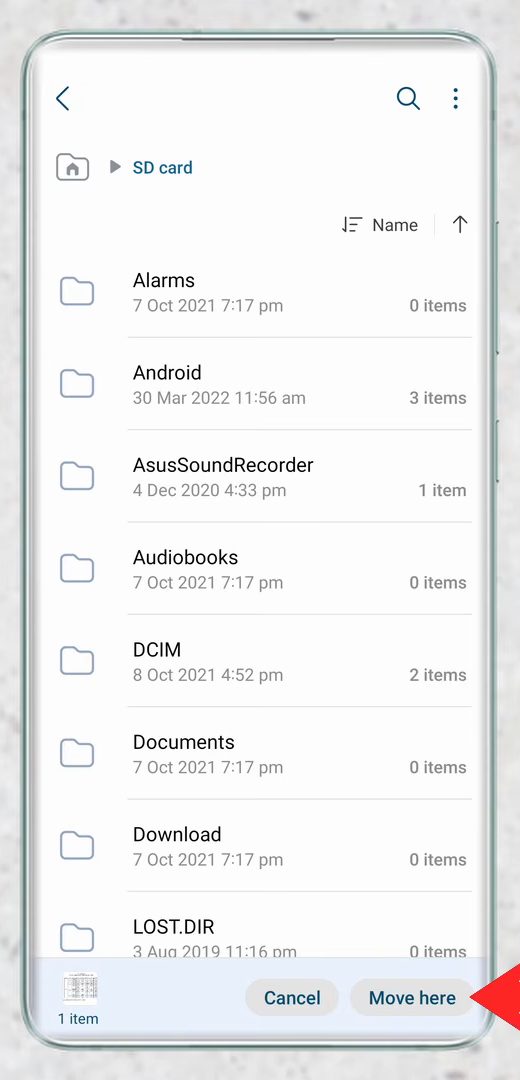
6Tap Move here
You now see the folders on your SD card. Open a specific folder if you want the file there, or tap Move here at the bottom right to place it in the main SD card folder.
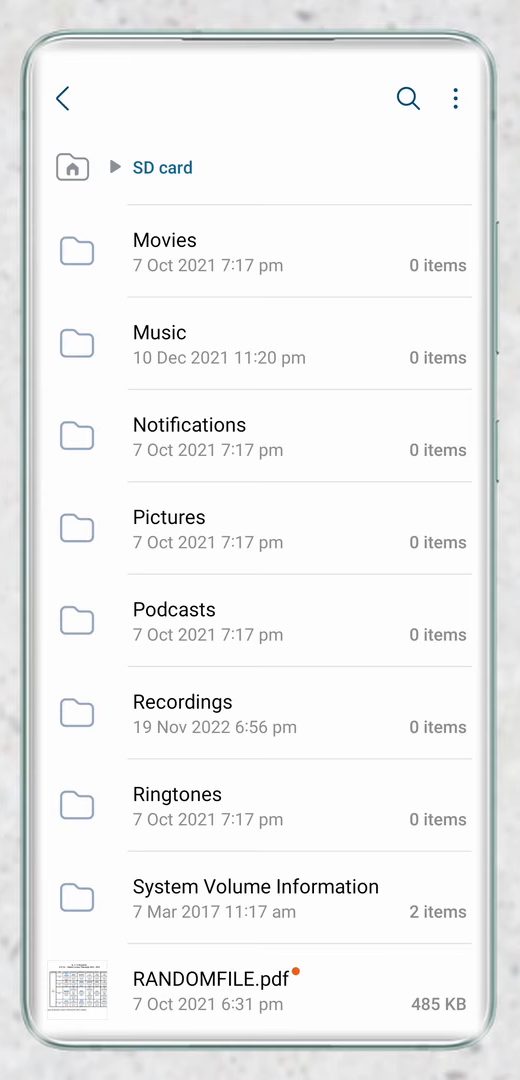
7Check the file on the SD card
Scroll down the SD card list and the file now appears there. It is no longer taking up space in internal storage.
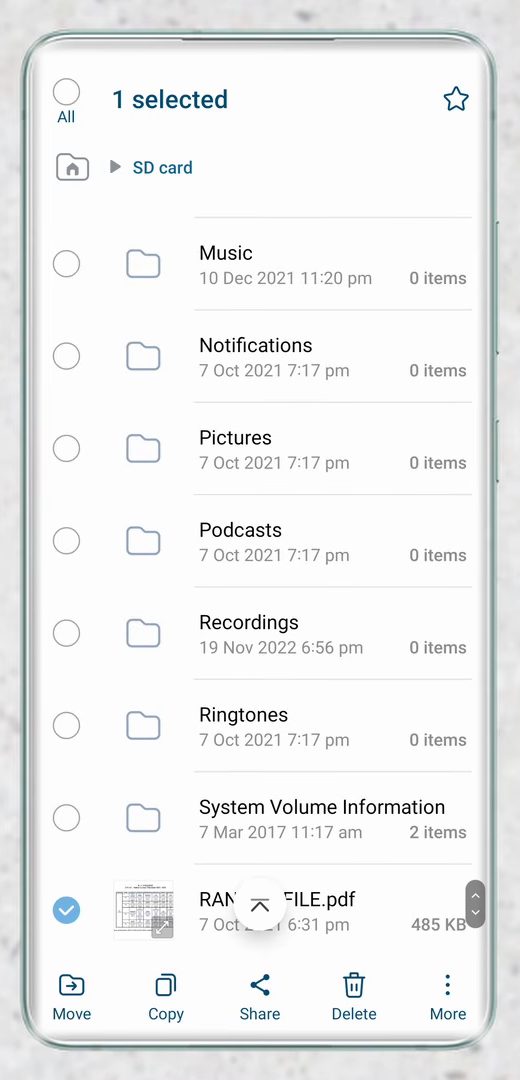
8Move a file from the SD card back to internal storage
To go the other way, open SD card from the home screen, long press the file and tap Move at the bottom left.
9Choose internal storage and tap Move here
Go back, tap Internal storage, open a folder if you want, and tap Move here.
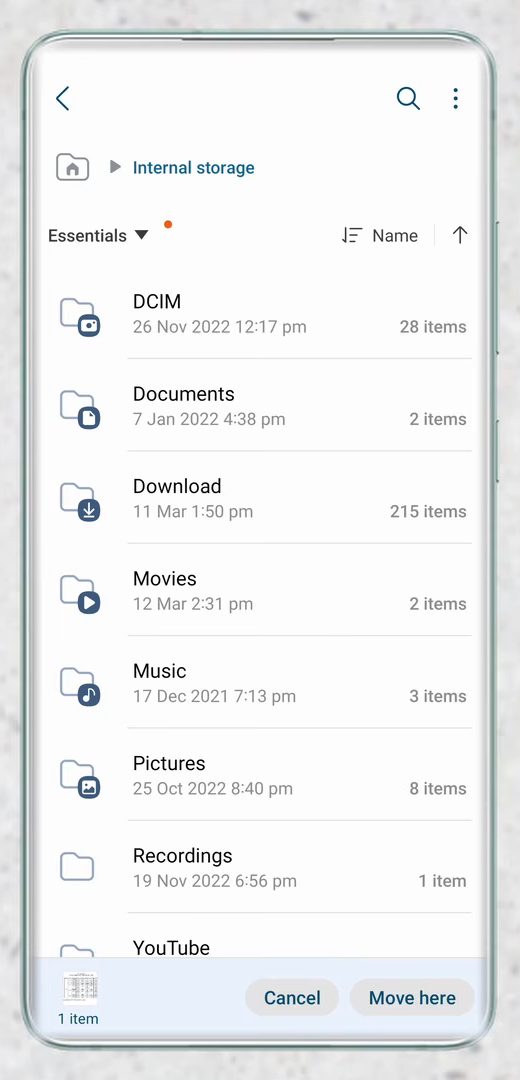
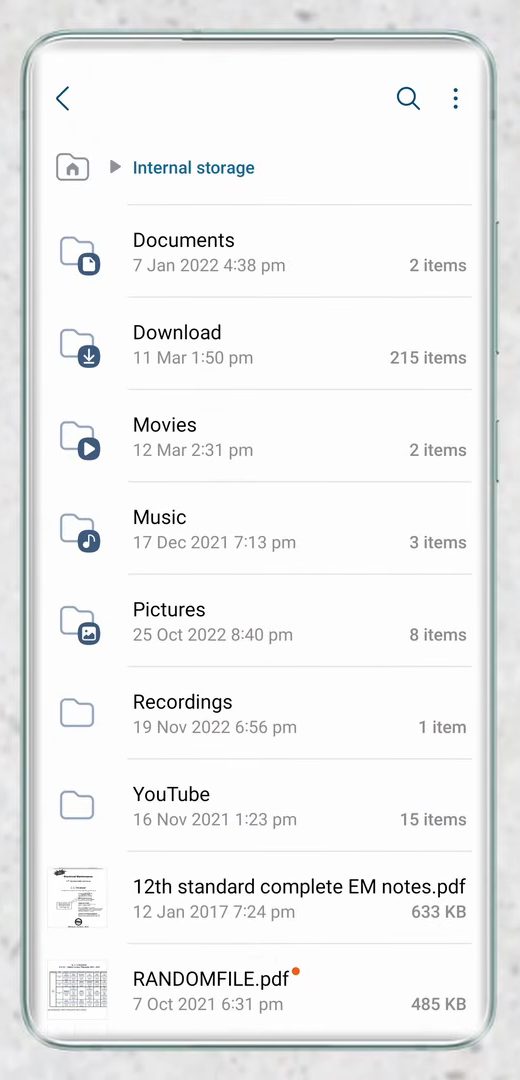
10Confirm the move
Scroll down and the file is now in internal storage. You can move many files and folders the same way.
Moving photos with the Gallery app instead
Samsung's own page on using an SD card with your Samsung phone lists the same My Files steps used here, and a second route for pictures through the Gallery app. In Gallery, go to Albums, tap the three dots and Create album, switch the location from Internal storage to SD card, and name the album. Then select photos, tap the three dots and choose Move to album. Albums stored on the card show a small SD card icon. This is handy if you think in albums rather than folders.
Tips / troubleshooting
- Tap Copy instead of Move if you want to keep the file in both places.
- If a move fails partway, check the free space on the card first. A full or failing card is the usual cause. Copy important files to a computer before formatting a card that keeps failing.
- Large folders like a full camera roll can take several minutes to move. Keep the screen on and don't remove the card until it finishes, or files can be left half-copied.
- If you cannot see SD card on the home screen, use the search icon at the top of the file manager, and check that the card is inserted properly.
Want to get files off the phone entirely? See how to transfer files from Android to PC.
FAQ
How do I move photos from internal storage to SD card?
Open My Files, tap Images or open the DCIM folder, long press the photos you want, tap Move, then go to SD card and tap Move here.
What is the difference between Move and Copy?
Move takes the file out of internal storage and puts it on the SD card, which frees up space. Copy leaves the original where it is and creates a second copy on the card.
Can I move apps to the SD card the same way?
No. The file manager moves files and folders such as photos, videos and documents. Apps are handled separately in your phone's settings, and not every phone or app supports moving them.
What happens to the files if I take the SD card out?
They stay on the card, but your phone can't open them while it's removed. Photos on the card disappear from the Gallery until you put it back. To remove a card safely, unmount it from the phone's storage settings first.
Can I make my camera save photos straight to the SD card?
On many Samsung phones, yes: open the Camera app's settings and look for Storage location, then choose SD card. The option only appears when a card is inserted. That way new photos never take up internal space in the first place.
Where is the My Files app on non-Samsung phones?
Most Android phones have a file manager called Files or File Manager. Search for "files" in the app drawer to find it. The Move option works the same way.
Related guides