Tech is Easy
WhatsApp Privacy Settings You Should Know (Privacy Checkup)
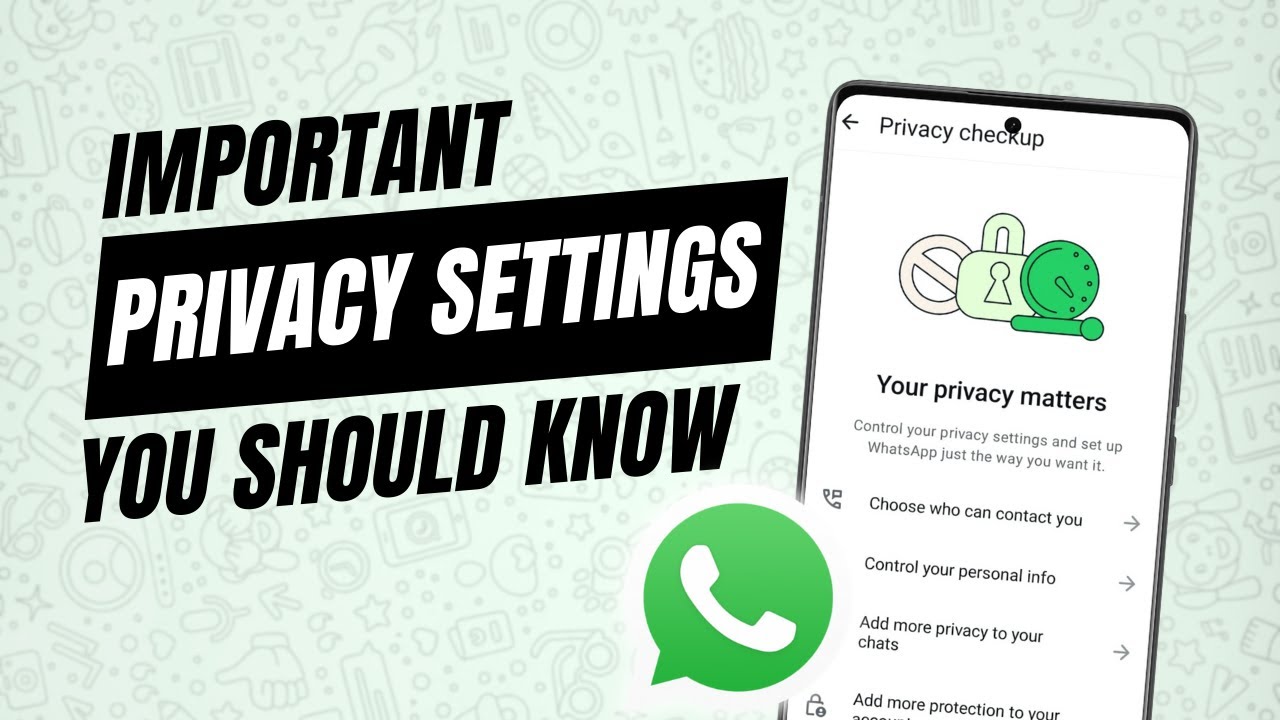
The WhatsApp privacy settings you should know all sit in one place: open WhatsApp, tap the three dots, go to Settings > Privacy and tap Privacy checkup at the bottom. From there you can control who can contact you, who sees your personal info, how private your chats are and how well your account is protected. This guide is for anyone who wants to tighten up their WhatsApp in a few minutes without hunting through every menu.
What you need
- WhatsApp on your phone. We used Android; the screens shown are from the Android app.
- A few minutes to look at each setting. Nothing here deletes chats, and every option can be changed back later.
1Open WhatsApp Settings
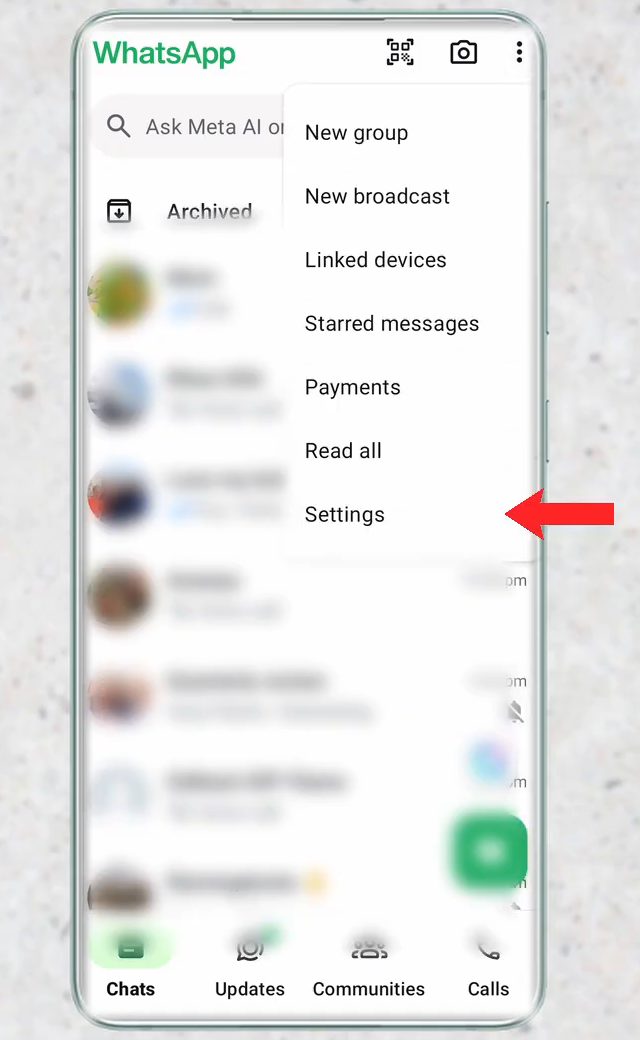
Open WhatsApp, tap the three dots at the top right of the Chats screen and choose Settings.
2Go to Privacy and open Privacy checkup
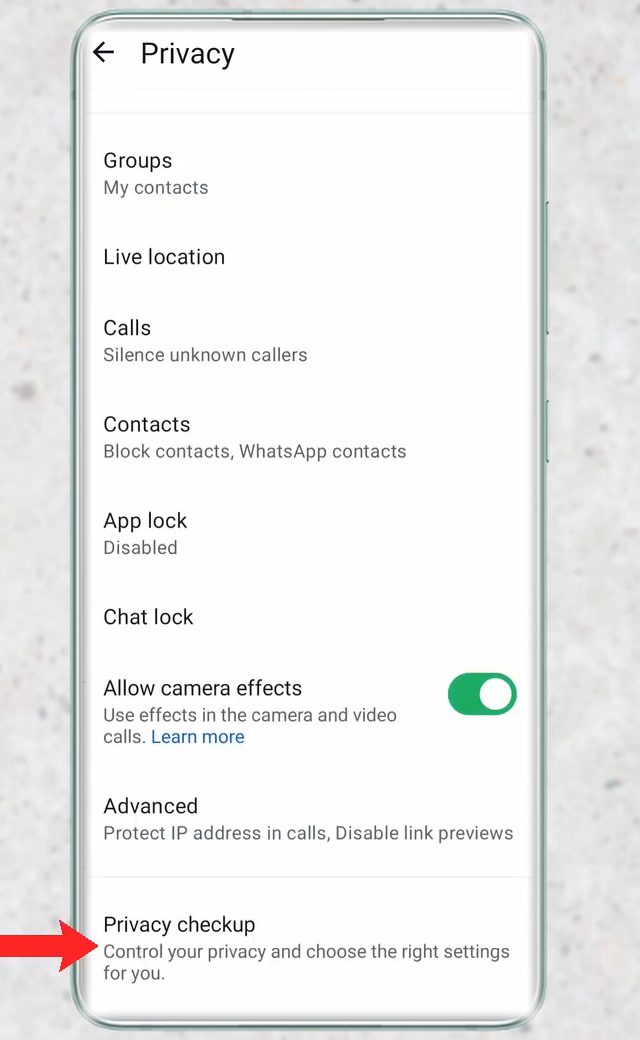
Tap Privacy, the second option in Settings. Scroll to the very bottom of the Privacy page and tap Privacy checkup. It groups the most important privacy options in one place.
3Pick a section of the checkup
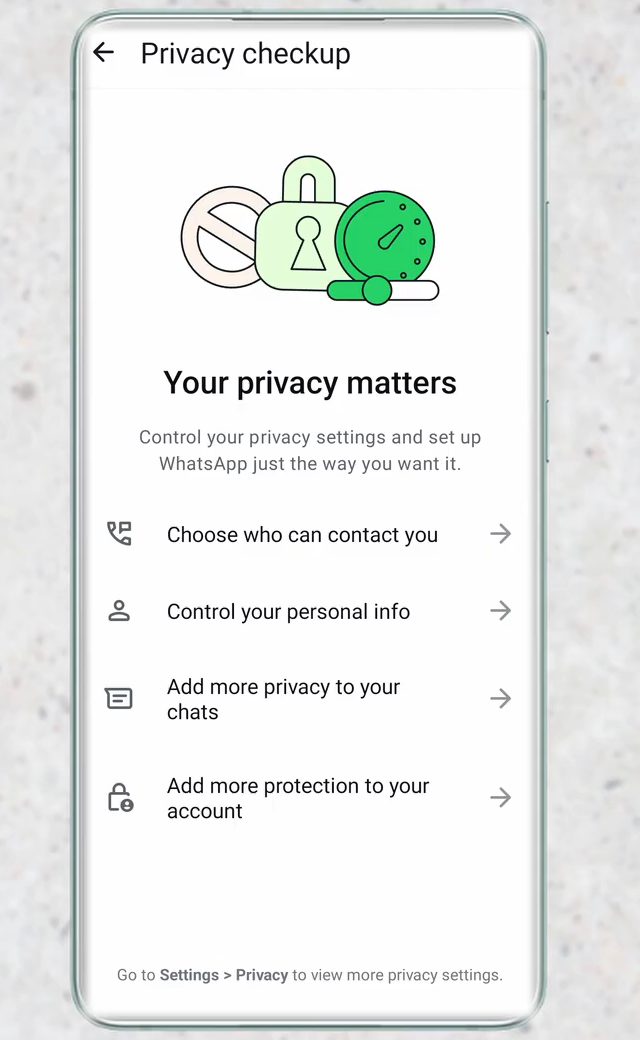
The Your privacy matters screen has four sections: - Choose who can contact you - Control your personal info - Add more privacy to your chats - Add more protection to your account
Work through them one by one. The steps below follow the same order.
4Decide who can add you to groups
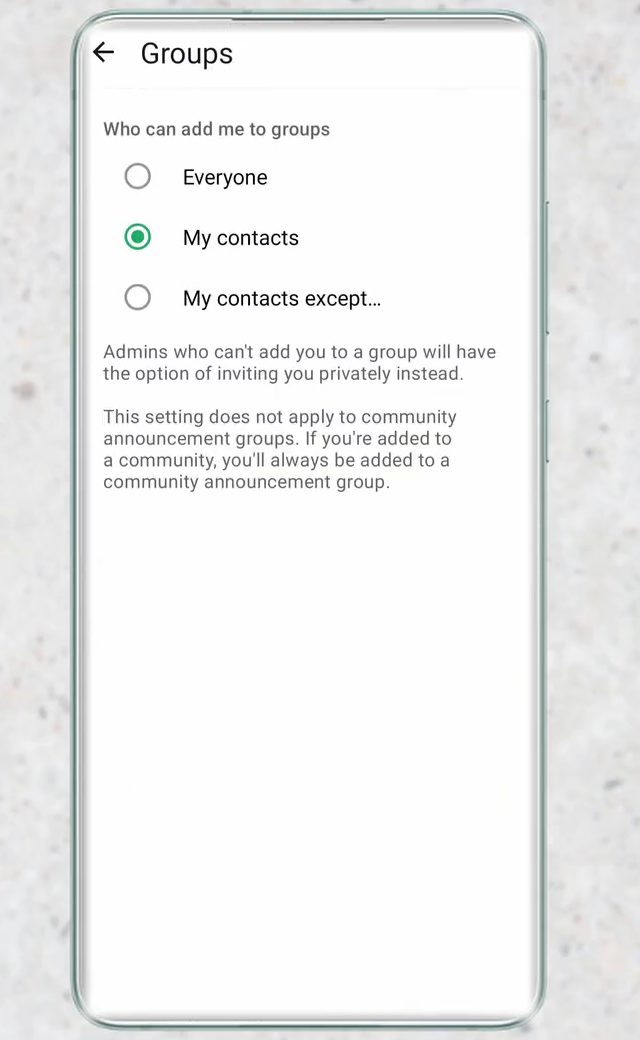
Tap Choose who can contact you, then Groups. Under Who can add me to groups you can pick Everyone, My contacts or My contacts except.... If you pick My contacts, strangers can no longer drop you into random groups. Admins who can't add you will have the option of sending you a private invite instead, which you can ignore.
5Silence unknown callers and check blocked contacts
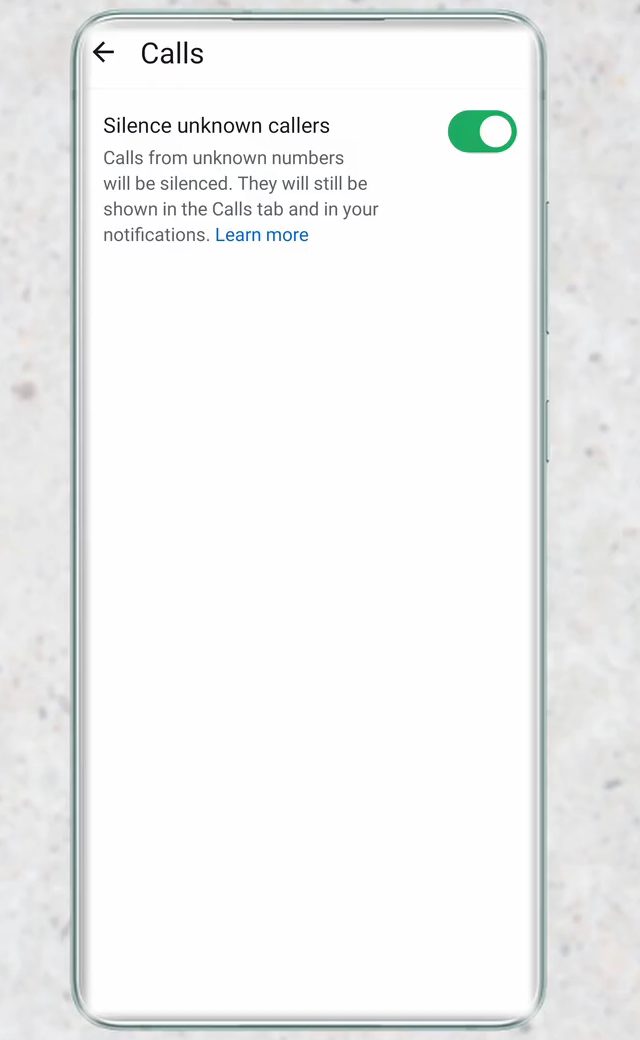
Go back and tap Silence unknown callers. With the switch on, calls from numbers you haven't saved won't ring your phone. They still appear in the Calls tab and in your notifications, so you won't miss anything important.
The third option on this screen is Blocked contacts. It lists everyone you've blocked, and you can add more people from there. Blocked contacts can't call you, message you or see your status updates.
6Control your personal info
Back on the main checkup screen, tap Control your personal info. This section has three settings: Profile photo, Last seen and online and Read receipts. Tap Profile photo to choose who can see your picture: Everyone, My contacts, My contacts except... or Nobody.
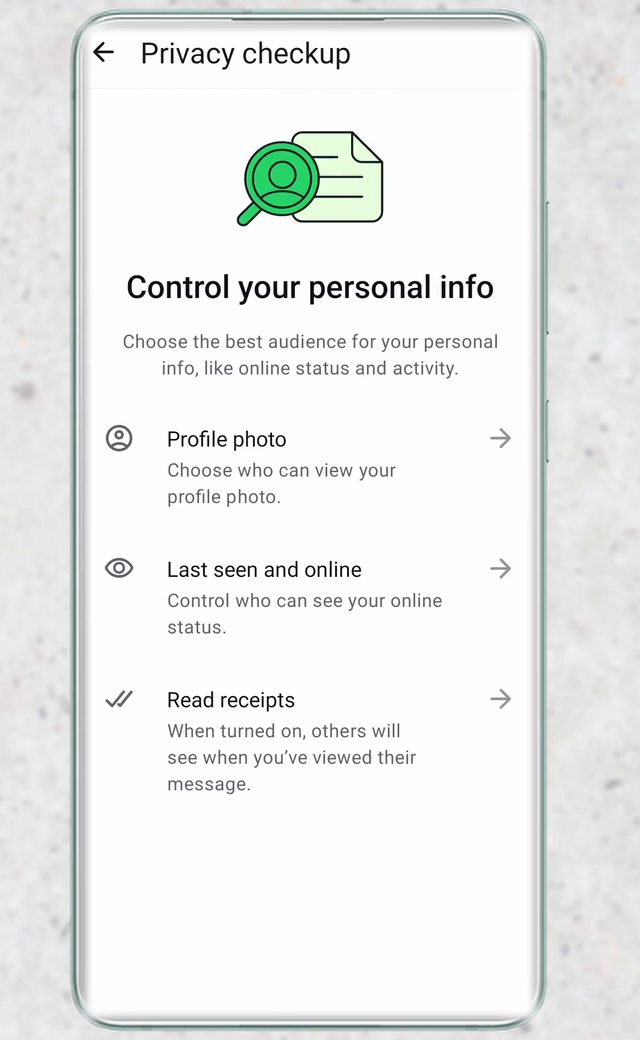
7Set last seen, online status and read receipts
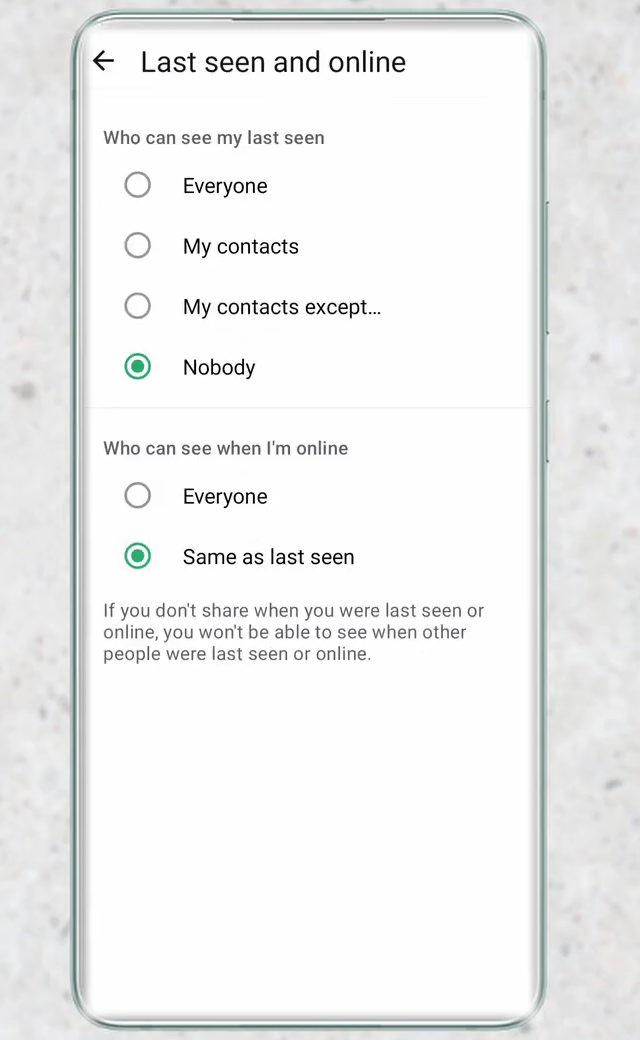
Tap Last seen and online. The top half, Who can see my last seen, has the same four choices as profile photo. The bottom half, Who can see when I'm online, has two: Everyone or Same as last seen. Setting last seen to Nobody and online to Same as last seen hides both.
Keep in mind the rule shown on this screen: if you don't share your last seen or online status, you can't see other people's either.
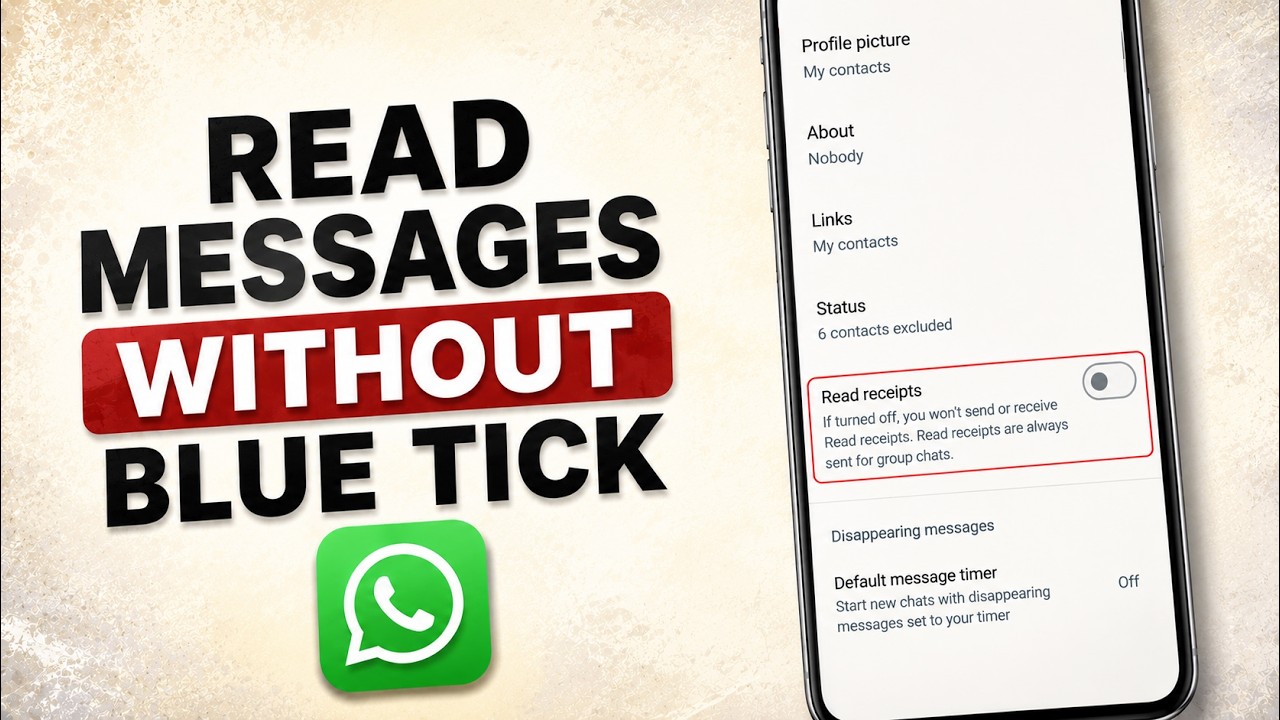
Then go back and open Read receipts. When it's on, people see blue ticks when you read their message. Turn it off and they won't, but you also stop seeing blue ticks from others. Read receipts are always sent in group chats, whatever you choose here.
8Turn on a default disappearing message timer
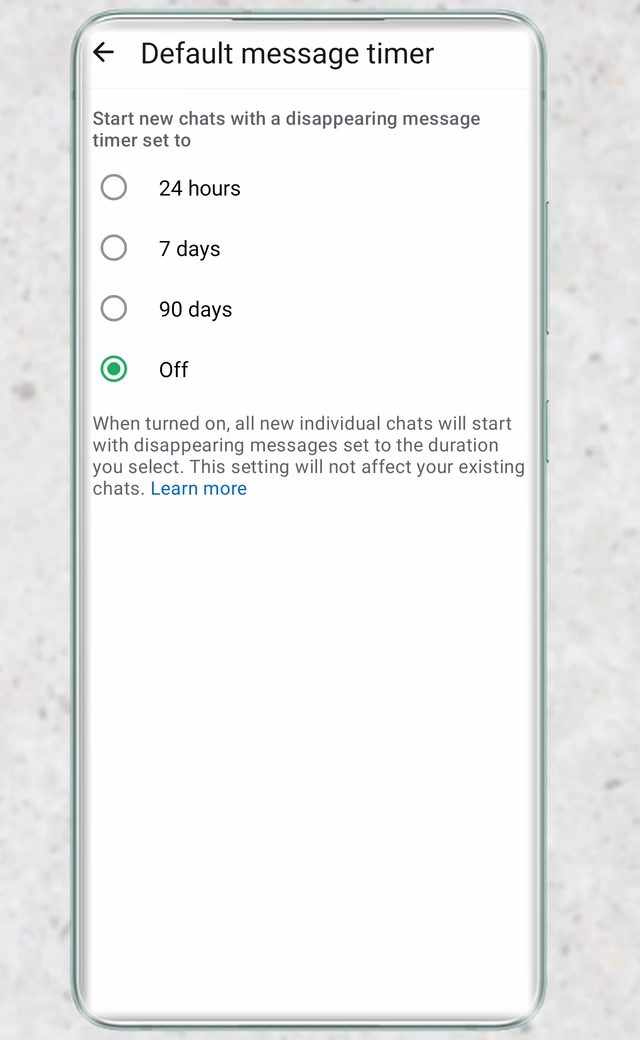
From the checkup screen, tap Add more privacy to your chats, then Default message timer. Choose 24 hours, 7 days or 90 days, or leave it Off. Once a timer is set, every new one-to-one chat you start will have disappearing messages turned on for that length of time. Existing chats are not changed.
This section also lists End-to-end encrypted backups, which the video doesn't cover.
9Add app lock and two-step verification
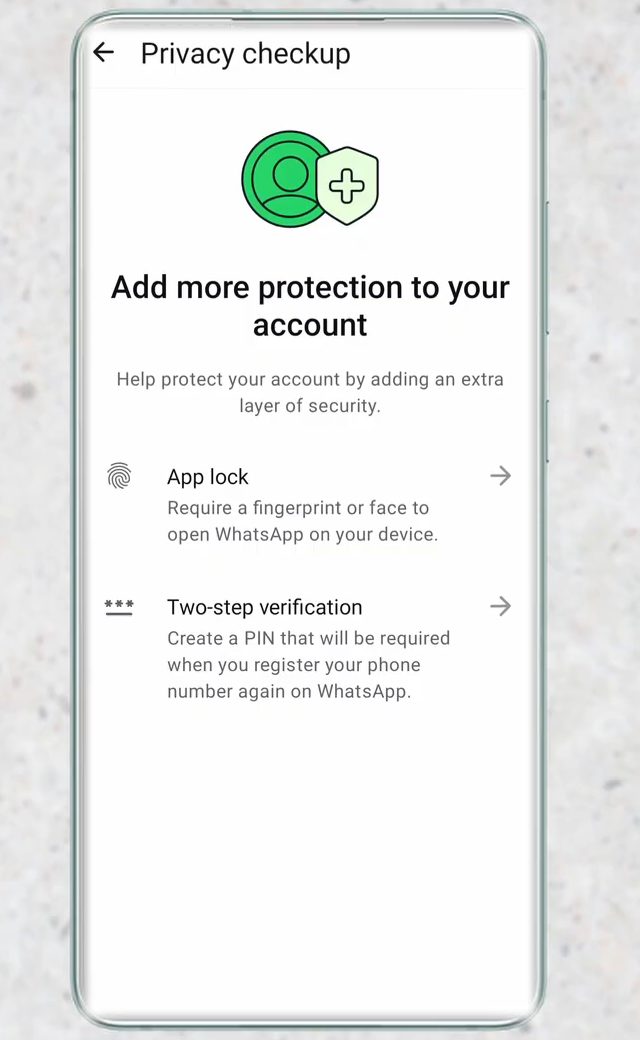
Open the last section, Add more protection to your account. It has two options: - App lock: turn on Unlock with biometric and you'll need your fingerprint or face to open WhatsApp on that phone. - Two-step verification: creates a PIN that WhatsApp asks for whenever your number is registered on WhatsApp again. This stops someone who gets hold of your SMS code from taking over your account. If it's already on, you'll see Turn off and Change PIN here instead.
Which settings to pick
If you just want a sensible starting point: - Groups: My contacts - Silence unknown callers: on, if you get spam calls - Profile photo: My contacts - Last seen: My contacts or Nobody - Read receipts: your choice, remembering it works both ways - Two-step verification: on, and keep the PIN somewhere safe
Tips / troubleshooting
- Don't see Privacy checkup? It is a newer addition. Update WhatsApp from the Play Store or App Store and look again at the bottom of Settings > Privacy.
- Want more options? The checkup covers the main ones. The full Privacy page also has About, Status, Live location, Chat lock and Advanced, where you can protect your IP address in calls and disable link previews.
- Still seeing someone's last seen after hiding yours? If you hide yours, you lose theirs too. If you can see it, check that both last seen and online are set the way you expect.
- Blue ticks still showing in a group? That is expected. Turning off read receipts doesn't apply to group chats.
WhatsApp's own help page, How to change your privacy settings, lists the same options for Android and iPhone.
Related guides: How to Turn Off Read Receipts on WhatsApp and How to Hide WhatsApp Chats with a Secret Code.
FAQ
Where are the privacy settings in WhatsApp?
Tap the three dots on the Chats screen, then Settings > Privacy. For the most important options in one place, scroll to the bottom and tap Privacy checkup.
How do I hide my last seen and online status on WhatsApp?
Go to Settings > Privacy > Privacy checkup > Control your personal info > Last seen and online. Set last seen to Nobody and online to Same as last seen. You won't be able to see other people's last seen either.
If I turn off read receipts, will I still see blue ticks?
No. Read receipts work both ways, so with them off you stop seeing blue ticks from other people too. Group chats are the exception: read receipts are always sent there.
Can I stop strangers from adding me to WhatsApp groups?
Yes. In Choose who can contact you > Groups, pick My contacts or My contacts except.... People outside that list can only send you an invite, which you can accept or ignore.
Related guides