Tech is Easy
How to Add Conditional Questions in Google Forms
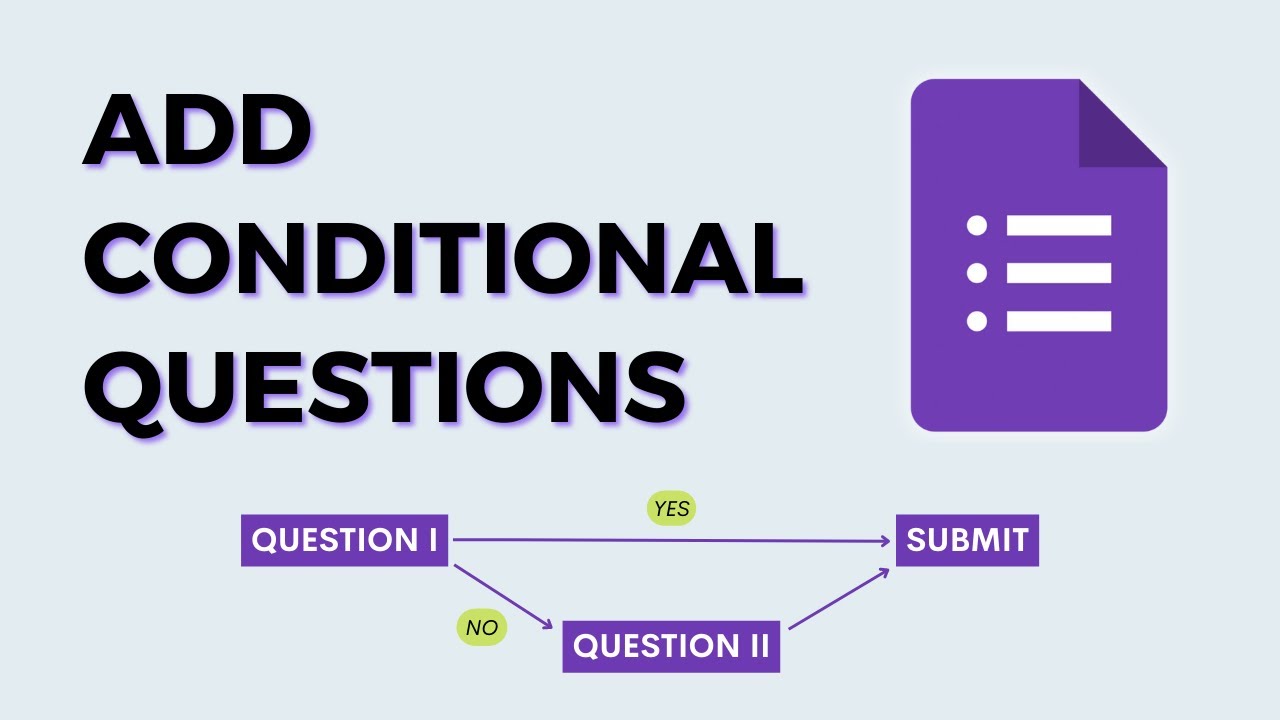
Conditional questions let you decide what someone sees next based on how they answered. In Google Forms this works by splitting the form into sections and sending each answer to a different section. We'll build a small product review form where "Yes" ends the form, while "No" and "Other" each lead to a follow-up question.
What you need
- A Google account
- The form you want to add conditional questions to, open in Google Forms
1Add the question that decides the path
Open your form and add the question whose answer will control what comes next. In our example it is "Will you buy the product?"
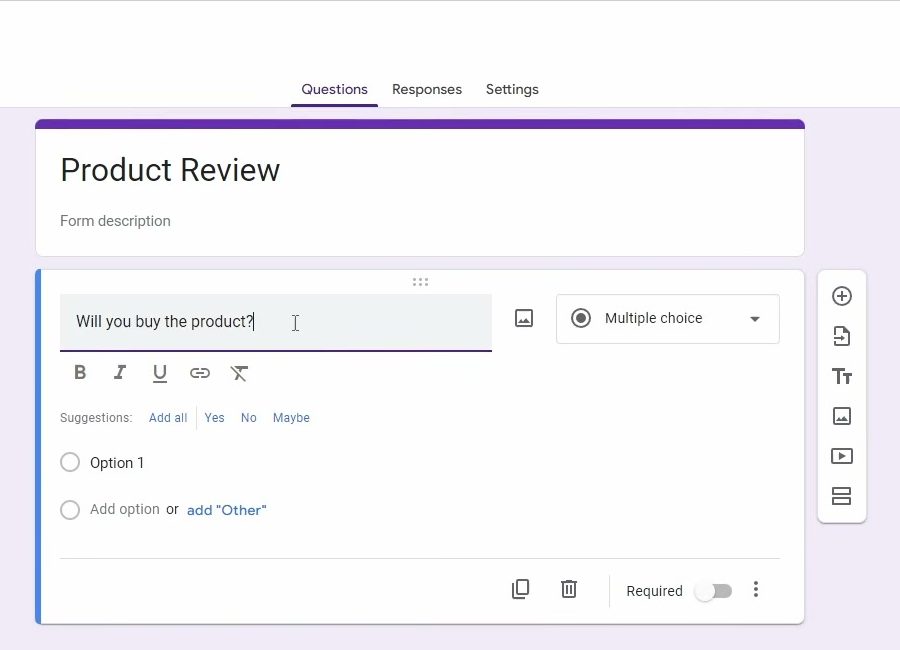
2Set the answer type to Multiple choice or Dropdown
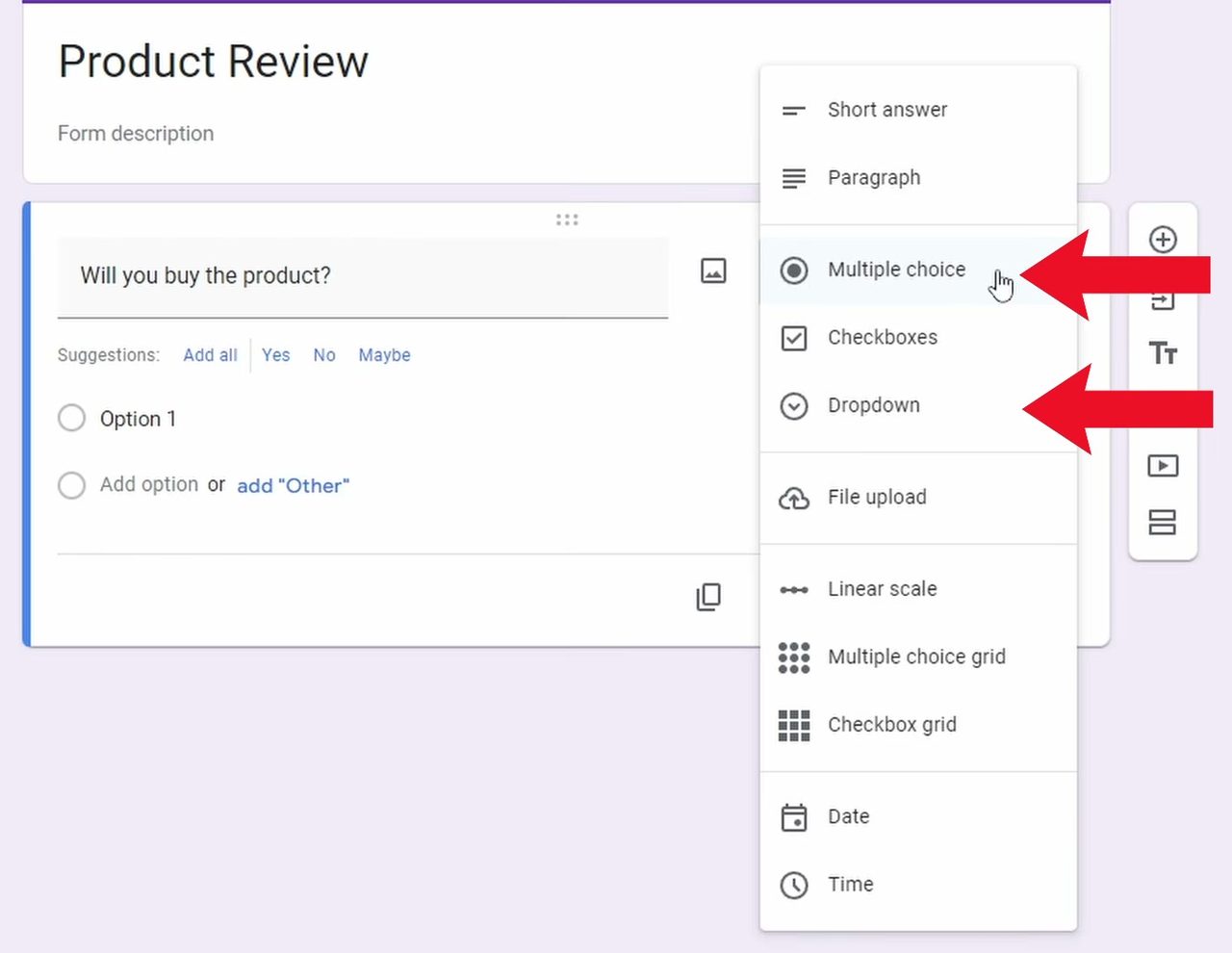
Click the answer type box next to the question. Branching only works with Multiple choice or Dropdown, so pick one of those. We kept Multiple choice.
3Add the answer options
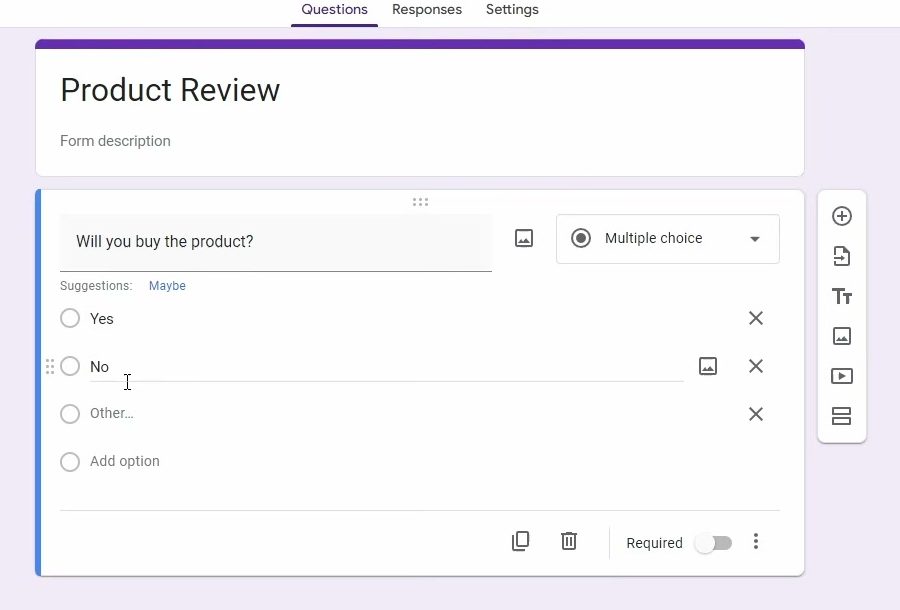
Add the choices people can pick from. Ours are Yes, No and Other.
4Create a section for each path
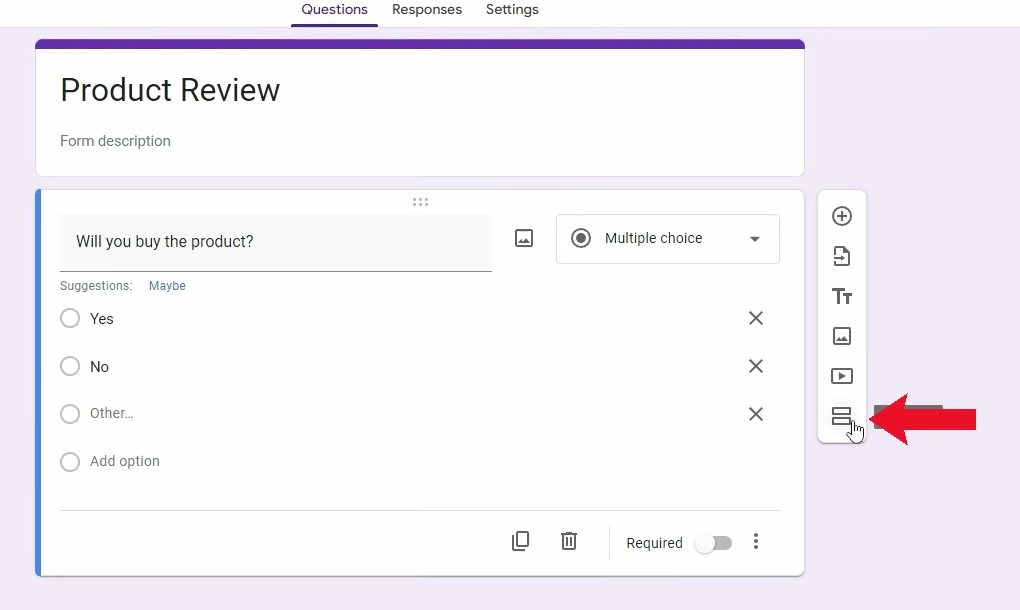
Each answer needs a section to send people to. Click the Add section button at the bottom of the floating toolbar on the right. Click it again for each extra section you need. We added two, so the form now has three sections.
5Turn on Go to section based on answer
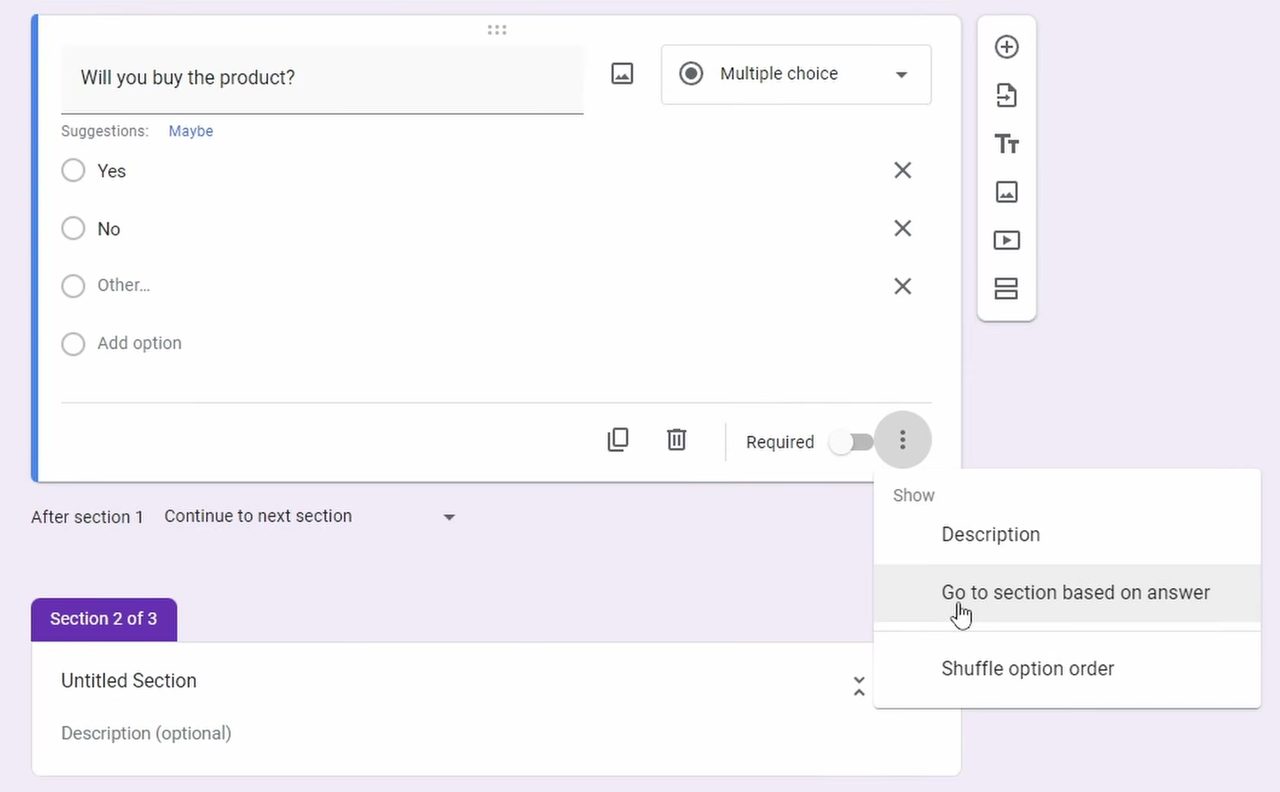
Go back to the first question and click on it. Click the three dots at the bottom right of the question card, then select Go to section based on answer. A dropdown now appears next to every option.
6Link each answer to a section
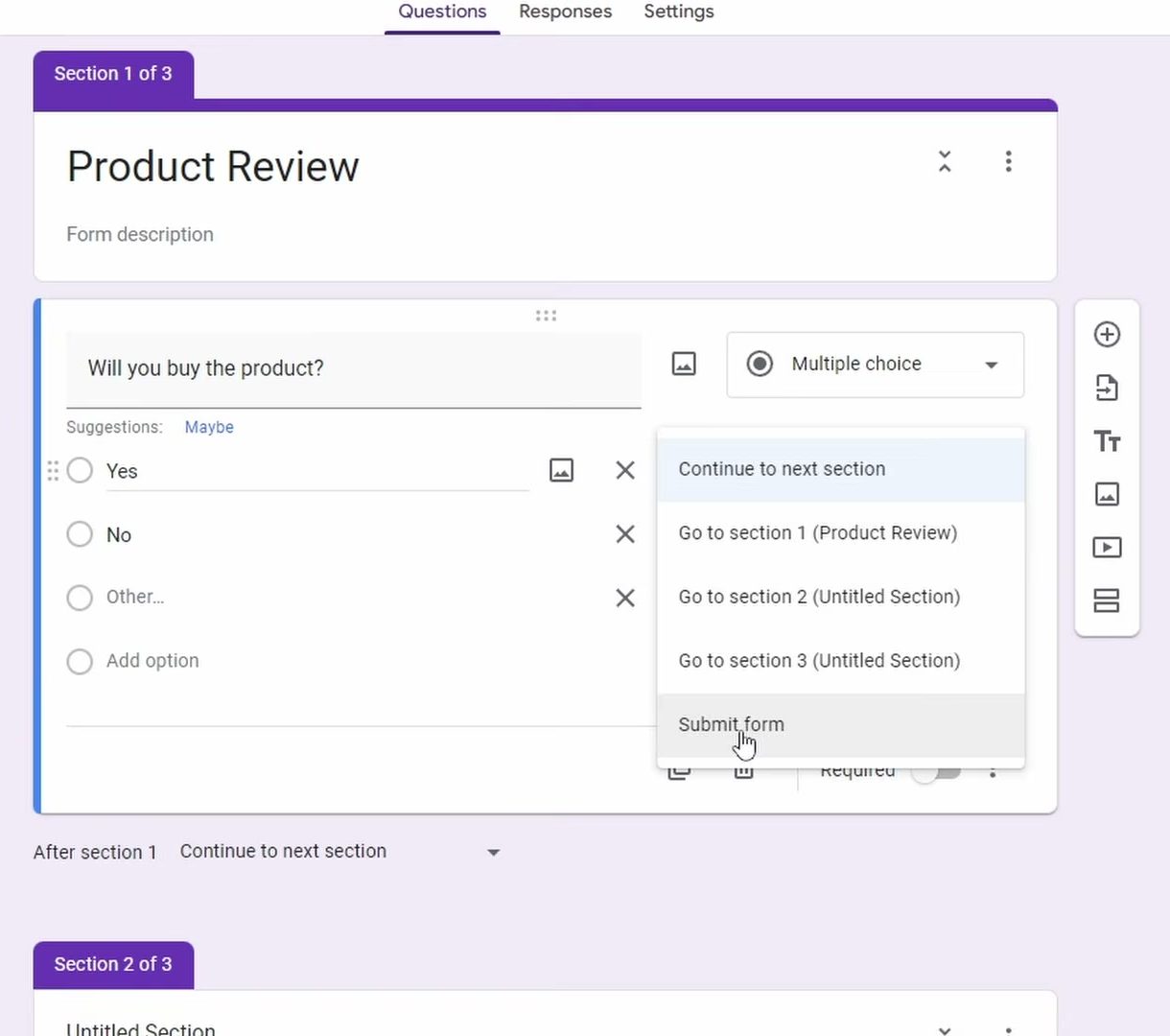
Click the dropdown next to each option and pick where it should go. The list includes every section plus Submit form. We set Yes to Submit form, No to section 2 and Other to section 3.
7Add follow-up questions and end each section
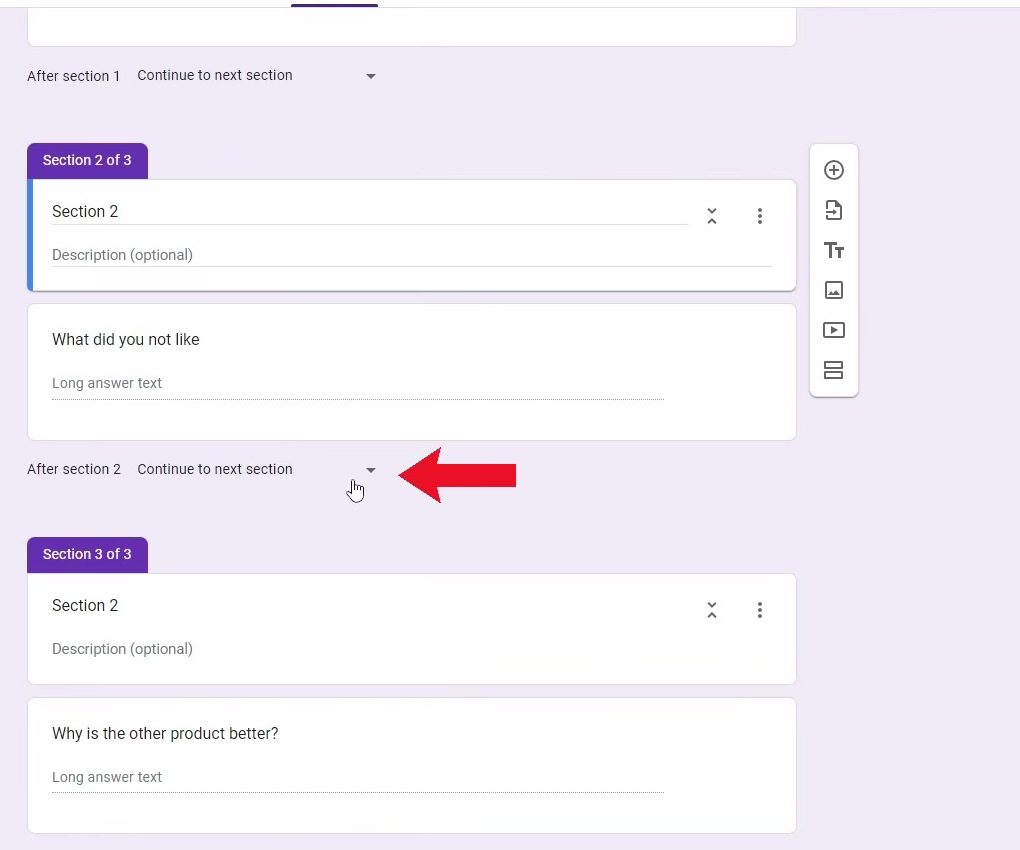
Add the follow-up question inside section 2 and section 3. Then look at the After section 2 setting under section 2. By default it says Continue to next section, which would push people from section 2 into section 3. Change it to Submit form so they finish the form there.
8Open the preview
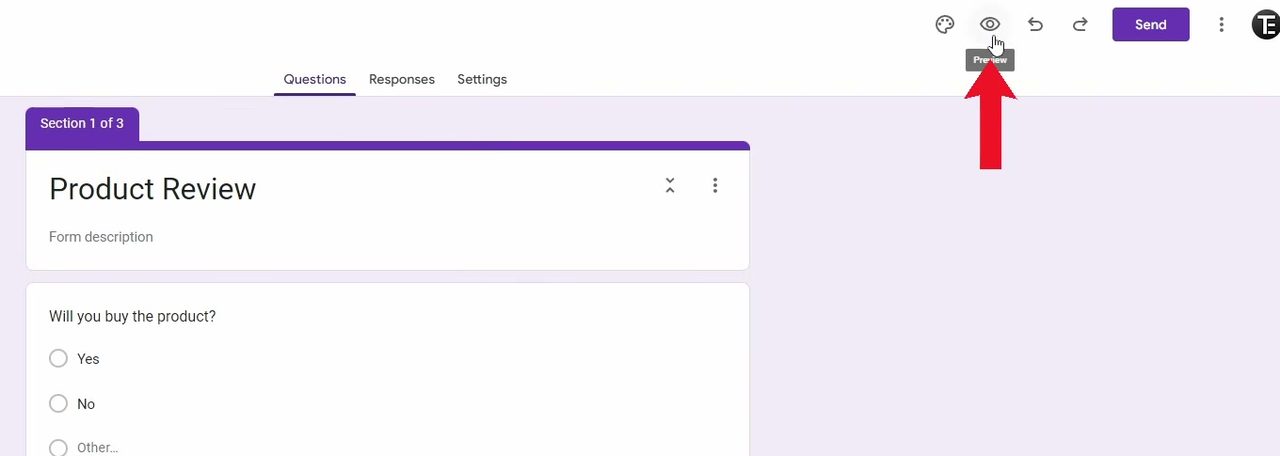
Click the Preview icon (the eye) at the top right of the editor to open the form the way respondents see it.
9Test every answer
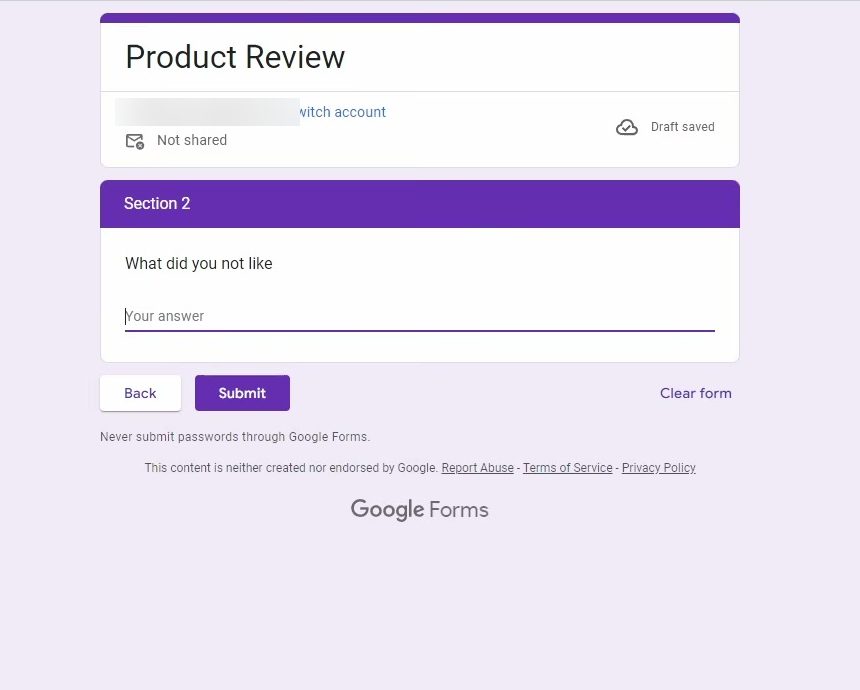
Try each option and click Next. With our setup, "Yes" goes straight to submitting, "No" opens the "What did you not like" question, and "Other" opens "Why is the other product better?". Use Back to return and test the next path.
Plan the paths before you build
Branching is easier to set up when you know where every answer should go. Before adding sections, write a short list like ours: Yes goes to submit, No goes to section 2, Other goes to section 3. For each path, also decide what happens at the end of that section: submit, or continue to another section. A few rules help: - One section per path. Each follow-up group of questions needs its own section, because Google Forms sends people to sections, not to single questions. - Several answers can share a section. Nothing stops you from pointing two answers to the same section if they need the same follow-up. - Put the deciding question at the end of its section. People only move on after they click Next, so any questions placed after it in the same section are still shown to everyone.
Skip sections without a question
You don't always need an answer to decide the path. Google's help page on showing questions based on answers also describes skipping sections: add a section break with Add section, then use the dropdown at the bottom of each section to choose which section people go to next. This is how you join paths back together. For example, after two different follow-up sections you can send both groups to one shared final section instead of submitting.
What your responses look like
Every person still sends one response, but questions in sections they never saw are left blank. On the Responses tab and in a linked Google Sheet, expect empty cells for the paths a person didn't take. That's normal and doesn't mean the form is broken. Required questions in a skipped section don't block anyone either, because those questions are never shown to them.
Tips / troubleshooting
- If someone lands in the wrong section, check the After section setting at the bottom of each section. It defaults to Continue to next section.
- Give your sections clear names so the dropdowns in Step 6 are easier to read.
- If you change a question from Multiple choice to Checkboxes, its branching stops working, since Checkboxes don't support Go to section based on answer.
- Test again after adding, deleting or moving a section. The section numbers in the dropdowns change, so double-check that every answer still points where you meant.
Related guides: How to Use Google Forms Settings: 10 You Should Know and How to Share Google Form Responses With Others (5 Ways).
FAQ
Which question types support conditional logic in Google Forms?
Only Multiple choice and Dropdown questions show the Go to section based on answer option. Checkboxes and text questions can't send people to different sections.
Why don't I see "Go to section based on answer"?
Your form needs at least two sections, and the question has to be Multiple choice or Dropdown. Add a section from the right-hand toolbar, then open the three dots menu on the question again.
Can an answer end the form immediately?
Yes. In the dropdown next to an answer, choose Submit form. People who pick that answer go straight to the submit page without seeing the other sections.
How do I stop people from seeing every section?
Set the After section dropdown at the end of each follow-up section to Submit form. Otherwise Google Forms moves them on to the next section in order.
Related guides