Tech is Easy
How to Use Google Forms Settings: 10 You Should Know
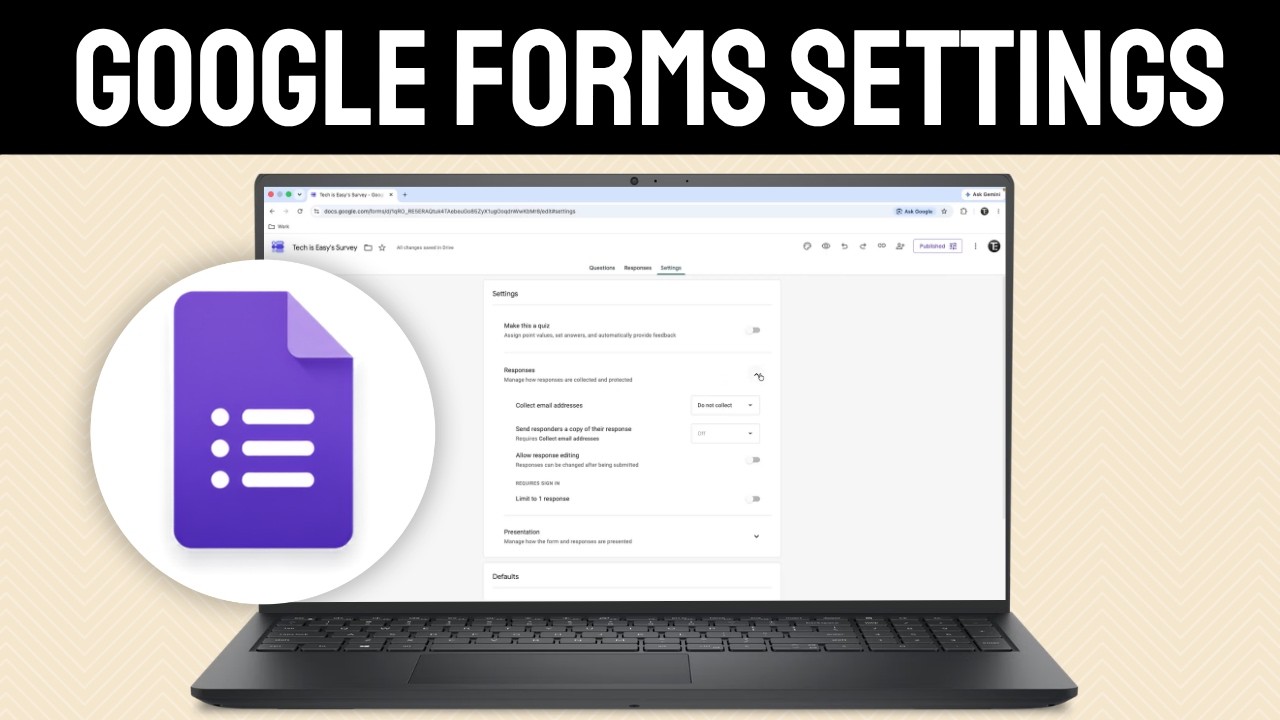
To use Google Forms settings, open your form and click the Settings tab at the top, then expand Responses or Presentation to change how answers are collected and shown. A few more controls live in the Theme (palette) icon and the Published button. This guide walks through the settings worth knowing, from collecting email addresses to limiting and stopping responses, for anyone who builds forms, surveys or quizzes.
What you need
- A Google Form you can edit, open in a browser on a computer
1Open Settings and choose how to collect emails
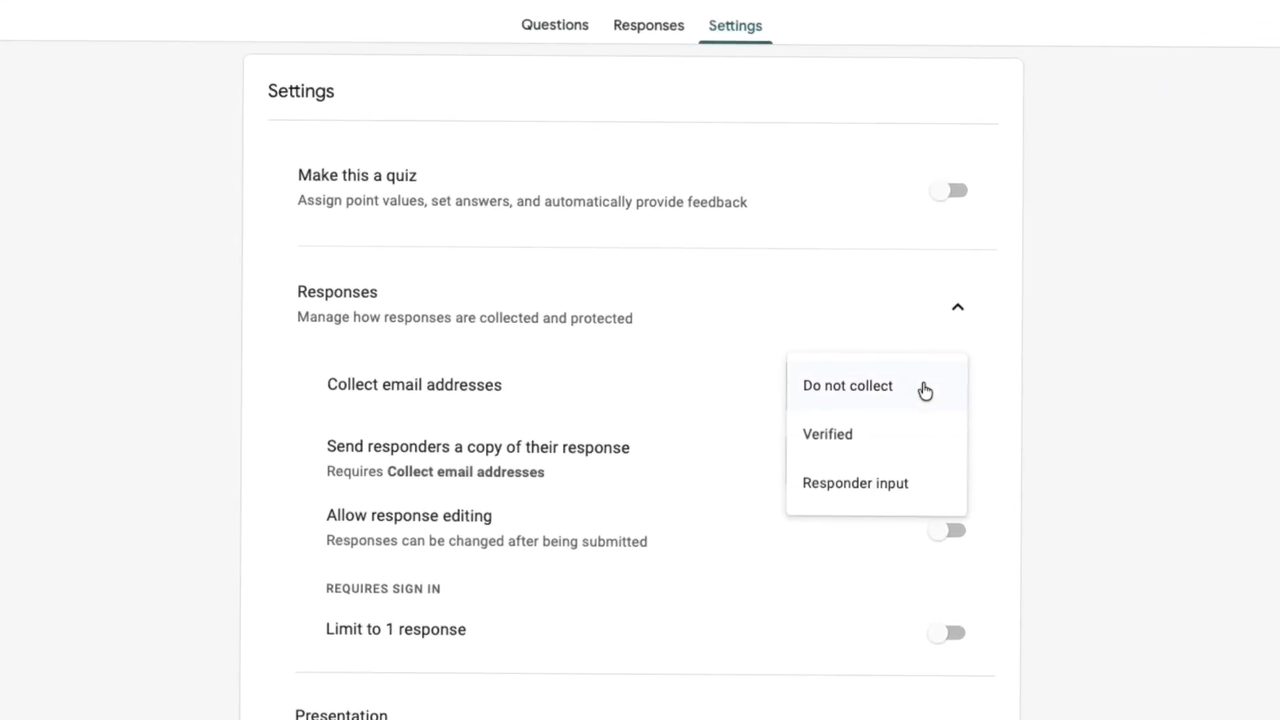
Open the form and click the Settings tab. Click Responses to expand it. Next to Collect email addresses, pick one of three options: - Do not collect: no email is recorded. - Verified: people must sign in with a Google account, so the email is confirmed. - Responder input: people type their email themselves, with no check that it is correct.
2Send responders a copy of their response
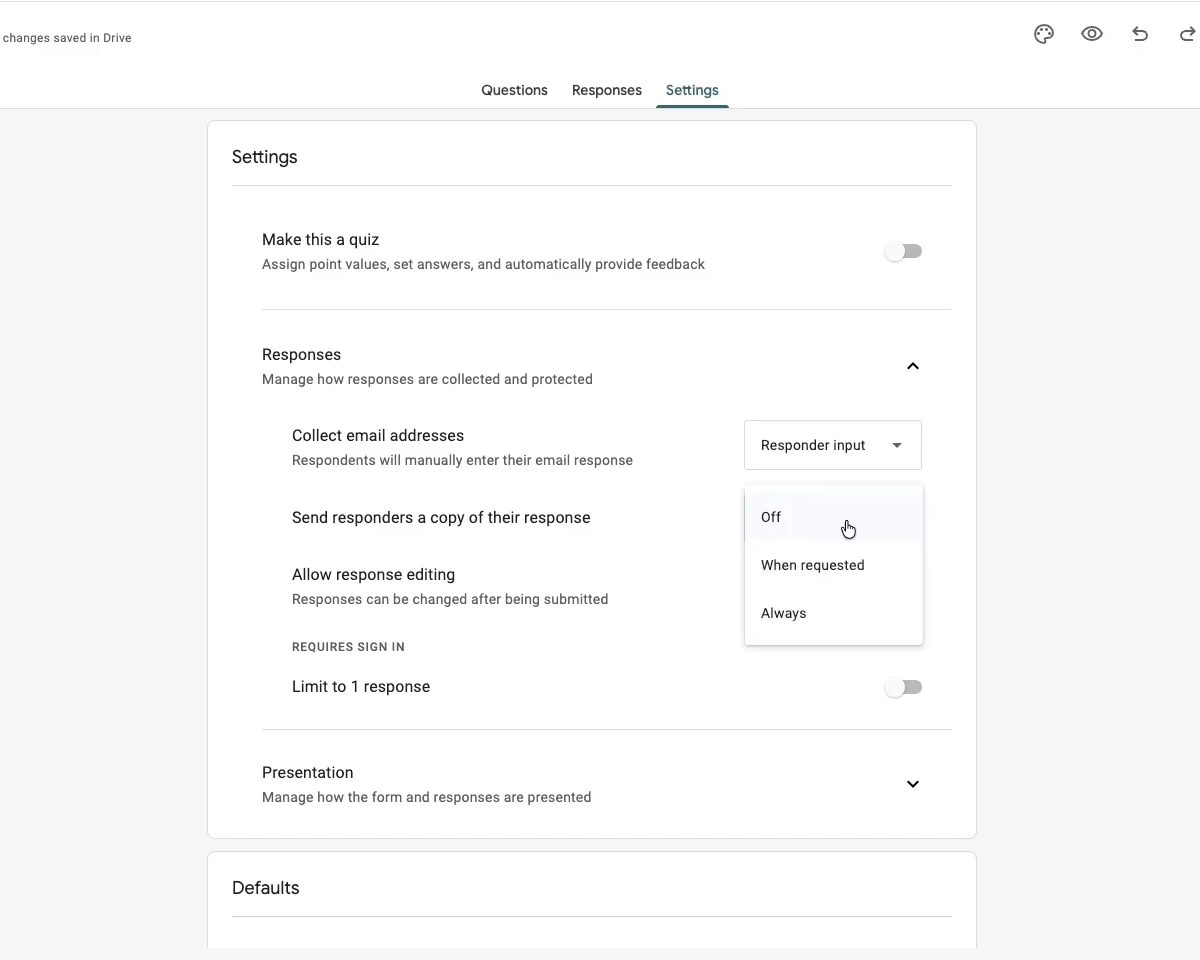
This option only appears once you collect email addresses. Open the dropdown next to Send responders a copy of their response and choose Off, When requested or Always. With Always, everyone gets a copy of their answers by email after they submit.
3Allow editing and limit each person to one response
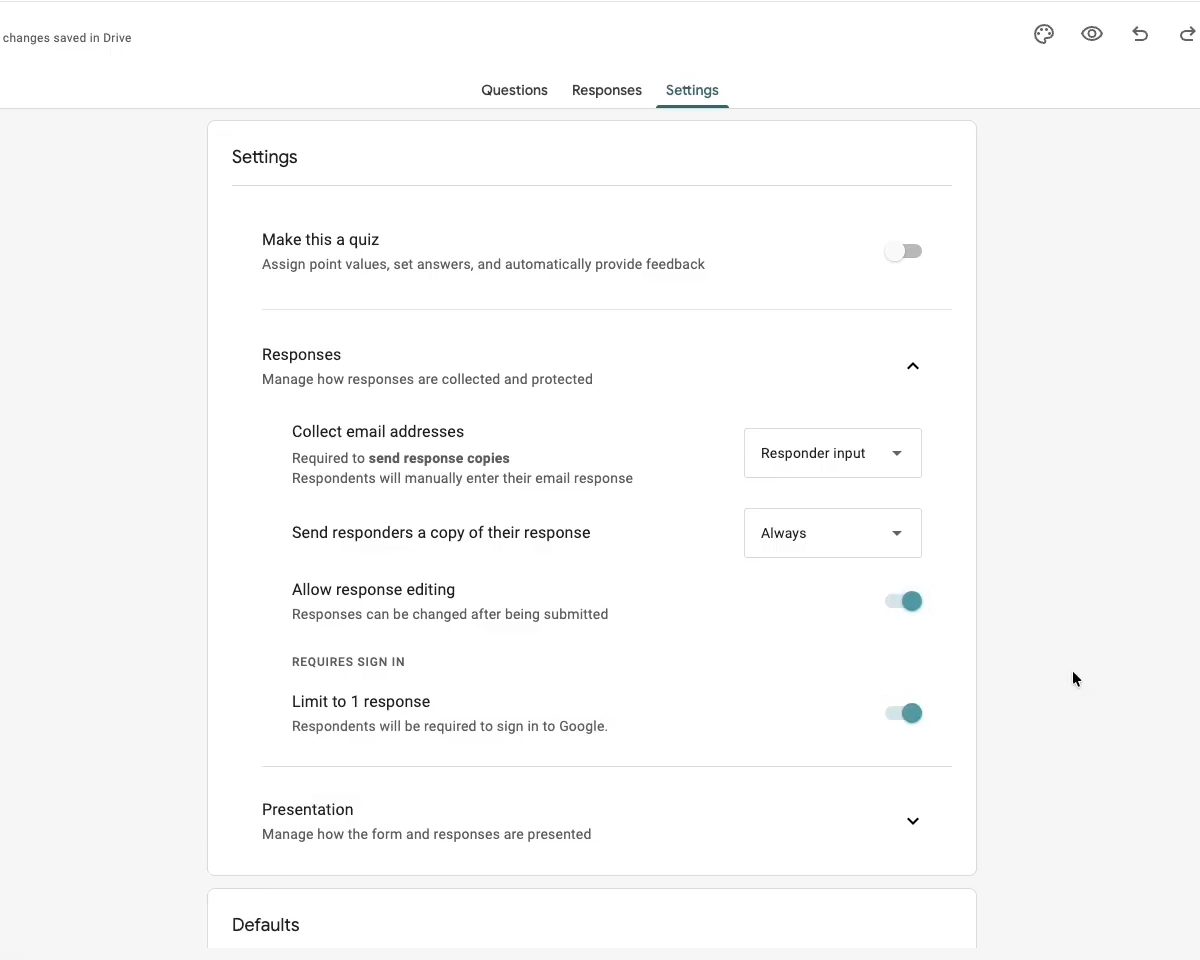
Turn on Allow response editing if people should be able to change their answers after submitting. They get an edit link that takes them back to the form. Turn on Limit to 1 response to stop the same email from submitting twice. This one needs people to sign in to Google.
4Show a progress bar or shuffle question order
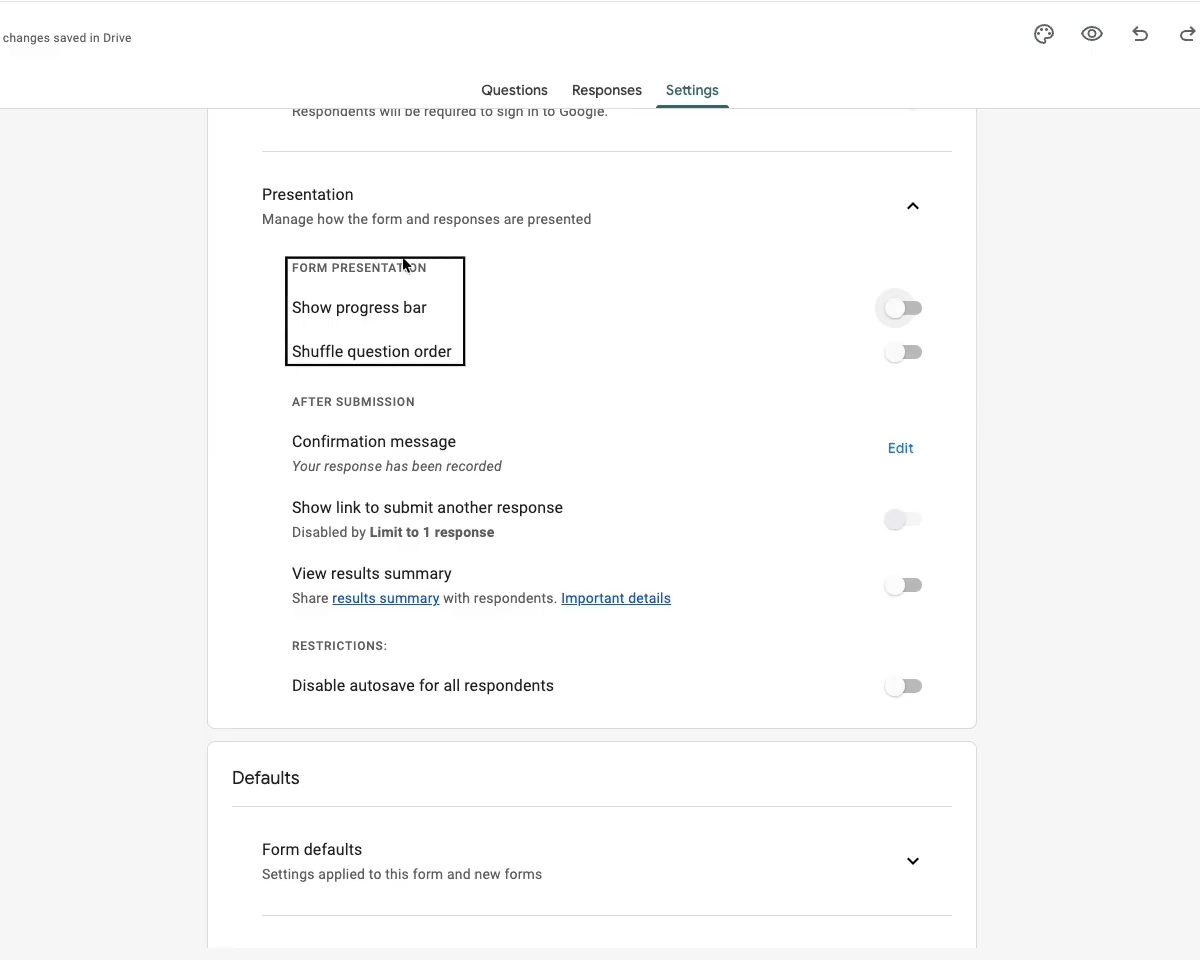
Expand Presentation. Show progress bar tells people how far through the form they are. Shuffle question order mixes up the questions for each person, which is useful for quizzes.
5Edit the confirmation message and results summary
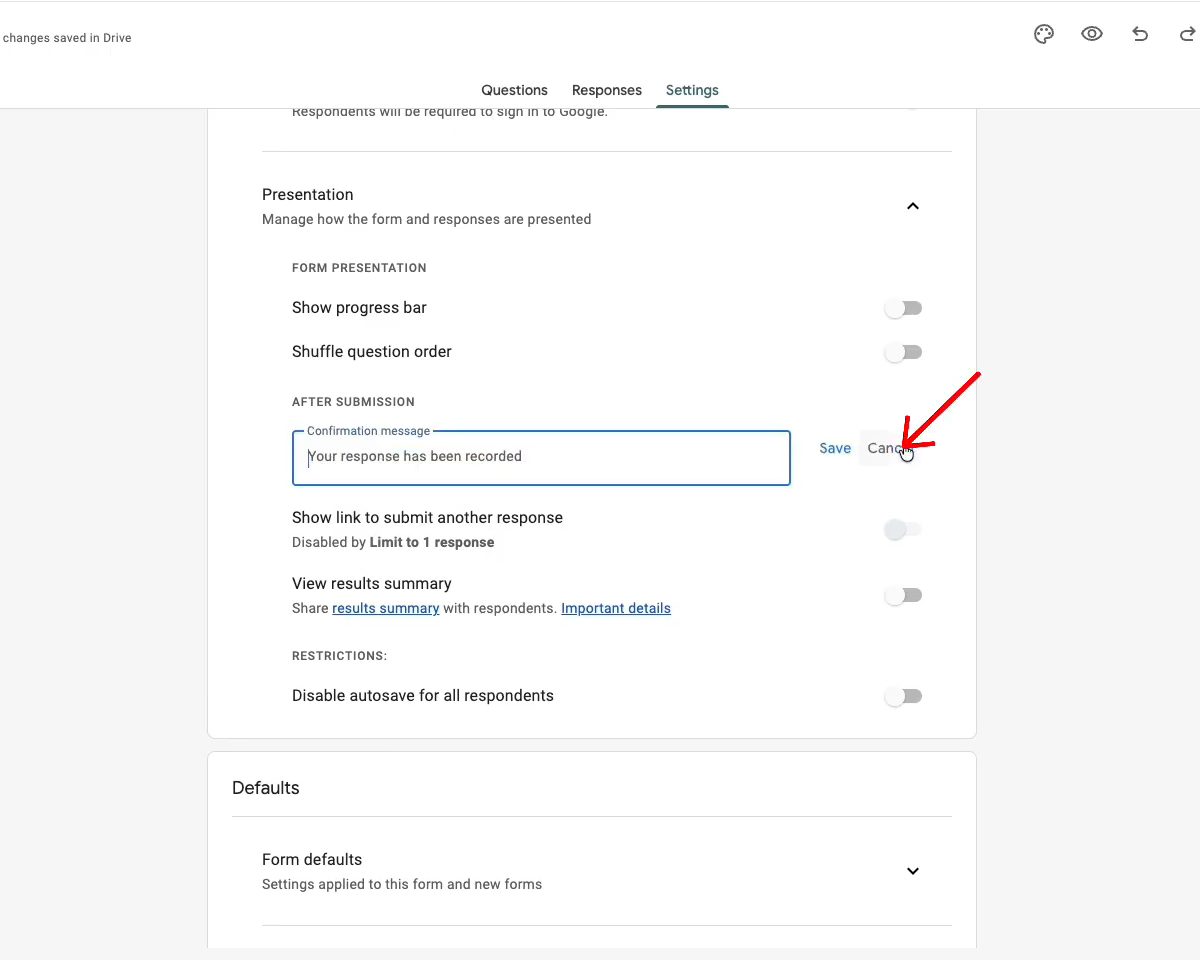
Under After submission, click Edit next to Confirmation message and type what people should see after submitting, such as a link to your website or Instagram. Then click Save. Turn on View results summary if you want people to see a summary of all responses after they submit. Click the results summary link to preview exactly what they will see.
6Disable autosave
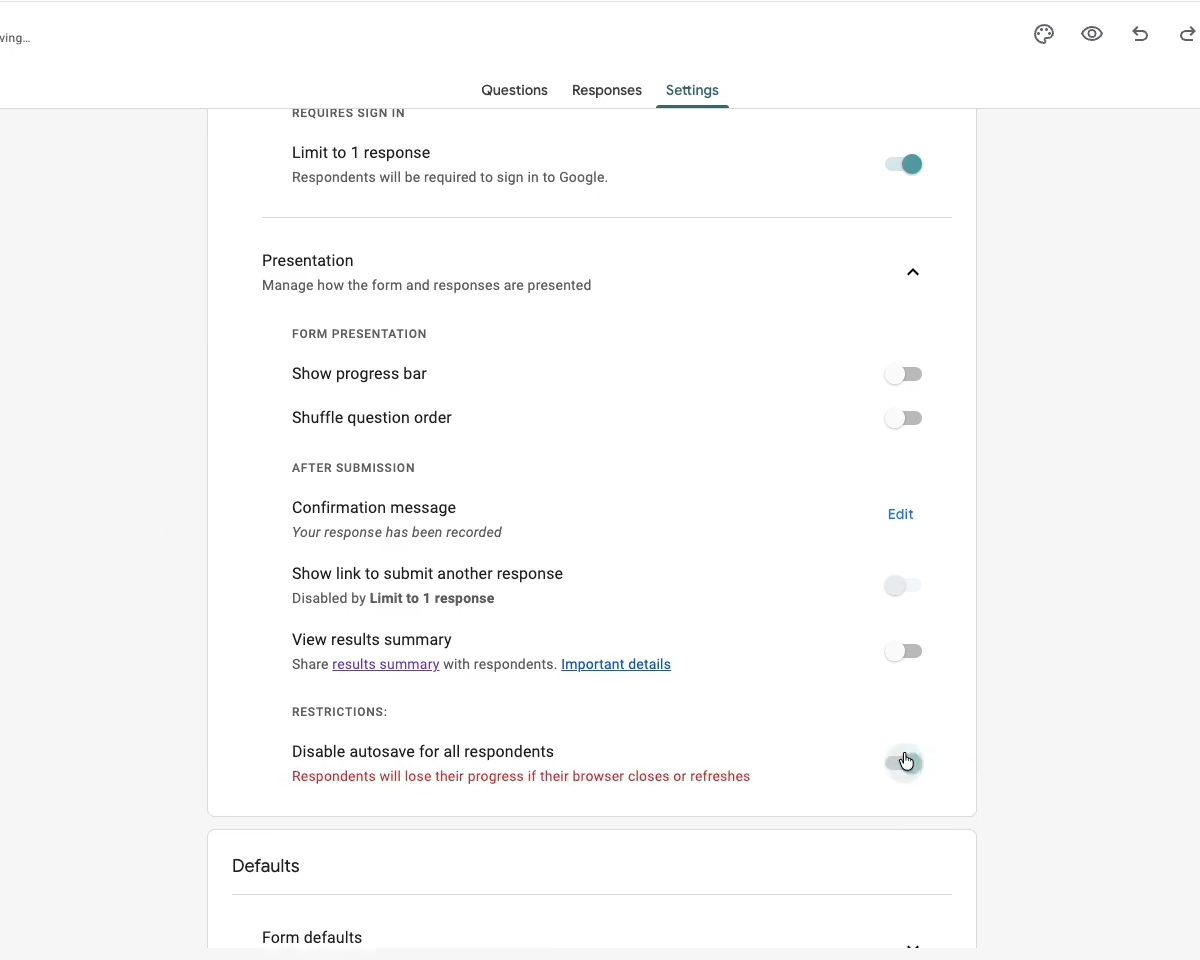
By default, Google Forms saves a person's progress, so if they close the tab and come back their answers are still there. Turn on Disable autosave for all respondents to switch this off. The form warns that respondents will lose their progress if their browser closes or refreshes.
7Customize the theme
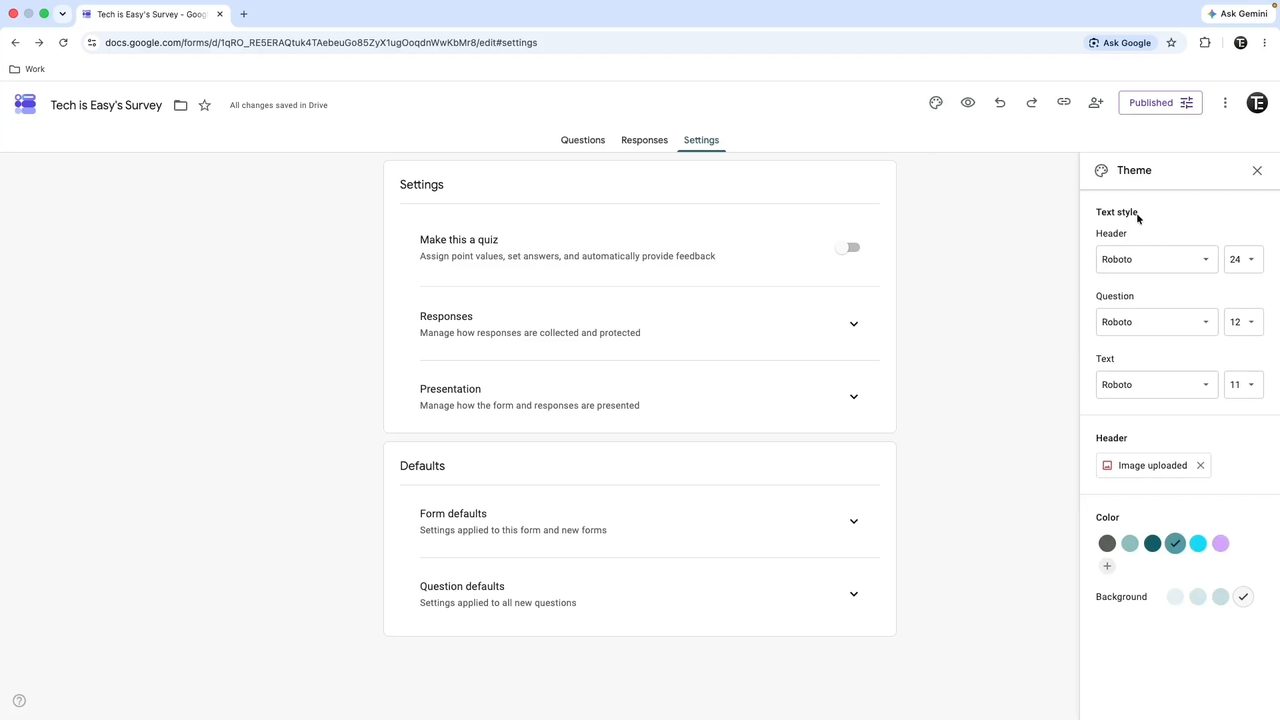
Click the Theme (palette) icon at the top. Here you can change the font and size for the header, questions and text, add a header image, and change the form color and background color.
8Stop accepting responses
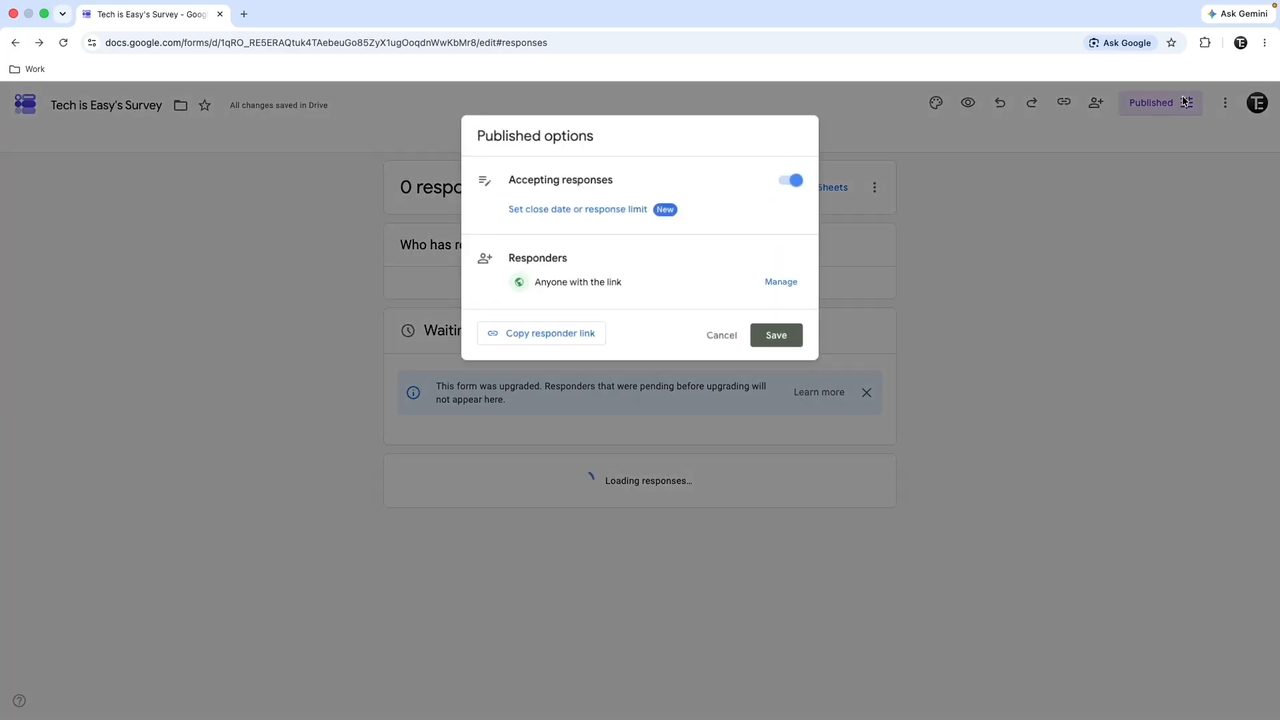
Click Published at the top. Switch off Accepting responses to close the form right away. You can edit the message people see when the form is closed.
9Set a close date or response limit
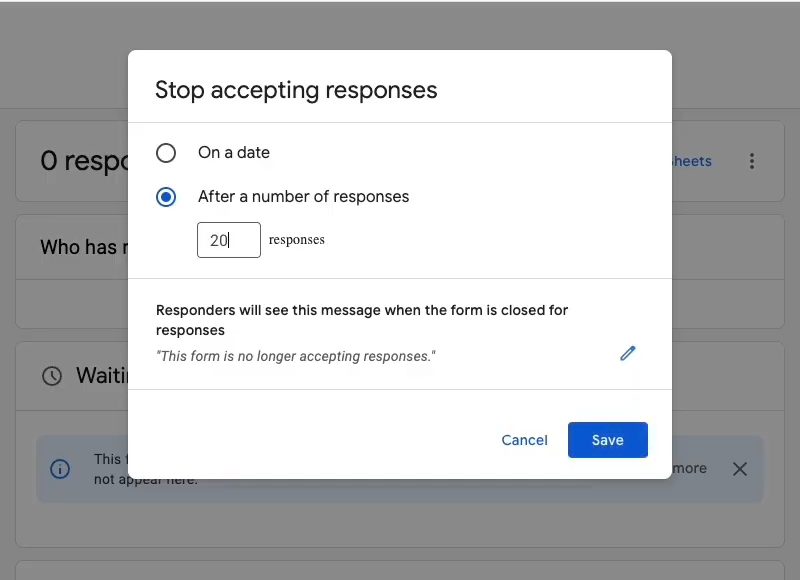
In the same window, click Set close date or response limit. Pick On a date to close the form after a date and time, or After a number of responses to close it once it reaches a number. We entered 20, so the 21st person sees the closed message. Click Save.
10Control who can respond
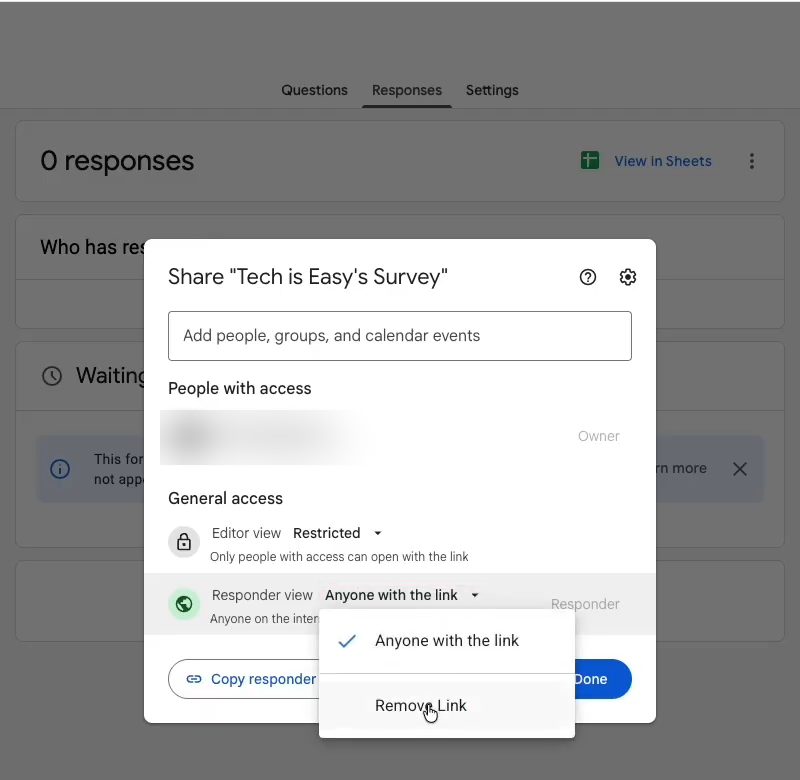
In Published, click Manage next to Responders. By default it says Anyone with the link. Open that dropdown and choose Remove Link to restrict it, then add the email addresses of the people allowed to respond and click Send.
Tips / troubleshooting
- Limit to 1 response and Verified email collection both make people sign in with Google, which can put off some respondents.
- To get answers into a spreadsheet as they arrive, use Link to Sheets on the Responses tab. See how to link Google Forms to Google Sheets.
- The Make this a quiz switch at the top of Settings lets you add points and auto-grade answers. For a full walkthrough, see how to create a Google Form.
FAQ
How do I collect email addresses in Google Forms?
Go to Settings, expand Responses and set Collect email addresses to Verified (people sign in with Google) or Responder input (people type their email).
How do I limit responses in Google Forms?
For one response per person, turn on Limit to 1 response in Settings > Responses. To cap the total, click Published > Set close date or response limit and choose After a number of responses.
How do I stop accepting responses on a Google Form?
Click Published at the top of the form and switch off Accepting responses, then click Save. Turn it back on any time to reopen the form.
How do I shuffle questions in Google Forms?
Open Settings, expand Presentation and turn on Shuffle question order. Each person then sees the questions in a different order.
Related guides