Tech is Easy
I Connected Claude to My Smartwatch: Full Setup + 4 Prompts
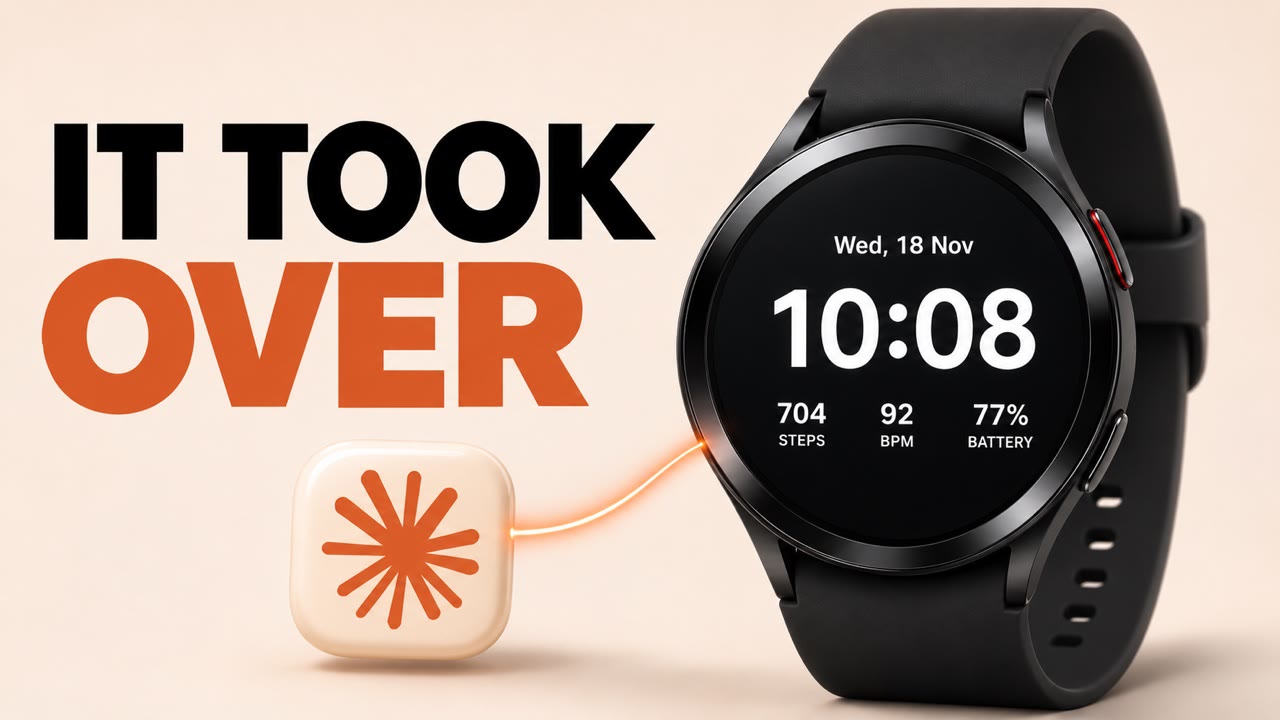
I connected Claude Code to my Samsung Galaxy Watch4 over Wi-Fi and let it look around. It found 222 apps on a watch where I had installed nothing myself, told me exactly what was draining the battery, cleaned out the preinstalled apps I never use, and then designed and installed a watch face with my own photo on it. This guide shows the full setup and the four prompts I used, so you can do the same on your watch in about 15 minutes.
What you need
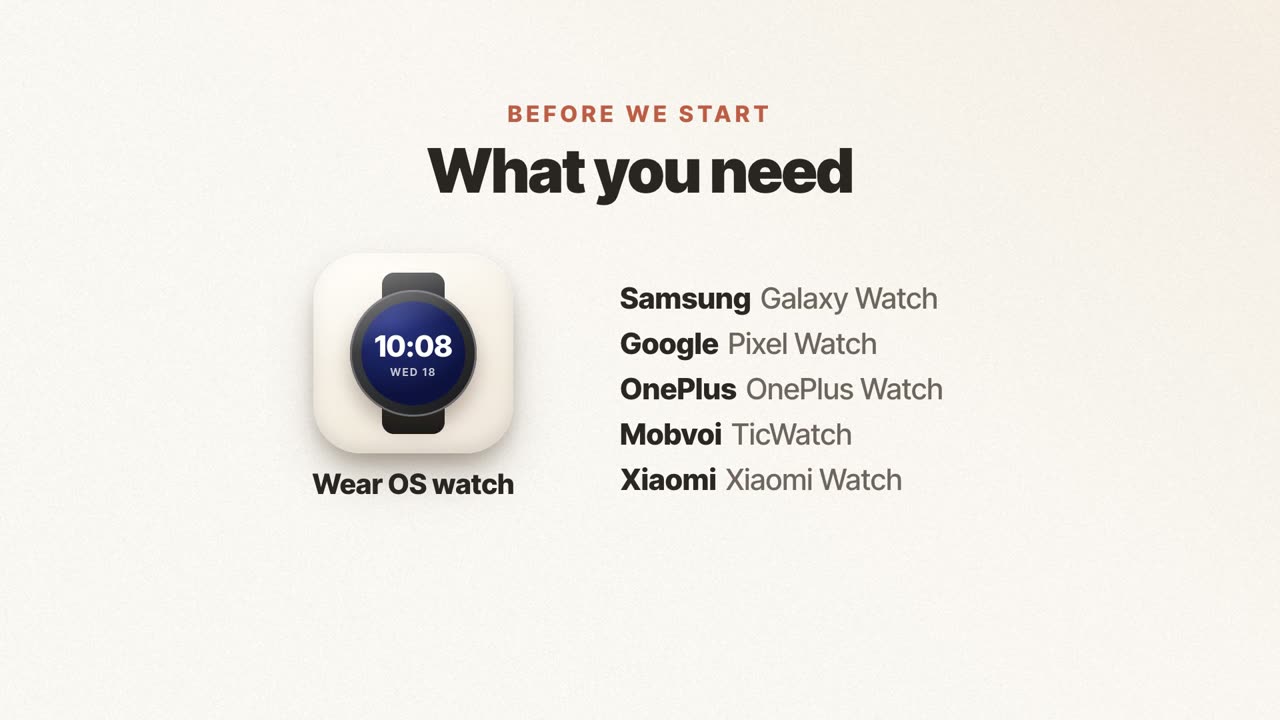
- A smartwatch that runs Wear OS: Samsung Galaxy Watch 4 or newer, Google Pixel Watch, OnePlus Watch, Mobvoi TicWatch or a Wear OS Xiaomi Watch.
- Claude Code on your laptop (Mac, Windows or Linux).
- Your watch and laptop on the same Wi-Fi network.
This does not work on an Apple Watch, or on watches from Noise, Fire-Boltt or boAt. They don't run Wear OS, so there's no way for a laptop to talk to them like this.
All four prompts are on one page you can copy from: Claude smartwatch prompts.
How it works
Wear OS watches have the same developer tools as Android phones. One of them, Wireless debugging, lets a computer on the same Wi-Fi connect to the watch with a tool called adb (Android Debug Bridge). Claude Code can run adb commands, so once the watch is connected you can simply ask Claude, in plain English, to look at or change things on it. You don't type a single command yourself.
1Turn on developer mode on the watch
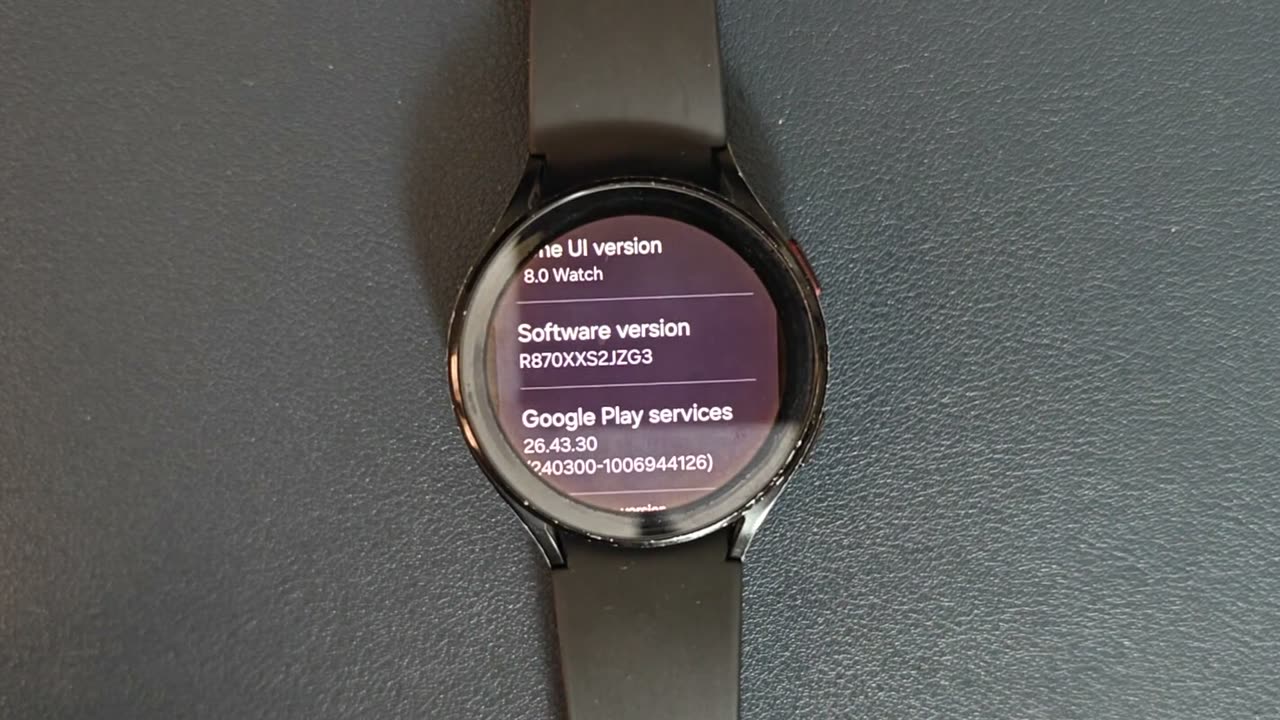
On your watch, open Settings, scroll down and tap About watch, then Software information. Tap Software version seven times until the watch says developer mode is turned on.
2Turn on Wireless debugging
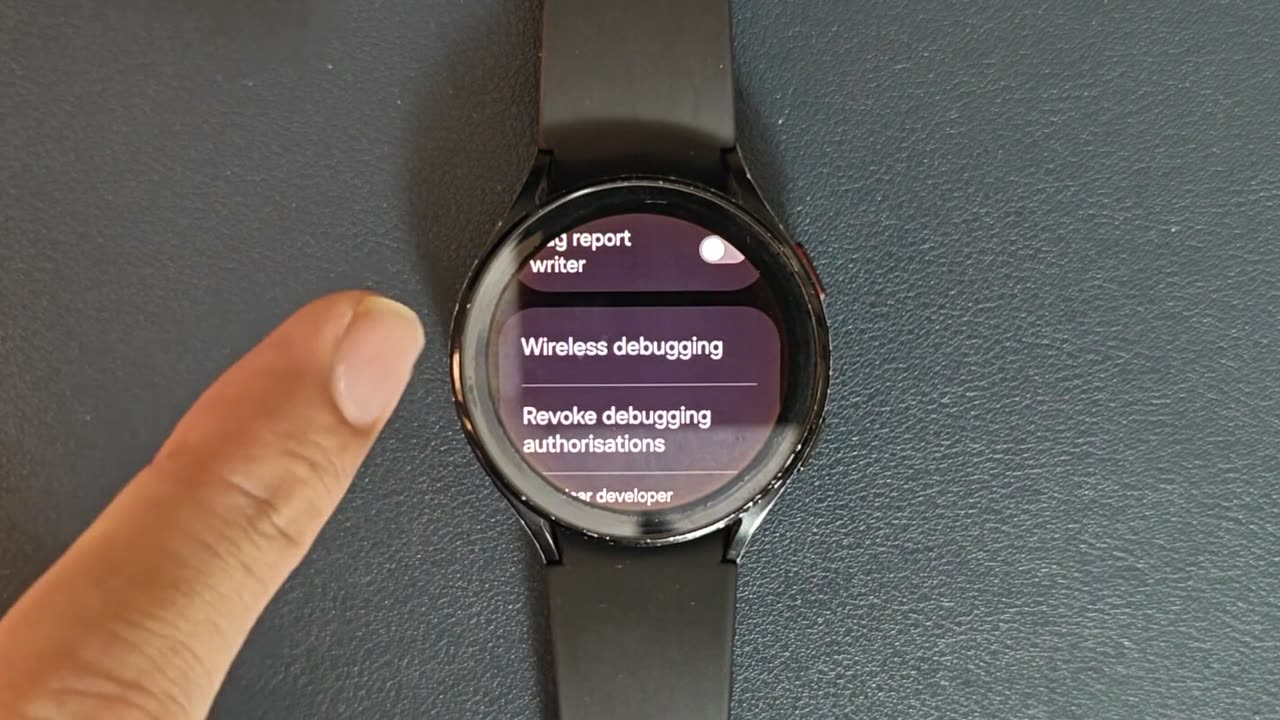
Go back to Settings and open the new Developer options menu. Turn on ADB debugging, then open Wireless debugging, turn it on and tap Allow when the watch asks to allow debugging on your network.
Two things trip people up here:
- Turn off Bluetooth on the watch for now. With Bluetooth on, the watch prefers talking to your phone and can drop the Wi-Fi connection that the laptop needs.
- Keep the watch screen on. When the screen goes off, Wireless debugging can switch itself off and Claude loses the connection.
In Wireless debugging, tap Pair new device. The watch shows an IP address and port plus a pairing code. Keep that screen open for the next step.
3Connect Claude and see what's on your watch
Open Claude Code on your laptop, start a new chat and paste Prompt 1 from the prompts page, filling in the IP address, port and code from your watch. Claude installs adb if it's missing, pairs with the watch and connects.
Prompt 1 only looks. It doesn't change anything. Here is what it found on my stock Galaxy Watch4:
- 222 packages in total. Most are invisible system components. I had installed nothing myself, and only 3 apps weren't part of the system (Calculator, Voice Recorder and the Buds controller, all Samsung preloads).
- 27 watch faces, almost all of which I'd never used.
- Factory and test apps that ship on every watch, such as
com.sem.factoryapp,com.sec.android.app.hwmoduletestandcom.sec.android.app.wlantest. - Telemetry apps that send diagnostic data to Samsung:
com.sec.android.diagmonagentandcom.samsung.android.dqagent. - A retail demo app (the loop that plays on watches in shops).
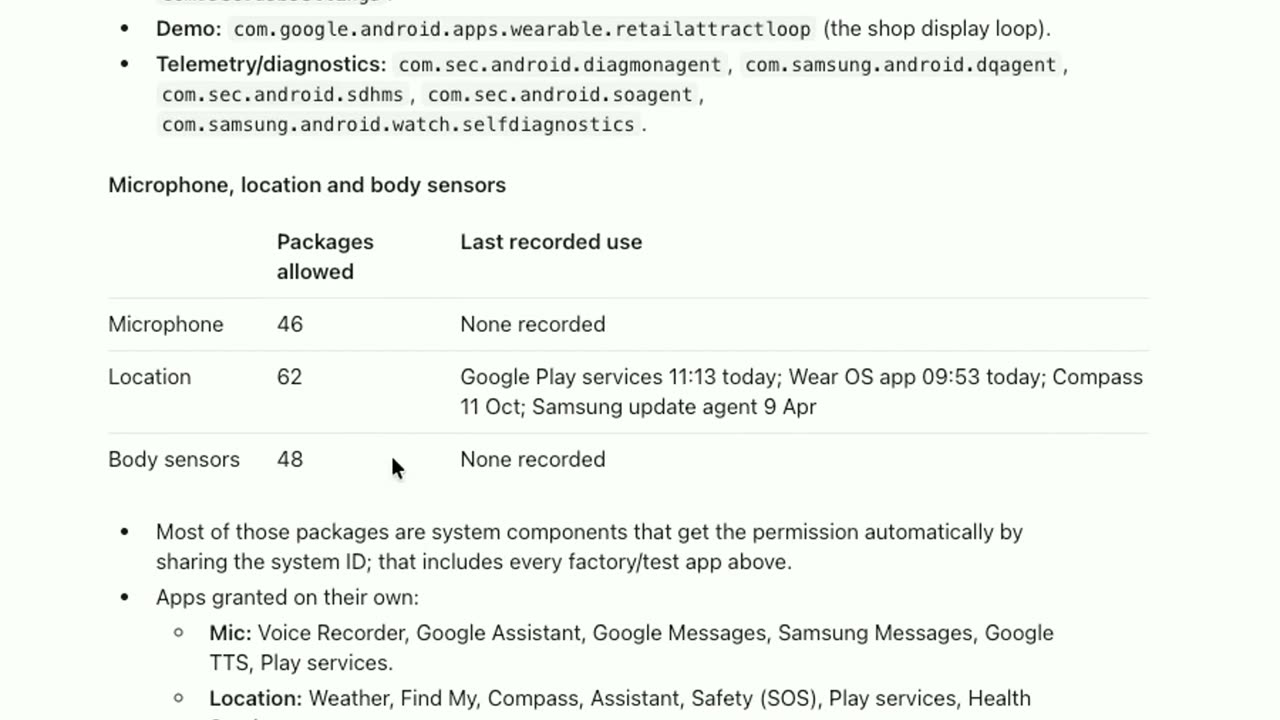
It also listed which apps are allowed to use sensitive features. On my watch, 46 packages could use the microphone, 62 could use location and 48 could use body sensors. Many of these are system parts that get the permission automatically, and Bixby has microphone access turned on by default even if you never use it. Claude also showed when each one was last used, which is the useful part: most had never used the microphone at all.
4Find what's draining your battery
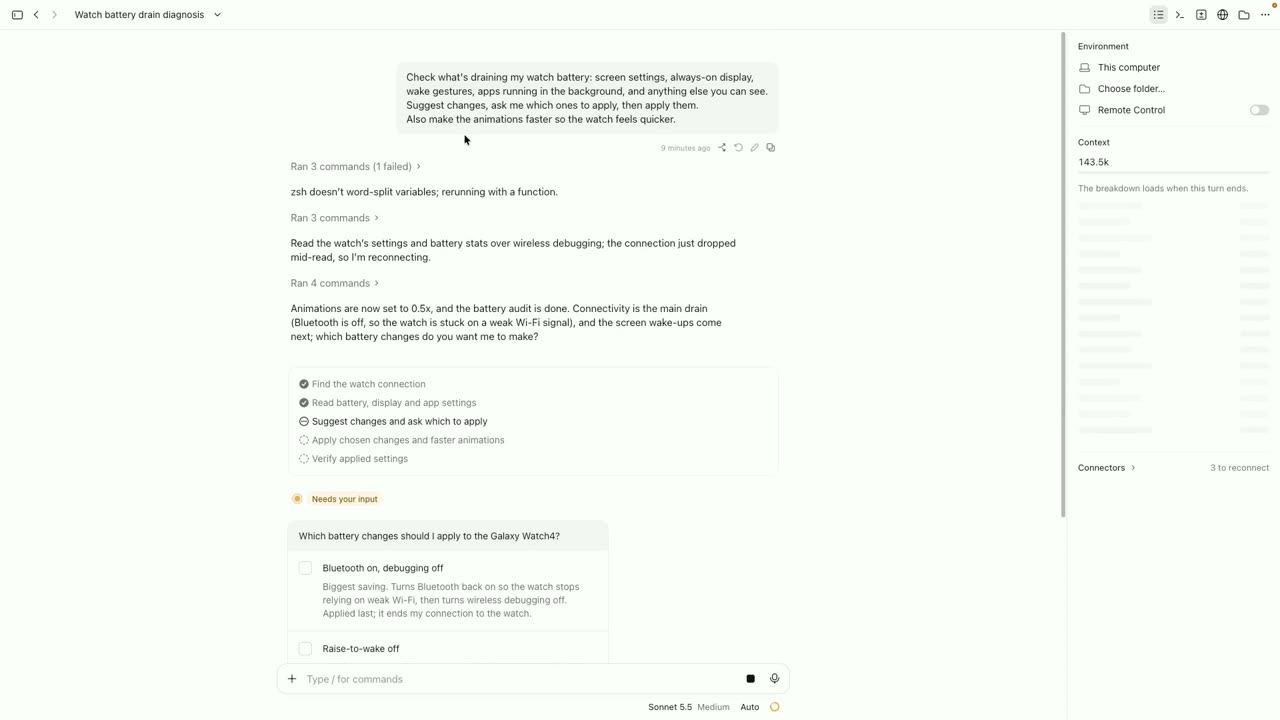
Paste Prompt 2. Claude checks the screen settings, always-on display, wake gestures and background apps, then gives you a list of changes to pick from. It doesn't apply anything until you choose.
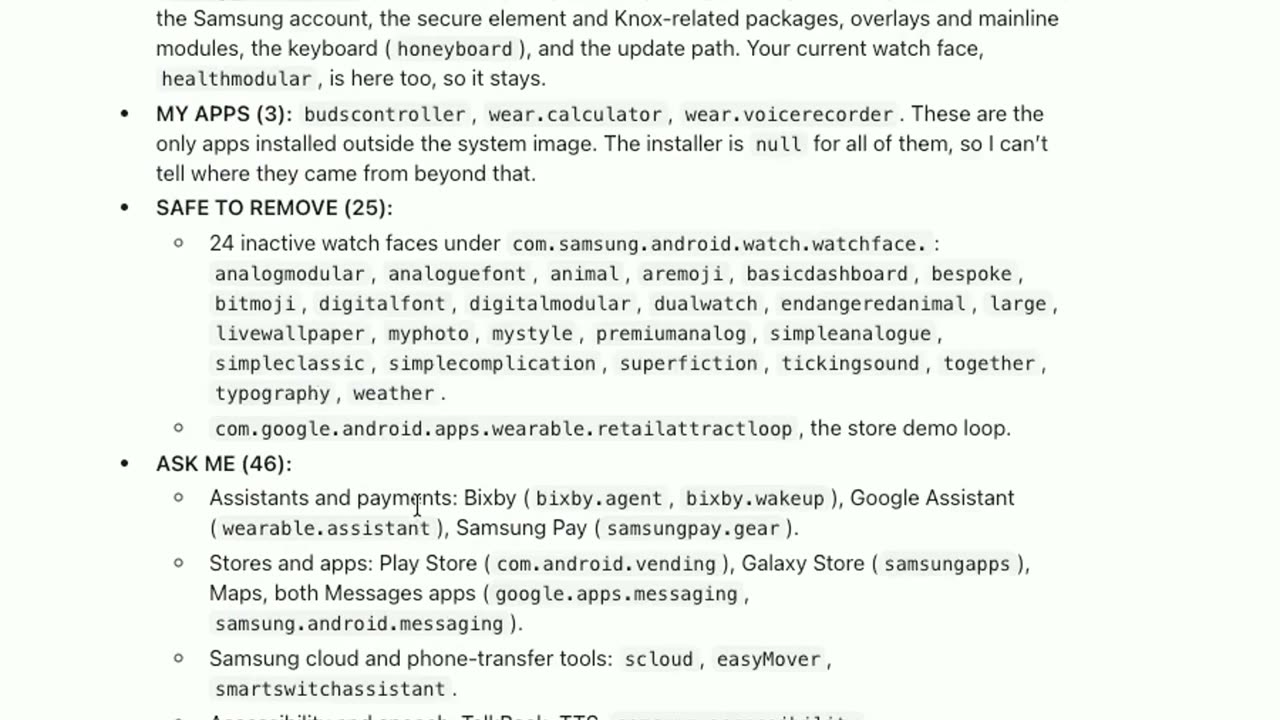
On my watch it found that 42 of 95 screen wake-ups that day were wrist raises, and suggested turning off raise-to-wake, bezel-turn wake and Wi-Fi background scanning. I picked the ones I wanted and it applied them.
Be realistic about the result. These changes cut wasted screen time and background activity, so the battery lasts longer, but it won't double. The biggest single setting on any smartwatch is the always-on display.
5Clean out the apps you don't need
Paste Prompt 3. Claude sorts every app into four groups:
- Required: things it must never touch, like Google Play Services, the system UI, pairing, health sensors, fall detection and SOS, your Samsung or Google account and Knox.
- My apps: apps you actually use.
- Safe to remove: on my watch this was 25 items, mostly unused watch faces and the store demo app.
- Ask me: 46 apps it wanted me to decide on, like Bixby, Samsung Pay, the Galaxy Store and Find My Watch.
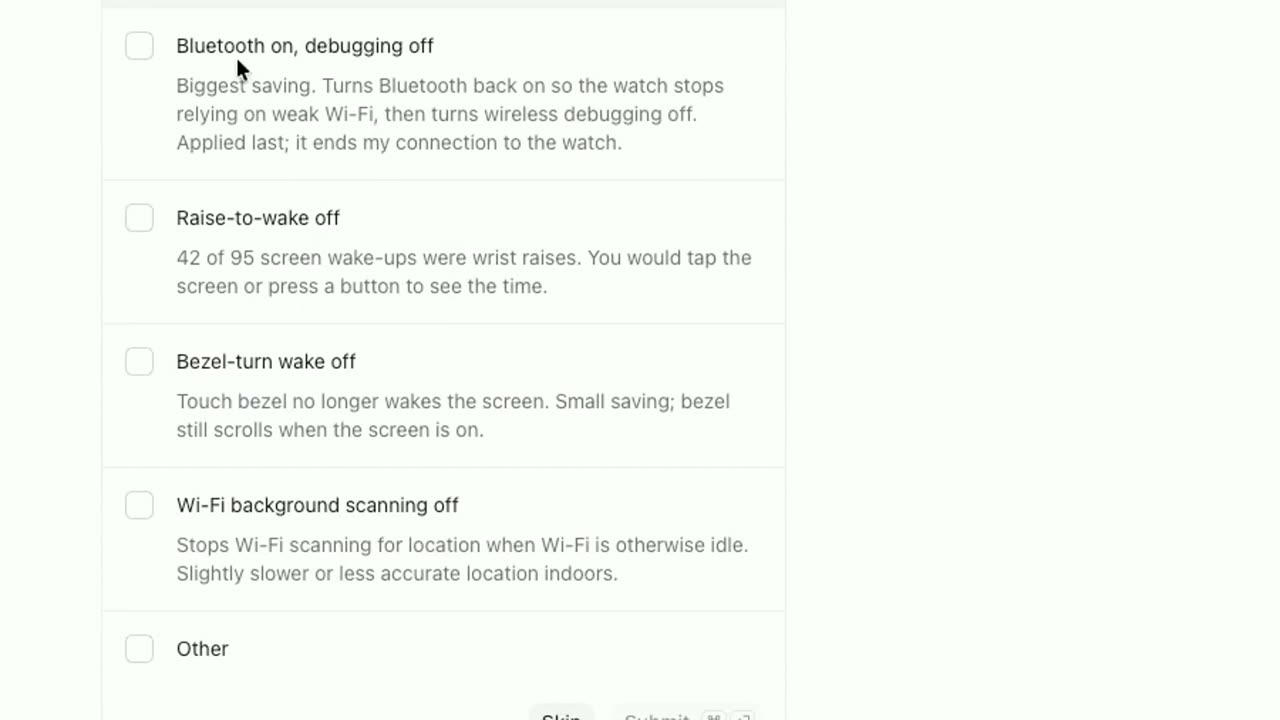
Before removing anything, Claude saves the full app list and writes an undo script. I said yes to the safe ones and it removed them.
Apps are removed with pm uninstall -k --user 0. That removes the app for your user only. It isn't deleted from the watch, so you can bring any of them back with:
adb shell cmd package install-existing <package name>
A factory reset also restores everything.
6Have Claude design your own watch face
This is the fun one. Put a photo on your Desktop named photo.jpg and paste Prompt 4. Claude writes a watch face in Google's Watch Face Format, builds it, installs it on the watch and tells you how to select it.
To switch to it, long-press your current watch face, scroll to the end of the list and tap the new one. Mine shows my photo with the date, time, steps, heart rate and battery on top.
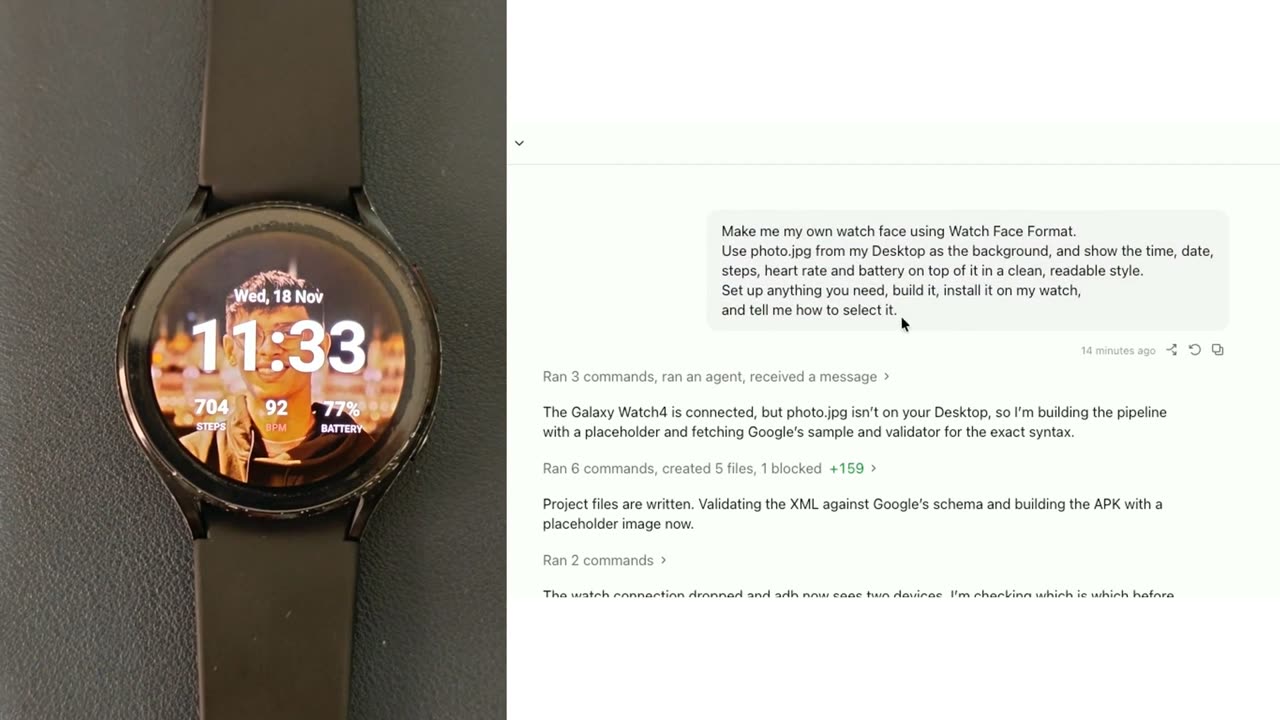
If you describe the design in more detail (fonts, colours, where each number goes), Claude can make it look a lot more polished. You can even design the face in Canva, give Claude the image and ask it to turn that into a watch face.
When you're done
- Go back to Developer options and turn off Wireless debugging and ADB debugging. Leaving them on drains the battery.
- Turn Bluetooth back on so the watch reconnects to your phone.
- Check that everything still works: pairing, notifications and heart rate.
Safety notes
- Never let Claude remove Google Play Services, the health sensor apps, fall detection / SOS or anything used for pairing. Removing Play Services can break pairing until you factory reset. Prompt 3 already lists these as required.
- Read Claude's list before you approve a removal. If you're not sure what an app does, ask Claude first.
- Removing apps this way needs no root and doesn't unlock the bootloader.
More things Claude can do with your watch
Once it's connected, the watch is just another device Claude can work with. You can ask it to open apps, set a timer or an alarm, take a screenshot of the watch, or change settings that are buried several menus deep. If you've tried this on a TV or phone, it works the same way: see the prompts for cleaning up an Android TV with Claude and cleaning up an Android phone with Claude. And if you'd rather keep a Samsung app but stop others from opening it, here's how to lock apps on a Samsung phone with the built-in setting.
FAQ
Does this work on an Apple Watch?
No. Apple Watch doesn't have Wireless debugging or adb, so Claude can't connect to it this way. The same goes for Noise, Fire-Boltt and boAt watches, which don't run Wear OS.
Will this void my Galaxy Watch warranty?
Turning on developer options and removing apps with pm uninstall --user 0 doesn't root the watch or unlock the bootloader, so Knox isn't tripped. Samsung decides warranty claims case by case, so if you're worried, stick to the read-only Prompt 1 and the battery settings.
Can I undo the changes?
Yes. Claude saves an undo script before it removes anything, and you can restore any app with adb shell cmd package install-existing <package name>. Settings changes can be switched back in the watch's Settings, and a factory reset restores everything.
Why does Claude lose connection to my watch?
Usually because the watch screen turned off or the watch switched back to Bluetooth. Keep the screen on, turn Bluetooth off during the setup, then reconnect from the Wireless debugging screen. The port number changes each time Wireless debugging restarts.
Related guides