Tech is Easy
How to Clear Storage on Samsung Phones (Free Up Space)
To clear storage on a Samsung phone, open Settings, search for Storage and open it. Samsung shows what is filling your phone and lists quick fixes underneath: empty the Recycle bin, uninstall Unused apps, delete Duplicate files and Large files. After that, clear the cache of your biggest apps and go through your images and videos. This guide is for anyone whose Galaxy phone keeps warning that storage is almost full, and the same Storage page is on most current Samsung phones.
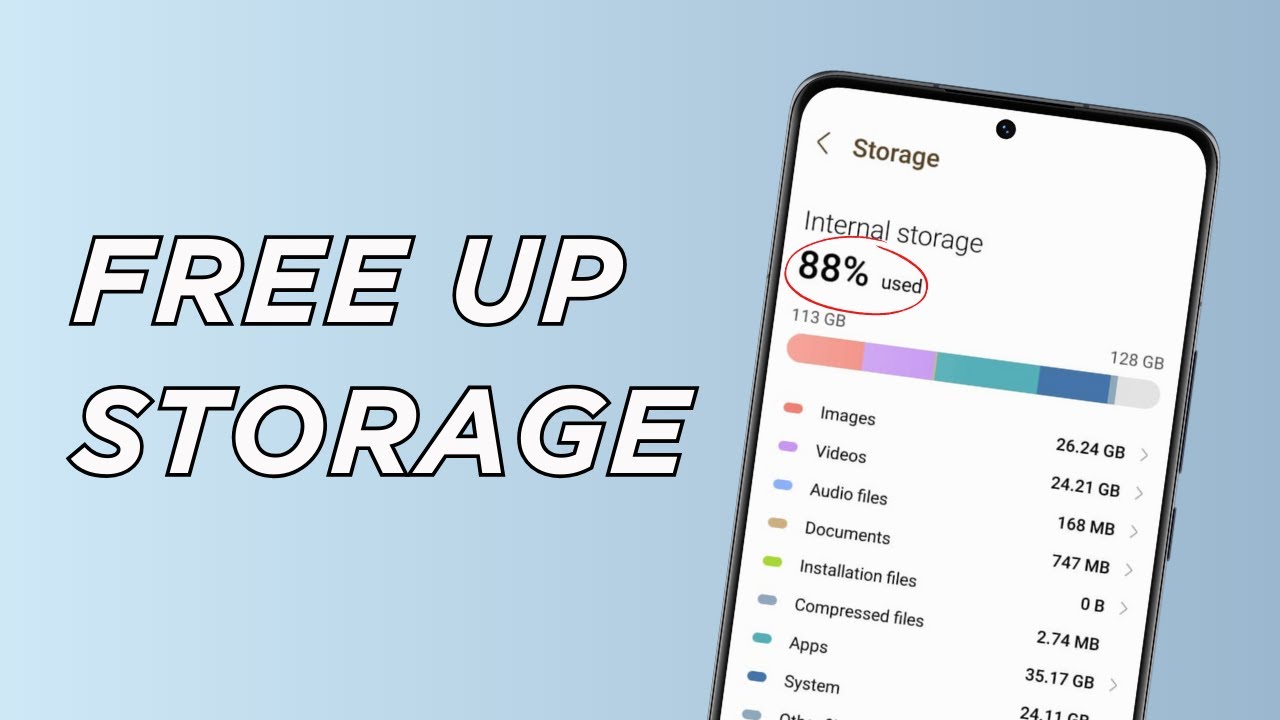
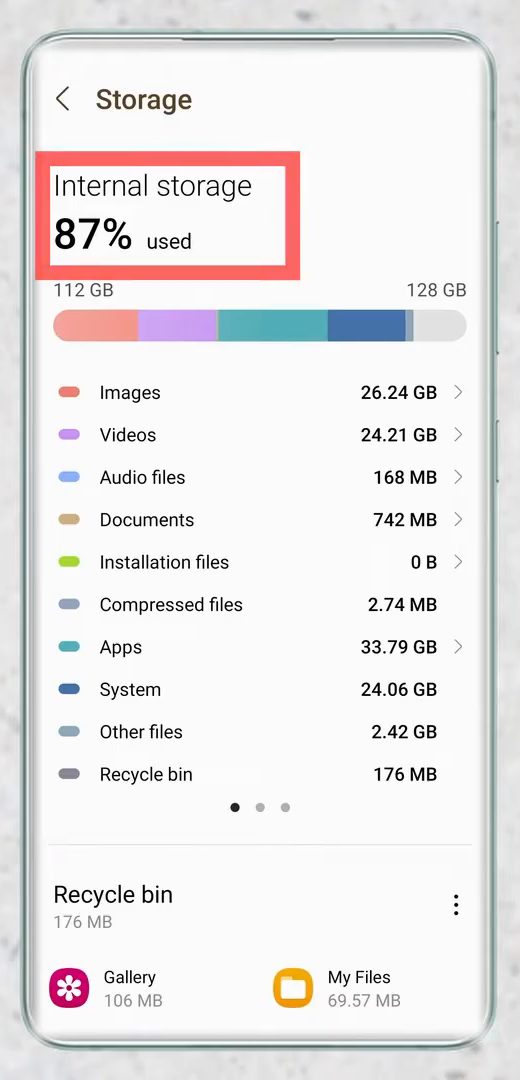
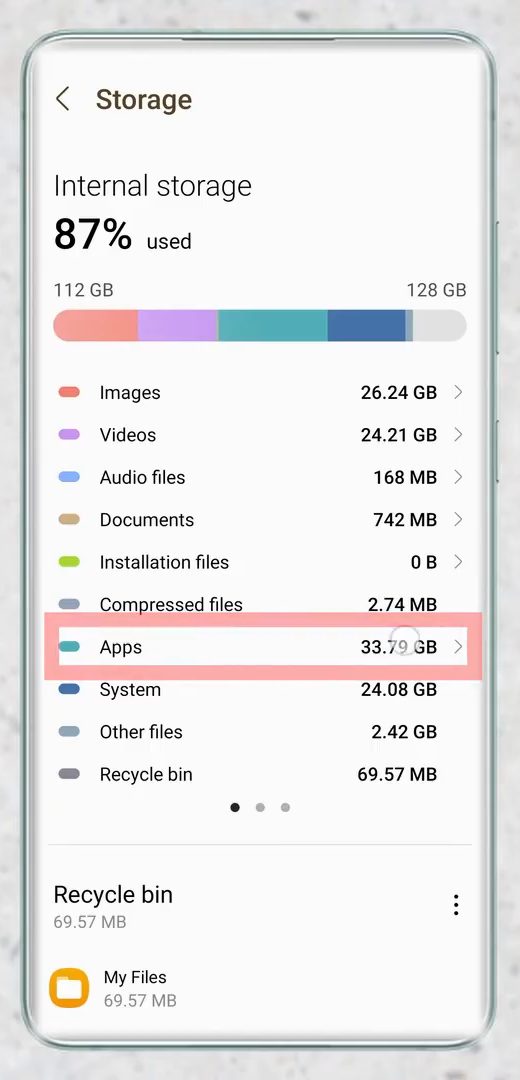
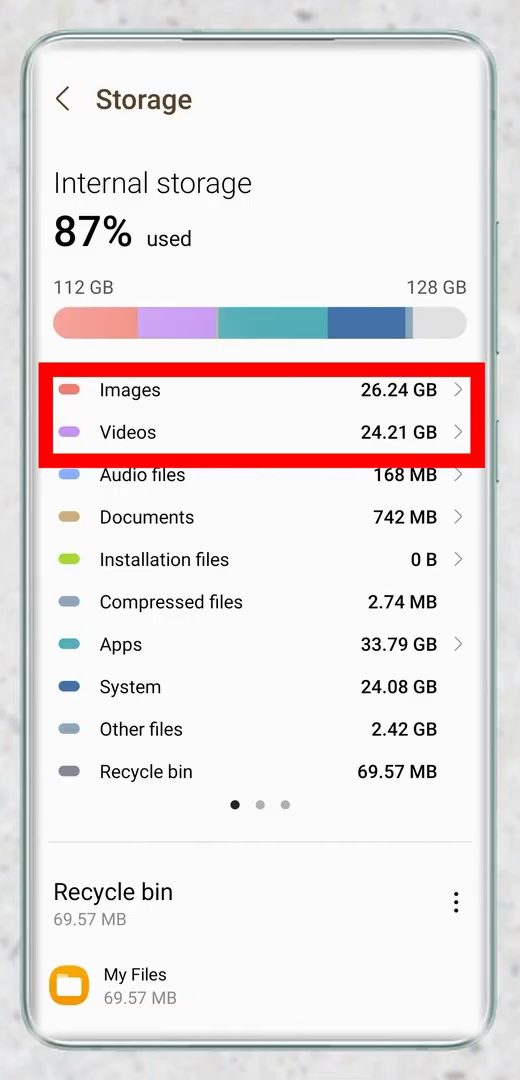
In our example the phone was at 87% (112 GB of 128 GB used), and the largest categories were images, videos and apps.
Method 1: Use Samsung's built-in cleanup suggestions
1Open Storage in Settings
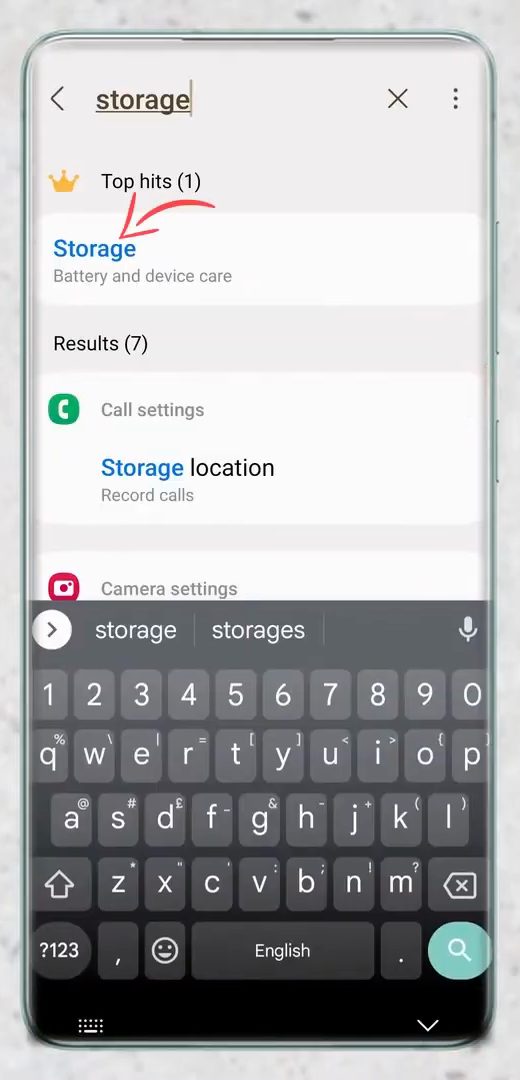
Open Settings, tap the search icon and type storage. Tap the first result, Storage (under Battery and device care).
2See what is using your storage
At the top you'll see how full the phone is, followed by a breakdown: Images, Videos, Audio files, Documents, Apps, System and more. Note the two or three biggest categories, because those are where you'll free the most space later.
3Empty the recycle bins
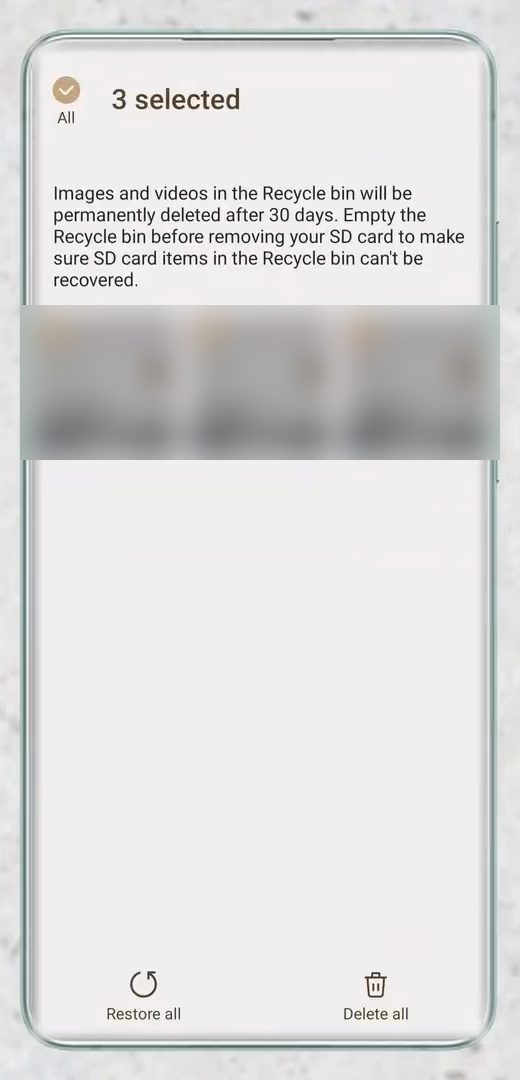
Scroll down to Recycle bin. It shows a bin for each app that keeps one, such as Gallery and My Files. Open one, long press an item, tap All to select everything and tap Delete all. Repeat for every bin listed. Deleted photos and files keep using space until the bin is emptied, and Samsung notes that Gallery's bin deletes items permanently after 30 days anyway.
4Uninstall unused apps
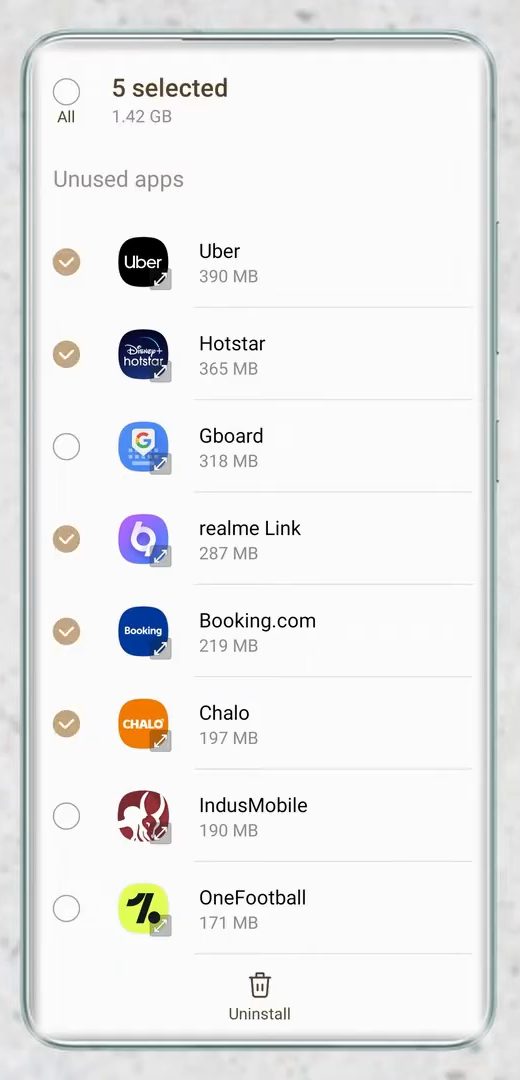
Go back and tap Unused apps. These are apps you rarely open, sorted with the largest on top. Tick the ones you don't need; the total you'll free shows at the top (1.42 GB for five apps in our case). Tap Uninstall, then Uninstall again to confirm.
5Delete duplicate files
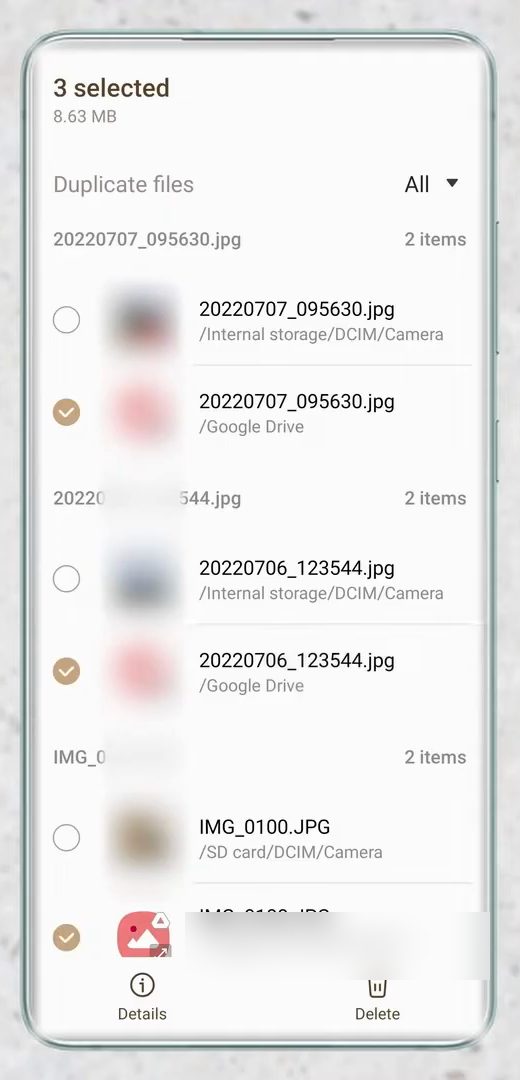
Tap Duplicate files. Files are grouped in pairs or sets. In each group, keep one copy and tick the other, then tap Delete and confirm. Check the folder shown under each file name before deleting: in our case some duplicates were copies in Google Drive or on the SD card.
6Delete large files
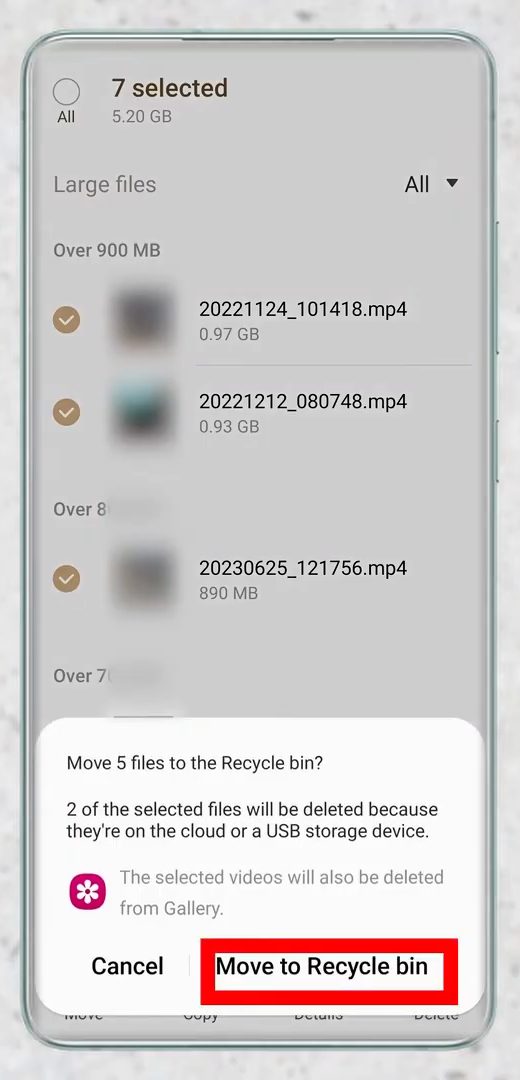
Tap Large files. They are sorted by size, so the biggest videos and downloads come first (the top two here were over 900 MB each). Select the ones you don't want, tap Delete, then Move to Recycle bin. We freed 5.2 GB this way. Afterwards, empty the recycle bin again (Step 3), or the space won't come back yet.
Method 2: Clean up the biggest categories yourself
7Open the Apps category
Back on the Storage page, tap the biggest category in your breakdown. For most people that's Apps. You'll see your apps listed by size. Uninstall any you don't use. For apps you need, such as WhatsApp or Spotify, clear their cache instead.
8Clear the cache of large apps
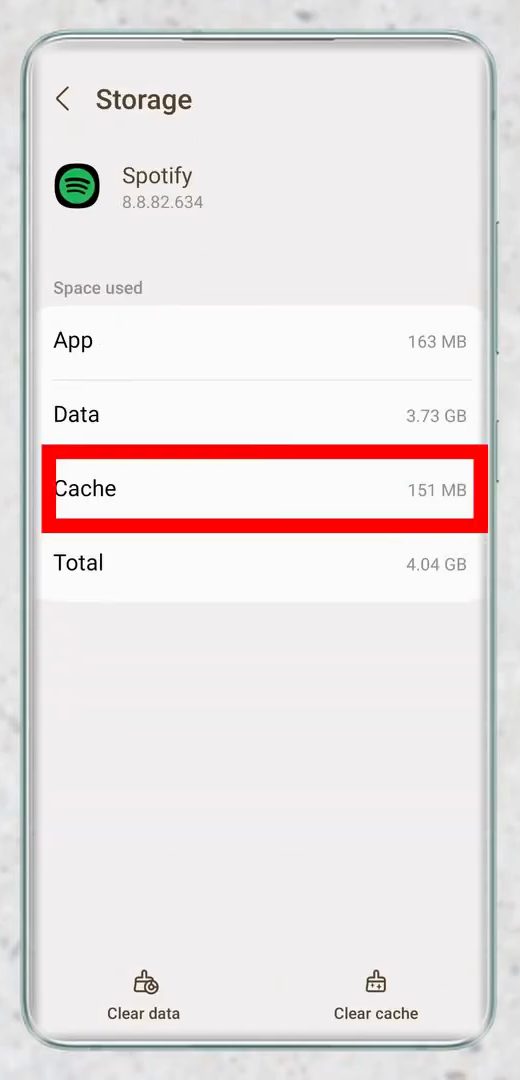
Tap an app, scroll down and tap Storage. You'll see how much space the App, its Data and its Cache use. Tap Clear cache at the bottom right. In our example this freed 151 MB from Spotify alone, without losing anything. Repeat for your other large apps. It takes 5 to 10 minutes, but across all apps it can add up to a few gigabytes.
9Go through images and videos
Back on the Storage page, tap Images and then Videos. Delete albums or folders you no longer need, like old WhatsApp images or screen recordings. When you are done, empty the recycle bin one last time.
Clear cache vs clear data
On the app storage screen there are two buttons, and they do very different things: - Clear cache removes temporary files the app can rebuild. Your logins, chats and settings stay. This is safe to do on any app. - Clear data resets the app as if it were newly installed. You'll be signed out and may lose anything that isn't backed up. Avoid it unless you mean to reset the app.
Cache fills up again as you use your apps, so this is something to repeat every few months, not a one-time fix.
Tips to keep storage free
- Back up photos first. Images and videos are usually the biggest category. If you back them up to Google Photos or another cloud, you can delete the copies on the phone. Google explains this in its general Free up storage on your Android device guide, though its menu names are for stock Android rather than Samsung.
- Clean up WhatsApp media. WhatsApp is often one of the largest apps. See How to Clear WhatsApp Storage on Android.
- Use an SD card if your phone has a slot. Moving photos and videos frees internal storage without deleting anything: How to Move Files From Internal Storage to SD Card.
- System storage can't be cleared. The System category is Android itself and can't be reduced from this screen.
FAQ
How do I free up space on my Samsung phone quickly?
Open Settings > Storage, empty the Recycle bin, then use Unused apps, Duplicate files and Large files to delete what you don't need. These four usually free the most space in a few minutes.
Will clearing cache delete my data?
No. Clear cache only removes temporary files, so your messages, logins and settings stay. Clear data is the button that resets an app.
Why didn't my storage go down after deleting files?
Deleted files go to the Recycle bin first and still take up space. Empty the bins under Settings > Storage > Recycle bin to get the space back.
Does this work on other Android phones?
The Unused apps, Duplicate files and Large files suggestions shown here are part of Samsung's Storage page. Other Android phones also have a Storage page in Settings and let you clear app cache, but the cleanup options are named differently.
Related guides