Tech is Easy
How to Manage Google Account Privacy and Security Settings
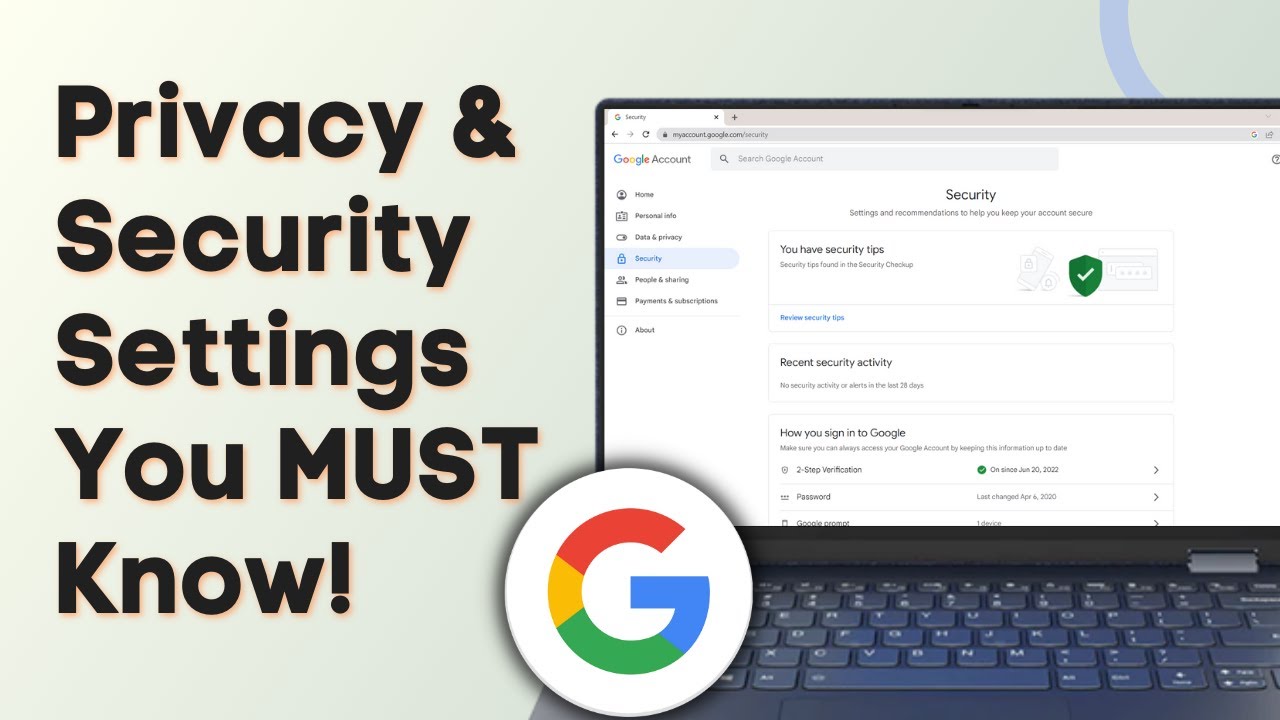
To manage your Google Account privacy and security settings, go to myaccount.google.com and work through two pages in the left menu: Security (Security Checkup, third-party apps, devices, saved passwords) and Data & privacy (history settings, what others can see, data in your Google apps). It's for anyone who wants to know how safe their account is and where their data is used.
What you need
- A computer with a browser, signed in to your Google (Gmail) account
Method 1: Security settings
1Open your Google Account
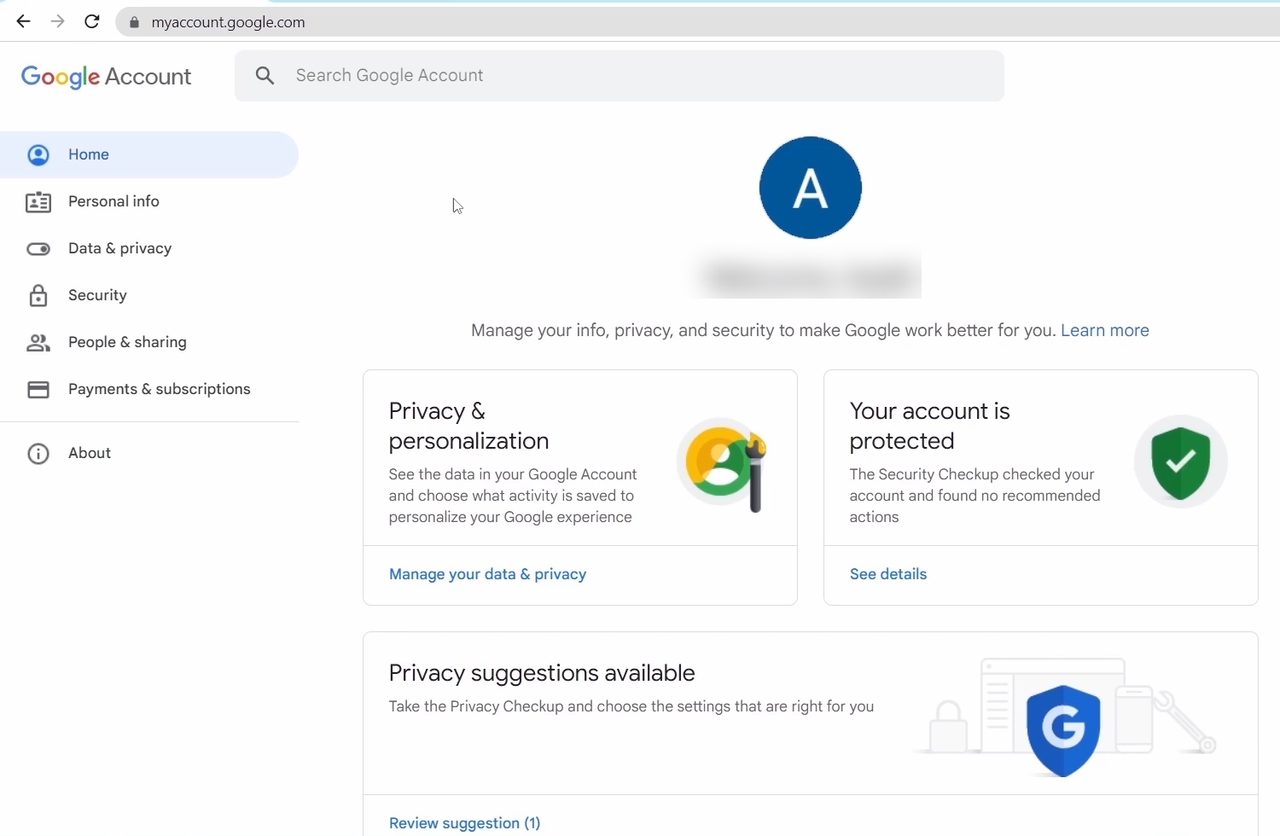
Sign in to Gmail in your browser, then type myaccount.google.com in the address bar. This opens the page where you manage your Google Account. In the left menu, the two pages that matter here are Security and Data & privacy.
2Run the Security Checkup
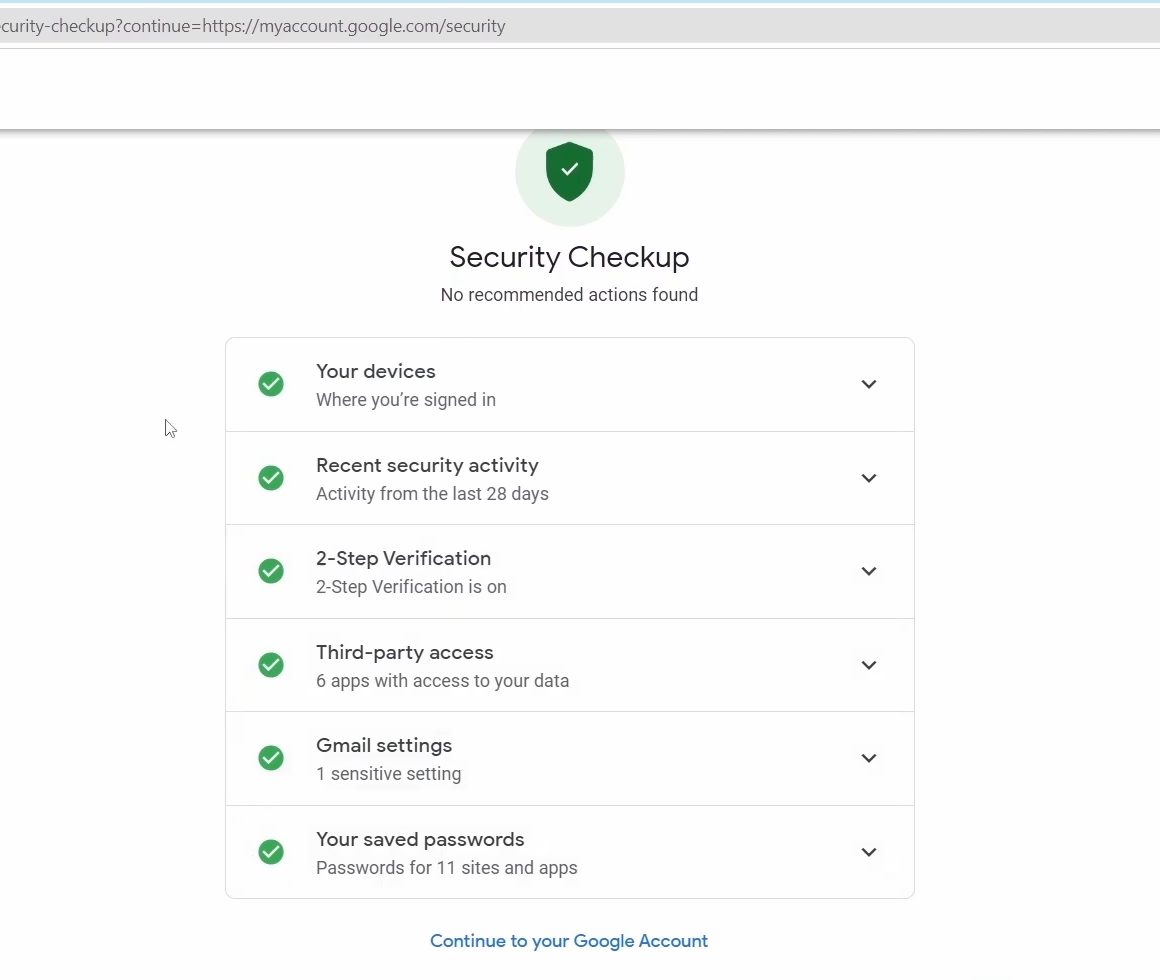
Click Security in the left menu, then click See details under "Your account is protected" at the top. It checks your devices, recent activity, 2-Step Verification, third-party access, Gmail settings and saved passwords. A green tick means that item is fine. If you see a yellow circle with an exclamation mark, click the arrow next to it and follow the fixes. When you are done, click Continue to your Google Account at the bottom.
3Remove third-party apps you no longer use
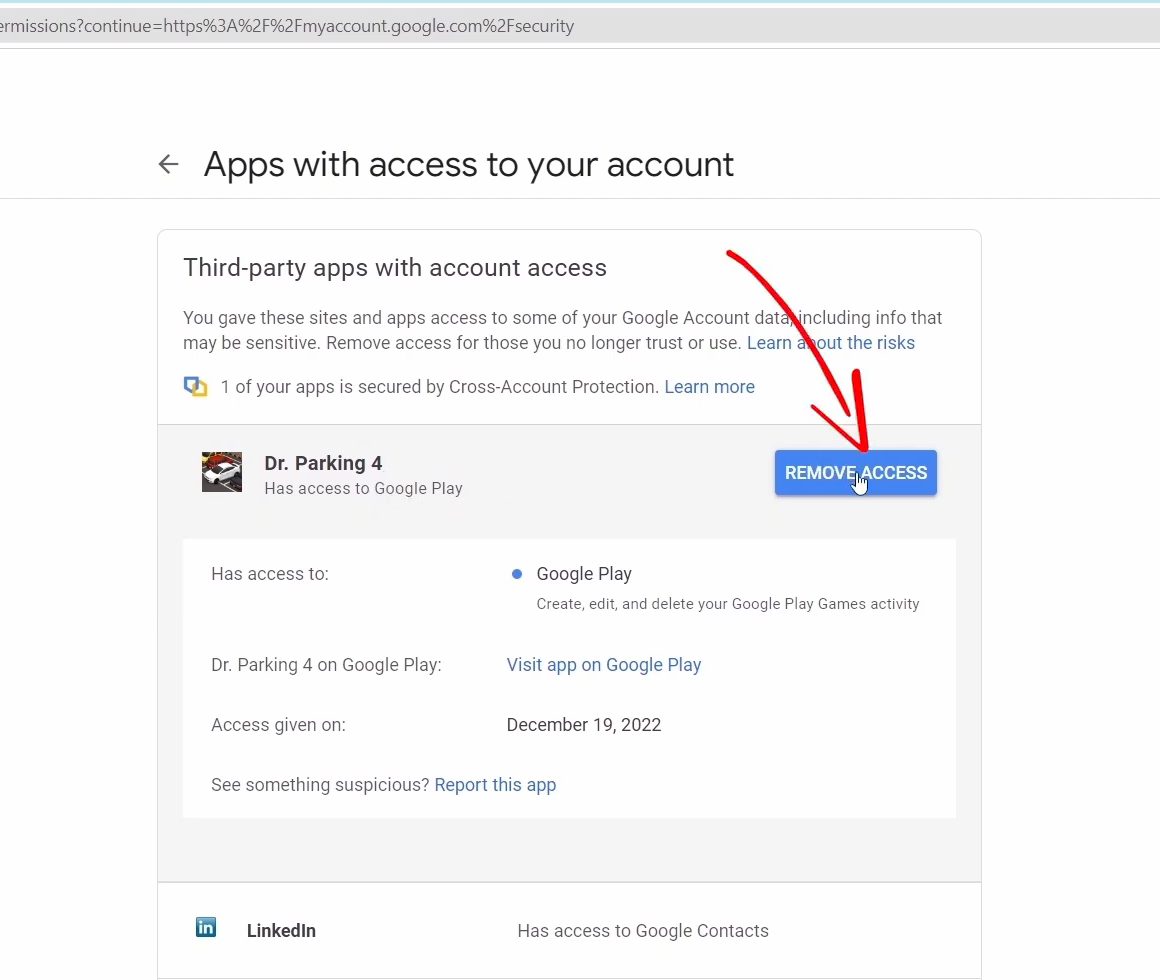
Back on the Security page, scroll down to Third-party apps with account access and click Manage third-party access. It lists every app that can reach some of your Google data. Click an app you don't trust or use any more, click Remove access, then OK. Further down, the Signing in with Google list shows sites you log in to with your Google account (they can see your name, email and profile picture). Remove those the same way.
4Check which devices are signed in
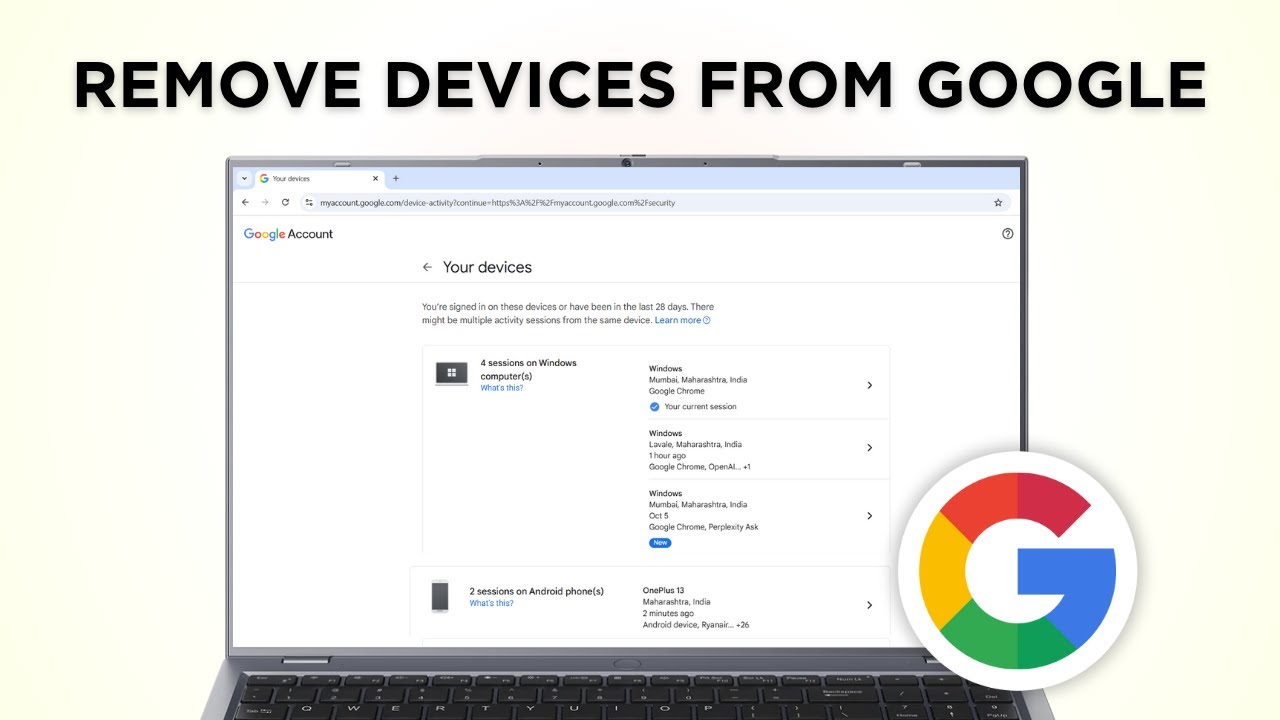
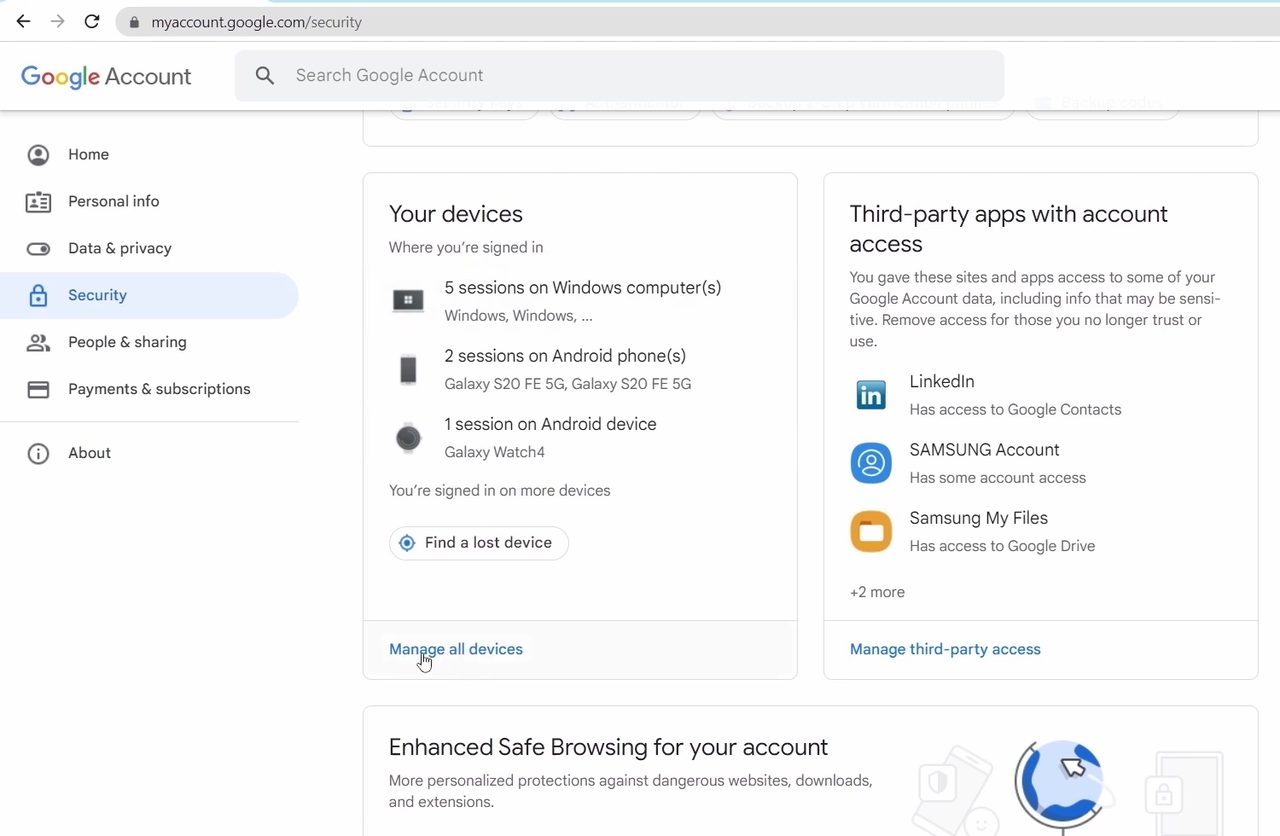
On the Security page, scroll to Your devices and click Manage all devices. You'll see every device signed in to your account, with its last access date and location. If you don't recognise one, click its arrow, click Sign out, then confirm with Remove to unlink it.
5Review your saved passwords
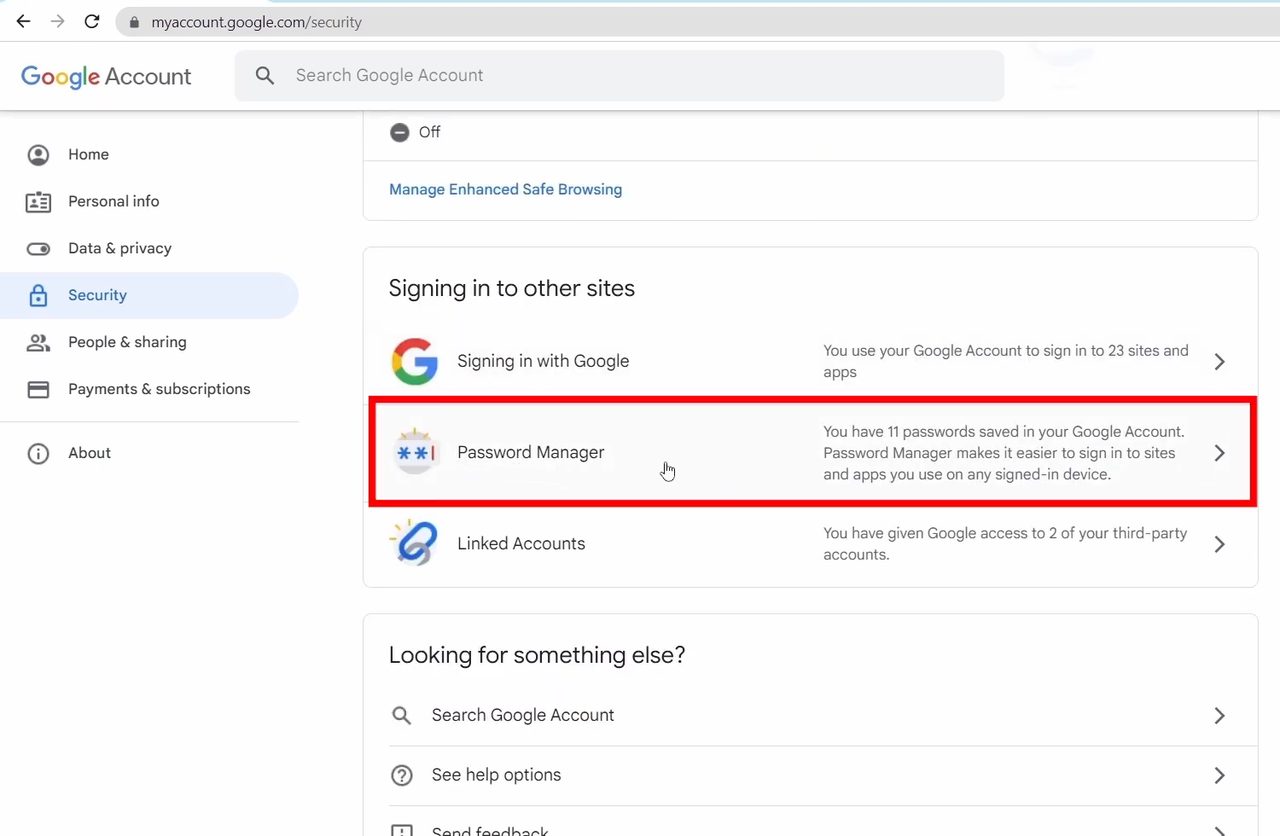
Scroll further down to Signing in to other sites and click Password Manager. It shows every password saved to your account. To delete one, click it, enter your Google password to confirm it's you, and remove it. If you only need to look up a forgotten Gmail password on your phone, see our guide on how to find your Gmail password.
Method 2: Privacy settings
6Check your history settings
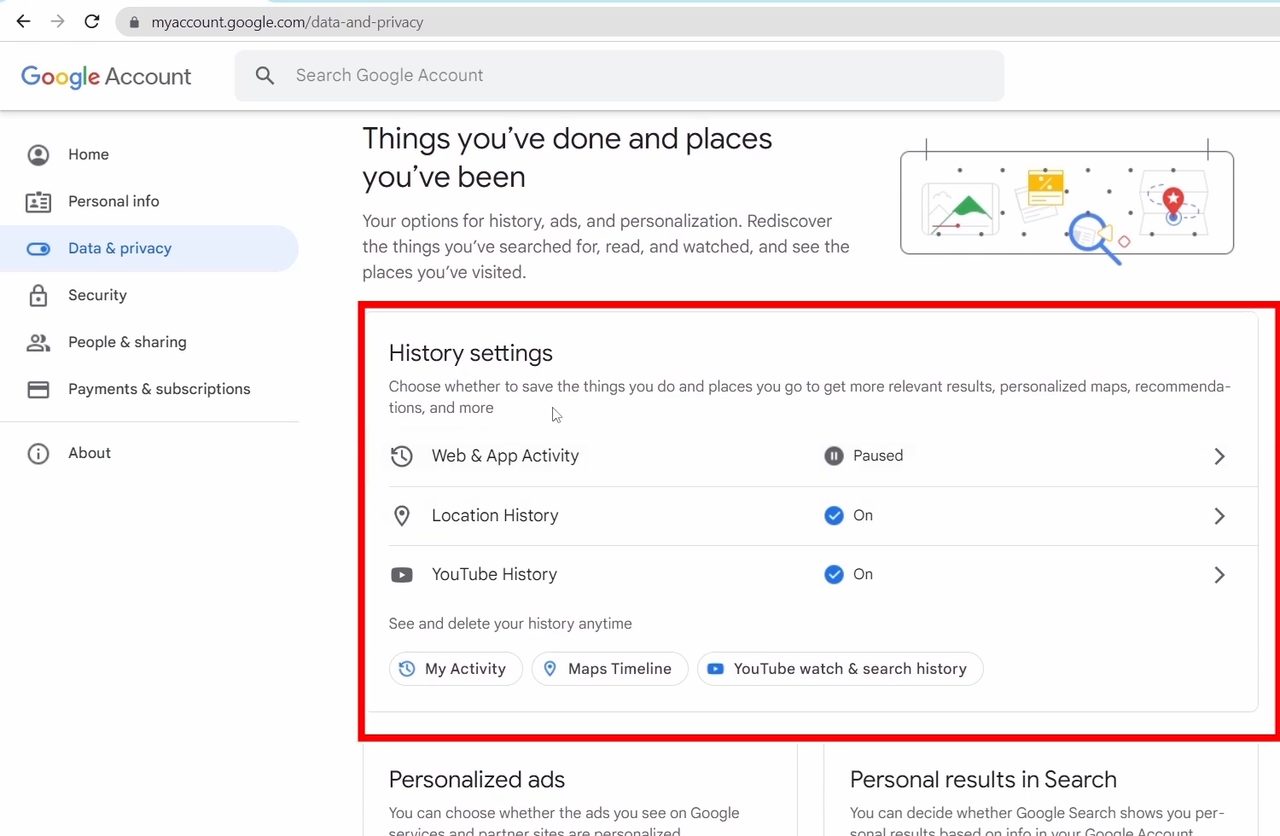
Click Data & privacy in the left menu and scroll down to History settings. There are three options: Web & App Activity, Location History and YouTube History. Each one shows whether it is on or off.
7Turn each history setting on or off
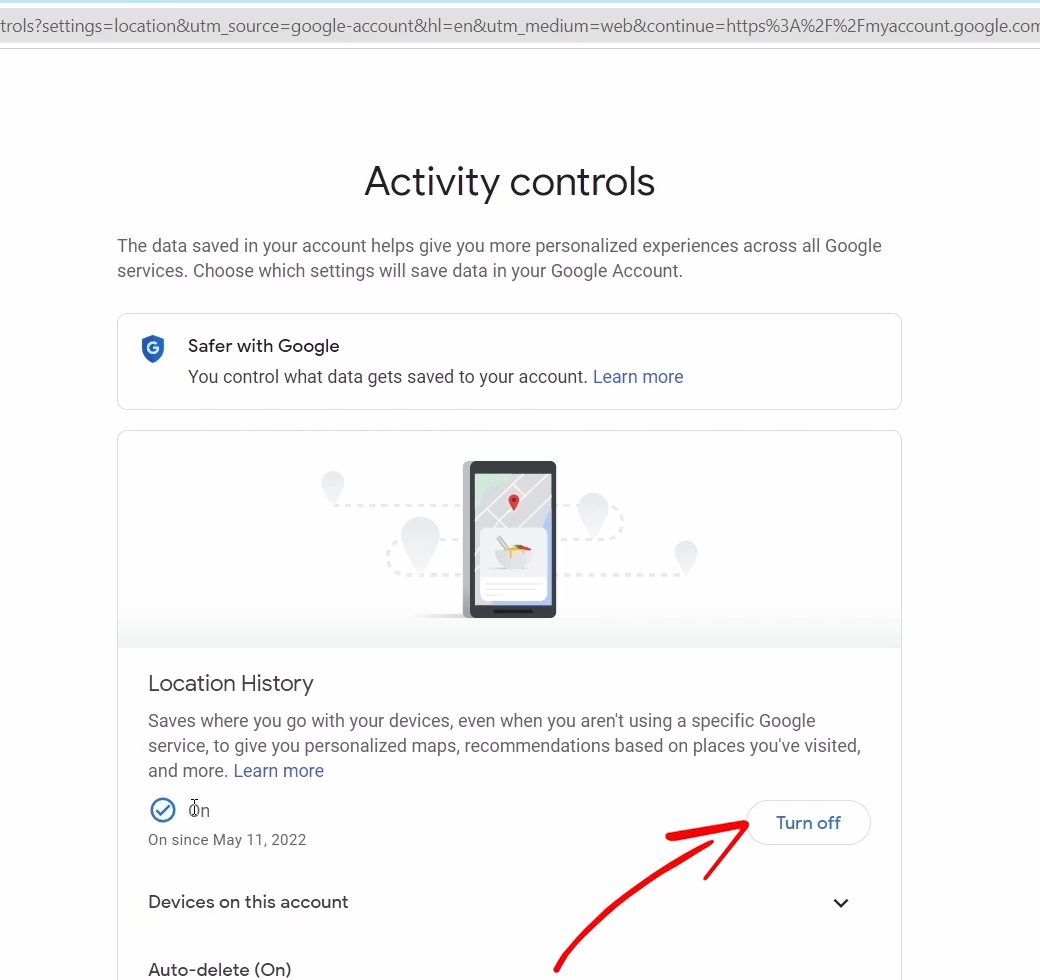
Web & App Activity saves what you do in Google sites and apps for faster searches and better recommendations; click Turn on or Turn off, and use the app icons under "See and delete activity" to view or delete your history (for example your Google Search history). Location History saves the places you go; click Turn off to stop it, and scroll down for Auto-delete or Manage history to delete what's already saved. YouTube History saves the videos you watch and what you search on YouTube, and you can switch it on or off the same way.
8Control what others can see
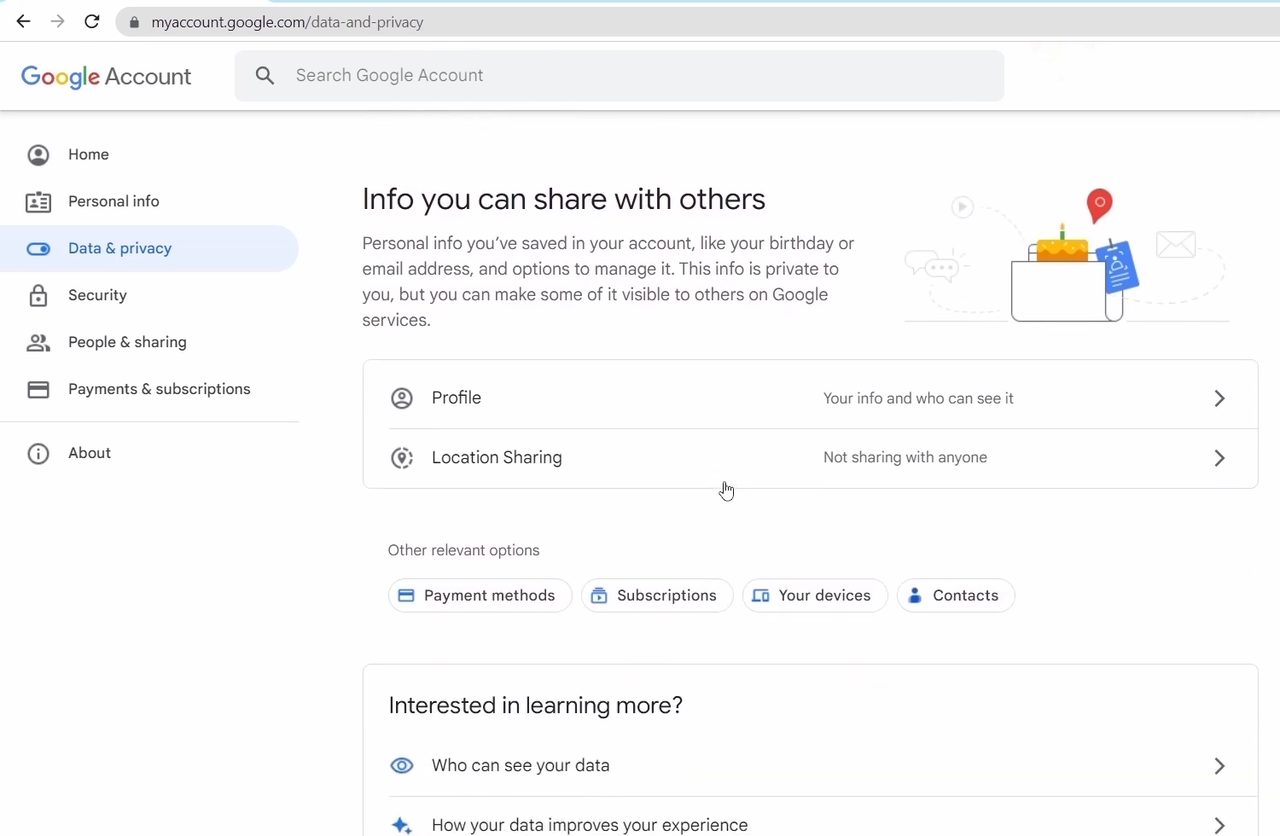
Scroll down to Info you can share with others. Click Profile to edit the personal info other people can see, and Location Sharing to decide whether you share your location with anyone.
9See your data in Google apps
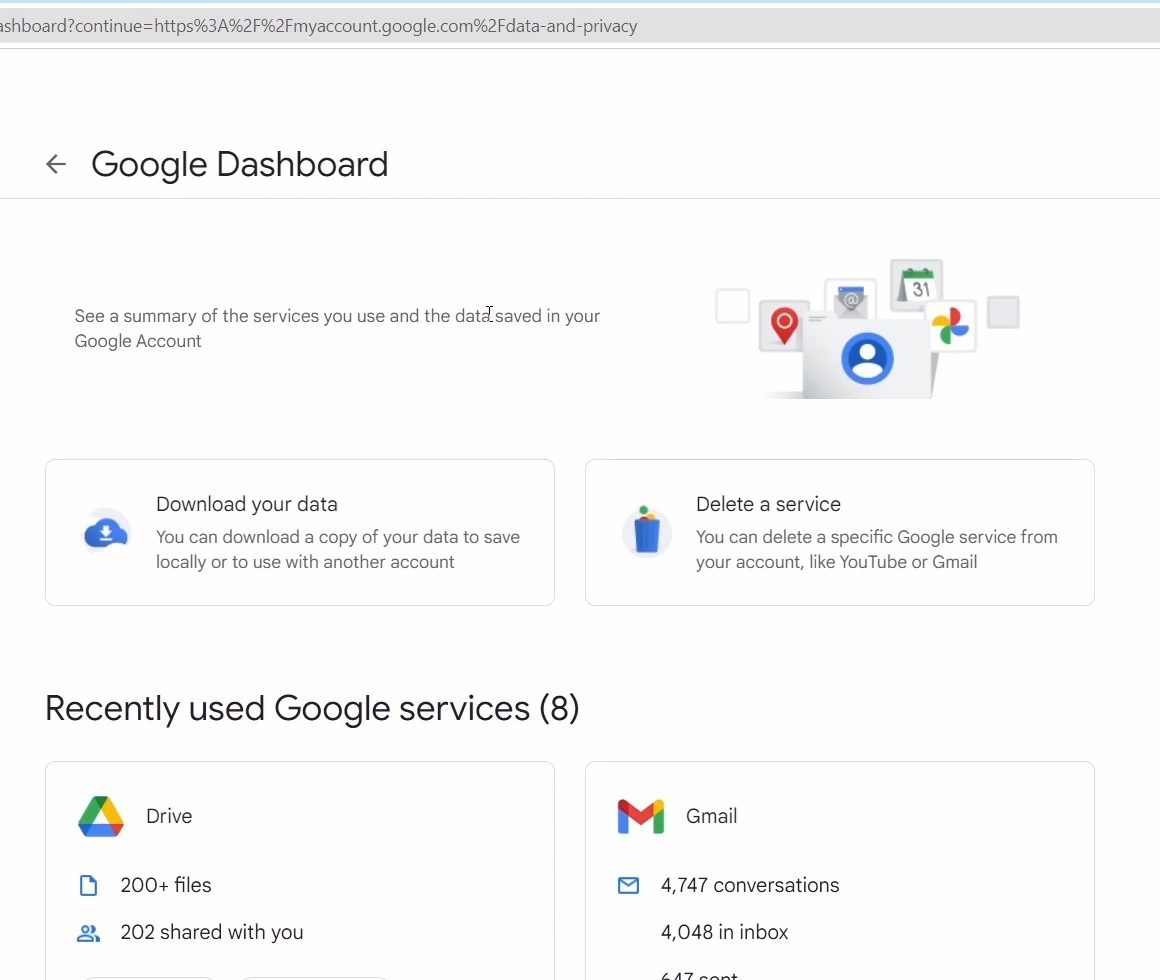
Scroll to Data from apps and services you use and click the arrow next to Content saved from Google services. The Google Dashboard opens and shows how much of your data each service holds, such as the number of files in Drive, conversations in Gmail, or videos and playlists on YouTube. Each card links to that service so you can delete what you don't need.
FAQ
How do I open Google Account settings?
Go to myaccount.google.com in any browser while signed in. The left menu holds the Security and Data & privacy pages.
How do I remove an app's access to my Google account?
Go to Security, click Manage third-party access, click the app, then click Remove access and OK. The app loses access straight away.
How can I sign out of my Google account on another device?
Open Security, click Manage all devices, select the device, click Sign out and confirm with Remove.
Can I delete my Google search and location history?
Yes. In Data & privacy > History settings, open Web & App Activity to see and delete your search history, and open Location History to use Auto-delete or Manage history. The names of these settings may have changed since the video was recorded.
Related guides