 Tech is Easy
How to Backup Chrome Data (Passwords, Bookmarks and Settings)
To back up your Chrome data, open Chrome, click the three dots > Settings > Sync and Google services and click Turn on sync next to your account, then confirm with Yes, I'm in. Your passwords, bookmarks, history, extensions and settings are then saved to your Google account, so you can get them back on any computer or phone by signing in. This guide is for anyone moving to a new laptop, reinstalling Windows or just wanting a safe copy of their Chrome data.
What you need
- Google Chrome on your computer
- A Google account signed in to Chrome (the profile icon at the top right shows which one)
- The account password, because Chrome asks you to verify it at the end
Backing up through sync is different from a file backup: your data lives in your Google account and updates by itself whenever you change something in Chrome. There is no file to keep track of.
1Open Chrome Settings
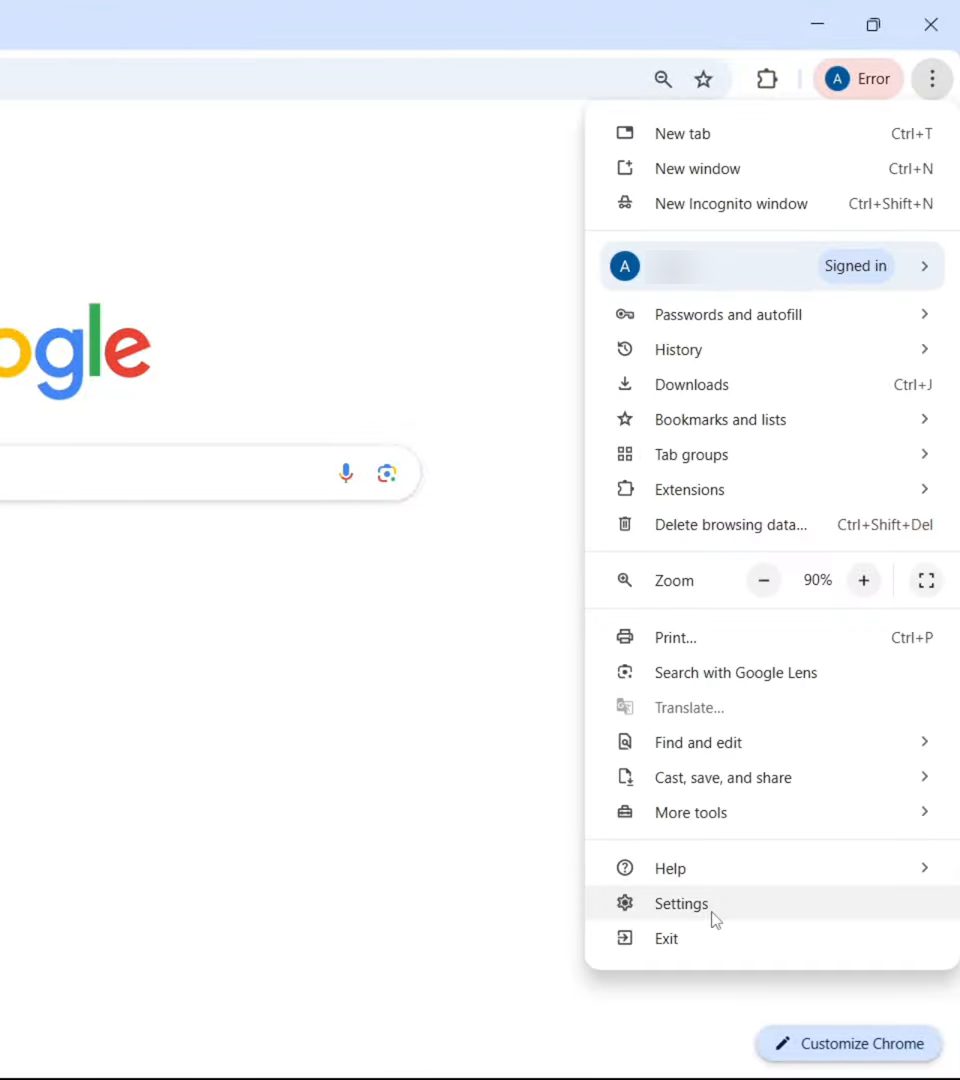
Open Chrome and make sure you are signed in with your Google account. Click the three dots at the top right and choose Settings near the bottom of the menu.
2Go to Sync and Google services
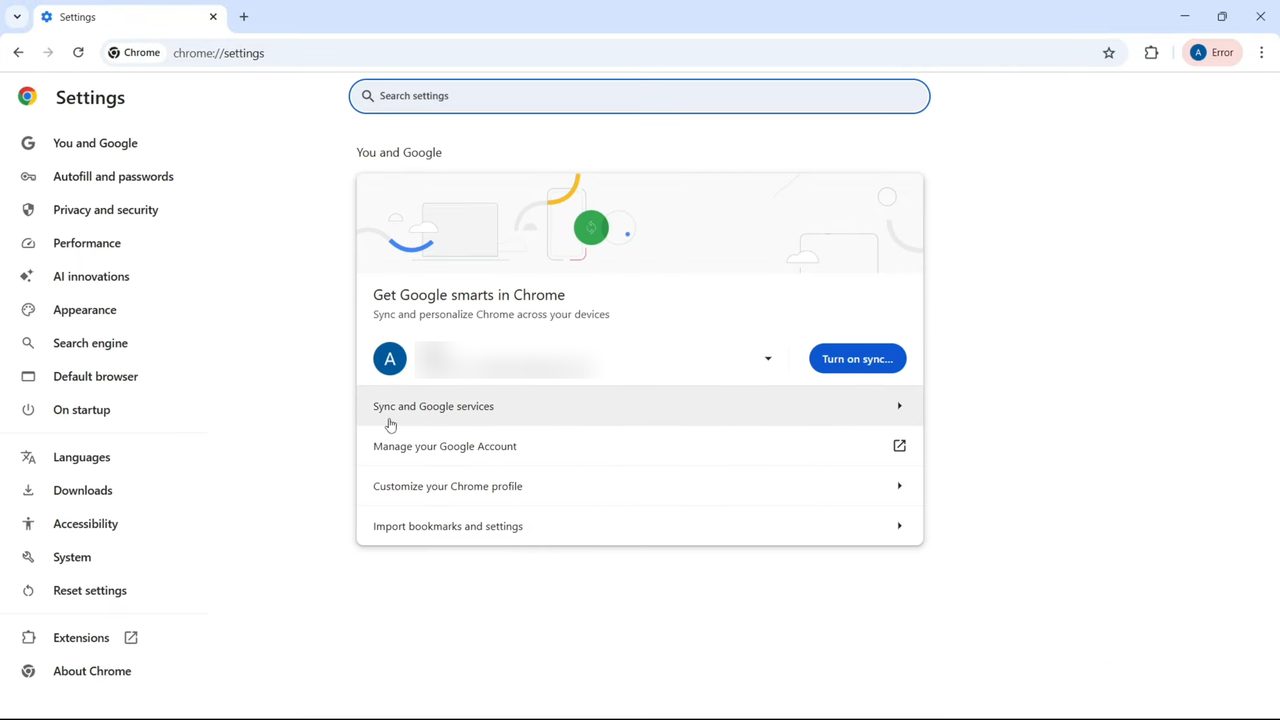
Settings opens on You and Google. Click Sync and Google services under your account name.
3Click Turn on sync
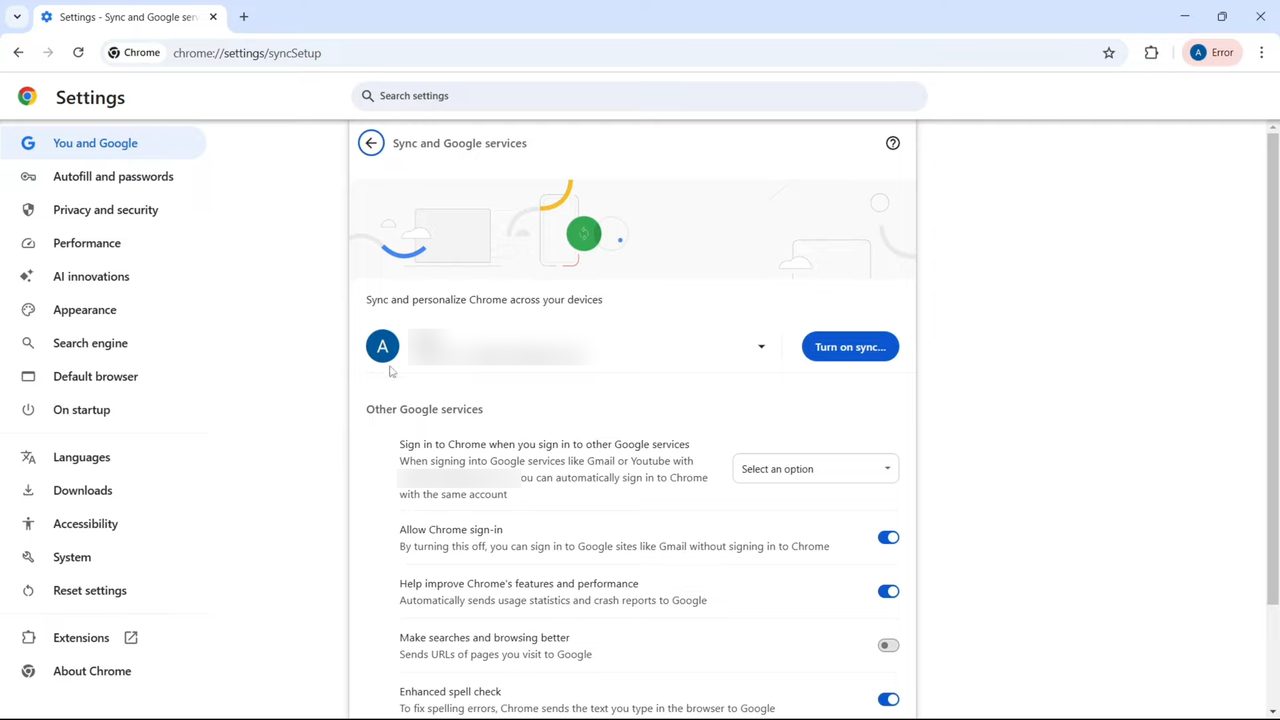
At the top of the page, next to your account name, click Turn on sync.
4Check what will be backed up
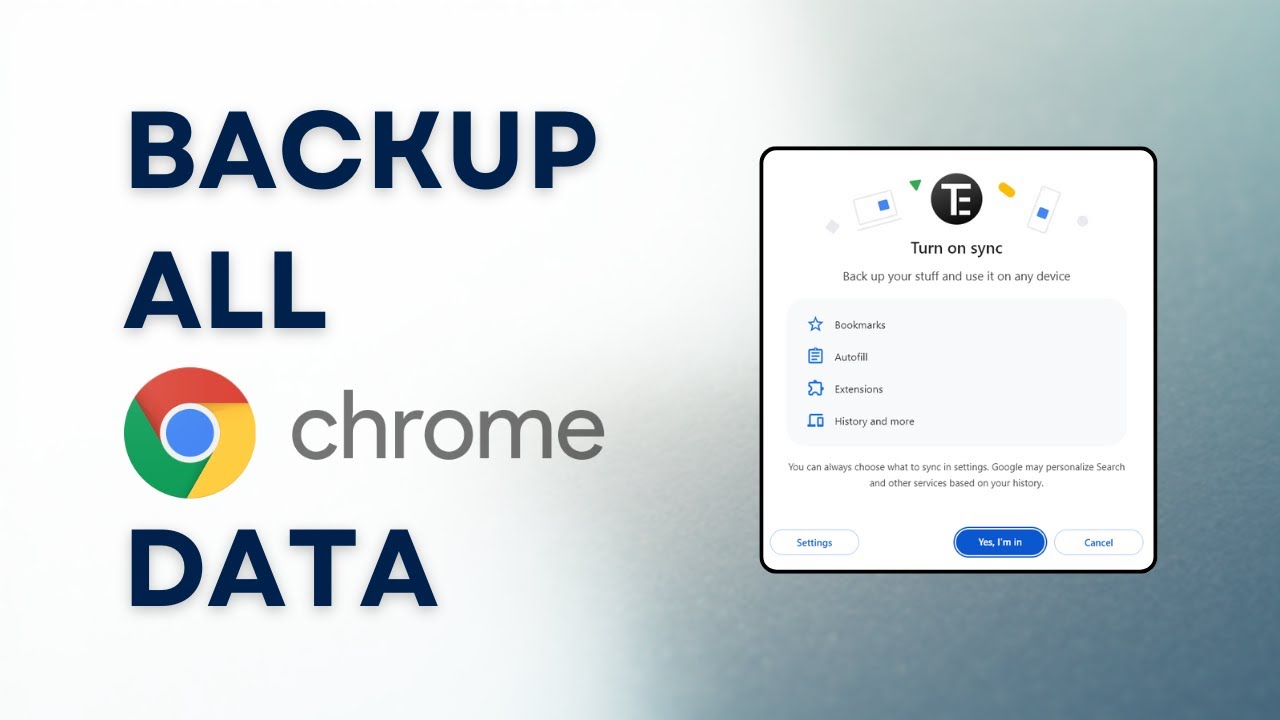
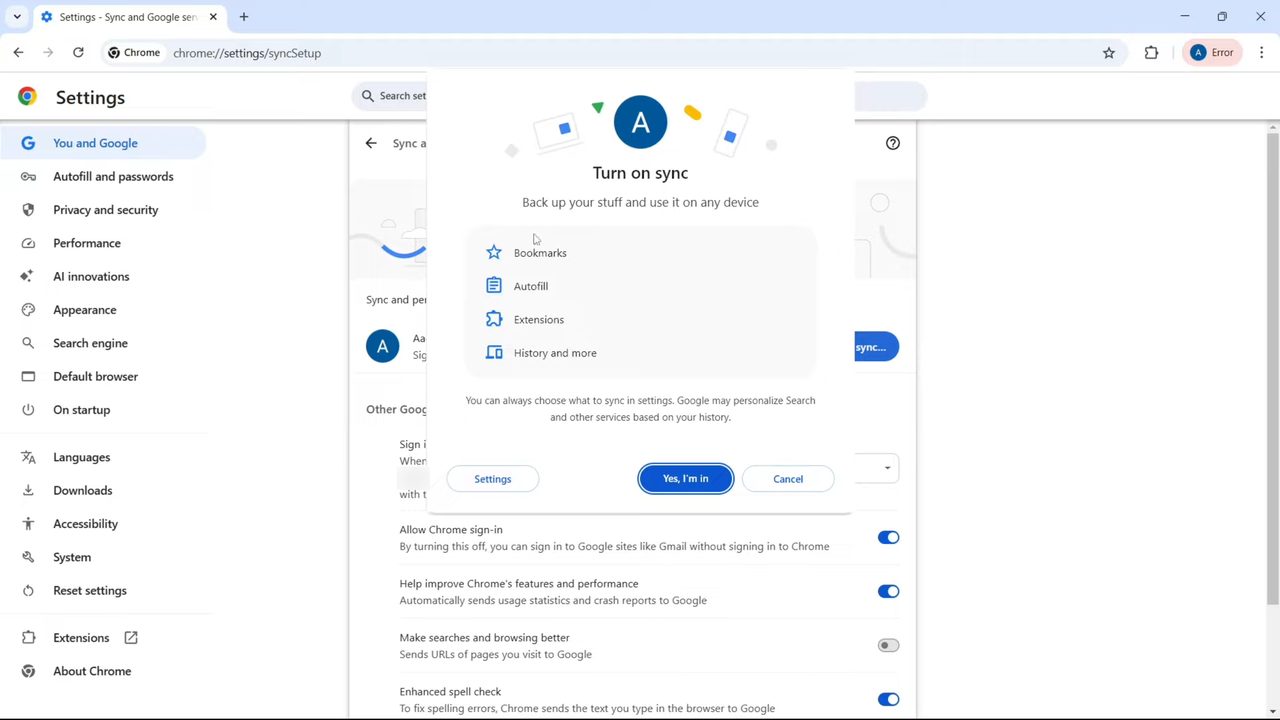
A Turn on sync box lists what gets saved to your account: Bookmarks, Autofill, Extensions, and History and more. Once sync is on, signing in with this account on any device brings all of this data with it. If you are happy to back up everything, click Yes, I'm in and you are done. To pick what is backed up first, click Settings instead.
5Open Manage what you sync
If you clicked Settings, Chrome shows the sync options with Setup in progress. Click Manage what you sync.
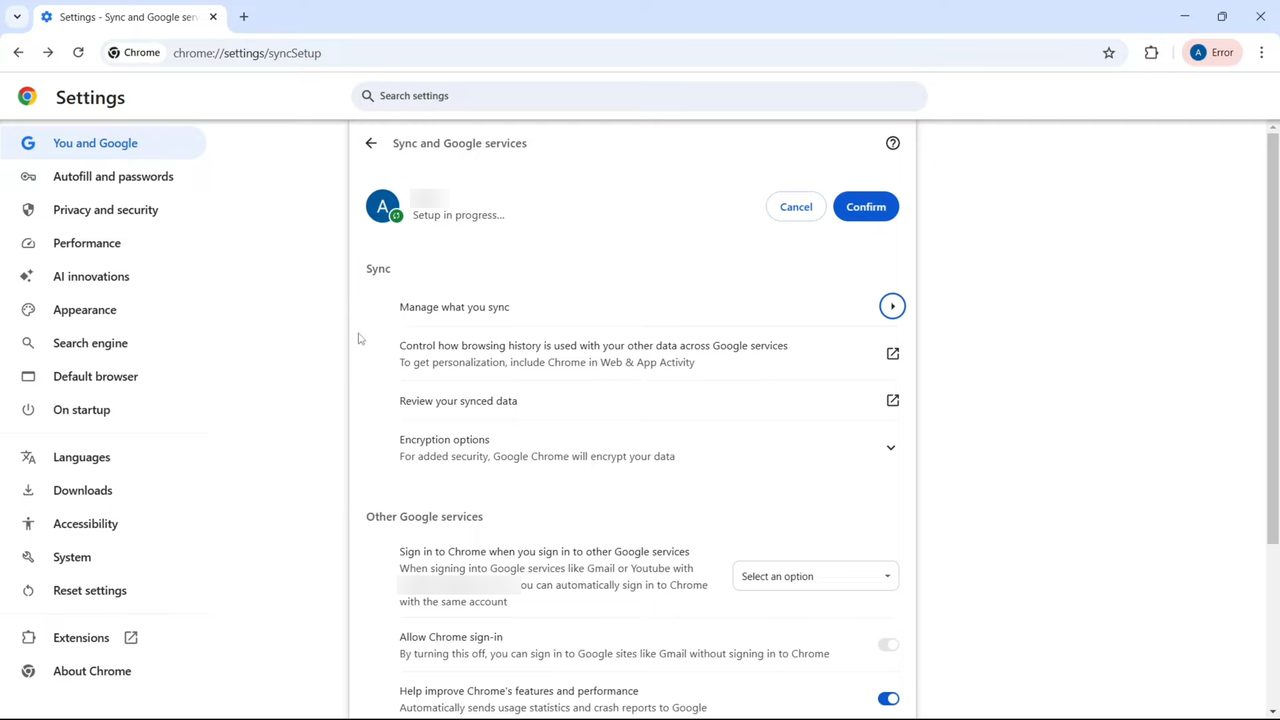
6Choose Customize sync
Select Customize sync to see one switch per data type: Apps, Bookmarks, Extensions, History, Settings, Theme, Reading list, Open tabs, Saved tab groups, Passwords and passkeys, Addresses and more, and payment methods. Turn off anything you don't want in your Google account. Keep Sync everything if you want a full backup.
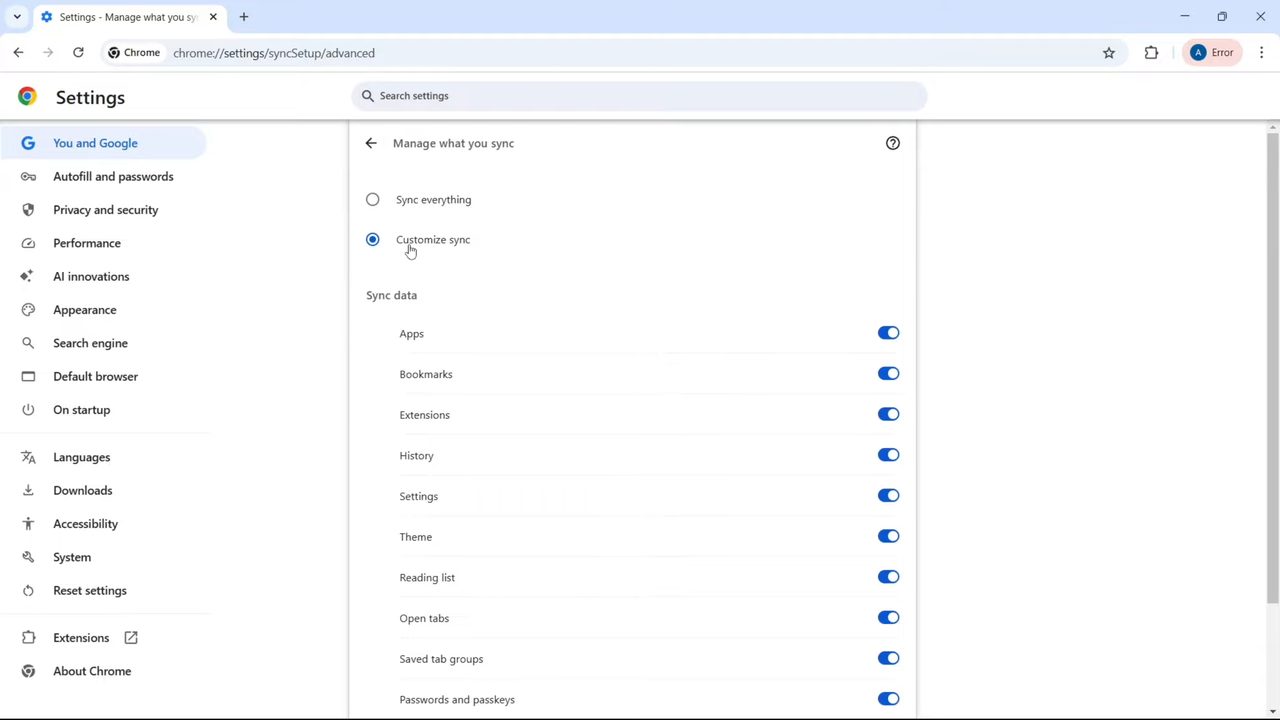
7Review the data already in your account (optional)
Go back and click Review your synced data to open a Chrome and ChromeOS data in your account page. It shows how many history entries, bookmarks, reading list items and open tabs are already stored, which is a quick way to confirm the backup is working.
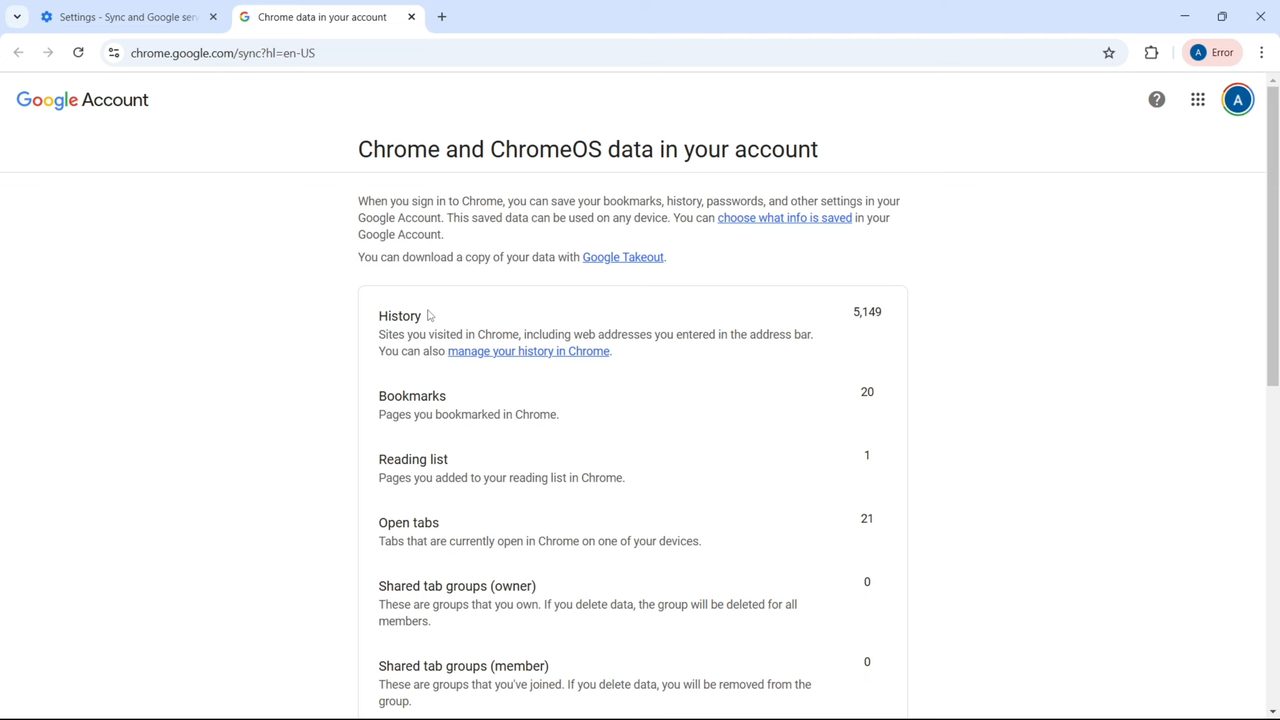
8Click Confirm
Back on the sync page, click the blue Confirm button at the top right to start syncing with your choices.
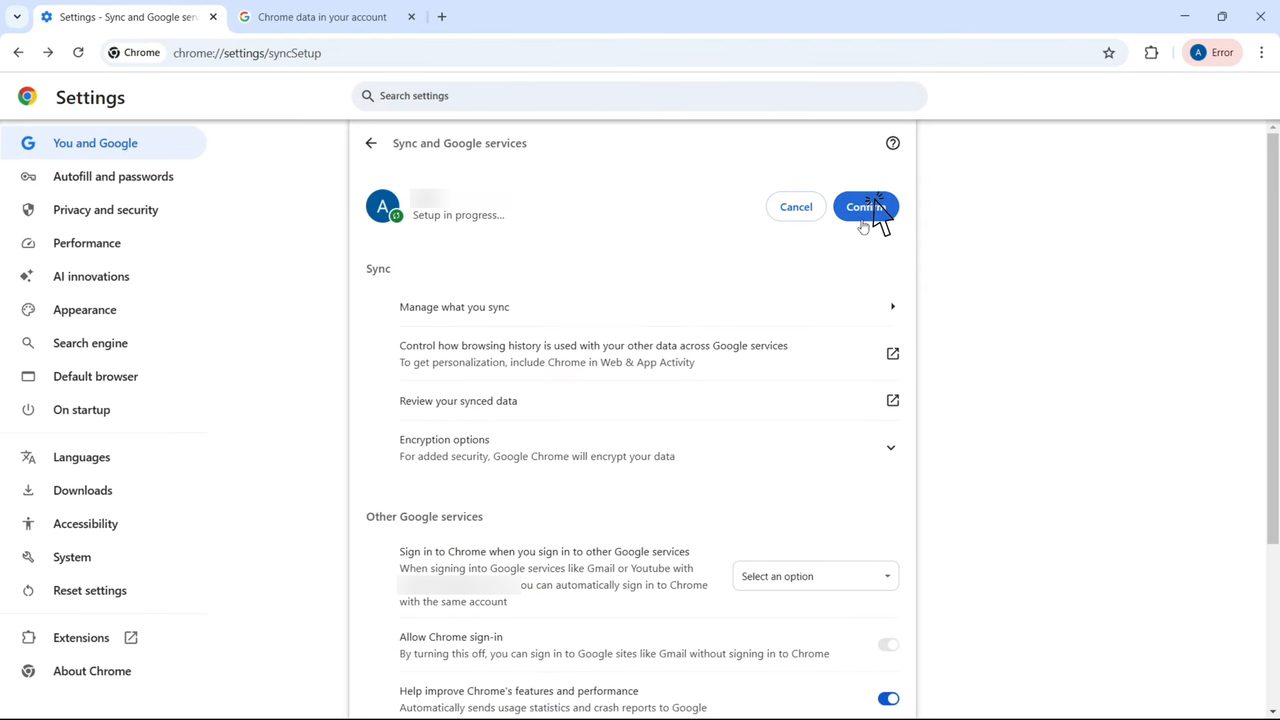
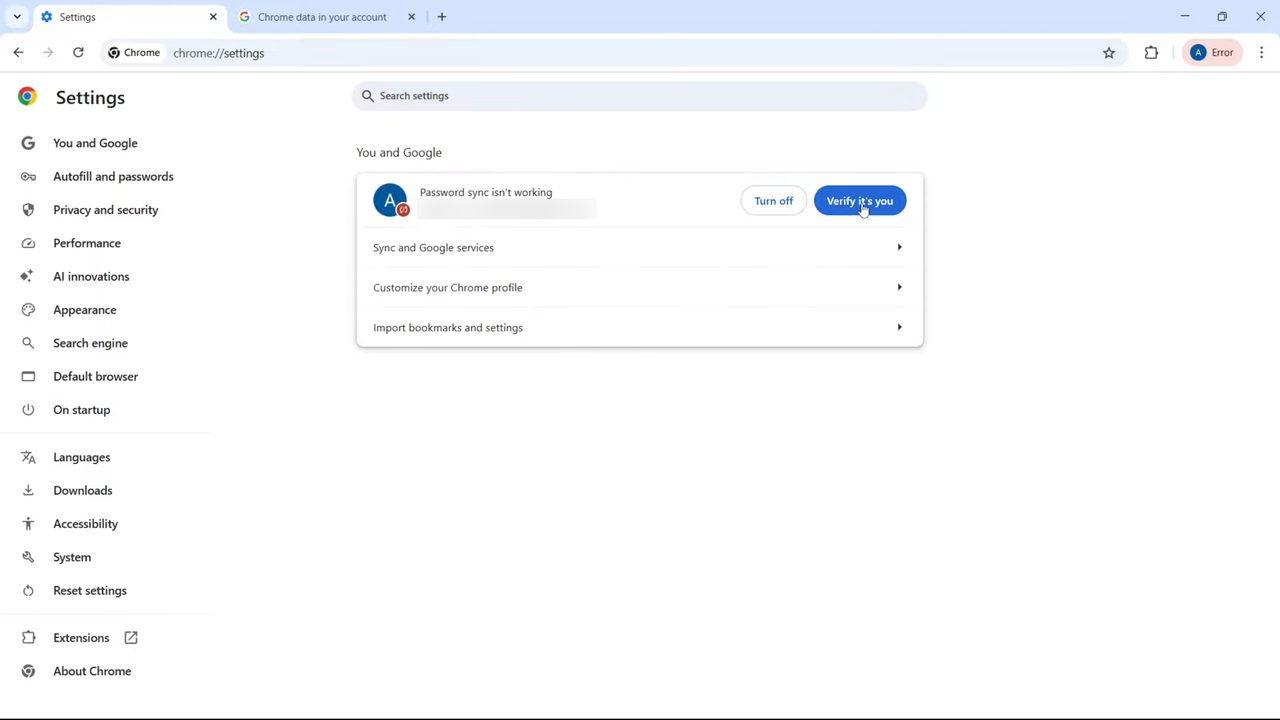
9Verify it's you
Chrome may show Password sync isn't working with a Verify it's you button. Click it and enter your Google account password. Once verified, your passwords start syncing too.
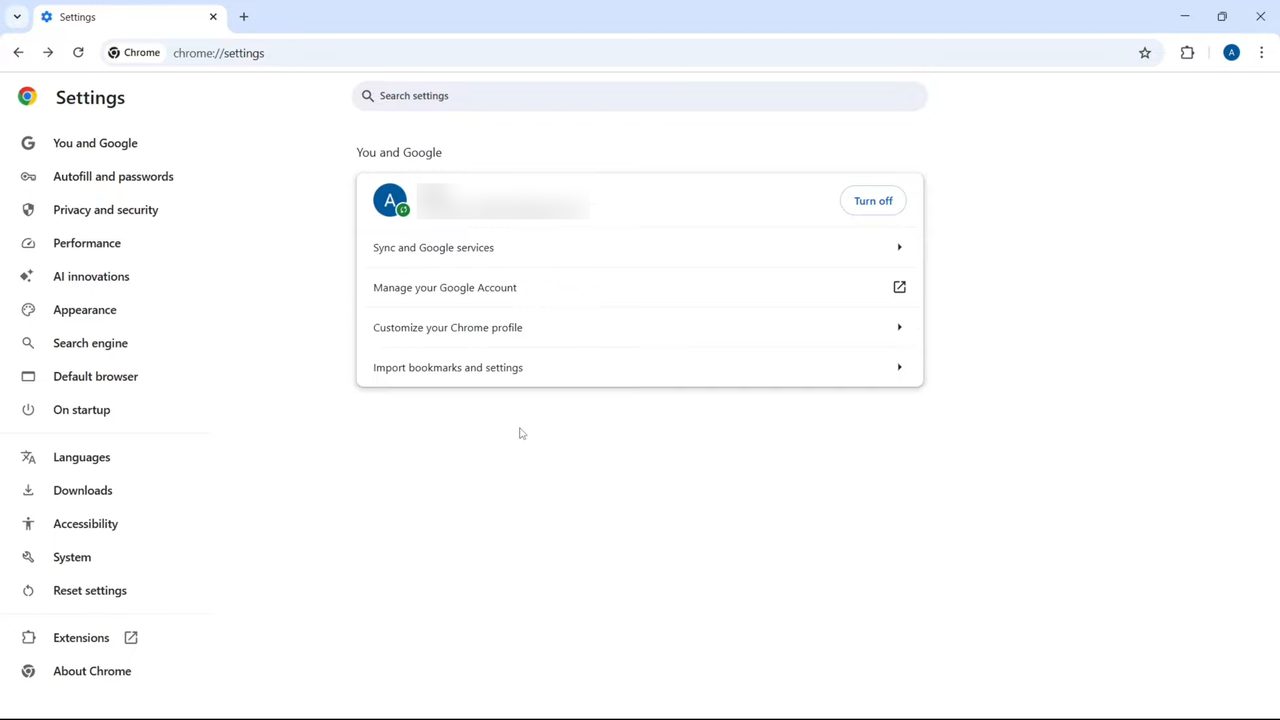
10Confirm sync is on
The card on You and Google now shows that Chrome is syncing to your account, with a Turn off button. Everything you selected is being backed up and will keep updating on its own.
How to restore your Chrome data
On a new computer, install Chrome, click the profile icon and sign in with the same Google account, then turn on sync in the same place. Your bookmarks, saved passwords, extensions and settings come back within a few minutes. Google's help page Sign in to Chrome confirms that signing in lets you get your bookmarks, passwords and more on all your devices, and get your info back if you lose your phone or get a new laptop.
Troubleshooting
- No Turn on sync button. Newer Chrome versions can save bookmarks, passwords and other data to your Google account as soon as you sign in, without a separate sync switch. Check the profile menu or You and Google for what is being saved.
- Passwords not backing up. Make sure Passwords and passkeys is on in Step 6 and that you finished Verify it's you.
- Signed in with the wrong account. Click the arrow next to the account name on the sync page, or sign out and sign in with the account you want the backup in.
- Work or school account. Your organisation can switch sync off. Use a personal Google account for a personal backup.
Other ways to keep a copy
- The Chrome data in your account page links to Google Takeout, where you can download a copy of the synced data as files.
- To remove the backup later, Google says to go to chrome.google.com/data and select Delete data. This clears it from your account, not from the computer.
If you want to check which passwords Chrome has saved before you move to a new device, see How to View Saved Passwords in Chrome.
FAQ
How do I back up all my Chrome data?
Go to three dots > Settings > Sync and Google services, click Turn on sync and choose Yes, I'm in. Bookmarks, passwords, history, extensions and settings are saved to your Google account.
Can I back up only my Chrome passwords and bookmarks?
Yes. Click Settings in the Turn on sync box, open Manage what you sync, choose Customize sync and leave only Bookmarks and Passwords and passkeys switched on.
Will turning off sync delete my backup?
No. Turning off sync stops new changes from being saved, but the existing data stays in your Google account. To delete it, use Delete data at chrome.google.com/data.
Does Chrome sync work on my phone too?
Yes. Sign in to Chrome on Android or iPhone with the same Google account and your synced bookmarks, passwords and history show up there as well.
Related guides