Tech is Easy
How to Change Wallpaper on Laptop or PC (Windows 11 and 10)
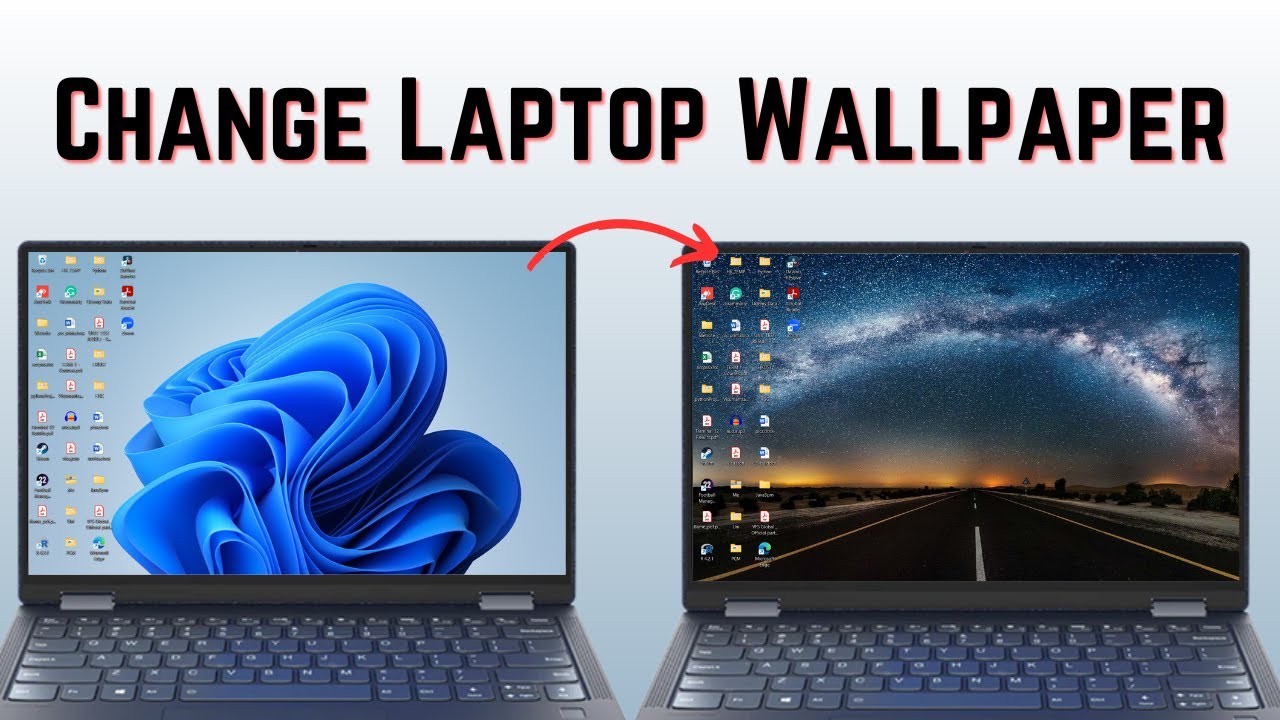
To change the wallpaper on your laptop, right-click an empty spot on the desktop, click Personalize, open Background, and click Browse photos to pick the picture you want. If you were searching for how to change wallpaper in laptop or PC, this is the quickest route, and the same page also lets you use a solid color, a slideshow or Windows spotlight instead. It works on any Windows laptop or desktop; we used Windows 11, and Windows 10 has the same Background page with a slightly different layout.
What you need
- A Windows laptop or PC.
- The picture you want as your wallpaper, saved somewhere on the computer (for example in your Pictures or Downloads folder). If it's on your phone, transfer it to the laptop first.
Method 1: Set a photo as your wallpaper
1Right-click the desktop and choose Personalize
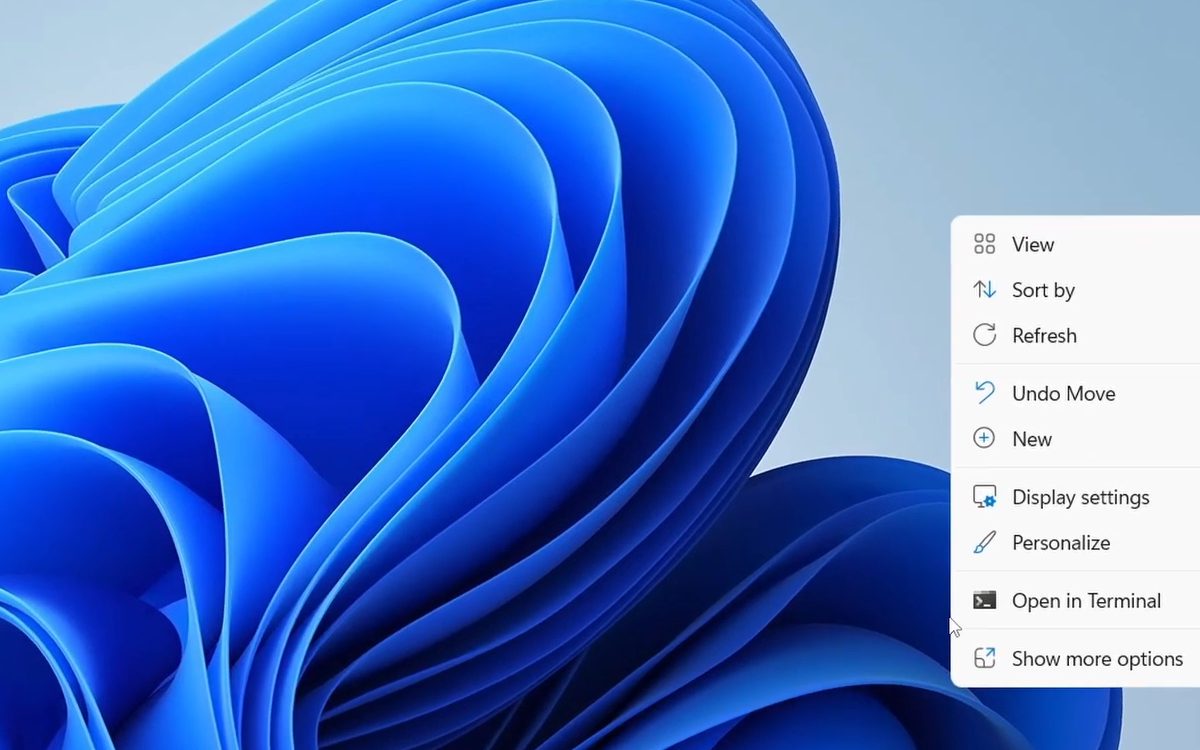
Minimise your open windows so you can see the desktop. Right-click on any empty area and click Personalize in the menu.
2Open Background
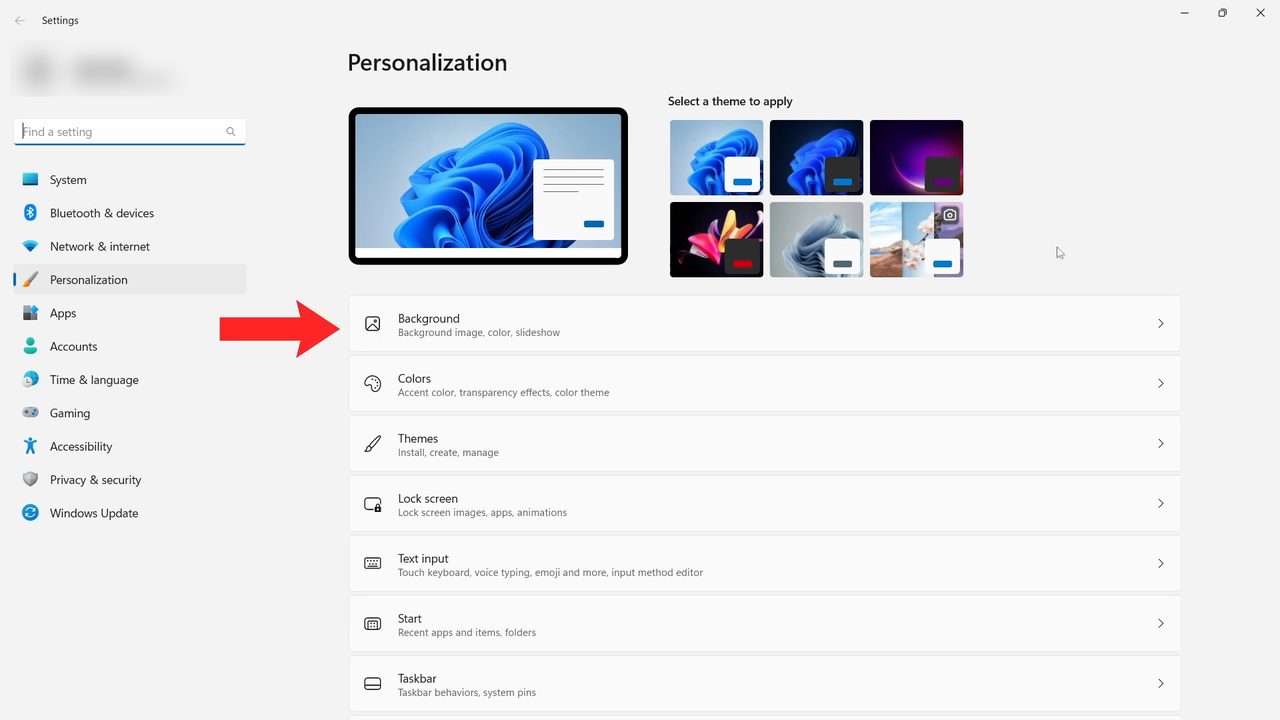
The Settings app opens on Personalization. Click Background, the first option, described as "Background image, color, slideshow".
3Choose the background type
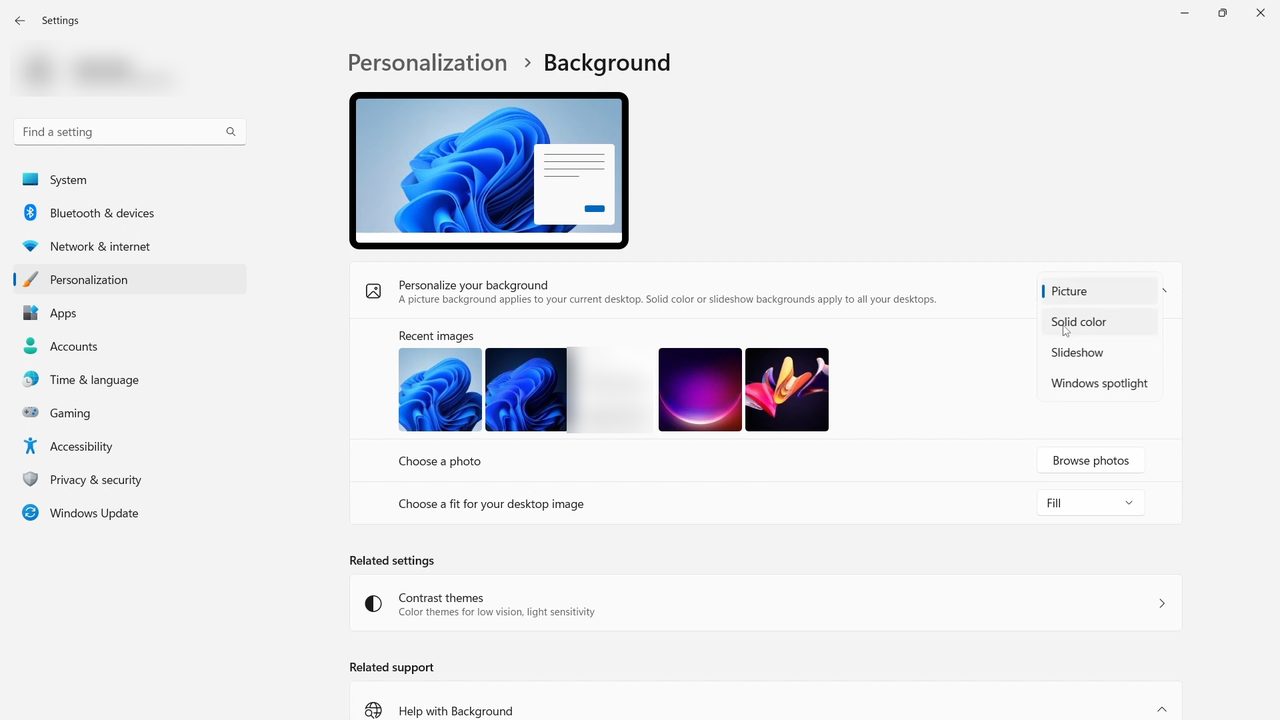
Next to Personalize your background, click the drop-down box. You'll see four options: - Picture: one image that stays the same - Solid color: a plain coloured background - Slideshow: a folder of pictures that rotate on a timer - Windows spotlight: a new photo from Microsoft that changes automatically
For your own photo, leave it on Picture.
4Click Browse photos
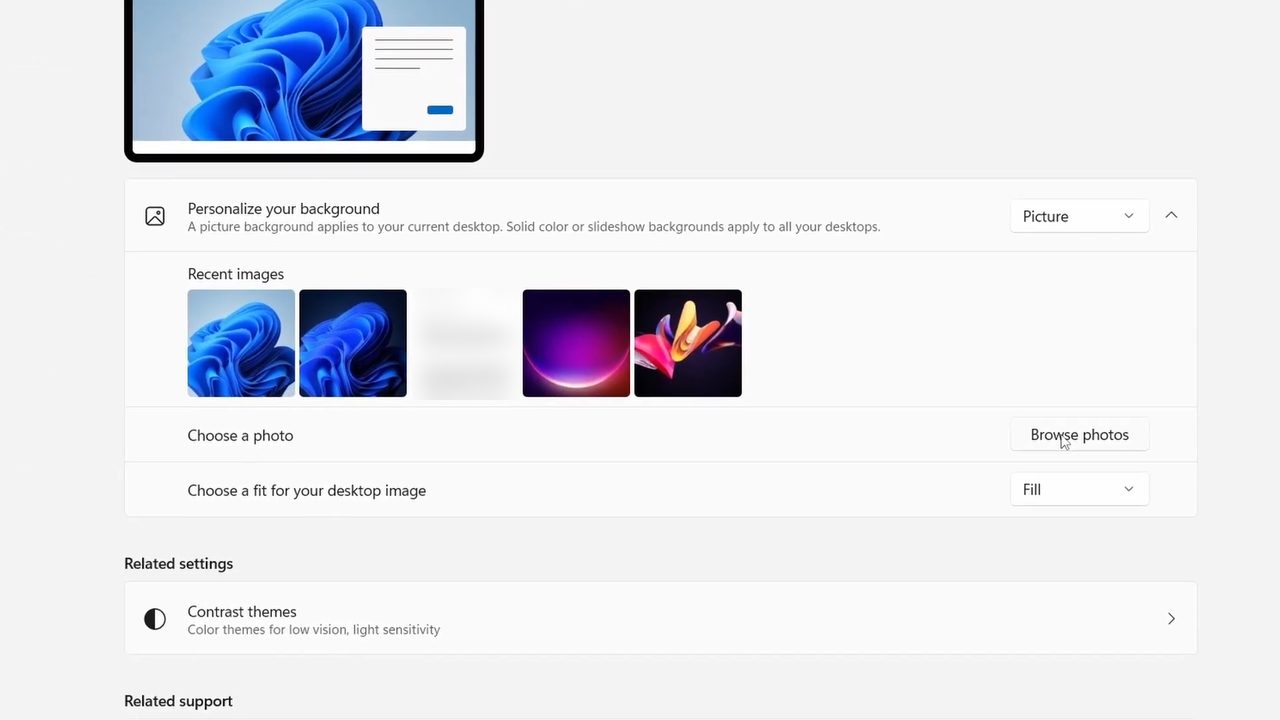
Next to Choose a photo, click Browse photos. If the picture you want is already in the Recent images row, you can just click it instead.
5Pick your picture
A file window opens. Go to the folder where your picture is saved, select it and click Choose picture. The wallpaper changes straight away, and the preview at the top of the page shows how it looks.
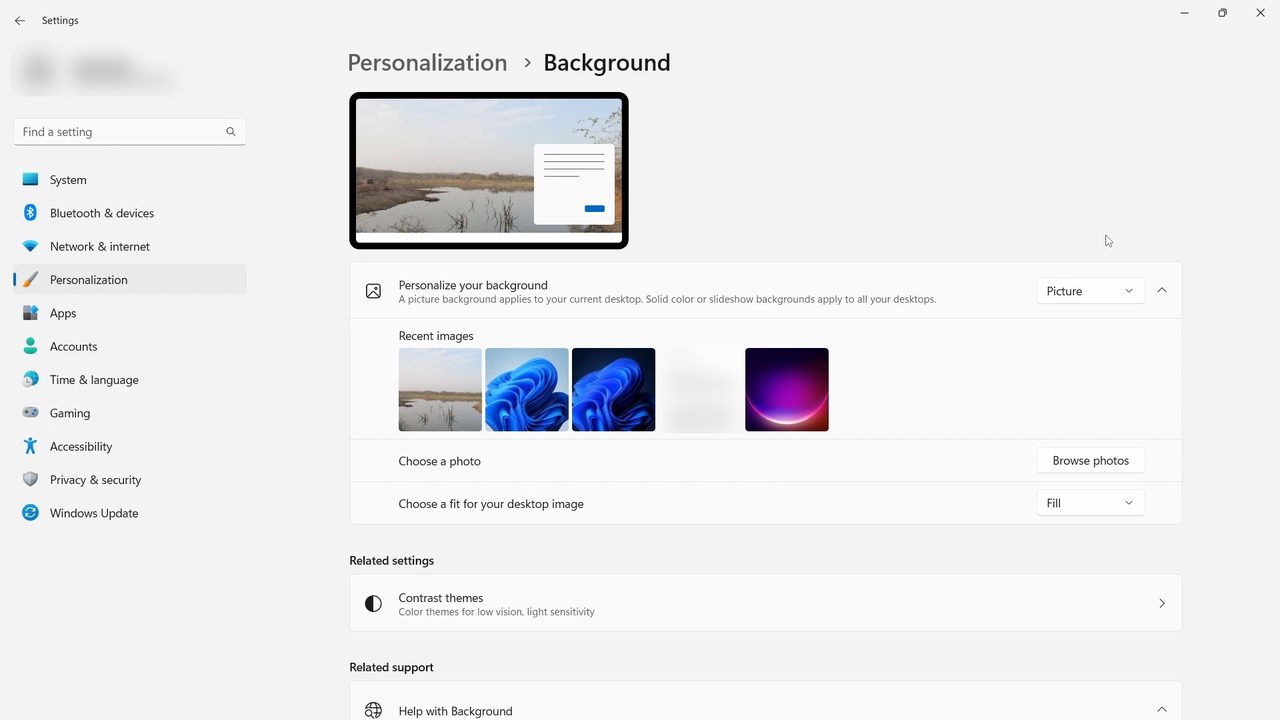
6Choose a fit
If the picture looks cropped or stretched, open Choose a fit for your desktop image. The options are Fill, Fit, Stretch, Tile, Center and Span. Fill covers the whole screen and may crop the edges. Fit keeps the full picture at its original shape, so you may see borders on the sides. Try a few and keep the one that looks best.
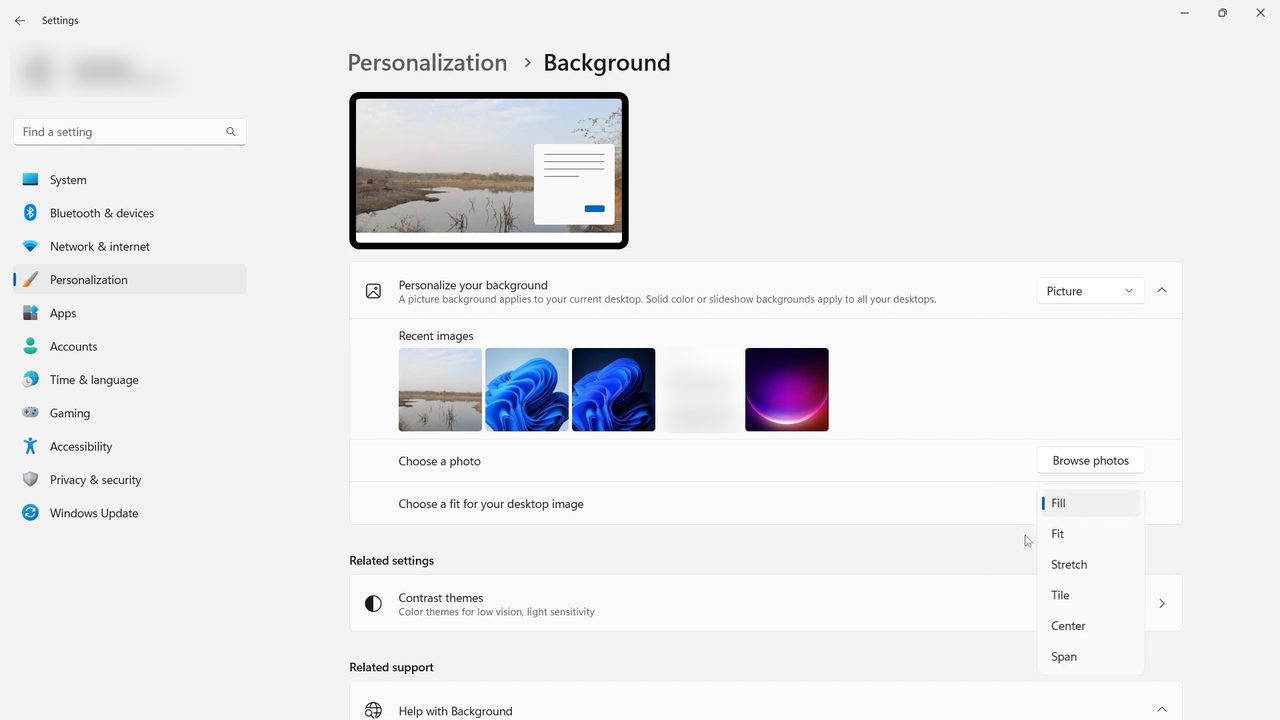
Method 2: Use a solid color
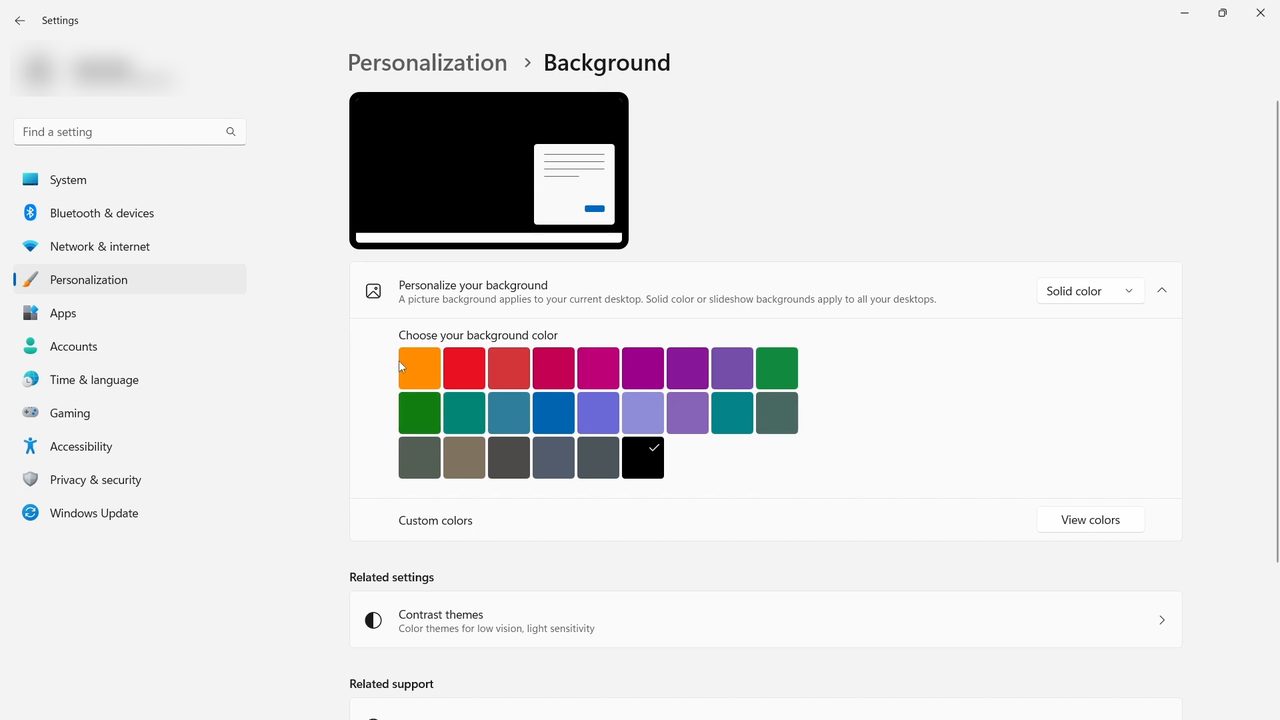
7Select Solid color and pick a color
On the same Background page, change the drop-down to Solid color. A grid of colours appears under Choose your background color. Click one and the desktop changes immediately. If none of them suit you, click View colors next to Custom colors to choose your own shade.
Other ways to change the wallpaper
- From the Settings app: Open Start > Settings > Personalization > Background. It's the same page as above, handy if right-clicking the desktop doesn't work.
- From the photo itself: Microsoft's help page notes you can right-click an image file and choose Set as desktop background.
- From the Photos app: While viewing a picture in Photos, open the three-dot menu and choose Set as > Background, as described on the same Microsoft page.
- Use a theme: The Personalization page also has Select a theme to apply, which changes the wallpaper together with the accent colour.
Windows 11 vs Windows 10
Both versions use Settings > Personalization > Background, and both open it with a right-click on the desktop and Personalize. In Windows 10 the options are listed directly on the page instead of inside an expandable box, so the buttons may look a little different from the screenshots here.
Tips / troubleshooting
- Personalize is greyed out or the options are locked? A school or work laptop may be managed by an organisation that sets the wallpaper for you. Also check that Windows is activated, since an unactivated copy limits personalisation settings.
- Picture looks blurry? Use an image at least as large as your screen resolution. Small images get stretched by Fill.
- Wallpaper changed back? If you use a theme or a sync setting across devices, it may reapply the old wallpaper. Pick the picture again after changing the theme.
- Multiple monitors: Microsoft's page explains you can right-click a picture in Recent images to use it on all displays or just one. To stretch one image across every screen, choose the Span fit.
- Lock screen is separate. Changing the desktop wallpaper doesn't change the lock screen. That is under Personalization > Lock screen.
Microsoft's help page Change the desktop background in Windows covers these options in more detail.
Related guides: How to Transfer Photos from Android to PC and How to Disable Hotkeys in Windows 10.
FAQ
How do I change the wallpaper on my laptop?
Right-click the desktop, click Personalize, then Background. Keep the type on Picture, click Browse photos, and choose your image. The change applies instantly.
How do I change the wallpaper on Windows 10?
The steps are the same: right-click the desktop, choose Personalize, and use the Background page to pick a picture, solid color or slideshow. The layout is slightly different from Windows 11.
How do I stop my wallpaper from being cut off?
Change Choose a fit for your desktop image from Fill to Fit. The whole picture shows, with borders where its shape doesn't match the screen.
Can I make my wallpaper change automatically?
Yes. Choose Slideshow to rotate pictures from a folder, or Windows spotlight to get a new image from Microsoft regularly. The video doesn't go through the slideshow settings, but both appear in the same drop-down.
Related guides