Tech is Easy
How to Use TickTick App (Step-by-Step Tutorial)
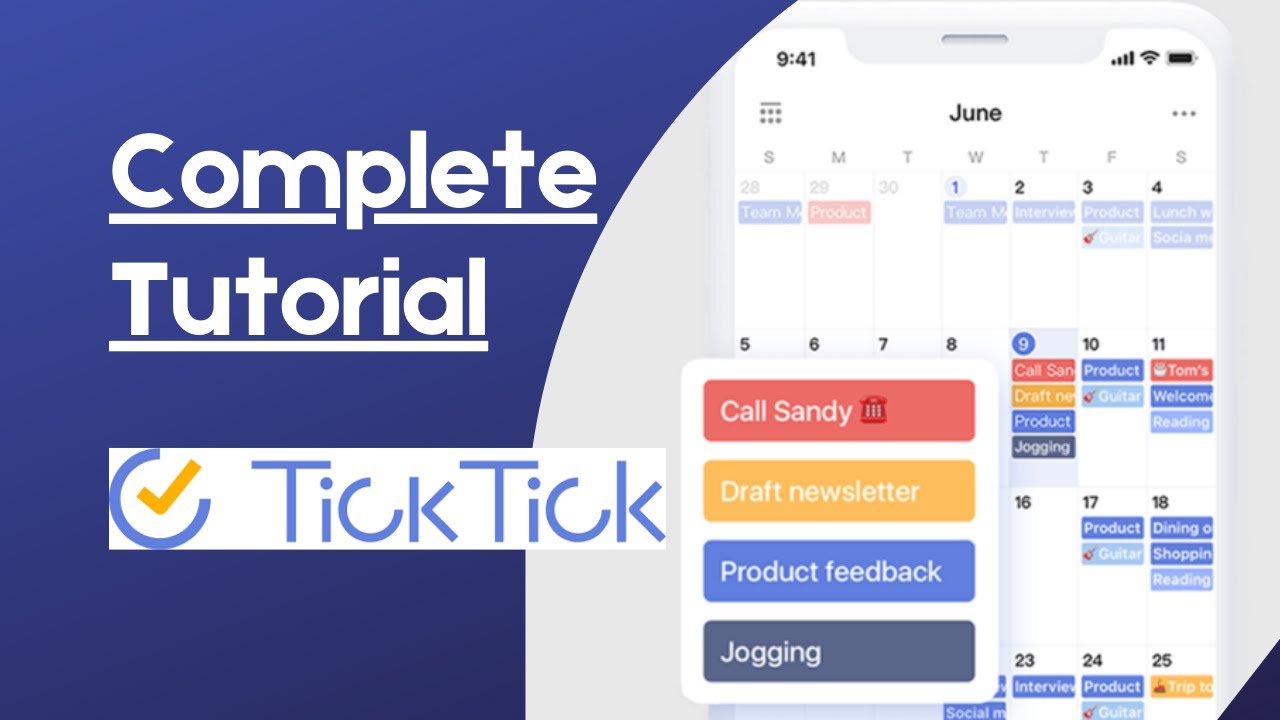
To use the TickTick app, install it from the Play Store or App Store, sign in, then tap the + button to add a task. Type something like "Buy groceries on friday" and TickTick sets the date for you, after which you can add a time, repeat, priority, tag and list. This TickTick app tutorial also covers the calendar, settings, lists and widgets, for anyone setting it up for the first time.
The video was recorded in 2022, so some menus in TickTick may look slightly different now.
1Install TickTick and sign in
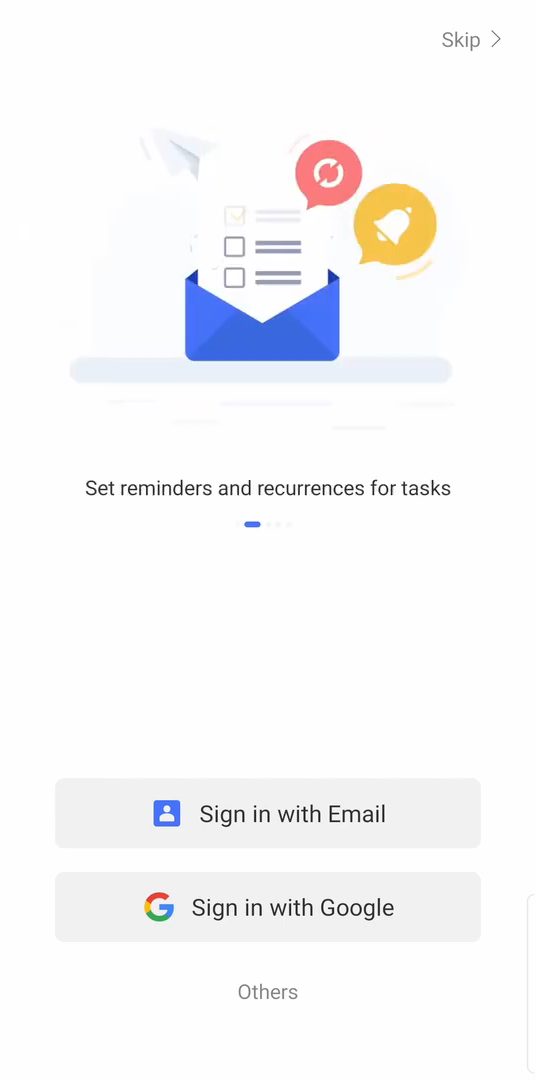
Open the Play Store (or the App Store on iPhone), search for TickTick and install it. Open the app and tap Sign in with Email or Sign in with Google. You can skip this, but signing in syncs your tasks so you can use them on your laptop too.
2Pick your categories and open the Inbox
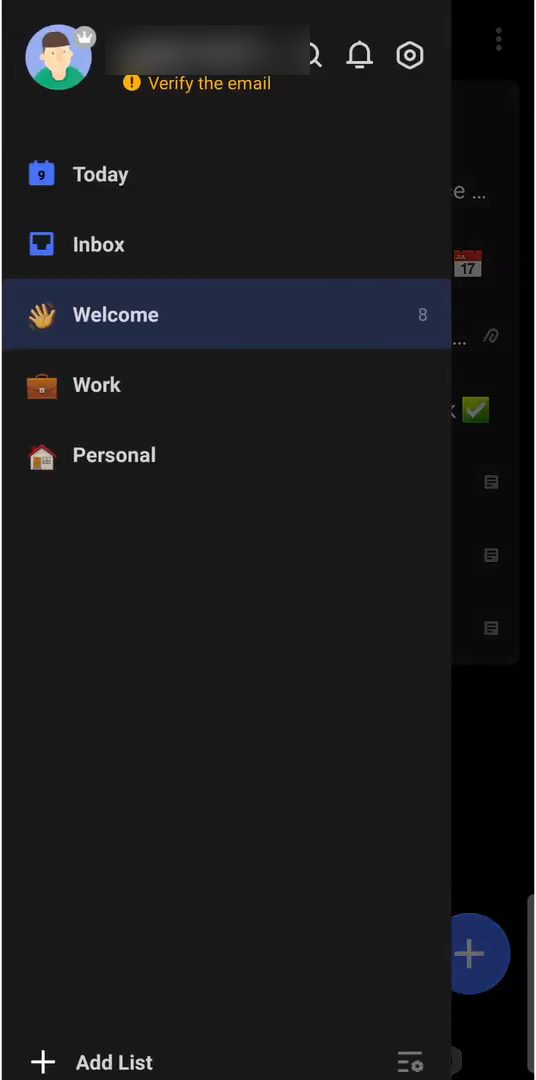
TickTick asks What do you want to create? Pick what you plan to use it for, such as Work and Personal, and tap Go Ahead. The app opens on a Welcome list with sample tasks. Tap the three lines at the top left and choose Inbox to start with an empty list.
3Add a task with a smart date
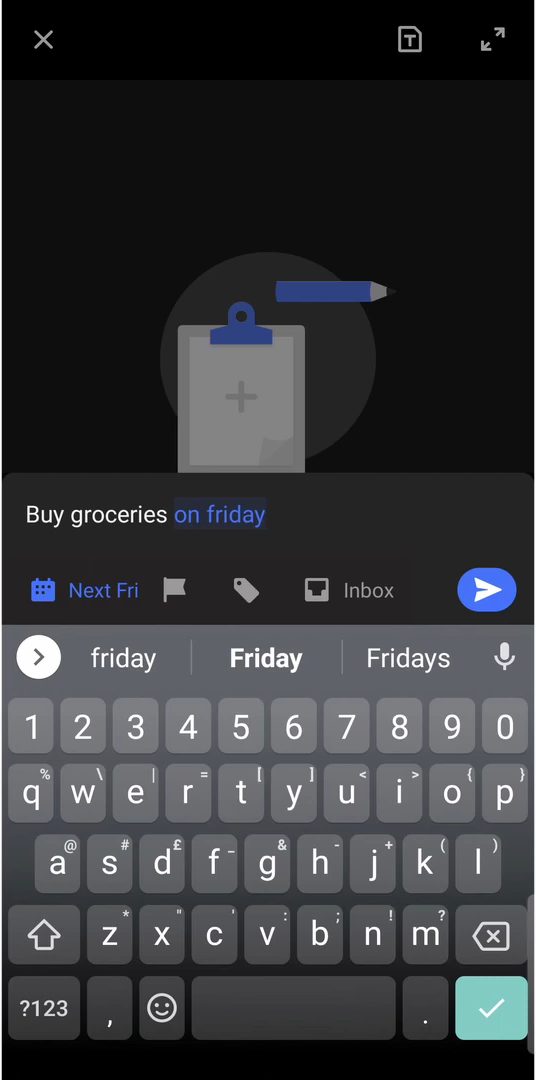
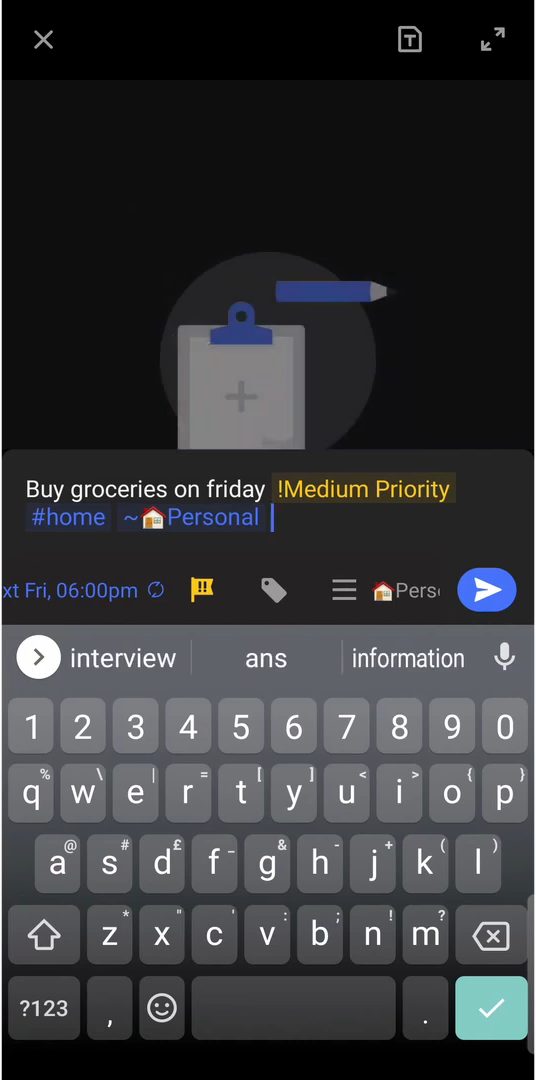
Tap the blue + button at the bottom right and type the task. TickTick reads dates in your text, so typing "Buy groceries on friday" sets the due date to next Friday automatically. The date shows up in blue below the task.
4Set a time and make it repeat
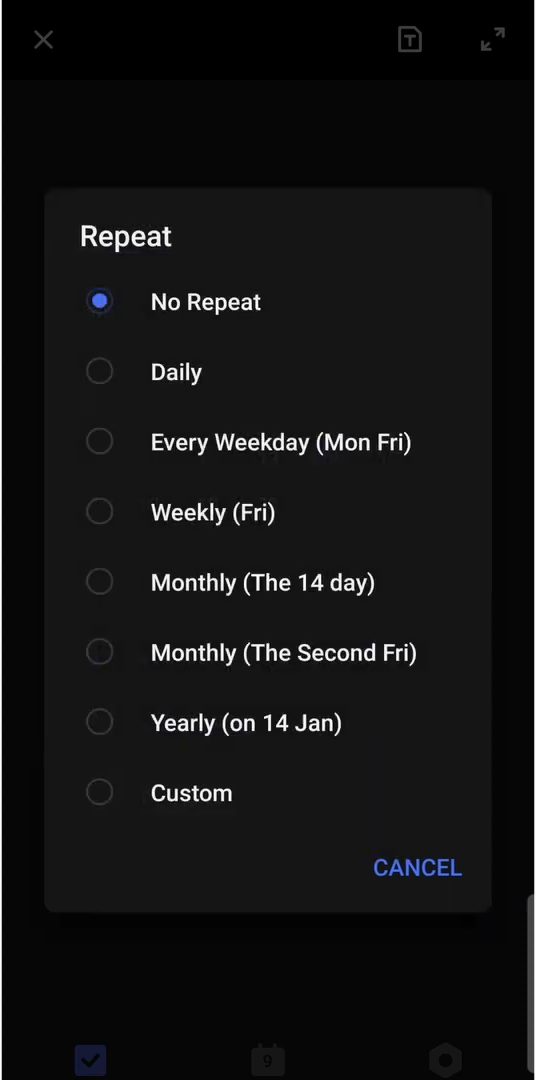
Tap the calendar icon below the task to change the date or set a time, for example 6 PM, which is when you get the reminder. To repeat the task, tap Set Repeat and pick an option like Weekly (Fri), then tap OK.
5Add a priority, tag and list
Tap the flag icon to choose High, Medium, Low or No Priority. Tap the tag icon to add a tag such as #home, so you can later search a tag and see every task with it. Finally, tap Inbox to move the task into a list like Personal. Lists work a bit like playlists and keep work and home tasks apart. Tap the send arrow to save.
6Check your tasks on the calendar
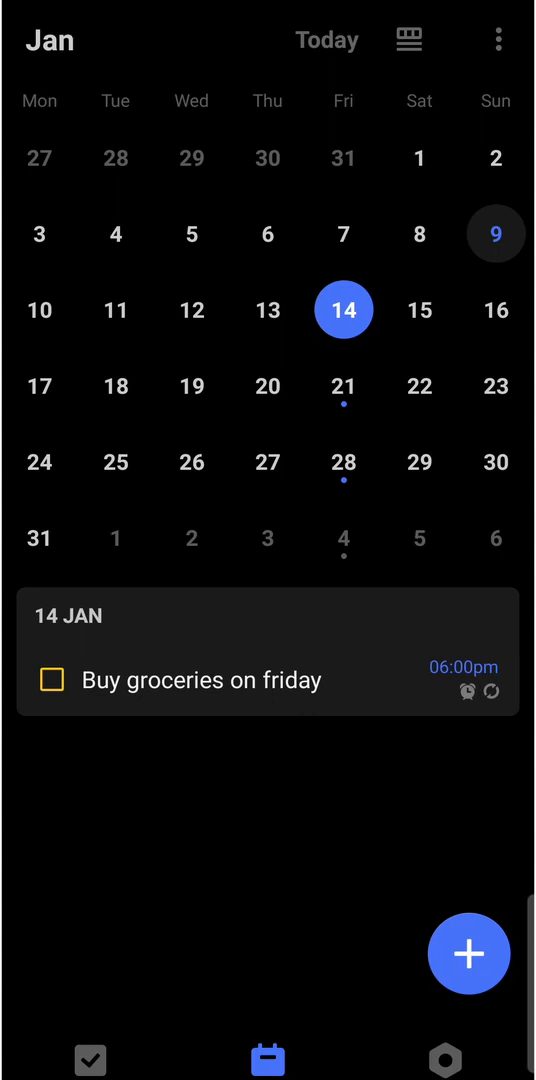
Tap the calendar icon at the bottom of the screen. Days with a task get a blue dot, and tapping a day shows its tasks. It is a quick way to plan the month.
7Choose your tab bar and other settings
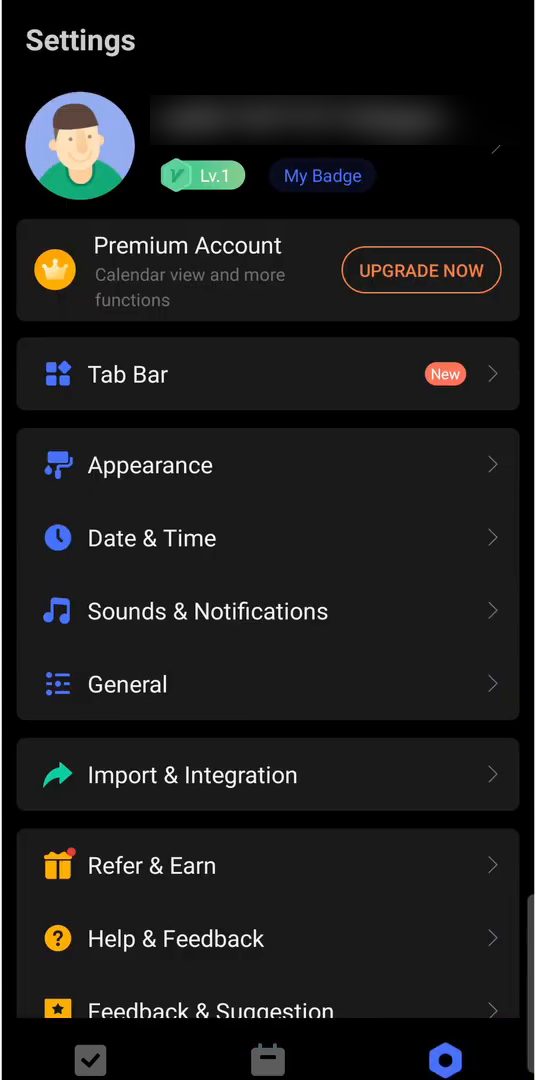
Tap the Settings icon at the bottom right and open Tab Bar to choose which icons appear at the bottom. Useful ones are Calendar, Focus (a Pomodoro timer and stopwatch) and Settings. Under Date & Time you can set whether your week starts on Monday or Sunday.
8Use Today and manage your lists
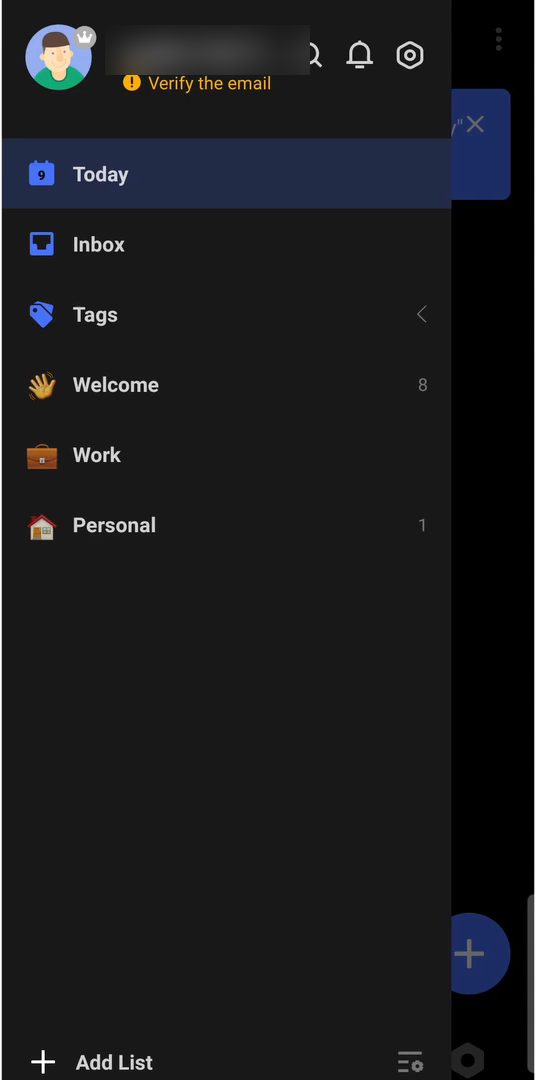
Tap the three lines again. Today shows every task due today, which is a handy screen to keep open. Below Inbox and Tags are your lists. Tap Add List to make a new one with a name, color and folder, then tap the tick. To reorder lists, tap the button next to Add List and long press a list to drag it. To delete one, open it, tap the three dots at the top right and choose Delete.
9Add the TickTick widget on Android
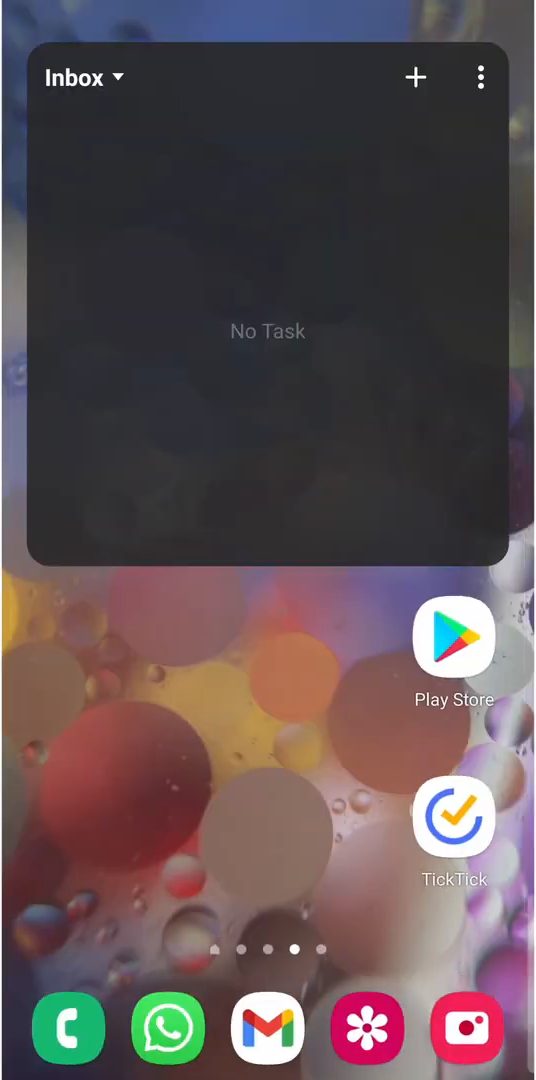
Go to your home screen, long press an empty spot and tap Widgets. Find TickTick, pick a widget size (the standard list widget works well) and tap Add. Set the theme and opacity, then tap the tick. Now you can tap + on the widget to add a task without opening the app, or tap the list name to choose what it shows.
10Pin a widget on your laptop
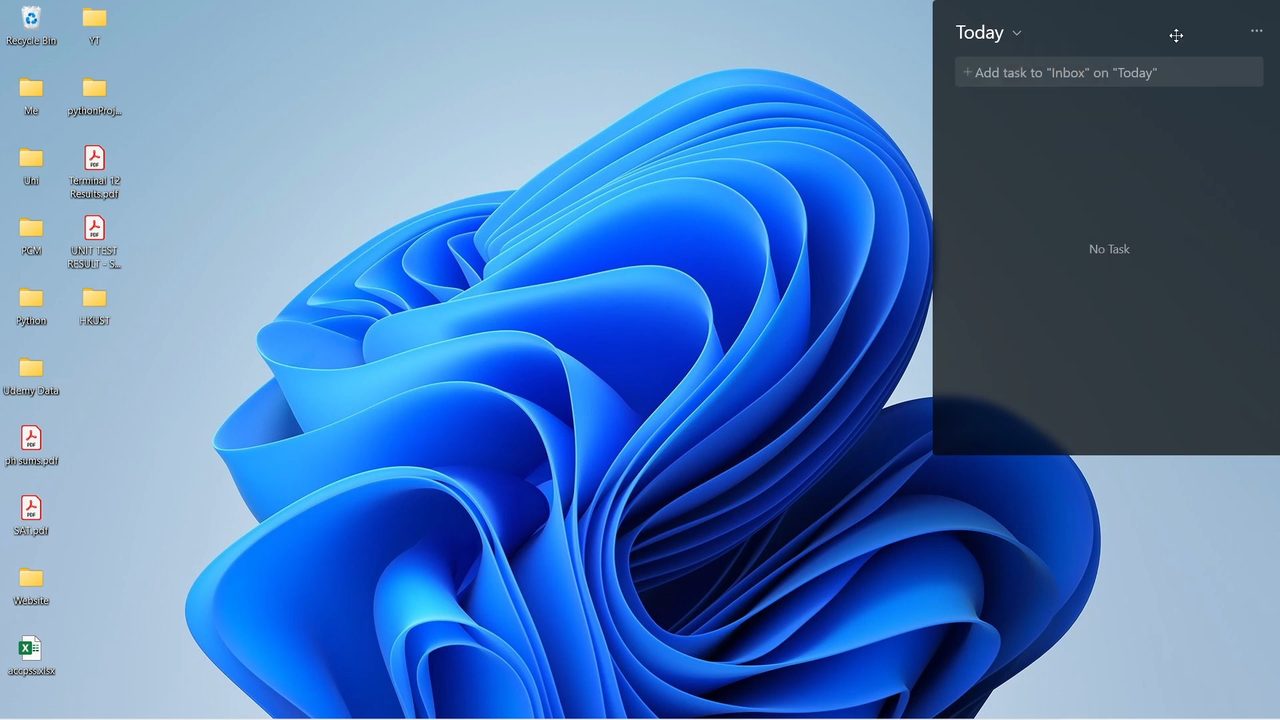
Download the TickTick desktop app and sign in with the same account so your tasks sync. Search for TickTick in the Start menu, scroll down and click Add List Widget (there is also Add Calendar Widget). Drag the widget where you want it. To stop it moving, click the three dots on the widget and choose Lock.
Related guides: How to Use Do Not Disturb on Android (DND Settings Guide) and How to Enable Split Screen on Android (Use 2 Apps at Once).
FAQ
Is TickTick free?
You can download it and use tasks, reminders, lists, tags and widgets without paying, as shown here. The settings screen also offers a Premium Account upgrade, which it says adds more calendar views and other functions. Pricing is not covered in the video.
How does TickTick know the date of my task?
TickTick has date parsing. When you type a day or date in the task name, such as "on friday", it sets the due date automatically. You can still change it with the calendar icon.
What is the difference between tags and lists in TickTick?
A task sits in one list, like Work or Personal, which keeps different areas apart. Tags such as #home can be added on top, and searching a tag pulls together all tasks with it across lists.
Can I use TickTick on my laptop?
Yes. Install the TickTick app on your computer and sign in with the same account. Your tasks sync, and on Windows you can add a list or calendar widget to the desktop.
Related guides