Tech is Easy
How to Create Chrome Profile Shortcut on Desktop (Windows)
To create a Chrome profile shortcut on your desktop, click your profile icon at the top right of Chrome, choose Manage Chrome profiles, click the three dots on the profile, choose Edit and turn on Create desktop shortcut. This guide is for anyone who uses more than one Chrome profile (work, personal, school) and wants a separate Chrome icon for each one, on the desktop or pinned to the taskbar.
What you need
- Google Chrome on a Windows PC (the video uses Windows 11)
- At least two Chrome profiles. If you only have one, you will create another in Step 2.
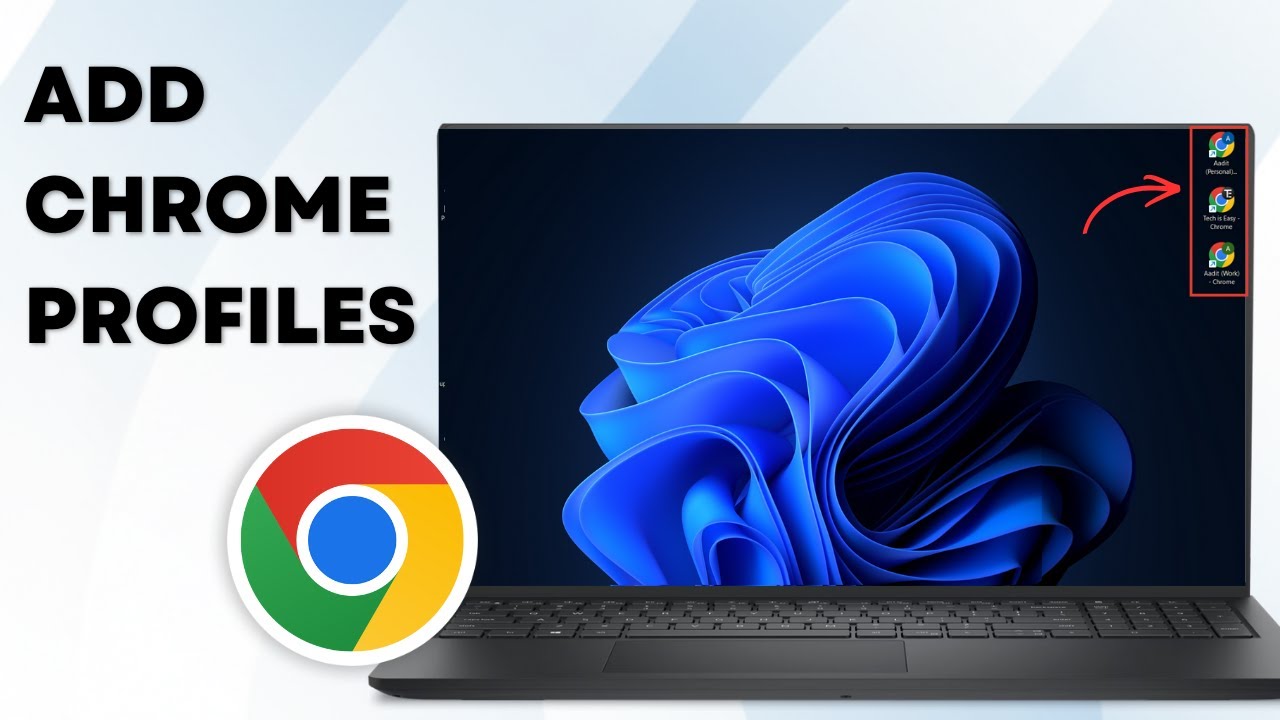
A profile shortcut is a normal Chrome shortcut that always opens one specific profile. It shows that profile's picture as a small badge on the Chrome logo and uses the profile's name, so you can tell the icons apart at a glance.
1Open Chrome and click your profile icon
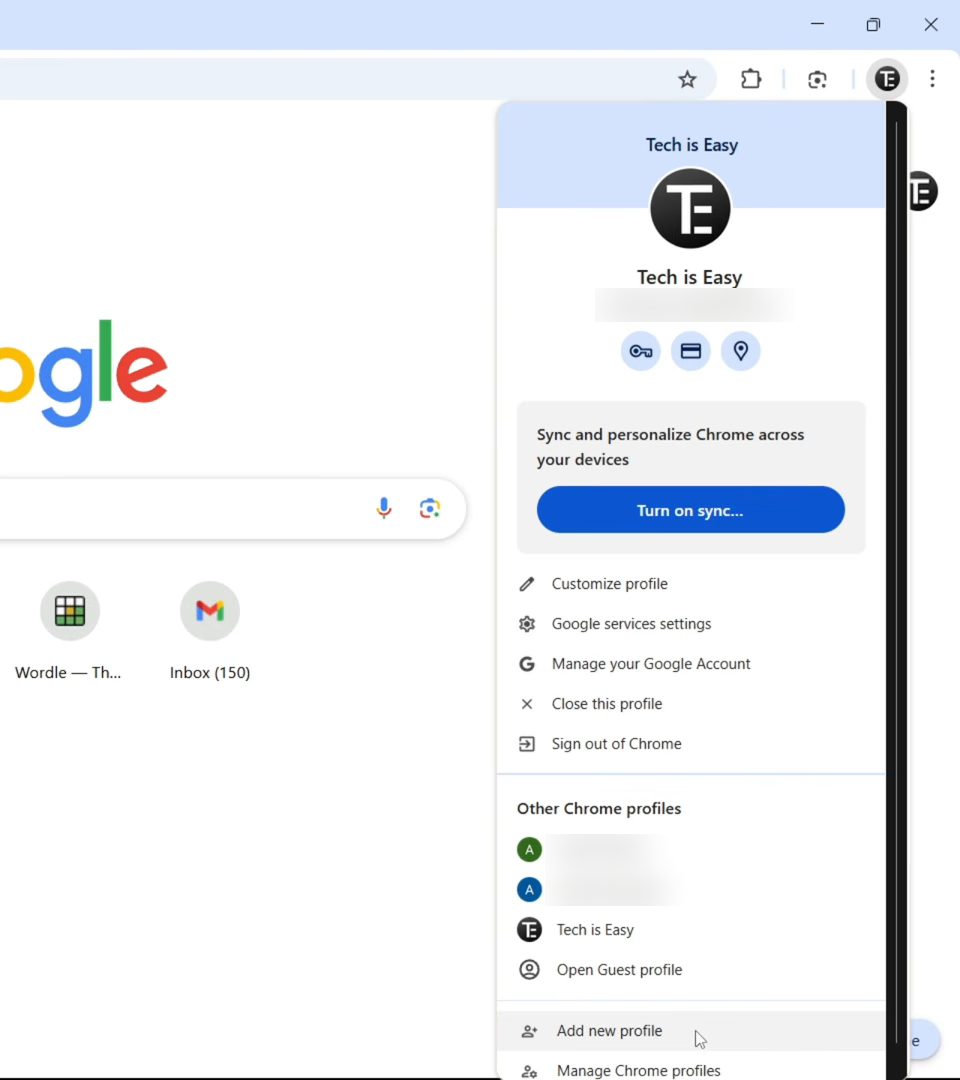
Open Google Chrome and click your profile icon at the top right, next to the three-dot menu. The menu shows the profile you are in and, under Other Chrome profiles, every other profile on this computer.
2Add a profile if you only have one
If the list under Other Chrome profiles is empty, click Add new profile at the bottom of the menu and follow the prompts to name it and, if you like, sign in with a Google account. Repeat until you have every profile you need. Each profile keeps its own bookmarks, history, passwords and extensions.
3Open Manage Chrome profiles
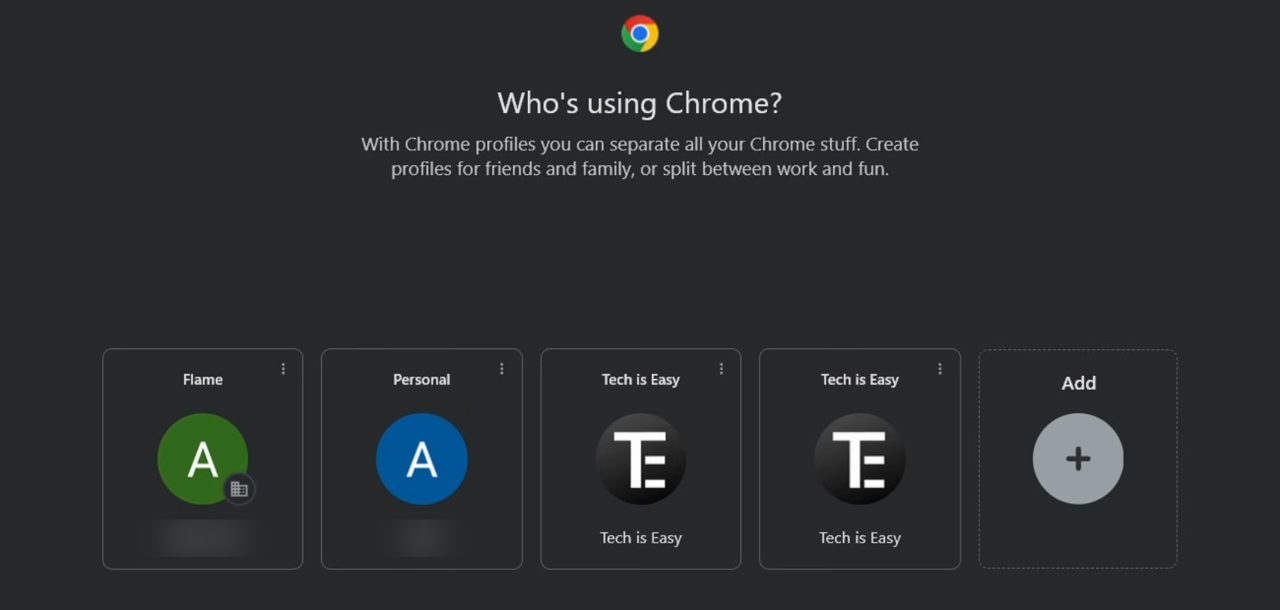
Click your profile icon again and choose Manage Chrome profiles, the last option in the menu. A Who's using Chrome? window opens with a card for every profile.
4Click the three dots and choose Edit
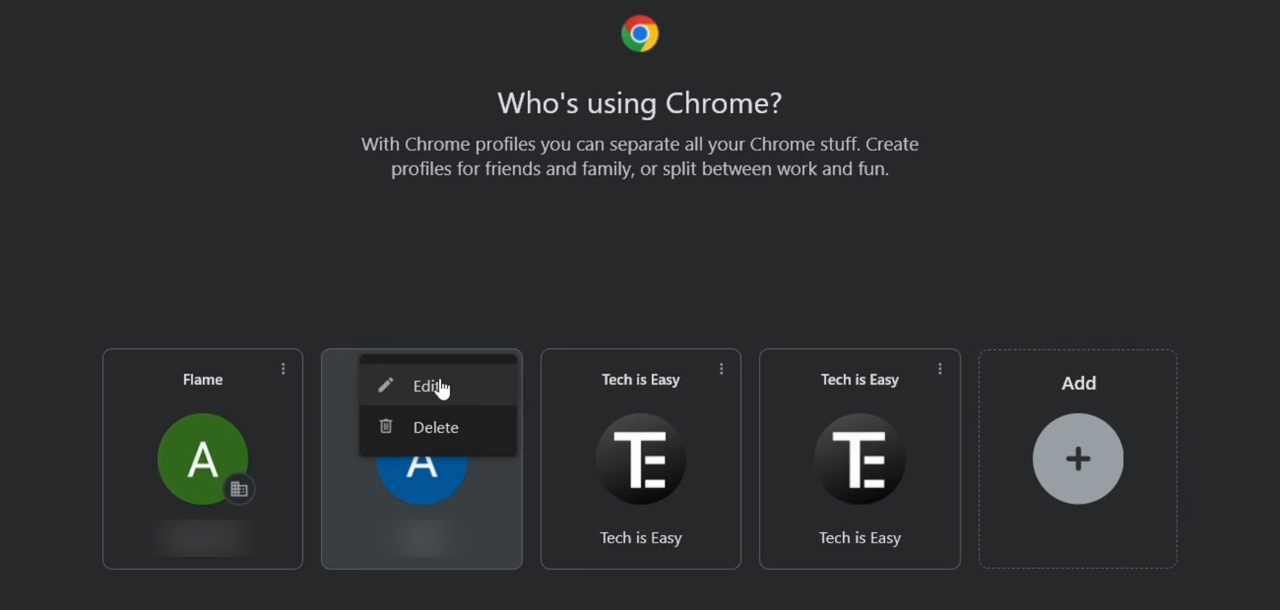
Hover over the profile you want a shortcut for and click the three dots at the top right of its card. Choose Edit. Chrome opens that profile's Customize profile settings page in a new window.
5Turn on Create desktop shortcut
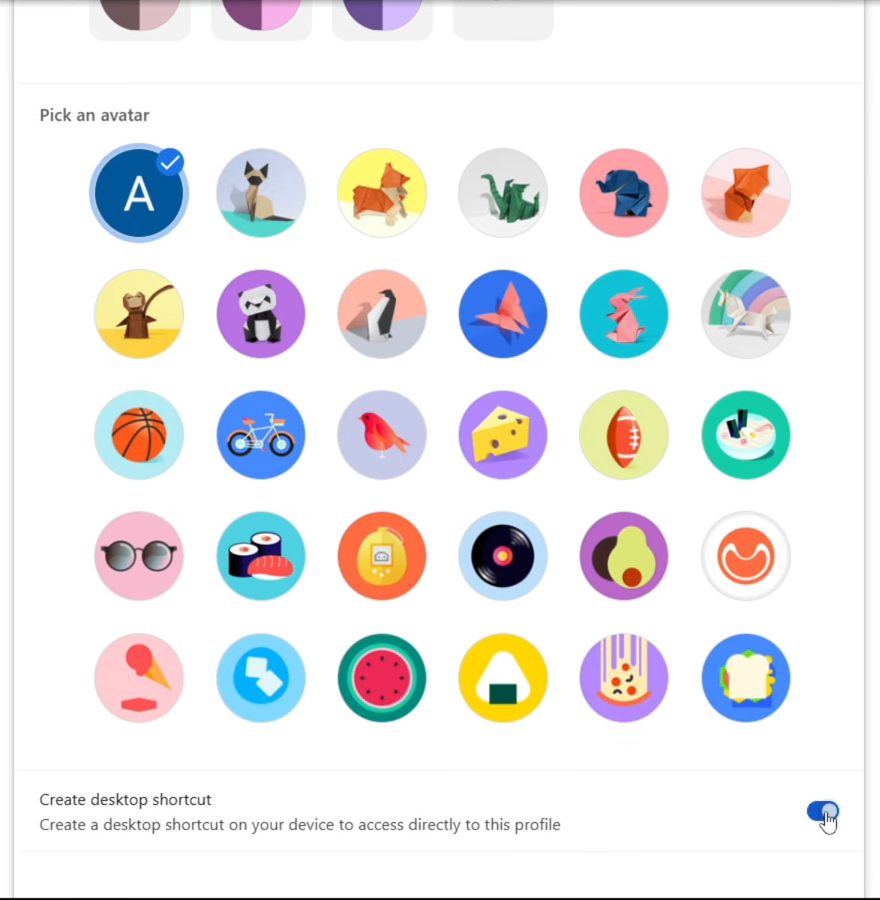
On the Customize profile page, scroll down past the color and avatar choices. At the very bottom, switch on Create desktop shortcut ("Create a desktop shortcut on your device to access directly to this profile"). The shortcut is created the moment the switch turns blue.
6Check your desktop
Minimise your windows and look at the desktop. A new Chrome icon with the profile's picture in the corner is now there, named after the profile. Double-click it and Chrome opens directly in that profile, skipping the profile picker.
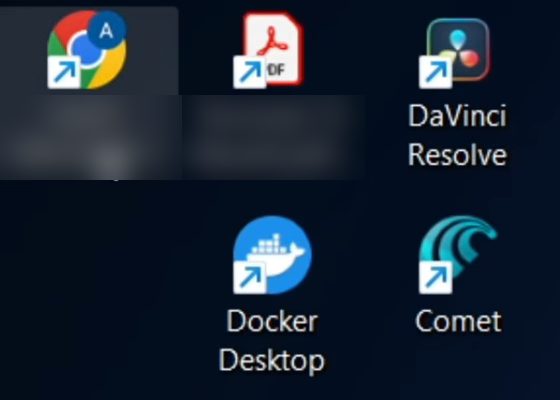
To make shortcuts for your other profiles, go back to Manage Chrome profiles and repeat Steps 4 and 5 for each one.
7Pin a profile to the taskbar
If you prefer the taskbar to the desktop, open the profile you want (from its new shortcut or from the profile menu). Its Chrome window shows up in the taskbar with that profile's badge. Right-click the icon in the taskbar and choose Pin to taskbar.
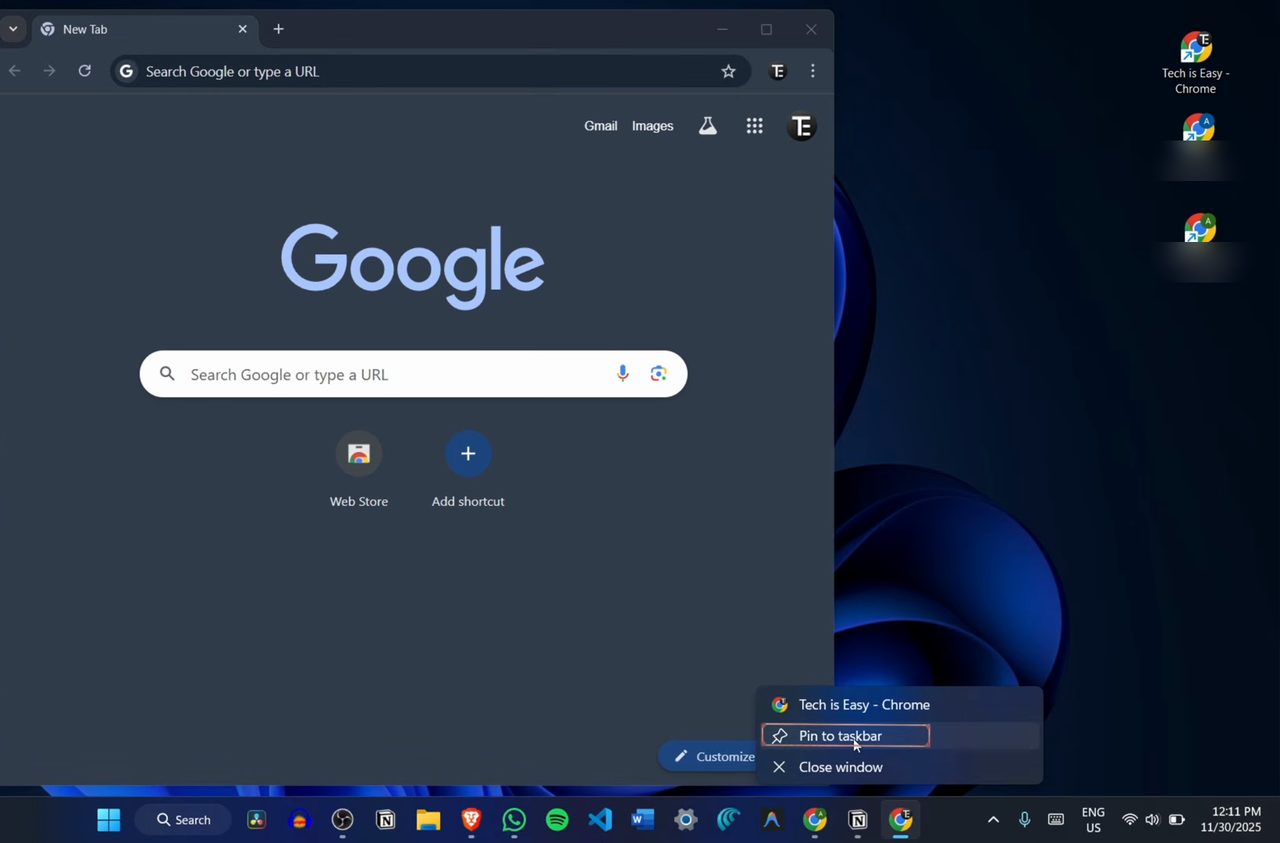
8Close the window and test the pinned icon
Close the Chrome window. The pinned profile icon stays in the taskbar. Click it any time and Chrome opens straight into that profile. Do the same for each profile to get one taskbar icon per profile.
Tips and troubleshooting
- Create desktop shortcut is missing. Make sure you opened Edit from Manage Chrome profiles (or Customize profile from the profile menu) and scrolled to the very bottom. The option is part of Chrome on Windows; the video does not show a Mac. Updating Chrome from Help > About Google Chrome also helps if your version is old.
- Pinned the wrong icon. Pin each profile from its own open window, as in Step 7. Pinning the plain Chrome icon opens whichever profile you used last, not a fixed one.
- Removing a shortcut. Turn Create desktop shortcut off again, or just delete the icon from the desktop. Deleting the icon does not delete the profile or any of its data.
- Telling icons apart. The shortcut uses the profile's name and picture. Giving each profile a distinct avatar or color on the Customize profile page makes the icons much easier to spot.
Google's help page Manage Chrome with multiple profiles covers adding, switching, editing and removing profiles. It confirms the path used here: profile icon, Manage Chrome profiles, then More > Edit on the profile. It also warns that anyone using your computer can switch into any profile, so profiles are for convenience, not for privacy.
Before you delete a profile
On the same Manage Chrome profiles window, the three-dot menu also has Delete. Google says removing a profile erases its bookmarks, history, passwords and other settings from that computer. If the profile was signed in and syncing to a Google account, that data is still in the account and comes back when you sign in again. If it was not syncing, back it up first.
If you use separate profiles to keep different Google accounts apart, you might also want to check which passwords each profile has saved: How to View Saved Passwords in Chrome.
FAQ
How do I create a desktop shortcut for a Chrome profile?
Click your profile icon in Chrome, choose Manage Chrome profiles, click the three dots on the profile and select Edit. Scroll to the bottom of the page and turn on Create desktop shortcut.
How do I pin a Chrome profile to the taskbar?
Open Chrome in that profile, right-click its icon in the taskbar and choose Pin to taskbar. After you close the window, the pinned icon still opens that profile.
Can I have multiple Chrome icons for different profiles?
Yes. Turn on Create desktop shortcut for each profile, or pin each profile to the taskbar. Every icon carries that profile's picture so you can tell them apart.
Does deleting the desktop shortcut delete my Chrome profile?
No. The shortcut is only a link. Your profile, bookmarks and passwords stay in Chrome until you delete the profile itself from Manage Chrome profiles.
Related guides