Tech is Easy
How to Use Chrome Remote Desktop to Control Your PC From Phone
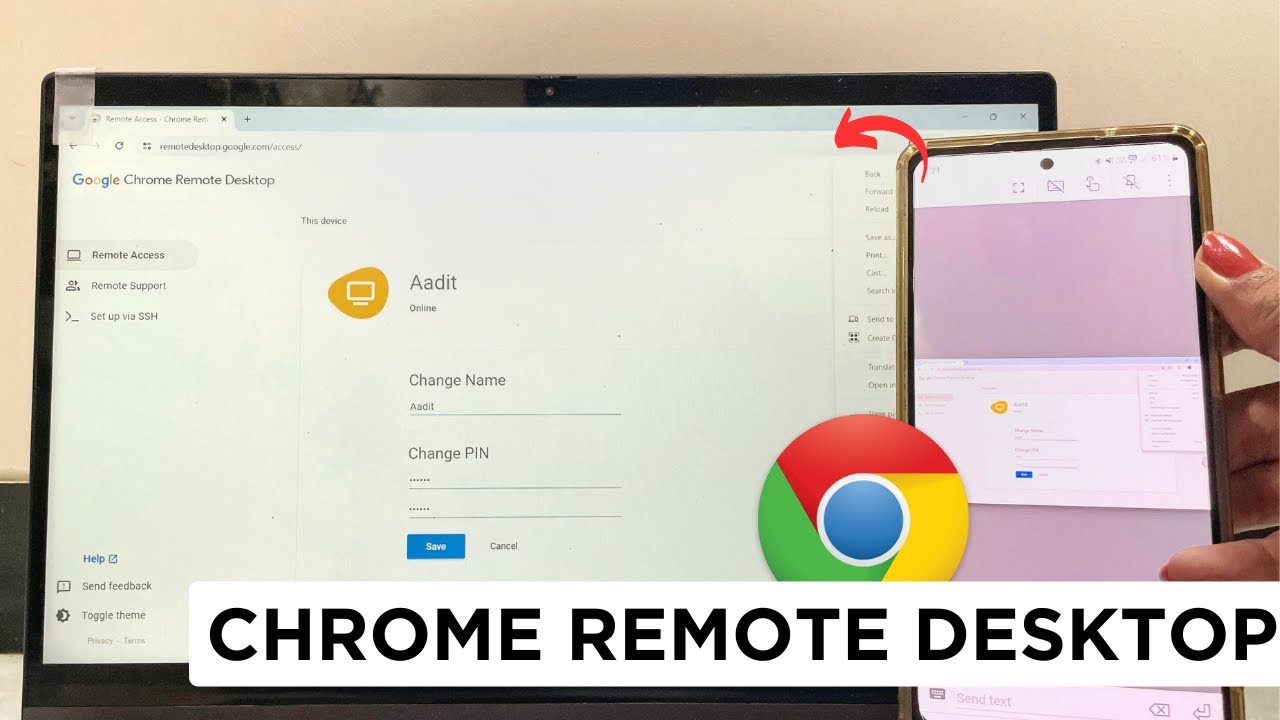
To use Chrome Remote Desktop, open remotedesktop.google.com in Chrome on the computer you want to control, click Access my computer, install the app and set a name and PIN. Then install Chrome Remote Desktop on your phone (or open the same site on another computer), tap your computer and enter the PIN. It is free, made by Google, and works with Windows, Mac and Linux computers.
What you need
- The computer you want to control, with Google Chrome installed (we used Windows)
- A second device to control it from: an Android phone in our case, or another computer
- The same Google account signed in on both
- An internet connection on both devices
Part 1: Set up the computer you want to control
1Open Chrome Remote Desktop
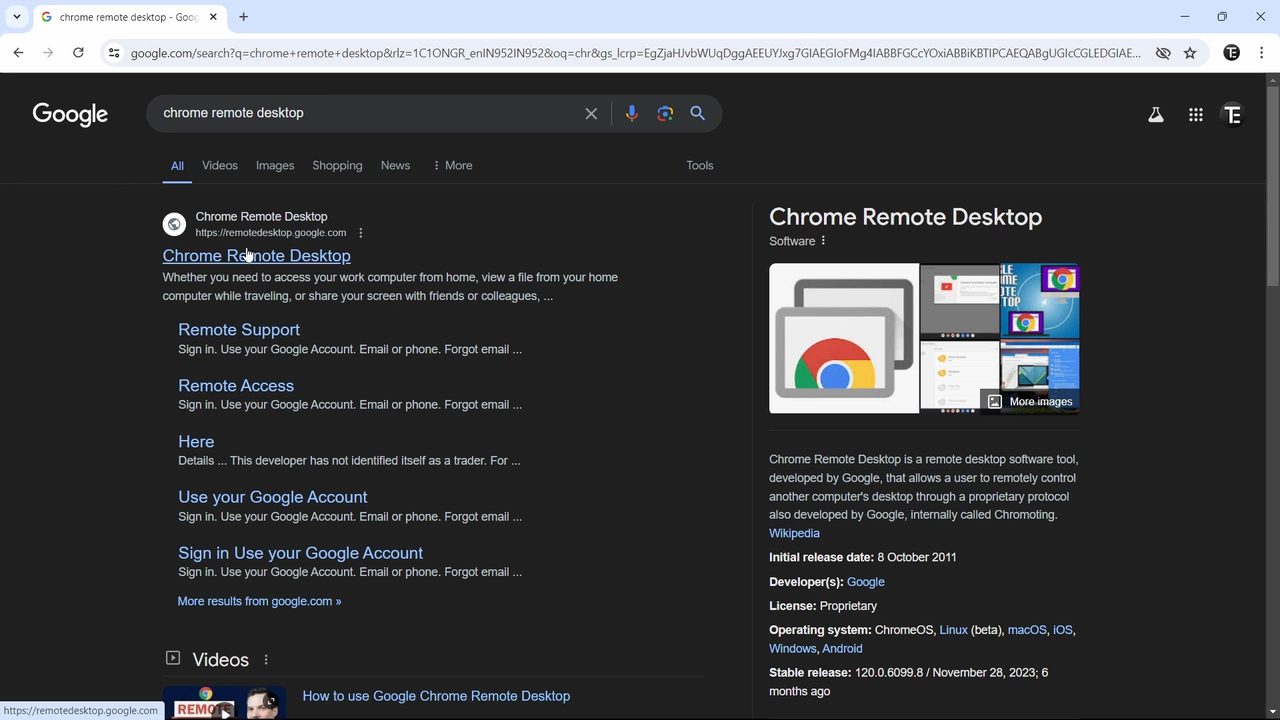
On the computer you want to access later, open Chrome and search for Chrome Remote Desktop. Click the first result, remotedesktop.google.com.
2Click Access my computer
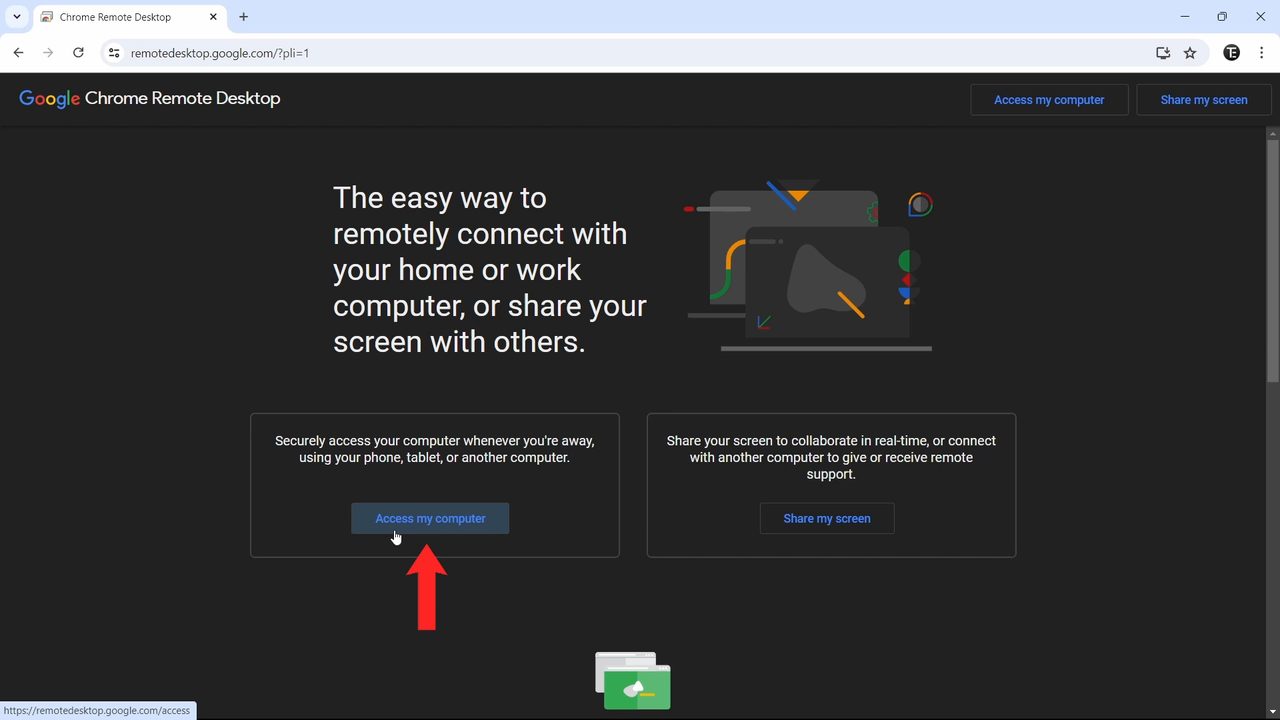
On the Chrome Remote Desktop page, click Access my computer. The other option, Share my screen, is for one-time help sessions with someone else.
3Click the download button
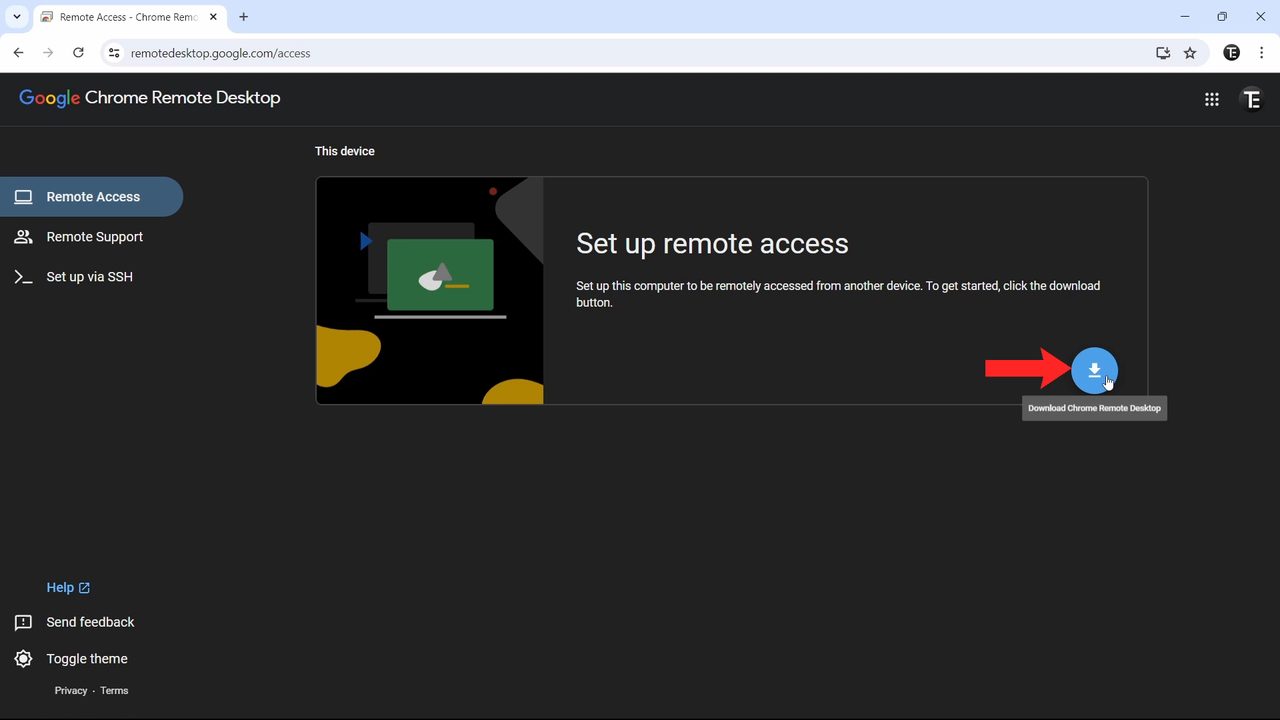
Under This device you will see Set up remote access. Click the blue Download button at the bottom right of that card.
4Add the extension to Chrome
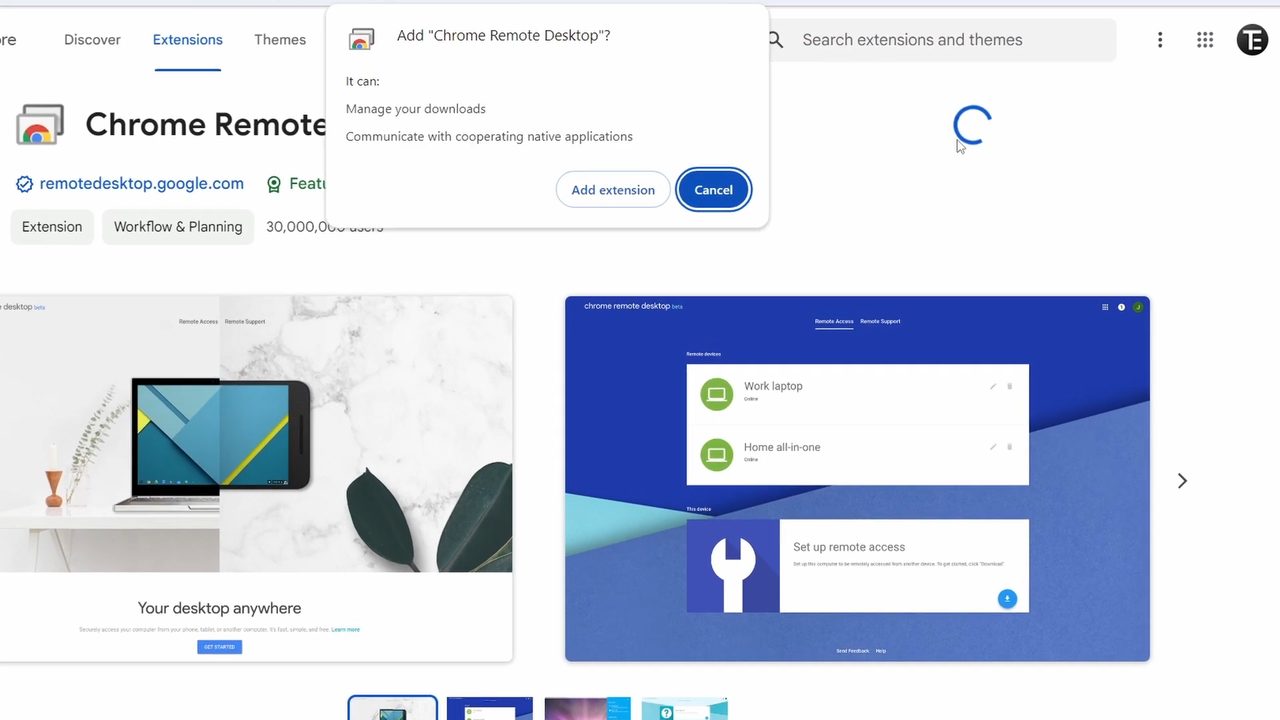
The Chrome Web Store opens on the Chrome Remote Desktop extension. Click Add to Chrome, then Add extension in the box that pops up. Wait a few seconds until Chrome says it has been added.
5Download and install the host app
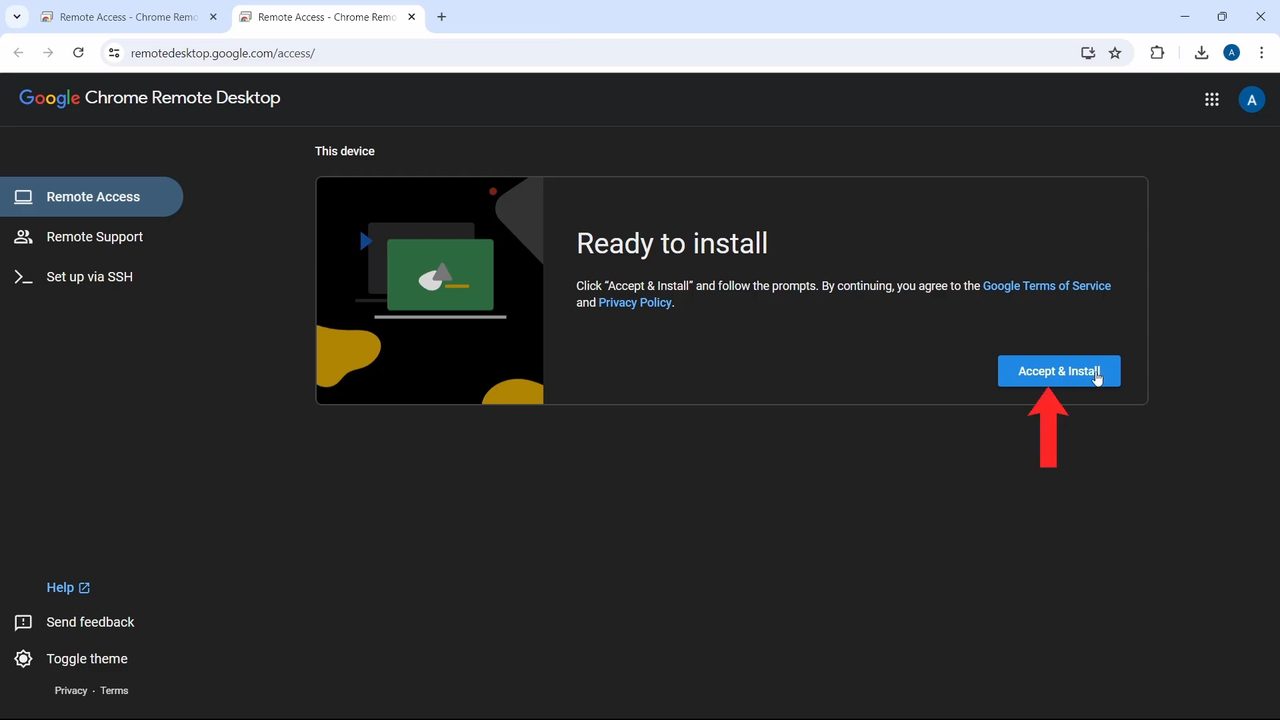
Back on the Chrome Remote Desktop tab, click the download button again. This time it downloads an installer file; save it anywhere. The card changes to Ready to install, so click Accept & Install and run the file you just downloaded. Windows may ask for permission to make changes; allow it.
6Give your computer a name
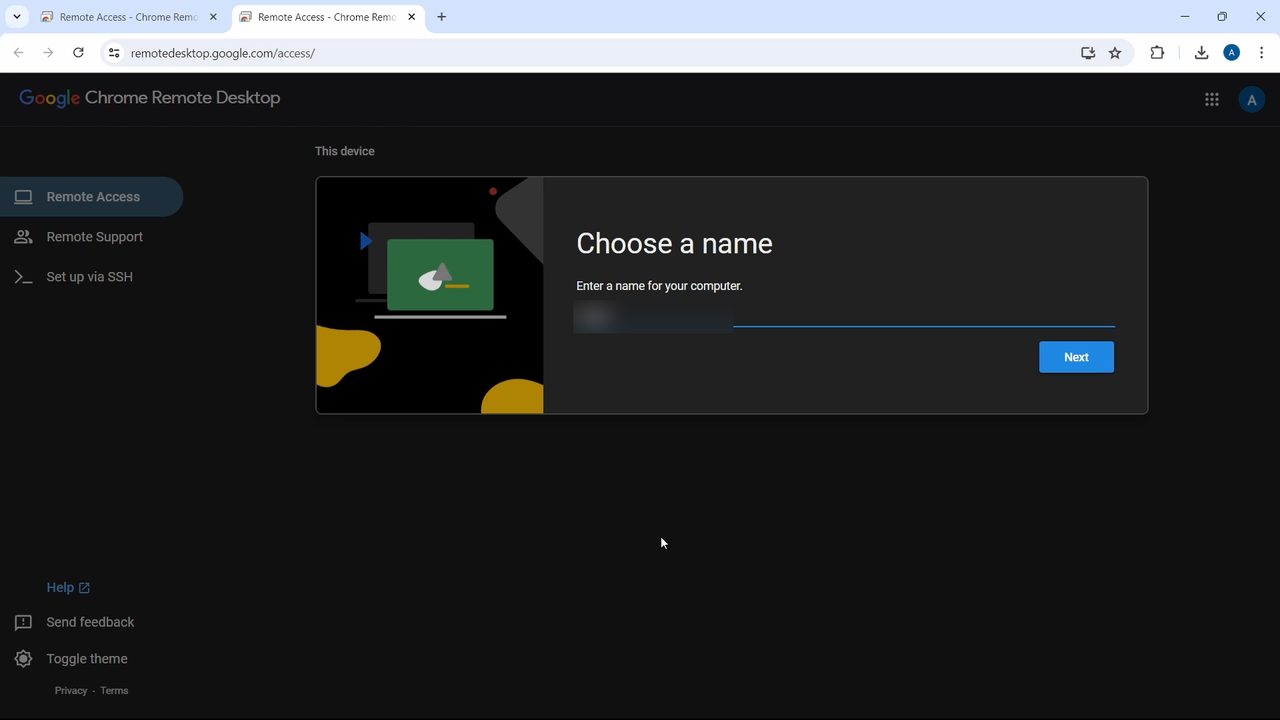
Once the install finishes, the page asks you to Choose a name. Type something you will recognise later, such as "Home laptop", and click Next.
7Create a PIN and click Start
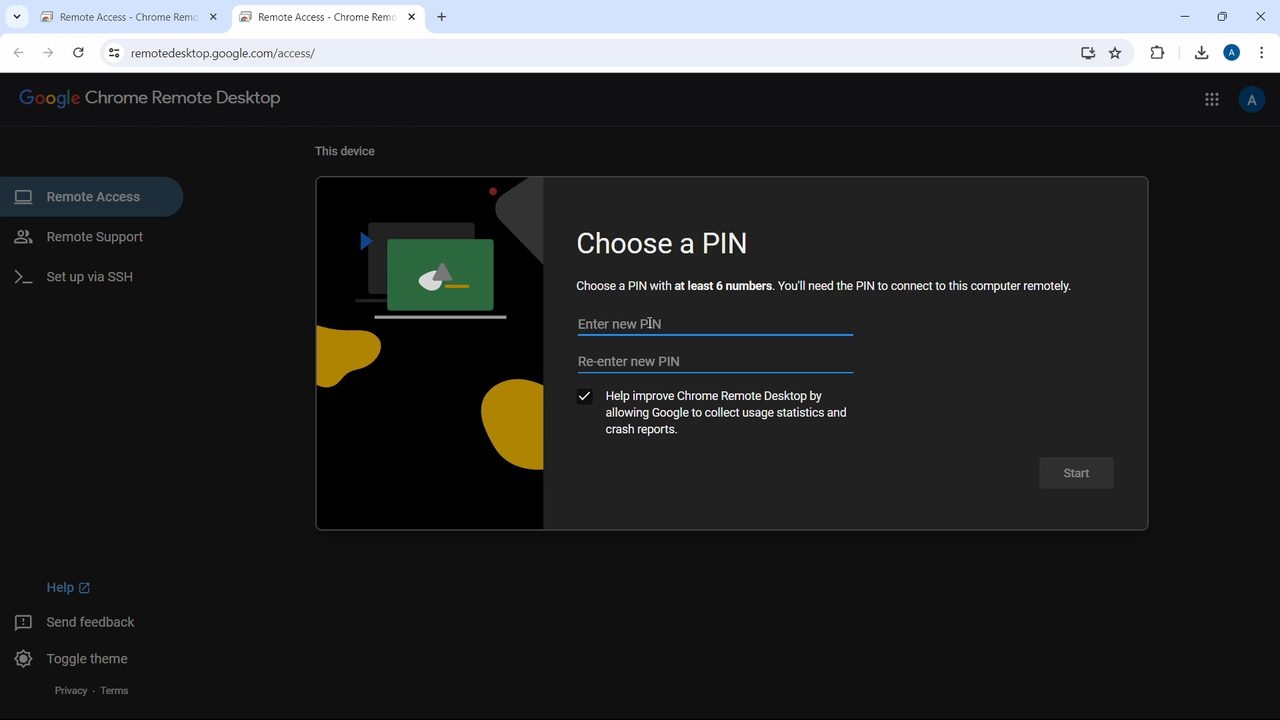
Enter a PIN of at least 6 numbers twice and click Start. You will type this PIN every time you connect from another device, so pick one you can remember but others can't guess. Your computer now appears under Remote devices with the status Online.
Part 2: Control the computer from your phone
8Install the app on your phone
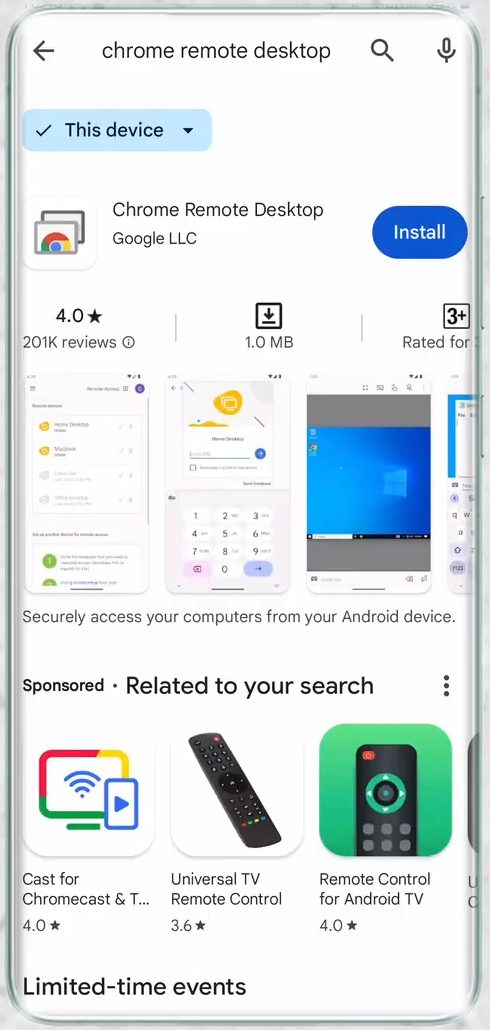
On your Android phone, open the Play Store, search for Chrome Remote Desktop (by Google LLC) and tap Install. On an iPhone the app is in the App Store.
9Open the app and pick your computer
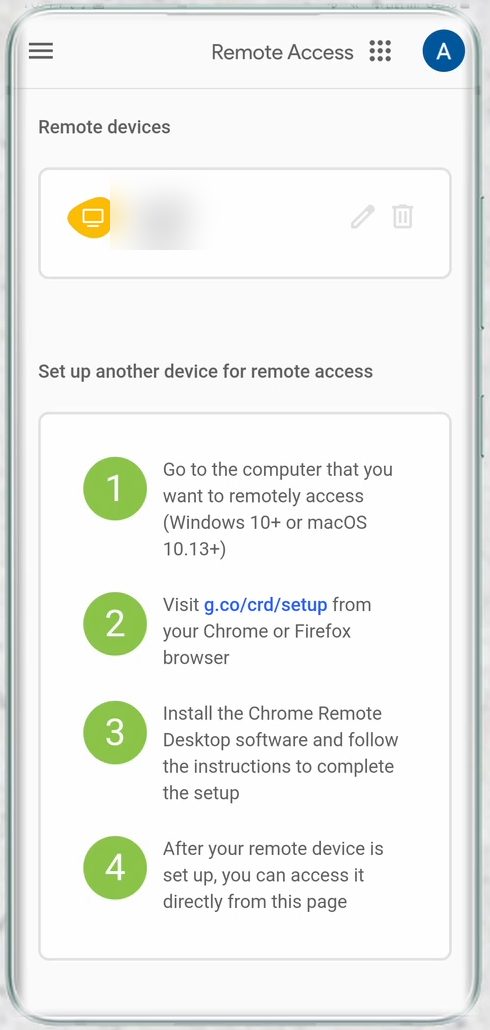
Open the app and check the profile picture at the top right: it must be the same Google account you used on the computer. Under Remote devices you will see the computer you set up. Tap it.
10Enter your PIN
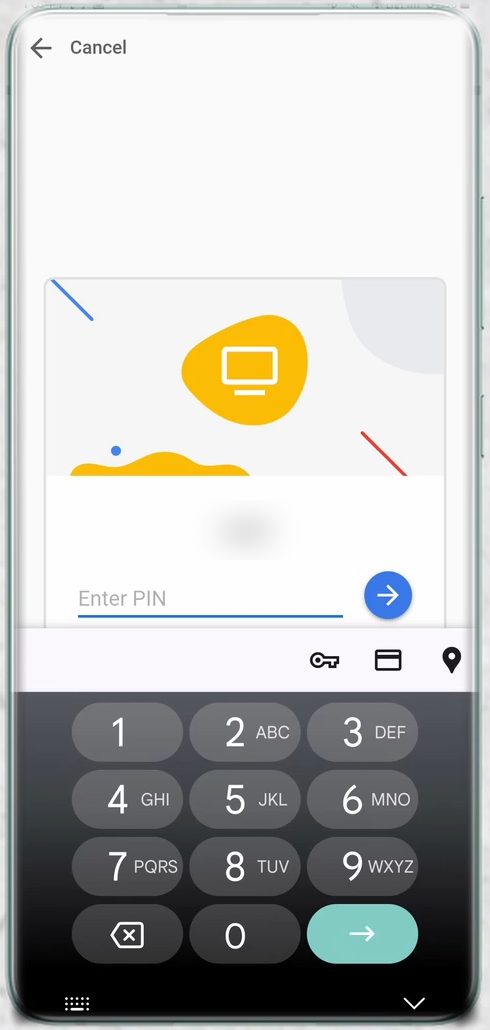
Type the PIN you created in Step 7 and tap the arrow.
11Use your computer from the phone
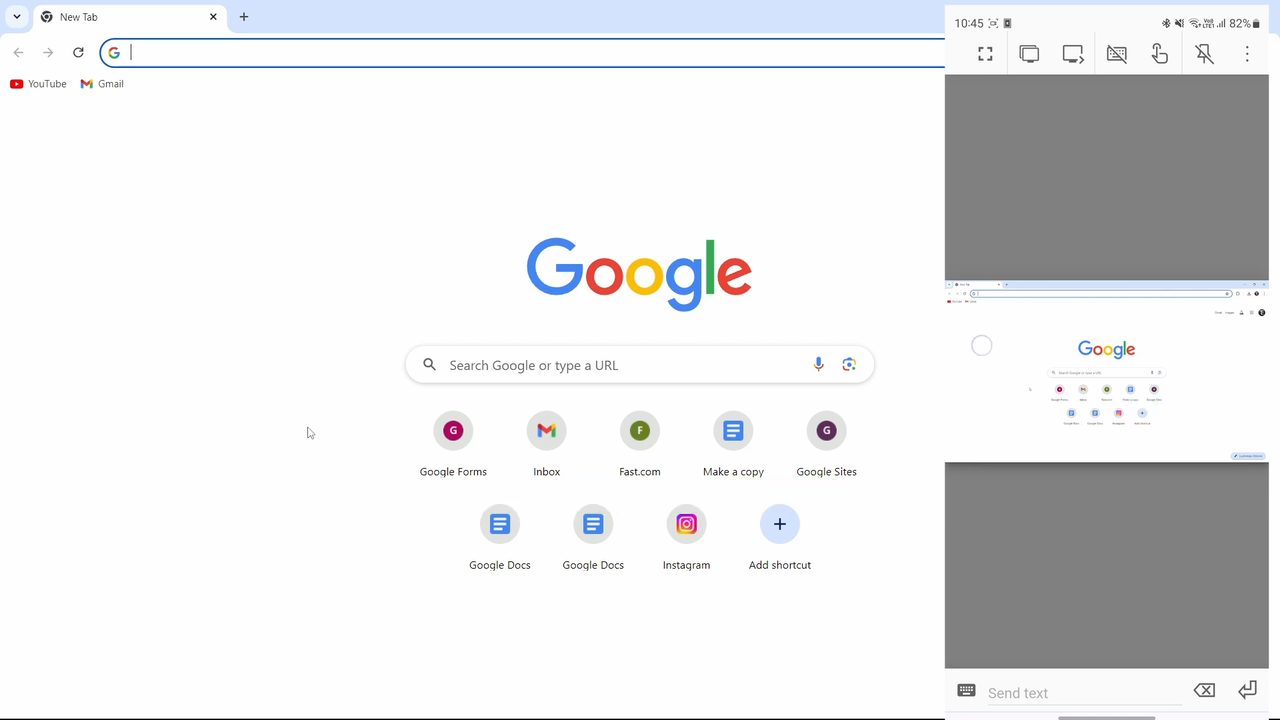
Your computer's screen now shows on the phone. Drag your finger to move the mouse pointer and tap to click. In our test we tapped the Gmail shortcut on the phone and Gmail opened on the PC. The toolbar at the top of the app has buttons for full screen, the keyboard and other controls.
Control it from another computer instead
You don't need a phone. Google's help page Access another computer with Chrome Remote Desktop explains the computer-to-computer route: on the second computer, open Chrome, go to remotedesktop.google.com/access, click the computer you want, enter the PIN and click the arrow. To end a session, close the tab or choose Disconnect from the options.
Tips / troubleshooting
- The computer shows as offline. The computer you want to reach has to be switched on and connected to the internet. The video mentions it still works with the laptop closed, but a computer that is shut down or asleep cannot accept a connection, so check your power and sleep settings before you leave.
- The computer isn't in the list on my phone. Make sure the phone app is signed in to the same Google account you used in Part 1. Tap the profile picture at the top right to switch accounts.
- It won't connect at all. Google's troubleshooting tips say antivirus software or a work or school network can block Chrome Remote Desktop, and that you should be on the latest version of Chrome.
- Forgot the PIN. On the host computer, open remotedesktop.google.com/access. The pencil icon next to the computer lets you edit it; if that doesn't help, remove it with the bin icon and repeat Part 1 with a new PIN.
- Stop remote access for good. On the host computer, go to remotedesktop.google.com/access and choose Disable remote connections next to the computer, as Google's page describes.
- Remote sessions are encrypted, according to Google, but anyone with your Google account and PIN can control the PC. Use a strong Google password and turn on 2-Step Verification.
If you want the reverse, controlling your phone from the PC, see how to control your Android phone from a PC.
FAQ
Is Chrome Remote Desktop free?
Yes. It is a free tool from Google. You only need a Google account, Chrome on the computer you want to control, and the free app or website on the other device.
Does Chrome Remote Desktop work on Windows 11 and Mac?
Yes. Google says you can set up remote access on a Mac, Windows or Linux computer. The steps are the same: open remotedesktop.google.com/access, download, install, then name the computer and set a PIN.
Can I use Chrome Remote Desktop on Android?
Yes, as the device you control from. Install Chrome Remote Desktop from the Play Store, sign in with the same Google account, tap your computer and enter the PIN.
Does it work if my computer is turned off?
No. The computer must be on, awake and online. If it is shut down or sleeping, it shows as offline and you can't connect until it is running again.
Related guides