 Tech is Easy
How to Create a QR Code for a Google Form (Free, Step-by-Step)
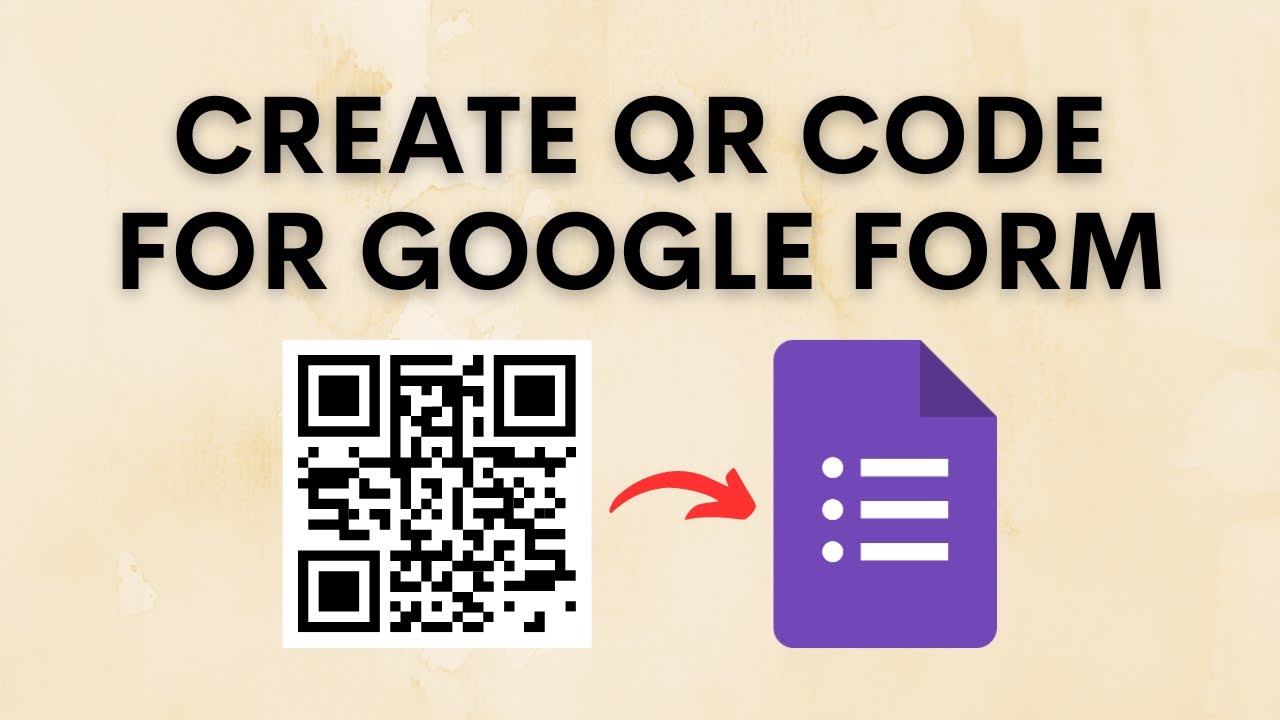
To create a QR code for a Google Form, open the form, click Send, choose the link icon and click Copy, then paste that link into a free QR generator such as qrcode-monkey.com and click Create QR Code and Download PNG. Anyone who scans the code with their phone camera goes straight to your form. It's a handy way to share Google Forms on posters, classroom slides, event tables, menus and printed handouts, where people can't click a link.
What you need
- A Google Form that is ready to share
- A computer with a browser (the video uses Chrome on Windows)
- Optional: your logo as a PNG or JPG file under 2 MB, if you want it in the middle of the QR code
1Open the form you want to share
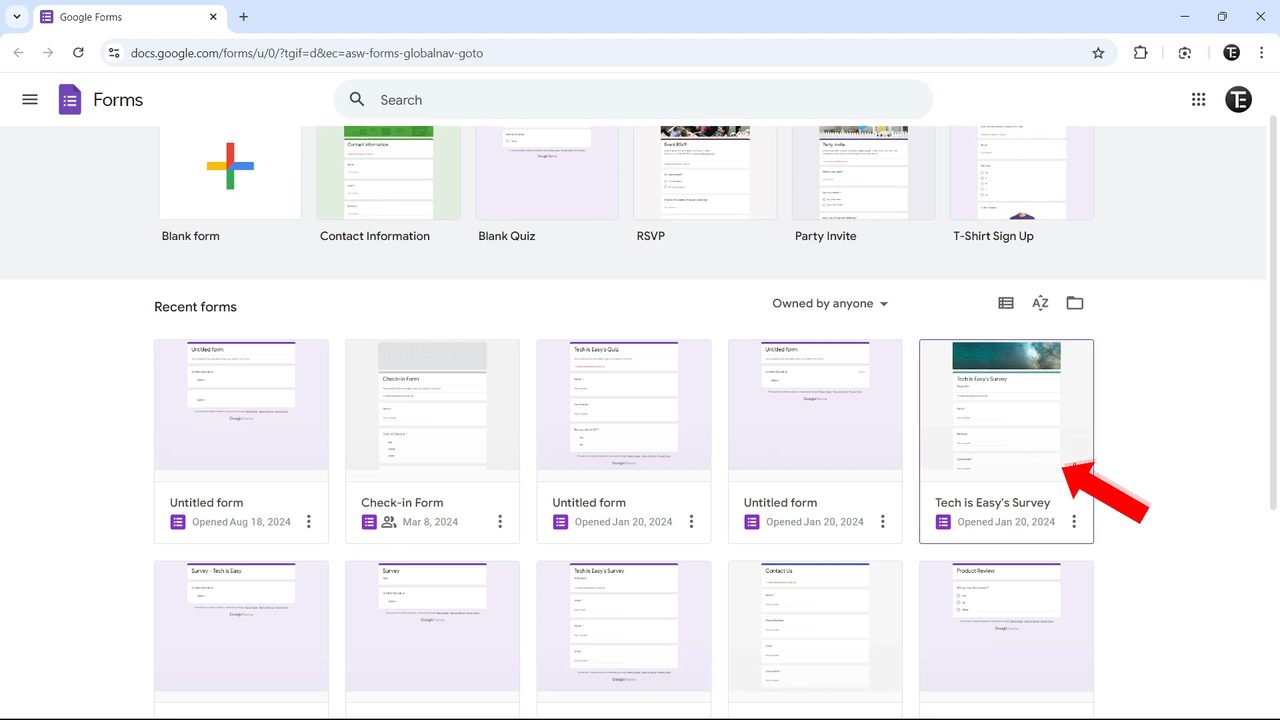
Go to forms.google.com. Under Recent forms, click the form you want people to fill in. We used a form called "Tech is Easy's Survey".
2Click Send
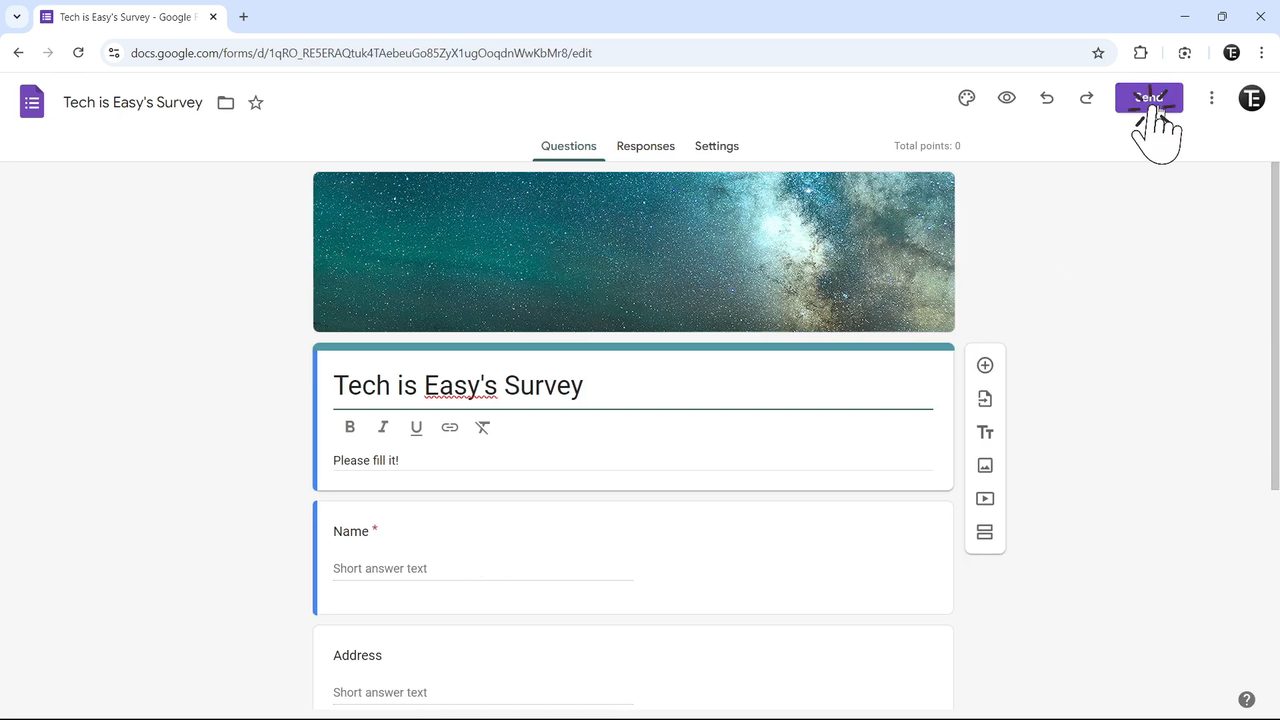
With the form open, click the purple Send button at the top right.
3Copy the form link
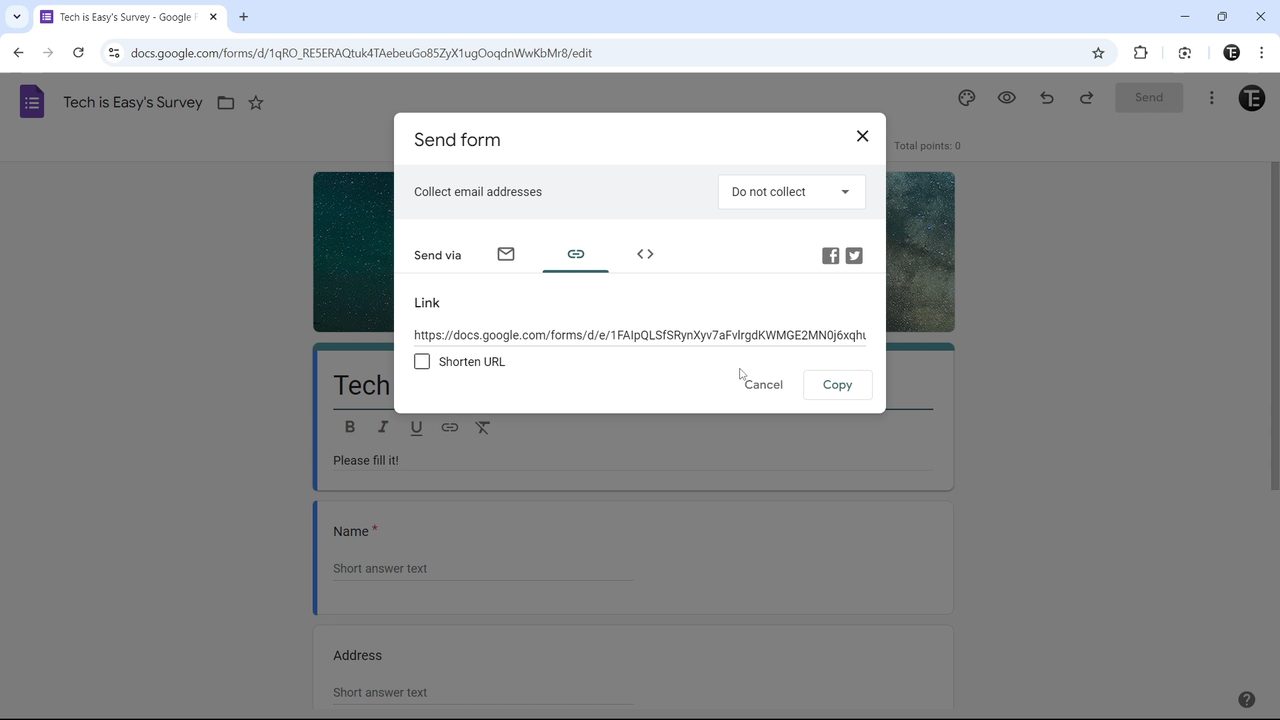
In the Send form window, click the link icon next to Send via. The form's link appears. Click Copy. Chrome shows "Copied to clipboard". You can tick Shorten URL first if you want a shorter link, but a QR code works fine with the full one.
4Paste the link into QR Code Monkey
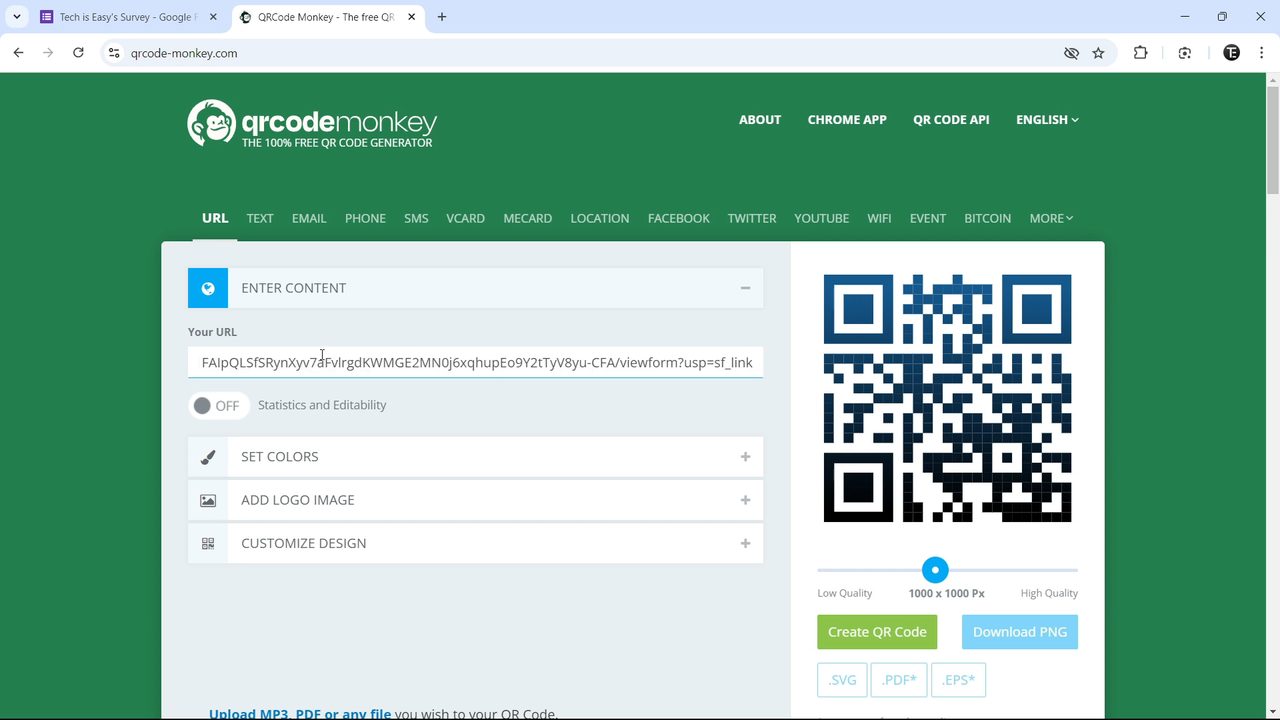
Open a new tab, search for QR Code Monkey and open qrcode-monkey.com. Make sure URL is selected at the top. Click the Your URL box, delete the sample address and paste your form link with Ctrl+V.
5Change the colors (optional)
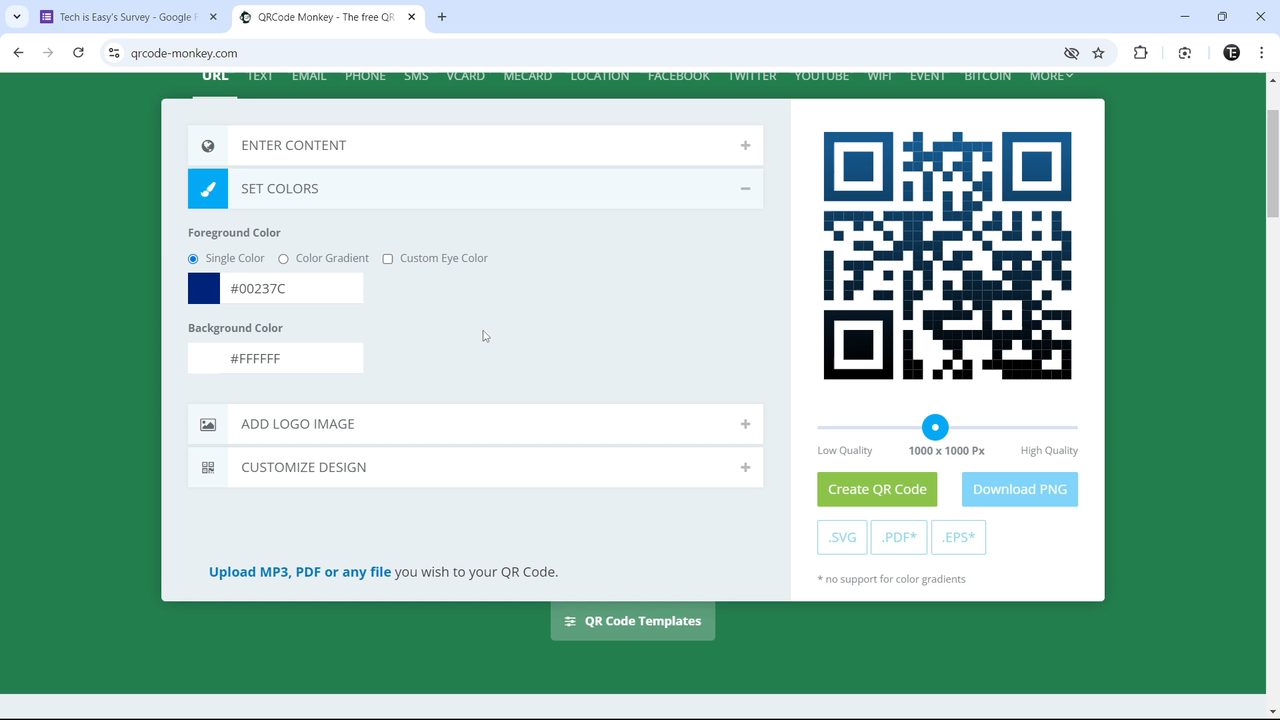
Click Set Colors to open the color options. Under Foreground Color, pick a color or type a hex code (we used a dark blue, #00237C). Keep the background light. Dark dots on a light background scan most reliably.
6Add your logo (optional)
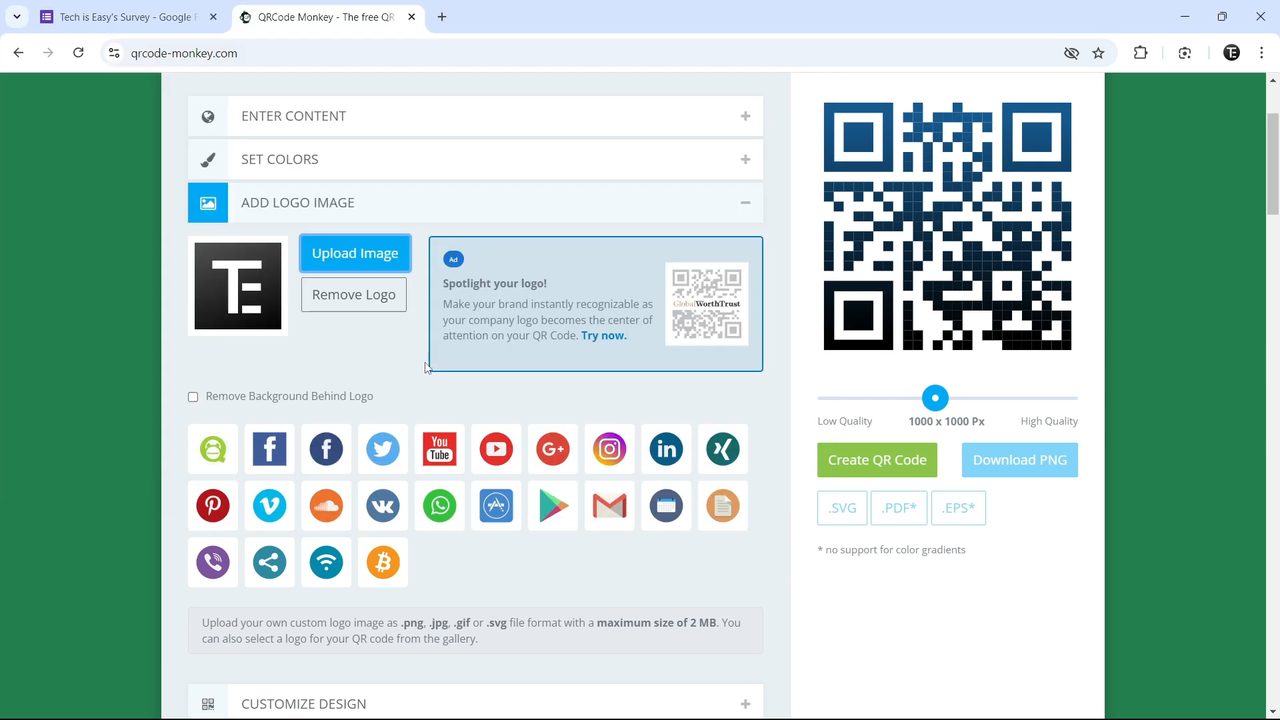
Click Add Logo Image, then Upload Image and choose your logo file. The site accepts .png, .jpg, .gif and .svg files up to 2 MB, or you can pick one of the ready-made icons below.
7Click Create QR Code
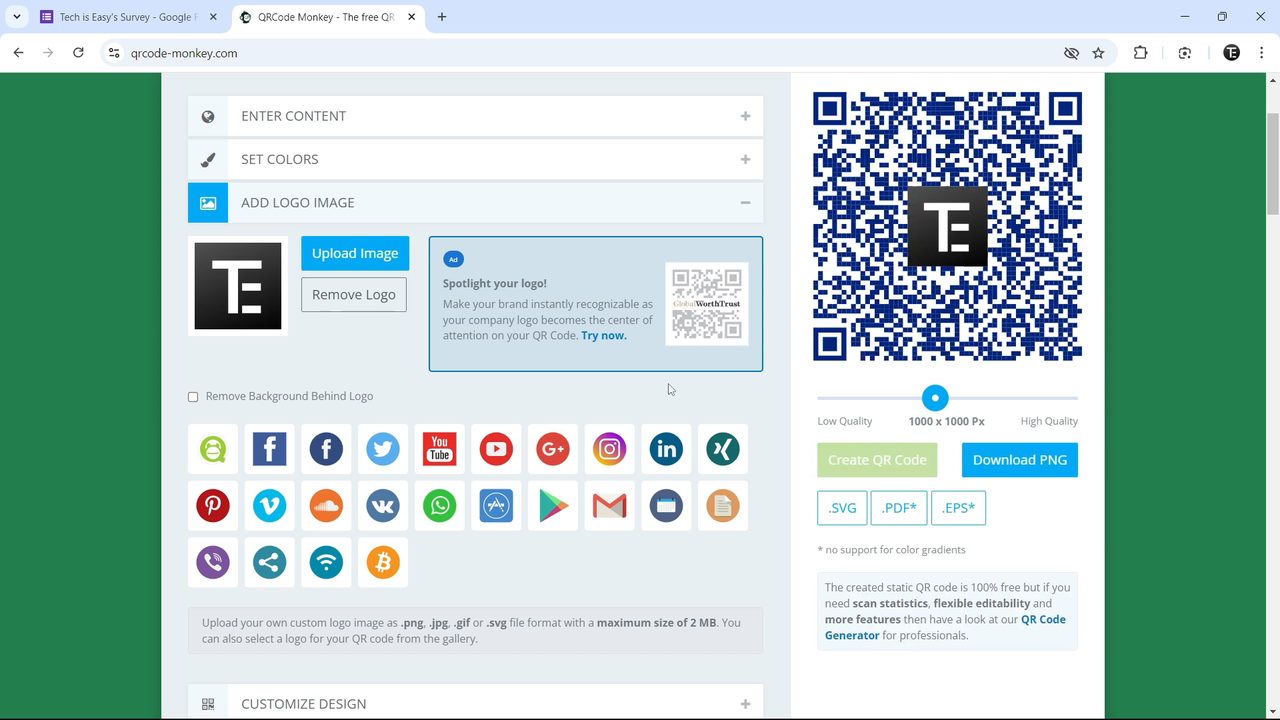
Click the green Create QR Code button on the right to see the result with your colors and logo in the middle.
8Customize the design (optional)
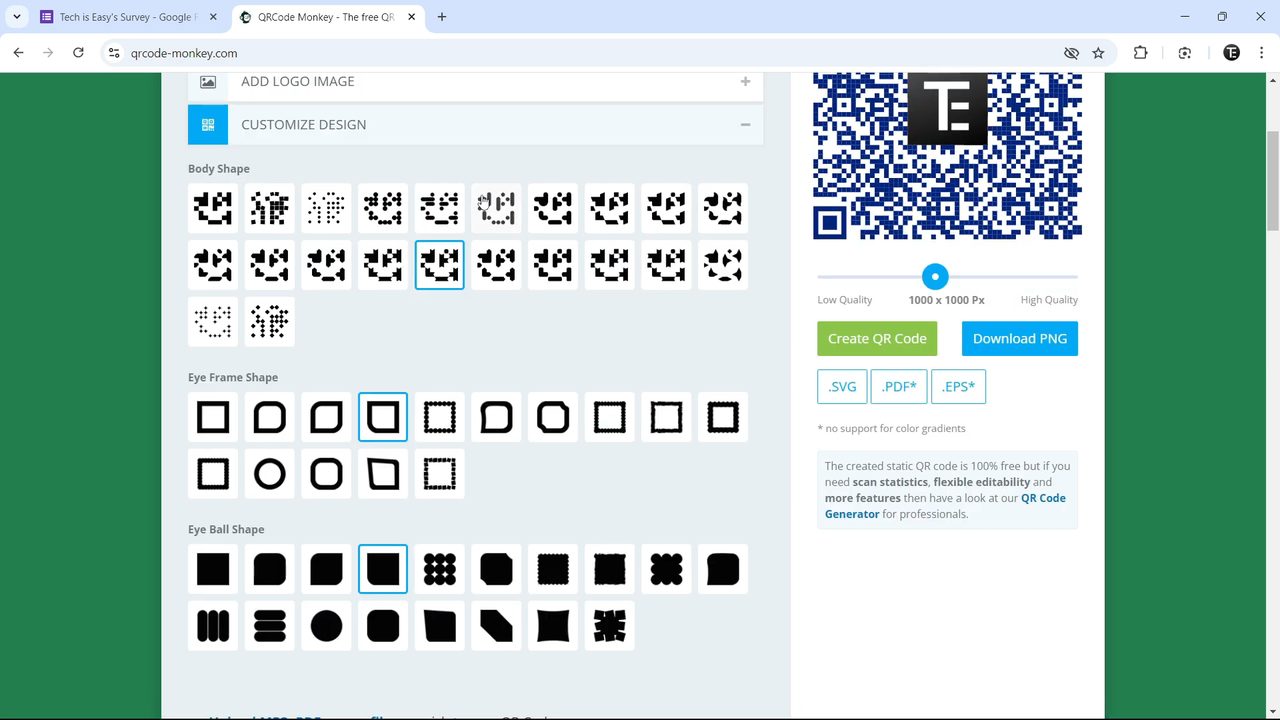
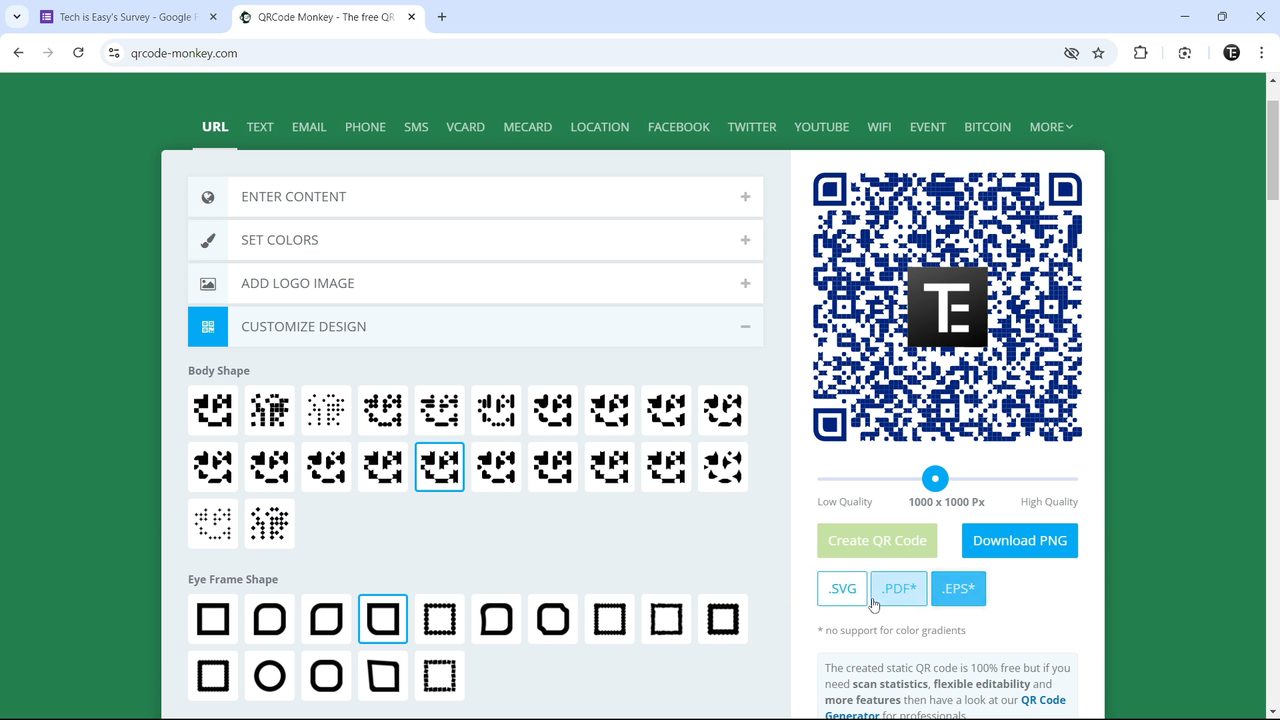
Click Customize Design to change the Body Shape (the pattern of dots), the Eye Frame Shape and the Eye Ball Shape (the three big squares in the corners). Pick the ones you like and click Create QR Code again to update the preview.
9Download the QR code
Click Download PNG to save the QR code to your computer. You can also choose SVG, PDF or EPS, which stay sharp at any size and are better for large printed posters. The file lands in your Downloads folder as something like qr-code.png.
Test it before you share
Before printing anything, open your phone's camera, point it at the QR code on your screen and tap the link that appears. It should open your Google Form. Check it on a second phone if you can, and try it from a person who is not signed in to your Google account, so you know respondents can open it.
Tips for a QR code that scans every time
- Keep strong contrast. Dark code on a white or light background. Light-colored codes or busy background images often fail.
- Don't make the logo too big. QR codes have some built-in error correction, which is why a logo in the middle still works, but covering too much of the code breaks it.
- Print it big enough. Around 2 to 3 cm wide is the minimum for a phone held close. For a poster on a wall, make it much larger.
- Leave white space around it. Don't crop the quiet border around the code when you place it in a design.
- The code never expires. QR Code Monkey's free codes are static. The link is stored in the pattern itself, so it keeps working as long as the Google Form exists and accepts responses.
Troubleshooting
- QR code opens an error or "You need permission". The form may be restricted to your organisation, or not published. In newer versions of Google Forms you must click Publish before anyone can open it, and you can copy the link from Published > Copy responder link or Share > Copy responder link instead of the Send button. Google explains this on its help page Publish & share your form with responders.
- It opens the form editor instead of the form. You copied the address bar URL (ending in /edit). Use the link from Send (or Copy responder link), which ends in /viewform.
- "This form is no longer accepting responses". Open the Responses tab in your form and turn Accepting responses back on. The QR code itself is fine.
- Want a plain code without a website? Chrome on a computer can also make a basic QR code for any page from the three dots > Cast, save and share > Create QR Code menu while the form is open in preview.
Related guides: How to Create a Google Form and How to Use Google Forms Settings.
FAQ
Does Google Forms have a built-in QR code generator?
Not inside the Send window shown in the video. You copy the form link and turn it into a QR code with a free tool like QR Code Monkey, or with Chrome's own Create QR Code option.
Is QR Code Monkey free?
Yes. Creating and downloading a static QR code with colors, a logo and a custom design costs nothing and needs no sign-up.
Will the QR code still work if I edit the form?
Yes. Editing questions doesn't change the form's link, so the same QR code keeps working. It only stops if you delete the form or stop accepting responses.
Can I make a QR code for a Google Form on my phone?
The video uses a computer. QR Code Monkey also opens in a phone browser, so you can copy the form's link on your phone and paste it there in the same way.
Related guides