Tech is Easy
How to Download All Photos from Google Photos to PC
To download all photos from Google Photos to your PC, go to takeout.google.com, click Deselect all, tick Google Photos, click Next step and then Create export. Google emails you a download link, and you get your photos as zip files that you extract on your computer. This is the way to save your whole library, or chosen albums, in one go instead of selecting photos by hand. It suits anyone backing up their photos, moving away from Google Photos or freeing up Google storage.
What you need
- A computer with a web browser (we used Chrome on Windows 11)
- Access to the Google account that holds the photos, including its password or passkey
- Enough free space on your PC for the whole library. The export page tells you the total size before you download.
Google's help page How to download your Google data explains how Takeout works, including delivery options and why archives expire.
1Open Google Takeout
Open your browser and search for Google Takeout. Google Takeout is Google's free tool for downloading a copy of the data in your account. Click the first result, takeout.google.com.
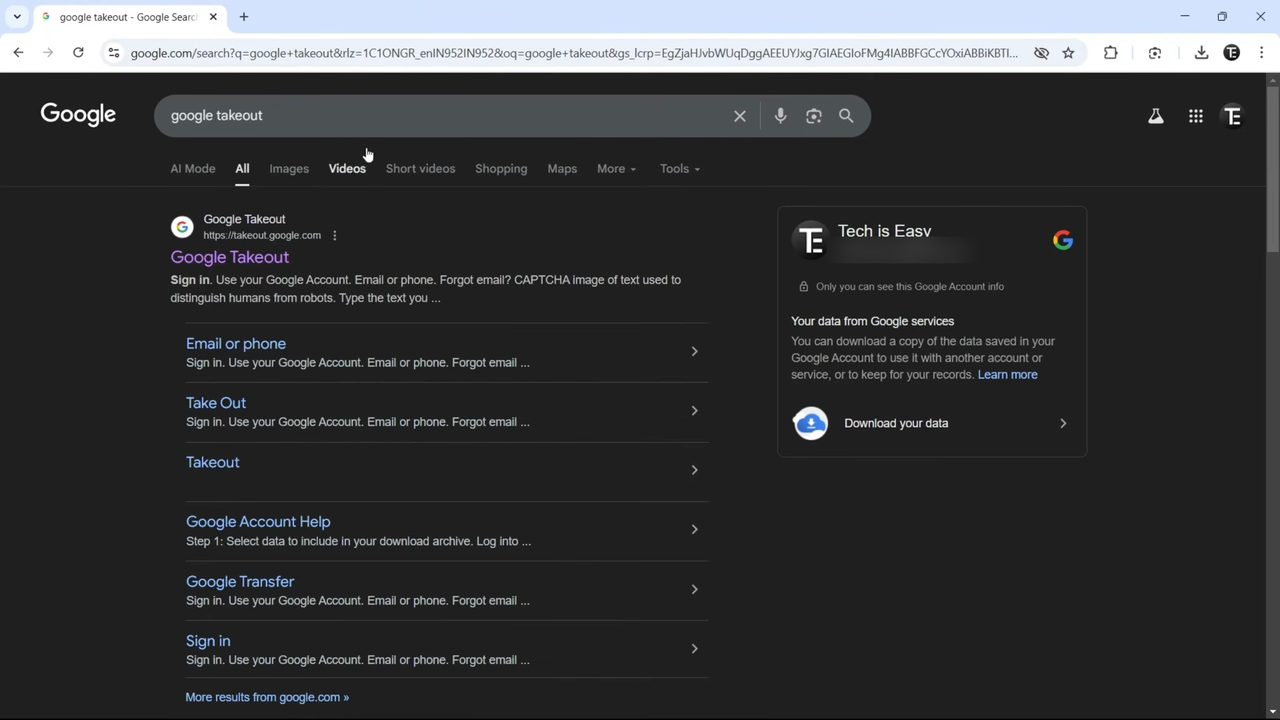
On the Takeout page, look at the profile picture at the top right. It has to be the Google account whose photos you want to download. If it isn't, click it and switch accounts first.
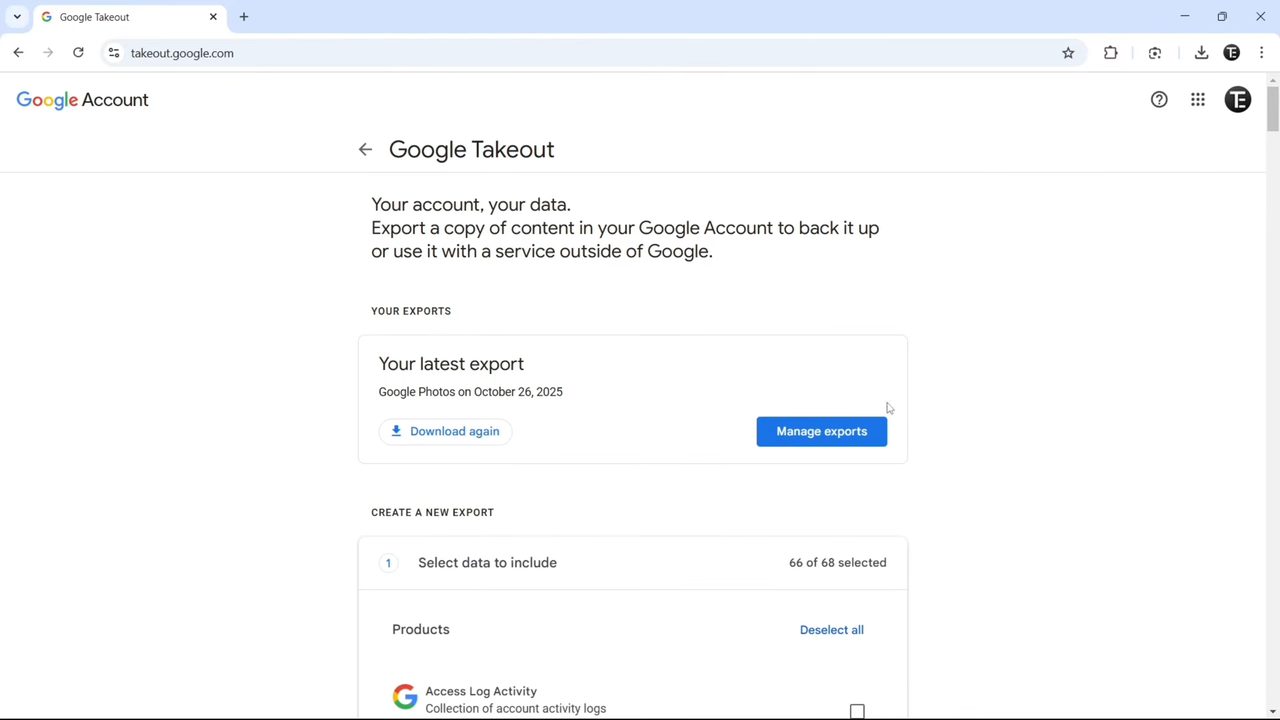
2Deselect all products
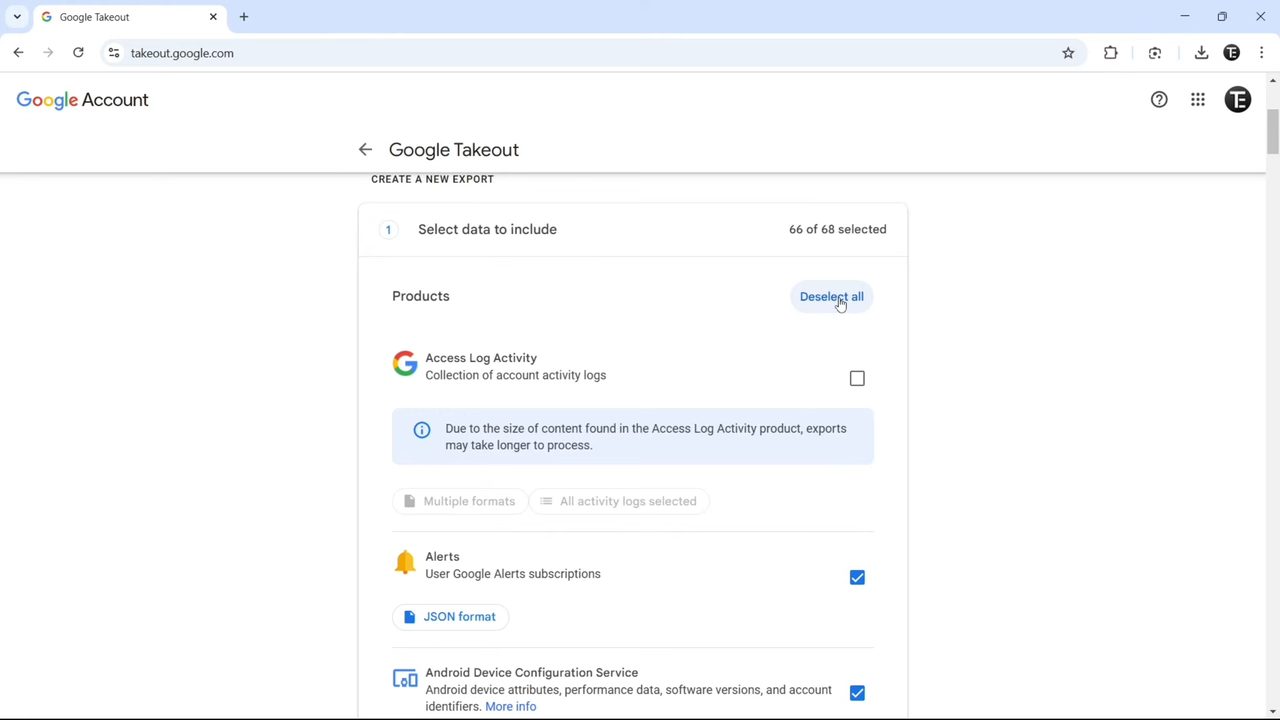
Under Create a new export, Takeout selects almost every Google product by default (66 of 68 in our case). You only want photos, so click Deselect all next to Products.
3Select Google Photos
Scroll down the list until you find Google Photos and tick the box next to it. The counter at the top now reads 1 of 68 selected. Under it you'll see All photo albums included.
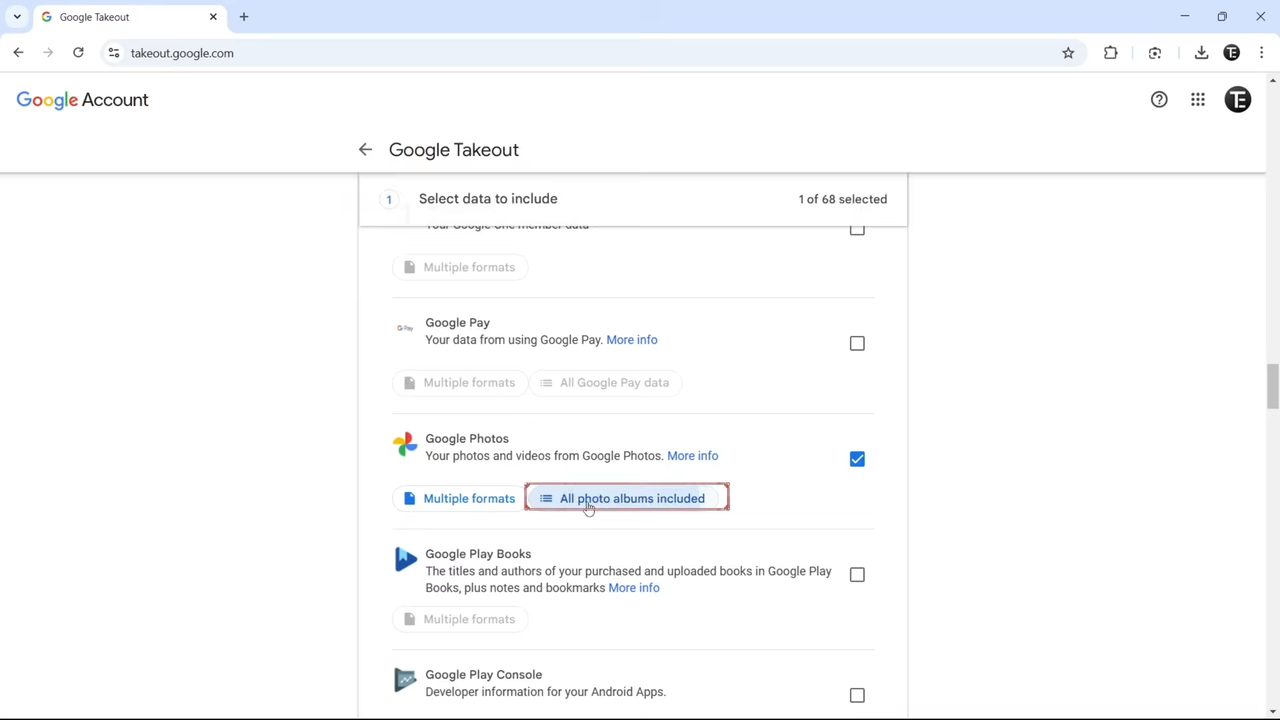
4Choose albums and click Next step
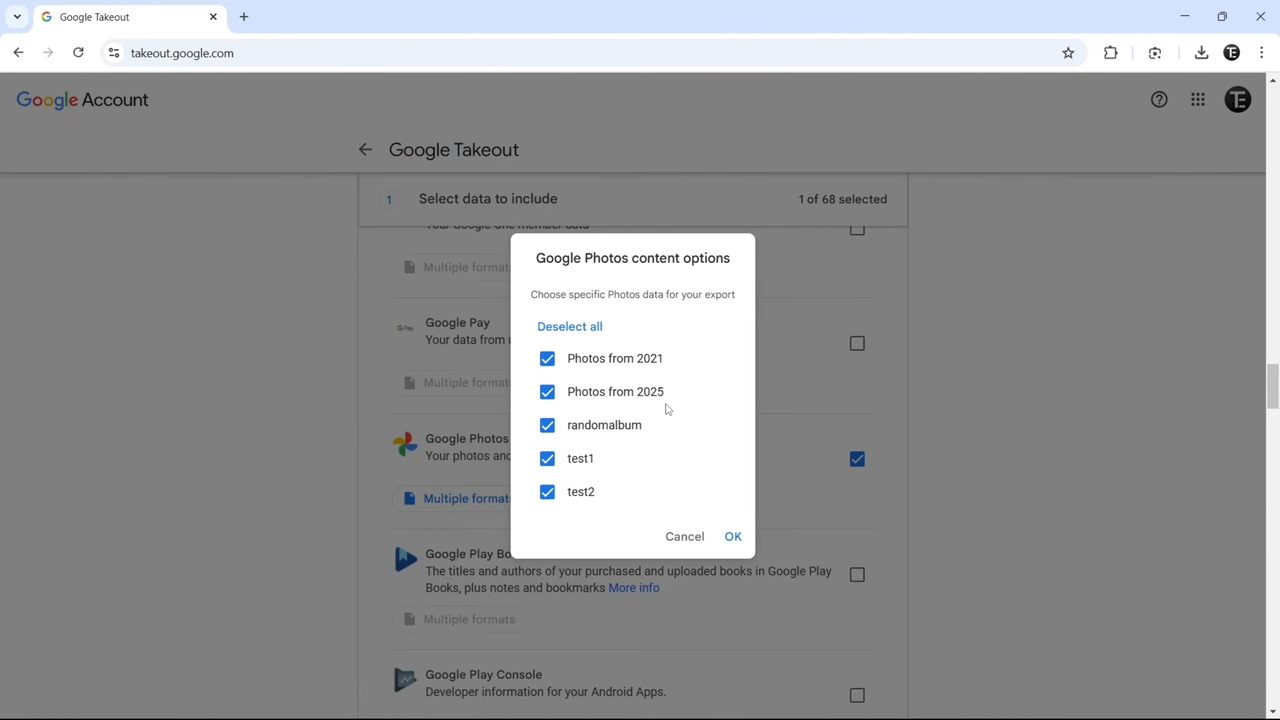
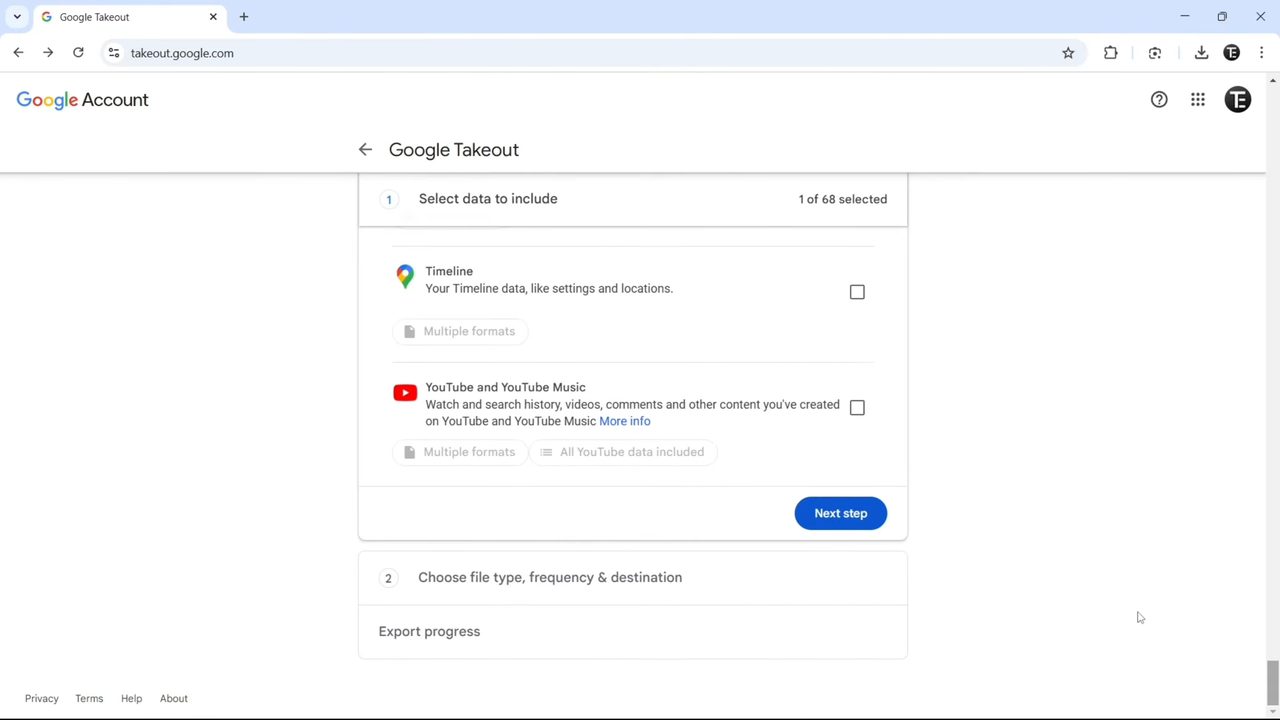
Click All photo albums included to open Google Photos content options. Every album is listed with a checkbox, including date folders such as Photos from 2021 and Photos from 2025. Untick any albums you don't need, then click OK. Leave them all ticked to download everything. Then scroll to the bottom of the product list and click Next step.
5Choose the destination and frequency
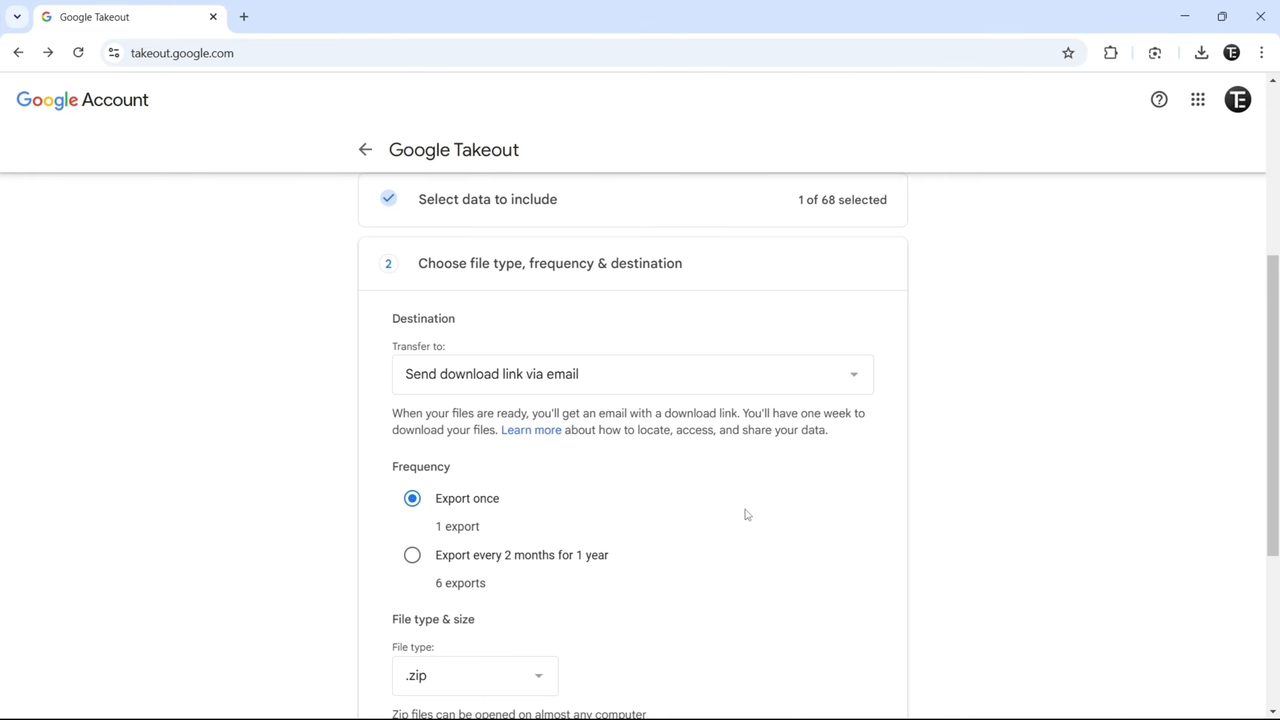
Under Destination, leave Transfer to on Send download link via email. Google emails you a link when the files are ready. Under Frequency, keep Export once. The other option repeats the export every 2 months for a year.
6Pick the file type and size, then create the export
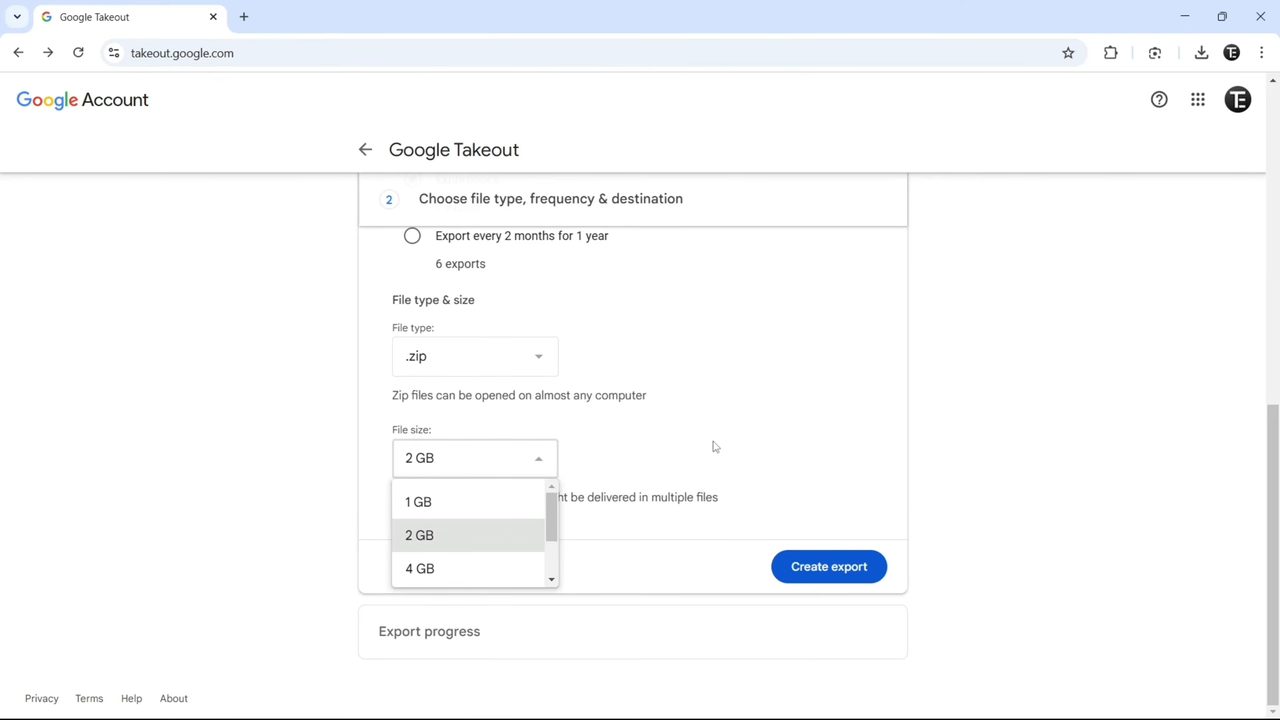
Keep File type on .zip, which opens on almost any computer. File size is the maximum size of each zip file; it was set to 2 GB for us, and the menu has larger options. If your library is bigger than this, Takeout splits it into several zip files. Click Create export.
7Open the email from Google Takeout
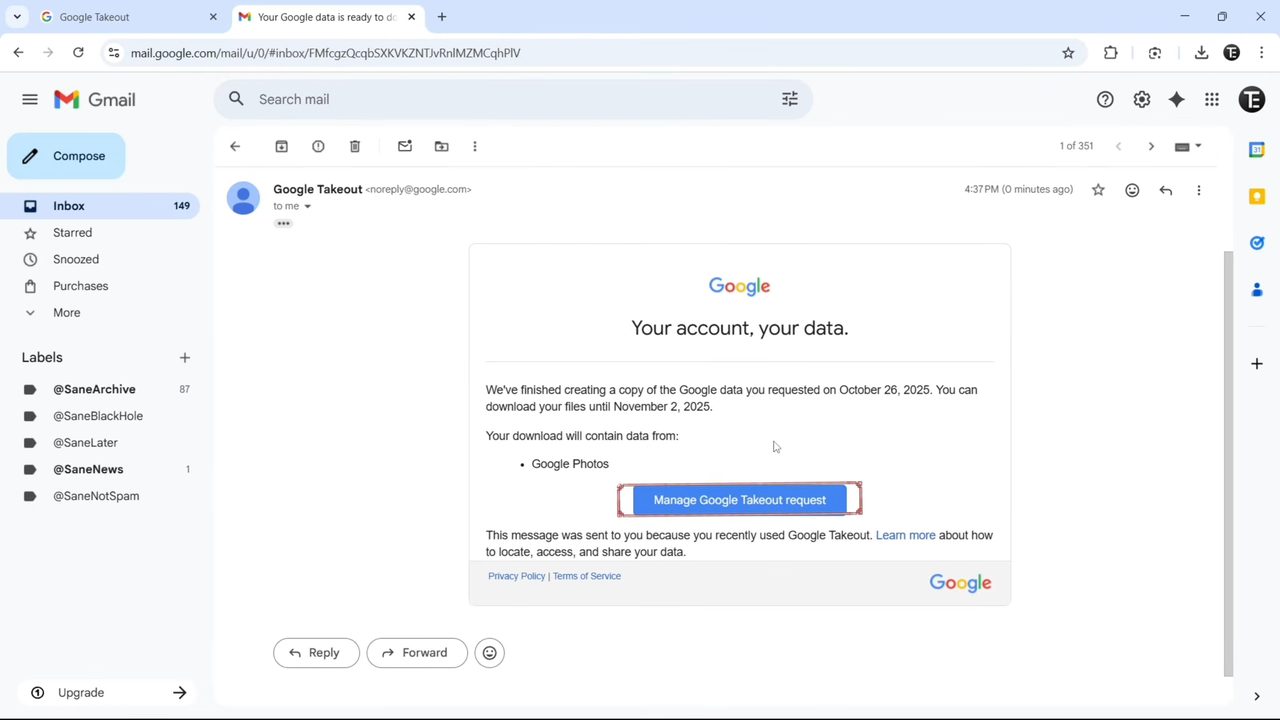
Depending on how many photos you have, the export takes a few minutes to several hours. When it is ready you get an email titled Your Google data is ready to download. Open it in Gmail and click the blue Manage Google Takeout request button (Google's help page calls it Download archive, so the label can differ).
8Download the zip file
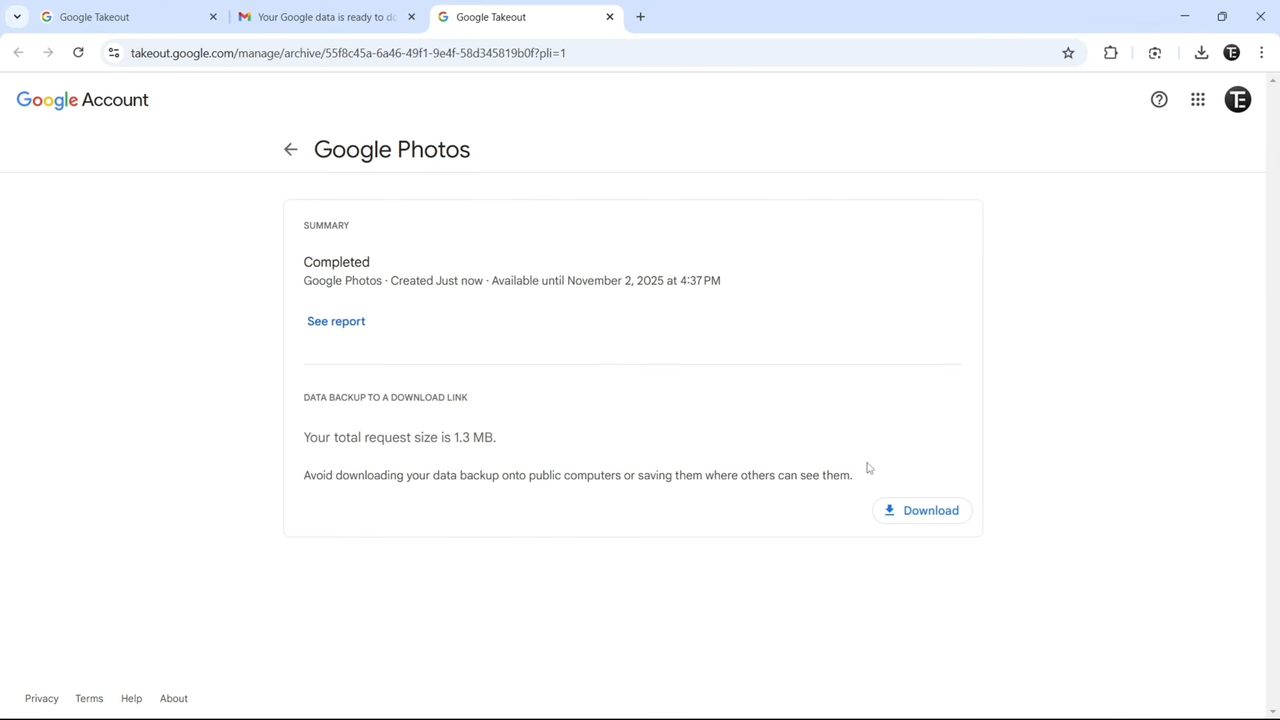
The Takeout page shows the export as Completed, how long it stays available and the total size. Ours was only 1.3 MB because it was a test account. Click Download next to the file. If there are several zip files, download each one.
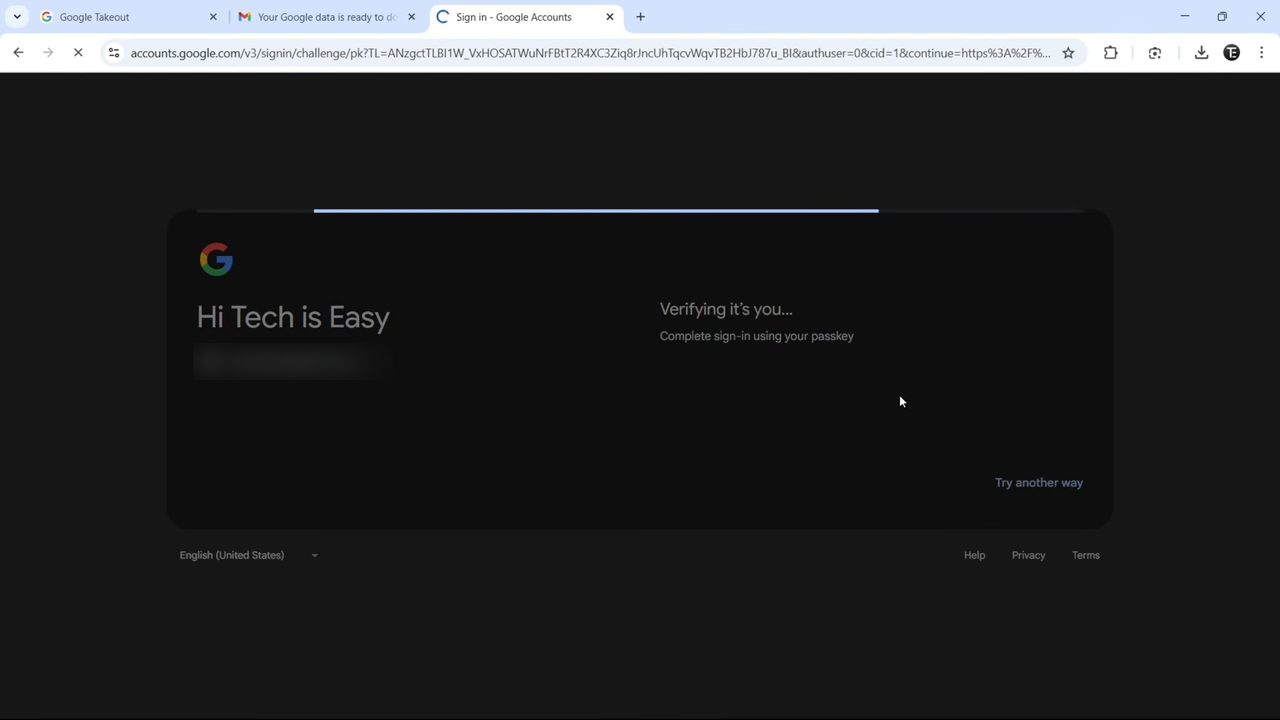
Google then asks you to confirm your identity before the download starts, with your password or a passkey. Once you do, the zip file downloads into your Downloads folder.
9Extract the zip file
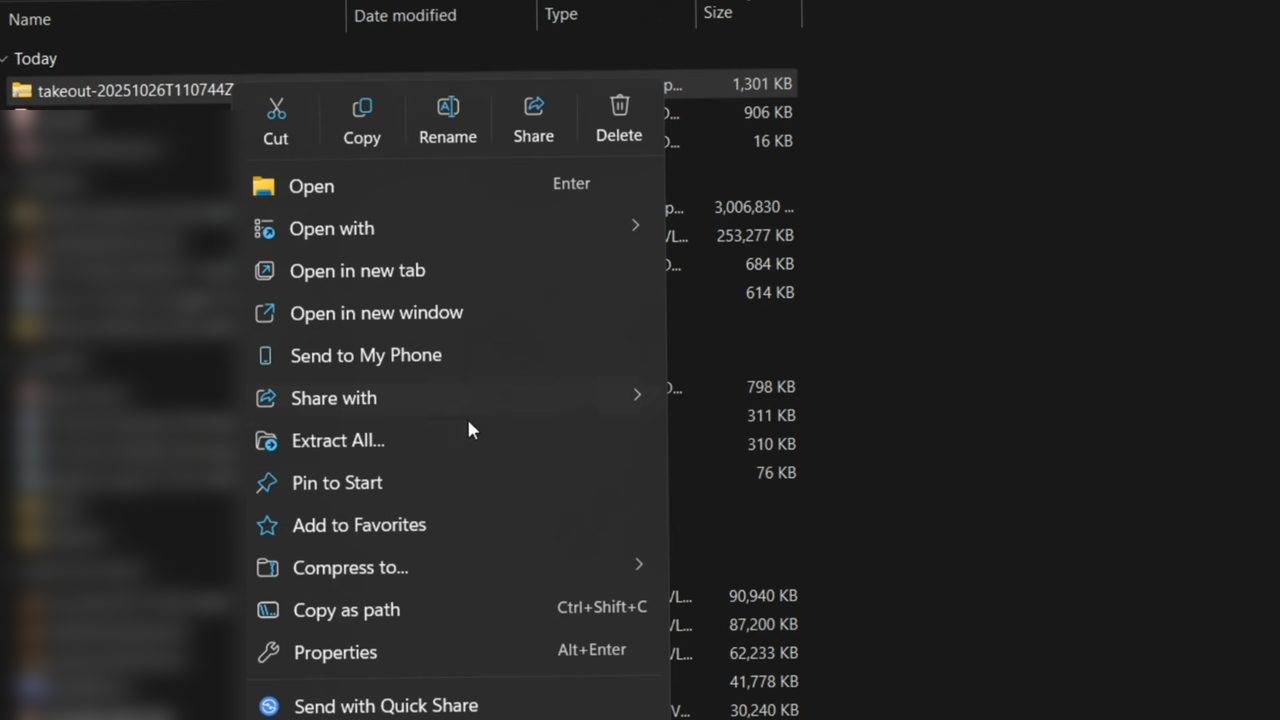
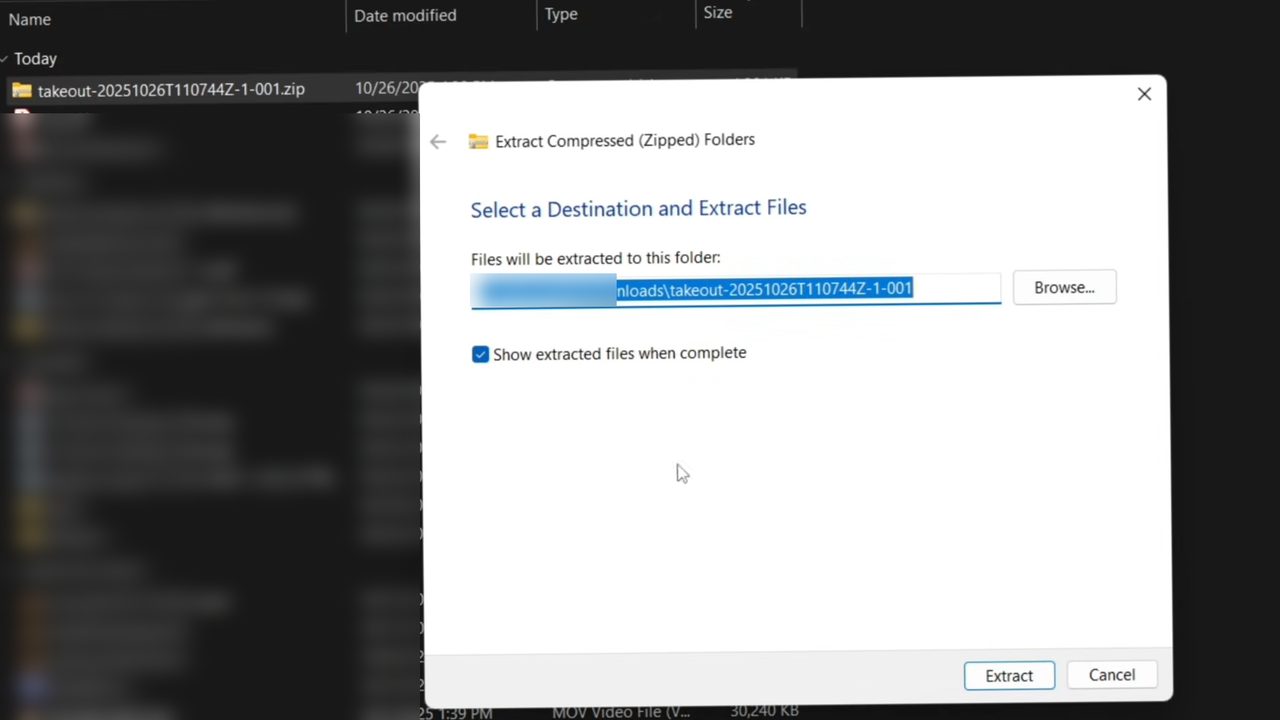
Open File Explorer from the Start menu and go to Downloads. Right-click the file that starts with takeout- and choose Extract All.
Windows then shows where the files will go, which is a new folder with the same name in Downloads. Click Browse if you want them somewhere else, then click Extract.
10Open your photos
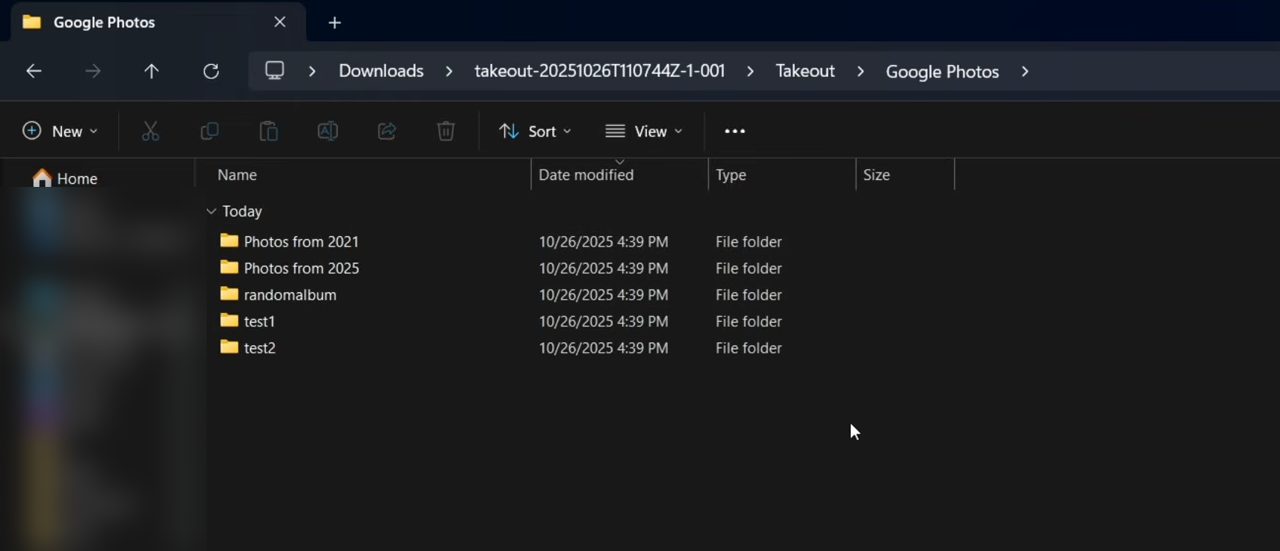
Open the new folder, then Takeout > Google Photos. Every album is a separate folder, named the same way as in Google Photos.
Tips / troubleshooting
- The link expired: Google says archives expire after about 7 days. Create a new export if you missed it.
- Download limit: each archive can only be downloaded 5 times, according to Google. After that, request a new one.
- Lots of zip files: large libraries are split into parts the size you chose in Step 6. Choose a bigger file size, up to 50 GB, to get fewer parts. Extract every part, since each holds different photos.
- Extra .json files next to photos: Takeout saves the details of each photo (date, location, description) in a separate JSON file. You can ignore them if you only want the pictures.
- Why the password prompt: Google asks again because the archive contains your personal data. It is normal.
- Downloading does not delete anything from Google Photos. Your photos stay in your account until you remove them yourself.
Related guides: How to Transfer Google Photos from One Account to Another and How to Transfer Photos from Android to PC.
FAQ
How do I download all my Google Photos at once?
Use Google Takeout. Deselect all products, select only Google Photos, click Next step and Create export. When the email arrives, download the zip files and extract them on your PC.
How long does a Google Takeout export take?
For a small library, a few minutes. Large libraries can take hours or longer. Google sends the email as soon as the export is ready, so you can close the page in the meantime.
Can I download only some albums?
Yes. In Step 4, click All photo albums included and untick the albums you don't want before clicking OK.
Does this work on a Mac?
Takeout itself works in any browser, so the steps up to the download are the same. Only the extraction step differs: on a Mac, double-click the zip file in Finder to unpack it.
Related guides