Tech is Easy
How to Delete Google Photos Without Deleting from Phone
To delete photos from Google Photos without deleting them from your phone, open a browser, go to photos.google.com, select the photo and tap the Delete (bin) icon, then Move to trash. This removes the backed-up copy from your Google account while the original stays in your phone's gallery app. It is useful when your Google storage is full but you still want the pictures on your device.
What you need
- A phone or computer with a web browser (we used Chrome on a Samsung phone)
- The Google account the photos were backed up to
- A separate gallery app holding the originals, such as Samsung Gallery
Before you start: turn off backup if you use the Google Photos app
The browser method works because the photos on Google's servers and the files in your phone's gallery are two separate copies. But the confirmation box Google shows says the photos will be removed from "devices with backup turned on". Google's help page Delete photos & videos is clear about this: items you delete are also removed from Android phones and iPhones that have Google Photos installed with backup turned on, and on some Android 11 or later devices from local storage too. Google's own advice is to turn off backup on your phone first if you only want to delete the cloud copy.
So, to be safe, turn backup off in the Google Photos app settings on your phone before deleting anything online. Once you have finished cleaning up, you can turn it back on. If you never installed Google Photos on the phone and the photos were uploaded some other way, this step does not apply.
Method 1: Delete one photo
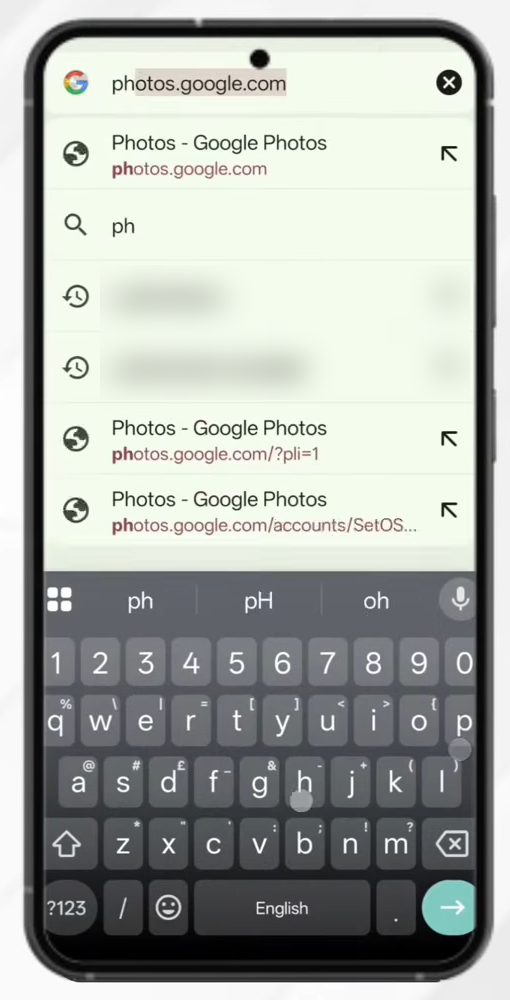
1Open photos.google.com in your browser
Open Chrome (or any browser) and type photos.google.com in the address bar. This opens the web version of Google Photos, not the app.
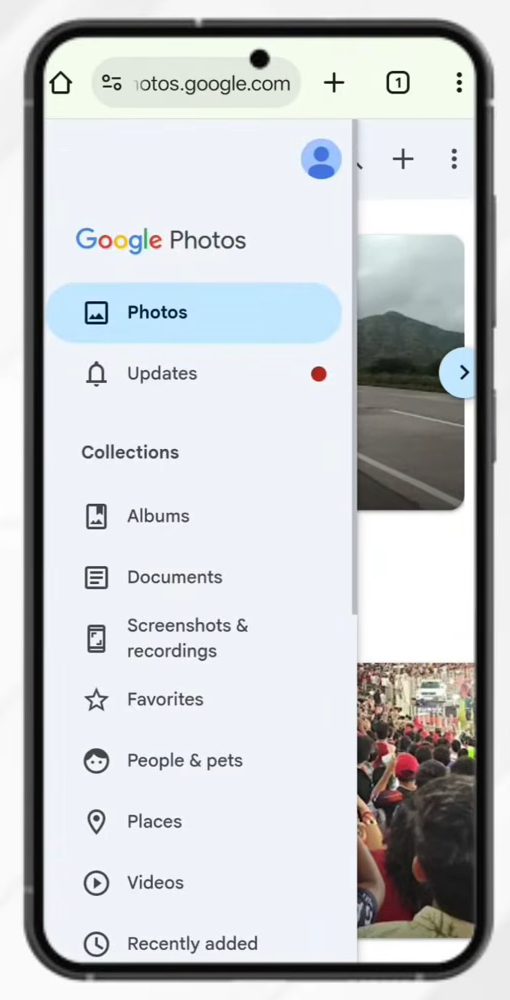
2Check which Google account is signed in
Make sure you are signed in with the same Google account that holds the photos you want to remove. Tap the three lines menu at the top left, then tap the profile icon at the top of the menu.
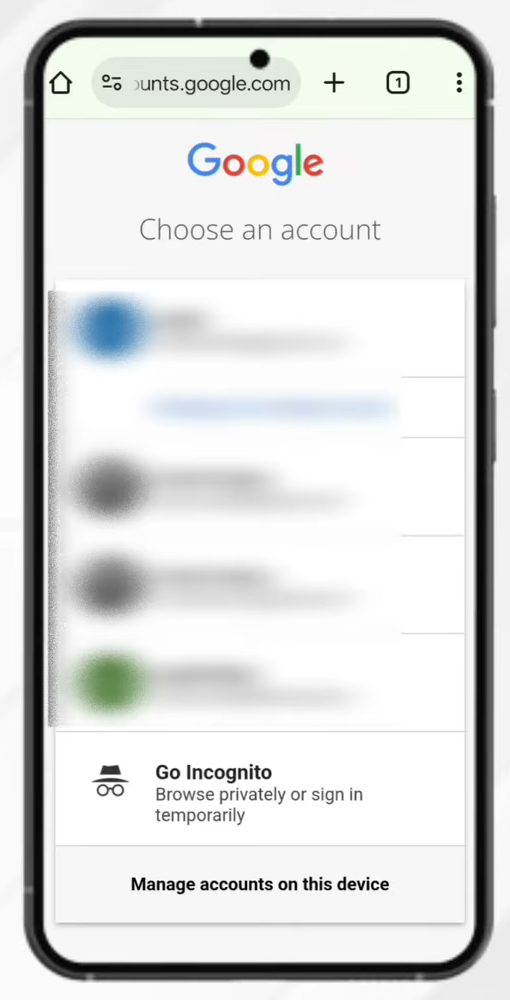
3Choose the right account
On the Choose an account screen, tap the account you want to clean up. Google Photos reloads and shows every photo backed up to that account. Scroll down and you will see the same pictures that are in your gallery, but these are the cloud copies.
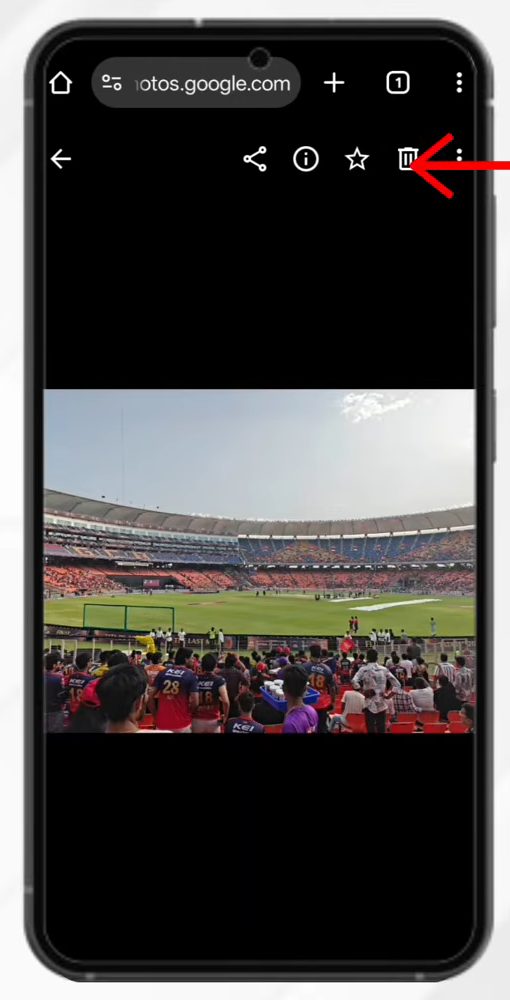
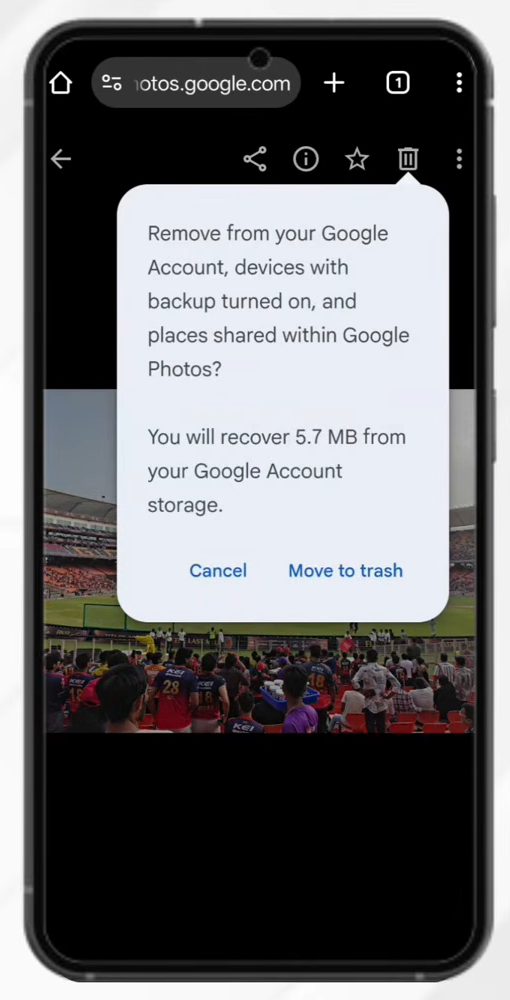
4Open a photo and tap Delete
Tap a photo to open it, then tap the Delete (bin) icon at the top right.
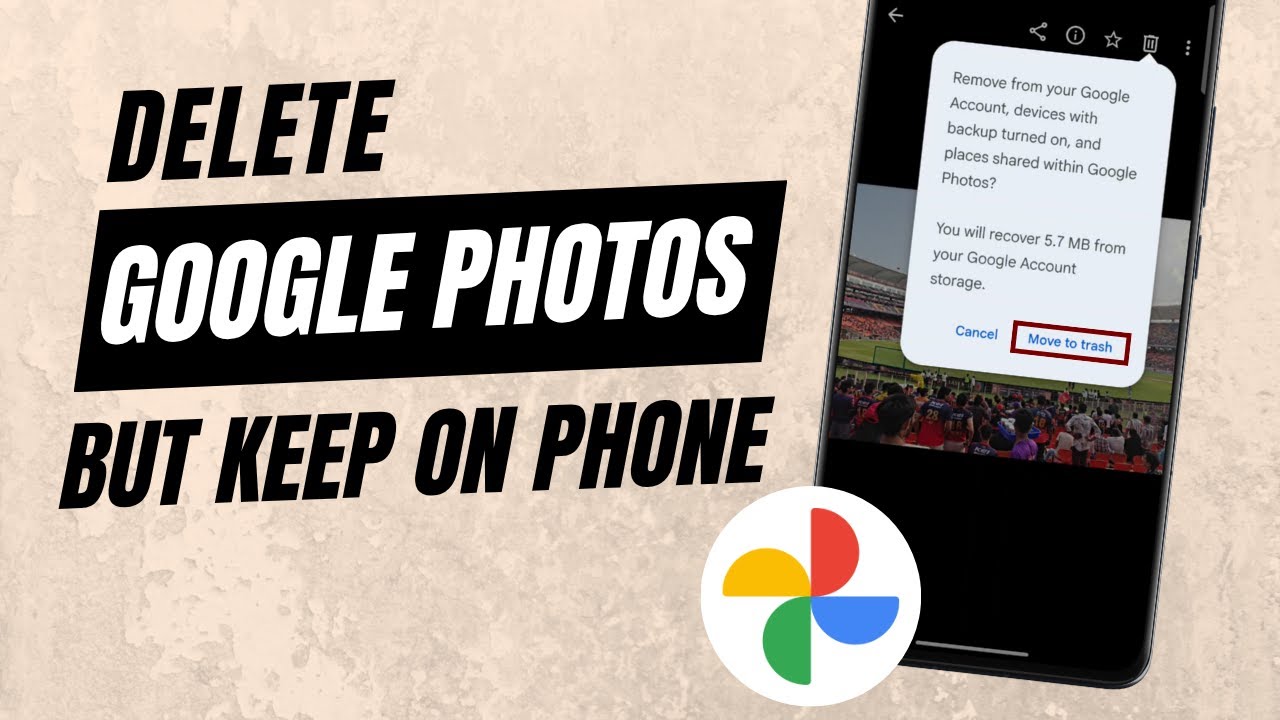
5Confirm with Move to trash
Google asks whether to remove the photo from your Google account and shows how much storage you will get back (5.7 MB in our example). Tap Move to trash. The photo disappears from Google Photos.
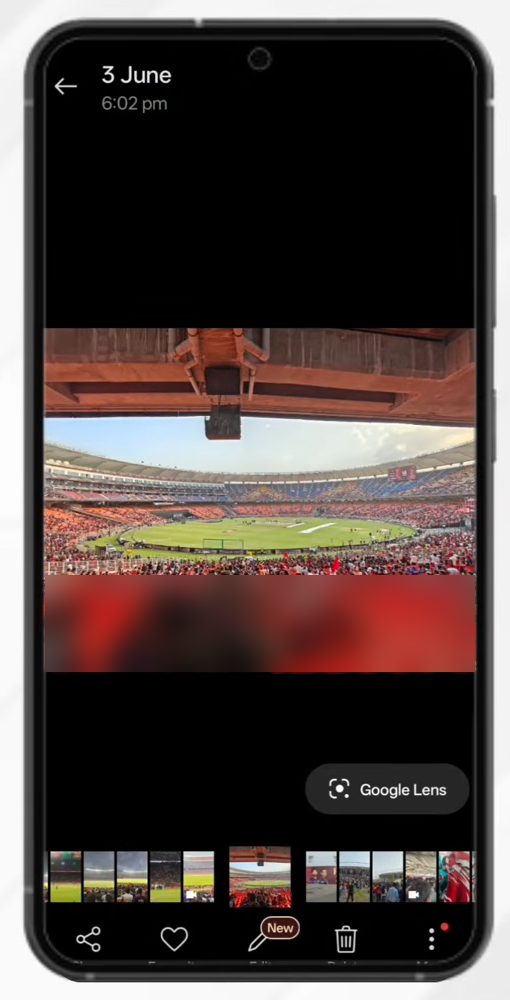
6Check that the photo is still in your gallery
Open your phone's gallery app and look for the same picture. In our test it was still there, with the same date and time. The deleted item only left the Google Photos cloud, not the phone.
Method 2: Delete photos in bulk
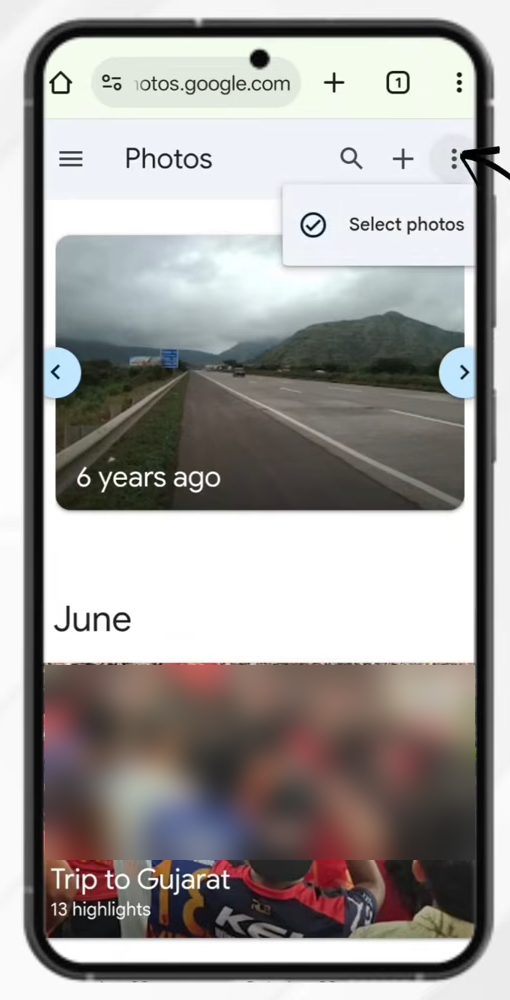
7Turn on photo selection
Back on photos.google.com, tap the three dots at the top right and choose Select photos. A checkbox appears on each picture.
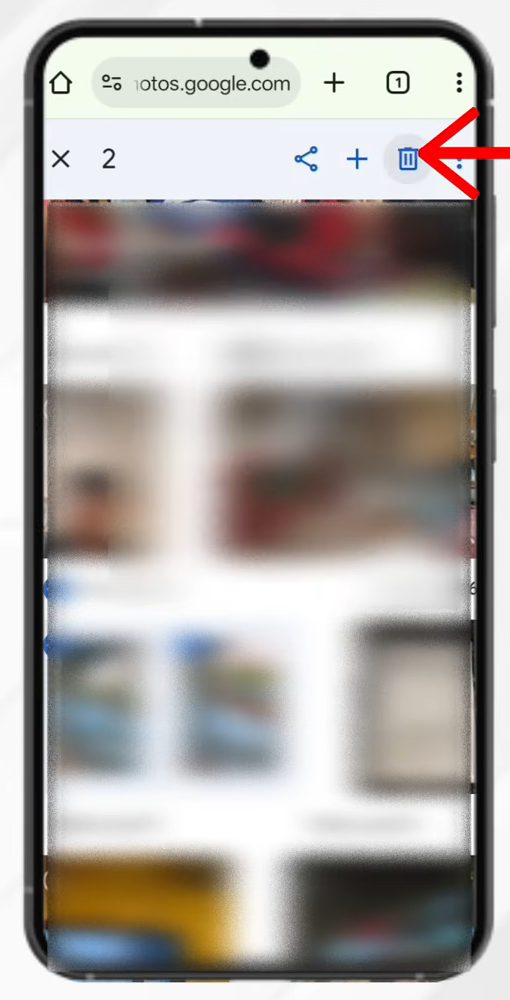
8Select the photos and delete them
Tap every photo you want to remove. To save time, tap the date heading above a group of photos to select that whole day at once. The top bar shows how many items are selected. Tap the Delete (bin) icon at the top, then Move to trash. The photos are removed from Google Photos but stay on your phone.
Tips / troubleshooting
- The photo also vanished from my phone. This happens when the Google Photos app is installed with backup on, or when you use Google Photos itself as your gallery. Restore the item from Trash (see below), turn backup off, and try again.
- Trash keeps the photos for a while. Google says deleted items stay in the trash for 30 days before they are permanently deleted. Your storage is only freed for good after that, or when you empty the trash yourself.
- I can't see my photos online. You are probably signed in to a different Google account. Repeat Steps 2 and 3 and switch accounts.
- Want to hide a photo, not delete it? Google Photos has Archive, which hides items from the main photo view without deleting them.
- Free up space the other way round. If your problem is phone storage, not Google storage, use the opposite approach: keep the cloud copy and remove the phone copy. Our guide on how to transfer photos from Android to PC is another way to keep a safe copy first.
Moving to a new account instead of deleting? See How to Transfer Google Photos From One Account to Another.
FAQ
How do I delete photos from Google Photos but not from my phone?
Open photos.google.com in a browser, sign in with the right account, select the photos and tap Delete, then Move to trash. If the Google Photos app is installed on the phone with backup on, turn backup off first, as Google recommends.
Can I get a deleted photo back?
Yes, for a while. Deleted photos go to the Trash in Google Photos and stay there for 30 days before they are permanently deleted. Open Trash, select the photo and restore it.
Does this work on iPhone?
The browser steps are the same on an iPhone. Google's help page notes that deleting can also remove the local copy on iPhones and iPads that have Google Photos installed with backup turned on, so turn backup off in the app first.
Will deleting photos from Google Photos free up my Google storage?
Yes, for photos that count against your storage. The confirmation box shows how much space you will recover, and the space is freed once the photos leave the trash.
Related guides