Tech is Easy
How to Enable Two-Factor Authentication on Instagram
To enable two-factor authentication on Instagram, go to your profile, tap the three lines at the top right, then Accounts Centre > Password and security > Two-factor authentication, pick your Instagram account and choose SMS or WhatsApp or an Authentication app. After that, Instagram asks for a login code whenever someone logs in to your account on a device it does not recognise. It is worth turning on for anyone, and especially if you run a business or creator account.
What you need
- The Instagram app, logged in to the account you want to protect
- Access to the phone number on your account (for SMS or WhatsApp codes), or an authenticator app such as Google Authenticator or Duo Mobile
1Open the menu from your profile
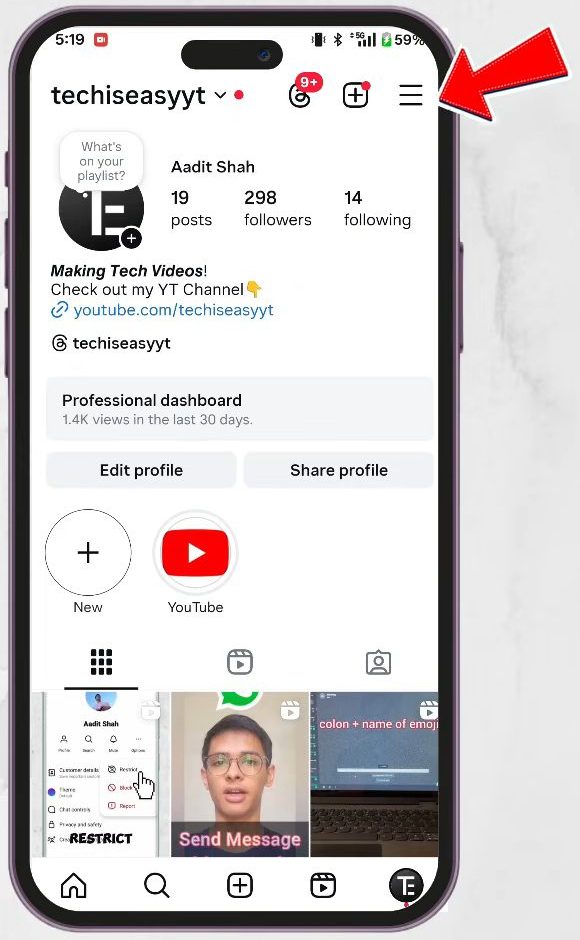
Open Instagram and tap your profile picture at the bottom right to go to your profile page. Then tap the three lines at the top right corner.
2Go to Accounts Centre
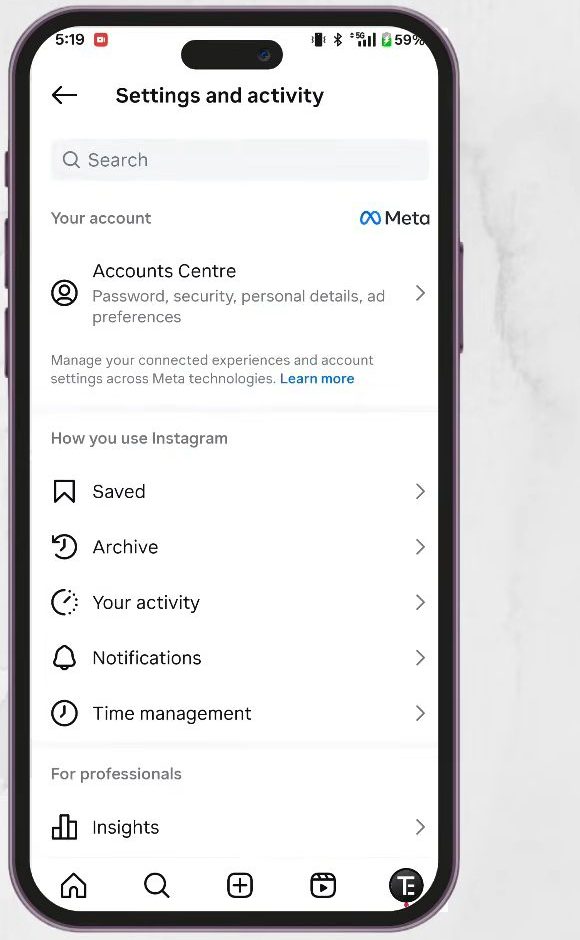
The Settings and activity page opens. Tap Accounts Centre near the top. Instagram security settings now live in Meta's Accounts Centre, which is shared with Facebook if you have linked accounts.
3Open Password and security
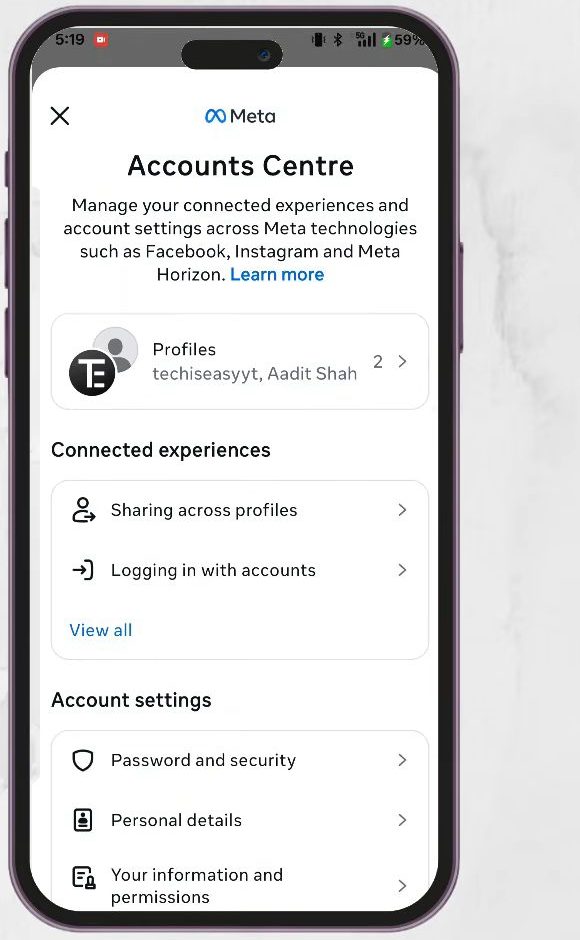
In Accounts Centre, scroll down to Account settings and tap Password and security.
4Tap Two-factor authentication
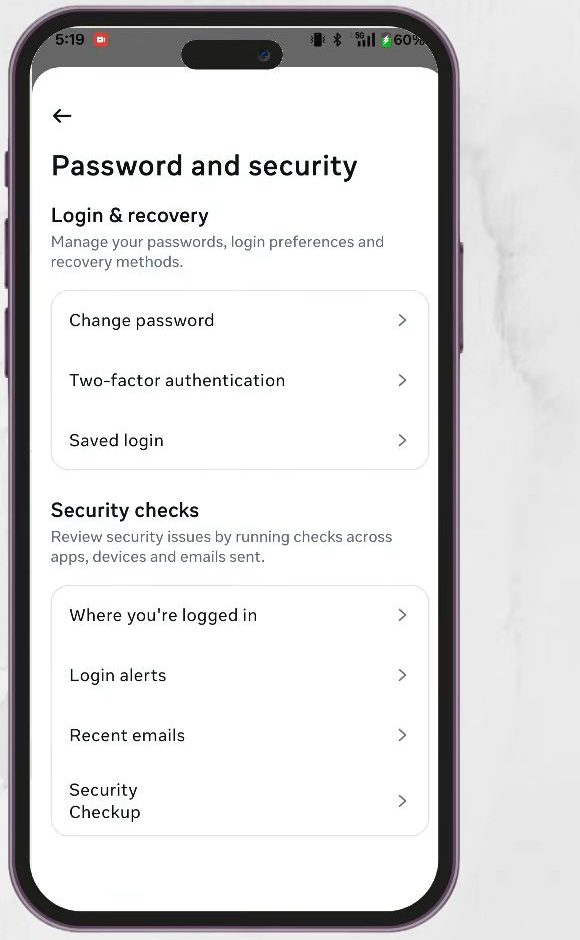
Under Login & recovery, tap Two-factor authentication. This same page also has Change password and Where you're logged in, which are useful to check while you are here.
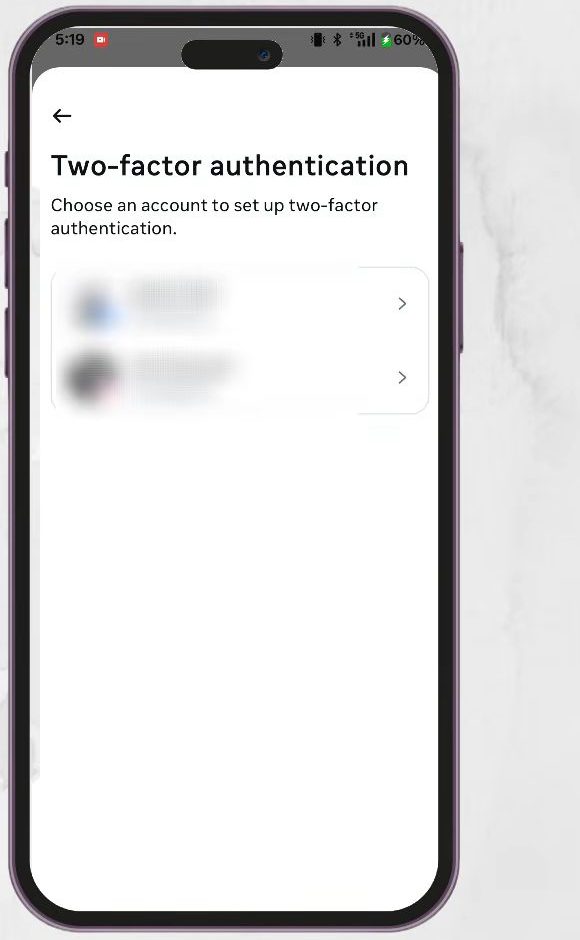
5Choose your Instagram account
If you have more than one profile in Accounts Centre (for example an Instagram account and a Facebook profile), Instagram asks which one to protect. Tap your Instagram account. You can come back and repeat this for your other accounts later.
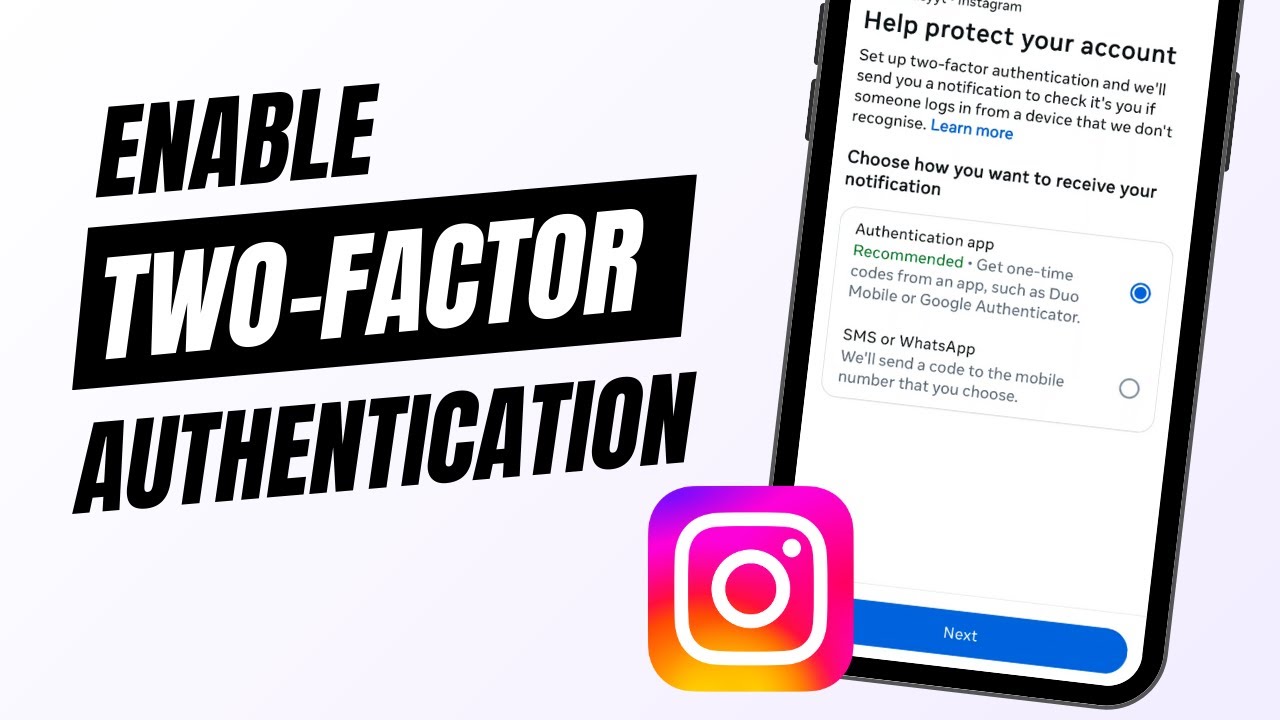
6Pick how you want to get codes
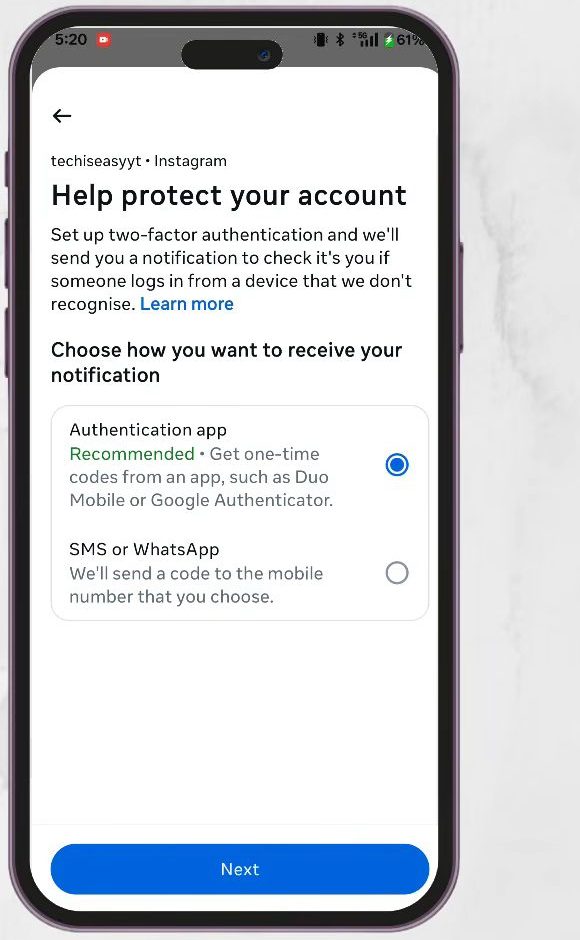
On Help protect your account, you have two choices: - Authentication app (marked Recommended): an app such as Google Authenticator or Duo Mobile generates a new code every few seconds. - SMS or WhatsApp: Instagram sends a code to the mobile number on your account each time.
SMS or WhatsApp is the quickest to set up, so we select it and tap Next. If you prefer the app, see how to set up Google Authenticator.
7Enter the confirmation code
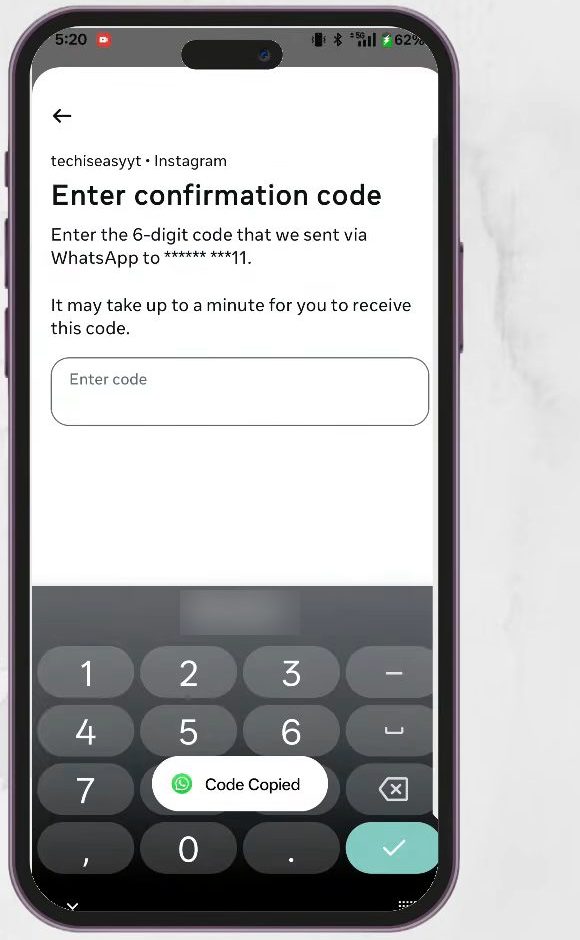
Instagram sends a 6-digit code to your number (in our case via WhatsApp) and shows Enter confirmation code. Copy the code from the message, paste it in the Enter code box and tap Next. If WhatsApp does not deliver it, tap Get code via SMS instead.
8Confirm that two-factor authentication is on
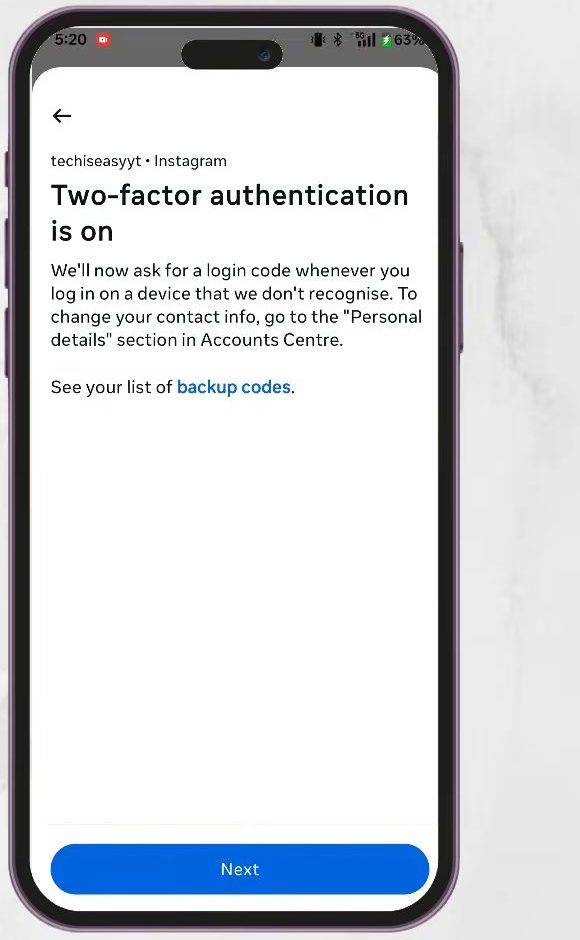
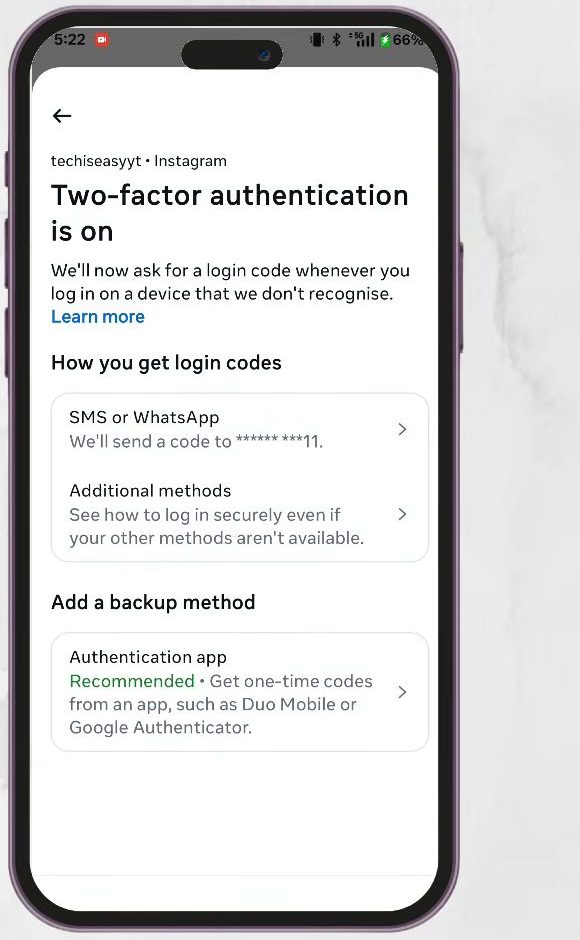
The next screen says Two-factor authentication is on. From now on Instagram asks for a login code every time you log in on a device it does not recognise. Tap Next.
9Add a backup email (optional)
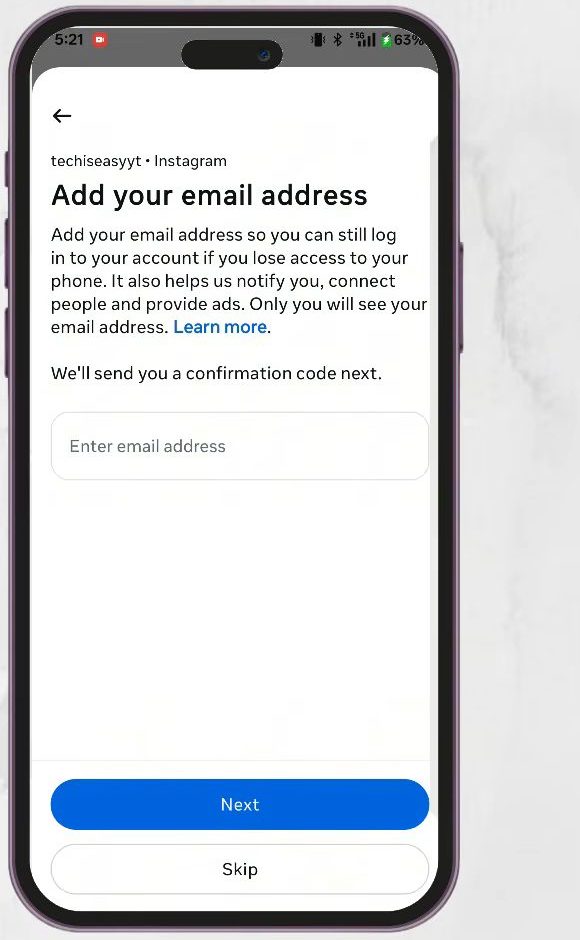
Instagram may ask you to Add your email address so you can still log in if you lose access to your phone. They send a confirmation code to that email too. This step is optional. Enter your email and the code, or tap Skip.
10Check your login methods
You are taken back to the two-factor page, which now lists How you get login codes (SMS or WhatsApp) and Additional methods. You can also add an Authentication app as a backup method here.
Save your backup codes
Backup codes let you log in if your phone is lost or you cannot receive a text. On the "Two-factor authentication is on" screen you will see a link to backup codes, and you can also find them later under Additional methods. Save them somewhere safe, such as a password manager or a printed copy. Each code can be used once. Instagram's help page on two-factor authentication explains the backup options in more detail.
Tips / troubleshooting
- Code never arrives: check that the phone number in Accounts Centre is correct and has signal, wait a minute, and use Get code via SMS instead if you picked WhatsApp. An authenticator app avoids this problem because it works offline.
- Two-factor authentication option missing: update the Instagram app. Older versions showed security settings under Settings > Security instead of Accounts Centre.
- Changing your phone: if you use an authenticator app, move it to your new phone before you reset the old one, or keep your backup codes handy. Our guide on moving Google Authenticator to a new phone covers this.
- Turning it off: the same Two-factor authentication page in Accounts Centre is where you manage or remove your methods. This is not shown in the video, so the exact buttons may differ.
- A stolen password is not enough. With two-factor on, a stranger who knows your password still cannot get in without the code. If you get a code you did not ask for, change your password straight away.
FAQ
How do I turn on two-factor authentication on Instagram?
Go to your profile, tap the three lines, then Accounts Centre > Password and security > Two-factor authentication. Choose your Instagram account, pick SMS or WhatsApp or an Authentication app, and enter the code Instagram sends you.
Which is better: SMS or an authentication app?
Instagram marks the authentication app as recommended, since codes are generated on your phone and cannot be intercepted by SIM swaps. SMS or WhatsApp is easier to set up and still far safer than a password alone.
Will Instagram ask for a code every time I open the app?
No. It only asks when you log in on a device or browser that Instagram does not recognise. Your usual phone stays logged in.
Do I have to add a backup email?
No. The email step is optional and you can tap Skip. Adding one, and saving your backup codes, makes it easier to get back in if you lose your phone.
Related guides