Tech is Easy
How to Get Canva Pro Free for Students (Canva for Education)
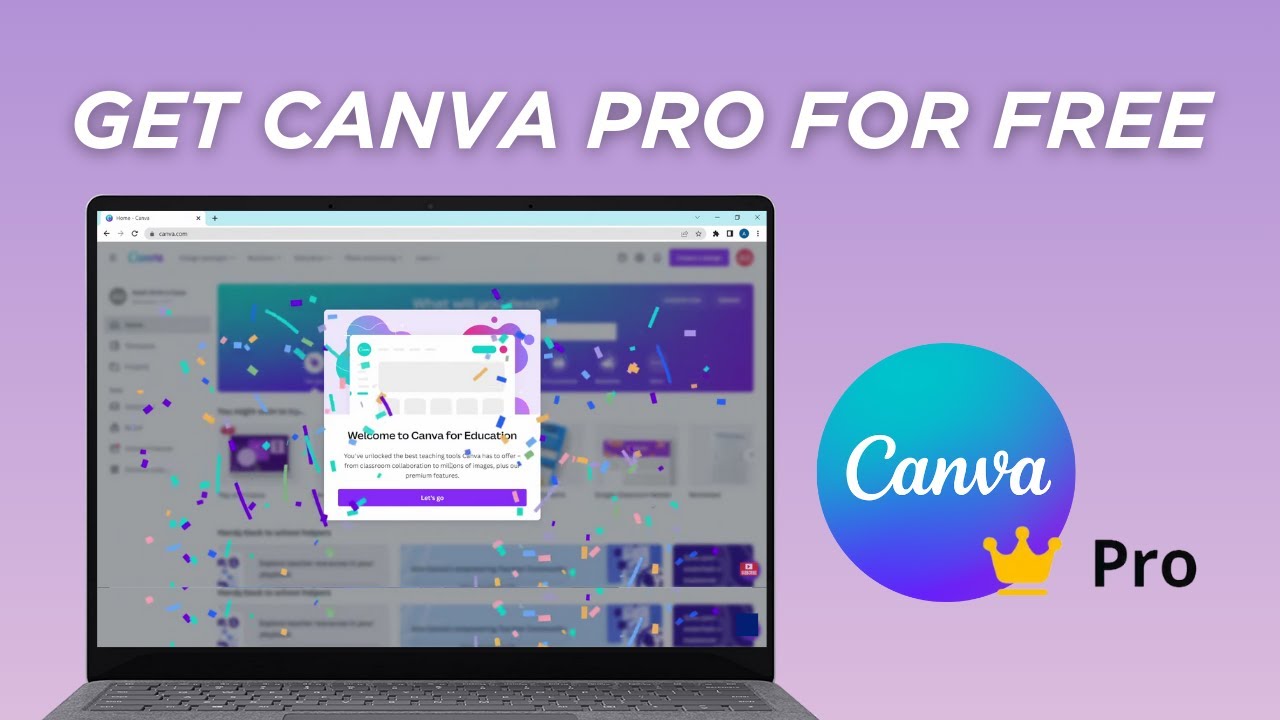
Canva Pro costs money, but Canva for Education gives eligible schools access to the Pro features for free. If you have an email address from your school (one ending in .edu or similar), you can try signing up with it, though Canva only approves certain schools. This guide follows exactly what we did: search for Canva for Education, go through the verification, and end up with the Pro tools turned on.
What you need
- An educational email address from your school
- A computer with a web browser
Canva decides who is eligible, so this does not work with every email or every school. In our case the school domain was already approved, and the Pro features showed up right after logging in.
Who Canva for Education is meant for
It helps to know the rules before you try, because they are stricter than "anyone with a school email": - Teachers at primary and secondary schools (K-12) can verify themselves, either through an approved school email domain, as in our video, or by uploading proof that they teach. - Students at those schools normally get access when their teacher invites them to a class in Canva. Students don't usually verify on their own. - College and university students and staff are generally not covered by Canva for Education. Canva has separate plans for higher education that the university has to set up.
Canva reviews accounts and can ask for proof later, so enter your real details in Steps 6 and 7. If you are a student, the most reliable route is asking your teacher to invite you.
1Search for Canva for Education
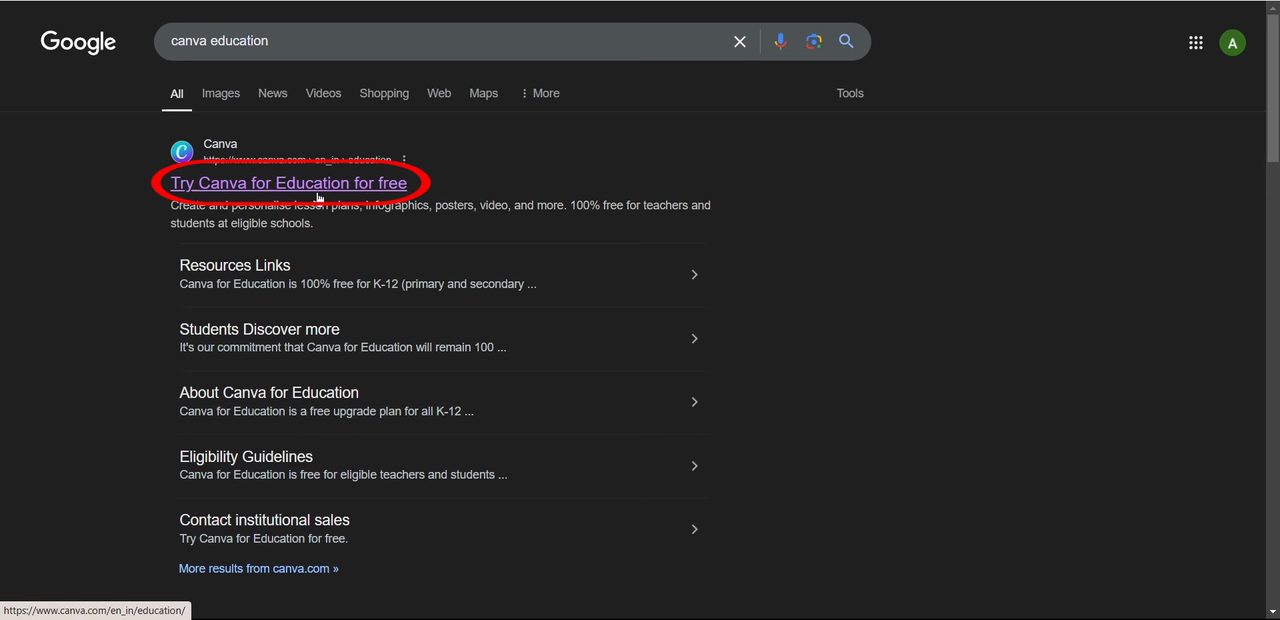
Open your browser and search for canva education. Click the first result, Try Canva for Education for free.
2Click Get verified
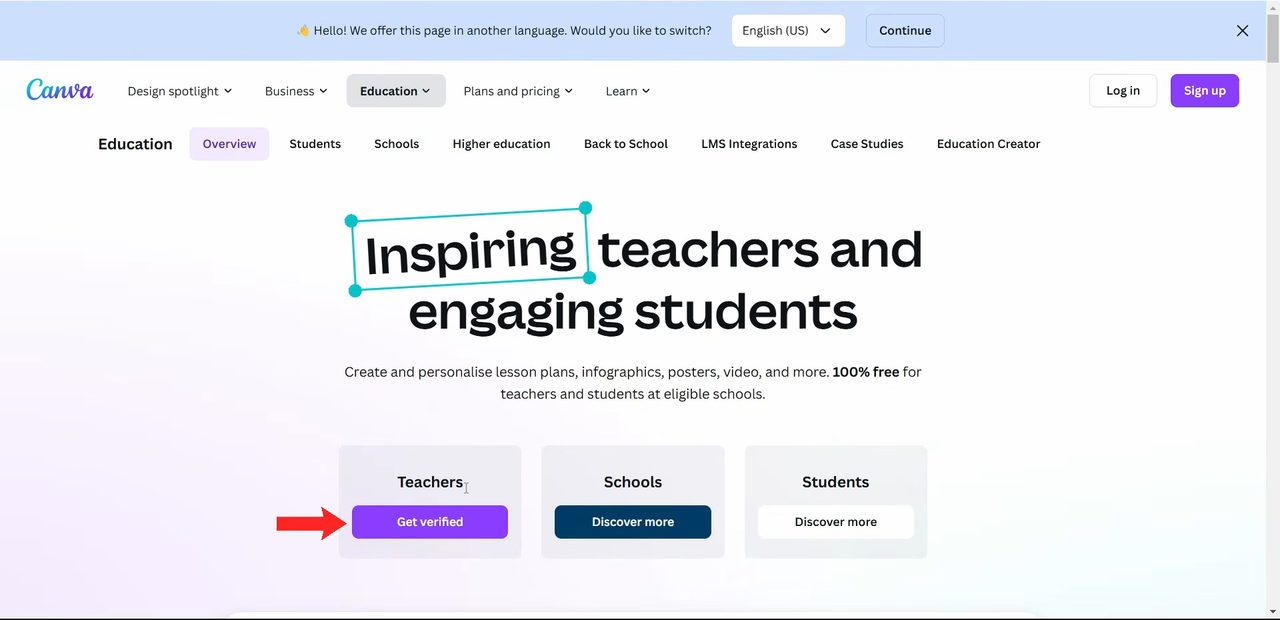
On the Canva Education page you will see three boxes: Teachers, Schools and Students. Under Teachers, click Get verified. This is the option used in our video.
3Log in with your educational email
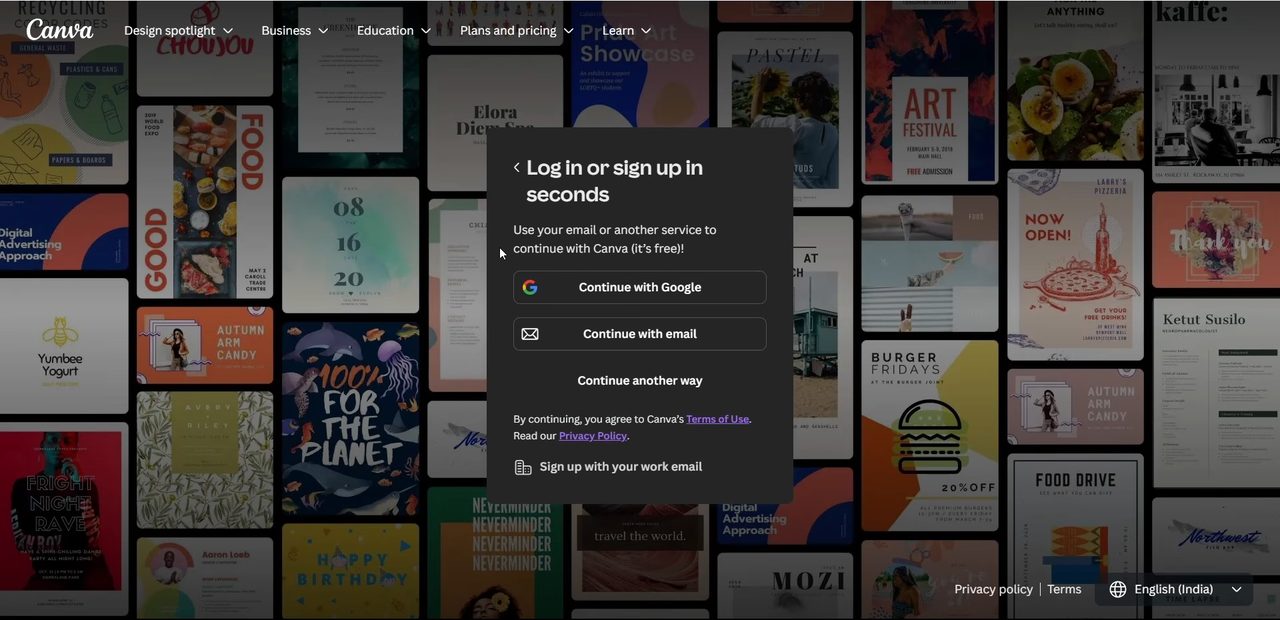
A Log in or sign up in seconds box appears. Sign in with your educational email address, for example with Continue with Google or Continue with email.
4Claim Canva for Education
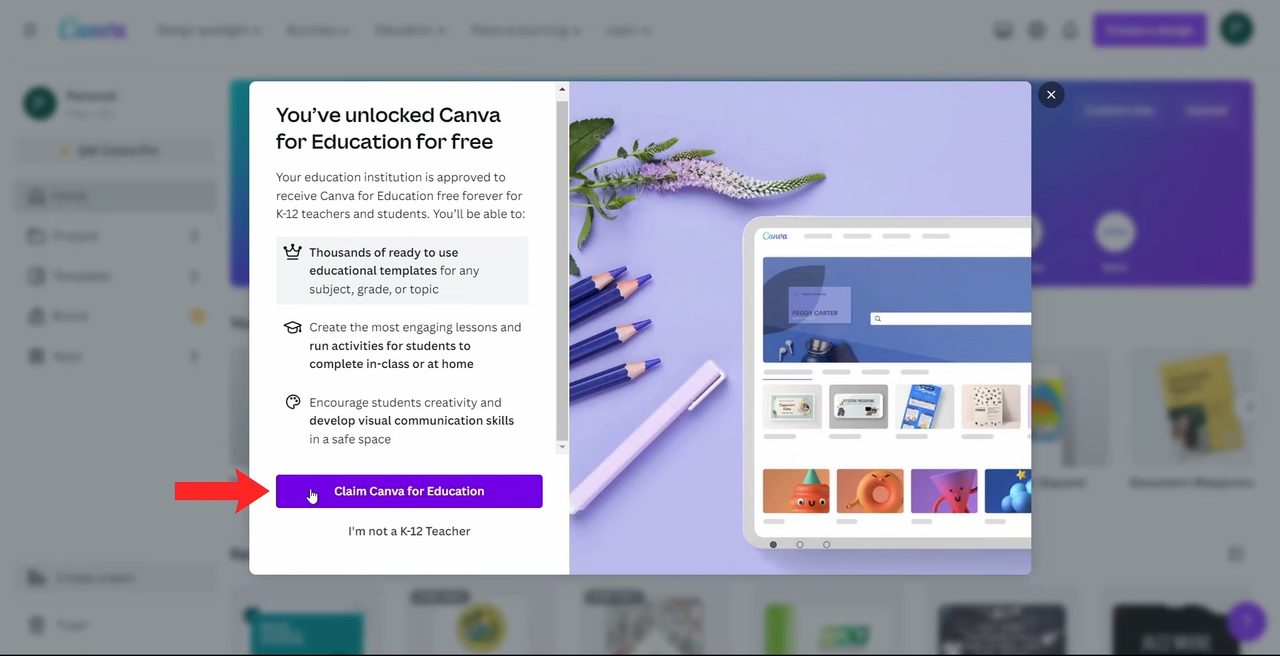
If your school is approved, Canva shows You've unlocked Canva for Education for free. Click Claim Canva for Education.
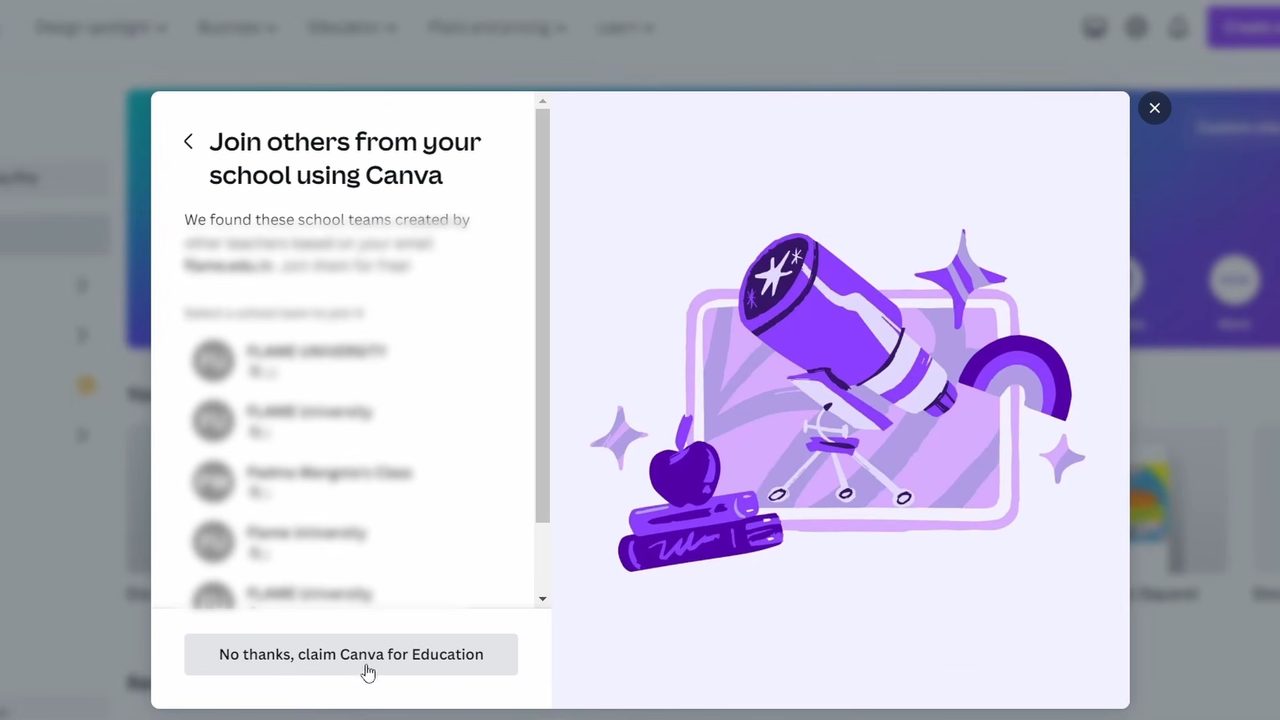
5Skip joining a school team
Canva may show existing teams from your school under Join others from your school using Canva. You don't need to join one, so click No thanks, claim Canva for Education.
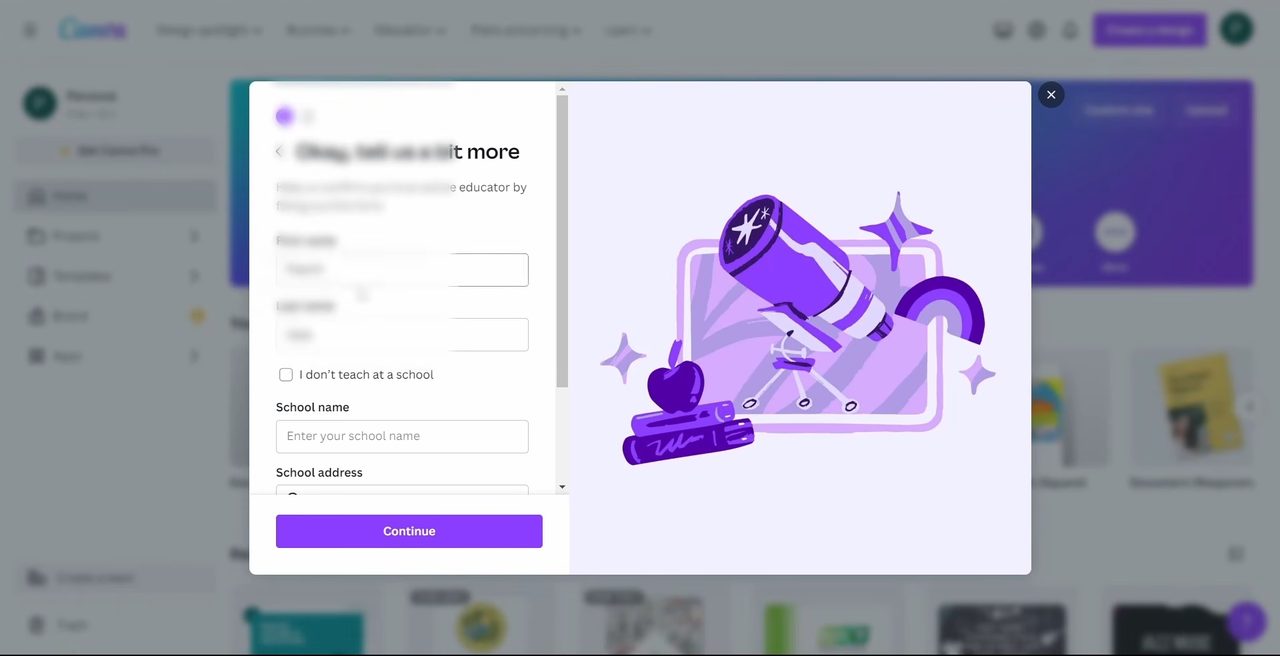
6Fill in your details
Enter your first name, last name, school name and school address, then click Continue.
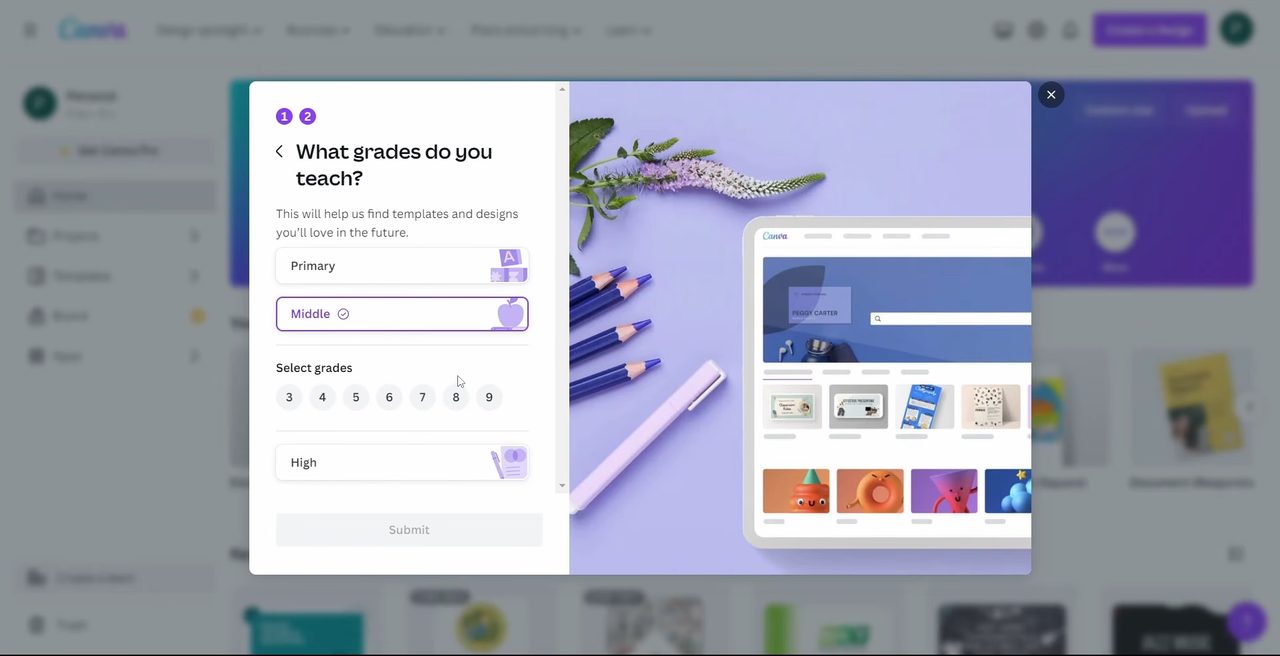
7Choose subjects and grades
Canva asks which subjects you teach. Pick one or more and click Continue. Then choose the grades under What grades do you teach? and click Submit. These answers are only used to suggest templates.
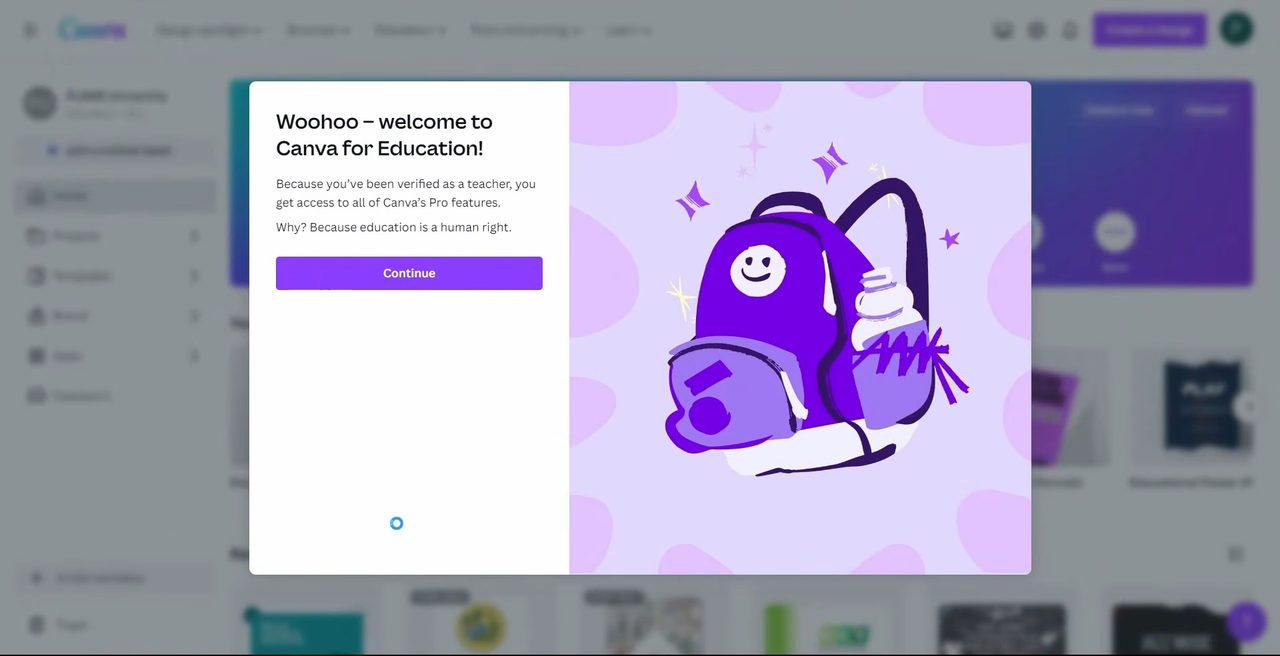
8Continue to your account
You should now see Woohoo, welcome to Canva for Education! with a note that you get access to all of Canva's Pro features. Click Continue.
9Try a Pro feature
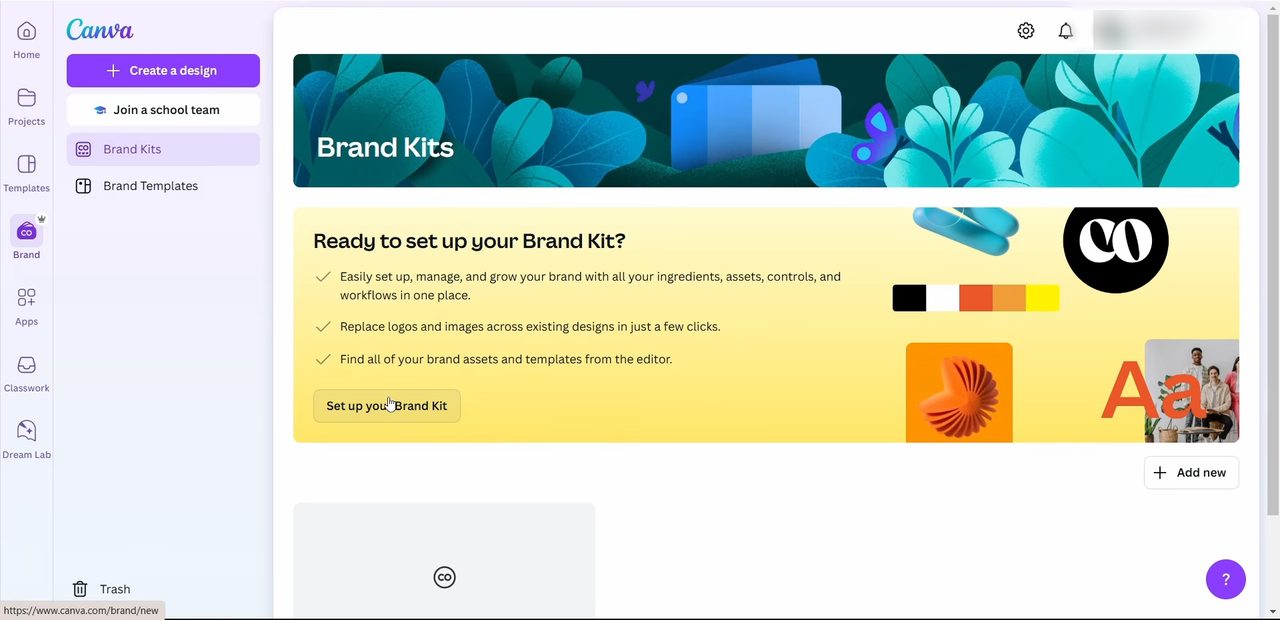
Pro features are now available. For example, open Brand in the left menu and you can set up a Brand Kit, which normally needs a paid plan.
10Check your account type
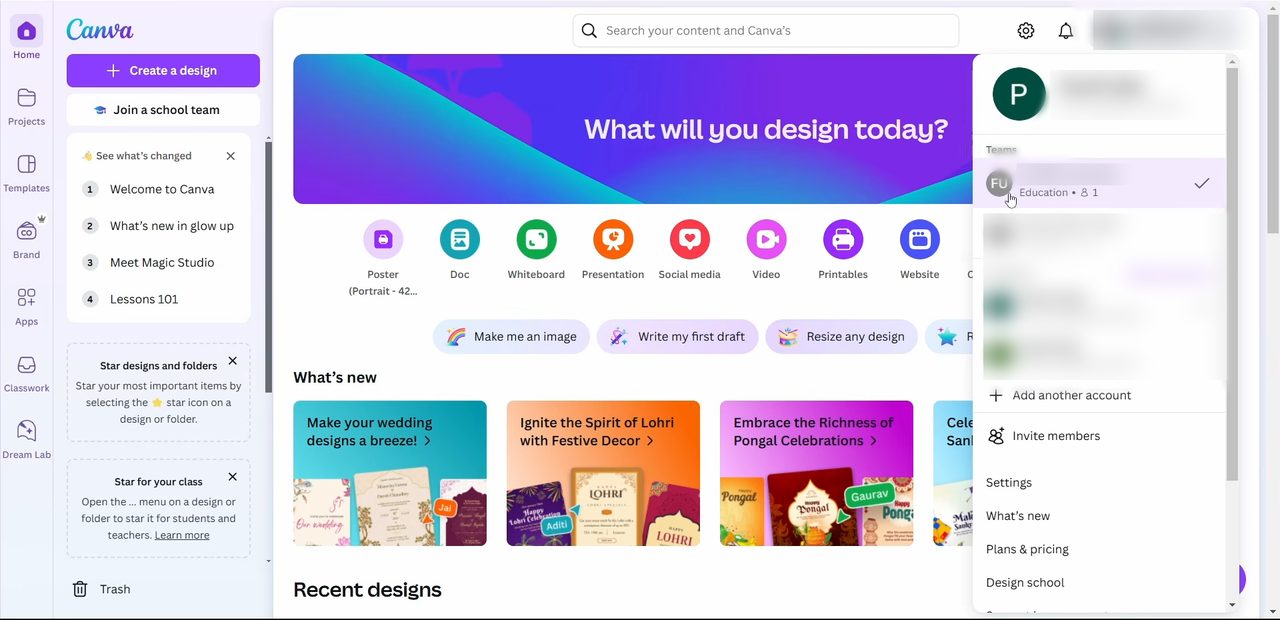
Click your account at the top right. Your school team now shows Education under it, which confirms the account is on Canva for Education.
What changes after you claim it
- Your account is now part of a team labelled Education (Step 10).
- Pro tools such as the Brand Kit, premium templates and premium elements become available. The exact list is set by Canva and can change.
- The account is tied to your school email. If your school closes that email when you leave, you can lose access to the account, so download the designs you want to keep before that happens.
Troubleshooting
- Canva opened your personal account instead. If you are already logged in to Canva with a personal email, log out first, then go through Step 2 again and sign in with your school email.
- No "You've unlocked" screen. Your school's domain isn't on Canva's approved list. Canva will usually ask you to verify manually by uploading proof that you teach. This can take a while to be reviewed.
- Your school blocks the Google sign-in. Some schools may only allow approved apps on school Google accounts. Try Continue with email instead, or ask your school's IT admin.
Related guides: How to Create a Website in Google Sites for Free (Beginners) and How to Convert PowerPoint to Video (With Audio and Camera).
FAQ
Can students get Canva Pro for free?
Canva for Education is free for teachers and students at eligible schools. In our video the account was verified through the Teachers option with an educational email. Canva sets the rules on who qualifies, so check its eligibility page if your email is not accepted.
Is Canva for Education the same as Canva Pro?
After verification Canva says you get access to all of Canva's Pro features, such as Brand Kits. It is a separate plan made for schools, so a few things may differ from a paid Pro subscription.
Why didn't the "You've unlocked Canva for Education" screen appear?
That screen only shows when Canva recognises your school's email domain as approved. If it doesn't appear, Canva may ask you to verify manually or your school may not be eligible.
Do I need to join a school team?
No. When Canva shows teams from your school, you can click No thanks, claim Canva for Education and continue on your own.
Can college or university students get Canva for Education?
Usually not. Canva for Education is built for primary and secondary schools (K-12). College and university students would need their institution to offer a Canva plan, or they can use the free plan.
How long does Canva for Education stay free?
For eligible teachers and their students it is free with no end date, as long as the account keeps meeting Canva's eligibility rules.
Related guides