Tech is Easy
How to Use Proton VPN on Android (Free VPN Setup Guide)
To use Proton VPN on Android, install Proton VPN from the Play Store, open it, tap Continue as guest, then tap Connect on the home screen. That is all it takes to set up and use Proton VPN for free, with no account and no email address needed. This guide is for anyone who wants a free VPN on their phone for public Wi-Fi or a bit more privacy, and it also shows how to check the VPN is really working and how to change servers.
What you need
- An Android phone with the Google Play Store (on an iPhone, get the same app from the App Store)
- An internet connection
- An email address only if you later want to sign in and sync your settings
Proton VPN is made by Proton AG, the company behind Proton Mail. Its free plan page lists what you get for free: 1 device, no ads, no logs, and no data limit. Proton's own Android setup guide also mentions that the Android app can be downloaded from F-Droid or GitHub if you don't use the Play Store.
1Download Proton VPN from the Play Store
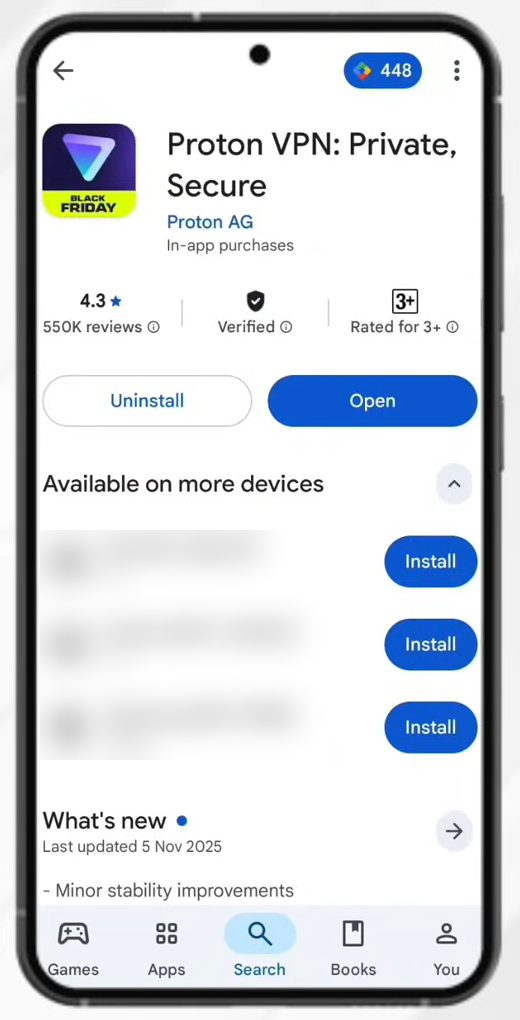
Open the Play Store, tap Search and type Proton VPN. Pick the app called Proton VPN: Private, Secure by Proton AG and tap Install. Check the developer name, because there are many copycat VPN apps with similar names.
2Open the app and continue as a guest
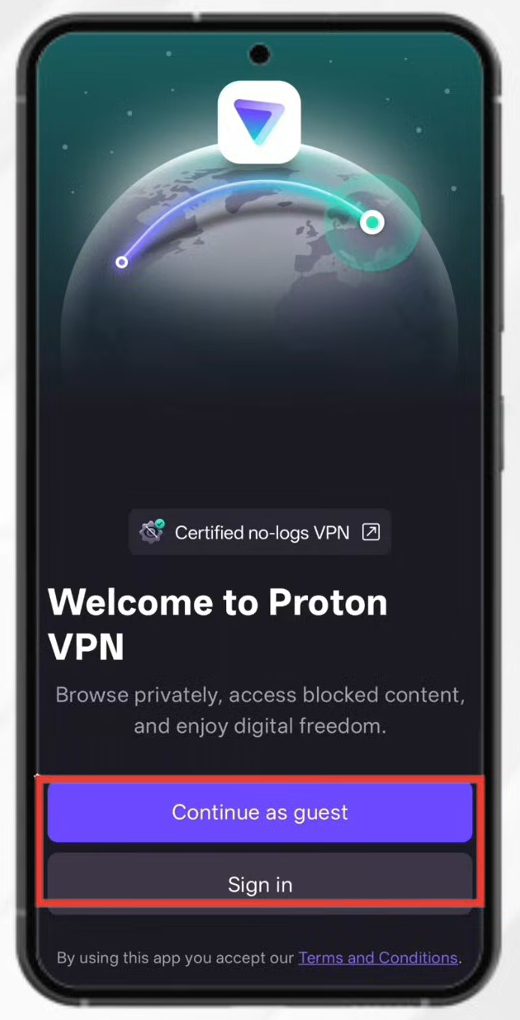
Open Proton VPN once it has installed. The welcome screen gives you two options: - Continue as guest lets you start using the VPN straight away without giving any personal information. - Sign in needs a Proton account, which you create with your email address and then verify.
For a quick start, tap Continue as guest.
3Skip the upgrade offer
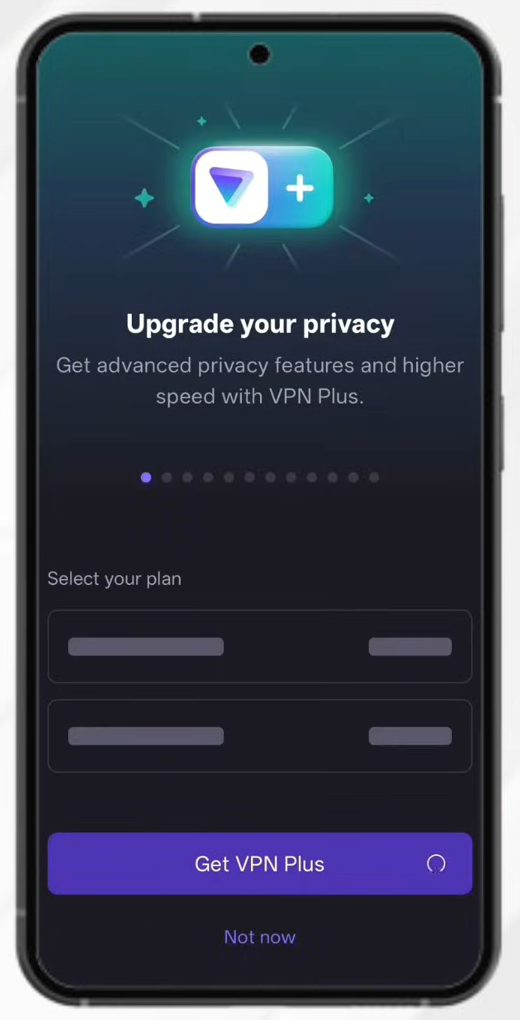
Next you see an Upgrade your privacy screen that offers VPN Plus, the paid plan. You don't need it to use the free VPN. Tap Not now at the bottom.
4Tap Connect
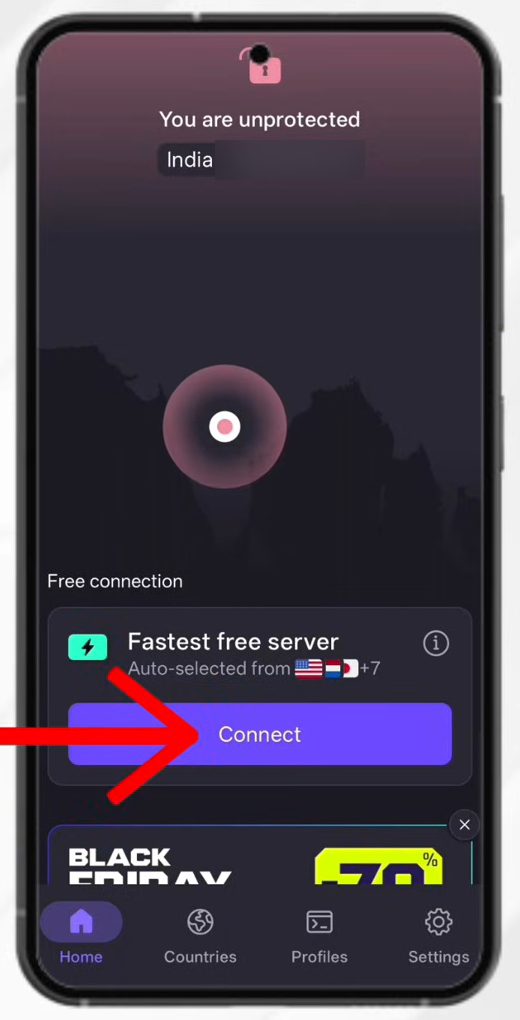
You are now on the home screen. At the top it says You are unprotected and shows your current country and IP address. Under Free connection, the app has already picked the Fastest free server for you. Tap Connect.
The first time you connect, Android asks for permission to set up a VPN connection. Allow it, otherwise the app can't route your traffic.
5Check that you are protected
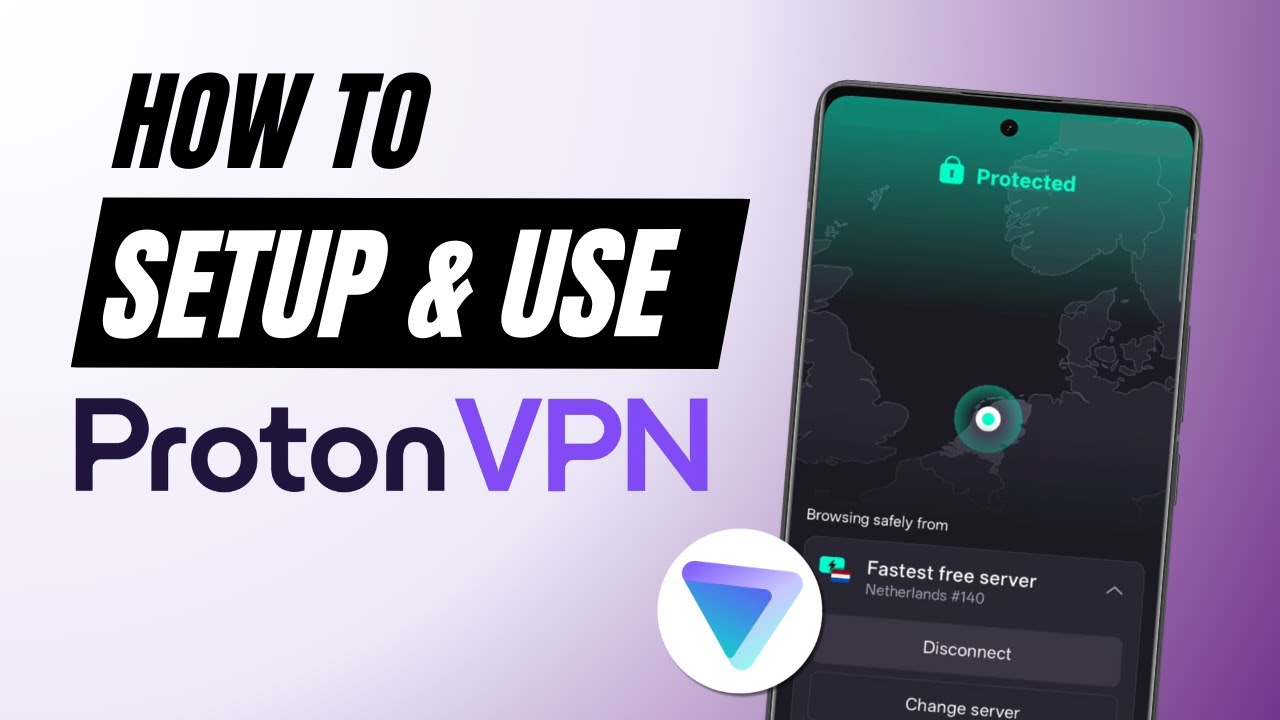
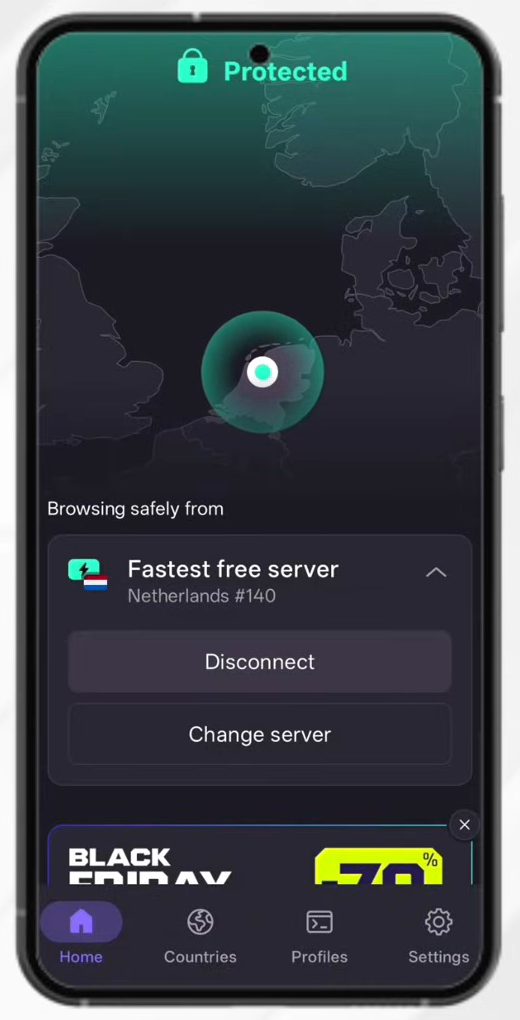
After a few seconds the top of the screen turns green and reads Protected. Below Browsing safely from you can see which server you are on. In our test the app connected to a free server in the Netherlands. Notifications may ask to be turned on so you get alerts about your connection status; that is optional.
6Test the VPN in Chrome
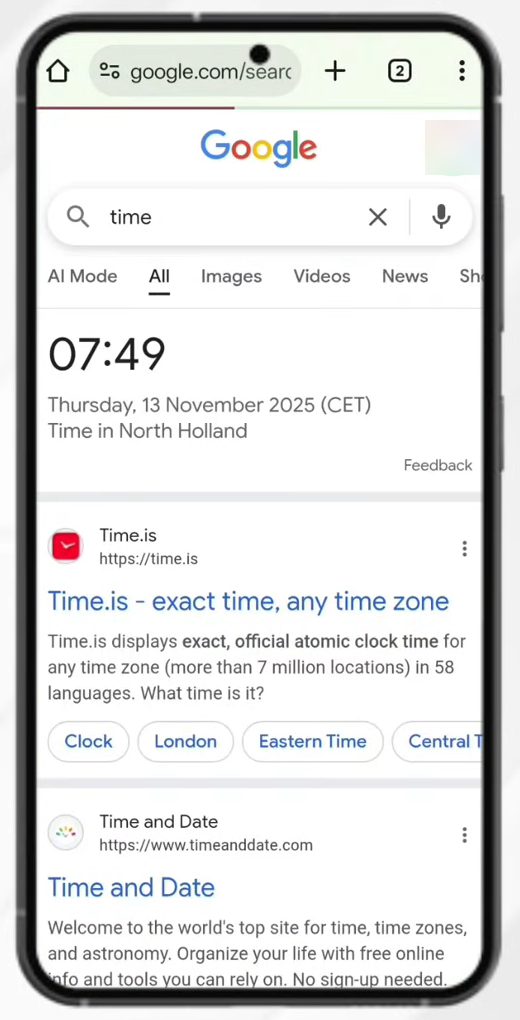
To confirm the VPN works, open Chrome and search for time. Google now shows the time for the VPN location instead of yours. In our case it showed 07:49 in North Holland while the real local time was 12:19. Searching weather gives the same result: the weather for North Holland. Websites see the VPN server's location, not yours.
7Change the server
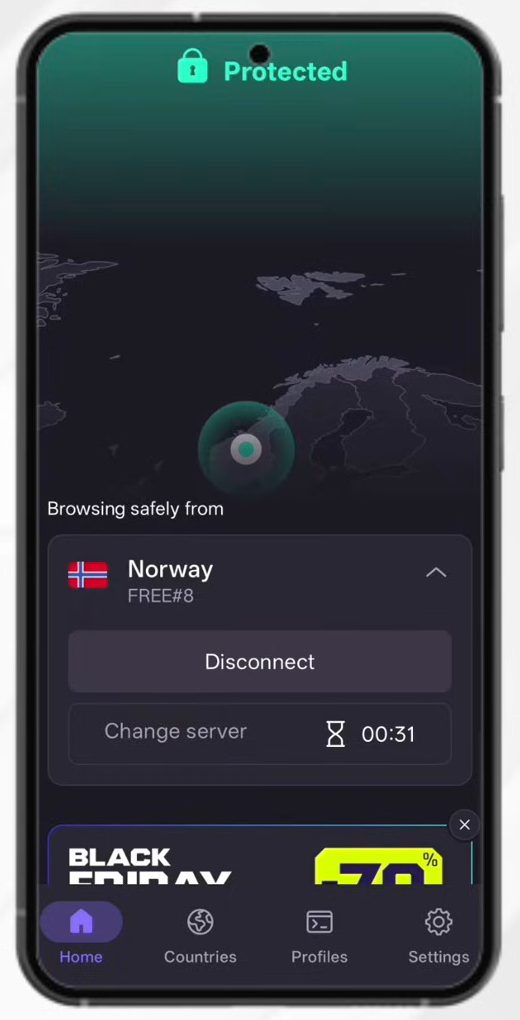
Go back to Proton VPN and tap Change server under the server card. The app jumps to a different free server. In our test it moved to Norway.
On the free plan you can't choose a specific country. After changing, the Change server button is greyed out with a countdown timer next to it, and you have to wait for the timer to run out before you can switch again.
8View the server details
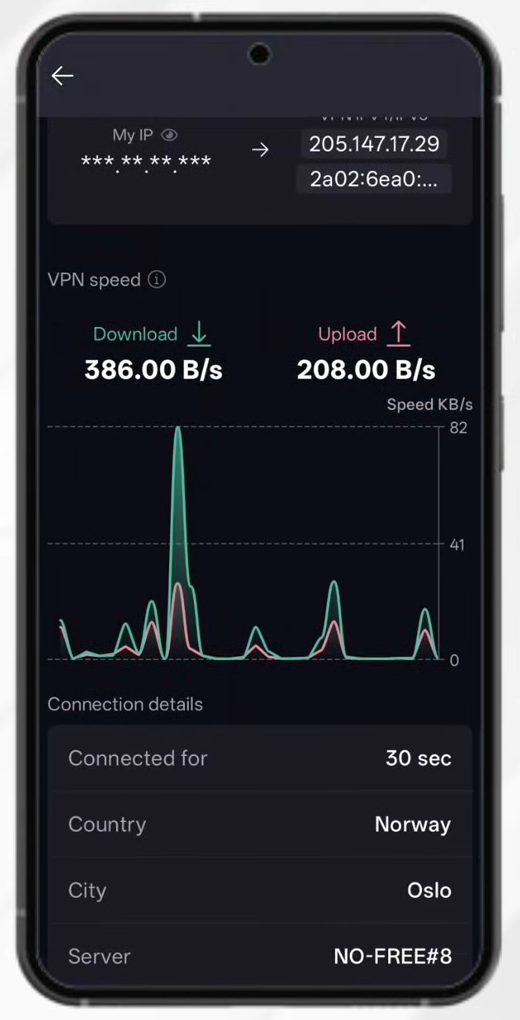
Tap the server card to open the details page. It shows the VPN IP address you appear to have, your live download and upload speed, and connection details such as how long you have been connected, the country, city, server name, server load and protocol (WireGuard in our case).
9Sign in to sync your settings (optional)
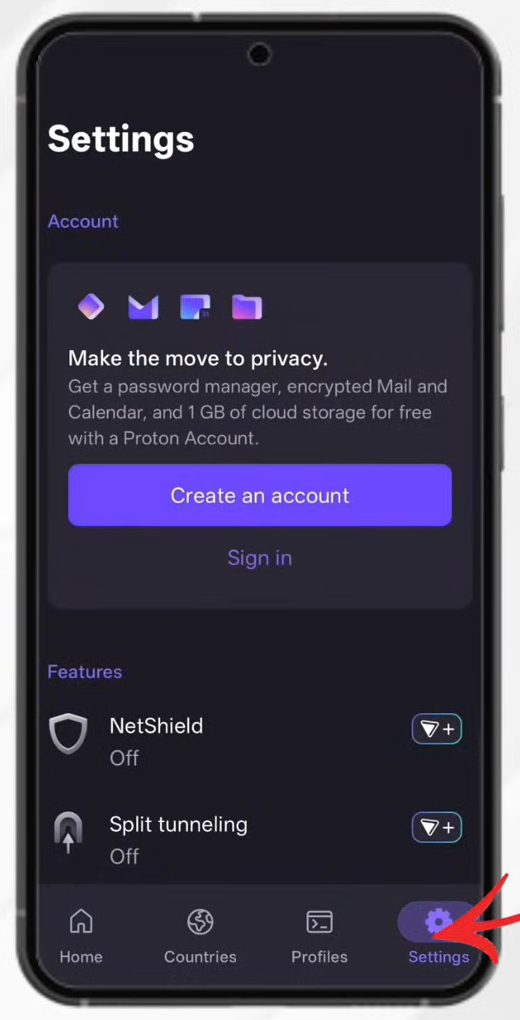
If you plan to change settings or create profiles and want them saved to your account, it is better to sign in. Tap Settings in the bottom bar, then tap Create an account or Sign in under Account. The same screen lists features like NetShield and Split tunneling, which are marked with a Plus badge.
To stop using the VPN, open the app and tap Disconnect on the home screen.
Tips / troubleshooting
- Change server is greyed out: this is the free plan's cooldown. Wait for the timer next to the button to reach zero.
- Google still shows your own city: make sure the app says Protected. If it does, close and reopen Chrome, because an open page can still show results from before you connected.
- Websites or apps stop loading: tap Disconnect and then Connect again, or tap Change server to try a different free server.
- The connection keeps asking for permission: you denied the Android VPN request once. Tap Connect again and allow it.
- Some apps don't like VPNs: banking apps and streaming services sometimes block VPN connections. Disconnect while you use them.
- Only one VPN app can be active on Android at a time. If you have another VPN running, turn it off first.
Related guides: Google Account Privacy and Security Settings and How to Clear Cache in Chrome on Your Phone.
FAQ
Is Proton VPN really free on Android?
Yes. The free plan has no ads and no data limit according to Proton, and you can use it as a guest without an account. The paid VPN Plus plan adds choice of country, extra features like NetShield and faster servers.
Can I use Proton VPN without an account?
Yes. Tap Continue as guest on the welcome screen and you can connect right away. You only need an account if you want your settings and profiles synced, which you can set up later from Settings.
How do I know Proton VPN is working?
The app turns green and shows Protected with the server location. You can also search time or weather in Chrome: Google shows the VPN server's location instead of your own.
Can I choose a country on the free Proton VPN?
Not on the free plan shown here. Change server picks another free server for you, and there is a short wait before you can change again. Picking a specific country is part of the paid plan.
Related guides