Tech is Easy
How to Save Google Form Responses as PDF (2 Ways)
To save Google Form responses as a PDF, open your form, go to the Responses tab, choose Print (or Print all responses) and set the print destination to Save as PDF. This guide covers both options: a PDF of the summary charts, and a PDF with every person's answers one after another. It is useful for teachers, event organisers or anyone who needs to share or file form results offline.
You can also think of it as converting or downloading your responses to PDF, since the browser's print window does the conversion for you.
What you need
- A Google Form that already has responses
- Google Forms open in a browser on a computer (the steps use Chrome)
1Open Google Forms
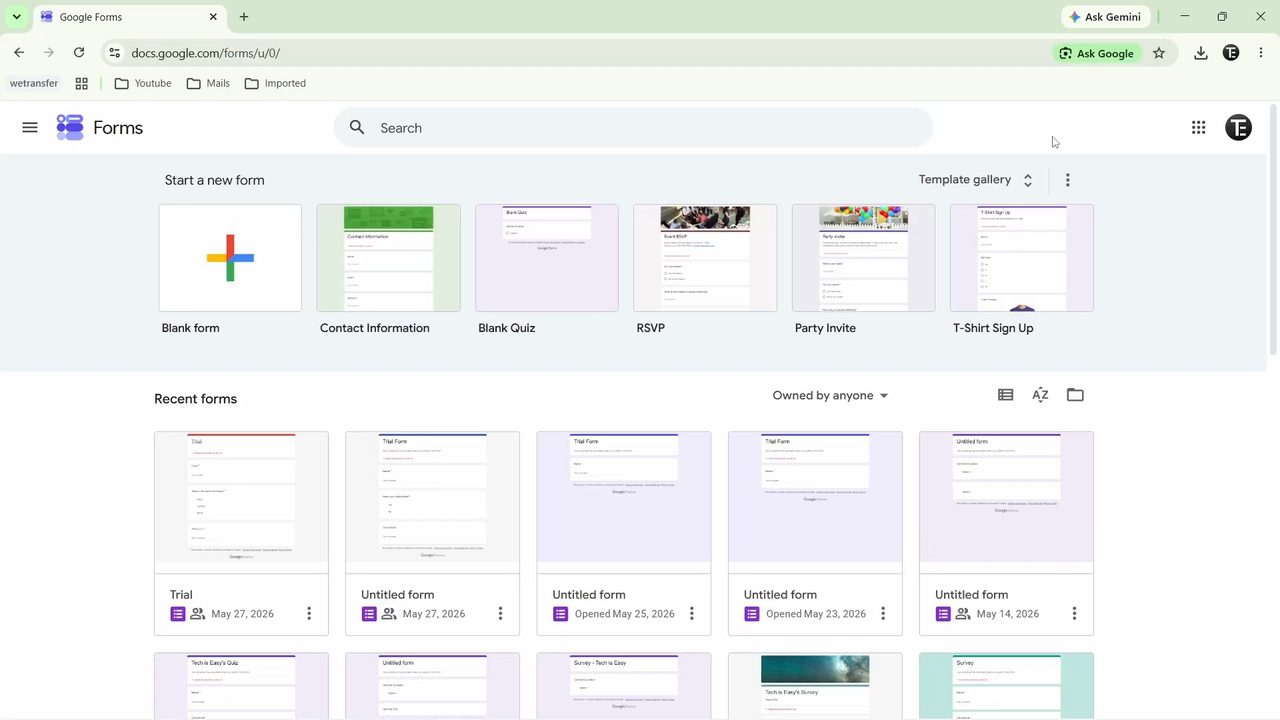
In your browser, go to forms.google.com and open the form whose responses you want to save as a PDF.
2Go to the Responses tab
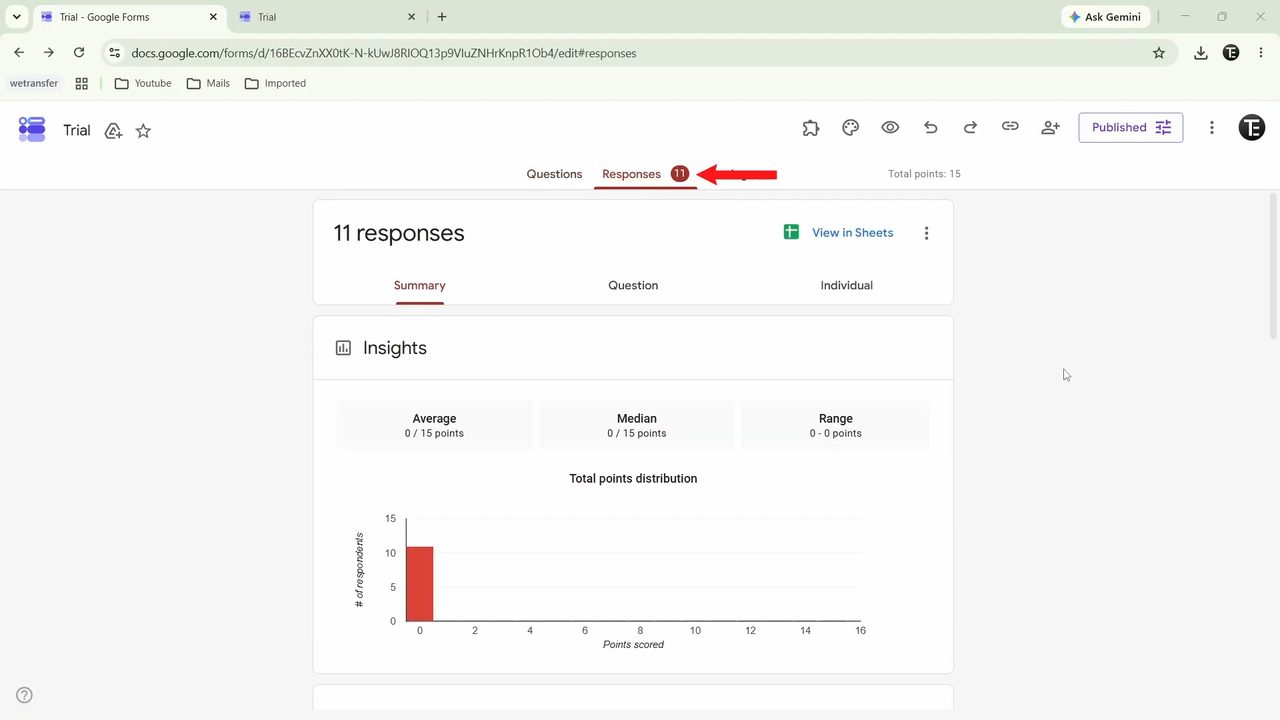
Click the Responses tab at the top of the form. The number next to it shows how many responses you have (11 in our example). From here you can save either the summary or every individual response.
Method 1: Save the response summary as PDF
3Print the Summary view
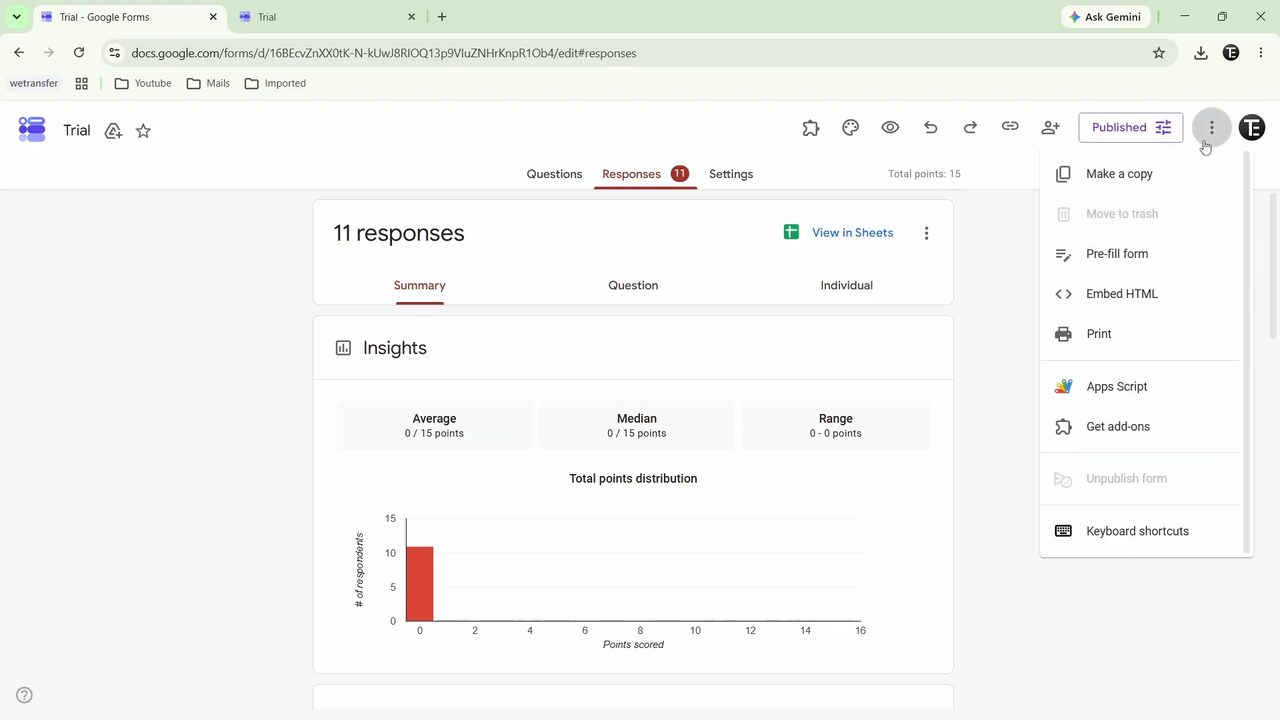
Make sure the Summary tab is selected. Then click the three dots menu at the top right of the page (next to Published) and choose Print. A summary of all responses, with charts for each question, opens in a new tab.
4Right-click and choose Print
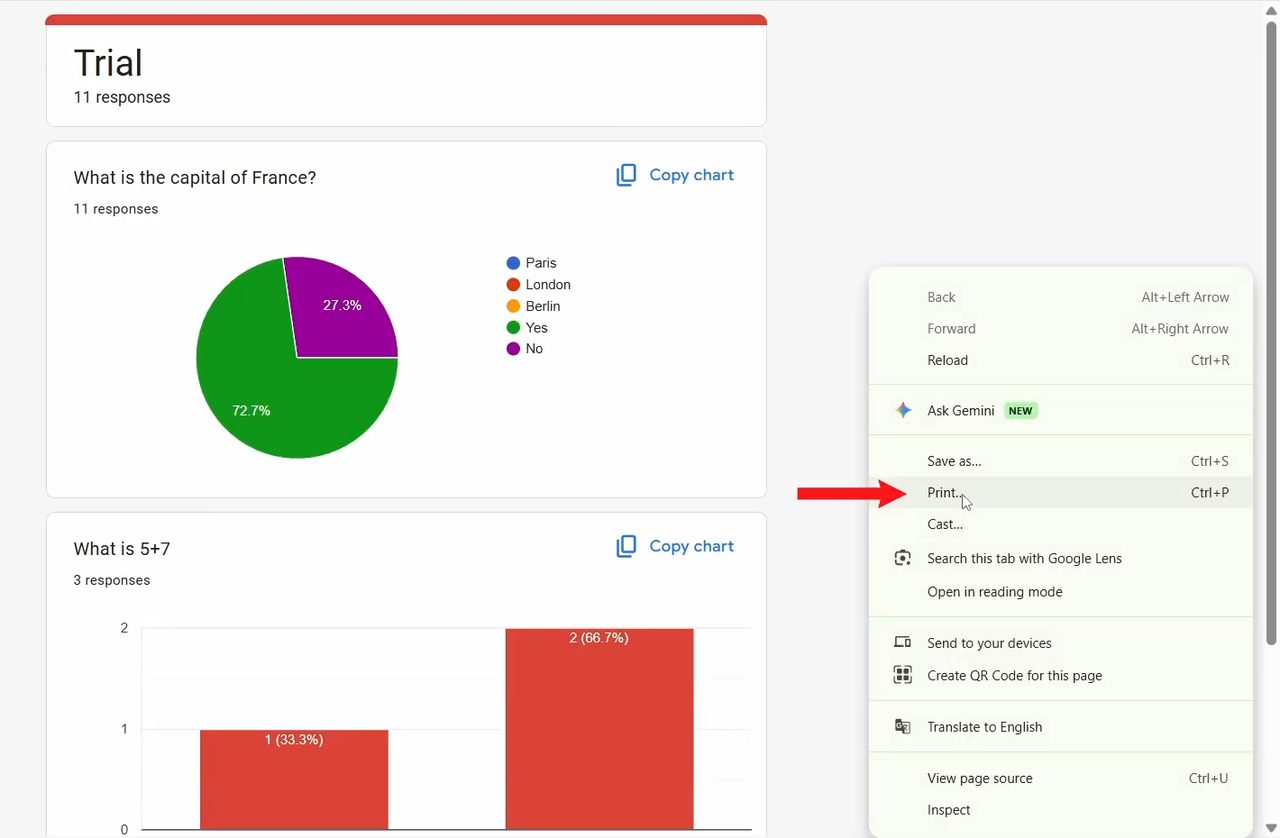
On the new summary page, right-click anywhere and select Print. You can also press Ctrl + P.
5Set the destination to Save as PDF
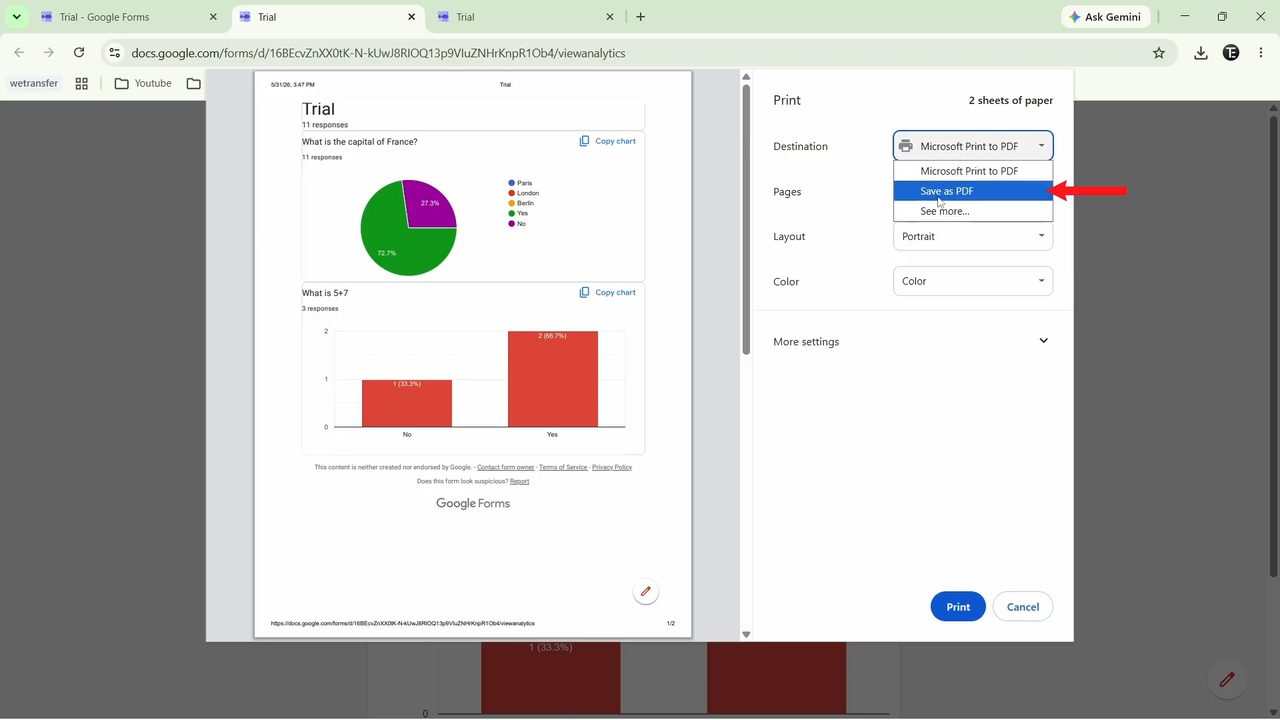
In the print preview, open the Destination dropdown and pick Save as PDF. If you see Microsoft Print to PDF instead, that works too. You can also choose which pages you want, then click Print.
6Name the file and save it
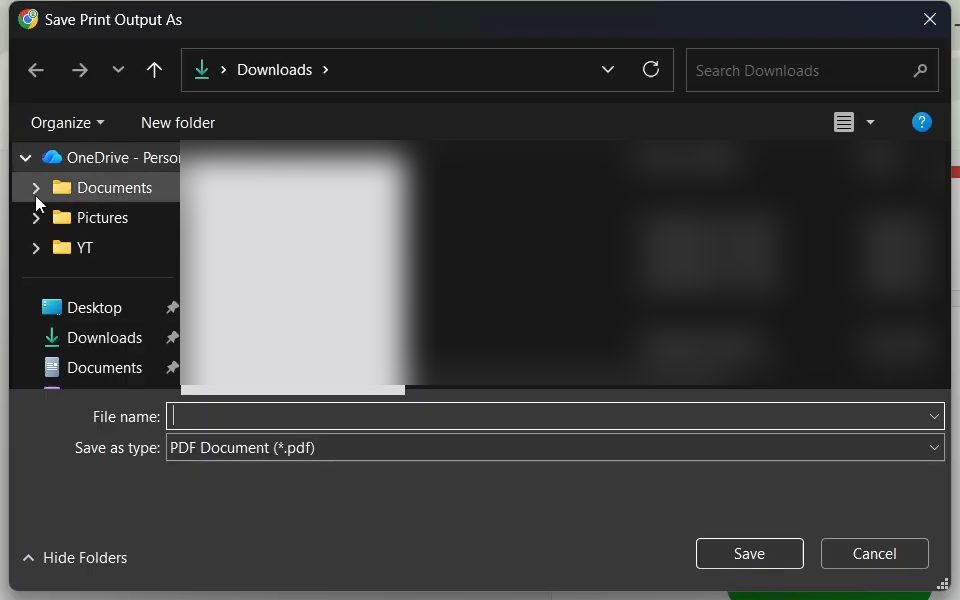
A save window opens. Pick the folder you want, type a name for the file and click Save. Your summary is now a PDF.
Method 2: Save every individual response as PDF
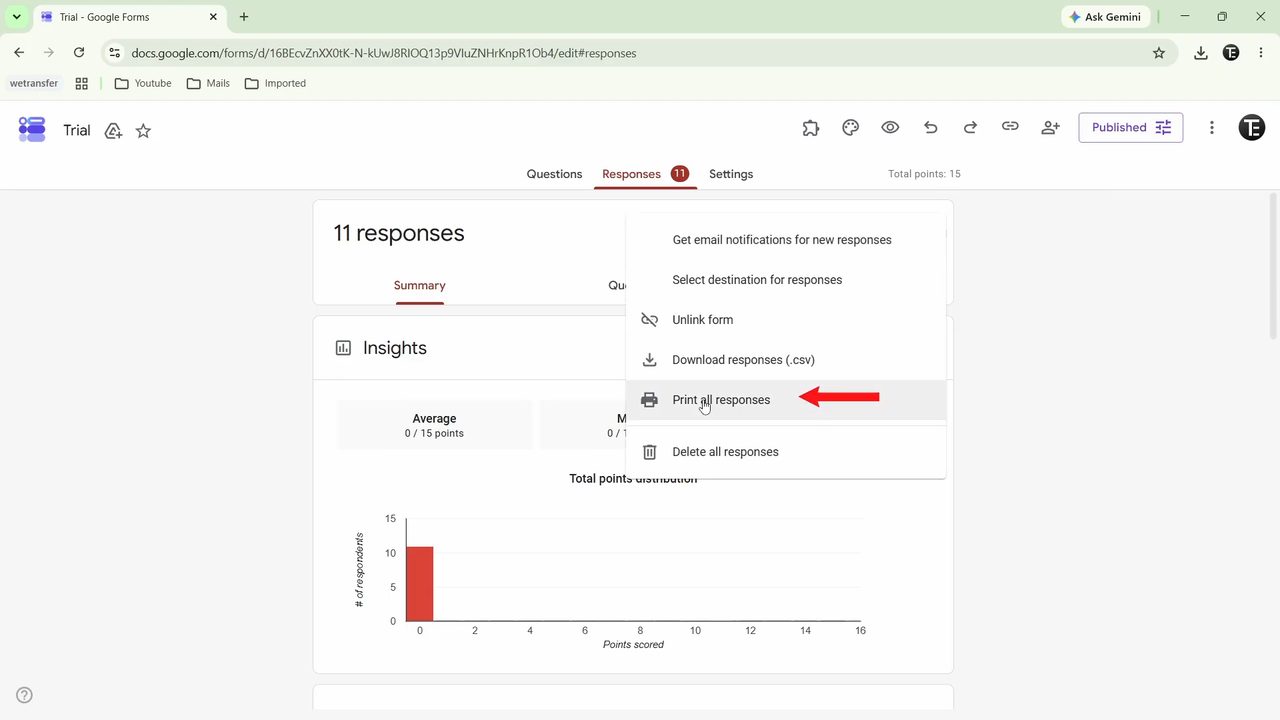
7Click Print all responses
Go back to the Responses tab. Click the three dots next to View in Sheets and select Print all responses.
8Save all responses as one PDF
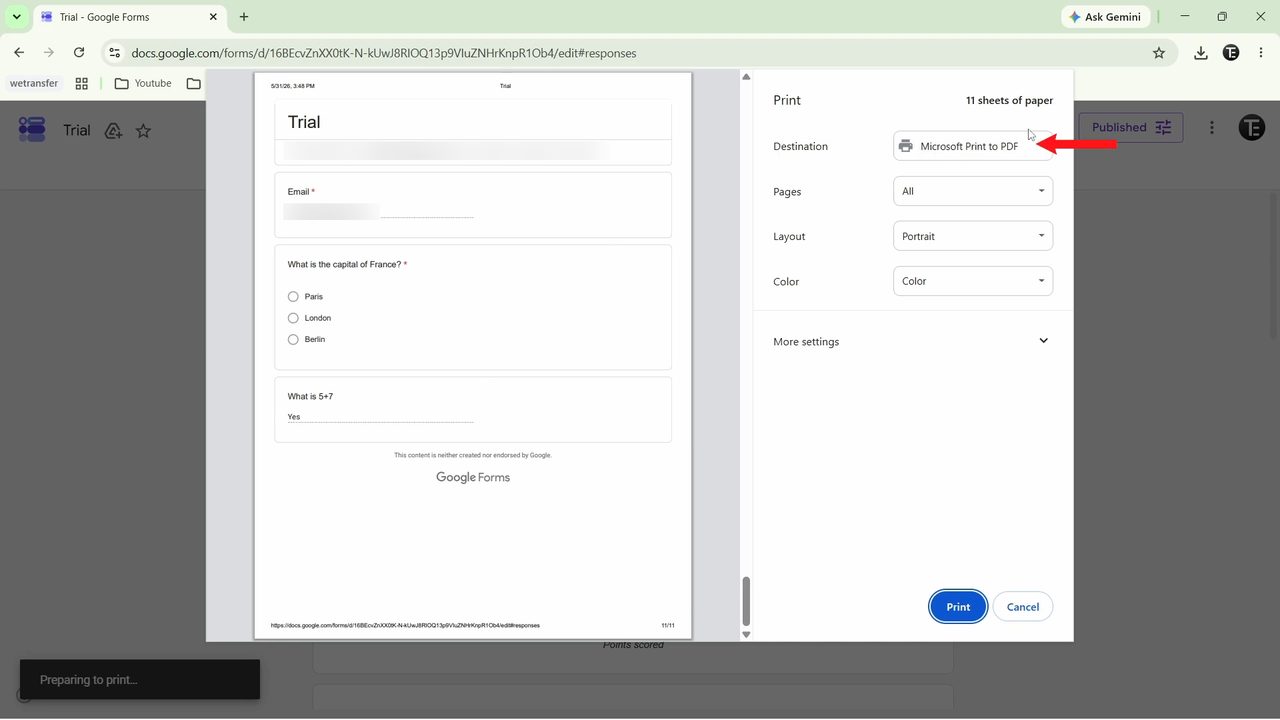
The preview shows each person's answers on their own page, one response after another. Set Destination to Save as PDF or Microsoft Print to PDF, click Print, then name and save the file like before.
Save only some pages
Both PDFs can get long. In Chrome's print preview, open the Pages dropdown and choose Custom, then type the page numbers you want, for example 1-3 or 5. This is handy with Print all responses when you only need one or two people's answers. Scroll the preview first to see which pages belong to which person, since a long response can run over more than one page.
Other ways to get your responses out
A PDF is good for sharing or filing, but it is a snapshot. It won't update when new responses come in, and you can't sort or filter it. Google's help page on viewing and managing form responses lists the other built-in options on the Responses tab: - Individual tab: view answers person by person and move between them with the Previous and Next arrows. - Link to Sheets: sends every response to a Google Sheet that keeps updating as new answers arrive. - Download responses (.csv): from the More (three dots) menu, saves a file you can open in Excel or Sheets. - Copy a chart: each chart on the Summary tab has a Copy button, so you can paste it straight into a Doc or Slides presentation.
Before you share the PDF
The PDF contains everything people typed, including names, email addresses or phone numbers if your form asked for them. Check the pages before you send the file to anyone, and keep it somewhere private. Deleting responses from the form later does not remove them from PDFs you already saved.
Tips / troubleshooting
- No Summary tab? Google says the Summary tab only shows up once the form has at least one response.
- Summary or Individual view missing on a huge form? According to Google, forms with more than 50,000 responses may not show the response summary, and forms with more than 10,000 responses may not show the question or individual views. Download the CSV instead.
- Use the summary method when you want charts and totals. Use Print all responses when you need each person's exact answers, for example to grade or archive them.
- If the print window opens with a real printer selected, the file will not be saved. Always check the Destination first.
- Want the raw data instead of a PDF? You can also link your form to Google Sheets or share the responses with others.
FAQ
How do I download Google Form responses as a PDF?
Open the form, click Responses, then use either Print from the top three dots menu (for the summary) or Print all responses from the three dots next to View in Sheets. In the print window, set the destination to Save as PDF and click Print.
Can I save each Google Form response separately?
Print all responses puts every response in one PDF, with each person's answers on separate pages. To get one person's answers on their own, use Pages > Custom in the print window and enter just their page numbers, as described above.
Why can't I find Save as PDF in the print window?
Open the Destination dropdown. Depending on your computer it may show Save as PDF, Microsoft Print to PDF or both, and either one creates a PDF file. If neither is listed, click See more to view all destinations.
Will the PDF update when new responses come in?
No. The PDF only holds the responses that existed when you printed it. Save a new PDF later, or link the form to Google Sheets if you need results that stay up to date.
Can I print Google Form responses on paper instead?
Yes. Follow the same steps but choose your printer as the destination instead of a PDF option.
Related guides