 Tech is Easy
How to Manage Chrome Site Settings and Permissions
To manage Chrome site settings, click the three dots at the top right, go to Settings > Privacy and security > Site settings, and open a permission such as Camera, Location or Microphone to see which sites have access and remove the ones you don't trust. The same page controls third-party cookies and pop-ups. This guide walks through the settings that matter most for privacy and shows how to review site permissions in Chrome, so it is useful for anyone who has clicked "Allow" on a few too many websites.
What you need
- Google Chrome on a computer
- A few minutes to go through the lists. It is worth repeating this every few months.
Google's help page Change site settings permissions lists every permission on this page and what each one controls.
1Open Chrome settings
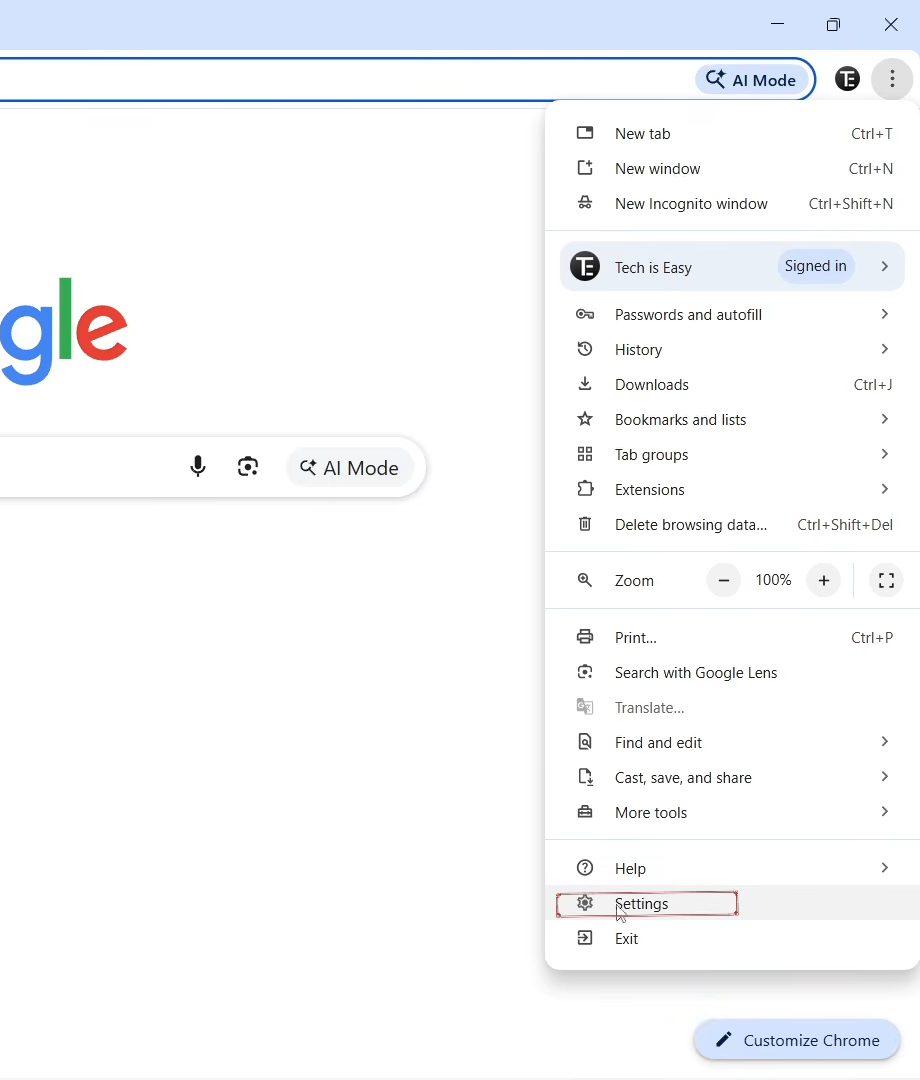
Click the three dots at the top right of Chrome and select Settings.
2Go to Privacy and security > Site settings
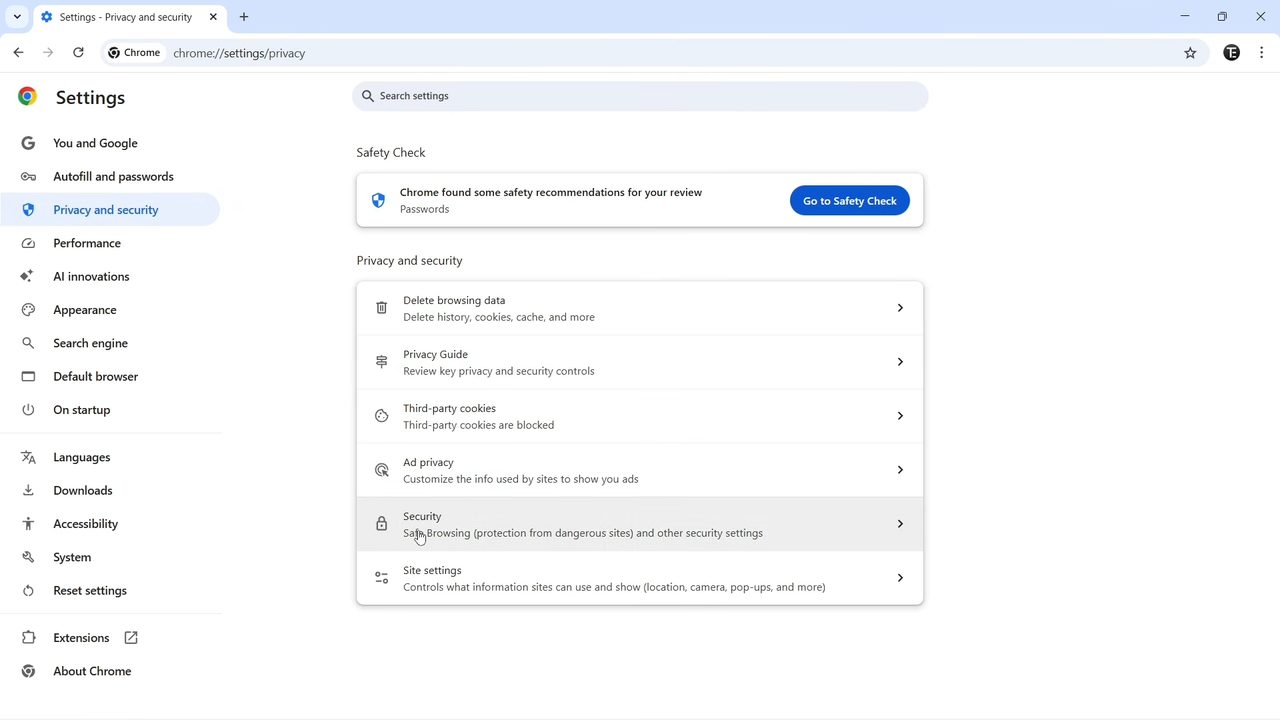
In the left menu, click Privacy and security. Then click Site settings, which "controls what information sites can use and show (location, camera, pop-ups, and more)".
3Look at the Permissions list
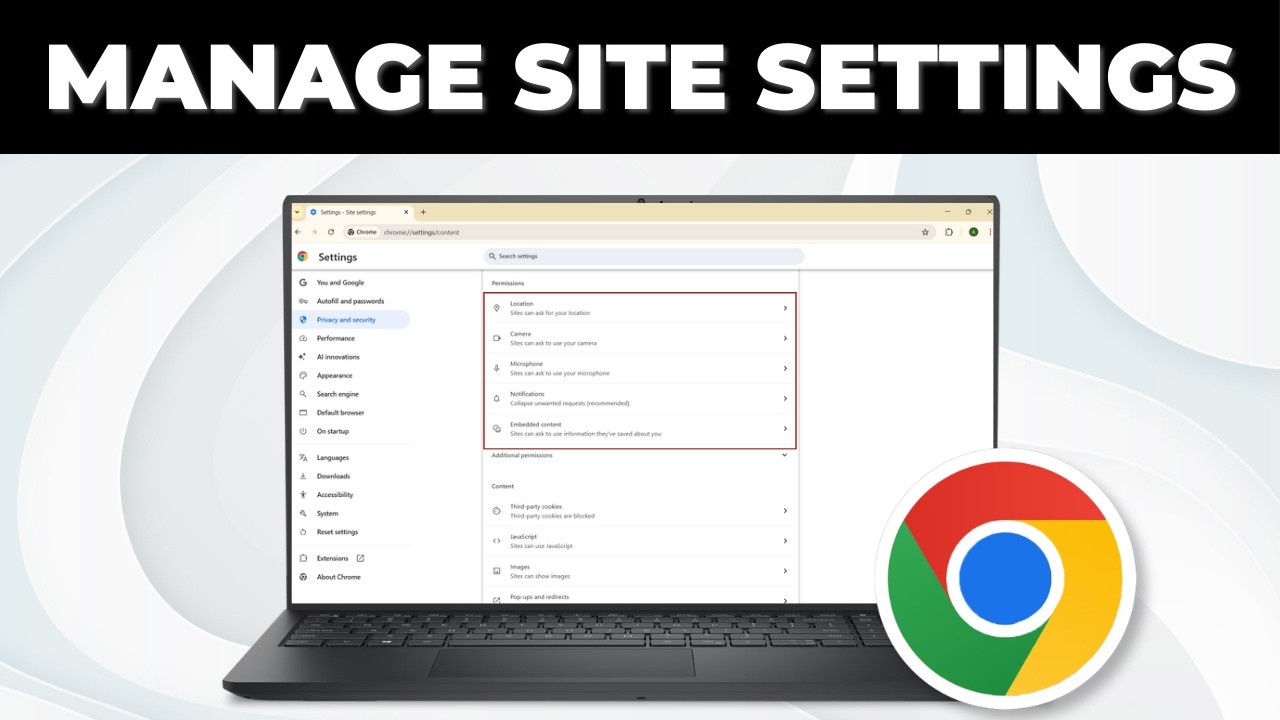
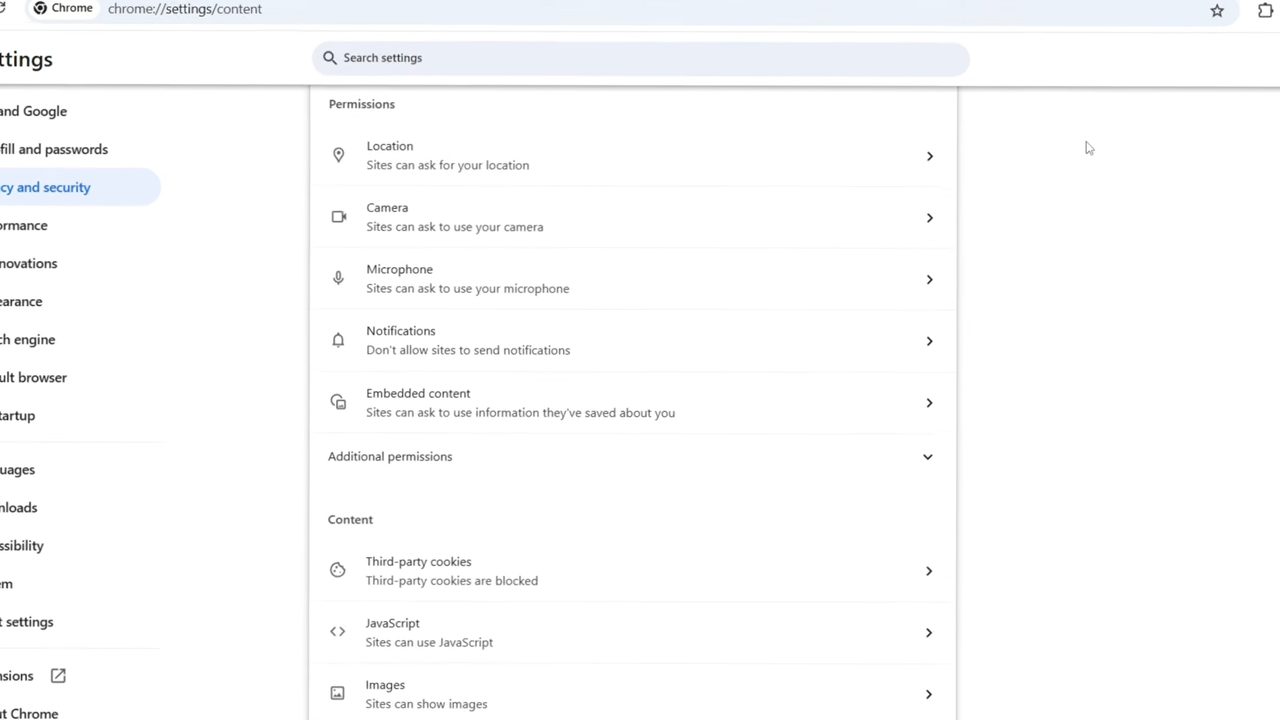
The Site settings page starts with Recent activity, a summary of the latest permission changes for each site. Scroll down to Permissions to see Location, Camera, Microphone, Notifications and Embedded content, each with its current default. In our opinion the first three, location, camera and microphone, matter most for privacy, so start with those.
4Remove a site's camera access
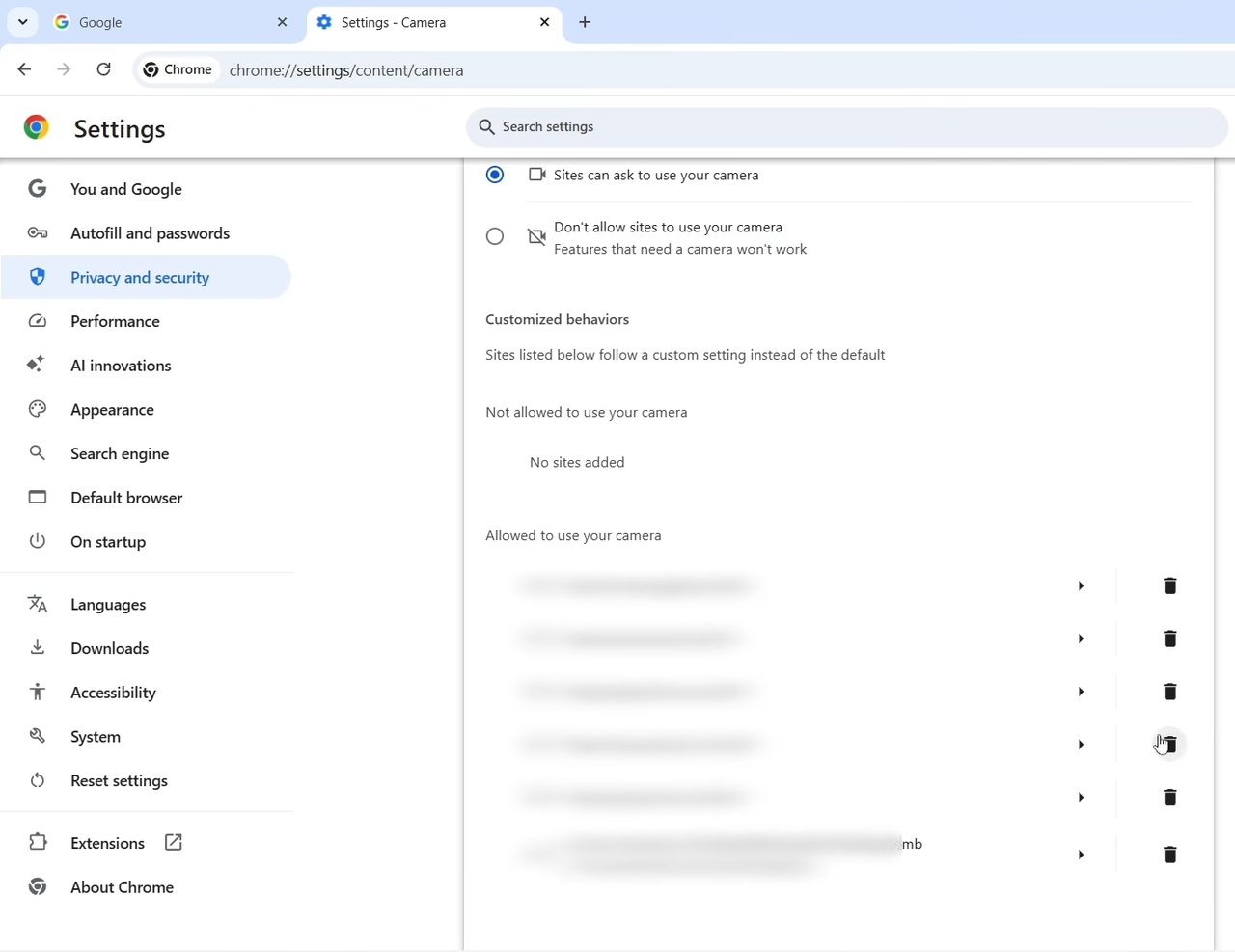
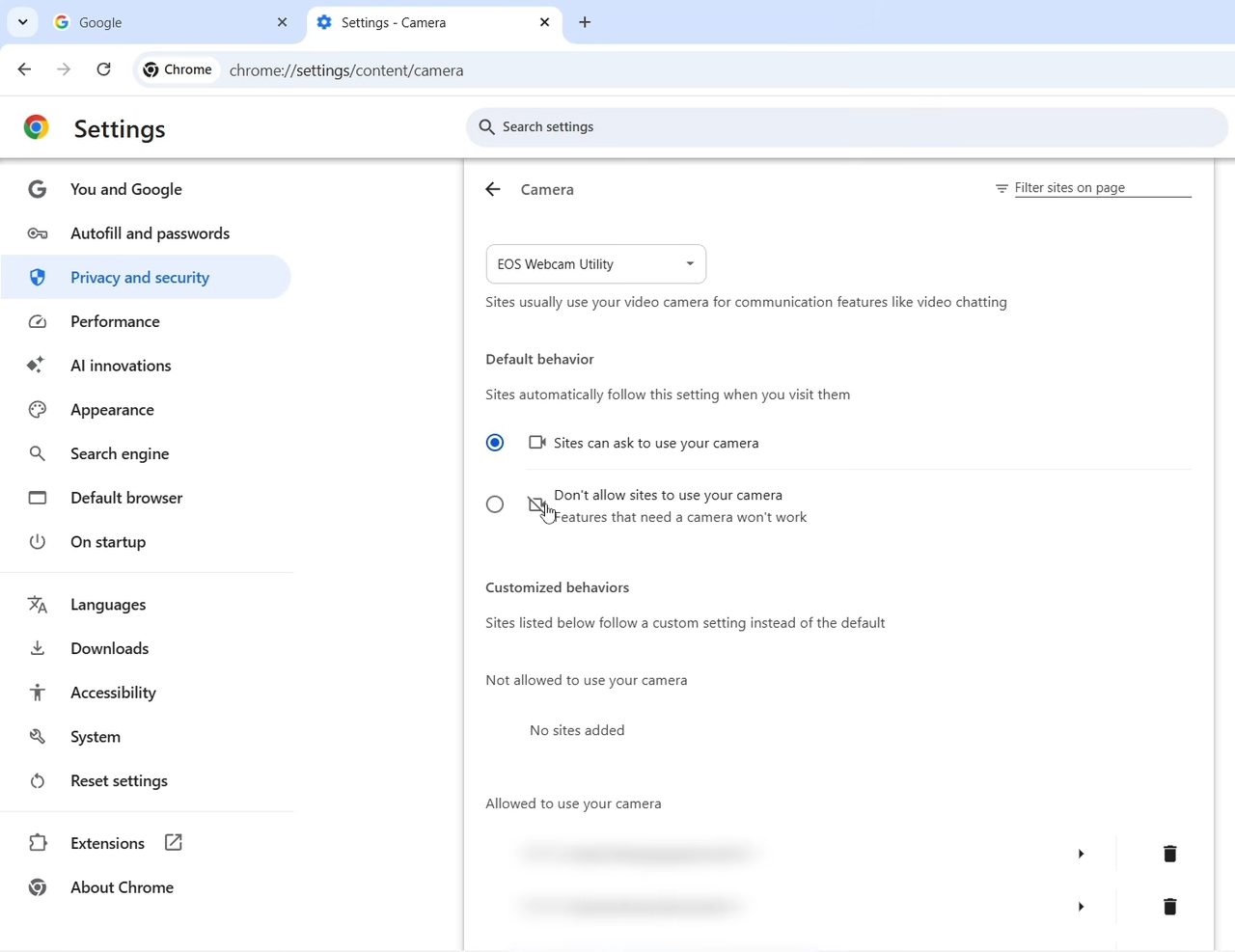
Click Camera and scroll down to Allowed to use your camera. Every site listed there can turn on your camera when you are on it. If you don't recognise a site or no longer use it, click the bin icon next to it and it is removed straight away. The next time that site wants the camera, it has to ask again.
5Choose the camera's default behavior
At the top of the Camera page, under Default behavior, pick what sites do automatically: - Sites can ask to use your camera: each site shows a prompt and you decide. - Don't allow sites to use your camera: no site can ask. Features that need a camera, like video calls in the browser, won't work.
If you have more than one camera, the drop-down at the top chooses which one sites use.
6Do the same for Location and Microphone
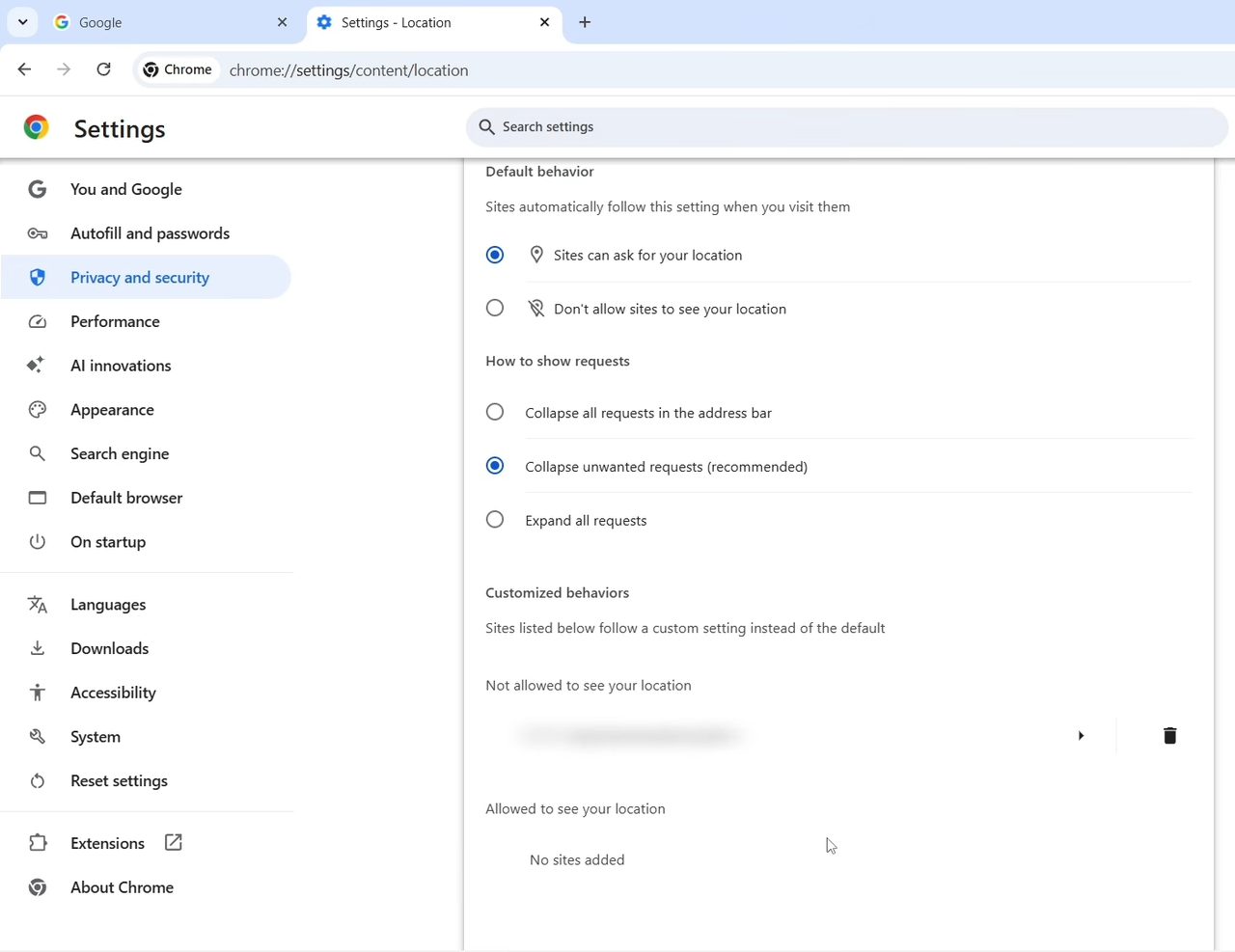
Go back and open Location. The page has the same layout: Default behavior on top (Sites can ask for your location or Don't allow sites to see your location), then the lists of sites that are allowed or not allowed. Location also has How to show requests, where Collapse unwanted requests (recommended) keeps prompts quieter.
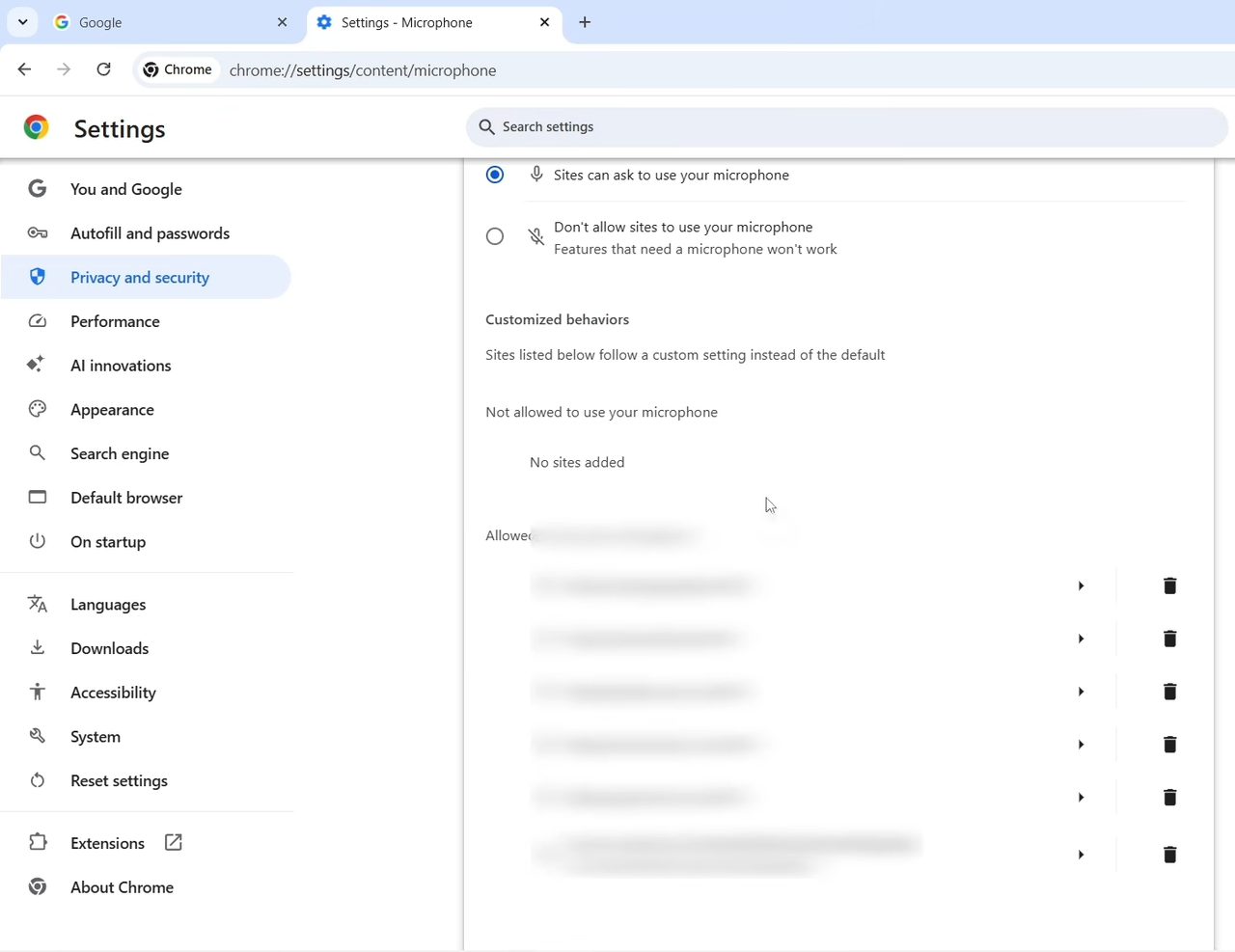
Then open Microphone. Again, check Allowed to use your microphone and delete anything you don't need. We leave both camera and microphone on "sites can ask" so that video calls still work.
7Look at Additional permissions (optional)
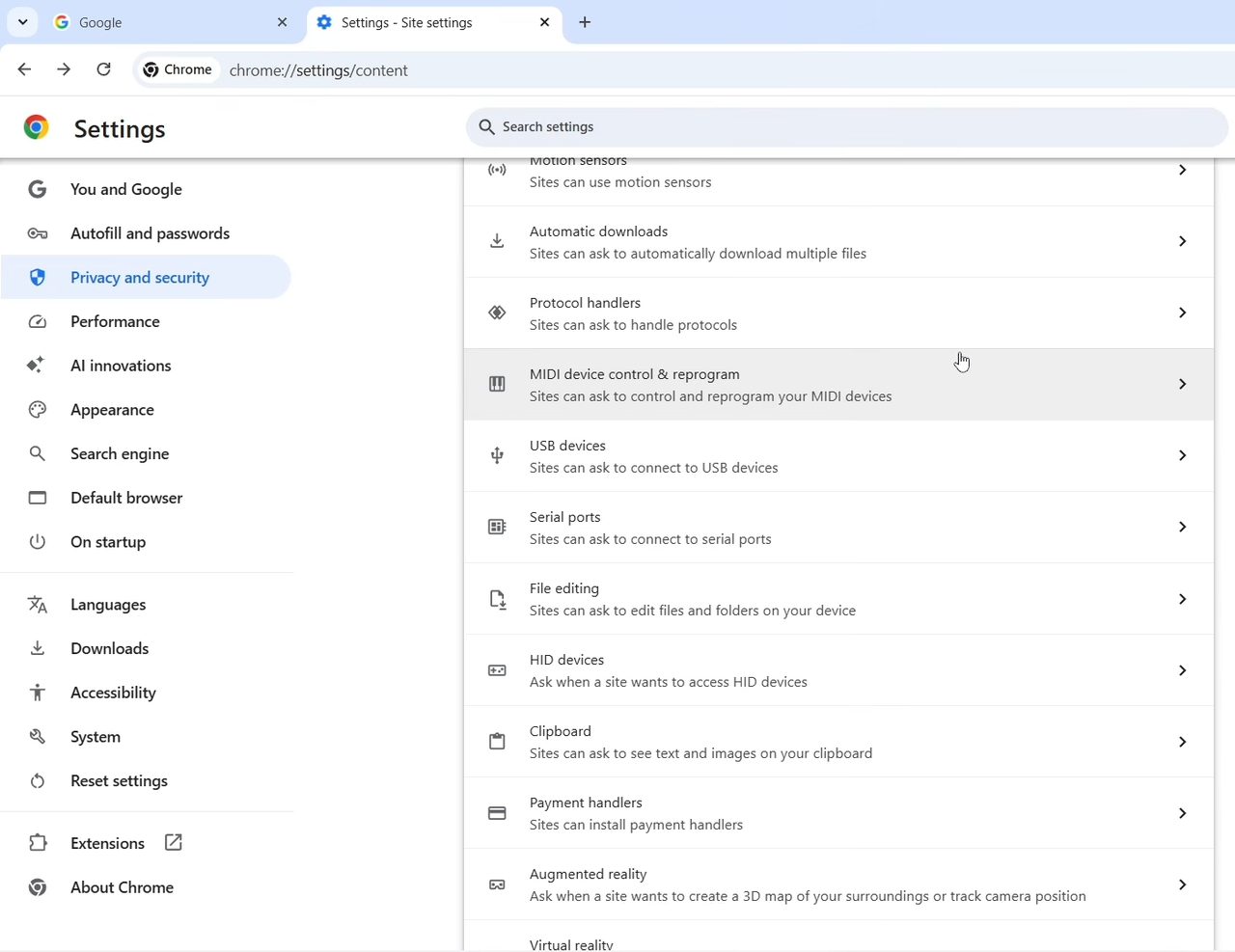
Click Additional permissions below the main list to see the rest: motion sensors, automatic downloads, protocol handlers, MIDI devices, USB and serial devices, file editing, HID devices, clipboard, payment handlers, augmented reality and more. You don't need to change these for basic privacy, but they work the same way if you want to check them.
8Review third-party cookies
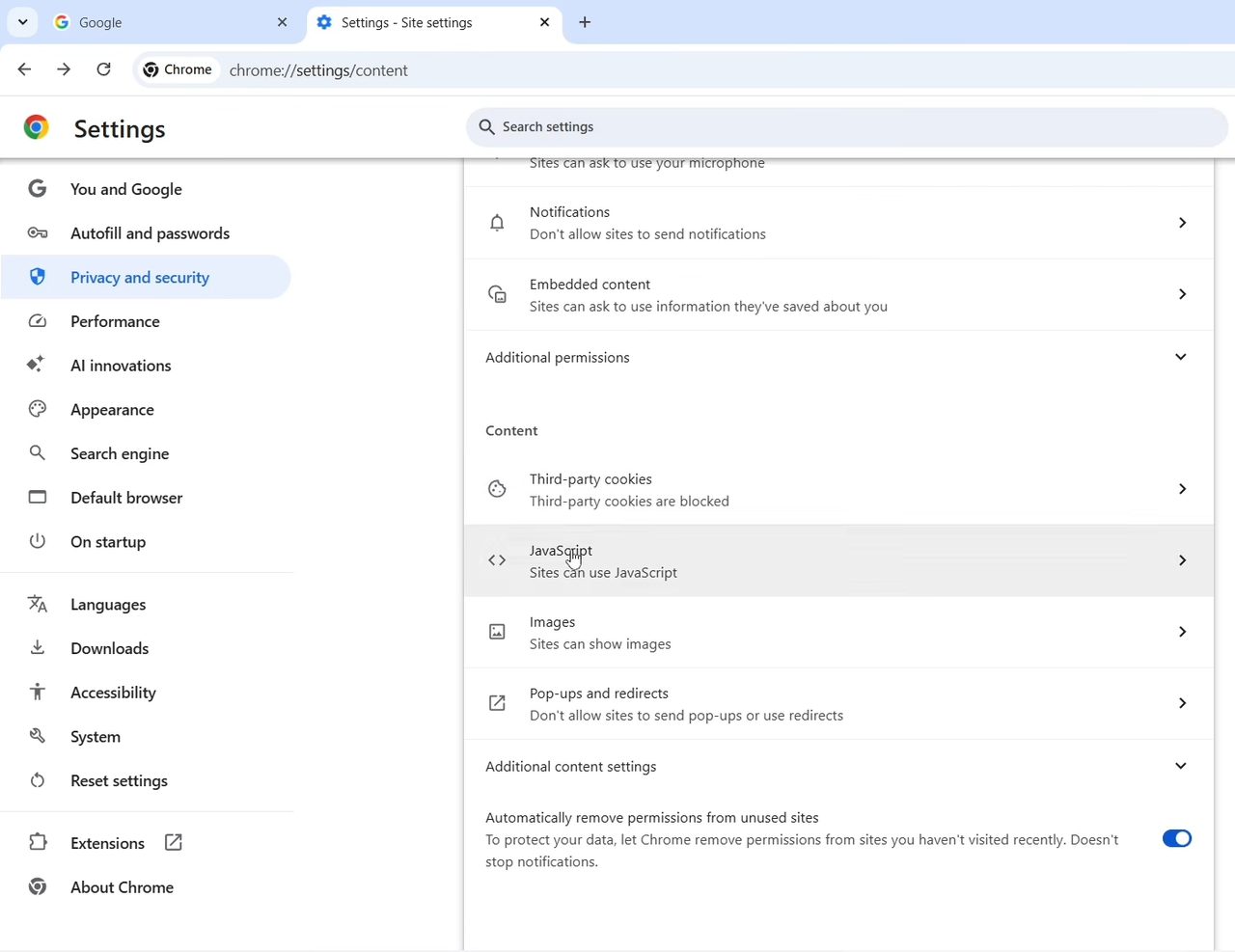
Scroll down to the Content section. Two settings here are worth checking: Third-party cookies and Pop-ups and redirects.
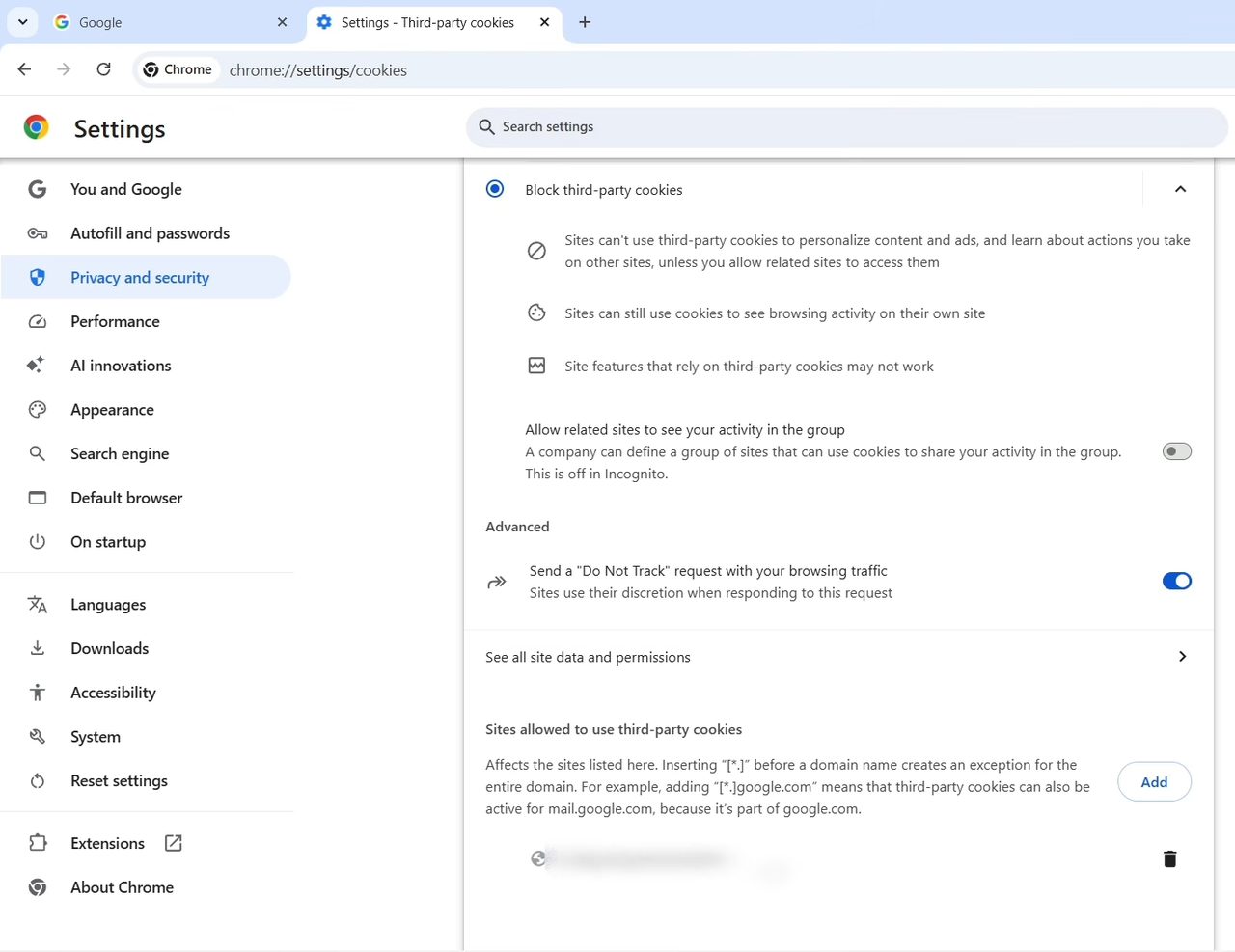
Click Third-party cookies. At the top, choose Allow third-party cookies or Block third-party cookies. Third-party cookies are set by other sites embedded in the page you visit, such as ad networks, and are used to follow your activity across sites. Then scroll to Sites allowed to use third-party cookies: these are exceptions to your block. Delete any you don't want with the bin icon.
9Check which sites can show pop-ups
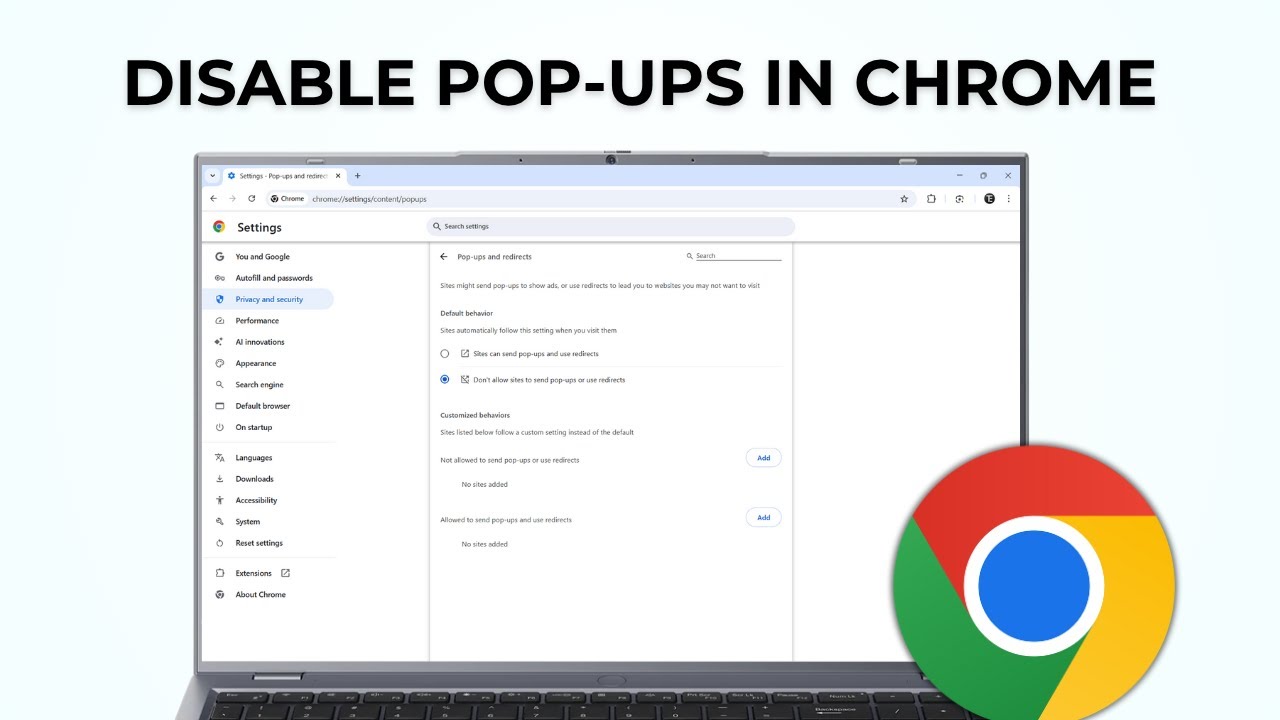
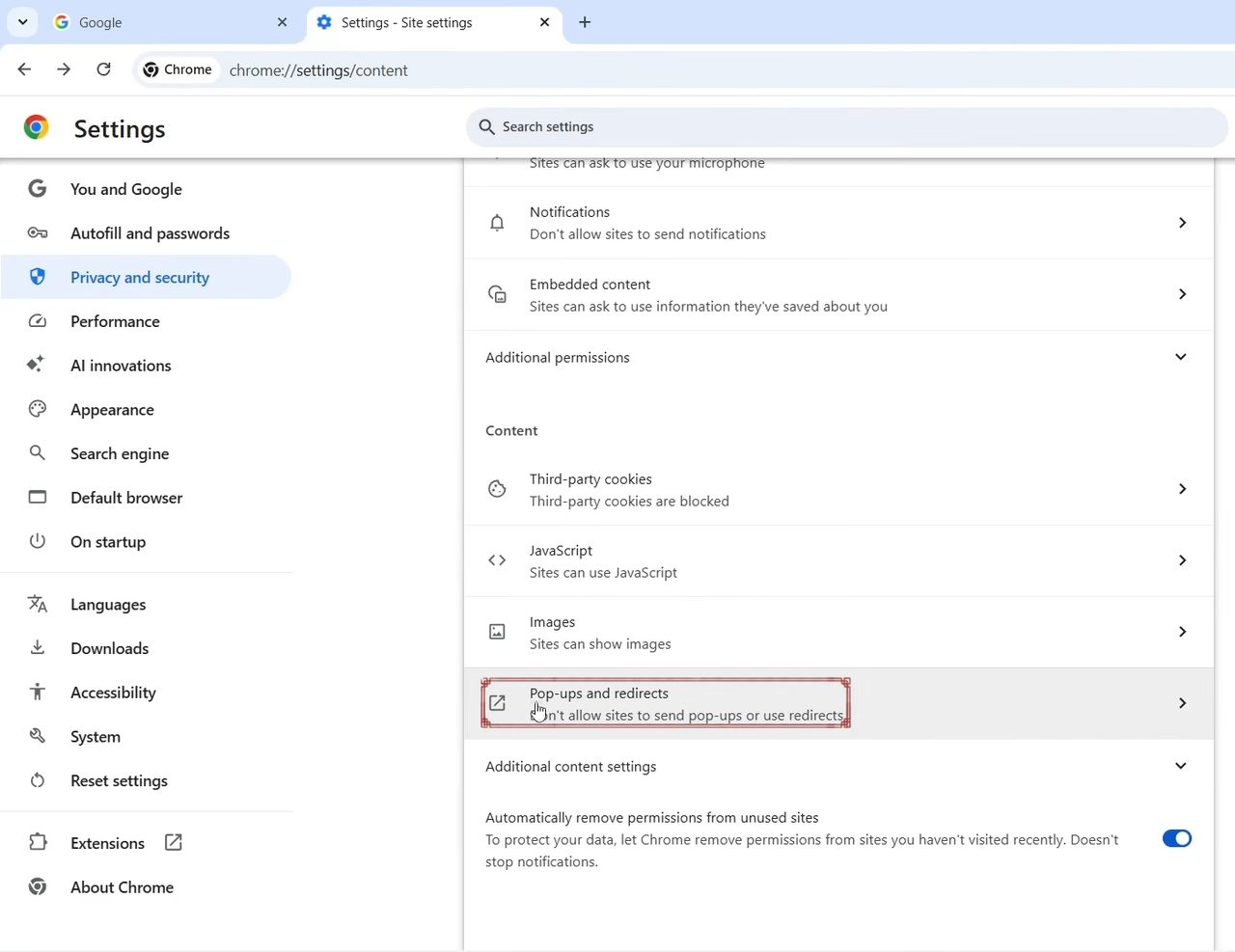
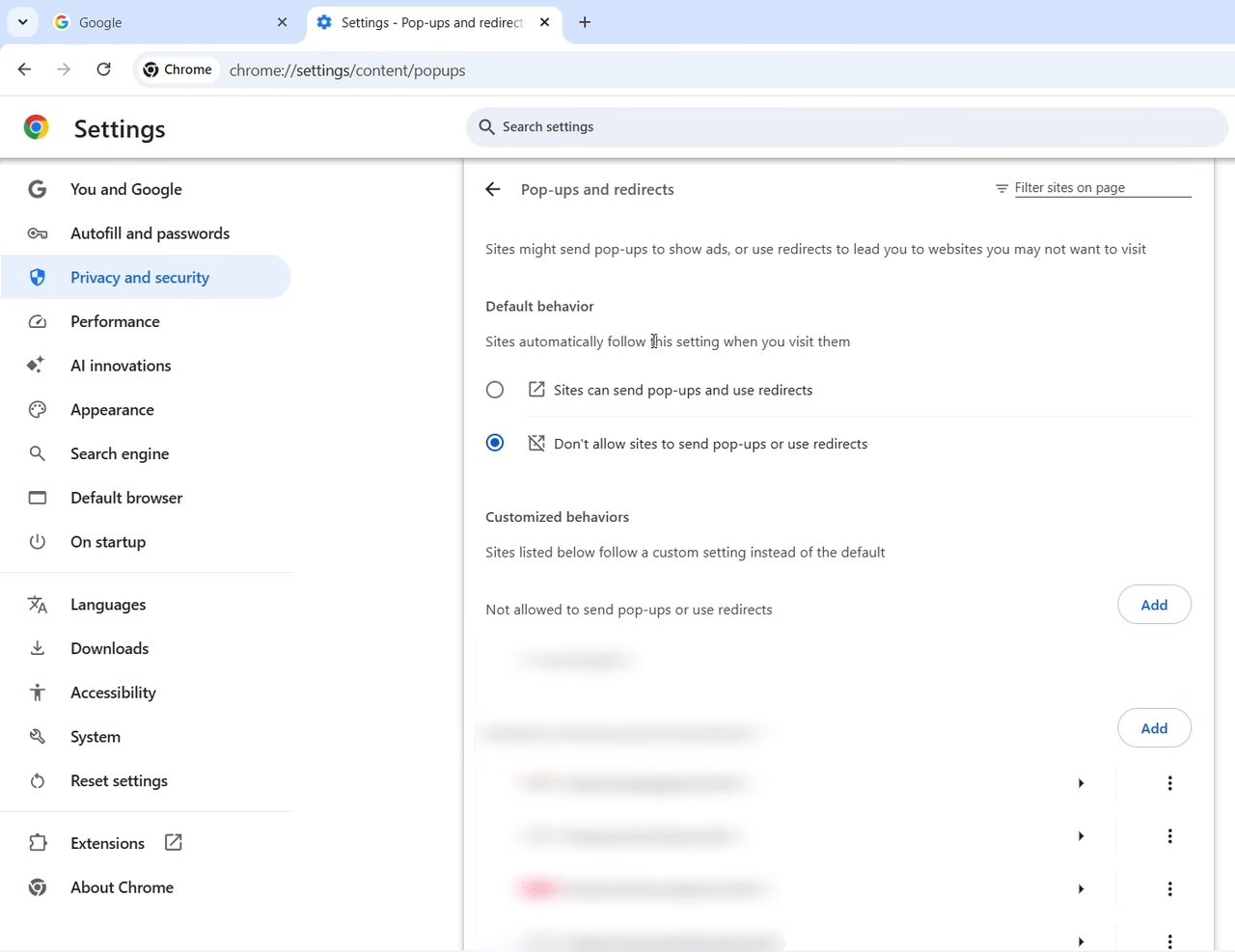
Go back and click Pop-ups and redirects. This one is important because scam sites often open lots of pop-ups or send you to other sites without asking.
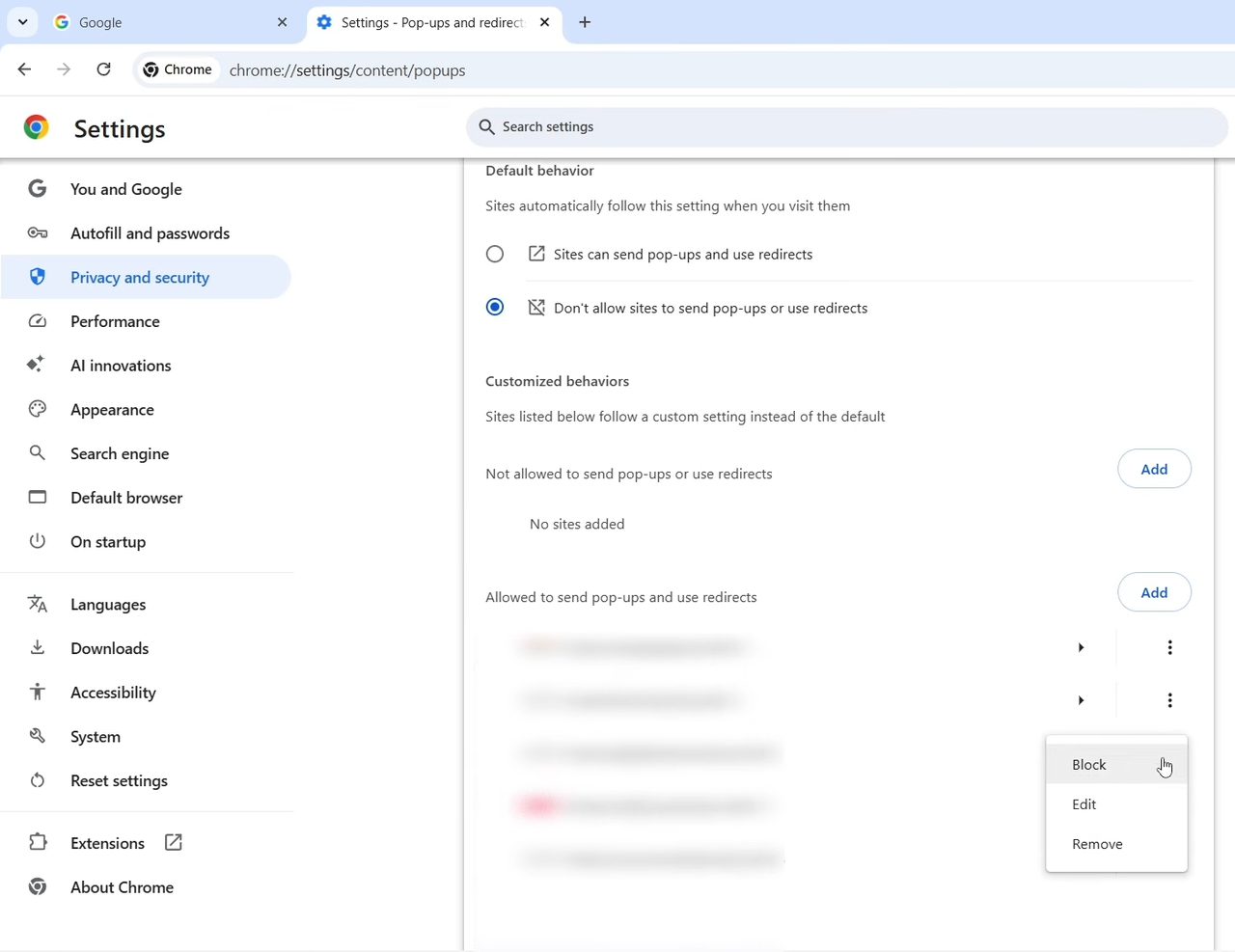
Scroll to Allowed to send pop-ups and use redirects and make sure every site there is one you use and trust. To take one off, click the three dots next to it and choose Remove. You can also pick Block to move it to the not-allowed list, or Edit to change the address.
10Set the pop-up default behavior
At the top of the same page, choose Sites can send pop-ups and use redirects or Don't allow sites to send pop-ups or use redirects. Blocking is the safer default; you can still allow a single site with the Add button next to Allowed to send pop-ups and use redirects.
Tips / troubleshooting
- A site stopped working after you blocked something: a video call site needs the camera and microphone, and some bank or school sites need pop-ups. Add that one site to the allowed list instead of changing the default.
- Faster way for one site: Google's help page notes you can click the icon to the left of the web address, then Site settings, to change permissions for just that site. Your changes save automatically.
- Permissions disappeared on their own: Chrome removes permissions from sites you haven't used recently, to protect your data. You'll see the switch for this at the bottom of Site settings (Automatically remove permissions from unused sites).
- Can't change pop-up settings: on a work or school computer, Google says your administrator may control them.
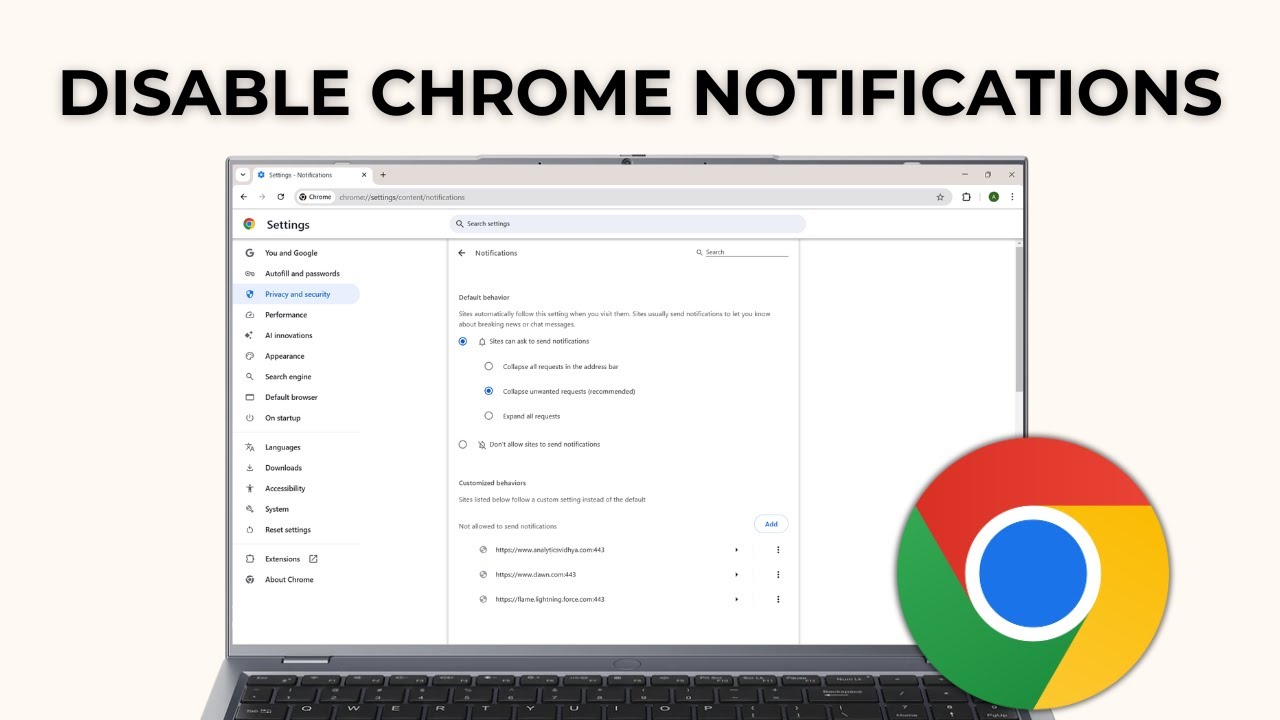
- Still seeing pop-ups or strange ads: check Notifications in the Permissions list as well. Sites that you allowed to send notifications can show alerts even when the site isn't open.
Related guides: How to Disable Pop-ups in Chrome and Google Account Privacy and Security Settings.
FAQ
How do I see which sites have access to my camera in Chrome?
Go to three dots > Settings > Privacy and security > Site settings > Camera and scroll to Allowed to use your camera. Every site with access is listed there.
How do I stop pop-ups in Chrome?
Open Site settings > Pop-ups and redirects and select Don't allow sites to send pop-ups or use redirects. Then remove any sites you don't trust from the allowed list.
Can I undo removing a site's permission?
Yes. Removing a site only resets it. The next time you visit, the site asks for permission again and you can allow it.
Will blocking third-party cookies log me out of websites?
No. Chrome's own description says sites can still use cookies to see your activity on their own site, so normal logins keep working. Only site features that rely on third-party cookies may stop working.
Related guides