 Tech is Easy
How to Create Multiple Profiles in Google Chrome
To create multiple profiles in Google Chrome, click your profile icon at the top right, choose Add new profile, then sign in with a Google account or pick Continue without an account, give the profile a name and colour, and click Done. Each Chrome profile is like a separate browser, with its own bookmarks, history, saved passwords and signed-in accounts, which makes it ideal for keeping work and personal browsing apart or sharing a computer with family.
Below you'll also see how to switch between Chrome profiles, rename them, add a desktop shortcut for one profile, and control which profile opens when Chrome starts.
Method 1: Add a new Chrome profile
1Open the profile menu
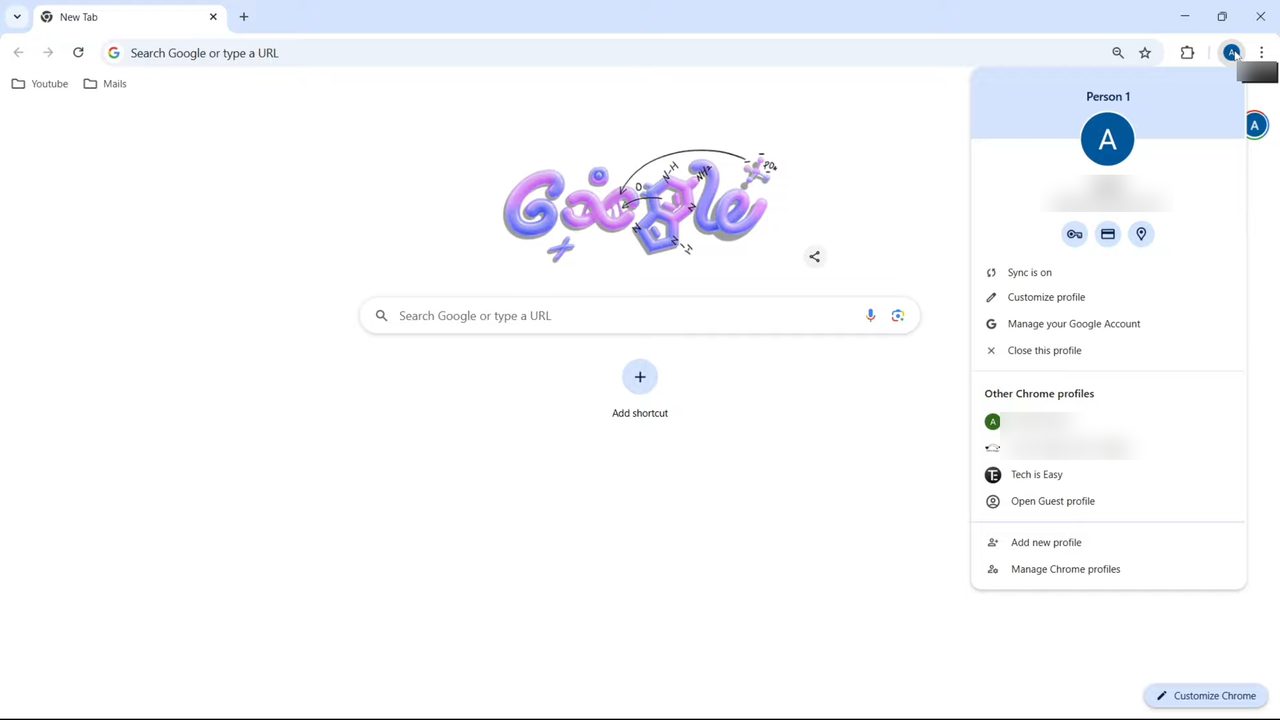
Open Chrome and click your profile icon (your photo or initial) at the top right, next to the three dots. The menu shows your current profile and, under Other Chrome profiles, any others already on this computer. At the bottom are Add new profile and Manage Chrome profiles. Click Add new profile.
2Sign in or continue without an account
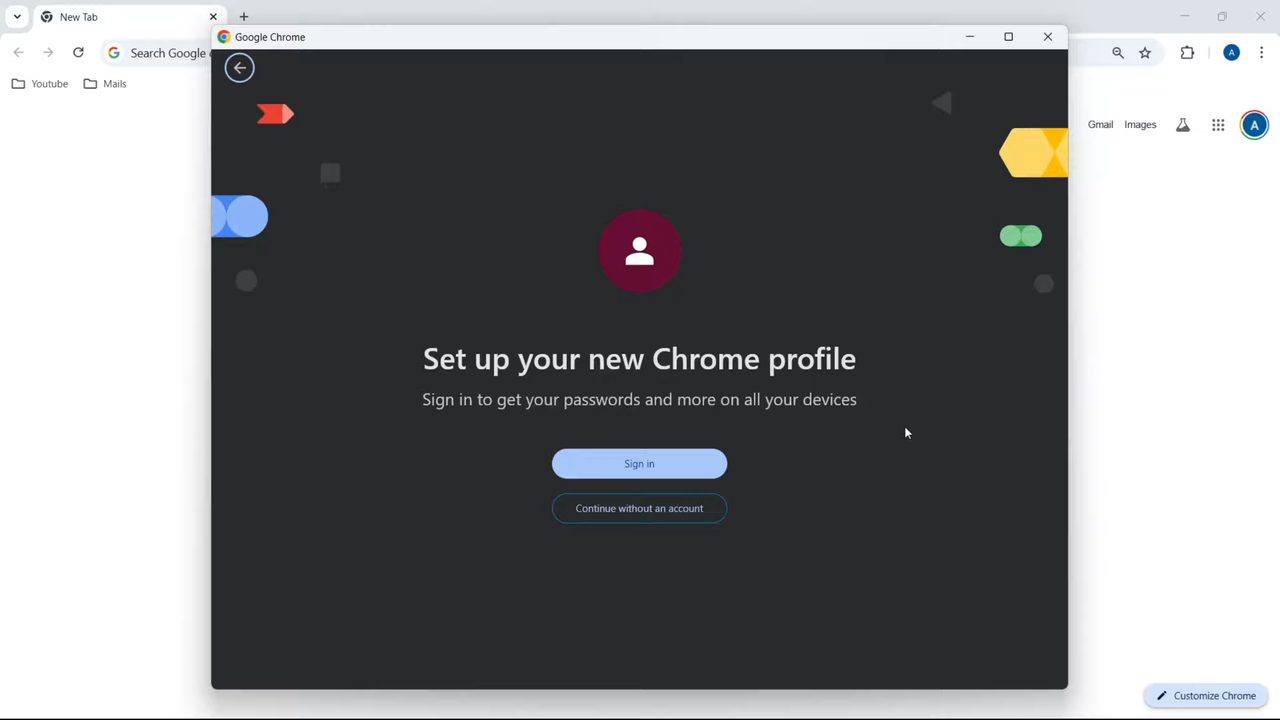
A Set up your new Chrome profile window opens. Click Sign in to use a Google account, or Continue without an account for a local-only profile. We signed in with a Google account by entering the email and password.
3Choose whether to turn on sync
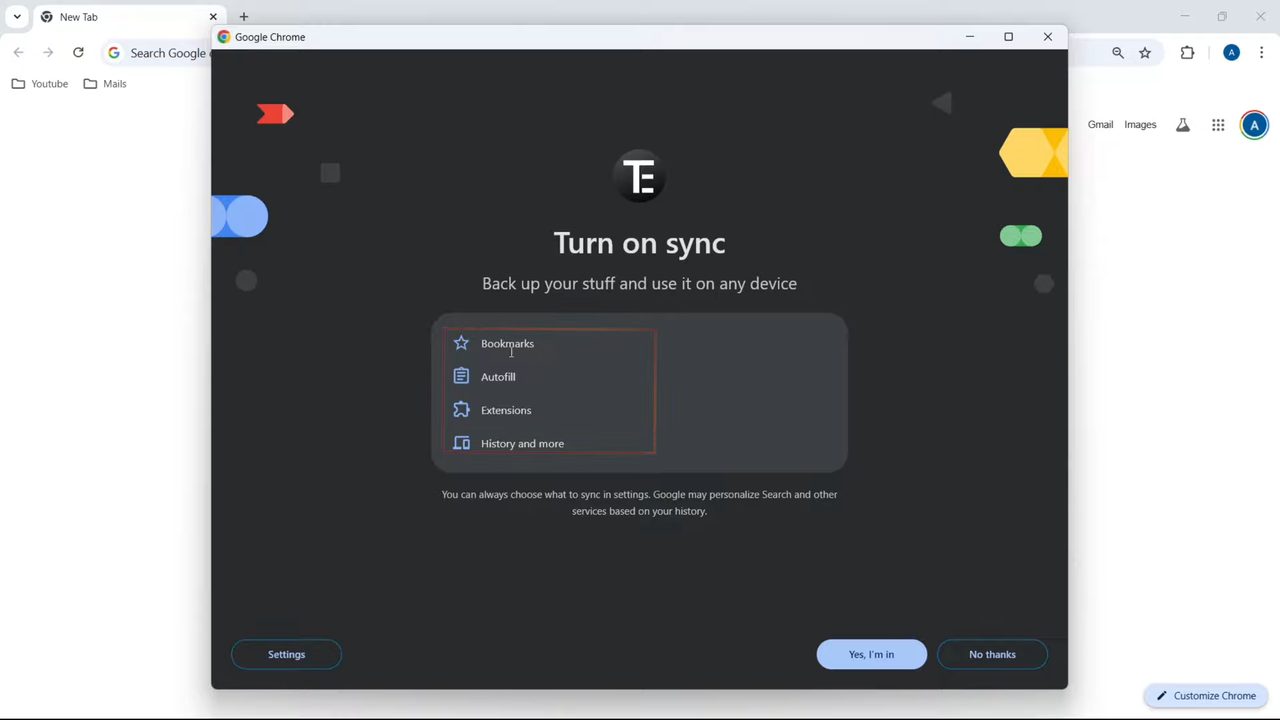
Chrome asks if you want to Turn on sync, which backs up bookmarks, autofill, extensions and history to that Google account so they appear on your other devices. Click Yes, I'm in to turn it on, or No thanks to keep everything on this computer only. You can change this later in settings.
4Name the profile and pick a colour
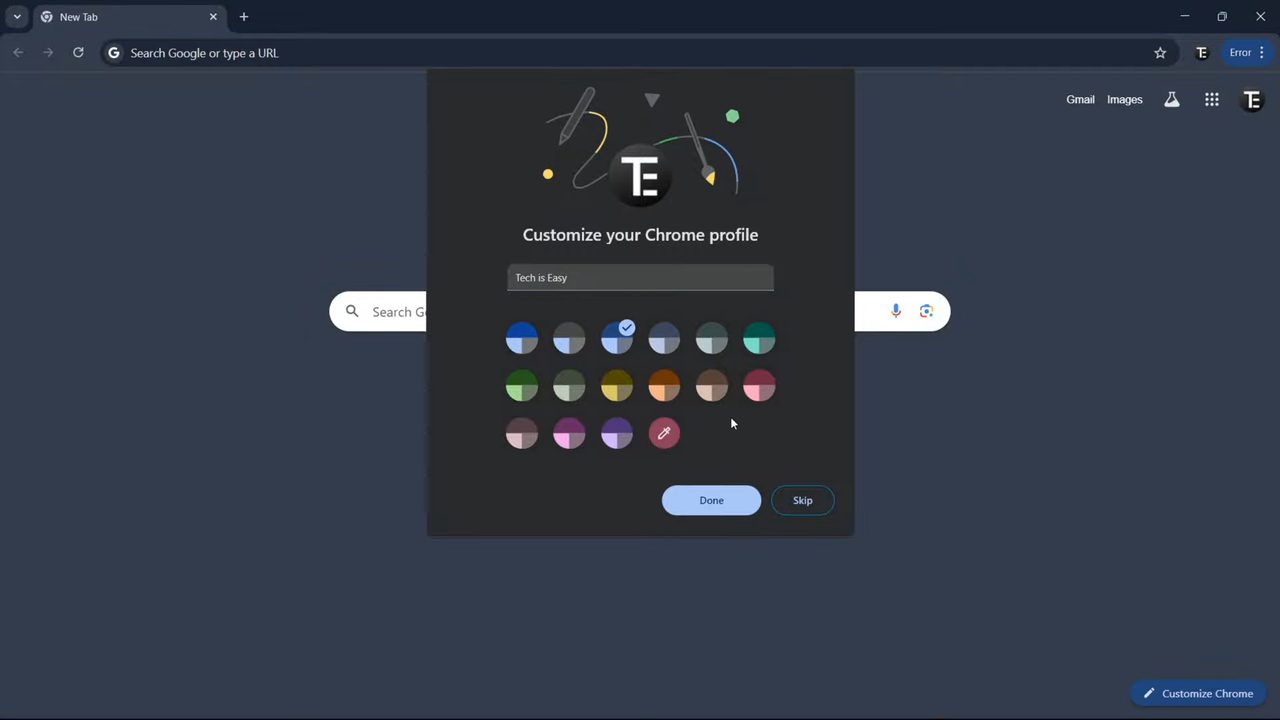
On Customize your Chrome profile, type a name for the profile (it fills in your account name by default) and choose a colour theme from the circles. A different colour for each profile makes it easy to tell at a glance which one you're in. Click Done. The new profile opens in its own window.
Each profile is completely separate. Bookmarks, browsing history, the accounts you're signed in to, extensions and even the look of Chrome stay inside that profile.
Method 2: Switch and manage Chrome profiles
5Switch between profiles
Click the profile icon at the top right again and click any profile under Other Chrome profiles. It opens in a new window, so you can keep two profiles side by side, for example work email in one and personal in the other.
6Edit or delete a profile
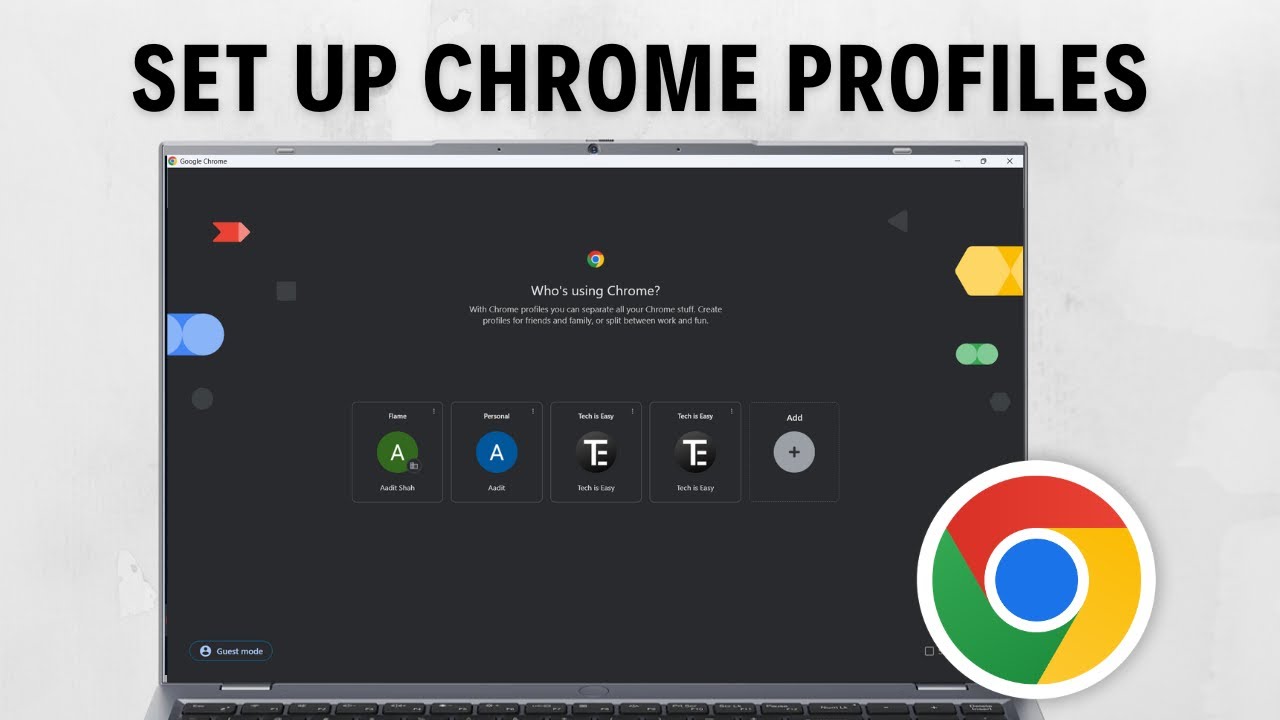
Click the profile icon and choose Manage Chrome profiles. The Who's using Chrome? window lists every profile. Click the three dots on a profile card and choose Edit to change it, or Delete to remove it.
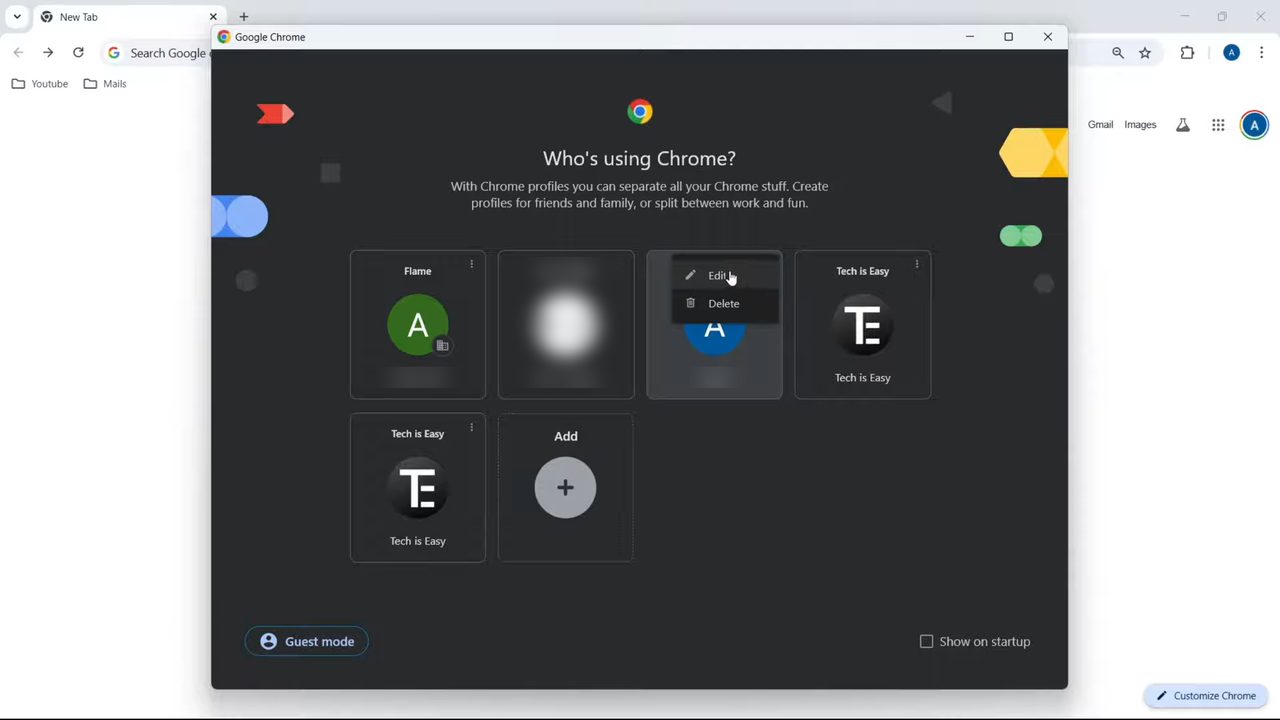
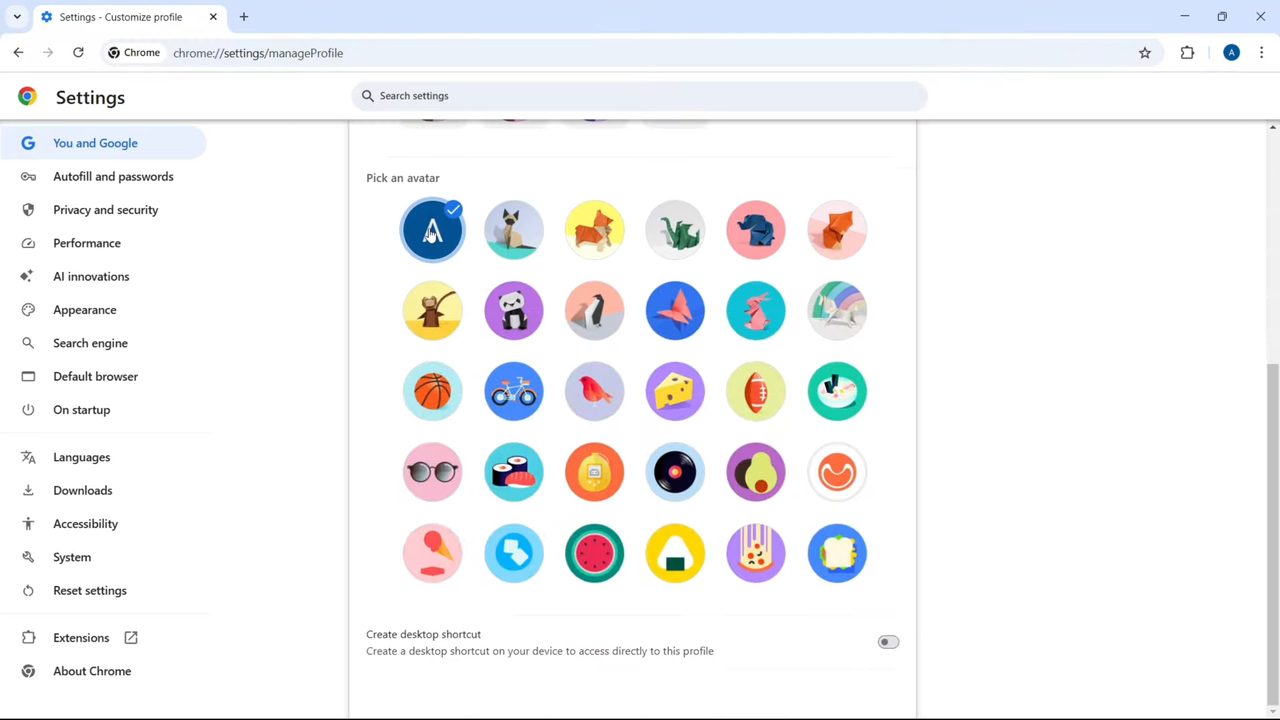
7Change the name, colour or avatar and add a desktop shortcut
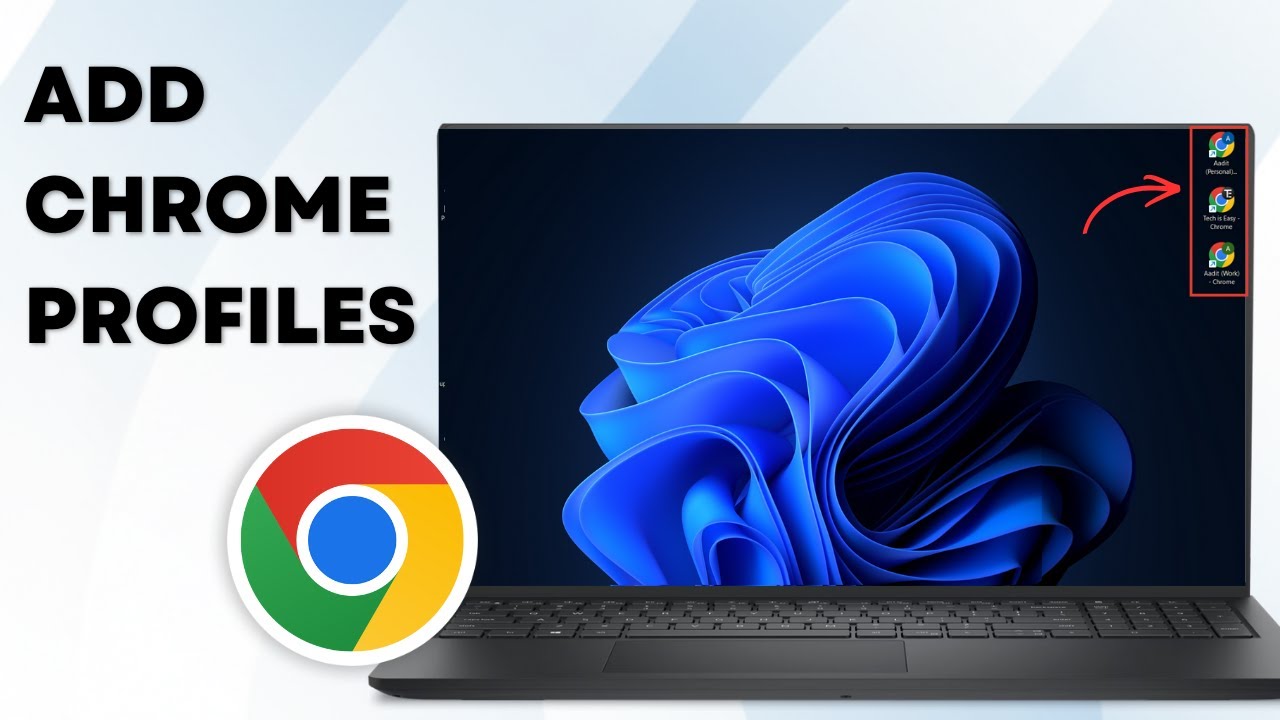
Edit opens the Customize profile page in Chrome settings. Change the name, pick a theme colour, and choose an avatar from the grid. At the bottom, turn on Create desktop shortcut. A Chrome icon for that profile appears on your desktop, and double-clicking it opens Chrome straight into that profile.
8Choose what happens when Chrome starts
In Manage Chrome profiles, tick Show on startup at the bottom right of the window. Every time you open Chrome, it asks which profile to use. Leave it unticked and Chrome opens the profile you used last.
Things to know
Google's help page Manage Chrome with multiple profiles adds a few points worth knowing: - Profiles aren't a lock. Anyone using your computer can switch to any profile and see its history. Only share your computer with people you trust. - Deleting a profile erases its data from the computer. Bookmarks, history, passwords and settings stored in that profile are removed. If the profile was signed in with sync on, synced data stays in the Google account. - Changes save automatically. When you edit a profile's name, photo or colour, there's no save button to press. - Your own profile can be edited faster. Click the profile icon and choose Customize profile to change the current one without opening the manager. - Guest mode is different. Open Guest profile (or Guest mode) gives a temporary window with no saved history, handy when someone borrows your laptop once.
Troubleshooting
- No Add new profile option. On work or school computers, an administrator can turn off adding profiles. Ask your IT team.
- Desktop shortcut not showing. Check that Create desktop shortcut is switched on for that profile. The option is shown on Windows, as in the video.
- Wrong profile opens every time. Tick Show on startup in Manage Chrome profiles so Chrome lets you pick.
Related guides: How to View Saved Passwords in Chrome and How to Make Chrome the Default Browser on Windows.
FAQ
How do I create multiple profiles in Google Chrome?
Click the profile icon at the top right, choose Add new profile, sign in or continue without an account, then name the profile, pick a colour and click Done. Repeat for each profile you need.
Can I use two Chrome profiles at the same time?
Yes. Each profile opens in its own window, so you can have work and personal profiles open side by side and switch with the taskbar or the profile icon.
Do I need a Google account for a Chrome profile?
No. Choose Continue without an account and the profile works locally. Signing in lets you sync bookmarks, passwords and history across devices.
What happens if I delete a Chrome profile?
Its bookmarks, history, passwords and settings are erased from that computer. Anything already synced to a Google account stays in the account and comes back if you sign in again.
Related guides