Tech is Easy
How to Share Google Form Responses With Others (5 Ways)
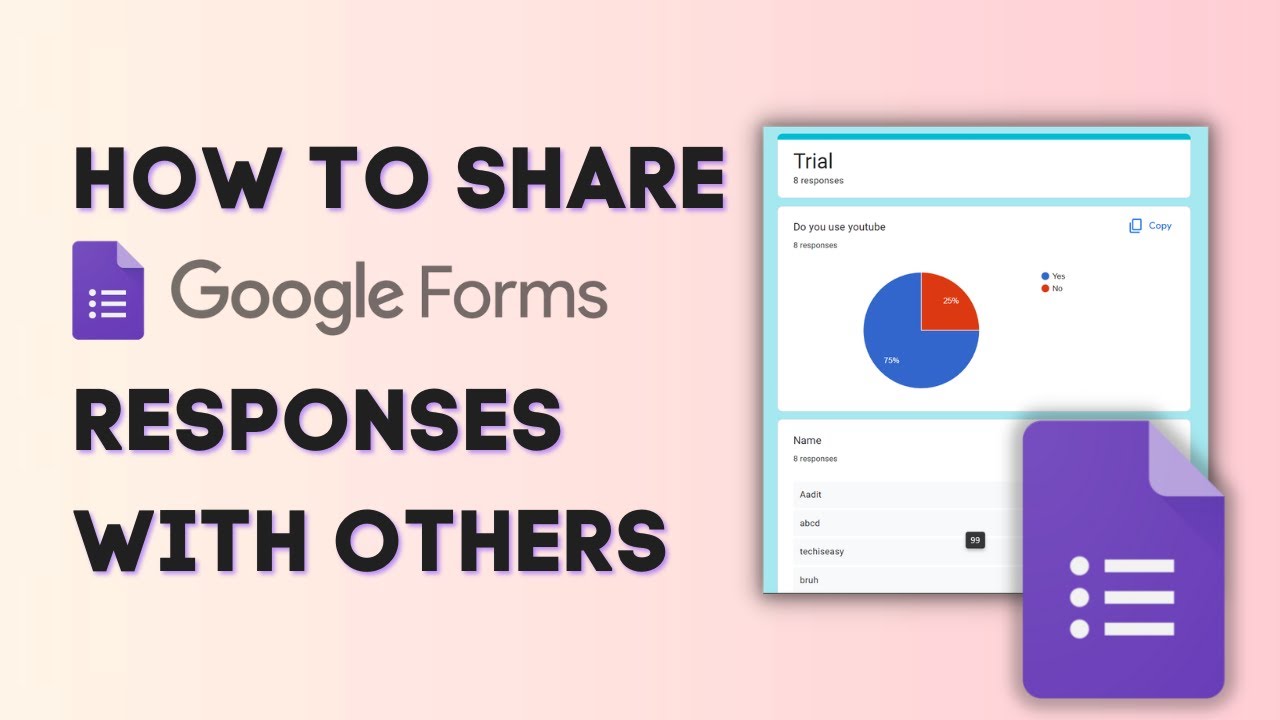
Once your Google Form has collected answers, you may want a teammate, teacher or client to see them too. There are five ways to share Google Form responses, and each one suits a different need: full access, just the charts, a live spreadsheet, a file for people who do not use Google Sheets, or a printout of every submission.
What you need
- A Google Form that already has responses, open on the Responses tab
- The email addresses of the people you want to share with
Method 1: Add collaborators to the form
1Open Add collaborators
Click the three dots next to the Send button at the top right and choose Add collaborators.
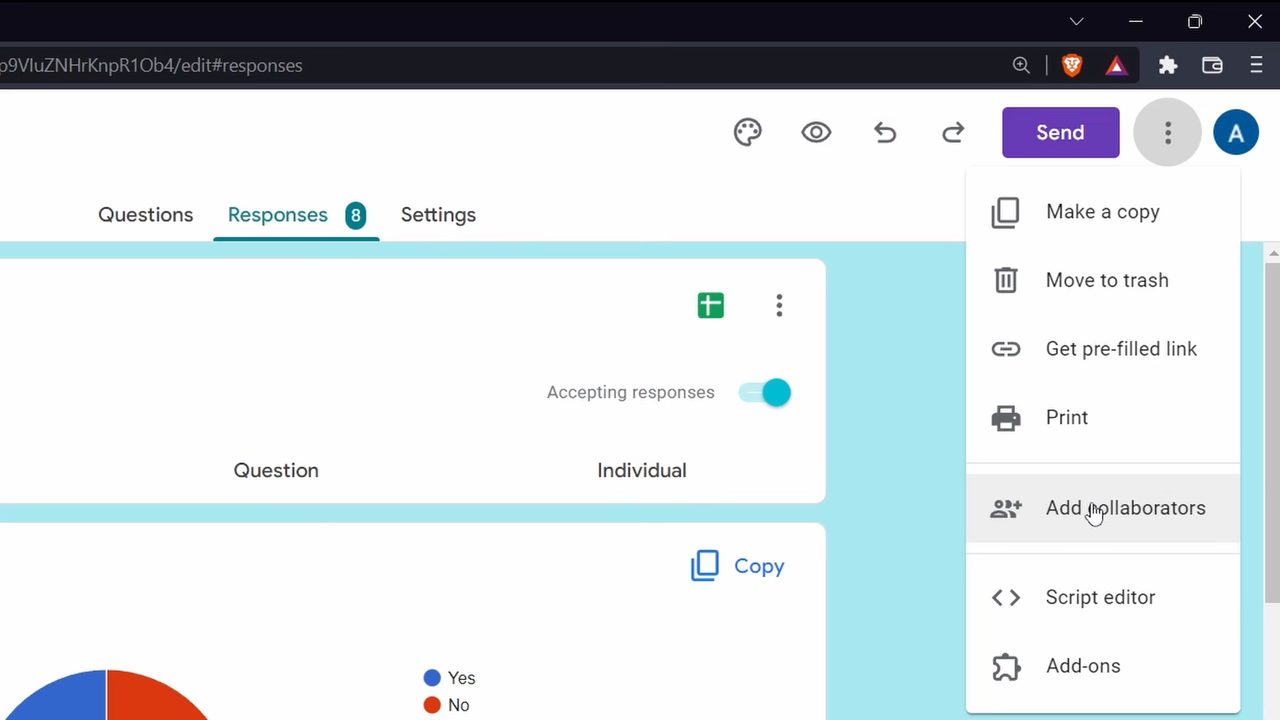
2Enter their email addresses
Type the email address of each person in the Add editors box. Google Forms notes that editors will be able to view and delete form responses, so only add people you trust with the whole form.
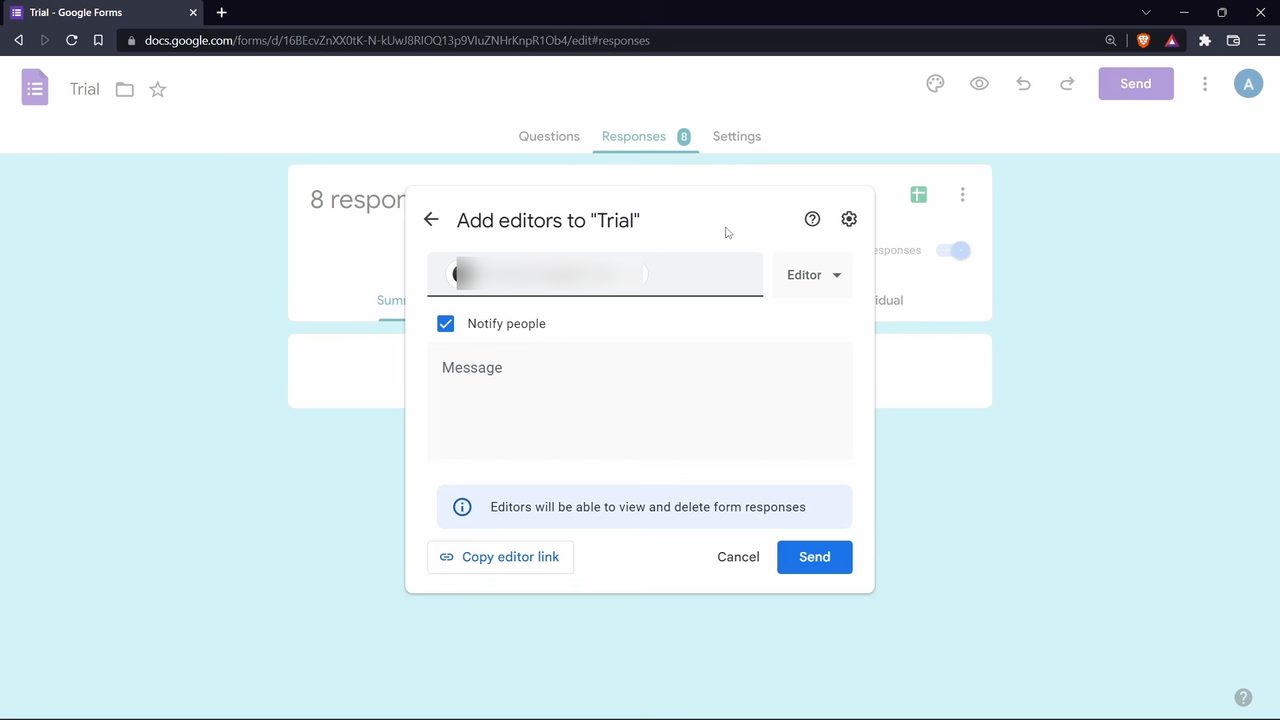
3Adjust permissions and send
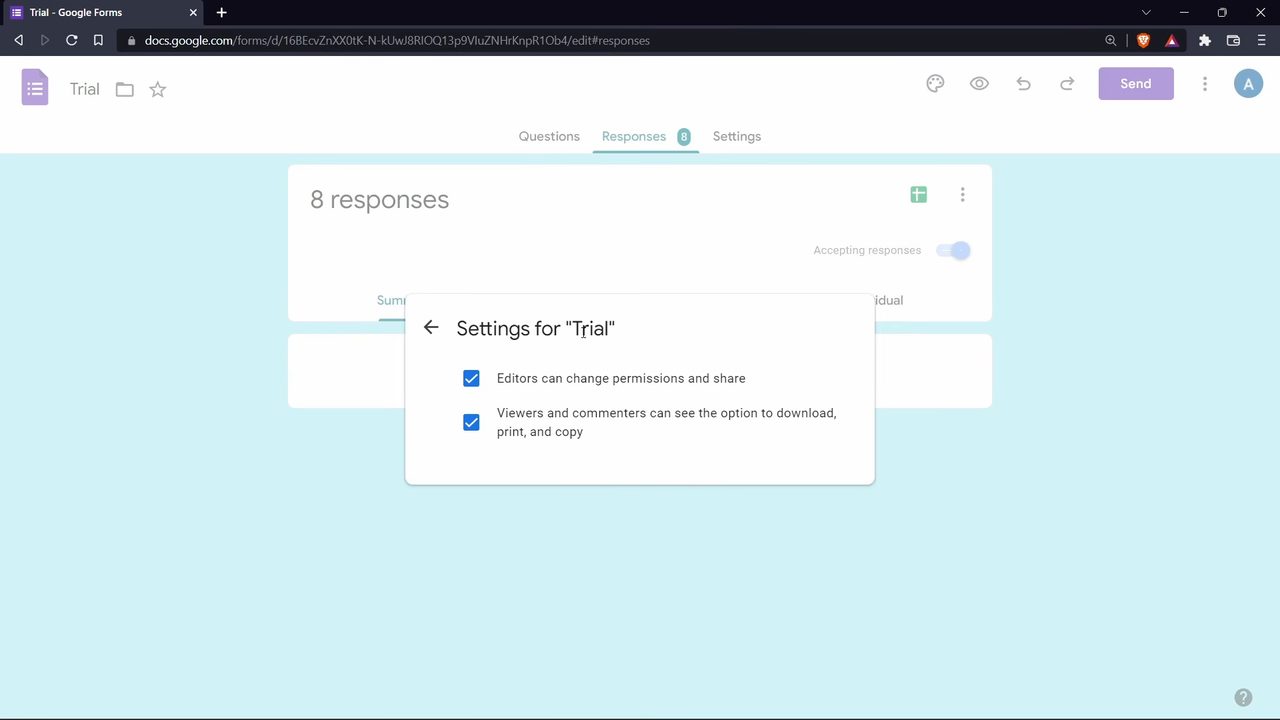
Click the gear icon in the dialog to open the settings. Untick Editors can change permissions and share if you do not want them sharing the form further. Go back and click Send. They can now open the form and see every response.
Method 2: Save the summary charts as a PDF
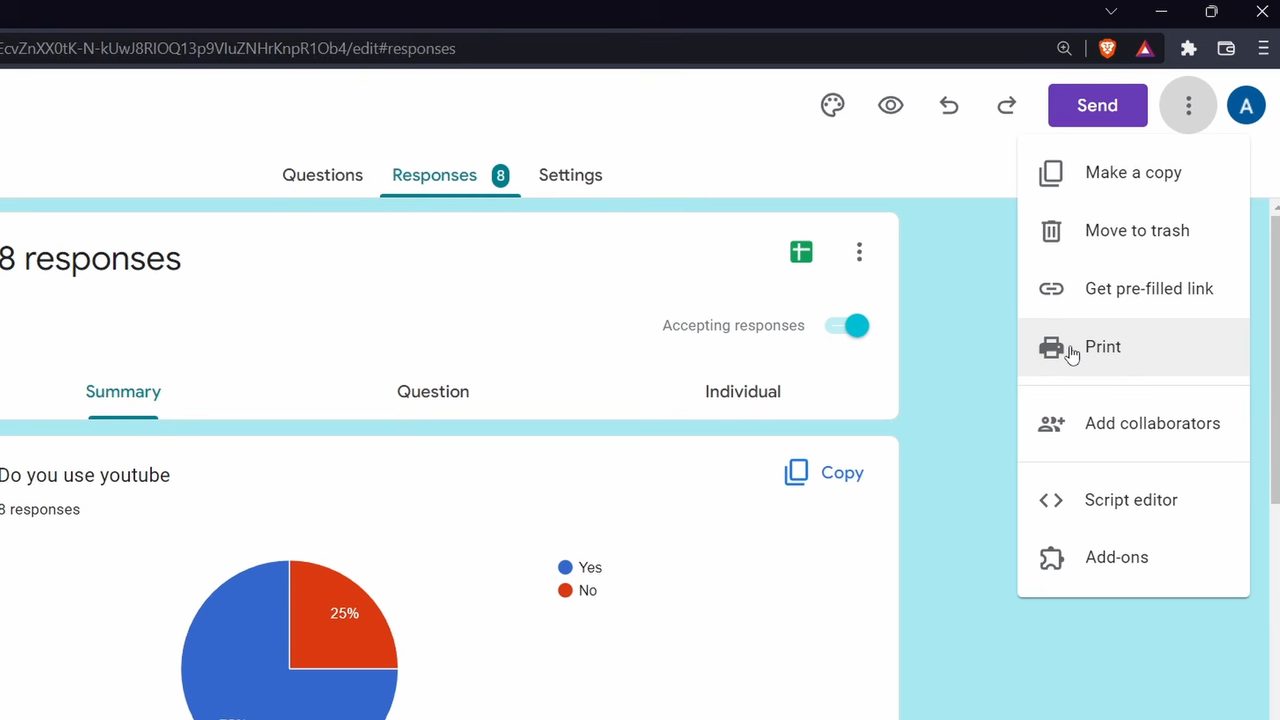
4Print the response summary
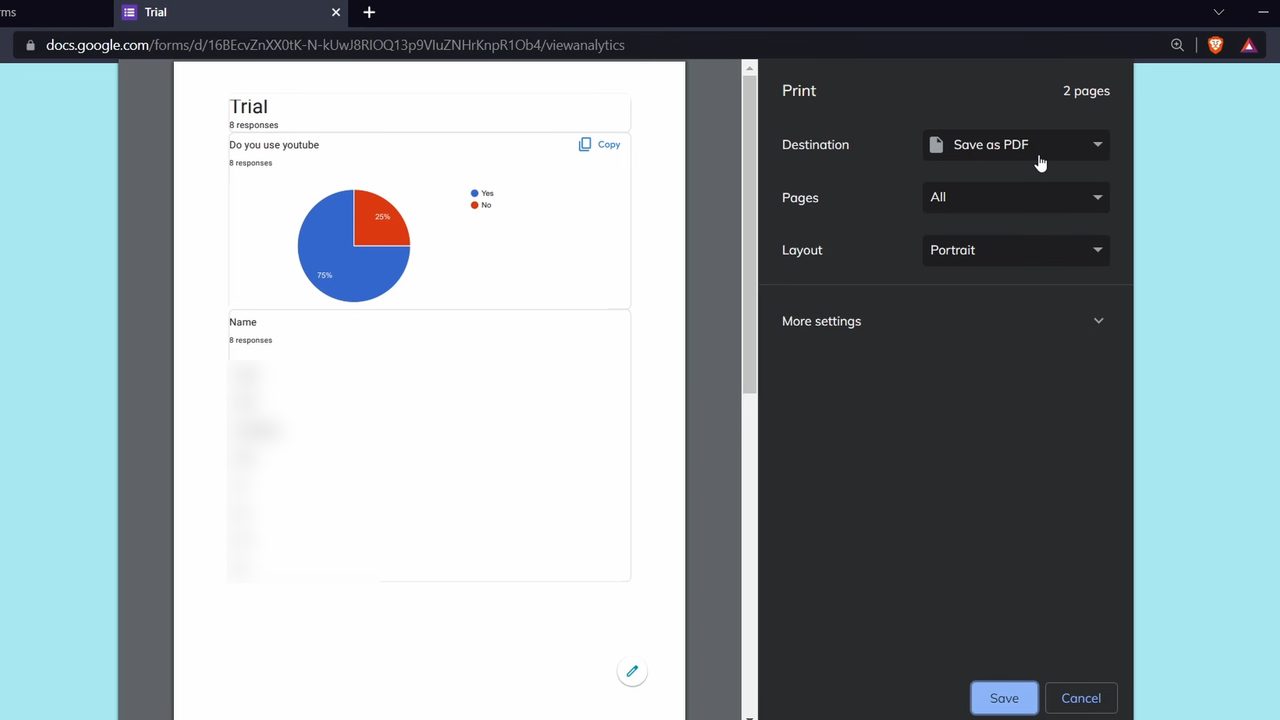
On the Responses tab, click the three dots at the top right and choose Print (or press Ctrl + P). In the print window, set Destination to Save as PDF and click Save. The PDF includes the charts and the answers, and you can email it to anyone.
Method 3: Share a linked Google Sheet
5Link the responses to a sheet
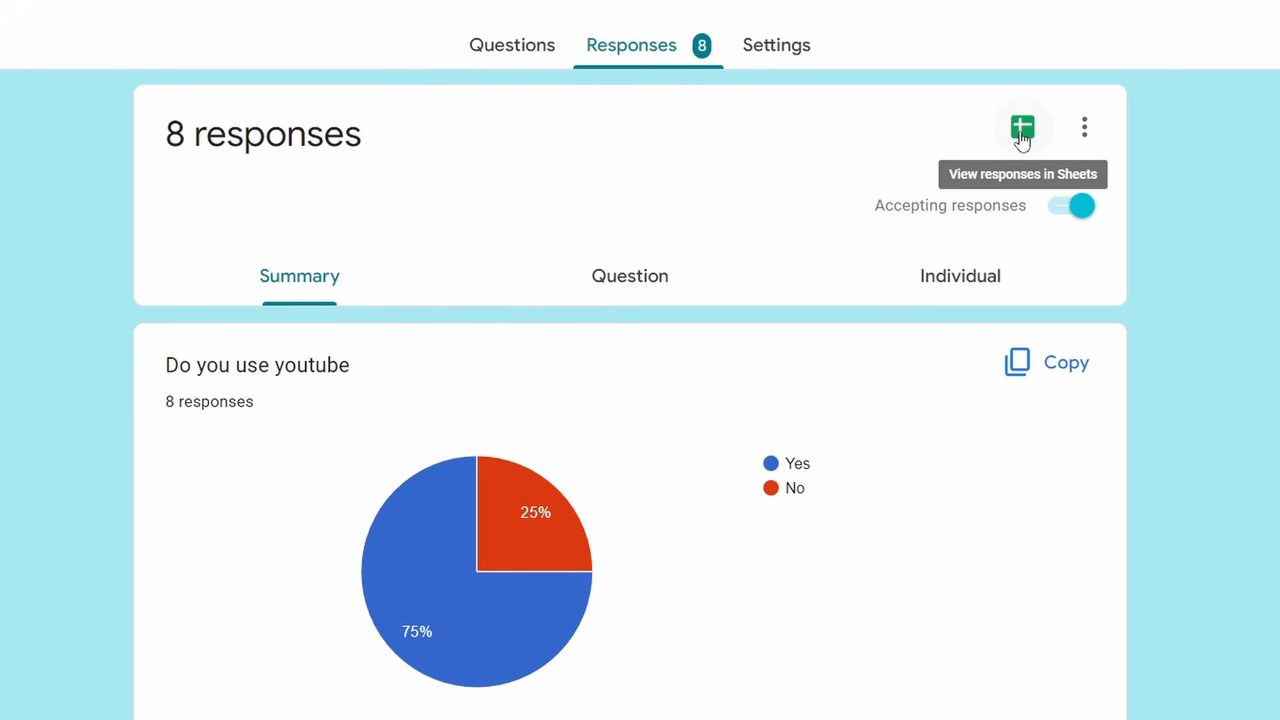
Click the green View responses in Sheets icon on the Responses tab. Google creates a spreadsheet with every response in rows.
6Share the sheet as view only
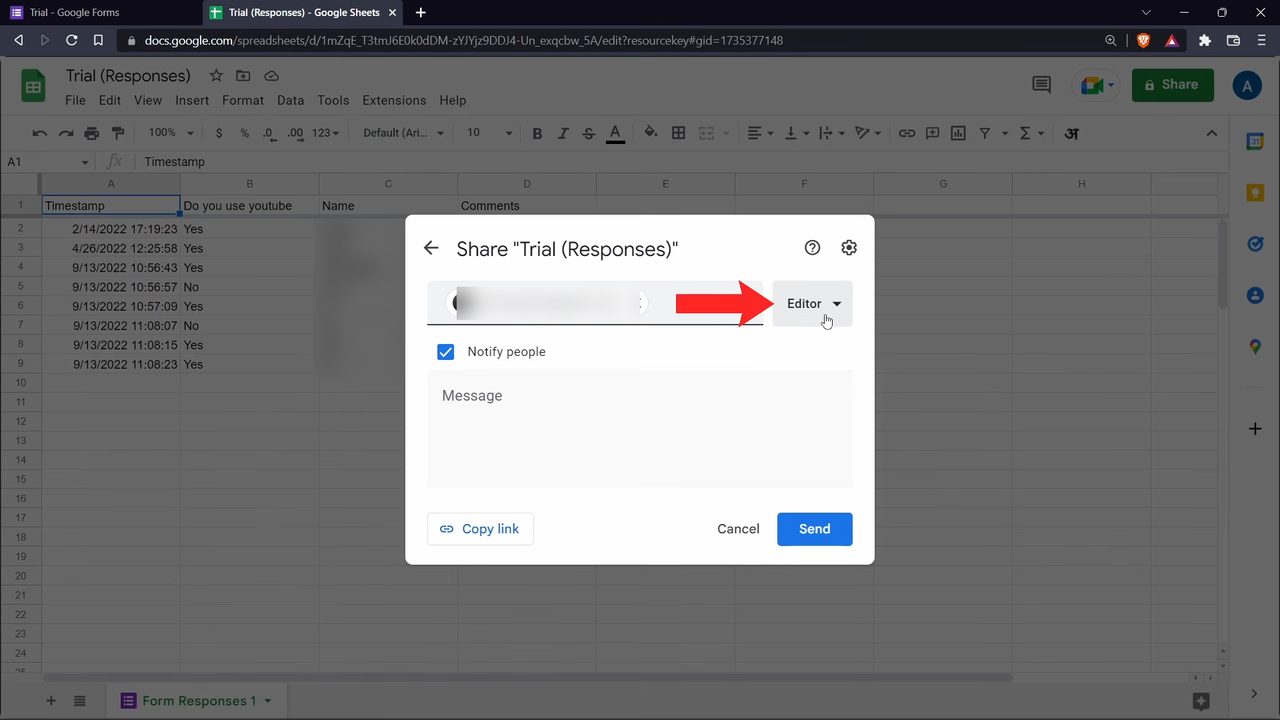
In the sheet, click Share at the top right and enter the email addresses. Click the Editor drop-down next to them and change it to Viewer so they can see the data without changing it, then click Send. New responses keep appearing in the sheet automatically. The one downside is that the Forms summary charts are not included.
Method 4: Download the responses as a CSV file
7Download responses (.csv)
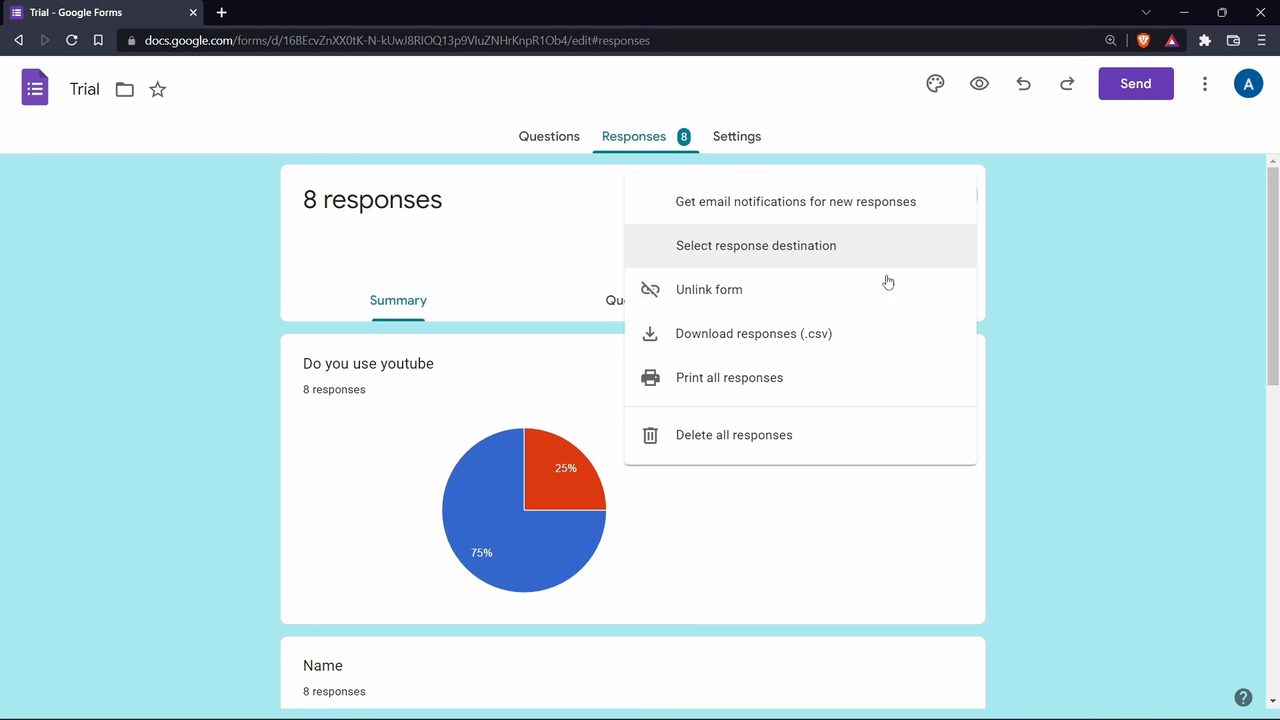
This works well for people who do not use Google Sheets. On the Responses tab, click the three dots next to the Sheets icon and choose Download responses (.csv). The file opens in Excel, and you can email it to whoever needs it.
Method 5: Print all responses
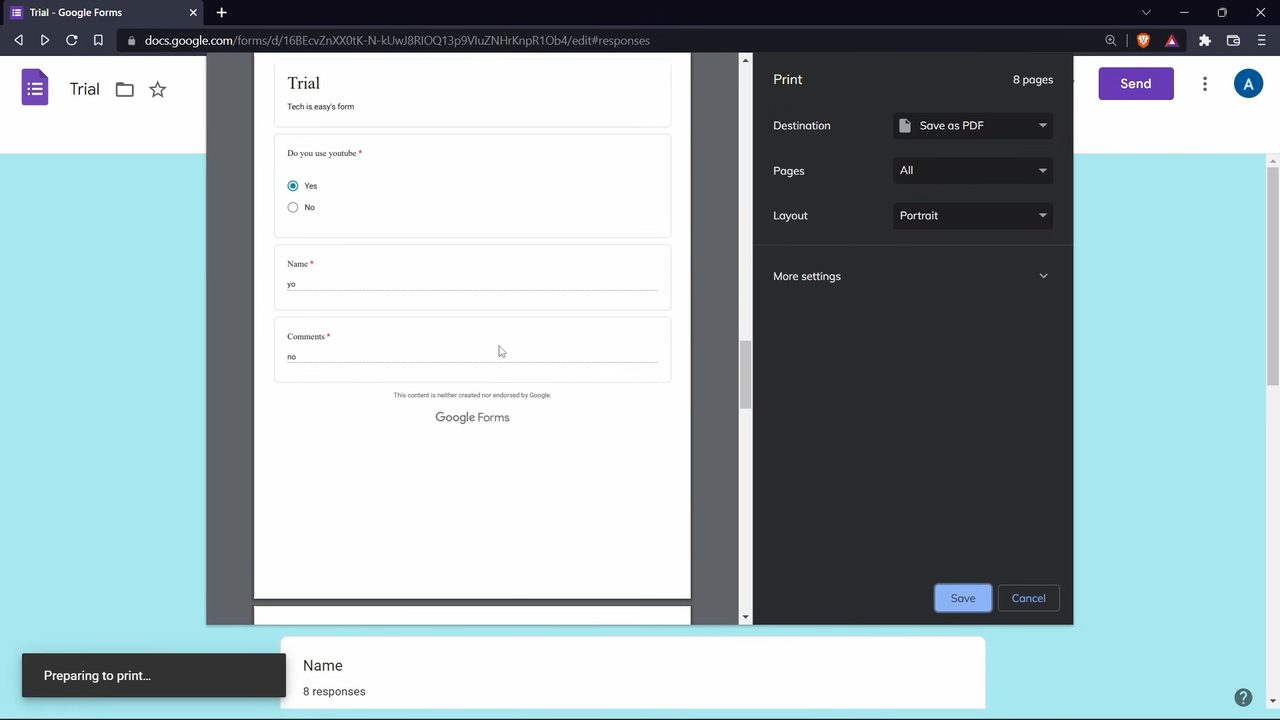
8Save every submission as a PDF
From the same three dots menu, choose Print all responses. This shows each response laid out like the filled-in form, one after another, so you can see exactly how each person answered. Keep Destination as Save as PDF, click Save, and email the file.
Tips / troubleshooting
- Use Method 3 with Viewer access when you want people to see responses but not edit or delete anything.
- Methods 2, 4 and 5 give a snapshot. If new responses come in later, you will need to export and send the file again.
- If your form uses branching, see how to add conditional questions in Google Forms; the sharing methods above work the same way for those forms.
FAQ
How do I share Google Form responses without giving edit access?
Link the form to a Google Sheet and share that sheet with Viewer access. People can read every response, but they cannot edit the form or delete answers.
Can I share the Google Forms summary charts?
Yes. On the Responses tab, use Print from the three dots menu and save the page as a PDF. The PDF keeps the charts, so you can send it by email.
How do I download Google Form responses as an Excel file?
Click the three dots on the Responses tab and choose Download responses (.csv). The CSV file opens in Excel or any spreadsheet app.
Can collaborators delete my form responses?
Yes. Anyone added as an editor through Add collaborators can view and delete responses. If you only want people to read the results, share a linked sheet or a PDF instead.
Related guides